


 Video Converter Ultimate
 Snimač zaslona
 Video popravak
Kako spojiti M4V datoteke? Evo 2 najbrža rješenja
M4V datoteke, također poznate kao MPEG-4 video datoteke, obično se preuzimaju s iTunesa. Vrlo su slične MP4 datotekama jer obje koriste MPEG-4 kontejnerski format. Vrlo je vjerojatno da ste upravo preuzeli nekoliko nepotpunih video isječaka u M4V formatu s iTunesa i zatim poželjeli spojiti M4V datoteke u jednu potpunu priču bez prekida. Kako spojiti M4V datoteke? Ovaj članak namjerava predstaviti dvije metode kako to učiniti učinkovito i bez gubitka kvalitete slike.

1. dio: Najbrže rješenje - upotrijebite besplatno spajanje M4V na mreži
Za najbrže rješenje možete koristiti FVC besplatni mrežni spajač videa, za čije vam korake i postavke neće trebati puno vremena da ih savladate. Samo učitajte alat u pregledniku, dodajte svoje M4V datoteke i jednim klikom ih spojite u jednu.
Ključne značajke
- • Spojite M4V datoteke bilo koje količine i bilo koje veličine u jednu datoteku besplatno.
- • Jednostavno sučelje i intuitivni procesi pre spajanja.
- • Spojene datoteke M4V možete spremiti kao 9 drugih glavnih formata.
- • U kombiniranim M4V videozapisima ne ostavljajte vodeni žig.
- • Učitajte datoteke bilo koje veličine u samo 1 sekundi.
Koraci za besplatno mrežno spajanje M4V datoteka
Korak 1. Kliknite ovdje da učitate FVC besplatni mrežni spajač videa. Na web-stranici mrežnog alata kliknite gumb Upload Videos to Merge u sredini zaslona.
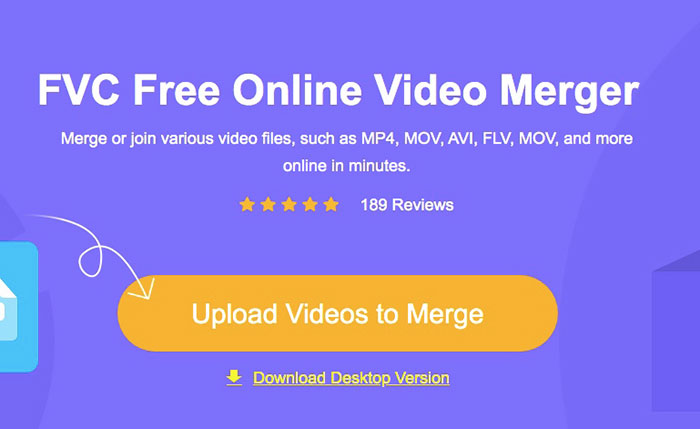
Napomena: Ako alat koristite prvi put, zatražit će od vas da preuzmete i instalirate pokretač. Nakon što instalirate pokretač, ponovno kliknite gumb Upload Videos to Merge.
Korak 2. Sada bi se trebao pojaviti prozor Open. Ovdje trebate odabrati M4V datoteke, a zatim kliknuti gumb Open na dnu prozora.
Korak 3. Nakon učitavanja M4V datoteka, možete prilagoditi njihov redoslijed uklanjanjem postojećih i umetanjem novih na željena mjesta.
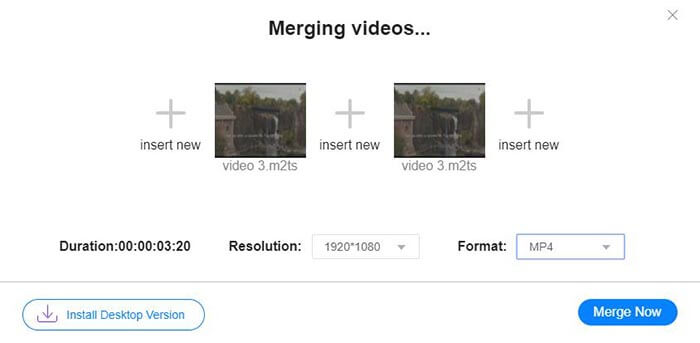
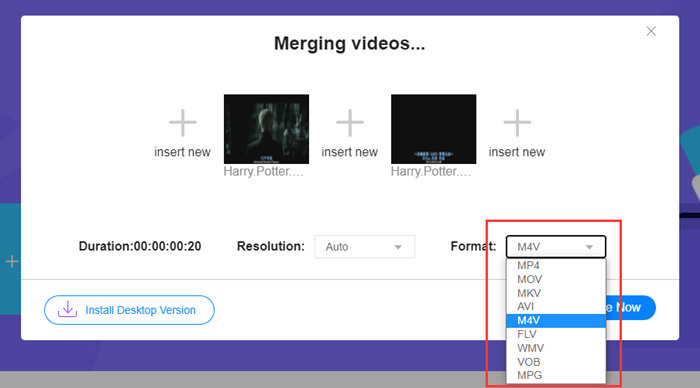
Korak 4. Kako biste zadržali spojenu datoteku u M4V formatu, morate odabrati M4V na popisu Format. Također možete odabrati bilo koji od ponuđenih formata da biste pretvorili spojeni M4V video.
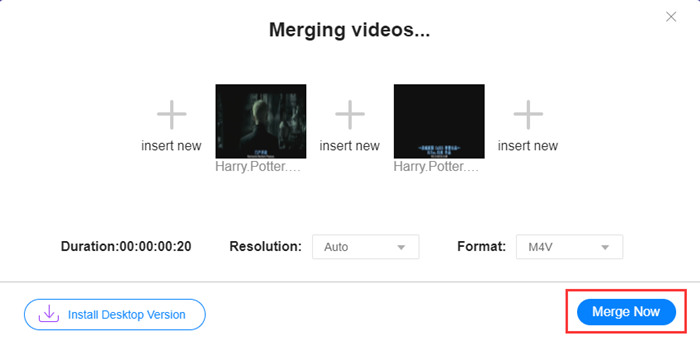
Korak 5. Kliknite gumb Merge Now za početak spajanja M4V datoteka. Alat će vas zatim zatražiti da odredite odredišnu mapu izlazne datoteke.
Kada vidite donju obavijest o uspjehu, spojeni videozapis sprema se na vaše računalo.
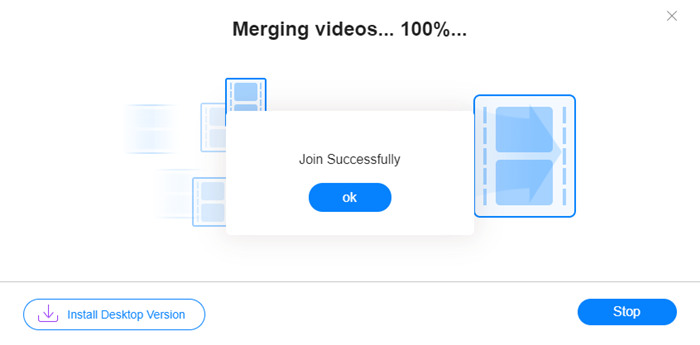
Već ste naučili najbrži način za spajanje M4V datoteka. Međutim, ova metoda vam dopušta samo da videozapise spojite jedan za drugim, ali vam ne pomaže odrezati neželjene završetke, što može dovesti do razdoblja crnog ekrana u videu. Možda će vam trebati i sljedeća metoda, koja ne samo da spaja M4V datoteke, nego ih i besprijekorno skraćuje. Ovdje možete komprimirati M4V datoteke.
Dio 2: Metoda za neprimjetno spajanje M4V datoteka
Kako biste dobili potpun i neprekinut video, samo spajanje M4V datoteka jednu za drugom nije dovoljno. Potrebno je i odrezati neželjene dijelove na početku i na kraju. Zato je potreban alat za uređivanje videa. Imate mnogo mogućnosti, ali ovdje bismo željeli preporučiti Video Converter Ultimate. Razlog je jednostavan: lako se koristi, a njegove funkcije su dovoljno snažne.
Ključne značajke
- • Spojite, obrežite, zakrenite, obrežite i dodajte efekte M4V videozapisima.
- • Tehnologija hardverskog ubrzanja pomaže spajanju M4V datoteka 70 puta brže.
- • Obilna kolekcija filtara i efekata za uljepšavanje vaših videozapisa
- • Upotrijebite ugrađeni pojačivač video zapisa za poboljšanje kvalitete video zapisa
- • Pretvorite svoje videozapise u 3D i uživajte u njima uz 3D naočale
Besplatno preuzimanjeZa Windows 7 ili novijiSigurno preuzimanje
Besplatno preuzimanjeZa MacOS 10.7 ili novijiSigurno preuzimanje
Koraci za besprijekorno spajanje M4V datoteka
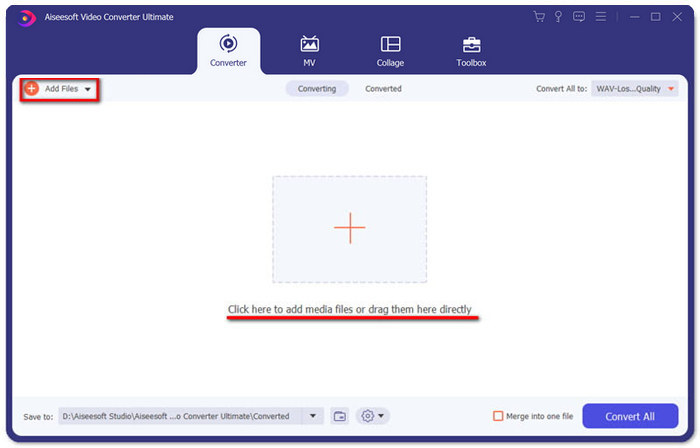
Korak 1. Instalirajte i pokrenite Video Converter Ultimate. Kliknite gumb Add Files ili povucite datoteke u sučelje da biste dodali videozapise.
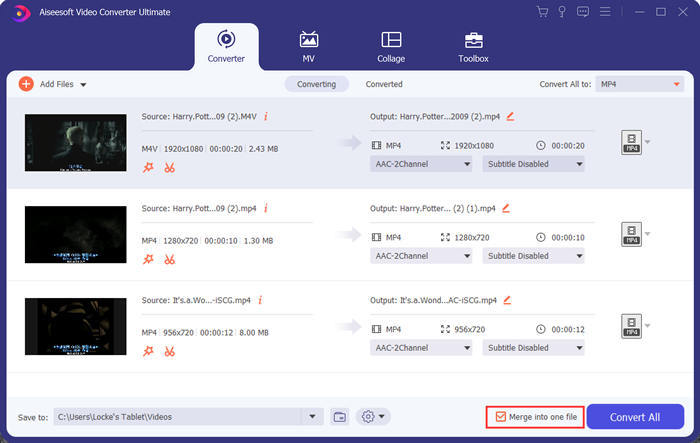
Nakon što ih dodate, možete povlačenjem datoteka gore ili dolje odrediti njihov redoslijed. Također trebate označiti kućicu Merge into one file kako program ne bi zasebno pretvarao dodane videozapise.
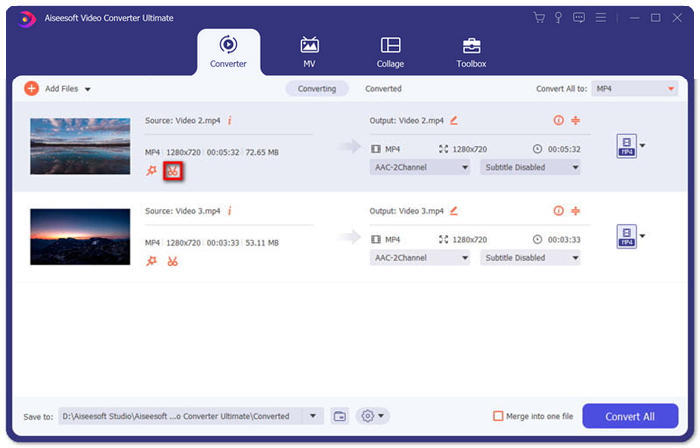
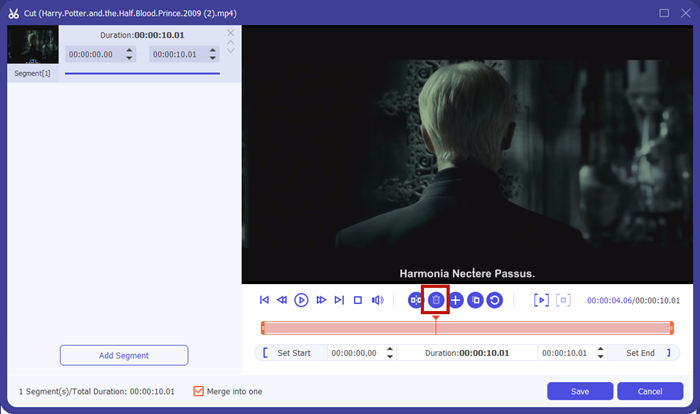
Korak 2. Za korištenje funkcije skraćivanja kliknite ikonu Cut na dodanom videu.
U sučelju Cut lako možete odrezati neželjene dijelove videa. Samo odaberite segment postavljanjem početne i završne točke, a zatim kliknite ikonu kante za smeće da ga uklonite.
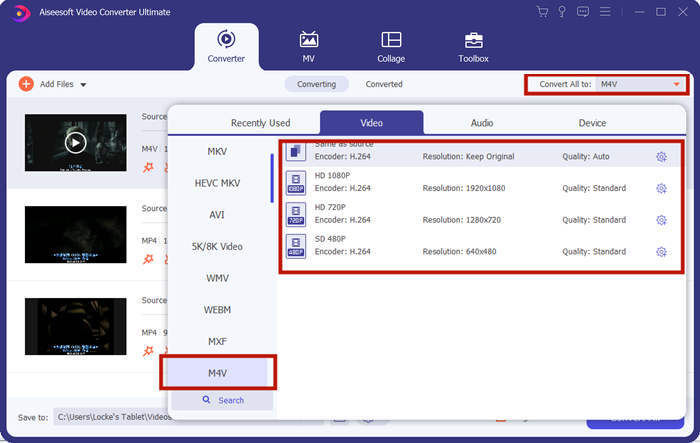
Korak 3. Povratkom u glavno sučelje možete odabrati izlaznu datoteku. Kliknite strelicu prema dolje pored Convert All to. Zatim možete odabrati M4V ili neki drugi format kao izlazni format.
Korak 4. Kliknite gumb Convert All u donjem desnom kutu programa i pričekajte da program spoji M4V datoteke.

Kada je spajanje završeno, vidjet ćete obavijest o uspjehu. Tada možete pronaći spojenu M4V datoteku u odredišnoj mapi. Iznad su dvije metode za spajanje M4V video datoteka. U nastavku smo zaključili i nekoliko najčešće postavljanih pitanja.
Dio 3: Česta pitanja o pridruživanju M4V datoteka
Što je M4V datoteka?
M4V, koji je dizajnirao Apple, ponekad se naziva i iTunes Video File. Sličan je MP4-u jer se obje temelje na MPEG-4. Najposebnija značajka M4V je da bi iTunes mogao dodati DRM zaštitu kako bi spriječio neovlaštenu distribuciju iTunes videozapisa.
Kako otvoriti M4V datoteku?
Ako M4V datoteka nije zaštićena DRM-om, može se reproducirati u programima VLC, QuickTime, Windows Media Player i mnogim drugim multimedijskim reproduktorima. Ponekad je dovoljno i promijeniti nastavak .M4V u .MP4 da biste je otvorili. Međutim, M4V datoteka s DRM zaštitom može se reproducirati samo na ovlaštenim uređajima.
Mogu li ukloniti DRM zaštitu s M4V datoteke?
Da, možeš. Na tržištu možete pronaći bezbroj programa za uklanjanje DRM-a. Evo nekih od njih: TunesKit DRM M4V Converter, Aimersoft DRM Media Converter, Requiem DRM Remover, Ondesoft iTunes Convertert, Apple Music Converter.
Zaključak
U ovom su tekstu predstavljena dva učinkovita načina kako spojiti više M4V video datoteka u jednu. Za najbrže rješenje, FVC besplatni mrežni spajač videa vaš je najbolji izbor. Možete ga koristiti bez preuzimanja ikakvog programa. Postupak učitavanja također se može odmah dovršiti. Ali ako želite veću kvalitetu ili ne želite samo spojiti M4V datoteke, nego ih i skratiti, možete se okrenuti programu Video Converter Ultimate. Pruža vam snažne funkcije uređivanja, a sučelje je prilagođeno početnicima. Ako ste pronašli neka bolja rješenja, voljeli bismo čuti za njih. Samo nam ostavite komentar u nastavku.
-
 Kako pretvoriti M4V u MP4 sa / bez DRM-a
 6 načina za besplatno pretvaranje M4V u MP4 (uključujući uklanjanje DRM-a)
-
 5 najboljih M4V igrača za jednostavnu reprodukciju M4V datoteka na računalima / mobitelima
 Top 5 M4V playera za Windows / Mac / Android / iOS koje biste trebali znati
-
 Kako izvući MP3 iz M4V pomoću 4 izvrsne metode koje biste trebali znati
 M4V u MP3 Converter - 4 najbolje metode za izdvajanje MP3 iz M4V datoteka
