


 Video Converter Ultimate
 Snimač zaslona
 Video popravak
5 načina kako popraviti Windows Media Player koji ne radi na sustavu Windows 7/8/10
Windows Media Player prestao je raditi. Problem je uzrokovao da program prestane ispravno raditi. Također će reproducirati zvuk, ali ne i video. Kako riješiti ovaj problem?
Kad Windows Media Player prestane raditi, možda ćete dobiti pogrešku "Window Media Player je prestao raditi" bez ikakvih specifičnih podataka o tome ili ćete biti obaviješteni da "Vrsta datoteke nije podržana". Čak i nema upita, a vaši klikovi jednostavno ne rade.
Postoji mnogo razloga zbog kojih Windows Media Player ne radi. Najčešći je problem taj da datoteke nisu podržane, što dovodi do reprodukcije videa bez slike, zvuka ili titlova. U suprotnom, uzroci mogu biti vrlo različiti, bez ikakve konkretne poruke o grešci. U tom slučaju morate provjeriti sve probleme navedene u sljedećem članku kako biste ispravili ovu složenu pogrešku. No možete se i odlučiti za najbolju opciju – korištenje alternativnog video playera kako biste gledali bilo koji video bez problema i ograničenja.

1. dio: Najbolji alternativni media player koji ne smijete propustiti
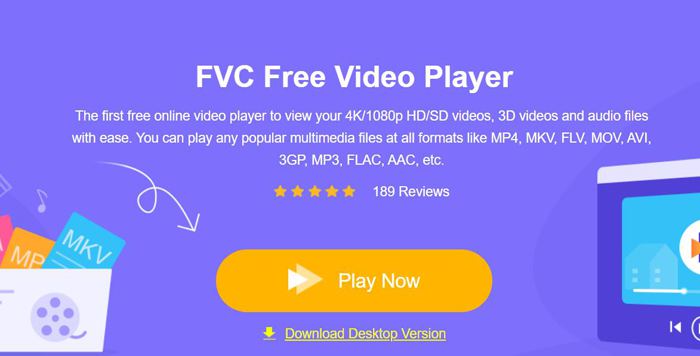
Kako biste izbjegli da Windows Media Player ne radi, bolje je odabrati profesionalnu alternativu. FVC Free Video Player je besplatni internetski video player koji će riješiti sve probleme na koje možete naići pri korištenju Windows Media Playera. Podržava reprodukciju videa bez ograničenja formata i rezolucije. I bez preuzimanja ikakvog dodatnog softvera možete glatko reproducirati sve video formate.
- 1. Podržava reprodukciju gotovo svih formata, uključujući FLV, MKV, RMVB i DVD ili Blu-ray datoteke.
- 2. Reproducirajte videozapise visoke kvalitete koji dosežu 4K razlučivost.
- 3. Mogućnost prilagodbe zvučnih zapisa i titlova na različitim jezicima.
- 4. Snimite snimku zaslona u bilo kojem trenutku tijekom reprodukcije videozapisa.
Korak 1: Otvorite web-stranicu FVC Free Video Playera u bilo kojem pregledniku. Zatim kliknite gumb Play Now kako biste instalirali pokretač. Nakon nekoliko minuta ponovno kliknite gumb Play Now da biste pokrenuli FVC Free Video Player.
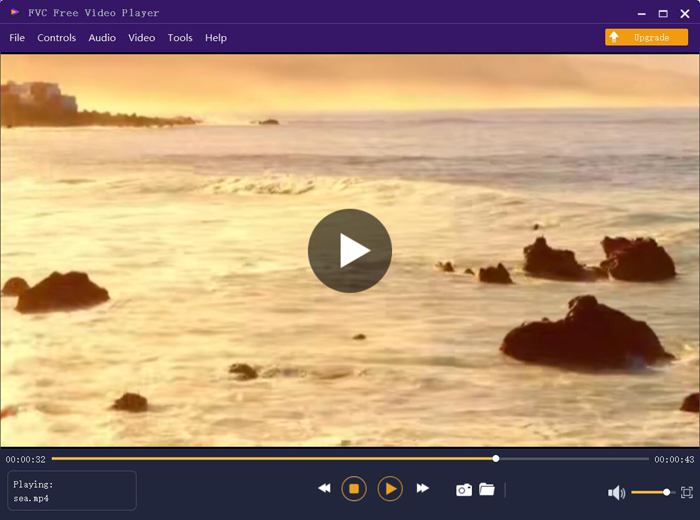
Korak 2: Kliknite gumb Open Files kako biste odabrali željeni video. Zatim će se automatski početi reproducirati. U izborniku Control možete vidjeti tipkovne prečace za podešavanje glasnoće. Također možete odabrati audio ili video zapise prema svojim potrebama. Štoviše, ako kliknete gumb Tools i odaberete opciju Effect, možete čak podesiti nijansu, osvjetljenje, kontrast, zasićenost i gamma vrijednost.
Dio 2: Kako ispraviti Window Media Player koji ne radi na sustavu Windows 7/8/10
Kao što je već spomenuto, mnogi razlozi mogu uzrokovati da Windows Media Player ne radi, a postoje tri metode za rješavanje ovog problema u različitim situacijama.
1. metoda: Pokrenite alat za rješavanje problema programa Windows Media Player
Kada vaš Windows Media Player ne reagira nakon klikova, ovaj način pomoći će vam da ga riješite.
Korak 1: Pritisnite tipke Windows i R na tipkovnici kako biste pokrenuli program Run. Zatim kopirajte i zalijepite msdt.exe -id WindowsMediaPlayerConfigurationDiagnostic u traku za pretraživanje. Kliknite gumb OK da biste otvorili alat za otklanjanje poteškoća s postavkama Windows Media Playera. Zatim kliknite gumb Next za pokretanje alata.
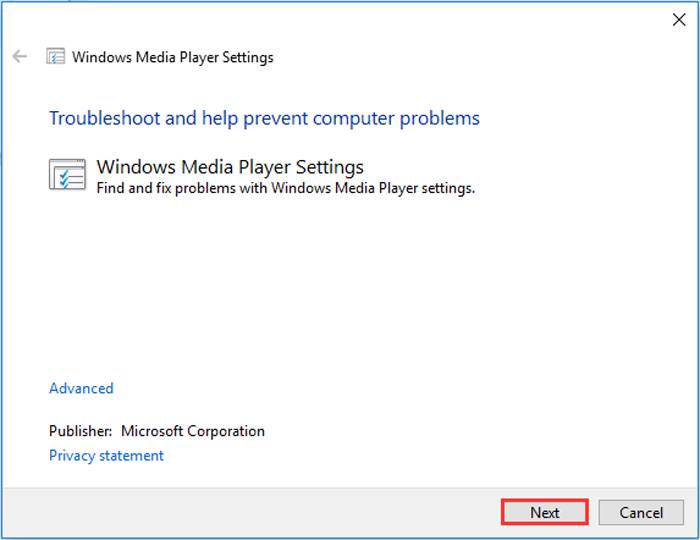
Korak 2: Nakon što se pojavi prozor, kliknite gumb Apply this fix kako biste resetirali Windows Media Player na zadane postavke. Zatim pokušajte ponovno pokrenuti Windows Media Player.
2. način: Instalirajte druge dekodere na Windows Media Player
Ako vaš Windows Media Player ne radi s nekim posebnim videozapisima ili audio zapisima, možete preuzeti odgovarajući dekoder za reprodukciju tih videozapisa.
Korak 1: Otvorite Microsoft Store na svom računalu. Kliknite gumb Search, a zatim u traku za pretraživanje upišite Video Extension. Možete preuzeti željenu video ekstenziju na svoje računalo.
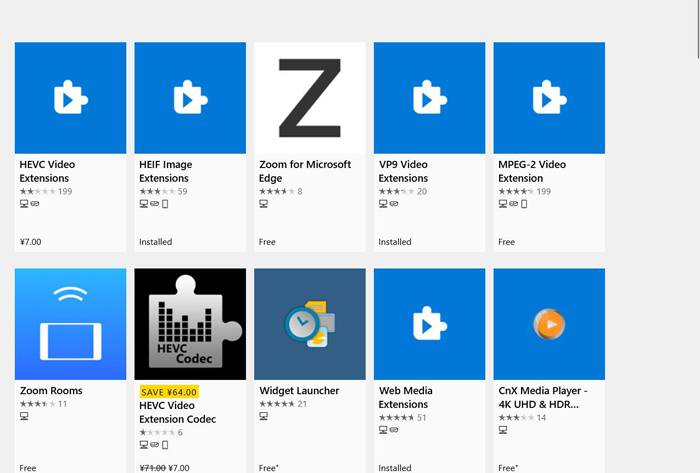
Korak 2: Nakon instalacije ponovno otvorite videozapise putem Windows Media Playera. Ali imajte na umu da i dalje postoji mnogo formata koji nisu podržani, uključujući FLV, RMVB itd.
3. metoda: Ponovo instalirajte Windows Media Player.
Ako spomenuta metoda ne uspije, pokušajte ponovo instalirati softver kada Windows Media Player prestane raditi.
Korak 1: Pritisnite tipke Windows i R na tipkovnici kako biste otvorili program Run. Zatim u traku za pretraživanje upišite optionalfeatures.exe. Kliknite gumb OK da biste otvorili ili zatvorili funkciju. Zatim uklonite kvačicu s opcije Windows Media Player.
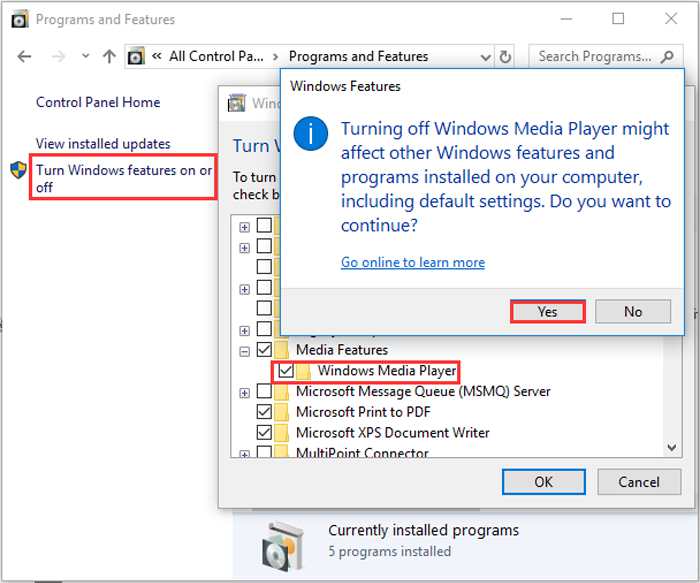
Korak 2: Ponovno pokrenite računalo i ponovite prethodnu radnju. Zatim ponovno označite Windows Media Player. Nakon toga još jednom restartajte računalo i softver će se automatski instalirati na vaše računalo.
Osim ovih problema, Windows Media Player ima i brojne nedostatke. Ne možete podesiti brzinu reprodukcije videozapisa, a prečice su uvijek beskorisne. Pa zašto ne biste odabrali besplatni internetski video uređaj za rješavanje svih problema?
Dio 3: Česta pitanja o Windows Media Playeru ne rade
1. Zašto se FLV video datoteke ne mogu reproducirati na Windows Media Playeru?
Iako Windows Media Player podržava instalaciju više dekodera za reprodukciju videa u nekim neuobičajenim formatima, FLV format nije podržan. U tom slučaju možete pokušati preuzeti alternative za Windows Media Player ili konvertirati video formate.
2. Zašto moj Window Media Player ne radi nakon ažuriranja sustava Windows 10?
Možda se Windows Media Player oštetio nakon ažuriranja. Možete pokušati spomenutom metodom 3 za ponovnu instalaciju programa Windows Media Player.
3. Kako odabrati pjesme s titlovima na Window Media Playeru?
Nažalost, na Windows Media Playeru ne postoji mogućnost odabira različitih titlova, videozapisa i zvučnih zapisa. Možete odabrati druge alternative za reprodukciju videozapisa.
Zaključak
Razlozi zbog kojih Windows Media Player ne radi bit će vrlo složeni, što otežava rješavanje ovog problema. Stoga možete jednostavno preuzeti najbolji alternativni media player - FVC Free Video Player za glatku reprodukciju videozapisa s visokom kvalitetom. Na taj način možete spriječiti da Windows Media Player ne radi zauvijek.
-
 Kako reproducirati DVD na Windows Media Playeru 2021
 Zašto se moj DVD ne reproducira na Windows Media Playeru? Kako reproducirati DVD na Windows 7 media playeru? Ovaj post dijeli 3 načina reprodukcije DVD-a sa ili bez WMP-a.
-
 6 provjerenih rješenja za popravljanje videozapisa koji se ne reproduciraju na Chromeu
 Da biste riješili problem što se videozapisi ne reproduciraju na Chromeu, sve što trebate je pročitati naše rješavanje problema i izvoditi provjerena rješenja jedno po jedno.
-
 5 100% radna rješenja za popravljanje videozapisa koji se ne reproduciraju na iPadu
 Vaši se videozapisi ne reproduciraju na iPadu? Evo pet rješenja koja će vam pomoći da se riješite ovog problema, a zatim ćete lako moći uživati u svojim omiljenim videozapisima na slušalici.
