


 Video Converter Ultimate
 Snimač zaslona
 Video popravak
Kako pretvoriti FLV datoteke u iPhone videozapise bez gubitka kvalitete
Dobro je poznato da su iPhone i iPad opremljeni najnovijom generacijom zaslona. Zbog toga je gledanje filmova na iUređajima popularna aktivnost. Međutim, korisnici iOS‑a se uvijek suočavaju s preprekom u formatu pri reprodukciji filmova. Primjerice, prilično uobičajene FLV datoteke nisu podržane izvornim Appleovim softverom. Zato dijelimo ovaj vodič koji vam pomaže lako pretvoriti FLV u iPhone video format na računalu ili online.

Dio 1: Najbolji besplatni program za pretvaranje FLV u iPhone video
Izvorno, iPhone podržava M4V, dio MP4, MOV i dio AVI formata. To otežava pretvaranje FLV‑a u format za iPhone. FVC Free FLV Converter je moćan alat. Pruža gotove postavke za izravno pretvaranje multimedijskih datoteka u format za iPhone. Još važnije, potpuno je besplatan za korištenje.
Glavne značajke najboljeg besplatnog FLV u iPhone video konvertera
- 1. Jednostavno pretvorite FLV datoteke u iPhone video format.
- 2. Uključite puno unaprijed postavljenih postavki za iPhone, iPad i više.
- 3. Ponudite opsežne bonus značajke, poput poboljšanja videozapisa.
Besplatno preuzimanjeZa Windows 7 ili novijiSigurno preuzimanje
Besplatno preuzimanjeZa MacOS 10.7 ili novijiSigurno preuzimanje
Kako pretvoriti FLV u iPhone video u paketu
Korak 1: Dodajte FLV datoteke
Pokrenite najbolji besplatni FLV u iPhone video konverter nakon što ga instalirate na svoje računalo. Zatim kliknite gumb Add File(s) kako biste otvorili dijalog za odabir datoteka. Pronađite i odaberite sve FLV datoteke koje želite reproducirati na iPhoneu i kliknite Open. Konverter podržava skupno pretvaranje.

Korak 2: Postavite izlazni format
Nakon učitavanja FLV‑a, sve ćete ih vidjeti u biblioteci. Idite na donje područje, kliknite i proširite opciju Output format. Odaberite Apple iPhone na popisu i izaberite model svog uređaja. Tada će softver prema tome optimizirati parametre. Postavit će izlazni format za sve FLV datoteke. Ako želite promijeniti neki određeni parametar, kliknite ikonu Gear da biste otvorili dijalog s profilom.

Korak 3: Pretvorite FLV u iPhone video
Zatim kliknite gumb Open Folder, odaberite odredišnu mapu i potvrdite. Prema zadanim postavkama, softver će spremiti iPhone videozapise u vašu videoteku, ali to možete promijeniti prema vlastitim željama. Na kraju, kliknite gumb Convert da biste započeli pretvaranje FLV‑a u iPhone videozapise.

Osim toga, program također podržava pretvaranje FLV videozapisa za Xbox, PS4, Samsung, Apple TV ili druge popularne uređaje.
Dio 2: Kako pretvoriti FLV u iPhone Format Online
Neki ljudi ne vole instalirati softver na svoj tvrdi disk. Ponekad vam možda samo povremeno treba pretvoriti FLV u iPhone videozapise. U takvim slučajevima, web aplikacija za pretvaranje videozapisa, kao što je FVC Free Online Video Converter, praktičan je izbor. Može ispuniti vaše potrebe bez instaliranja ikakvog softvera. Osim toga, ne traži nikakvu uplatu ili registraciju. Za razliku od drugih web aplikacija, također nema ograničenja veličine datoteke, tako da možete učitati neograničen broj FLV datoteka za pretvaranje.
Korak 1: Otvorite https://www.free-videoconverter.net/free-online-video-converter/ u web pregledniku da biste otvorili početnu stranicu. Pritisnite gumb Add Files to Convert i preuzmite pokretač.

Korak 2: Kada se preuzimanje dovrši, pokretač će se automatski pojaviti. Zatim kliknite gumb Add File u gornjem lijevom kutu i učitajte FLV datoteke koje želite reproducirati na iPhoneu.
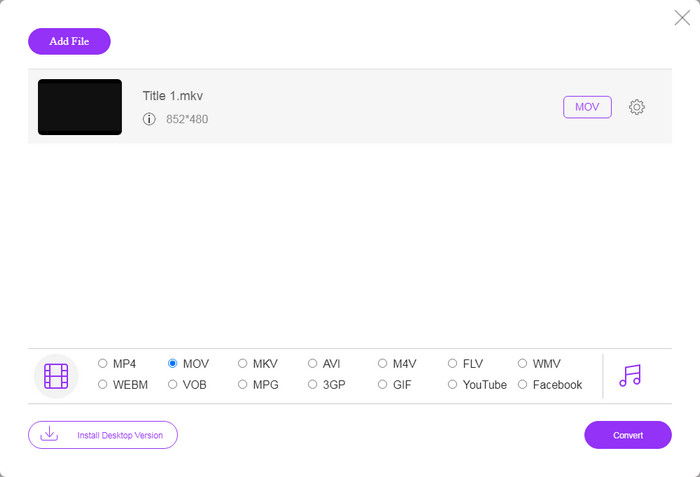
Korak 3: Pronađite donje područje za odabir formata i odaberite MOV, koji je najprihvatljiviji video format za iOS uređaje. Kliknite gumb Convert i web aplikacija će obaviti pretvaranje FLV‑a u iPhone format online. Pričekajte da se proces dovrši i preuzmite rezultat na svoj tvrdi disk.
Ako želite resetirati opcije, kliknite ikonu Postavke i naći ćete ih u dijaloškom okviru Postavke, poput razlučivosti, kodeka itd.
Dio 3: Česta pitanja o pretvaranju FLV u iPhone Video
Možete li reproducirati FLV datoteke na iPhoneu bez pretvorbe?
Jedini način da reproducirate FLV datoteke na iPhoneu bez pretvaranja jest instalirati treći FLV reproduktor, kao što je VLC za iOS. Tada možete lako gledati svoje omiljene filmove.
Gdje se videozapisi spremaju na iPhone?
Videozapisi koje snimite i prenesete na iPhone spremit će se u aplikaciju Fotografije. Ako videozapis preuzmete pomoću aplikacije, bit će spremljen u aplikaciju. U svakom slučaju, ne možete pristupiti sustavu datoteka na iPhoneu ili iPadu.
Koje se vrste datoteka iPhone koristi za videozapise?
Na iPhoneu je H.264 jedini podržani video kodek. Što se tiče video formata, MOV i MP4 su usko povezani. Za snimanje videozapisa na iOS-u Apple koristi noviji H.265 video kodek ili HEVC.
Zaključak
Sada biste trebali razumjeti kako otvoriti i reproducirati FLV datoteke na iPhoneu. Očito ne možete izravno otvoriti FLV videozapise na iPhoneu. Najbolji način je pretvoriti datoteke u format koji podržava iPhone, poput MOV-a. Tada možete glatko reproducirati videozapise. FVC Free FLV Converter jedan je od najboljih besplatnih FLV u iPhone video pretvarača. Nije samo jednostavan za upotrebu, već je u stanju i postići izvrsnu kvalitetu rezultata. Još pitanja? Zapišite u nastavku.
-
 3 jednostavne metode za pretvorbu FLV u AVI na radnoj površini i na mreži
 1. Lako pretvorite FLV videozapise u druge multimedijske formate. 2. Podržavaju gotovo sve video formate, poput AVI, MP4, MKV itd. 3. Skupni postupak obrađuje stotine FLV datoteka po konverziji.
-
 Top 3 načina za pretvaranje FLV u WMV na Windowsima i Macima
 Tražite li najbolji način za pretvorbu FLV-a u WMV bez gubitka kvalitete na računalu ili Macu? Imate sreće jer ovdje dijelimo tri metode za lagano obavljanje posla.
-
 Konkretni vodič za prijenos FLV videozapisa na YouTube
 Prenesite FLV na YouTube, ali niste uspjeli? Možete sami riješiti ovaj problem i pretvoriti FLV u kodeke podržane od YouTubea slijedeći naš korak-po-korak vodič.
