


 Video Converter Ultimate
 Snimač zaslona
 Video popravak
3 najbolja snimača Facebook poziva - kako snimati Facebook video pozive
Kako snimiti video pozive na Facebooku kako biste sačuvali dragocjeno vrijeme provedeno s prijateljima i obitelji? Otkad je Facebook uveo funkciju video poziva, sve više korisnika radije kontaktira druge putem Facebook poziva nego telefonskih poziva. No, kao dodatna komunikacijska funkcija na platformi društvenih mreža, ona nema mogućnost snimanja kao klasični telefonski pozivi. Štoviše, ni izdvojena aplikacija – Facebook Messenger – nema ugrađeni snimač. U tom slučaju možete upoznati 3 jednostavna snimača Facebook poziva za računala, iOS uređaje i Android mobitele, uz detaljne upute u ovom članku.

1. dio: Najbolji internetski rekorder Facebook poziva za Windows / Mac
Bez preuzimanja ikakvog softvera treće strane možete upotrijebiti FVC Free Screen Recorder kako biste besplatno, online, snimali Facebook video pozive. Riječ je o jednostavnom snimaču Facebook poziva s preglednim sučeljem i brojnim funkcijama koje su vam potrebne.
- 1. Snimite Facebook pozive i videozapise putem interneta besplatno, jednostavnim koracima.
- 2. Snimanje zvuka i videozapisa bez gubitaka kako bi se zadržali visokokvalitetni videozapisi.
- 3. Nema vodenog žiga koji bi zaštitio vaše vlasništvo.
- 4. Snimke će se automatski spremiti u biblioteku medija, a možete odabrati da ih slobodno brišete, preuzimate i dijelite na SNS-u.
Korak 1: Otvorite web-stranicu FVC Free Screen Recorder u bilo kojem pregledniku. Kliknite gumb Start Recording kako biste u nekoliko sekundi instalirali pokretač, a zatim ponovno kliknite gumb Start Recording za pokretanje snimača.
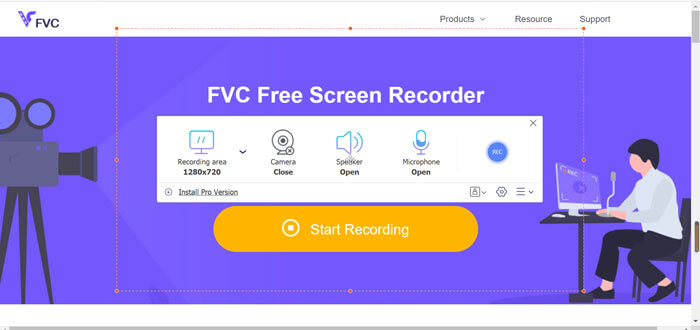
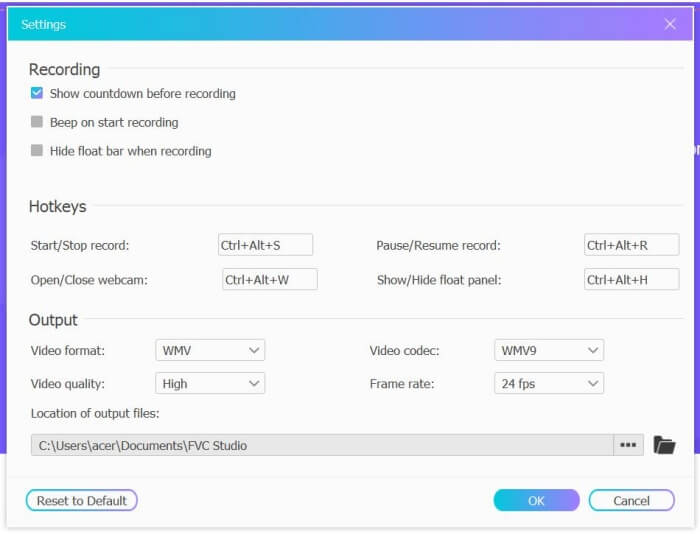
Korak 2: Kliknite izbornik Recording Area kako biste odabrali snimanje cijelog zaslona ili slobodni odabir područja. Zatim uključite zvuk s Microphone i Speaker. Za podešavanje video postavki kliknite ikonu Setting. Možete odabrati MP4 format, visoku kvalitetu i 24 fps kako biste zadržali visoku kvalitetu snimki. Zatim kliknite gumb REC za početak snimanja Facebook poziva.
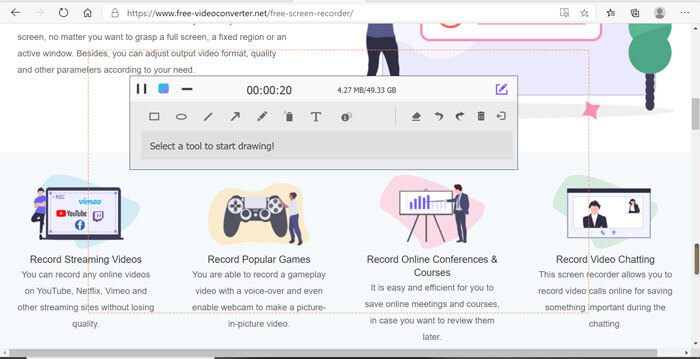
Korak 3: Pojavit će se alatna traka s više alata za uređivanje. Po potrebi možete dodavati oblike, tekst i linije. Zatim kliknite ikonu Stop da biste spremili snimku u oblak. Desnim klikom miša možete odabrati opciju preuzimanja na svoje računalo.
Korištenje ovog besplatnog internetskog snimača Facebook video poziva najbolji je način za korisnike računala da snime Facebook video pozive na mreži. Unaprijed podešavajući postavke snimanja, Facebook pozive može spremiti u MP4 formatu male veličine i visoke kvalitete. Ako ste navikli pozivati Facebook putem mobitela, nastavite čitati ovaj članak.
Dio 2: Kako snimiti Facebook poziv za iOS putem zadanog snimača
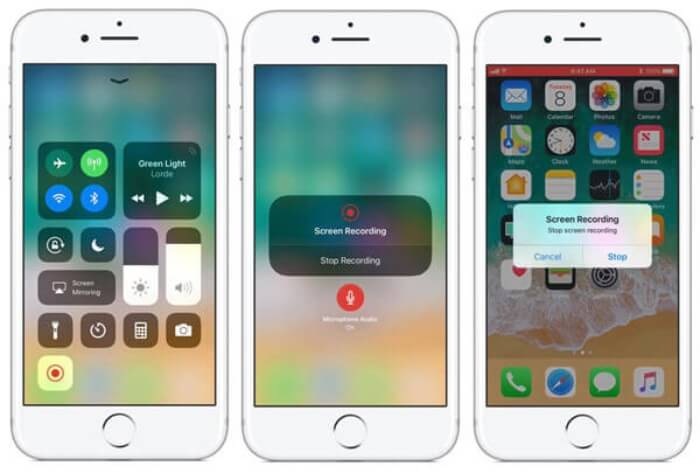
Ažurirana verzija iOS-a 11 ili novija ima novi zadani snimač na iPhoneu i iPadu koji je najbolji izbor za snimanje Facebook video poziva bez preuzimanja aplikacija. Ovdje možete naučiti kako dodati Facebook snimač poziva u prečace u kontrolnom centru i način na koji ga možete koristiti.
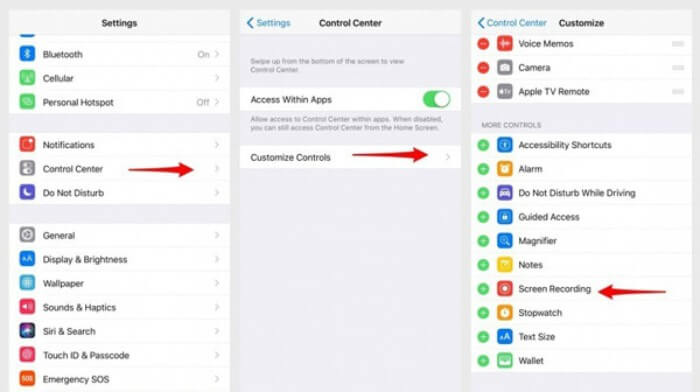
Korak 1: Dodirnite aplikaciju Settings na svom iPhoneu/iPadu i pomaknite se prema dolje kako biste odabrali opciju Control Center. Zatim dodirnite karticu Customize Controls i pronađite funkciju Screen Recording. Dodirnite ikonu Plus kako biste tu funkciju dodali u kontrolni centar.
Korak 2: Povucite prstom s vrha zaslona prema dolje kako biste otvorili kontrolni centar i na dnu ćete pronaći aplikaciju za snimanje. Dodirnite ikonu Screen Recording za početak snimanja; možete odabrati snimanje videa ili samo audio zapisa. Kada želite završiti, dodirnite crvenu Status Bar na vrhu i u skočnom prozoru dodirnite opciju Stop.
Dio 3: Jednostavni Facebook Messenger Recorder za Android
Neki Android telefoni nemaju ugrađene snimače, a previše je i Facebook snimača video poziva za Android. Stoga možete naučiti jedan od najboljih snimača za Android mobitele s detaljnim koracima u sljedećem dijelu.
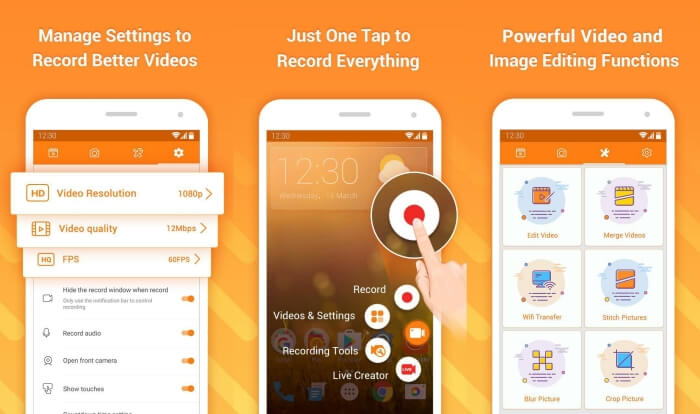
DU Recorder je jednostavan snimač Facebook poziva za Android, poznat po glatkom snimanju. Bez rootanja uređaja, svatko ga može koristiti za snimanje Facebook Messenger poziva jednim dodirom.
Korak 1: Pokrenite snimač i vidjet ćete četiri izbornika: snimke, snimke zaslona, alate za uređivanje i postavke. Najprije dodirnite izbornik Settings kako biste podesili video parametre. Za visoku kvalitetu možete odabrati razlučivost 1080p i brzinu od 30 fps.
Korak 2: Nemojte zatvarati snimač, već samo pokrenite Facebook Messenger. Zatim ćete vidjeti ikonu snimača. Dodirnite ikonu i odaberite ikonu Recording za početak snimanja zaslona i zvuka. Ponovnim dodirom možete zaustaviti snimanje. Nakon toga možete dodirnuti ikonu Editing kako biste obrezali snimku i dodali joj glazbu.
Možda će vam se svidjeti i:
Recenzija Action Screen Recordera
Dio 4: Česta pitanja o Facebook Call Recorderu
1. Dozira li Facebook zadani snimač za snimanje video poziva na računalu?
Ne, nije. Stoga se morate osloniti na druge profesionalne snimače poziva na Facebooku. Ako ne želite preuzeti drugi softver koji će zauzimati prostor za pohranu na vašem računalu, FVC Free Screen Recorder vaš je najbolji izbor.
2. Kako započeti chat s prijateljem u aplikaciji Facebook Messager?
Prvo otvorite Facebook Messenger na svom mobitelu, a zatim odaberite chatbox prijatelja kojem želite uputiti Facebook poziv. I sada možete vidjeti ikonu Video, pa je možete kliknuti da biste započeli video poziv.
3. Koji format trebam odabrati za spremanje snimaka kada koristim Facebook Messenger snimače?
Bez obzira upotrebljavate li Facebook snimač poziva na računalu ili mobitelu, najbolji format za spremanje Facebook video poziva je MP4. Može uštedjeti više prostora za pohranu i kompatibilan je sa svim uređajima.
Zaključak
U gornjem članku predstavljena su 3 snimača Facebook video poziva. Za iPhone, iPad i neke Android mobitele možete jednostavno koristiti ugrađeni snimač na svom telefonu. U suprotnom, možete odabrati bilo koji snimač, uključujući DU Recorder na Google Playu. Za računala je FVC Free Screen Recorder vaš najbolji izbor za snimanje Facebook poziva. Ako naiđete na druge probleme pri korištenju snimača Facebook poziva, ostavite svoj komentar u nastavku.
-
 Snagit 2021 pregled - prednosti, nedostaci i najbolja alternativa
 Koja je najbolja alternativa Snagitu? Postoji li alat za hvatanje zaslona poput Snagita? Ovaj će post pregledati Snagit i podijeliti najbolju alternativu Snagitu za snimanje zaslona.
-
 6 najboljih WAV snimača koje ne biste trebali propustiti na radnoj površini i na mreži
 Najbolji softver za snimanje WAV-a koji dijelimo u ovom članku ima niz korisnih značajki koje vam pomažu u hvatanju zvuka i glasa poput profesionalaca.
-
 Top 4 besplatna AIFF snimača zvuka koji proizvode zvuk visoke kvalitete
 Ovaj članak govori o AIFF-u i nekim od najpopularnijih alata koje možete koristiti za izradu visokokvalitetnog AIFF formata.
