


 Video Converter Ultimate
 Snimač zaslona
 Video popravak
Pojednostavljeni način snimanja Blu-raya na OBS Studio i druge moguće alate
Blu-ray disk pohranjuje najvišu kvalitetu koju je moguće spremiti na disk. Može pohraniti video do 1080 piksela. Kao i kod zvuka, proizvodi kristalno čist zvuk za razliku od CD-ova. Također, nema potrebe brinuti o pohrani velikog volumena podataka na Blu-rayu jer ima puno prostora. U nastavku, OBS Studio je besplatan, otvorenog koda, program za preuzimanje. Podržava platforme poput Windowsa, macOS-a i Linuxa. Osim toga, savršen je za snimanje videozapisa i zvuka na zaslonu vašeg računala. Neki korisnici smatraju da je problematično snimati Blu-ray u studiju. Zato ostanite ovdje i pročitajte članak kako biste saznali kako snimati Blu-ray filmove pomoću OBS-a i koji stručni snimač biste trebali koristiti za dobivanje videozapisa visoke kvalitete.

Dio 1. Kako snimati Blu-ray filmove pomoću OBS Studija
Poznat po tome što je moćan alat bez strujanja, OBS Studio prima redovita ažuriranja zbog svojih utjecajnih sponzora Youtube, Twitch, Facebook, API.video, own3d.pro i mnoge druge platforme. Ne morate brinuti o streamingu zbog ovih glavnih platformi. S druge strane, gradi svoje ime kao najkompleksniji alat za snimanje i manje usmjeravanja. Ali ako želite jednostavno strujanje, ne morate uranjati u komplicirane postavke. Štoviše, pretvorite teško u upravljivo čitajući ovaj članak za korake i detalje o OBS Studiju.
Evo nekoliko koraka kako koristiti OBS Studio:
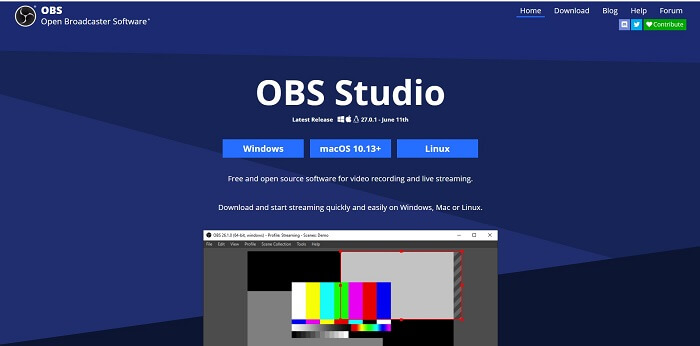
Korak 1. Idite u svoj preglednik. Zatim odaberite koji operativni sustav trenutno koristite, preuzmite program, postavite ga, instalirajte i zatim kliknite Finish (Završi) da biste pokrenuli alat.
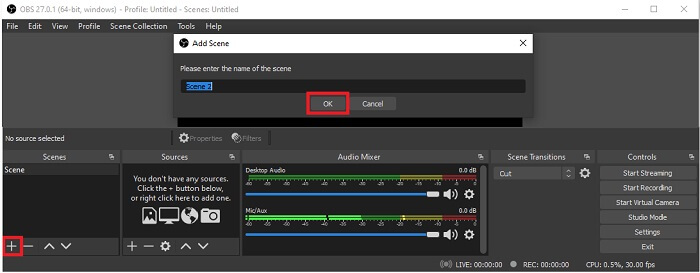
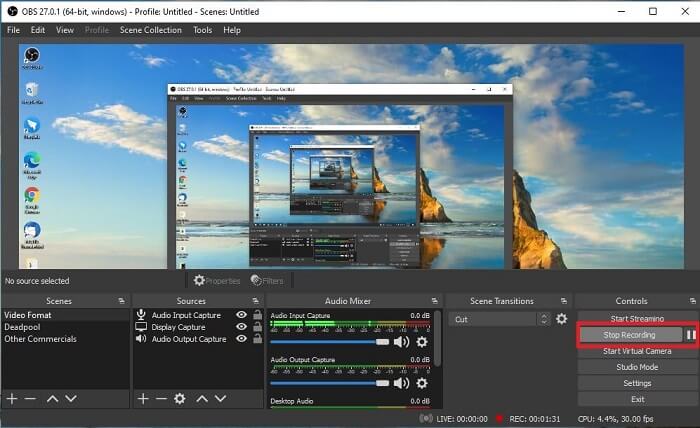
Korak 2. Idite na panel Scenes (Scene), kliknite ikonu Add (Dodaj) da biste dodali scenu pa je nazovite. Kliknite OK za nastavak.
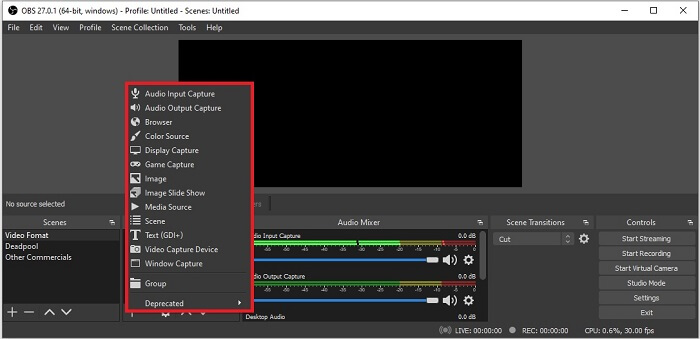
Korak 3. Prijeđite na panel izvora (source). Kliknite ikonu Plus, zatim će se prikazati različite opcije. Ovo su neke osnovne opcije koje su ovdje navedene. Audio Input Capture za snimanje vašeg glasa putem mikrofona. Zatim Audio Output Capture za snimanje zvuka koji izlazi iz vašeg sustava. I Display capture za snimanje cijelog zaslona. Na kraju, Game Capture za snimanje vaših montaža iz igara. Kliknite OK za spremanje. Kada prikupite sve potrebne izvore, podesite glasnoću na kartici Audio Mixer.
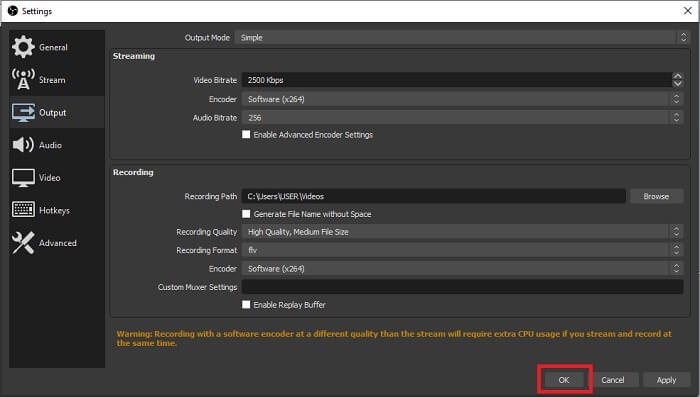
Korak 4. Kliknite gumb Settings (Postavke) ispod Control Panel (Upravljačka ploča) u donjem desnom kutu sučelja. Idite na karticu Output (Izlaz), postavite format i prilagodite opcije prema svojim potrebama. Podesite ostale opcije i kliknite OK za spremanje.
Korak 5. Kliknite gumb Start Recording (Započni snimanje) i počnite snimati. Kada je snimanje završeno, kliknite na donjem desnom dijelu gdje ste i započeli snimanje. Svoj snimak možete provjeriti u pregledniku datoteka.
Pros
- Odijelo za snimanje bilo kojeg videa i live streaming.
- Ne nudi vam besplatno probno razdoblje. Jer je besplatno.
- Pruža mnogo opcija za odabir.
Protiv
- Nije najbolji izbor za početnika jer ima puno toga za postaviti.
- Ne podržava uređivanje videa pa ćete morati instalirati drugi alat za uređivanje. A sam alat ima 85,6 MB što je najveća pohrana koju ima snimač zaslona.
Dio 2. Online metoda za snimanje Blu-raya s OBS alternativom
OBS studio je zaista dobar izbor za snimanje i streaming. Ali alat ima mnogo toga u svom sučelju, pa je novom korisniku teško snimati. Ovdje je alternativni online alat koji možete koristiti.
FVC besplatni snimač zaslona (online alat)
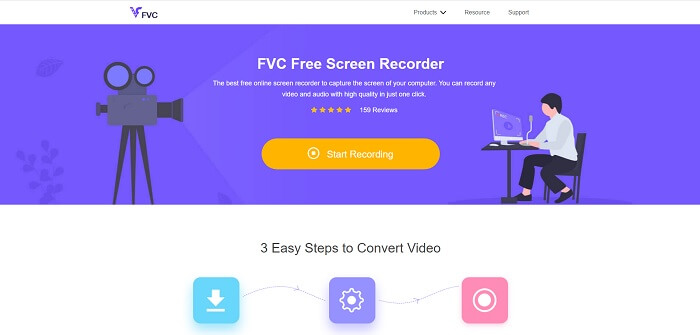
Otvoren i besplatan alat koji korisniku stvara manje gnjavaže pri upravljanju je FVC Free Screen Recorder. Funkcionira isto kao snimanje Blu-ray diska u OBS studiju, ali je jednostavniji za korištenje zbog pregledne plutajuće alatne trake. Ovaj precizan i detaljan alat pomaže vam snimiti bilo koju vrstu video i audio platforme koja je dostupna. Uz to nudi jasan zvuk i video visoke rezolucije koji možete spremiti na Blu-ray. Umjesto da preuzimate veliku datoteku i koristite je samo jednom, zašto ne biste isprobali ovaj online alat? Sada pogledajmo kako ovaj alat radi. U nastavku su koraci kako koristiti ovaj online alat.
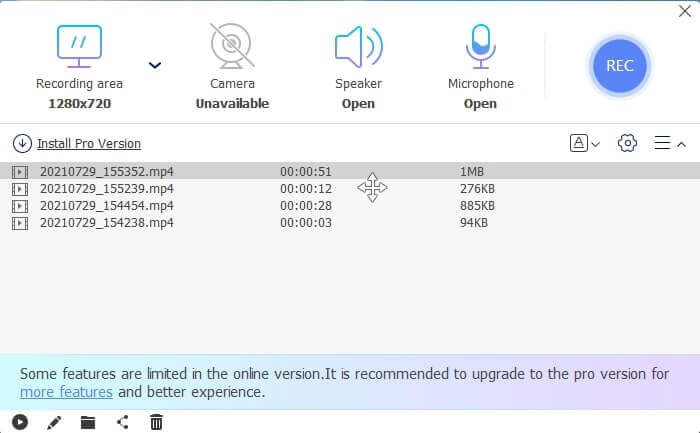
Korak 1. Otvorite preglednik i posjetite https://www.free-videoconverter.net/free-screen-recorder/. Zatim kliknite gumb Start Recording (Započni snimanje) da biste pokrenuli online alat. Nakon pokretanja alata na ekranu će se pojaviti floating bar (plutajuća traka).
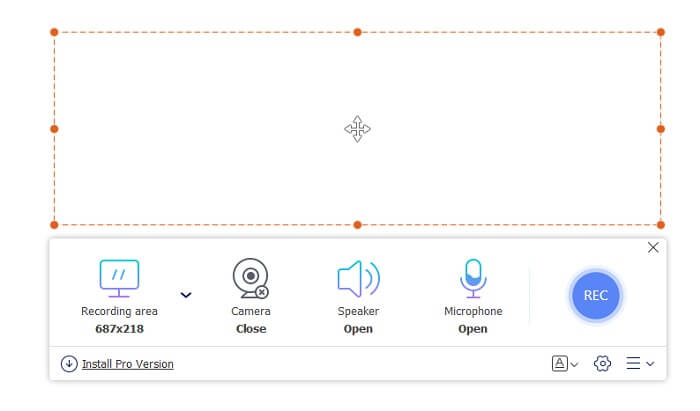
Korak 2. Na plutajućoj alatnoj traci nalaze se 4 različita panela između kojih možete birati. Možete prilagoditi veličinu okvira ili kliknuti na cijeli zaslon (full screen). Zatim kliknite ikonu Speaker (Zvučnik) za glasnoću sustava. Također možete dodati svoj glas i lice ako klikom uključite Microphone (Mikrofon) i Webcam (Web-kamera). Ako to ne želite dodati, možete ih kliknuti da biste ih isključili. Zatim kliknite okrugli gumb REC za početak snimanja.
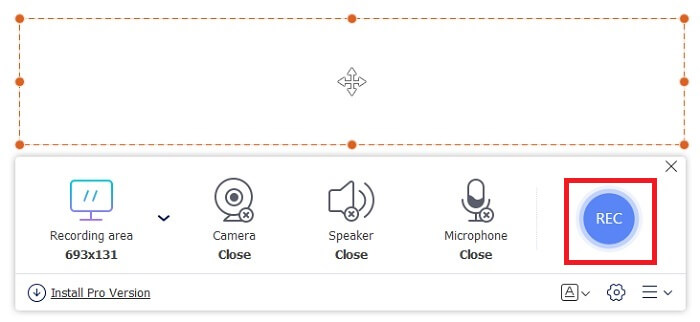
Korak 3. Kada je snimanje završeno, kliknite gumb u obliku kvadrata da biste zaustavili snimanje. Svi snimci koje ste zabilježili nalaze se na popisu u history dropdown (padajućem izborniku povijesti). Kliknite prvi snimljeni video jer je to najnoviji.
Pros
- Otvoren besplatni izvor na internetu. Nema preuzimanja, tako da nema problema.
- Najbolji snimač zaslona za online usluge koji podržava sve platforme.
- Jednostavan za korištenje zbog uputa o alatu na mjestu.
Protiv
- Za funkcioniranje alata potrebna mu je internetska veza.
- Značajke u premium-u nisu besplatno podržane.
Dio 3. Najbolja zamjena za OBS za snimanje Blu-ray filmova
Još jedan najbolji Blu-ray zapis na OBS studiju je ovaj FVC Screen Recorder. Ako želite snimati online i offline i dostupno na svim platformama onda je ovo za vas.
Snimač zaslona FVC
Za razliku od OBS Studija, ovaj alat je jednostavan za korištenje s alatnom trakom kojom se može upravljati. FVC Screen Recorder jedna je od najboljih alternativa za snimanje. Uključuje značajke poput OBS-a koje su više na mjestu i lako razumljive. Na primjer, snimanje zaslona, web kamere, zvuka i zvuka sustava i još mnogo toga. Ovaj alat također ima svoju značajku zaključavanja koju obs nema. Osim što se ovaj alat plaća za korištenje. Također, ako koristite ovaj snimač zaslona, napravili ste pravi izbor.
Slijedite korake u nastavku o tome kako koristiti ovaj alat u punoj mjeri.
Korak 1. Kliknite gumb za preuzimanje kako biste instalirali softver, zatim postavite željene postavke i kliknite Finish (Završi) za nastavak. Zatim će se alat pokrenuti.
Besplatno preuzimanjeZa Windows 7 ili novijiSigurno preuzimanje
Besplatno preuzimanjeZa MacOS 10.7 ili novijiSigurno preuzimanje
Korak 2. Kliknite Video Recorder. Zatim će se prikazati 4 različita panela. U prvom panelu možete prilagoditi veličinu okvira da promijenite omjer stranica ili kliknite Full za snimanje cijelog zaslona. Drugi panel Webcam namijenjen je snimanju vašeg lica tijekom snimanja zaslona. Sljedeći panel je System Sound za snimanje zvuka sustava. Na kraju, microphone za unošenje vašeg glasa u video. Kliknite gumb u obliku disk shape (diska) da biste započeli snimanje.
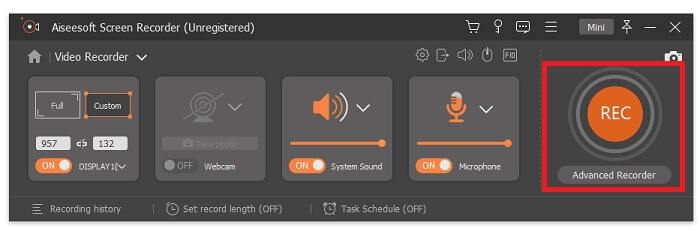
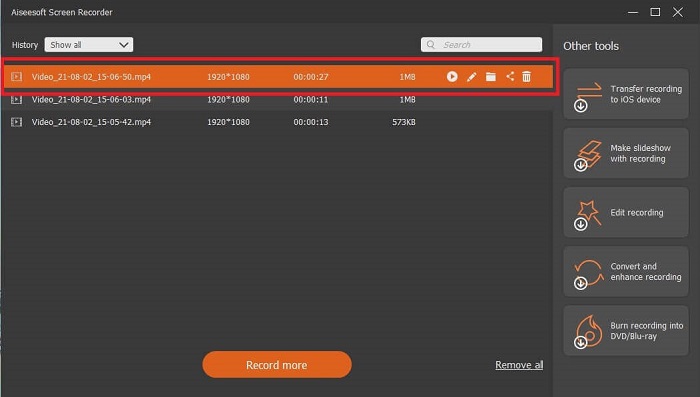
Korak 3. Ako je snimanje videozapisa završeno, kliknite gumb u obliku kvadrata za zaustavljanje. Kliknite gumb Play za reprodukciju snimljenog videa.
Pros
- Ima ovu jedinstvenu značajku onoga što nazivamo zaključanim zaslonom kako bi se izbjegle smetnje tijekom snimanja.
- Može snimati 24 sata bez ikakvih audio-video disfunkcija.
- Jednostavan za pohranu i korisnik zbog formata komprimiranih podataka i informacija koje je lako izvršiti.
Protiv
- Za stjecanje je potrebno platiti bilo mjesec, godinu ili cijeli život.
- Za korištenje je potrebno preuzeti s web stranice.
Daljnje čitanje
1. Snimanje videozapisa zaslona pomoću VLC Media Playera
2. Snimanje zaslona sa zvukom na Macu pomoću QuickTimea
Dio 4. Često postavljana pitanja o snimanju Blu-raya na OBS studiju
Koja je razlika između Blu-raya, DVD-a i CD-a?
Glavna razlika između svakog formata optičkog diska je izlaz i pohrana koju može sam pohraniti. Navodi da CD može pohraniti do 700 MB datoteke, DVD može pohraniti do 4,7 GB podataka, dok Blu-ray može pohraniti do 25 GB. U nekim slučajevima, dvoslojni Blu-ray može podržati 50 GB podataka. Također ima trostruki sloj diska i četverostruki sloj.
Je li OBS besplatan alat? Je li sigurno preuzeti?
Da, OBS Studio je besplatan alat bez skrivenih troškova. Također, možete ga preuzeti na svim različitim platformama. Drugi Da, siguran je od zlonamjernog softvera, virusa, crva, otmičara preglednika i još mnogo toga.
Koji video kodeci podržavaju Blu-ray?
Za video: MPEG-2, MPEG-4 AVC i SMPTE VC-1.
Za audio: Linear PCM (LPCM), Dolby Digital® (DD), Dolby Digital® Plus (DD+), Dolby® TrueHD, DTS Digital Surround® i DTS-HD®.
Zaključak
Uostalom, na kraju dana snimači zaslona korisni su zbog svojih mogućnosti. OBS je dobar izbor za snimanje, ali zbog raznih opcija tjera korisnika da nagađa i pita radi li to kako treba. Ali zbog popisa online i offline koji podržava sve razne platforme. Sada imate moć izbora. Da odaberete ono što je najbolje za vas.
Kao i FVC Screen Recorder. To je user-friendly i on-point alat koji pomaže korisniku da snima bilo kada i bilo gdje. Iako je to alat koji se plaća za korištenje. Ipak, vrijedi svake potrošene lipe. Ne zaboravite da se ne opterećujete teškim za korištenje ako ono jednostavno za korištenje može učiniti bolje.
-
 Akcijski! Pregled snimača zaslona - kontra, pro i najbolja alternativa
 Je li Action Screen Recorder željeni softver za snimanje igara za snimanje videozapisa o igranju? Samo saznajte više detalja iz pregleda i njegove alternative iz članka.
-
 3 najbolja snimača Facebook poziva za računala, iOS i Android
 Kada želite snimati Facebook pozive kako biste spremili vrijedne stvari, postoji mnogo Facebookovih snimača poziva koje možete odabrati. Ovdje možete naučiti 3 najbolja alata za snimanje Facebook video poziva za PC, iOS i Android.
-
 Top 6 besplatnih WAV snimača dostupnih za Windows i Mac
 Najbolji softver za snimanje WAV -a koji dijelimo u ovom članku ima niz korisnih značajki koje vam pomažu snimiti zvuk i glas poput profesionalaca.
