


 Video Converter Ultimate
 Snimač zaslona
 Video popravak
Kako ubrzati video na mnogo mogućih načina pomoću iPhonea
Napravit ćeš najbolji glazbeni spot za školski projekt i želiš prikazati prizor životnog ciklusa. Želiš premotati cijeli spot unaprijed tako da povećaš brzinu reprodukcije i ispravno izvedeš prijelaz iz dječje u odraslu fazu, ali za to imaš samo svoj telefon. Točnije, imaš samo iPhone kojim trebaš povećati brzinu reprodukcije i montirati cijeli glazbeni spot. Međutim, iPhone je poznat po svom restriktivnom pristupu preuzimanju aplikacija jer se za neke aplikacije mora kupiti puna verzija da bi se dobio potpuni pristup. Nastavi čitati ovaj članak kako bi detaljno razumio kako ubrzati video na iPhoneu.

Dio 1. Najbolji način za ubrzanje videa na iPhoneu
Prije poznat kao iPhone OS, iOS je mobilni operativni sustav Apple Inc.-a razvijen isključivo za hardver te tvrtke. Poznat je i po ekskluzivnosti kod preuzimanja aplikacija, za razliku od Androida. Ipak, iPhone nudi i druge aplikacije koje mogu uređivati i prilagođavati videozapise i dostupne su na njegovu operativnom sustavu. Neke od tih aplikacija također mogu kontrolirati brzinu reprodukcije; što se tiče kontrole brzine videa na iPhoneu, te su aplikacije jednostavne za upotrebu i besplatne za preuzimanje na bilo koji iOS uređaj. Da bi se još bolje upoznao s kontrolom brzine videa na iPhoneu, u nastavku su dani koraci:
Metoda 1. Koristite iMovie za ubrzanje videa na iPhoneu
Na svom iPhoneu možeš stvarati trailere u hollywoodskom stilu u 4K rezoluciji pomoću aplikacije iMovie. Nakon što završiš uređivanje svih svojih videa, možeš dodati animirane naslove, glazbu i ostale završne detalje poput filtera i efekata. Appleov iMovie olakšava ispričati svoju priču na uglađen i profesionalan način, a zatim podijeliti svoj rad s prijateljima i obitelji. iMovie nudi značajke koje mogu poboljšati kvalitetu tvojeg videa zahvaljujući raznim predlošcima i završnim alatima; uvodi i mogućnost kontrole brzine reprodukcije na iPhoneu. Budući da većina urednika mora naglasiti prikazane probleme, u nastavku slijede koraci koje trebaš pratiti kako bi postigao željenu brzinu pomoću ovog alata na iPhoneu.
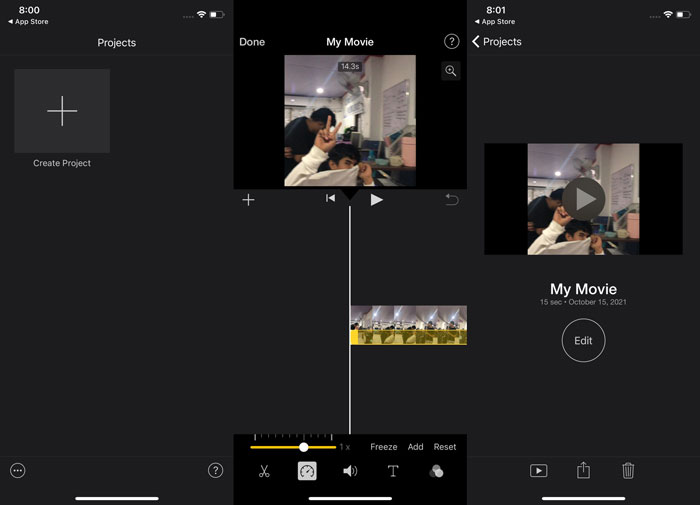
Korak 1: Pokreni aplikaciju iMovie na svom iPhoneu ili iPadu. Ako se pojavi pregled sučelja, odaberi Continue (Nastavi). Za početak novog videozapisa, idi na stranicu Projects (Projekti) i dodirni ikonu plusa +. Otvori prozor New Projects (Novi projekt) i odaberi Movie (Film) za nastavak.
Korak 2: Dodirni Create Movie (Stvori film) na dnu zaslona nakon što odabereš video iz galerije (Camera Roll). Alat za brzinu izgleda kao brzinomjer i nalazi se tako da dodirneš videoisječak na vremenskoj crti i pričekaš da se pojave alati za uređivanje. Jednostavno pomakni donji žuti Slider (klizač) kako bi ubrzao ili usporio svoj videozapis. Možeš ubrzati do dva puta ili usporiti do jedne osmine izvorne brzine.
Korak 3: Ako je sve namješteno, dodirni Done (Gotovo) u gornjem lijevom kutu zaslona telefona. Za spremanje gotovog videa dodirni gumb Share (Dijeli) na dnu zaslona i odaberi gdje ga želiš pohraniti.
Metoda 2. Koristite Videoshop za ubrzanje videa na iPhoneu
Kad je riječ o softveru za uređivanje videa, malo je boljih opcija od Videoshop aplikacije. Pomoću nje možeš brzo urediti svoj video dodavanjem efekata poput glazbe, govorne naracije, teksta i slika. Također možeš brzo primijeniti impresivne filtere, stvarati foto-projekcije te uređivati, spajati, kopirati, lijepiti, rotirati i okretati svoje videozapise. Osim toga, vrlo lako možeš podesiti brzinu reprodukcije videa kako bi stvorio ubrzane ili usporene snimke. Uz samo nekoliko jednostavnih koraka možeš mijenjati brzinu reprodukcije dok ne postigneš željenu brzinu videa. Da bi naučio više o tome kako ubrzati video pomoću Videoshopa na iPhoneu, u nastavku su navedeni koraci koji će ti olakšati korištenje.
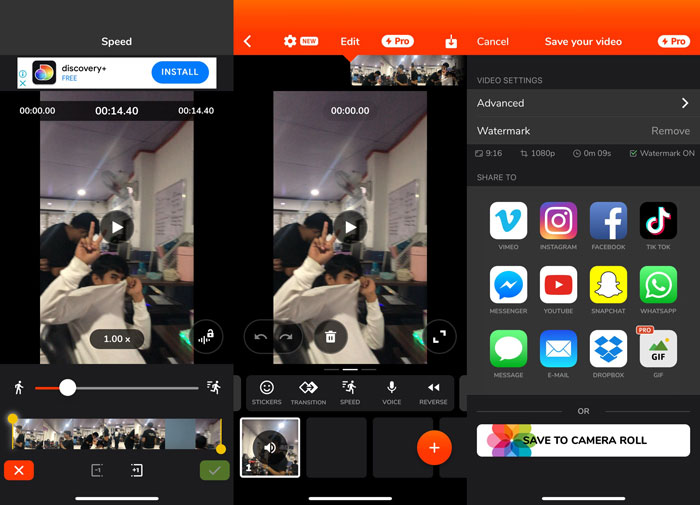
Korak 1: Kada prvi put otvoriš video editor na iPhoneu, dobit ćeš mogućnost snimanja novog videa ili uvoza već spremljenog. Iskoristi video editor i pojavit će se novo sučelje nakon što dodaš videozapis u prozor za uređivanje. U donjem dijelu editora nalazi se Toolbar (alatna traka) s brojnim alatima. Prijeđi prstom lijevo i desno po toj alatnoj traci. Kada odabereš Speed (Brzina), prikazat će se izbornik za kontrolu brzine videa.
Korak 2: Pomoću ovog video editora na iPhoneu lako možeš promijeniti brzinu videa. Reprodukcija se može usporiti ili ubrzati povlačenjem Speed Handle (klizača brzine) ulijevo ili udesno. Za pregled promjene pritisni gumb Play (Reproduciraj). Zatim možeš ponovno prilagoditi brzinu sve dok ne budeš zadovoljan prilagođenim videom.
Korak 3: Spremi svoj rad dodirom na gumb Done (Gotovo) u gornjem desnom kutu.
Dio 2. Alternativni način za ubrzanje videa na iPhoneu
Ako ti je teško pratiti sve korake prethodnog alata, ovaj članak nudi alternativu koja pomaže riješiti pitanje kako ubrzati video do 2x na iPhoneu. Nisi baš upoznat niti naviknut koristiti iPhone kao alat za uređivanje videa, osobito kada želiš povećati brzinu reprodukcije. Video Converter Ultimate bit će najbolja alternativa koju trebaš razmotriti, jer ti omogućuje trajno ubrzavanje videa. Preuzmi i koristi Video Converter Ultimate kao kontroler brzine za svoje videozapise. Ovaj softver sadrži brojne značajke i alate koji mogu poboljšati tvoje vještine uređivanja. Uključuje i alat Video Speed Controller koji rješava problem s kojim se susreću mnogi iOS korisnici. S ovim alatom možeš jednostavno prilagoditi brzinu videa i dobiti visokokvalitetan rezultat. Osim toga, može promijeniti brzinu tvojeg videa u samo nekoliko sekundi zahvaljujući brzom procesu konverzije. Ukratko, ovaj softver radi profesionalno, uz korisničko sučelje prilagođeno početnicima. Budući da je ova alternativna metoda softver koji možeš koristiti samo na računalu, trebaš naučiti kako prenijeti video s iPhonea na računalo da bi je mogao primijeniti.
1. Za početak upotrijebite USB kabel za povezivanje vašeg iPhonea s računalom.
2. Otvorite aplikaciju Fotografije na računalu klikom na gumb Start, a zatim na Fotografije.
3. Slijedite upute na zaslonu nakon što odaberete Uvezi s USB uređaja. Imate potpunu kontrolu nad onim što uvozite i gdje se sprema. Dajte si malo prostora za disanje dok se odvijaju procesi otkrivanja i prijenosa.
Sada možete slijediti korake u nastavku da biste ubrzali svoje videozapise na svom iPhoneu.
Korak 1: Da bi pokrenuo softver na računalu, najprije ga moraš preuzeti klikom na gumb Free Download (Besplatno preuzimanje) u nastavku. Nakon što ga preuzmeš na radnu površinu, možeš ga instalirati i kliknuti Start Now (Započni sada) kako bi završio instalaciju.
Besplatno preuzimanjeZa Windows 7 ili novijiSigurno preuzimanje
Besplatno preuzimanjeZa MacOS 10.7 ili novijiSigurno preuzimanje
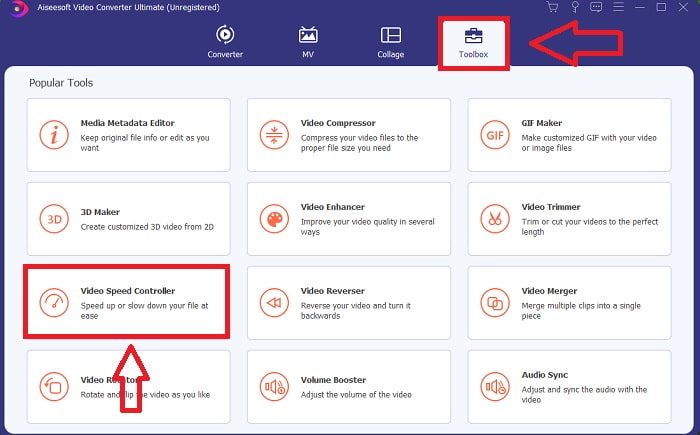
Korak 2: Nakon instalacije softvera, pokreni ga i na glavnom sučelju vidjet ćeš fazu pretvorbe. Zatim otvori značajku Toolbox (Alatni okvir). Ondje ćeš vidjeti različite alate koje softver nudi, a za podešavanje brzine videa odaberi Video Speed Controller.
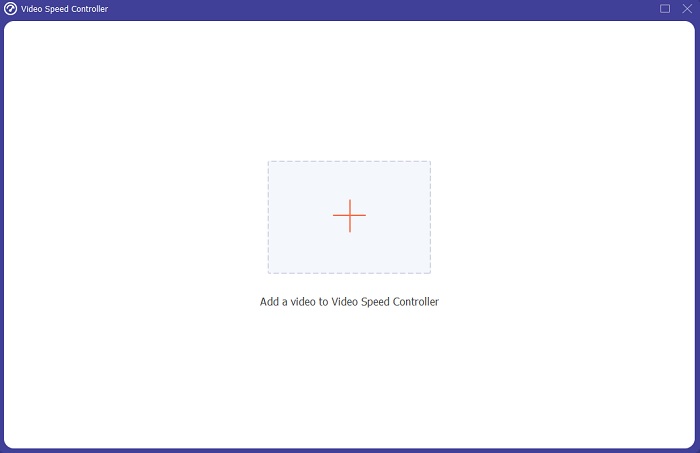
Korak 3: Nakon što nastaviš, na zaslonu će se pojaviti nova kartica. Započni proces uređivanja pritiskom na znak +.
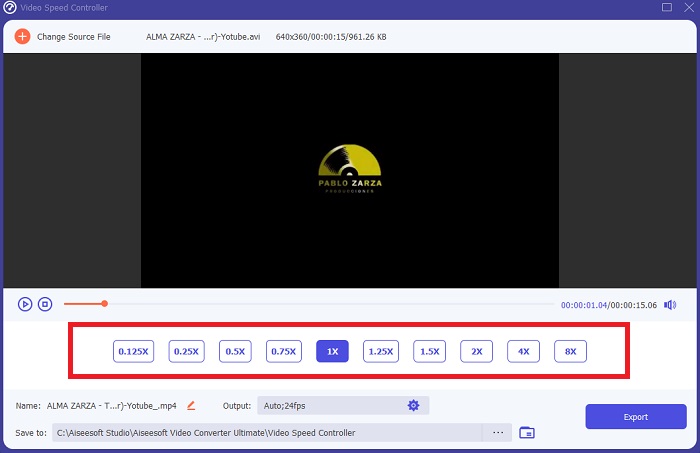
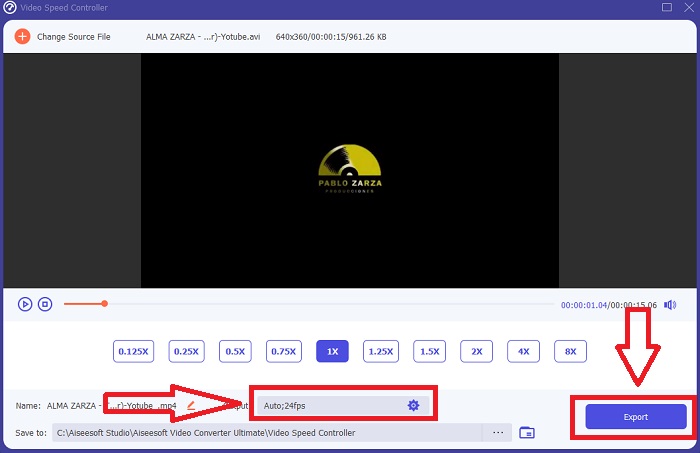
Korak 4: Možeš započeti fazu uređivanja odabirom koliko će se puta broj sličica u sekundi povećati ili smanjiti kako bi se promijenila brzina reprodukcije. Ako si već zadovoljan brzinom videa, možeš prilagoditi kvalitetu izlaznog videa podešavanjem formata, rezolucije, broja sličica u sekundi itd. Također ćeš dobiti priliku preimenovati svoj izlazni video.
Korak 5: Za spremanje svojeg rada klikni Export (Izvezi) i odaberi odredište u datotečnom sustavu računala.
Povezano:
Dio 3. Često postavljana pitanja o tome kako ubrzati video na iPhoneu
Kako radi video kontroler?
Kontrola brzine video playera određuje brzinu reprodukcije videozapisa. Kada koristite media player za gledanje filma, videozapis će se reproducirati istom brzinom kao i standardni videozapis. Svrha kontrole brzine video playera je dopustiti korisniku da promijeni brzinu reprodukcije videozapisa. Neki od videozapisa moraju biti usporeni kako biste mogli pratiti akciju.
Kako mogu trajno promijeniti brzinu reprodukcije videozapisa?
Razmislite o tome koliko je koraka potrebno za promjenu brzine reprodukcije vaših videozapisa. Unatoč činjenici da su video alati i videouređivači lako dostupni na mreži, još uvijek ste u potrazi za najboljim alatom za rješavanje problema s brzinom reprodukcije vašeg videoisječka. Brojni web alati dostupni su na internetu, od kojih su neki besplatni za korištenje, ali zahtijevaju plaćanje za otključavanje svih značajki. Video Converter Ultimate, besplatni program za ubrzavanje videozapisa, najbolji je način da trajno promijenite brzinu reprodukcije.
Kako da ubrzam MP4 video?
Postoje brojni pretvarači dostupni za preuzimanje i izvanmrežnu upotrebu. Možete ubrzati reprodukciju videa koristeći Video Converter Ultimate kao alternativu drugim video konverterima. Pojačavač brzine videa samo je jedna od mnogih dostupnih značajki jer je besplatan softver otvorenog koda.
Zaključak
Kao što sam rekao, korisnici iPhonea koji sanjaju o rješavanju brzine reprodukcije svog videa ne moraju kupovati različite alate. Postoji mnogo besplatnih uređivača koje trebate potražiti; nekima je potrebno kritičko razumijevanje da bi ga pravilno koristili, ali većina njih je dostupna. Govoreći o najboljim dostupnim alatima, preporučamo korištenje Video Converter Ultimate kako biste ubrzali svoje videoisječke do 2x od normalne brzine ili čak do 8x brže. Osim toga, video se pomoću ove značajke može usporiti na četvrtinu svoje normalne brzine. Ovaj softver ima sve što profesionalni urednik želi imati, a koristeći ga, imat ćete mogućnost postati profesionalac.
-
 [2 najbolja rješenja] Kako jednostavno reproducirati AVI filmove na iPhoneu/iPadu
 Ne možete reproducirati AVI filmove na vašem iPhoneu/iPadu i ne želite preuzeti video playere trećih strana? Možete naučiti 2 učinkovita načina pretvaranja AVI videozapisa za reprodukciju na iPhoneu.
-
 [Riješeno] Kako popraviti videozapise koji se ne reproduciraju na iPhoneu s detaljnim koracima
 Lokalni videozapisi u galeriji ne mogu se reproducirati na vašem iPhoneu putem zadanog video playera? Online YouTube videozapisi koji se ne reproduciraju na iPhoneu uvijek se događaju? Evo 5 rješenja koja će vam pomoći u ovom članku.
-
 5 najboljih video playera za iPhone koje ne smijete propustiti 2021
 Da biste reproducirali videozapise u svim formatima i imali bolje iskustvo gledanja na svom iPhoneu, trebali biste pročitati ovaj članak i saznati o najboljih 5 video playera za iPhone 12/11/X/8/7/6.
