


 Video Converter Ultimate
 Snimač zaslona
 Video popravak
Pojačajte svoju stručnost u rješavanju problema kao što je Kako usporiti videozapis
Ti si umjetnik početnik i želiš pogledati poduku o dizajnu kako bi poboljšao svoje vještine u umjetnosti. Međutim, većina tih tutorijala je ubrzana kako bi se nakupila određena duljina videa uz malu veličinu datoteke. Zato osmišljavaš rješenje kojim treba usporiti brzinu videa. No ne znaš kako usporiti time‑lapse video kakav imaju većina umjetničkih tutorijala. Pročitaj ovaj članak kako bi proširio svoje znanje o ovom problemu koji muči mnoge umjetnike početnike.

Dio 1. 3 jednostavna koraka za usporavanje videozapisa [stolno/prijenosno]
Postoji mnogo pristupa koje web nudi, bilo online ili offline editor. Neke od njih je potrebno preuzeti, posebno kada koristite stolno ili prijenosno računalo za uređivanje. Postoji značajna razlika između korištenja stolnog računala u smislu detalja u korištenju; zato ovaj članak odabire najbolji način za usporavanje videozapisa izvan mreže ili online na stolnom računalu. Evo pristupa s navedenim koracima:
Pristup 1. Koristite Video Converter Ultimate
Moguće je preuzeti i koristiti mnoge konvertere čak i kada nisi online. Za usporavanje videa možeš upotrijebiti Video Converter Ultimate, jednu od najboljih alternativa. Jednostavan je za korištenje, a možeš ga besplatno preuzeti. Ne moraš brinuti da će ti internet usporavati video online, jer ovaj softver omogućuje obradu videa bez ikakvih komplikacija. Zahvaljujući impresivnom alatu Video Speed Controller, sada možeš prilagoditi brzinu reprodukcije svojih videa za manje od jedne minute. Sada kada te zanima kako se to radi, u nastavku slijede koraci koje trebaš pratiti:
Korak 1: Jednostavno klikni na gumb Free Download kako bi preuzeo softver na radnu površinu svog računala. Instalacija softvera i prilagodba postavki dovršavaju se u sljedećim koracima.
Besplatno preuzimanjeZa Windows 7 ili novijiSigurno preuzimanje
Besplatno preuzimanjeZa MacOS 10.7 ili novijiSigurno preuzimanje
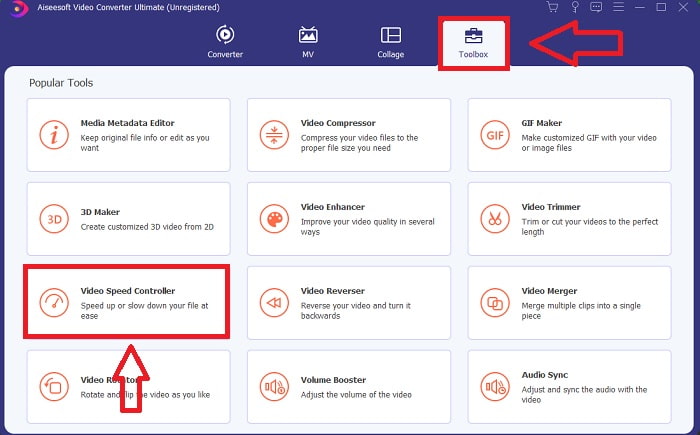
Korak 2: Da bi koristio Video Speed Controller, pokreni softver odmah nakon instalacije i odaberi ga iz izbornika Toolbox.
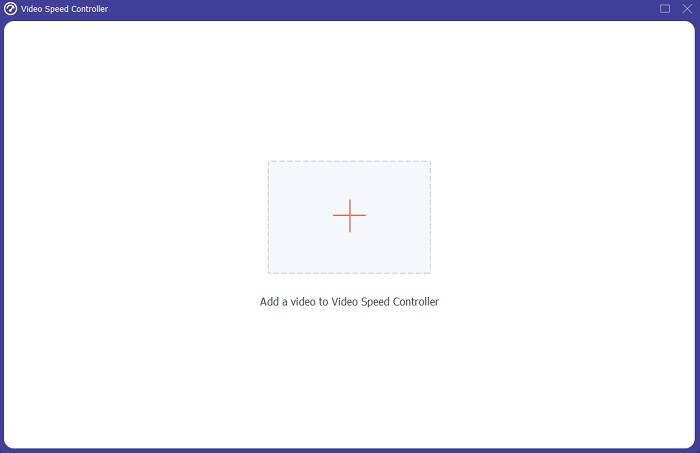
Korak 3: Sučelje Video Speed Controllera pojavit će se nakon što ga klikneš. Za učitavanje datoteke, klikni ikonu +.
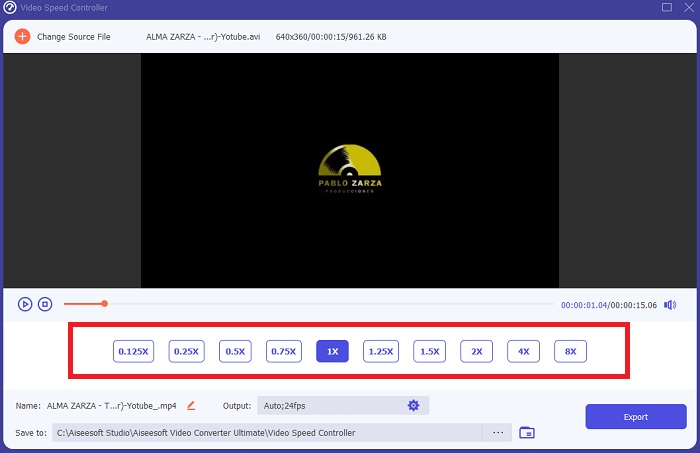
Korak 4: Sada možeš početi usporavati svoj video odabirom manjih vrijednosti od normalne brzine. Većina tih vrijednosti pojavit će se s lijeve strane stvarne brzine tvog videa.
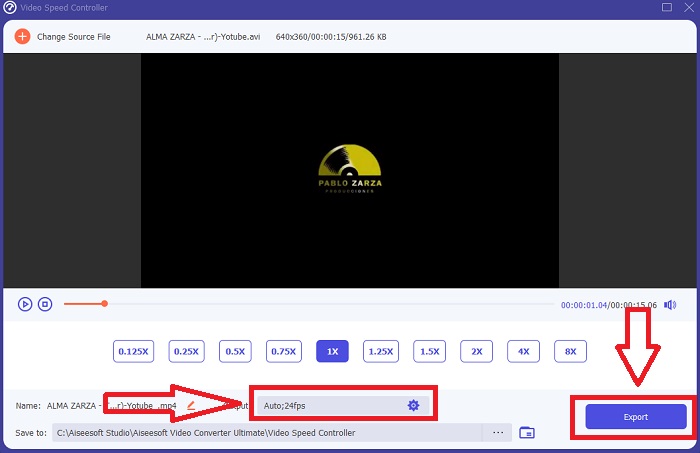
Korak 5: Nakon što završiš s promjenom brzine reprodukcije svoje videoisječke, možeš odabrati izlazni format, rezoluciju, kvalitetu i druge parametre koje želiš koristiti. Kada sve dovršiš, klikni Export i odaberi gdje želiš spremiti svoju datoteku nakon što je sve završeno.
Pristup 2. Koristite VEED
Kreatori sadržaja diljem svijeta oslanjaju se na VEED i njegov web alat otvorenog koda za proizvodnju videa za društvene mreže i druge namjene. To je web aplikacija koja zahtijeva čvrstu vezu za ispravan rad, ali možete izravno prenijeti i promijeniti brzinu reprodukcije u njenom korisničkom sučelju. Osim toga, ima razne značajke, od kojih je jedna smanjenje brzine reprodukcije videa. Sada možete usporiti video bez preuzimanja bilo čega na radnu površinu. Potrebna vam je samo tražilica i jaka veza da biste pristupili ovom online alatu. Ima jednostavno korisničko sučelje prilagođeno korisniku koje može koristiti većini početnika koji trebaju usporiti video bez učenja kompliciranih koraka. Ovdje su primjeri postupaka za probavu kako biste postigli željene prilagodbe videozapisa.
Korak 1: Klikni gumb Upload Your Video kako bi poslao video datoteku sa svog računala na poslužitelj.
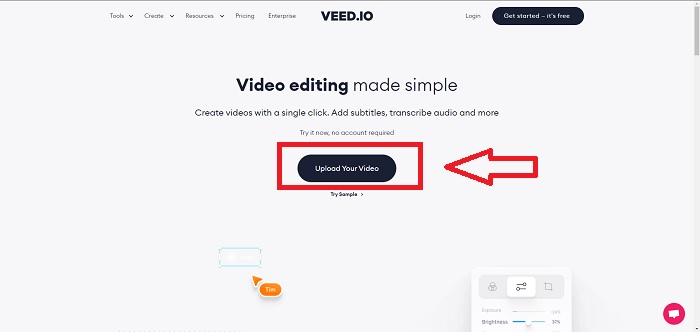
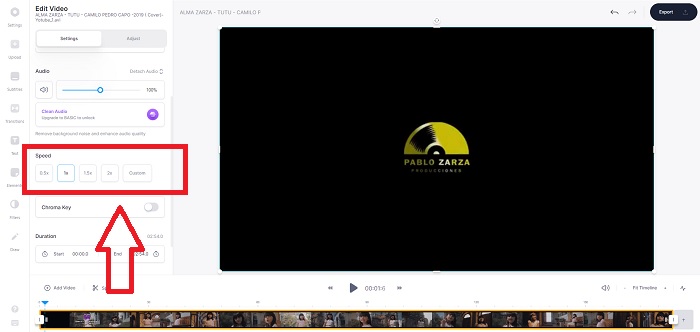
Korak 2: Sučelju za uređivanje web‑alata pristupa se klikom na Video Track u gornjem lijevom kutu. Odaberi bržu brzinu reprodukcije tako da potražiš opciju Speed i klikneš na nju. Ako tvoja željena brzina nije ponuđena kao opcija, možeš odabrati Custom kako bi zaobišao zadane postavke i reproducirao svoju videoisječku prilagođenom brzinom.
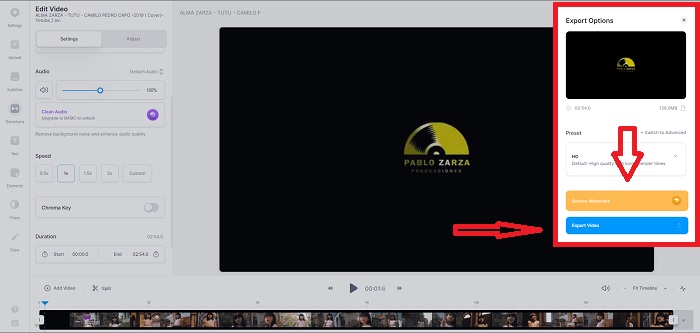
Korak 3: Nakon što urediš željenu brzinu videa, prijeđi na karticu izvoza klikom na Export. U međuvremenu možeš odabrati koju kvalitetu želiš za svoj video i ukloniti vodeni žig kupnjom premium verzije web‑alata. Ako je sve namješteno, prenesi konvertirani video na svoje računalo izvoženjem videa (Exporting Video).
Dio 2. 3 jednostavna koraka za usporavanje videozapisa [mobilni telefon]
Jeste li umorni od razmišljanja o rješenju koje daje odgovor kako usporiti video na iPhoneu ili Androidu? Na internetu su dostupne mnoge aplikacije i alati kojima se opravdava da postoji odgovor na zadani problem. Ali evo najboljih i najpristupačnijih alata koje preporučujemo da koristite ako ste uređivač mobilnog telefona i želite napraviti remek-djelo od malog uređaja koji imate.
Pristup 1. Koristite iMovie
Sada možeš kontrolirati brzinu reprodukcije ili usporiti svoj video na iPhoneu i iPadu uz ovu besplatnu i korisnu aplikaciju nazvanu iMovie. To je jedna od pouzdanih aplikacija dostupnih na uređajima s iOS‑om koja može uređivati tvoj video, a što je najvažnije, uređivati brzinu reprodukcije videa. Kako bi saznao više o navedenoj aplikaciji, slijede koraci koje trebaš poduzeti da riješiš gore navedeni problem:
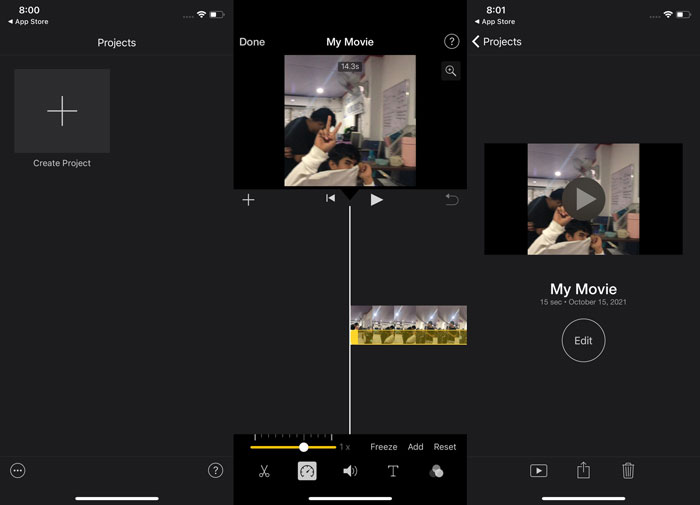
Korak 1: Započni uređivanje svog filma u iMovieju na svom iPhoneu ili iPadu. Prije nego nastaviš, može ti se prikazati kratki pregled korisničkog sučelja. Na stranici Projects klikni znak plus kako bi dodao novu videoisječku, a zatim odaberi Movie iz izbornika New Projects.
Korak 2: Prije prelaska na odjeljak Create Movie odaberi video iz svoje galerije (camera roll). Alat za brzinu nalikuje brzinomjeru i može se pronaći tako da dodirneš videoisječku na vremenskoj traci te pričekaš da se pojave alati za uređivanje. Premotaj unatrag ili unaprijed svoje video snimke klizanjem žutog klizača na dnu. U odnosu na njihovu izvornu brzinu, sadržaj možeš ubrzati do dvostruke vrijednosti ili usporiti na osminu izvorne brzine.
Korak 3: Klikni Done u gornjem lijevom kutu zaslona telefona kada završiš s postupkom. Svoj dovršeni video možeš spremiti odabirom iz izbornika Share i zatim odlučiti gdje ga želiš pohraniti.
Pristup 2. Koristite VideoFX Music Video Maker
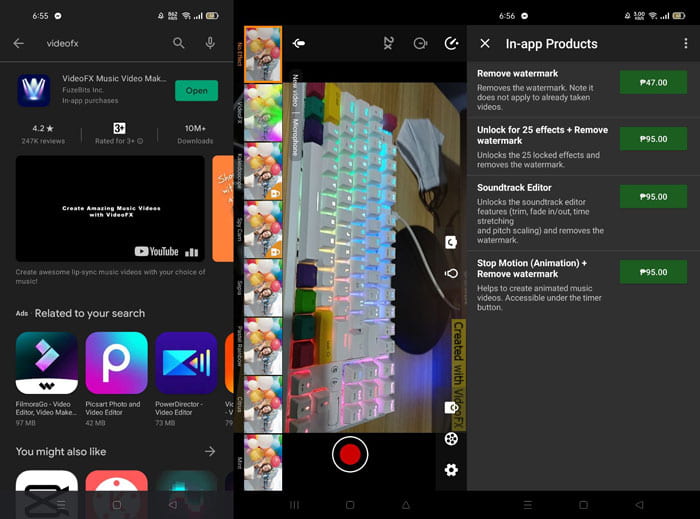
Svoje glazbene spotove možeš izraditi u samo nekoliko sekundi pomoću alata VideoFX Music Video Maker. Sve što trebaš učiniti je snimiti video s jednim od mnogih dostupnih efekata, odabrati pjesmu i spremiti ga u internu memoriju svog Android telefona. Budući da možeš primijeniti filtere prije snimanja videa, aplikacija je vrlo jednostavna za korištenje. Na bolje ili na gore, montaža nakon snimanja nije moguća; izmjene se mogu raditi samo prije nego što je video snimljen. Prije nego što počneš snimati, odaberi pjesmu koja će dobro pristajati uz tvoj video. Možeš ubrzati ili usporiti glazbu, ali promjene moraju biti napravljene prije nego što se video snimi. Slijede koraci:
Korak 1: Preuzmi i instaliraj VideoFX na svoj Android telefon.
Korak 2: Budući da se značajke ove aplikacije primjenjuju samo prije nego što se video promijeni, započni snimanje pritiskom na gumb Record.
Korak 3: Zatim klikni 2x kako bi prilagodio brzinu videa koji snimaš. Prije nego što otključaš sve značajke aplikacije, moraš najprije kupiti potpuni pristup.
Dio 3. Često postavljana pitanja o usporavanju videa
Kako usporiti video na iPhoneu?
Tvorci sadržaja i snimatelji imaju na raspolaganju mnoštvo alata, a usporena snimka jedan je od najboljih. Video s većim brojem sličica u sekundi pružit će ugodnije iskustvo gledanja. Ipak, usporeni video nije uvijek najbolje rješenje za svaki video koji radiš. U nekim slučajevima usporena snimka jednostavno nije prikladna ili je čak nepotrebna. Kao rezultat toga, jedina ti je opcija vratiti iPhoneov usporeni video na normalnu brzinu.
Kako usporiti video u galeriji?
Android i iOS telefoni imaju ikone postavki koje se dodiruju za aktiviranje usporenog ili usporenog načina prije snimanja videa. Trebali biste snimati usporene scene u rafovima od pet do deset sekundi kako biste izbjegli previše materijala.
Gubim li kvalitetu ako usporim videozapis?
Ne, nećete izgubiti kvalitetu videozapisa, ali ćete vidjeti kako razlučivost i brzina kadrova vašeg videa padaju za svaku sekundu koju smanjite na prosječnu brzinu. Kada se brzina reprodukcije vašeg videozapisa poveća ili smanji, podijelit će se samo okvir. Povećanje će imati željeni učinak. Pet puta brže, to je 60 sličica po 1/120 sekunde. Drugim riječima, osim ako videozapis nema nisku brzinu kadrova, neće imati učinka.
Zaključak
Stoga si kroz ovaj članak naučio sve o različitim metodama koje svaki operativni sustav nudi za rješavanje problema svih aplikacija za usporavanje videa. Navedeni su i koraci za neke početnike koji nemaju nikakvo iskustvo u uređivanju videa. Kao preporuku za aplikaciju koja ti pomaže u podešavanju brzine reprodukcije videa, ali i u korištenju ostalih alata koje jedan montažer treba, preuzmi softver Video Converter Ultimate kako bi iskusio najbolje što nudi rad kao profesionalni editor.
-
 4 najbolja VOB igrača za Android mobitele za različite namjene
 Kada preuzmete VOB videozapise i želite ih gledati na Androidu, možete odabrati najprikladniji od sljedeća 4 najbolja VOB igrača u ovom članku.
-
 5 najboljih alternativa Windows Media Playeru za Android mobitele
 Budući da ne možete preuzeti Windows Media Player za Android, trebali biste pročitati ovaj članak i naučiti o 5 najboljih alternativa Windows Media Playeru.
-
 5 najboljih video playera za iPhone koje ne smijete propustiti 2021
 Da biste reproducirali videozapise u svim formatima i imali bolje iskustvo gledanja na svom iPhoneu, trebali biste pročitati ovaj članak i saznati o najboljih 5 video playera za iPhone 12/11/X/8/7/6.
