


 Video Converter Ultimate
 Snimač zaslona
 Video popravak
Kako možemo besplatno pretvoriti M4A u MP3 format na računalu
M4A je Appleov vlasnički audio format koji koristi MPEG-4 kodek. Vrlo je sličan MP4 formatu, osim što MP4 može pohranjivati video podatke uz audio datoteke. MP3 je objavljen mnogo ranije, 1993. godine, i još uvijek je najautoritativniji standard za pohranu glazbe. Njegova najveća prednost je što vrlo učinkovito komprimira zvuk, osiguravajući da nema značajnog gubitka kvalitete zvuka uz manje veličine datoteka.
M4A gives us better sound quality compared to MP3. If you think that M4A files are more significant than MP3 files, you are wrong. In fact, M4A files can be almost half the size of MP3, and it also supports users to add DRM protection to prevent others from unauthorized distribution of audio. M4A has been regarded as the successor of MP3, but it is still much less compatible. M4A music can only be played on some devices and platforms, so it is better to convert M4A music to MP3 if we want to share the audio files with our friends more conveniently. Here, we pick five methods for turning M4A to MP3 to recommend to you, with their respective application steps.

Dio 1. Najbolji način za pretvaranje M4A u MP3 [Brzo i bez gubitka kvalitete]
FVC Video Converter Ultimate
After actual testing and comparison, FVC Video Converter Ultimate is the best M4A to MP3 converter worth trying. As a desktop application, it is compatible with both Windows and Mac operating systems and supports up to 1000+ input and output formats. It can easily accomplish almost any file conversion task. Although M4A format files will be higher than MP3, we can hardly feel any change in sound quality when we use FVC Video Converter Ultimate to convert M4A to MP3. And this app is also loaded with a hardware gas pedal that guarantees to output files at 30X faster efficiency, and even batch process multiple tasks with one click.
Vrijedi ga isprobati ne samo zbog izvrsnih performansi u pretvorbi formata. Njegovo sučelje također sadrži cijeli niz alata za uređivanje zvuka, koji mogu lako poboljšati kvalitetu zvuka, ukloniti šum, skratiti duljinu i još mnogo toga. S ovim sveobuhvatnim softverom, pretvaranje M4A u MP3 bit će vrlo jednostavno.
Besplatno preuzimanjeZa Windows 7 ili novijiSigurno preuzimanje
Free DownloadZa macOS 10.7 ili novijiSigurno preuzimanje
Evo kako pretvoriti M4A u MP3 pomoću FVC Video Converter Ultimate.
Step 1. Get FVC Video Converter Ultimate on your device. Finish the basic settings and launch it on your desktop. After entering the main interface, click Add Files to select your M4A audio.

Step 2. The selected audio will be loaded very soon. Go to Convert All to and choose Audio > MP3. Several output options with different bit rates and sound quality are displayed on the page. Select the one that meets your requirements.
If you want to make further editions, click the Cut icon.
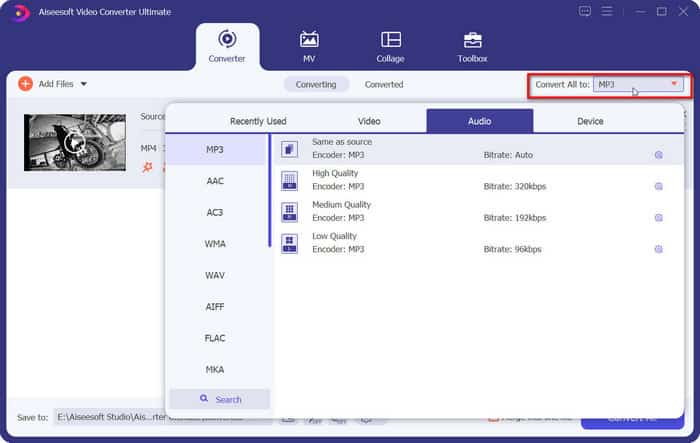
Step 3. Go to Save to and set a storage path for your converted M4A audio. Then click Convert All.

Dio 2. Kako pretvoriti M4A u MP3 online
FVC besplatni audio pretvarač
While the desktop tool is more stable and has more features, we need to complete a long list of downloads and installations before we can start the conversion. The installation package of the software will take up a lot of memory space. If we want to start the conversion immediately and save some storage space, we can seek the help of an online M4A to MP3 converter. In this area, we recommend FVC Video Converter Ultimate. the platform supports many popular audio formats, including MP3, WMA, AAC, WAV, AC3, FLAC and so on. Some online converters have file size limitations, but FVC Free Audio Converter doesn't, and we can even let it convert a large number of files at once.
Evo kako pretvoriti M4A u MP3 pomoću FVC besplatnog audio pretvarača.
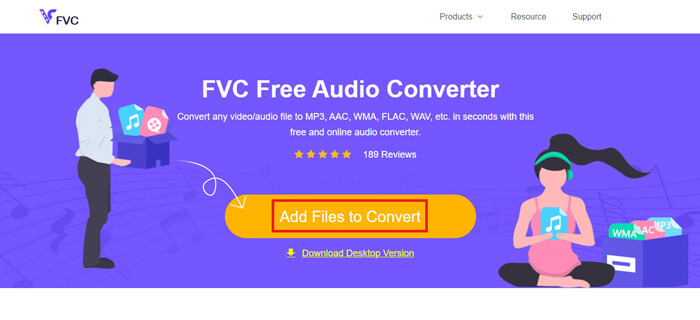
Step 1. Open the FVC Free Audio Converter using your browser. When the web page loads, click Add Files to Convert and upload your M4A audio.
Step 2. After adding, go to the bottom section and choose MP3 as the output format. Press on the settings icon if you want to make further adjustments.
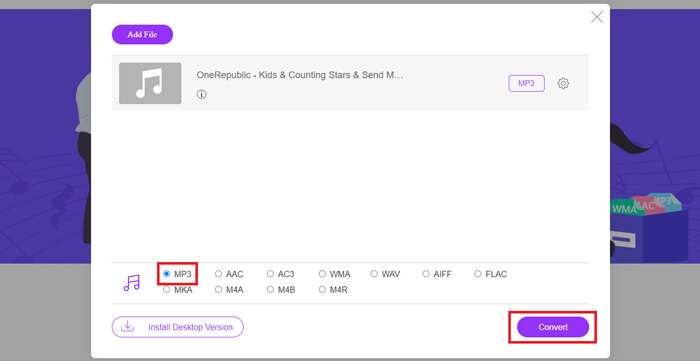
Step 3. Finally, click Convert to start the transformation.
Dio 3. Kako promijeniti M4A u MP3 na Macu
Pretvori M4A u MP3 pomoću iTunesa
Obje gore navedene metode rade i na Windowsima i na Macu. Ako ste korisnik Maca i želite pronaći besplatni pretvarač koji je kompatibilniji s vašim operativnim sustavom, preporučujemo iTunes. Ovaj softver ugrađen je u Appleov sustav i iako se često smatra multimedijskim playerom i alatom za upravljanje, podržava i izvođenje nekih jednostavnih operacija pretvorbe formata. Usput, čak i korisnici Windowsa mogu isprobati iTunes.
Evo kako promijeniti M4A u MP3 na Macu pomoću iTunesa.
Step 1. If your computer has iTunes, open it. If not, download and install it. You should sign in with your Apple ID and password.
Step 2. Click File > Add Folder to Library, and choose the folder where your M4A audio is kept. Then click Open to upload your M4A file to iTunes.
Step 3. Choose Edit > Preference to open another window.
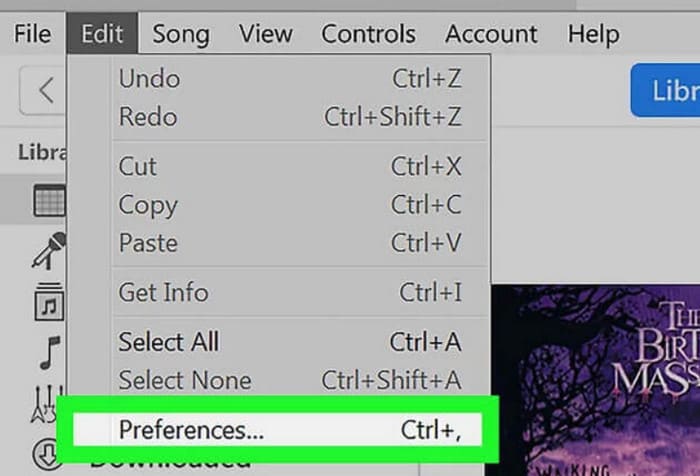
Step 4. In the new window, click Import Settings and navigate to the Import Using dialog. Choose MP3 Encoder and click OK to keep the settings.
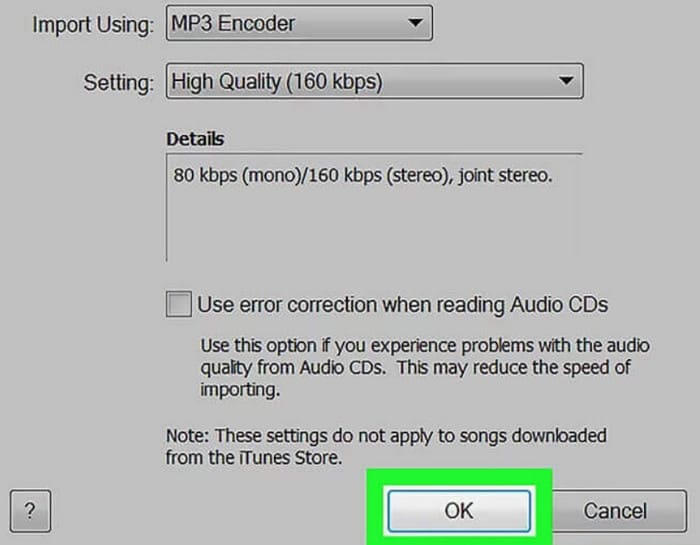
Step 5. Go back to the iTunes library and find the target M4A file. Click File > Convert > Create MP4 Version.

Dio 4. Kako besplatno pretvoriti M4A u MP3
Među besplatnim uobičajenim alatima, postoje još dva koja nam mogu pomoći u pretvaranju formata datoteka, FFmpeg i VLC Media Player. U ovom dijelu ćemo pokazati kako ih koristiti.
Koristite FFmpeg za prijenos M4A u MP3
FFmpeg je poznat po broju zadataka koje može obavljati. Međutim, u usporedbi s tradicionalnim softverom za uređivanje multimedije s gumbima i prozorima za pregled, FFmpeg djeluje jedinstveno. Moramo pripremiti predložak koda i ispuniti putanju za pohranu datoteke. Unesite naredbu koda u FFmpeg i dobit ćemo pretvorenu datoteku. Međutim, ova aplikacija nije baš prilagođena neiskusnim početnicima; priprema koda je problematična.
Pročitajte ovaj vodič za korištenje FFmpeg-a za prijenos M4A u MP3.
Step 1. Download and install FFmpeg on your computer. Open the Terminal application.
Step 2. Prepare the command you need to use.
ffmpeg -i input.m4a output.mp3
Replace the location of input in the above template with the storage path where the source M4A file is located. Then, replace the output with your desired output path. If you want to convert MP3 to M4A, swap the location of these two storage paths.
Step 3. Type the command into FFmpeg. Then press Enter to start the conversion.
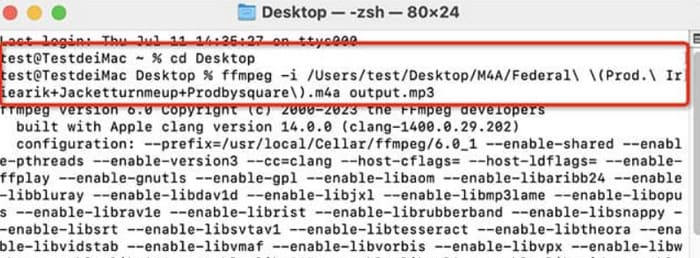
Izvršite konverziju iz M4A u MP3 putem VLC Media Playera
VLC Media Player is one of the most recognizable of the free M4A player and format converters. It is known to open multimedia files in almost all formats and is compatible with Windows, Mac, and Linux devices. On its page we can also find some essential audio editing tools.
Evo kako pretvoriti M4A u MP3 pomoću VLC Media Playera.
Step 1. Open VLC Media Player on your computer. Click Media > Convert/Save.
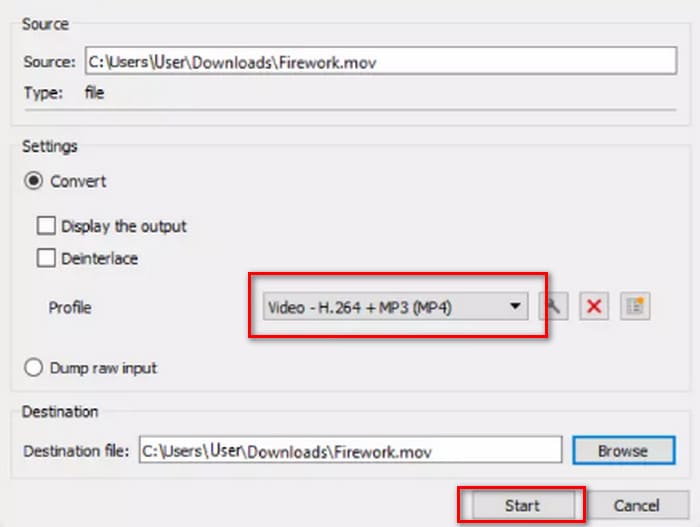
Step 2. Launch the Open Media window. Then press + Add to upload your M4A file. Next, click Convert/Save again.
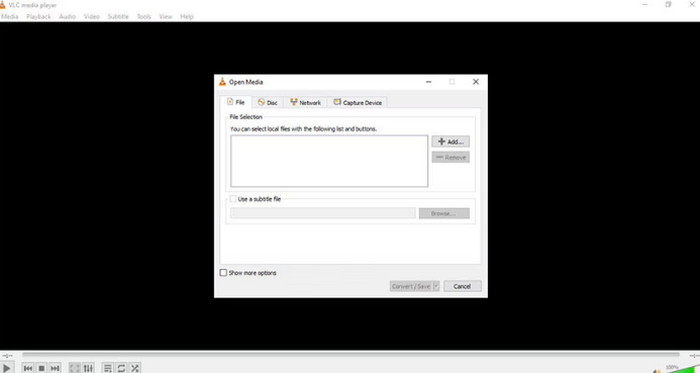
Step 3. A Convert window will appear. Choose Profile > Audio - MP3. Finally, click Start.
Dio 4. Zaključak
In this article, we recommend five tools for converting M4A to MP3 and how to use them. Among the desktop software, FVC Video Converter Ultimate is the most versatile and fast converter; iTunes is suitable for Mac users; VLC Media Player is totally free but with fewer editing tools; FFmpeg can accomplish a lot of tasks but is a bit difficult to use. If you want to bypass software downloads and installations, you can use FVC Free Audio Converter.
-
 4 najbolja načina za pretvaranje WMA u MP3
 Je li moguće pretvoriti WMA u MP3 s Windows Media Playerom? Kako pretvoriti WMA u MP3 besplatno? Ovaj post dijeli 4 jednostavne metode koje će vam pomoći da napravite audio pretvorbu iz WMA u MP3 na Mac, Windows PC i online.
-
 8 načina za pretvaranje MP4 u MP3 audio (serijska konverzija i velika veličina)
 Ako želite izdvojiti MP3 zvuk iz MP4 video zapisa, možete provjeriti ovaj članak i dobiti 8 rješenja. Postoje mrežni i izvanmrežni načini kako s lakoćom pretvoriti MP4 u MP3 na telefonu ili računalu.
-
 M4A Player - 5 najboljih M4A uređaja za Android i računalo
 Kako reproducirati M4A datoteke na Android telefonu? Koji igrač može igrati M4A? Ovaj post dijeli 5 najboljih besplatnih M4A playera za Android, Mac i PC.

