


 Video Converter Ultimate
 Snimač zaslona
 Video popravak
Besprijekorno spojite WAV datoteke pomoću softverskih alata i savjeta
Bilo da ste početnik u uređivanju zvuka ili profesionalac, za spajanje WAV datoteka nužno je koristiti odgovarajuće alate i tehnike kako bi se osiguralo da se dvije različite WAV datoteke spoje i izvoze u bezgubitnoj kvaliteti. S druge strane, pronalaženje pravog alata može korisniku oduzeti vrijeme i trud. Ipak, uz pomoć ovog članka istražit ćemo razne alate, s koracima kako ih učinkovito koristiti i savjetima koji će vam pomoći započeti te cijeli postupak učiniti jednostavnijim i učinkovitijim.

Dio 1. Kombinirajte WAV datoteke bez gubitaka u nekoliko sekundi [uz GPU ubrzanje]
Kada želite spojiti dvije WAV datoteke u jednu izlaznu datoteku, najbolji i najjednostavniji način je korištenje alata Video Converter Ultimate, ručno odabranog od FVC-a. Ovaj softverski alat tvrtke Aiseesoft dostupan je svim vrstama korisnika jer se može potpuno besplatno preuzeti s njihove službene web-stranice. Alat sadrži značajke za uređivanje videa i zvuka, s mogućnošću spajanja više WAV datoteka u jednu. Osim toga, softver je opremljen tehnologijom za brzu obradu, što spajanje i izvoz WAV datoteka čini znatno učinkovitijim za korisnika. Za jednostavno snalaženje pri zadatku spajanja WAV datoteka, slijedite vodič u nastavku.
Korak 1. Preuzmite i instalirajte program za spajanje WAV datoteka na svoje računalo, a zatim ga pokrenite.
Besplatno preuzimanjeZa Windows 7 ili novijiSigurno preuzimanje
Besplatno preuzimanjeZa MacOS 10.7 ili novijiSigurno preuzimanje
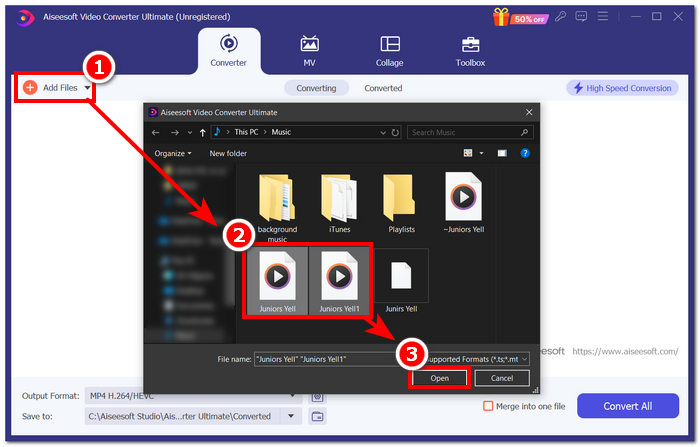
Korak 2. Kada uđete u sučelje programa, kliknite gumb Add Files u gornjem lijevom kutu. Zatim otvorite i odaberite WAV datoteke koje želite spojiti u jednu te kliknite na gumb Open.
Korak 3. Nakon što ste učitali WAV datoteke koje želite spojiti u programu, označite opciju Merge into one file, koja se nalazi pokraj gumba Convert All u donjem desnom dijelu sučelja.
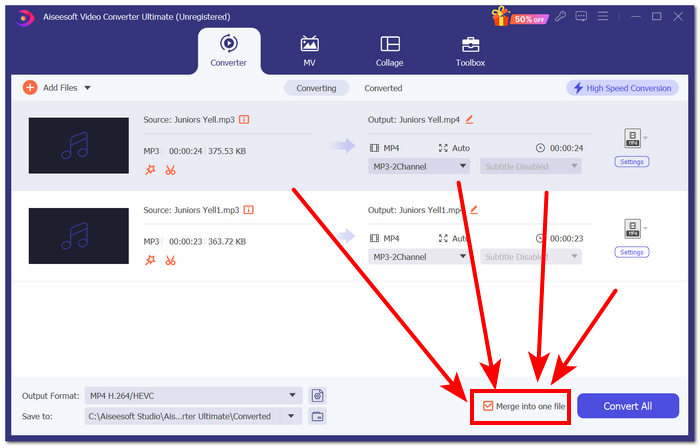
Korak 4. Kliknite gumb Convert All da biste pokrenuli proces spajanja; spojena datoteka automatski će se izvesti u vašu mapu za preuzimanja.

Savjeti
• Možete spojiti više WAV datoteka u softverskom alatu istovremeno.
• U donjem lijevom kutu softverskog sučelja možete kontrolirati izlazni format u željeni format datoteke prije izvoza.
• Također možete promijeniti odredište svoje spojene WAV datoteke tako da pristupite i odaberete odabranu mapu koja se nalazi u donjem lijevom kutu softverskog sučelja.
• Kako biste maksimizirali tehnologiju obrade velike brzine prilikom spajanja i izvoza vaše WAV datoteke, omogućite postavku za brzu konverziju koja se nalazi u gornjem desnom kutu softverskog sučelja.
• Ovaj alat podržava i razne druge formate pa možete spajati MP4, MKV, FLV, MP3, FLAC i mnoge druge formate.
Dio 2. Kombinirajte WAV datoteke na mreži
Kada smatrate da je spajanje vaših WAV datoteka putem softverskog alata prilično teško, mrežno rješenje može biti ono što vam treba. Descript je alat temeljen na webu koji funkcionira kao alat za uređivanje zvuka, videa i transkripta u jednom. Spajanje WAV datoteka relativno je jednostavno budući da alat temeljen na webu koristi AI za automatsko spajanje vaših ulaznih WAV datoteka u trenutku kada ih učitate i omogućite korisnicima da ih pregledaju prije preuzimanja.
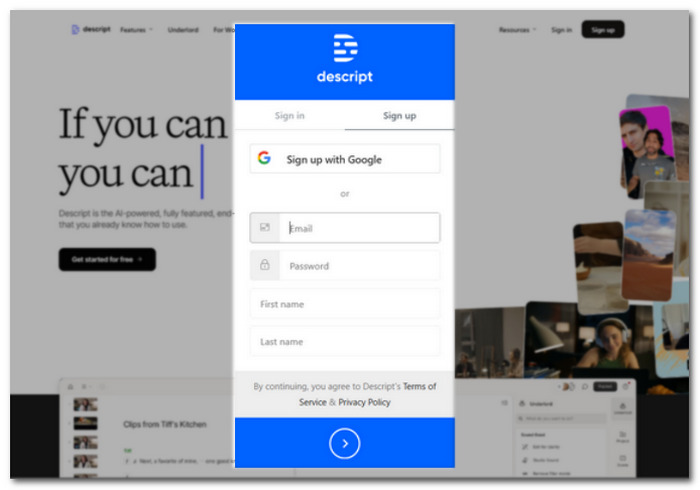
Korak 1. Idite na službenu web-stranicu Descripta i izradite račun kako biste mogli koristiti ovaj softver za spajanje svojih WAV datoteka.
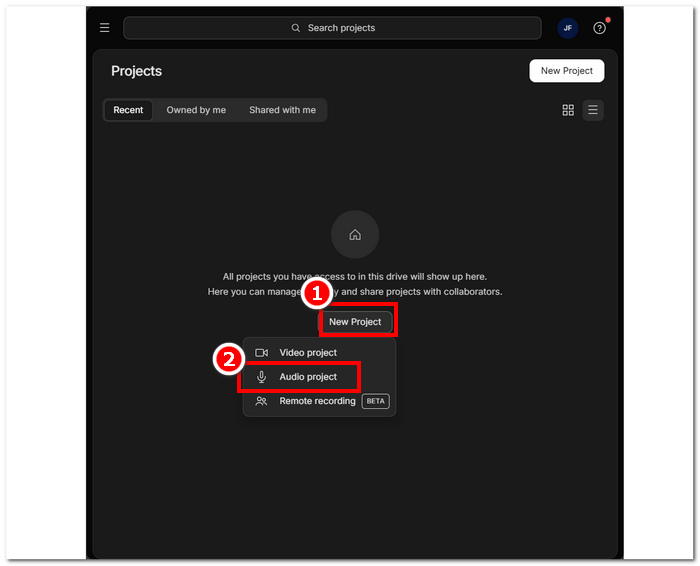
Korak 2. Kada se prijavite u sučelje alata, kliknite na New Project > Audio Project.
Korak 3. Učitajte WAV datoteke koje želite spojiti u jednu datoteku u polje Upload a file unutar sučelja alata.
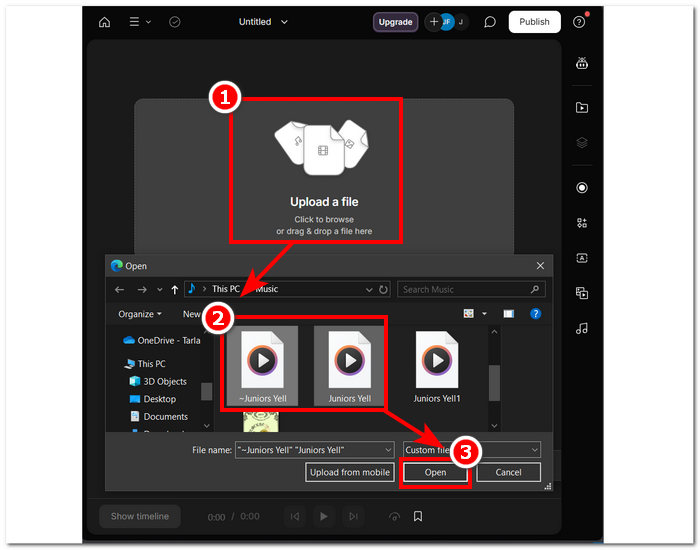
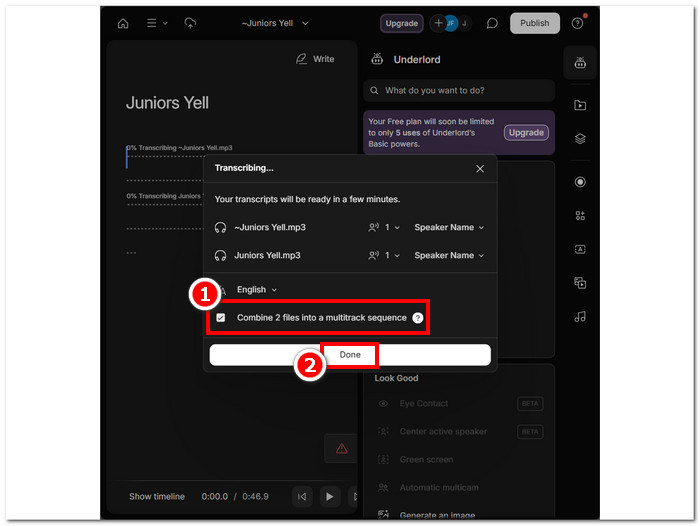
Korak 4. Dok se vaše WAV datoteke učitavaju u sučelje alata, pojavit će se prozor koji će vam omogućiti da odlučite želite li da se one automatski spoje. Označite kućicu kako biste omogućili AI proces spajanja, a zatim kliknite gumb Done.
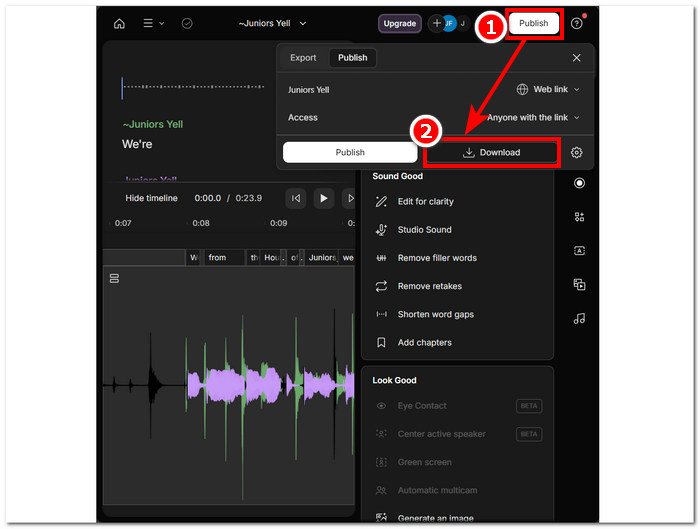
Korak 5. Pričekajte da alat dovrši spajanje vaših WAV datoteka. Kada je gotovo, možete reproducirati gotov rezultat kako biste provjerili je li AI dobro odradio spajanje WAV datoteka i po potrebi napravili prilagodbe. Kada ste zadovoljni, kliknite na Publish > Download kako biste preuzeli spojene WAV datoteke na svoje računalo.
Savjeti
• Prije preuzimanja vaših kombiniranih WAV datoteka, svakako temeljito provjerite audio zapis kako biste izbjegli isječke.
• Poznavanje alata može učinkovito ubrzati proces spajanja WAV datoteka.
Dio 3. Kombinirajte WAV datoteke s Audacityjem
Kao alat otvorenog koda za uređivanje zvuka, Audacity također može besplatno spajati zapise, uključujući WAV datoteke. Ovaj besplatni program već dugo pomaže korisnicima u zadacima uređivanja zvuka i znatno je olakšao spajanje WAV datoteka. Audacity omogućuje korisnicima da odjednom dodaju više WAV datoteka, a ujedno podržava uvoz različitih audio formata. Štoviše, ima brzu funkciju za precizno slaganje svake trake jednu iza druge, od kraja prethodne do početka sljedeće, što olakšava spajanje bez straha od preklapanja. Stoga će vam praćenje detaljnog vodiča u nastavku pomoći da se lakše snađete u programu.
Korak 1. Preuzmite Audacity na svoje računalo. Kada ga instalirate, otvorite ga i učitajte WAV datoteke koje želite spojiti u jednu.
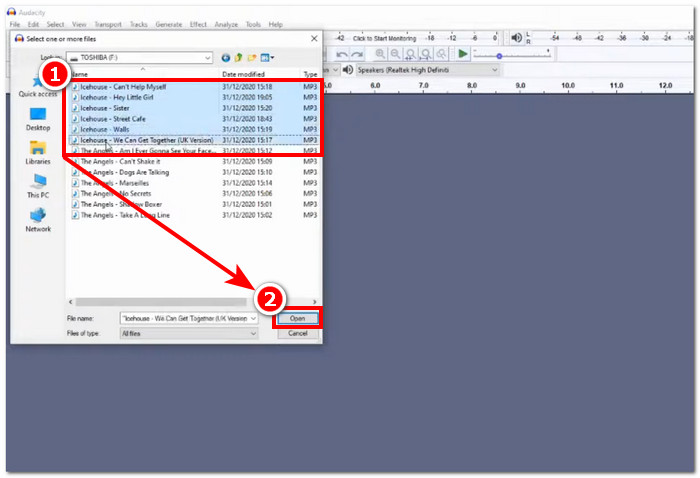
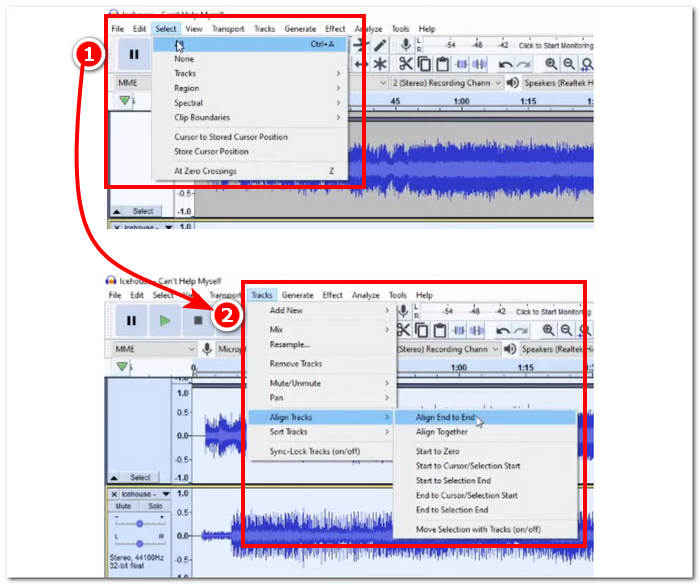
Korak 2. Kada su vaše WAV datoteke učitane u sučelje alata, najprije odaberite sve zapise klikom na Select > All u gornjem izborniku alata. Zatim je potrebno poravnati odabrane WAV zapise: kliknite na odjeljak Track i, pod Align Tracks, odaberite Align End to End.
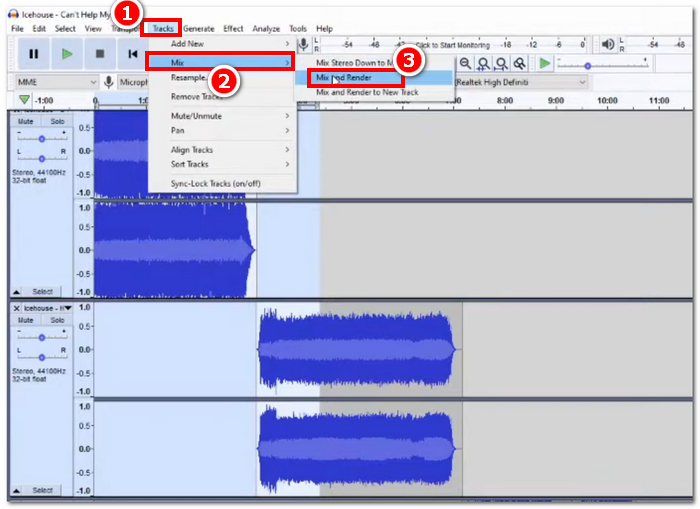
Korak 3. Kada su vaše WAV datoteke poravnane tako da jedna završava gdje druga počinje, kliknite ponovno na odjeljak Track i, pod funkcijom Mix, kliknite na Mix and Render kako biste pokrenuli proces spajanja.
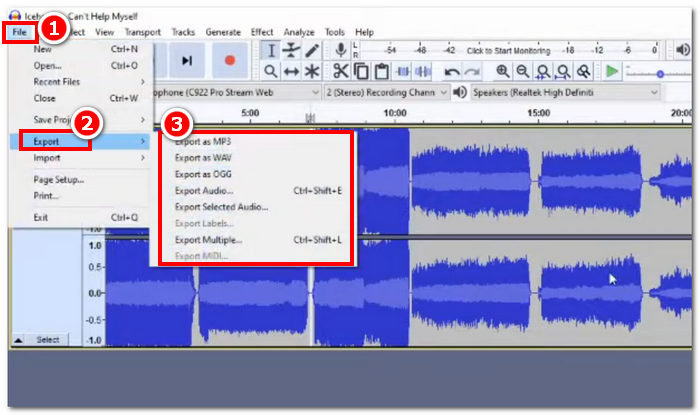
Korak 4. Kada je proces spajanja dovršen, možete izvesti svoju WAV datoteku klikom na File > Export i slobodno odaberite željeni izlazni format među dostupnima.
Savjeti
• Prilikom izvoza vaših kombiniranih WAV datoteka, odaberite izvoz kao WAV jer zadržava izvornu kvalitetu zvuka.
Dio 4. Kombinirajte WAV datoteke koristeći FFmpeg
Drugi softverski alat otvorenog koda za audio i video manipulaciju je FFmpeg. Ovaj moćni multimedijski okvir može se koristiti kao pretvarač i za multimedijsko uređivanje, kao što su video, audio i druge medijske datoteke. U rukovanju zadacima kao što je spajanje WAV datoteka, softver unosi određeni kod u naredbeni redak kako bi započeo proces spajanja koji se zove spajanje WAV datoteka u jednu izlaznu datoteku. Ispod je detaljan vodič o tome kako koristiti FFmpeg kao spajanje WAV datoteka.
Korak 1. Idite na web-stranicu FFmpeg-a i instalirajte program, ovisno o uređaju koji koristite.
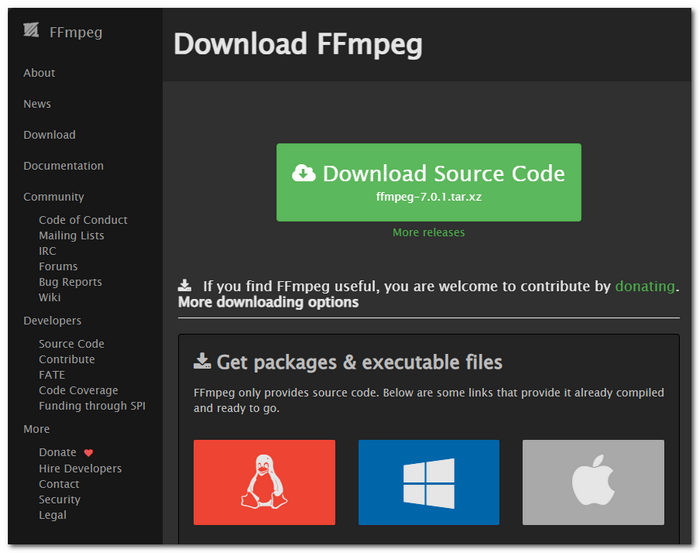
Preuzmite zip datoteku s web-mjesta i stvorite novu mapu na putu vašeg sustava za pohranu svih FFmpeg izvršnih datoteka, uključujući premještanje zip datoteke u mapu.
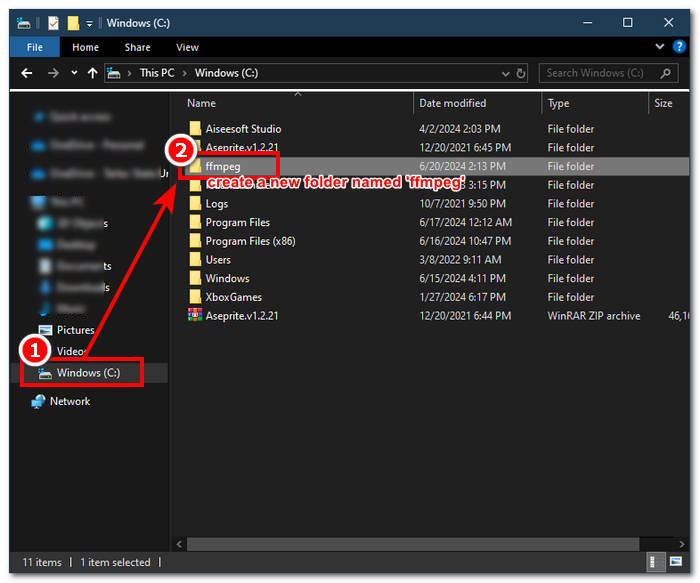
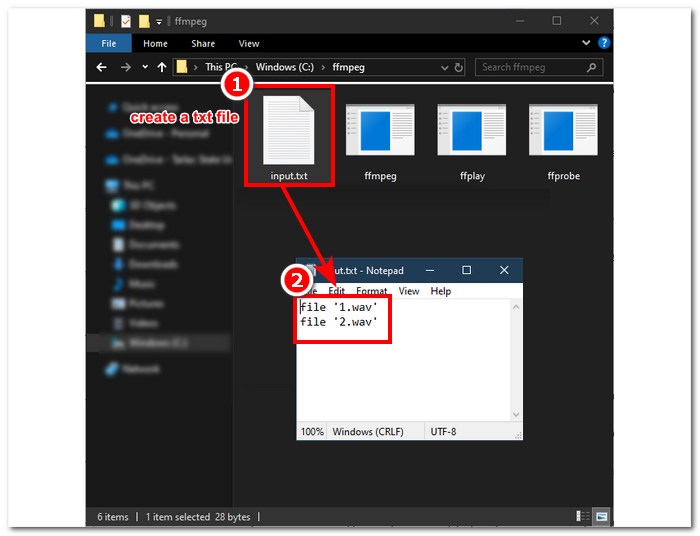
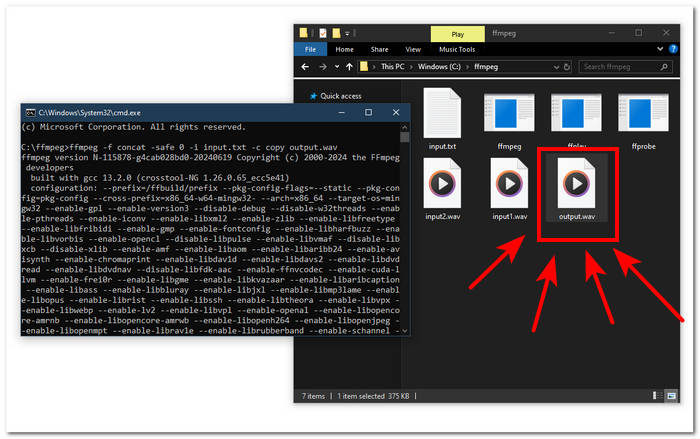
Korak 2. Premjestite svoje WAV datoteke u ffmpeg mapu koju ste upravo stvorili i pripremite ih tako da ih preimenujete u ‘input1.wav’ i ‘input2.wav’ u tom direktoriju.

Napomena: U istoj mapi zatim izradite datoteku naziva ‘input.txt’ i u nju unesite sljedeći sadržaj:;
file 'input1.wav'
file 'input2.wav'
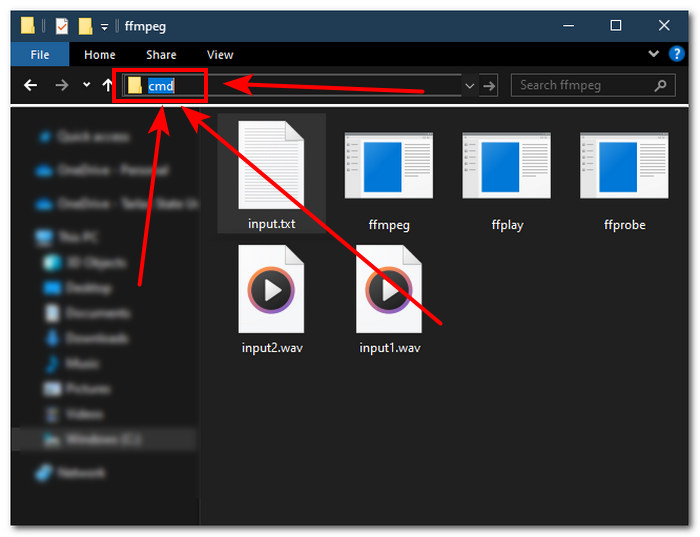
Korak 3. Pokrenite FFmpeg naredbeni redak tako da u polje putanje mape pri vrhu prozora upišete ‘cmd’ i pritisnete Enter.
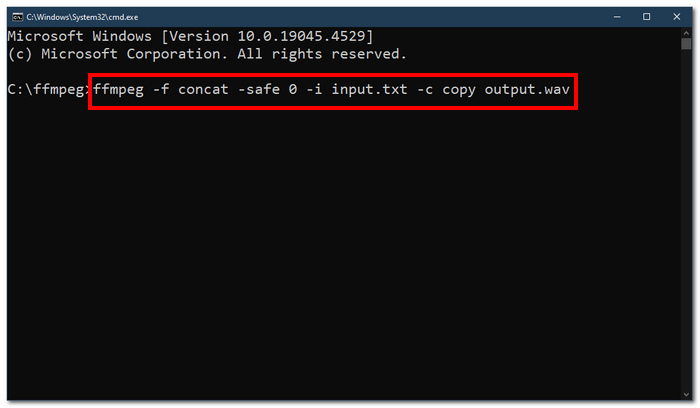
Korak 4. Kada se nađete u naredbenom retku FFmpeg-a, upišite sljedeću naredbu i pritisnite Enter:;
ffmpeg -f concat -safe 0 -i input.txt -c copy output.wav
Korak 5. U vašoj mapi pojavit će se nova WAV datoteka, što znači da ste uspješno spojili svoje WAV datoteke u jednu.
Savjeti
• Budući da se alat temelji na naredbenom retku, važno je upoznati se i poznavati osnovni naredbeni redak za učinkovitu navigaciju alatom.
• Držite sve svoje mape i datoteke povezane s FFmpeg-om u jednoj mapi radi organizacije i jednostavnog pristupa.
• Gledajte poduke i čitajte vodiče na internetu kada želite raditi druge zadatke osim spajanja WAV datoteka.
Dio 5. Često postavljana pitanja o tome kako kombinirati WAV datoteke
Možete li miješati WAV datoteke?
Da, možete miješati WAV datoteke pomoću softvera treće strane napravljenog za spajanje WAV datoteka, kao što su Video Converter Ultimate i Audacity odabrani od FVC.
Može li VLC spojiti audio datoteke?
VLC media player nema mogućnost spajanja WAV datoteka budući da je napravljen isključivo za strujanje medija i konverziju medija.
Kako spojiti video datoteke u Windows Media Playeru?
Windows media player ne podržava uređivanje WAV datoteka, a kamoli spajanje WAV datoteka. Windows Media Player je softver izrađen za Windows uređaje dizajniran za reprodukciju medijskih sadržaja.
Koji je najlakši način za kombiniranje audio datoteka?
Najlakši način za spajanje WAV datoteka je korištenje FVC-odabranog Video Converter Ultimate; ovaj softver je dizajniran s tehnologijom obrade velike brzine kako bi bio prikladan za korisnike s najmanje iskustva u zadacima audio uređivanja, kao što je kombiniranje WAV datoteka.
Može li kombiniranje WAV datoteka utjecati na kvalitetu zvuka?
Da, softverski alati mogu značajno utjecati na kvalitetu WAV datoteke ovisno o kvaliteti softvera koji koristite. Može imati najlošiju kvalitetu kada se koristi alat za nedovršenost. Kada koristite provjerene i pouzdane softverske alate kao što su FVC odabrani Video Converter Ultimate, Audacity i drugi, to može pomoći u održavanju izvorne kvalitete.
Zaključak
Za kraj, spojite WAV datoteke pomoću navedenih softverskih alata kako biste ih učinkovito kombinirali i izvezli u bezgubitnoj kvaliteti. Vrijedi naglasiti da je pronalaženje pravih alata i učenje njihova korištenja ključan dio procesa. Stoga je ovaj članak, od korištenja punokrvnih programa poput Video Converter Ultimatea koji preporučuje FVC, do naprednog alatnog retka FFmpeg, nastojao navesti korake i korisne savjete kako biste samo trebali slijediti upute za jednostavan i bezprobleman proces spajanja.
-
 Kako mogu besplatno pretvoriti MP4 u WAV Online
 Pokušavate li pretvoriti MP4 u WAV? Ne znate koji vam pretvarač može savršeno pomoći u tome, a da ne platite ni lipe? Pročitajte ovaj post i odgovorit će na sva vaša pitanja.
-
 Pregled 10 najboljih besplatnih MP3 glazbenih playera
 Koji je najbolji MP3 glazbeni uređaj? Kako mogu staviti glazbu na MP3 uređaj? Kako natjerati MP3 glazbeni uređaj za preuzimanje? Ovaj vam post daje detaljan pregled 10 najboljih besplatnih MP3 playera za Windows PC i Mac.
-
 8 najboljih MOV uređaja za PC i Mac za reprodukciju QuickTime MOV video datoteka
 Samo saznajte više o 8 najboljih MOV uređaja koji su dostupni i za Windows i za Mac. Možete odabrati željenu i prikladnu za reprodukciju MOV datoteka s izvornom kvalitetom.
