


 Video Converter Ultimate
 Snimač zaslona
 Video popravak
3 vrhunske metode za jednostavno uređivanje WMA datoteka [2024.]
Datoteke WMA (Windows Media Audio) popularan su format za kompresiju zvuka, koji omogućuje visoku kvalitetu zvuka uz zadržavanje razumne veličine datoteka. Uređivanje ovih datoteka može se činiti zastrašujućim, što je čest problem za neke korisnike koji ih trebaju izmijeniti. No uz prave alate i tehnike, uređivanje takvih datoteka je vrlo jednostavno. U ovom ćemo vas vodiču provesti kroz tri učinkovite metode kako uređivati WMA datoteke na različitim platformama, uključujući Windows, macOS i online rješenja. Bilo da ste početnik ili iskusni urednik zvuka, u ovom ćete članku pronaći savršeno rješenje za svoje potrebe.

1. dio: Jednostavni koraci za uređivanje WMA datoteka u sustavu Windows 11/10/8/7 i macOS
Najjednostavniji način za uređivanje WMA datoteka na Windowsu i macOS-u je upotrebom pažljivo odabranog alata Video Converter Ultimate. Ovaj svestrani alat podržava razne audio formate, uključujući WMA, zbog čega je idealan za uređivanje WMA datoteka. Štoviše, ima vrlo korisničko sučelje koje je intuitivno, pa je pristupačan čak i početnicima. Korisnici također mogu komprimirati zvuk, pojačati glasnoću i primijeniti uklanjanje šuma, što ga čini cjelovitim rješenjem za sve potrebe uređivanja zvuka.
Korak 1. Na svoje Windows ili macOS računalo instalirajte Video Converter Ultimate.
Besplatno preuzimanjeZa Windows 7 ili novijiSigurno preuzimanje
Besplatno preuzimanjeZa MacOS 10.7 ili novijiSigurno preuzimanje
Korak 2. Za uvoz WMA datoteka koje želite urediti kliknite gumb Add Files.
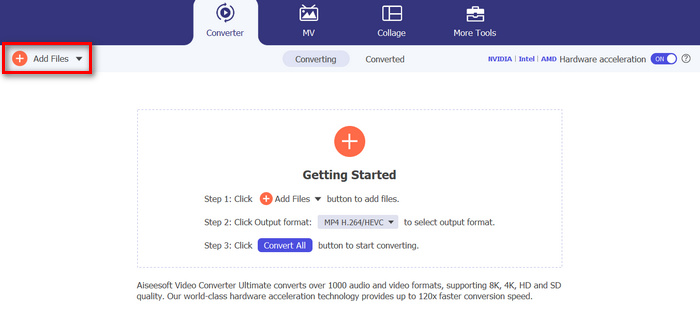
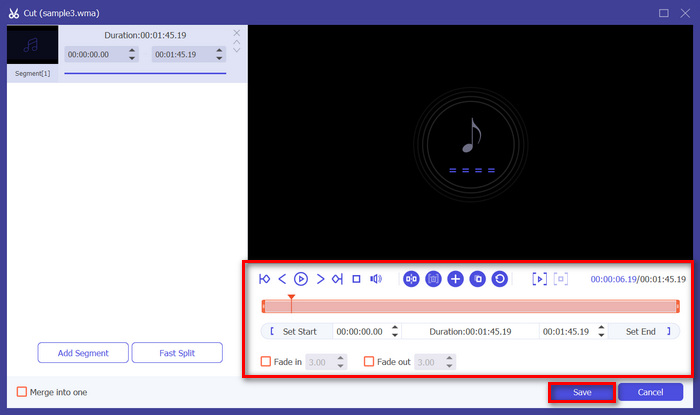
Korak 3. Zatim kliknite gumb Cut. Time ćete prijeći u novi prozor u kojem možete uređivati WMA datoteke, primjerice razdvajati, rezati, primjenjivati fade efekat zvuka i još mnogo toga.
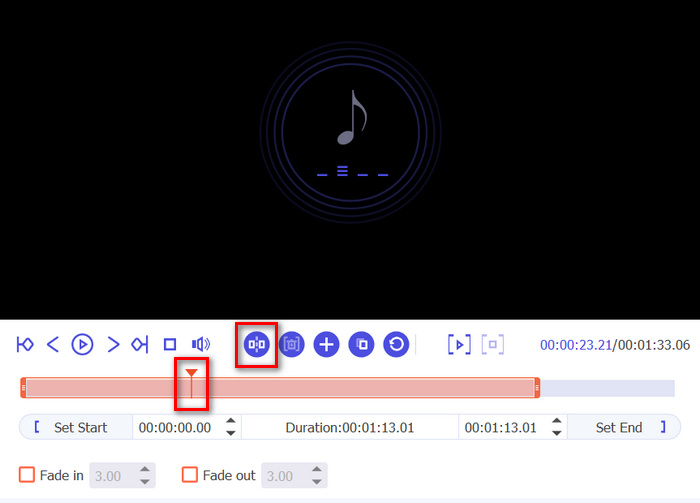
Korak 4. Ako želite razdvojiti audio datoteke, jednostavno pomaknite crvenu liniju, postavite je na dio zapisa gdje ga želite razdvojiti i kliknite gumb Split. Isto vrijedi i za izrezivanje dijela zvučne datoteke.
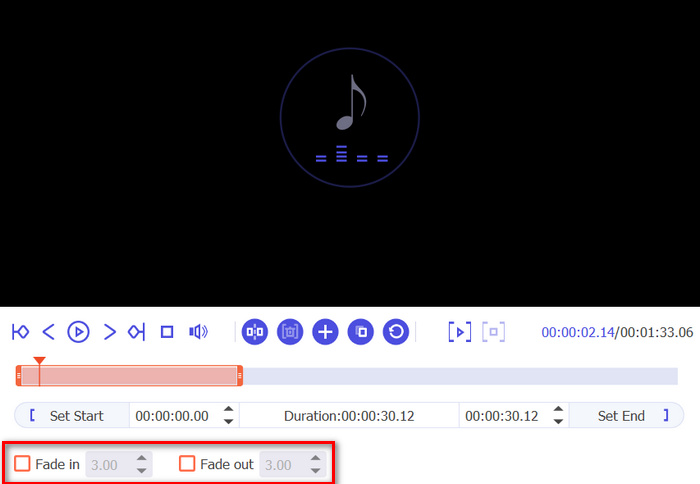
Korak 5. Također, ako trebate postupno pojačavanje ili stišavanje zvuka, samo kliknite na Fade in i Fade out, označite kućicu ispod i postavite vrijeme kada želite da se vaš WMA zvuk pojača odnosno utiša.
Korak 6. U međuvremenu, ako želite pojačati glasnoću i dodati odjeke ili zadrške, kliknite gumb Edit i tamo ih možete prilagoditi podešavanjem njihovih razina.
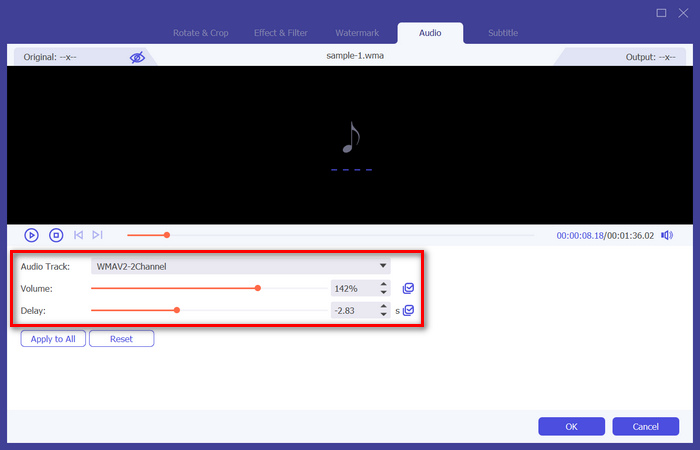
Korak 7. Kada završite, kliknite gumb Save, nakon čega možete pregledati svoje WMA datoteke, a kad ste zadovoljni, kliknite gumb Convert All.
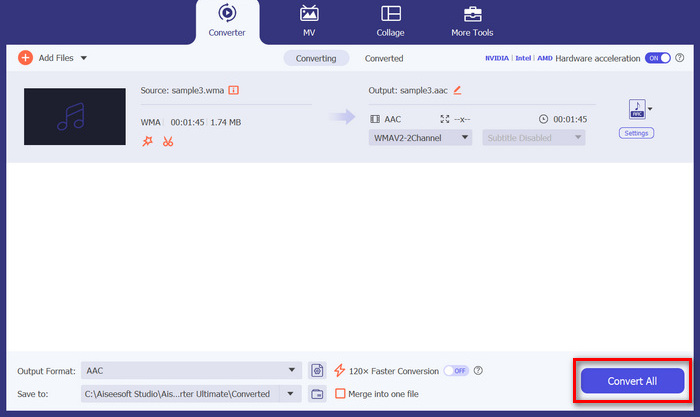
Za uređivanje WMA datoteka doista je važno imati pouzdan alat koji kombinira funkcionalnost i jednostavnost korištenja. Video Converter Ultimate jedan je od izvrsnih izbora zbog svojih sveobuhvatnih značajki uređivanja i visokokvalitetnog ispisa. Sposobnost rukovanja različitim audio formatima osigurava svestranost, što ga čini jedinstvenim rješenjem za sve vaše potrebe za uređivanjem zvuka. Uz to, njegova velika brzina obrade štedi vrijeme, dok intuitivno sučelje jamči glatko iskustvo uređivanja za korisnike svih razina vještina. Bilo da izvodite osnovna uređivanja ili složenije izmjene, ovaj alat pruža moćnu, ali jednostavnu platformu za poboljšanje vaših WMA datoteka.
Dio 2: Uredite WMA datoteke u Audacityju
Audacity je također izvrstan alat za uređivanje WMA datoteka. Ovaj je alat besplatan za korištenje i jednako je dobar kao i mnogi unaprijed plaćeni alati. Možete koristiti ovaj alat za uređivanje bilo koje audio datoteke rezanjem, spajanjem i još mnogo toga. Možete čak ukloniti šum ili vokale iz vaših WMA datoteka ako želite. Međutim, ova bi aplikacija mogla biti previše složena za neke korisnike, ali svejedno, ovaj je alat izvrstan u rukovanju WMA datotekama.
Korak 1. Najprije morate uvesti svoje WMA datoteke povlačenjem na vremensku traku alata.
Korak 2. Kliknite alat Editing kako biste uredili svoje WMA datoteke. Pomoću njega možete razdvajati, rezati ili raditi još više s datotekama.
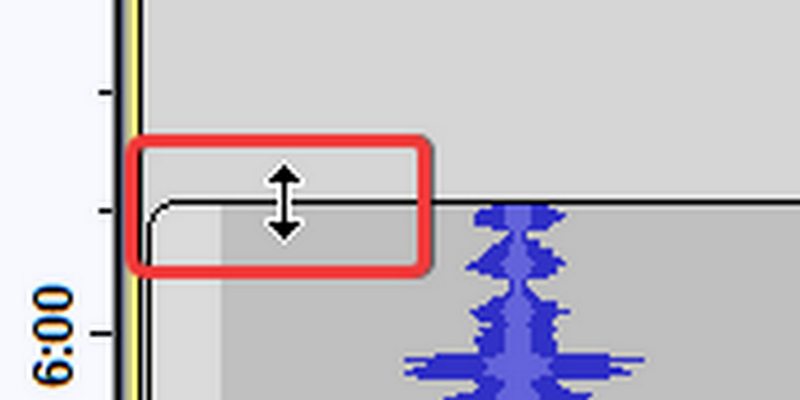
Korak 3. Da biste skratili (obrezali) WMA datoteke, postavite pokazivač miša na gornju trećinu lijevog ili desnog ruba isječka.
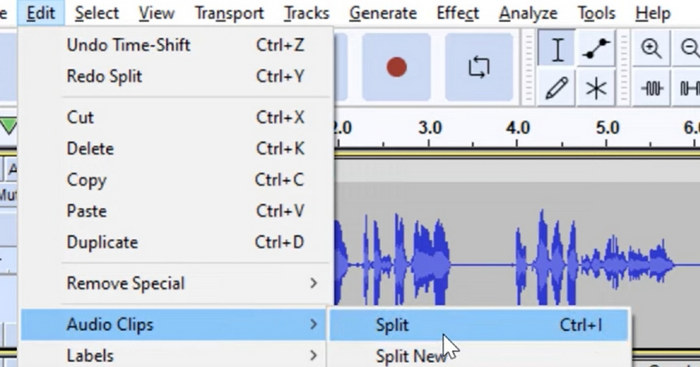
Korak 4. Ako želite razdvojiti svoje WMA datoteke, kliknite dio zapisa na kojem želite razdvojiti isječak, kliknite desnom tipkom miša i odaberite Split clip.
Korak 5. Kada završite s uređivanjem WMA datoteka, idite na karticu File i odaberite Save Project kako biste izvezli uređenu datoteku.
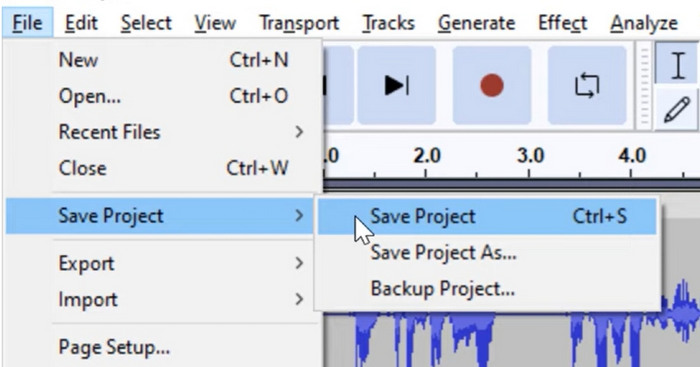
Audacity je izvrstan alat za uređivanje WMA datoteka. Jedini nedostaci su njegova složenost za nove korisnike i zahtjevi sustava za uređaje, što bi moglo usporiti njegovu ukupnu izvedbu u usporedbi s drugim alatima.
Dio 3: Uredite WMA datoteke na mreži
Apps123 je online platforma koja nudi skup alata za uređivanje multimedijskih datoteka, uključujući WMA datoteke. Ova usluga temeljena na webu omogućuje korisnicima izvođenje raznih zadataka uređivanja zvuka izravno iz preglednika bez potrebe za preuzimanjem ili instaliranjem softvera. Pomoću ovog alata korisnici mogu uređivati WMA datoteke koristeći značajke kao što su skraćivanje zvuka, mijenjanje glasnoće, mijenjanje brzine, visine i više.
Za korištenje ovog alata:
Korak 1. Idite na njihovu službenu web-stranicu.
Korak 2. Na njihovom glavnom sučelju kliknite na Audio tools i odaberite funkciju uređivanja koju želite koristiti za svoje WMA datoteke.
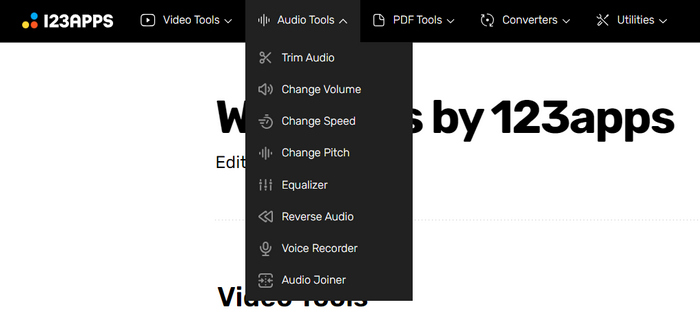
Korak 3. Ondje možete birati između skraćivanja (trim), promjene glasnoće, brzine, visine tona, spajanja zvuka i još mnogo toga. Za korištenje, kliknite na odgovarajuću funkciju za uređivanje zvuka koju želite i uvezite WMA datoteku.
Korak 4. Nakon toga slijedite upute na zaslonu.
Korak 5. Na kraju, za izvoz uređenih WMA datoteka kliknite gumb Save.
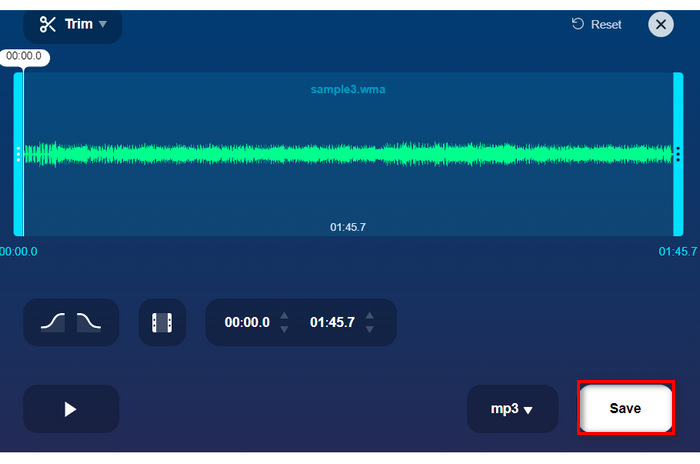
Korištenje online alata kao što je Apps123 nudi praktičan način uređivanja WMA datoteka, a postoji mnogo značajki koje možete izabrati. Međutim, ne možete primijeniti sve te značajke uređivanja odjednom jer su stvorene zasebno na temelju svojih različitih funkcija. Također, brzina uvoza i obrade zahtijeva vrijeme. Možda za druge to nije stvar, ali za neke su brzina i učinkovitost važni. Unatoč tome, ovaj je alat izvrsna alternativa za korisnike koji traže online metodu za uređivanje WMA datoteka.
Dio 4: Često postavljana pitanja o uređivanju WMA datoteka
Radi li WMA na Macu?
Da, WMA datoteke su kompatibilne s Mac operativnim sustavima. Međutim, neke zadane Mac aplikacije možda neće podržavati WMA reprodukciju bez dodatnih dodataka ili softvera trećih strana.
Kojim programom mogu otvoriti WMA datoteke?
WMA datoteke mogu se otvoriti raznim programima na različitim platformama. Za Mac korisnike, aplikacije kao što su Audacity, VLC Media Player ili QuickTime s dodatnim dodacima mogu rukovati WMA datotekama. U sustavu Windows izvorni programi poput Windows Media Playera mogu otvoriti WMA datoteke, zajedno s opcijama trećih strana kao što su VLC i Audacity.
Koja aplikacija pretvara WMA u WAV?
Dostupno je nekoliko aplikacija za pretvaranje WMA u WAV poput Video Converter Ultimate spomenutog u članku. Ovaj alat nudi jednostavno sučelje i podržava skupnu konverziju radi praktičnosti.
Zaključak
Ukratko, pouzdan alat za uređivanje WMA datoteka nužan je jer drugi alati ili platforme često ne podržavaju ovaj format. Stoga upotreba bilo kojeg od alata spomenutih u ovom članku, poput Video Converter Ultimate, Audacity i Apps123, nudi različite načine i mogućnosti kako uređivati WMA datoteke prema vašim željama i potrebama. Pa što čekate? Isprobajte neki od ovih alata odmah i uredite svoje datoteke bez ikakvih komplikacija.
-
 5 najboljih videouređivača s umjetnom inteligencijom za usavršavanje vaših snimaka
 Upoznajte vrhunac tehnologije za uređivanje videozapisa, naš najbolji AI uređivač videozapisa. Besprijekorno spojite kreativnost i učinkovitost dok uređujete videozapise pomoću alata koji pokreću AI.
-
 Učinkoviti audio kompresori za offline i online korisnike
 Imate problema s velikim audio datotekama? Dostupni su mnogi kompresori audio datoteka za offline i online korisnike. Provjerite ih ovdje.
-
 7 popularnih uređivača glazbenih oznaka na Windows, Mac i mobilnim uređajima
 Glazbene oznake popularne su za raspoređivanje glazbe u vašoj knjižnici prema podacima koji se nalaze u njoj. Što ako to želite promijeniti? Pročitajte detalje u nastavku da biste saznali više.
