


 Video Converter Ultimate
 Snimač zaslona
 Video popravak
Izrada melodija zvona na iPhoneu koristeći GarageBand i Alternative
Umorni ste od buđenja uz iste dosadne melodije zvona na svom iPhoneu? Iako iPhone ograničava pristup onim trendi melodijama, to vas ne sprječava da pokušate. Kako su melodije zvona postale dio našeg života, bilo za jednostavne obavijesti ili alarme, mogućnost njihova korištenja ili mijenjanja donekle odražava našu osobnost i ukus. Pa tko ne bi želio da ga obavijesti ili probudi zvuk po vlastitom izboru, zar ne? Koliko god se teško činilo, napokon smo pronašli način kako napraviti melodiju zvona u GarageBandu. Otkrijte kako stvoriti novu, pretvoriti postojeću melodiju i postaviti je na svoj iPhone uz pomoć GarageBanda i jedne alternative već danas te počnite pokazivati svoju osobnost i ukus kroz svoje zarazne melodije zvona.

Dio 1. Kako napraviti melodiju zvona u GarageBandu
Prije nego što vam pokažemo kako stvoriti melodiju zvona u GarageBandu, važno je prvo znati što je GarageBand. GarageBand je digitalna audio radna stanica koju je razvio Apple isključivo za iOS, macOS i iPadOS. Stoga je vrlo jednostavan za korištenje i može se besplatno koristiti na gore spomenutom operativnom sustavu.
Korak 1. Otvorite GarageBand na svom Macu ili ga najprije preuzmite na svoj iPhone ili bilo koji Apple uređaj po vašem izboru.
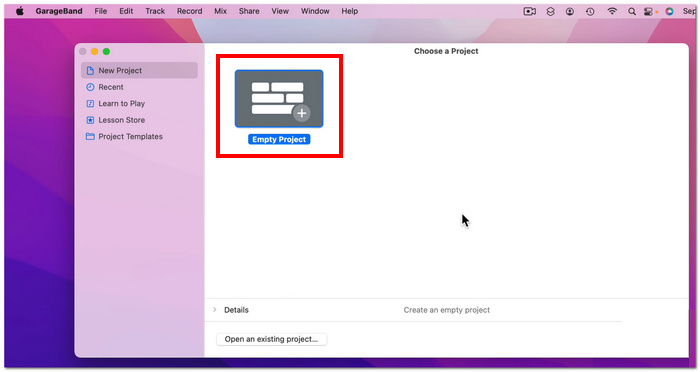
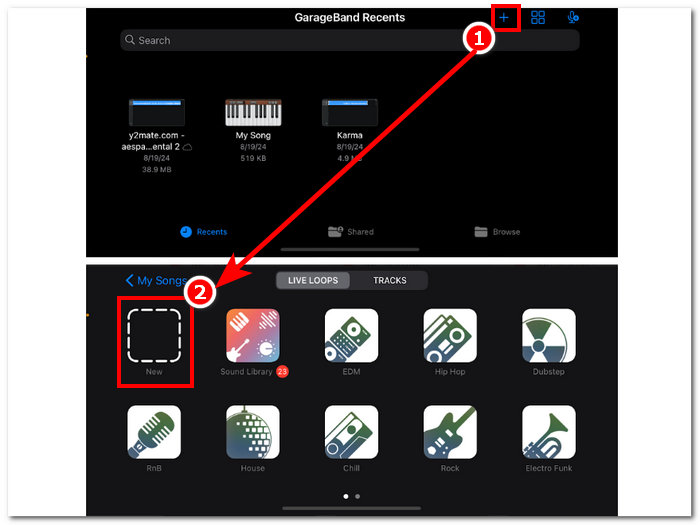
Korak 2. Na sučelju aplikacije dodirnite + i zatim odaberite opciju New project (Novi projekt).
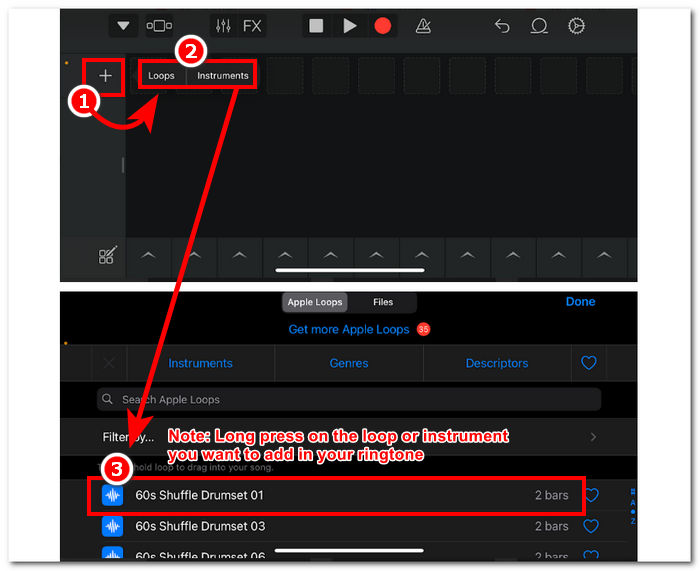
Korak 3. Zatim ćete biti preusmjereni na vremensku liniju GarageBanda, gdje možete dodati Instrument ili Loop koji želite ubaciti u svoju melodiju zvona; jednostavno dodirnite gumb +, zatim dugo pritisnite određeni loop ili instrument koji želite dodati na svoju vremensku liniju.
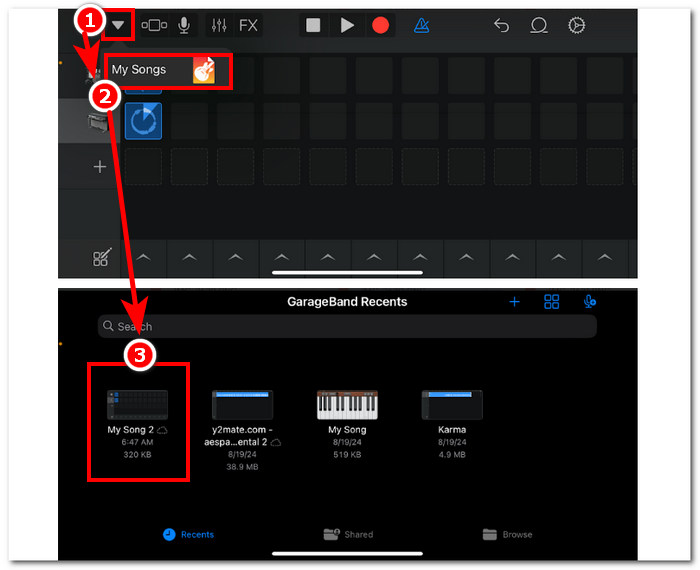
Korak 4. Na kraju, da biste spremili novu melodiju zvona, dodirnite gumb sa strelicom prema dolje u gornjem lijevom kutu zaslona i odaberite My Songs. Vaše datoteke automatski će se spremiti u pohranu vašeg uređaja.
Dio 2. Kako od postojeće pjesme napraviti melodiju zvona na GarageBandu
Kako bismo uzbudljivu pjesmu pretvorili u vašu melodiju zvona, odlučili smo se za glazbu s Apple Musica budući da određena ograničenja zabranjuju korištenje glazbe na iPhoneu, što se tiče onoga što se zove DRM zaštita.
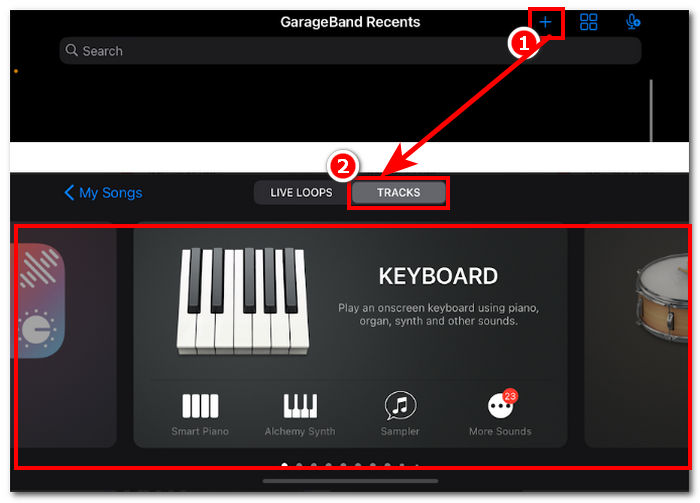
Korak 1. Otvorite aplikaciju GarageBand na svom iPhoneu, pritisnite gumb + i odaberite bilo koji instrument po vašem izboru.
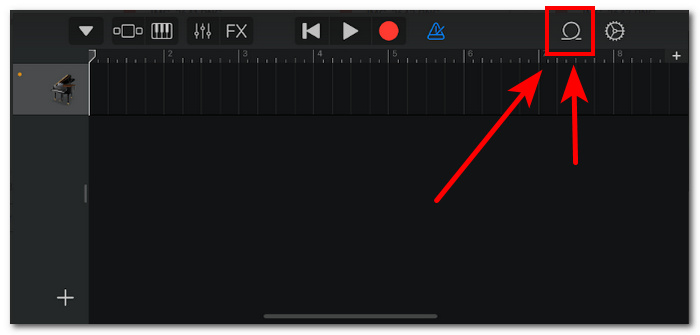
Korak 2. Kada uđete u višekanalni prikaz aplikacije, dodirnite ikonu Loop u gornjem desnom kutu zaslona.
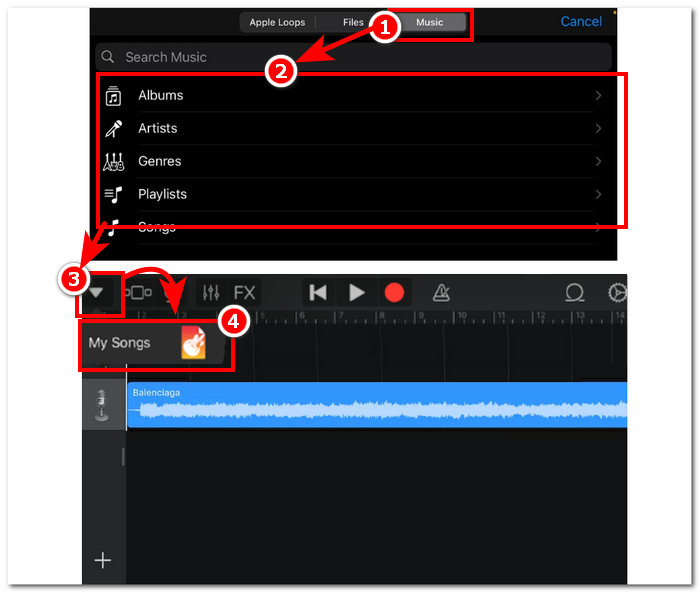
Korak 3. U odjeljku za loopove dodirnite dio Music (Glazba) i tamo odaberite pjesmu od koje želite napraviti melodiju zvona. Dodajte je na vremensku liniju jednostavnim dodirom ili dugim pritiskom na nju. Kada je na vremenskoj liniji, dodirnite gumb sa strelicom prema dolje i idite na My Songs.
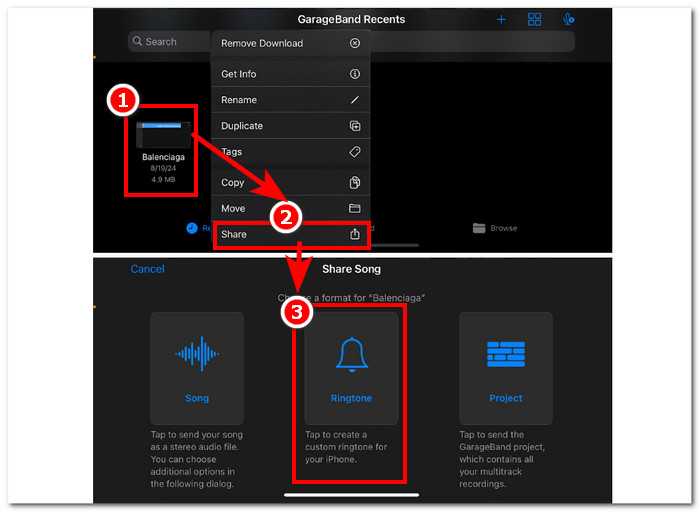
Korak 4. Dugo pritisnite melodiju zvona koju ste upravo stvorili, dodirnite Share (Dijeli) i odaberite Ringtone (Melodija zvona) kako biste je postavili kao vlastitu prilagođenu melodiju zvona na svom iPhoneu.
Dio 3. GarageBand alternativa za izradu melodije zvona
Softverski alat najbolja je opcija ako želite stvoriti melodiju zvona i personalizirati je za jedinstven dojam. Uz podršku za do 1000 vrsta datoteka, FVC-picked Video Converter Ultimate je višenamjenski program koji nije namijenjen samo izradi melodija zvona, već može i pretvarati, uređivati, poboljšavati i komprimirati video i audio. Savršen je za prilagodbu melodije zvona, za razliku od GarageBanda, koji pomalo oskudijeva u mogućnostima prilagodbe. Osim toga, u sustav FVC-picked Video Converter Ultimate ugrađena je tehnologija brzog procesuiranja kako bi se zajamčila bezz gubitka kvaliteta zvuka i brze stope pretvorbe.
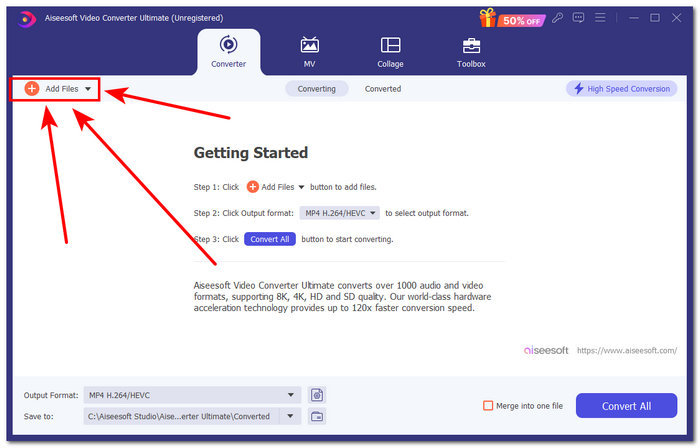
Korak 1. Na svom Macu preuzmite i instalirajte FVC-picked Video Converter Ultimate. Otvorite program na uređaju, učitajte audio zapis ili pjesmu koju želite pretvoriti i prilagoditi u melodiju zvona klikom na poveznicu Add Files u gornjem lijevom dijelu sučelja.
Besplatno preuzimanjeZa Windows 7 ili novijiSigurno preuzimanje
Besplatno preuzimanjeZa MacOS 10.7 ili novijiSigurno preuzimanje
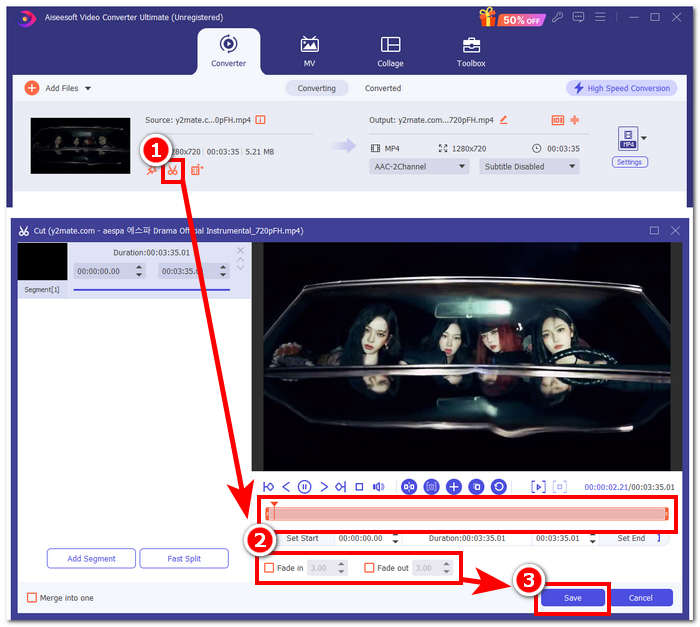
Korak 2. Kliknite na ikonu škare pokraj minijature svoje audio datoteke. Na zaslonu će se pojaviti novi prozor koji vam omogućuje dodavanje fade efekata i rezanje audio datoteke. Kada ste zadovoljni prilagodbom, jednostavno kliknite gumb Save kako biste dovršili postupak.
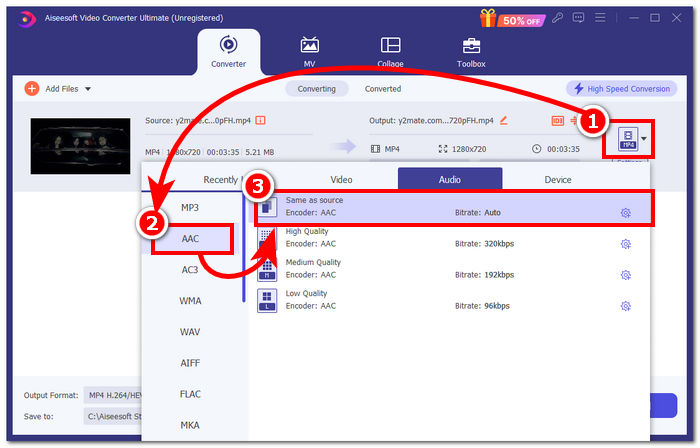
Korak 3. Nakon što ste izmijenili svoj audio zapis, promijenite njegov format iz MP4 ili MP3 u AAC, koji iPhone koristi za svoje melodije zvona.
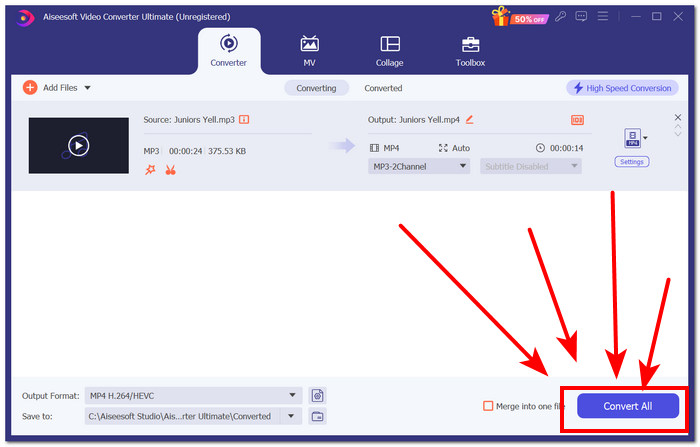
Korak 4. Kliknite gumb Convert All i vaša melodija zvona automatski će se spremiti na uređaj. Nakon dovršetka pretvorbe, svoju melodiju zvona možete pronaći u mapi za preuzimanja.
Dio 4. Kako postaviti melodiju zvona u iPhoneu iz datoteka s GarageBandom
Postavljanje pjesme kao melodije zvona pomoću programa GarageBand iz vaših datoteka može biti priličan proces. To znači da prvo morate preuzeti pjesmu, a zatim je proći kroz aplikaciju RingtoneMaker koju morate instalirati na svoj uređaj.
Korak 1. Preuzmite željenu pjesmu na svoj uređaj.
Možete potražiti pjesmu na YouTubeu i preuzeti je pomoću mrežnog programa za preuzimanje YouTubea u MP3.
Korak 2. Da biste od pjesme napravili melodiju zvona, pokrenite aplikaciju RingtoneMaker i jednostavno uvezite preuzetu pjesmu u aplikaciju. Nakon učitavanja dodirnite gumb Make Ringtone i nastavite odabirom aplikacije GarageBand.
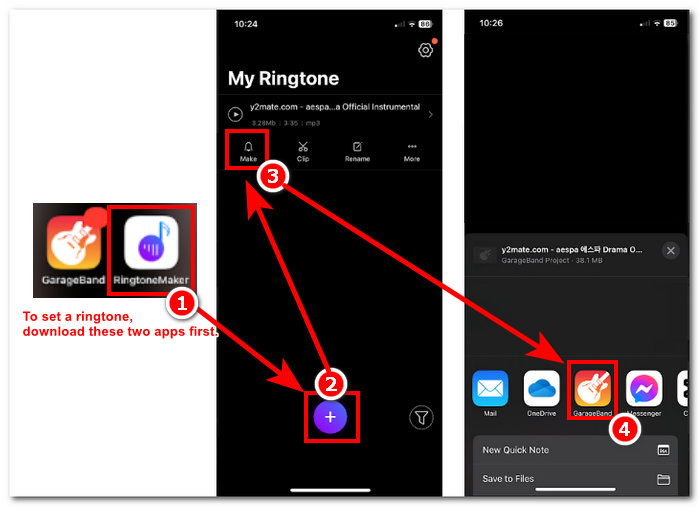
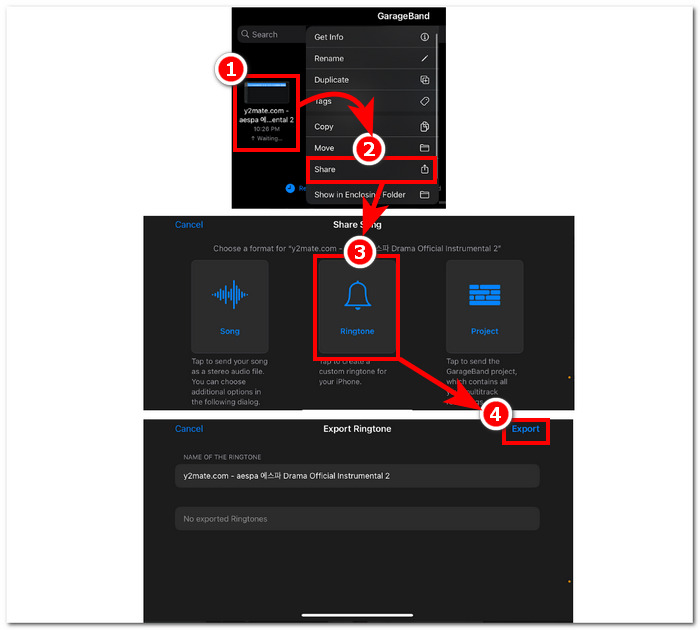
Korak 3. Nakon što budete preusmjereni u aplikaciju GarageBand, pronađite uvezenu pjesmu i dodirnite je. Zatim slijedite ovu putanju: Share > Ringtone > Export. I eto, uspješno ste pretvorili postojeću pjesmu u melodiju zvona.
Dio 5. Često postavljana pitanja o tome kako napraviti melodiju zvona u GarageBandu
Je li GarageBand dovoljno dobar za početnike?
Da, GarageBand je dobar, ako ne i bolji, alat za izradu melodija za Appleov ekosustav. Njegovo jednostavno sučelje savršeno je za sve vrste korisnika, od početnika do profesionalaca. Ugrađeni alati izrađeni isključivo za stvaranje privlačnih i trendi tonova i širok raspon tutorijala dostupnih na mreži čine ga alatom prilagođenim početnicima.
Je li zvono Garage besplatno?
Da, GarageBand je besplatan za korištenje i preuzimanje na sve Apple uređaje. Korisnicima omogućuje korištenje njegovih značajki za stvaranje, sastavljanje i izvoz bez ikakve dodatne naknade ili pretplate.
Postoji li besplatna aplikacija za zvono?
Da, postoji mnogo aplikacija za zvono koje možete isprobati. Neke opcije su RingtoneMaker, Sedge, Audiko, a popis se nastavlja. Stoga korištenje svih vrsta aplikacija i softvera ovisi o korisnicima. Preporučujemo korisnicima da istraže koju vrstu aplikacije za zvono žele.
Zaključak
Apple je postavio određena ograničenja na način na koji korisnici mogu kreirati i postaviti svoje melodije zvona pomoću svoje vlastite aplikacije GarageBand. Nekako učinkovito radi svoj posao, pogotovo kada postavljate pjesmu koja je već preuzeta na vaš iPhone. Međutim, možda mu nedostaju neke značajke prilagodbe poput onoga što Video Converter Ultimate koji je odabrao FVC može učiniti da ga učini osobnijim. Međutim, i dalje je učinkovit i jedini način na koji korisnik iOS-a može stvoriti melodiju zvona na svom uređaju.
-
 Najbolje upute za brzo pretvaranje WAV-a u melodiju zvona
 Želite bez napora pretvoriti WAV u melodiju zvona? Naši alati prilagođeni korisniku obavljaju posao! Uživajte u visokokvalitetnoj audio konverziji u tren - bez tehničkih glavobolja. Isprobajte ih danas!
-
 Kako napraviti glasovni zapis kao melodiju zvona na iPhoneu i Androidu
 Ako glasovni zapis želite pretvoriti u melodiju zvona, pročitajte ovaj članak. Bilo da ste korisnik iPhonea ili Androida, rješenja možete pronaći u našem sadržaju.
-
 5 MP3 rezača za jednostavno rezanje bilo kojeg zvuka [Ažurirano 2024.]
 Trebate li MP3 rezač za rezanje zvuka? U tom slučaju pročitajte ovaj članak jer nudimo alate na koje se možete osloniti za jednostavno rezanje zvuka.
