


 Video Converter Ultimate
 Snimač zaslona
 Video popravak
Najbolji MPG u GIF konverter za pretvaranje MPG u GIF [besplatna i Premium verzija]
Najbolji način da izrazite svoje osjećaje svojim voljenima je da stvorite smislenu poruku. Ali želite li znati što je puno bolje izraziti na drugačiji način? Možete koristiti GIF. Također poznate kao Graphics Interchange Format, to su slike koje šaljete, ali se nadograđuju. Ove pokretne slike stvorene su da jednostavno izraze svoje osjećaje prema nekome izravno ili neizravno. Jeste li znali da većina aplikacija za razmjenu poruka podržava GIF kao i naš ugrađeni messenger? Ali u nekim starim verzijama telefona ne nudi ovaj format. Iako je GIF zabavan, neće vam cijelo vrijeme pružiti emociju koju želite izraziti.
So, you're here to know what is the best way to change your MPG to GIF format. Isn't exciting to create your own GIF. Instead of searching for what you should use, why don't you try creating your own GIF by adding your personal touch to it. The best way to know how to do it is to read this article. Because it provides sufficient information, steps, and tools for the job. So, without any more beating around the bush let's proceed to the important details of this article. Continue reading to know more about these lists of converters.

Dio 1. 4 Najbolji alat za pretvaranje MPG u GIF format PC ili Mac
1. FVC Video Converter Ultimate
If you want to share your humorous message without typing too many details then this tool will help you. This tool offers you to convert mpg to animated gif also it was developed by the FVC. FVC Video Converter Ultimate allows the user to convert any type of format into a playable format you may like to use. Maybe you're wondering why you chose this tool. Is there anything special about this tool? Yes, this tool is multi-purpose. It can be your most trusted ripper, mv maker, collage, and many more. It only means that this tool can do more than any other tool can offer. Another amazing feature of it is the Ultrafast conversion of it, converting your video in no time with the help of this tool. To know how to use this tool is to follow this step carefully so you can have a successful conversion to your format quality.
Step 1. Install the tool on your PC or Mac. Follow the instructions after installation and click finish to start the tool.
Besplatno preuzimanjeZa Windows 7 ili novijiSigurno preuzimanje
Besplatno preuzimanjeZa MacOS 10.7 ili novijiSigurno preuzimanje
Step 2. After all the process of installation. A mini-interface like this will show into your screen.
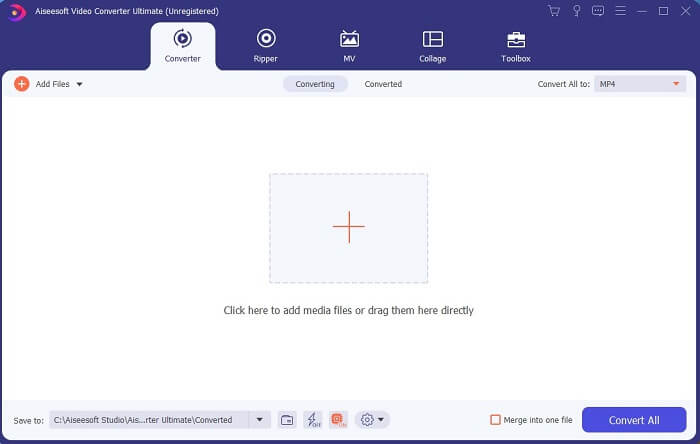
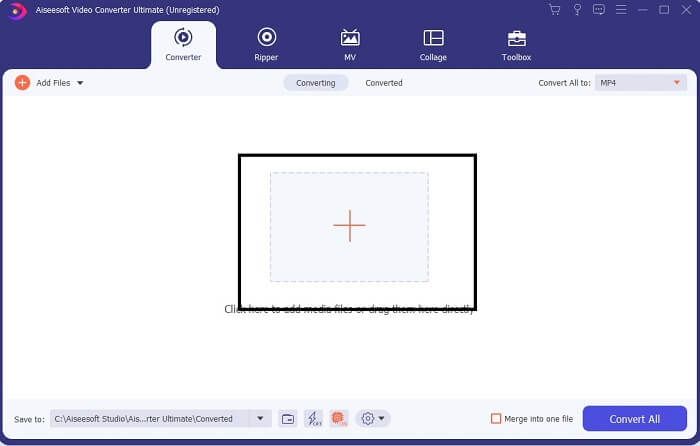
Step 3. Click the plus sign to add the file and click the open to start conversion or you can just basically drag-and-drop the video file into the tool. The amount of the video will never matter at all.
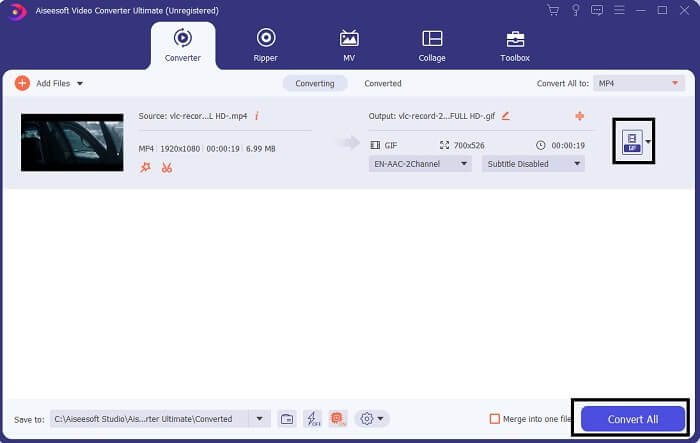
Step 4. Click the drop-down button on the upper right side of the interface and scroll it down and click the GIF format. Choose the resolution you want; it can be Large, Medium, and Small. If everything is ready to go, click the Convert All to start the conversion.
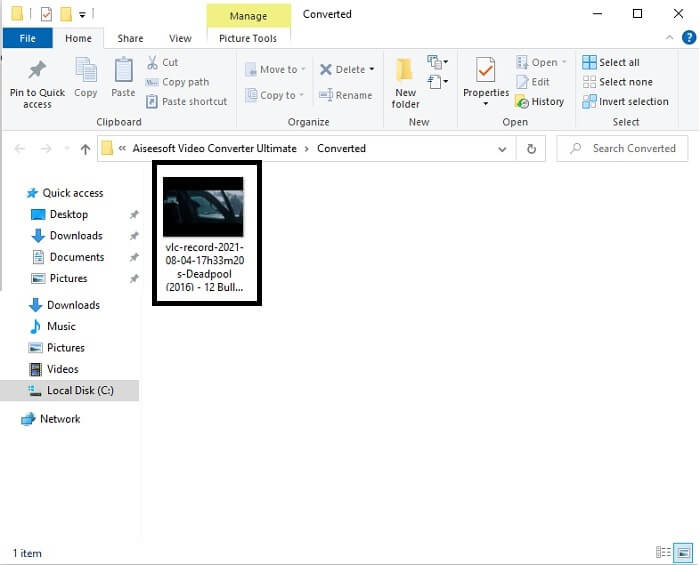
Step 5. After the conversion. A file manager will pop up to you and it will show your final output and now you can enjoy your GIF format. But you can also convert a .gif file to .mpg format in the same step but change the format.
2. FVC besplatni online video pretvarač
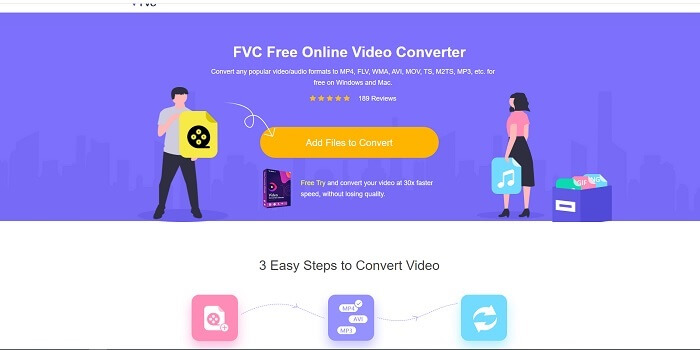
Možda razmišljate, što ako nemate novaca mogu li i dalje doživjeti istu konverziju kao i prva? Odgovor je veliko debelo DA. FVC uvijek pruža najbolje iskustvo za svoje kupce koji nemaju novca, kao i za one koji žele isprobati njihov alat. Iako, ovaj alat radi samo jednostavnu pretvorbu tako da ne očekujte previše što premium verzija može pružiti. I ne može na brži način pretvoriti više video i audio formata.
But the conversion process it provides is much better than the other premium converter and free converter. FVC Free Online Video Converter here to save your day. As it says in its name it is a free online tool that allows you to convert into the max level. Unlike any other converter, this tool has no ads or malware, registration, log-in needed, and your personal information before you use it. If you're looking for a simple converter then this is the right tool for you. Follow these steps to know how this tool functions as a converter.
Step 1. Go to the official website by clicking this link.
Step 2. The web page should look like this. Then click the Add Files to Convert to launch this online tool.
Preuzmite desktop verziju za skupno pretvaranje datoteka.
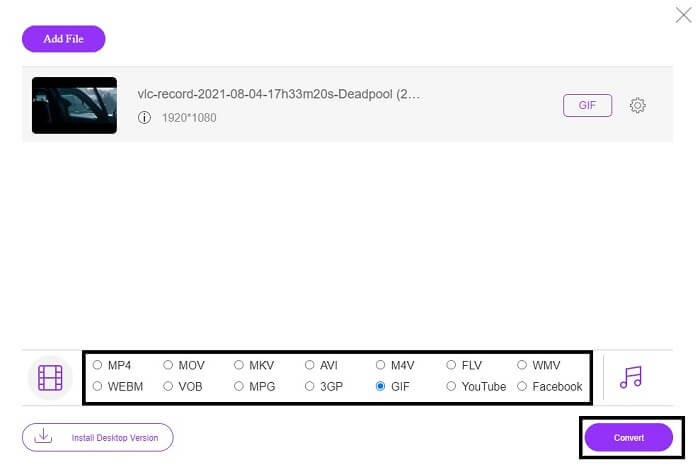
Step 3. Choose the video you want to be converted. After selecting the video, select the GIF file format. For additional information you can choose another video and audio format as well, you may check them out later if you want.
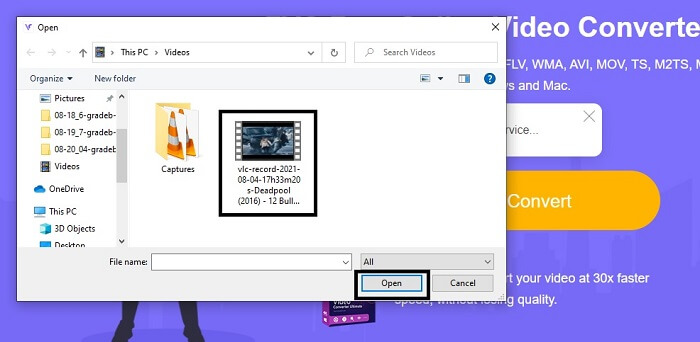
Step 4. Choose where you want to put the final output. Then if everything is already, click Convert to start conversion. This will take a few seconds to finish the conversion.
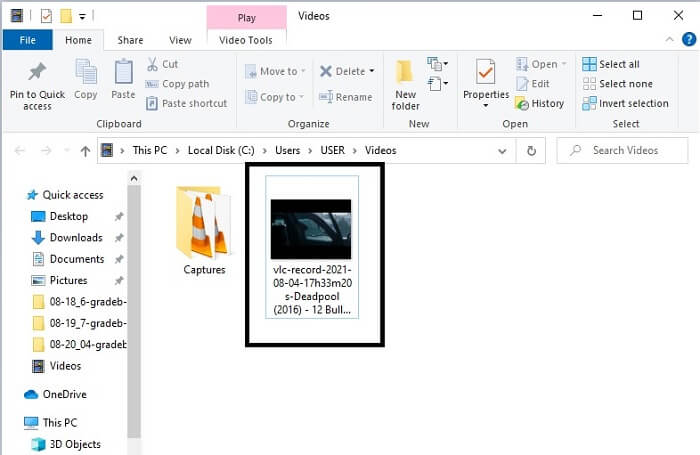
Step 5. To check your successful conversion. You can locate your converted GIF file into your file manager or explorer. Click it and enjoy.
3. VLC Media Player
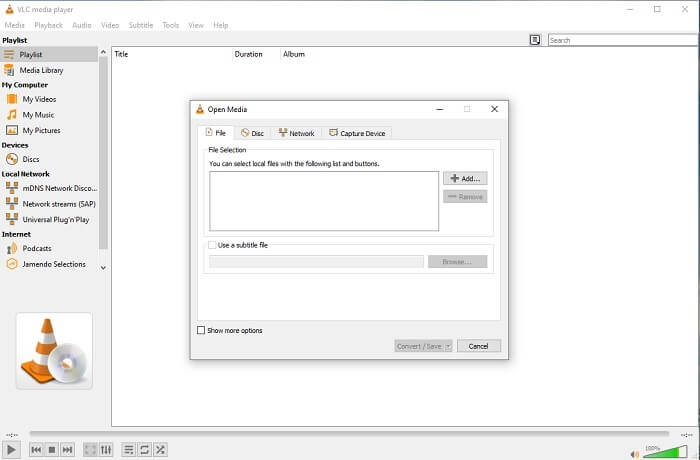
This tool is known for being one of the most powerful media players. But did you know that VLC players can also convert MPG to GIF? But the format it provides is very limited to only known formats. Despite being known as the best media player the converting feature of it is not the best choice for you. So, if you want a better converter, you must choose the online tool above rather than this tool. But if you want to watch the video then VLC Media player must be your choice because the other tool can't provide video player because their main purpose is conversion.
4. Zamzar
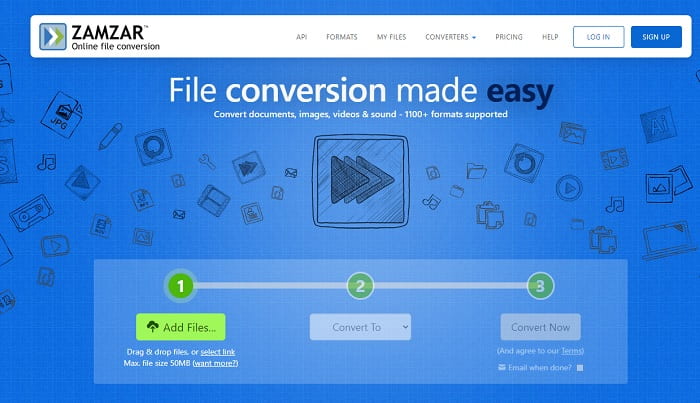
Još jedan online alat koji pruža izvrsnu konverziju je Zamzar. Kao i svaki drugi online pretvarač, dijele isto sučelje, a također pruža upute o tome kako ga pretvoriti. Ali proces pretvaranja i preuzimanja je drugačiji. Iako je besplatna verzija, možete pretvoriti samo maksimalno 50 MB veličine datoteke. Jer nakon što pretvorite video, morate prijeći na fazu preuzimanja. To je velika gnjavaža onima koji napuste konverziju i samo čekaju da se proizvod pusti.
Dio 2. Usporedna tabela
| Značajke alata | FVC Video Converter Ultimate | FVC besplatni online pretvarač | VLC Media player | Zamzar |
| Konverter |  | | | |
| Alat za uređivanje | |  | | |
| Snažan pretvarač | | | | |
| Potrebna registracija | | | | |
| Platforme | Aplikacija za stolno računalo | Web bazirana aplikacija | Aplikacija za stolno računalo | Web bazirana aplikacija |
| Raspon cijena | $25,00 1 mjesec/1 kom $55.20 Jednokratna kupnja za 1 PC $119,00 Životni vijek 5 kom | To je besplatni online alat | To je besplatni online alat | Besplatan online alat Ali također pruža mjesečnu premiju. Za osnovno: $9 Za profesionalce: $16 Za poslovanje: $25 |
MPG u odnosu na GIF
Izradila ga je Moving Picture Experts Group (MPEG), MPG je uobičajeni digitalni video format za pohranjivanje video, audio i metapodataka. Vrlo je koristan pri stvaranju filmova za dijeljenje na internetu. Te datoteke u MPG-u obično sadrže MPEG-1 ili MPEG-2 video/audio kompresiju.
GIF je uobičajen format slike za web grafiku. Osim spremanja malih slika i slika koje sadrže tekst, GIF također može sadržavati i prikazati osnovne animacije na web stranicama. To je format bez gubitaka, a GIF kompresija ne smanjuje jasnoću slike.
Dio 3. Često postavljana pitanja o MPG-u u GIF
Postoji li način da se koristi Photoshop i pretvori video u GIF?
Yes, you can convert MPG to GIF with Photoshop. But not only just the MPG file format you can also choose another format and it can be converted into a GIF. Another special feature of it is that you can also enhance the GIF to be better. Click here to know how to convert MP4 to GIF.
Koji je najbolji alat za snimanje zaslona za snimanje GIF-ova?
The best screen recorder tool that you may use for that job is the FVC Screen Recorder. This tool is not only best for recording videos. It also has its own built-in audio recorder and gameplay recorder for a much better quality gaming experience. However, this tool needs payment first before using it. Don't be sad because it has an online tool that can do the recording.
Zašto je GIF stvoren?
It was created to display an image while saving some storage. The creator of GIF is Steve Wilhite, an American computer scientist with the help of tech giant CompuServein in late 1987. Click here to learn more information about GIFs.
Zaključak
Napokon, sada kada znate kako napraviti GIF na sebi, bolje ga isprobajte i uživajte. Samo korištenjem ovog jednostavnog alata možete napraviti razliku. Umjesto pretraživanja putem weba, sada ste certificirani proizvođač GIF-ova. Također, sada možete izraziti svoje osjećaje na svoj način svojim osobnim dodirom i stručnošću koju ste razvili samo čitanjem ovog članka. Nadam se da možete uživati u životu boljeg GIF-a koji kreirate i podijeliti svoj najbolji GIF sa svijetom.
-
 [Vodič] Kako pretvoriti M4V videozapise u animirane GIF-ove na Windows/Mac
 Ako želite napraviti animirane GIF datoteke od svojih omiljenih M4V videozapisa, možete naučiti o 2 jednostavna i učinkovita načina za pretvaranje M4V videozapisa u GIF -ove s prilagođenim postavkama.
-
 WebM u GIF - 3 besplatna pretvarača WebM u GIF za stvaranje vlastitih GIF -ova
 Je li WebM GIF? Kako video pretvoriti u GIF? Postoji li neki besplatni WebM u GIF pretvarač? Ovaj post dijeli 3 besplatna načina za pretvaranje WebM -a u GIF.
-
 Kako pretvoriti MKV videozapise u animirane GIF -ove bez Photoshopa/FFmpega
 Nakon preuzimanja i gledanja MKV filmova na računalu, možda ćete htjeti podijeliti neke prekrasne trenutke s prijateljima ili na Internetu kao GIF -ove. U ovom članku možete saznati o 2 najjednostavnija načina pretvaranja MKV -a u GIF.

