


 Video Converter Ultimate
 Snimač zaslona
 Video popravak
Adobe Promjena veličine slika - Najlakši načini za promjenu veličine slike online i offline
Ako želite promijeniti veličinu slika u Adobeu, imamo rješenje koje tražite. Adobe je poznato ime za aplikacije za uređivanje slika i videa. Adobe ima mnogo aplikacija u kojima možete poboljšavati, rezati, uređivati i još mnogo toga – što god poželite! Adobe ima gotovo sve aplikacije za uređivanje videa i fotografija. No jeste li znali da Adobe ima i aplikaciju pomoću koje možete promijeniti veličinu slike? Točno ste pročitali! Adobe Express je mrežni alat za promjenu veličine slika. A ako želite mijenjati veličinu izvan mreže, možete koristiti Adobe Photoshop. U nastavku ćemo raspraviti o tim alatima i naučiti vas kako promijeniti veličinu slika pomoću Adobe Expressa i Adobe Photoshopa.

Dio 1. Kako promijeniti veličinu slike u Adobe Express Online
Ako želite koristiti mrežnu promjenu veličine slike, postoji mnogo alata koje možete pretraživati na internetu. Međutim, pretraživanje na internetu ponekad neće biti najbolji izbor jer postoje alati koji ne daju kvalitetne rezultate. Također, mnogi ljudi pretražuju Adobe Photoshop online slike za promjenu veličine. Problem je što Adobe Photoshop nema online verziju. Dakle, predstavit ćemo još jedan Adobe alat za promjenu veličine slike.
Adobe Express je vjerojatno najbolji internetski alat za promjenu veličine slika koji možete pronaći na internetu. Ova mrežna aplikacija omogućuje vam da promijenite veličinu slike odabirom unaprijed zadanog omjera skaliranja među ponuđenim opcijama. Možete birati između 9:16 (Story), 1:1 (Square), 4:5 (Portrait) i 1,91:1 (Landscape). Osim toga, ima jednostavno sučelje, što je čini aplikacijom jednostavnom za korištenje. Svoju sliku možete i ručno povećavati ili smanjivati tako da pritisnete i povučete klizač. Nadalje, ako želite promijeniti veličinu slike za Instagram, Facebook, Twitter ili Pinterest, Adobe Express će vam u tome pomoći. Međutim, za razliku od drugih Adobe aplikacija za uređivanje, ovaj alat nema dodatne funkcije za uređivanje.
Kako promijeniti veličinu slike koristeći Adobe Express:
Korak 1. Otvorite preglednik i u tražilicu upišite Adobe Express image resizer. Zatim kliknite gumb Upload your Photo na glavnom korisničkom sučelju kako biste učitali sliku kojoj želite promijeniti veličinu.
Korak 2. Zatim povucite i ispustite svoju sliku iz mapa na računalu. Također možete jednostavno kliknuti gumb Browse on your device kako biste učitali sliku.
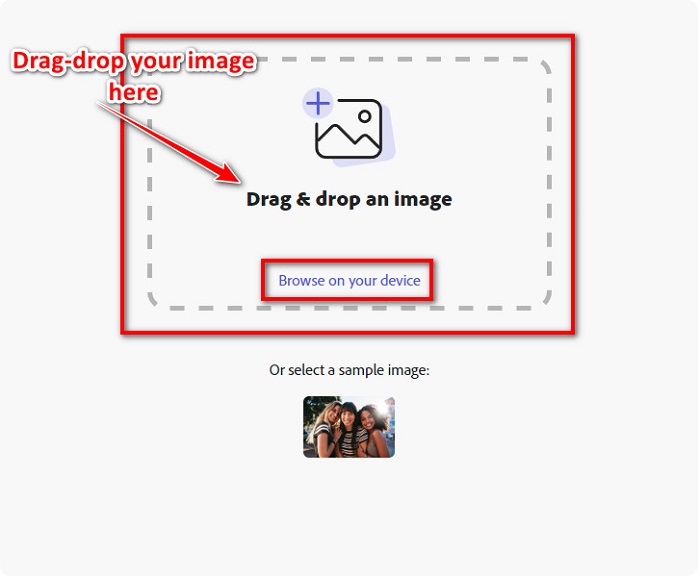
Korak 3. Na kraju, odaberite za što želite promijeniti veličinu klikom na strelicu padajućeg izbornika pokraj Resize for. Zatim na lijevoj strani sučelja odaberite željenu veličinu za svoju sliku. Svoju sliku možete i ručno promijeniti držeći i povlačeći klizač ispod unaprijed zadanih veličina.
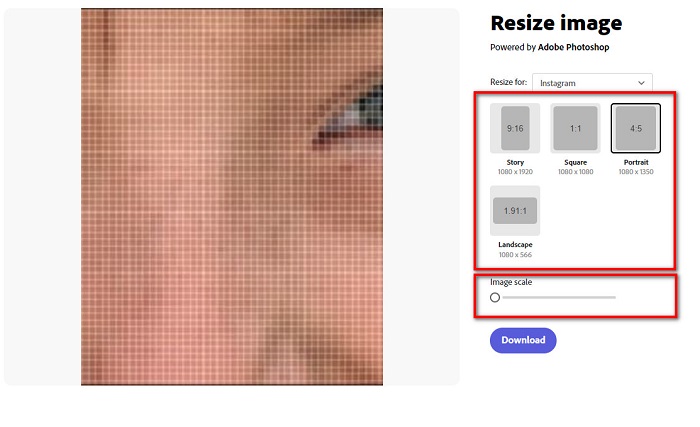
Korak 4. Kliknite gumb Download da biste preuzeli svoju sliku nove veličine.
Dio 2. Kako promijeniti veličinu slike koristeći Adobe Photoshop izvan mreže
Unatoč tome, dobro je koristiti online alat jer vam omogućuje uštedu prostora na uređaju, ali ipak je najbolji izbor koristiti offline alat. Većina izvanmrežnih programa za promjenu veličine slike sadrži mnoge značajke za uređivanje. Također, prednost korištenja izvanmrežnih alata je ta što ne morate pristupiti internetu da biste promijenili veličinu slike. U ovom ćemo dijelu predstaviti najistaknutiji offline video resizer.
Adobe Photoshop je najbolja aplikacija za uređivanje fotografija koju možete imati na računalu. Ova aplikacija za uređivanje fotografija ima mnogo alata i funkcija koje možete koristiti za uređivanje svojih slika. Osim toga, ovim alatom možete promijeniti veličinu bilo koje slike. Aplikacija vam omogućuje poboljšavanje digitalnih slika, crteža, slika i animacija koje možete koristiti u poslovne svrhe. Štoviše, mnogi profesionalci koriste ovu aplikaciju za uređivanje slika zbog njezinih funkcija i kvalitete koju pruža.
Štoviše, pomoću ove aplikacije možete dodati tekst, stvoriti 3D i dodati oštrinu svojoj slici. Ali loša strana Adobe Photoshopa je ta što morate kupiti aplikaciju prije korištenja. Također ga je teško koristiti, posebno za početnike. Bez obzira na to, ova je aplikacija vrijedna svoje cijene i sigurno ćete uživati u korištenju ove aplikacije.
Kako promijeniti veličinu slika koristeći Adobe Photoshop izvan mreže:
Korak 1. Preuzmite Adobe Photoshop na svoj uređaj. Zatim slijedite proces instalacije aplikacije i pokrenite je na svom uređaju.
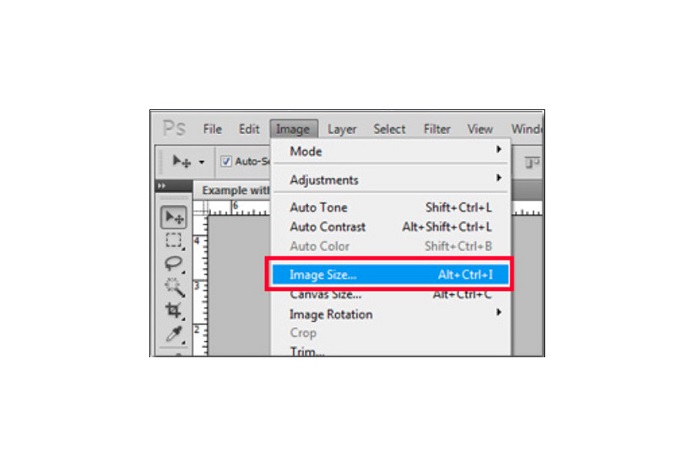
Korak 2. Otvorite svoju sliku u Photoshopu, zatim na vrhu lijevo u sučelju idite na Image. Zatim odaberite Image Size.
Korak 3. Zatim će se pojaviti novi prozor u kojem ćete kliknuti kućicu pokraj Constrain Proportions.
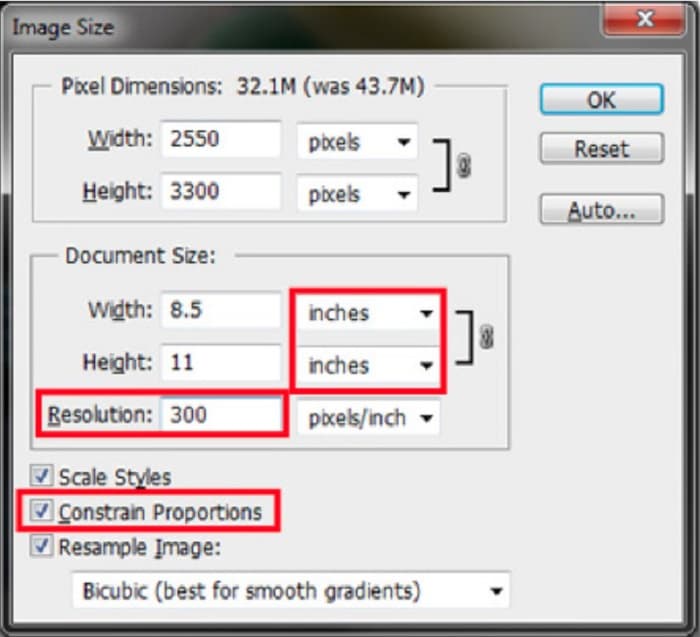
Korak 4. Pod Document Size odaberite inče kao svoju mjernu jedinicu. Provjerite da rezolucija nije niža od 200 piksela po inču.
Korak 5. Upišite width i height koje želite za svoju sliku. Zatim kliknite gumb OK da biste spremili promjene.
Korak 6. Na kraju spremite svoju datoteku na računalo.
Sada kada ste naučili kako promijeniti veličinu slike koristeći najbolji Adobe alat za promjenu veličine fotografija, pokazat ćemo vam alternativni alat za promjenu veličine slika koji možete koristiti.
Dio 3. Alternativa Adobe Photoshopu za promjenu veličine slika
Budući da Adobe Photoshop nije alat jednostavan za korištenje, tražili smo alternativu koju možete koristiti za promjenu veličine svoje slike. Dakle, predstavit ćemo softversku aplikaciju koju možete preuzeti na svoj Windows ili Mac uređaj. Također ćemo vas naučiti kako promijeniti veličinu slike pomoću ove ultimativne aplikacije.
FVC Free Image Resizer još je jedan moćan mrežni alat za promjenu veličine slika koji možete koristiti ako želite promijeniti veličinu svoje slike. Aplikacije za promjenu veličine slika možete također koristiti za popravljanje kvalitete fotografije, a upravo to radi FVC Free Image Resizer. Ovaj mrežni alat može povećati vašu sliku do 2x, 4x, 6x i 8x. Osim toga, podržava sve formate slika, kao što su JPG, JPEG, PNG i BMP. Ono što je još odlično kod ove aplikacije jest njezino jednostavno sučelje. Štoviše, koristi AI tehnologiju koja automatski otkriva zamućene dijelove slike, a zatim ih poboljšava.
Kako promijeniti veličinu slike koristeći FVC Free Image Upscaler:
Korak 1. U pregledniku potražite FVC Free Image Upscaler, zatim idite na glavnu stranicu aplikacije. Pritisnite gumb Upload Photo na glavnom korisničkom sučelju kako biste učitali sliku kojoj želite promijeniti veličinu.

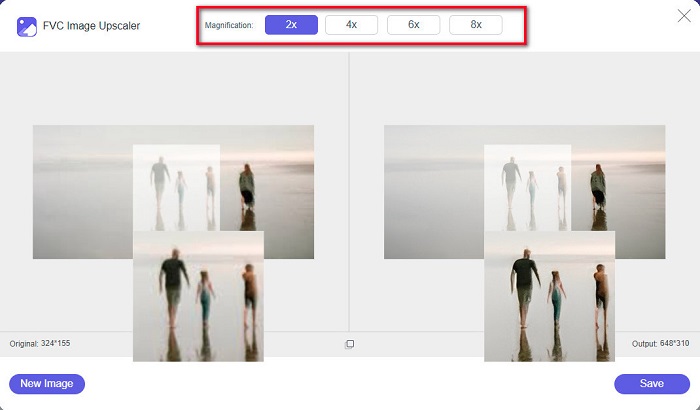
Korak 2. Nakon što učitate svoju sliku, odaberite povećanje koje želite za svoju fotografiju. Možete odabrati između 2x, 4x, 6x i 8x. Što je broj veći, to je bolja kvaliteta.
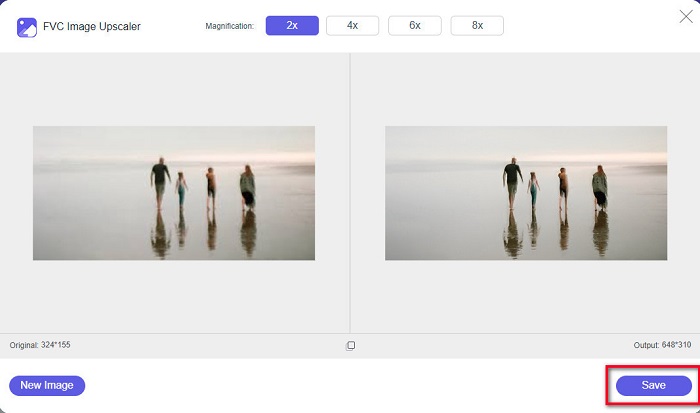
Korak 3. Zatim kliknite gumb Save kako biste spremili svoj rezultat na uređaj.
Dio 4. Često postavljana pitanja o tome kako promijeniti veličinu slike u Adobe Photoshopu
Mijenja li Adobe veličinu slika bez gubitaka?
Koristeći Adobe Photoshop, možete promijeniti veličinu svojih slika bez gubitka kvalitete. Osim toga, proizvodi visokokvalitetne izlaze.
Koje formate datoteka podržava Adobe Photoshop?
Adobe Photoshop prihvaća gotovo sve poznate formate slika, kao što su JPG, JPEG, PNG, BMP, TIFF, EPS, PDF i drugi.
Koja je cijena Adobe Photoshopa?
Adobe Photoshop možete kupiti za $19,99 mjesečno. Možete upotrijebiti 30-dnevno besplatno probno razdoblje da prvo testirate aplikaciju.
Zaključak
Sada kada je vaš upit o promjeni veličine slika u Adobeu riješen, možete promijeniti veličinu slike pomoću Adobe Expressa ili Adobe Photoshopa. Koju god aplikaciju od gore navedenih alata odabrali, uspješno ćete promijeniti veličinu svoje slike. No ako želite lakši i učinkovitiji način za promjenu veličine i poboljšavanje slike, tada upotrijebite FVC Free Image Upscaler.
-
 Kako izoštriti sliku online i offline na 4 jednostavna načina
 Postoje mnoge metode koje možete učiniti ako želite izoštriti sliku. U nastavku ćemo raspravljati o najboljim i najlakšim načinima za izoštravanje slika online i offline.
-
 Obnova starih fotografija online i offline [Jednostavni koraci]
 Želite obnoviti staru fotografiju? Uz ove alate, znat ćete postupak restauracije starih fotografija. Pročitajte ovaj post kako biste naučili najjednostavnije metode.
-
 Kako promijeniti veličinu fotografije za Facebook [Brzi i jednostavni koraci]
 Ako imate problema s učitavanjem velike slike na Facebook, imamo rješenje za vas. Dovršite ovaj članak da biste saznali kako promijeniti veličinu fotografija za Facebook.
