


 Video Converter Ultimate
 Snimač zaslona
 Video popravak
Korištenje GIMP-a za uklanjanje vodenih žigova i drugih izvrsnih alternativa
Svaki digitalni umjetnik koji želi objaviti svoj rad na internetu trebao bi koristiti vodene žigove. Oni pomažu u izgradnji vašeg ugleda, povezuju vaš cjelokupni opus i osiguravaju da dobijete zaslužno priznanje za sve njegove dijelove. No postoji mnogo razloga zbog kojih bismo htjeli ukloniti vodene žigove s fotografije. U ovom ćemo članku raspravljati o učinkovitim metodama i pokazati vam kako naučiti kako ukloniti vodene žigove pomoću GIMP‑a. Također ćemo predstaviti i druge izvrsne aplikacije koje možete koristiti kao alternative GIMP‑u. Ako vas ova tema već zanima, pročitajte ovaj vodič i saznajte još važnih pojedinosti koje su vam potrebne.

Dio 1: Kako ukloniti vodene žigove s fotografija pomoću GIMP-a
Fotografije možemo lako uređivati uz pomoć otvorenog kôda za uređivanje slika, GIMP. Može se koristiti za uređivanje, crtanje i grafički dizajn. Riječ je o izvrsnom programu za obradu fotografija. Uklanjanje vodenog žiga s fotografije jedna je od glavnih zadaća obrade fotografija. Osim vodenog žiga, može ukloniti logotipe, tekst, naljepnice i još mnogo toga, što ga čini praktičnim za sve korisnike koji žele ukloniti neželjene objekte sa svojih fotografija. Osim toga, GIMP je višestruko platformni uređivač slika dostupan za Linux, macOS, Windows i druge operativne sustave. Međutim, korištenje GIMP‑a je komplicirano, posebice ako nemate iskustva. Ima razne opcije i alate, što zbunjuje korisnike. Toplo se preporučuje zatražiti pomoć profesionalaca pri korištenju ovog softvera. Također, postupak preuzimanja ove aplikacije oduzima mnogo vremena.
Slijedite korake u nastavku i uklonimo vodene žigove pomoću GIMP-a.
Korak 1: Morate preuzeti i instalirati GIMP na svoje računalo.
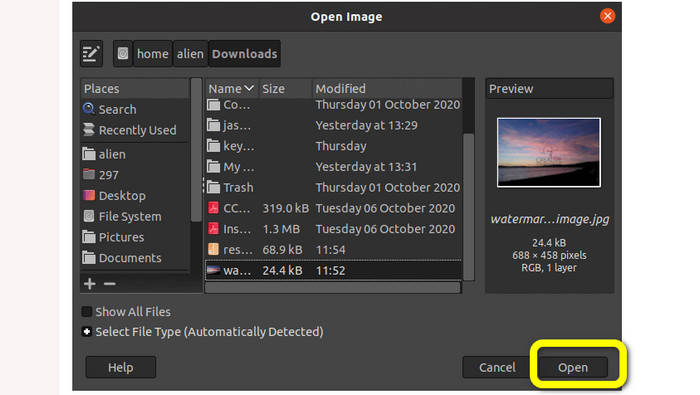
Korak 2: Kliknite opciju File (Datoteka) ili pritisnite ctrl+O. Na zaslonu će se pojaviti dijaloški okvir. Odaberite slikovnu datoteku s vodenim žigom koju želite ukloniti. Zatim kliknite Open (Otvori).
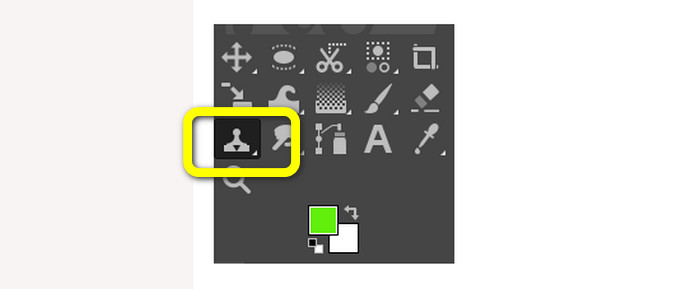
Korak 3: Nakon dodavanja slike, odaberite alat Clone (Kloniranje) iz Tools > Paint Tools > Clone.
Korak 4: Zatim odaberite sličnu regiju na slici. Odaberite čisto područje koje odgovara dijelu slike s vodenim žigom, bilo na istoj slici ili na nekoj drugoj slici. Pritisnite tipku CTRL dok klikate na određenu lokaciju kako biste označili područje. Prilikom „slikanja” reproducirat će se to konkretno područje.
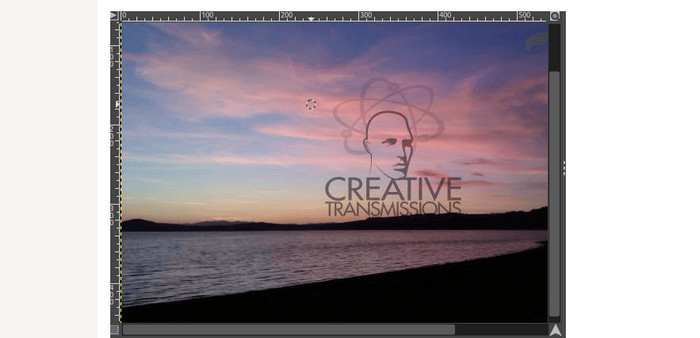
Korak 5: Sada počnite „slikati” preko područja s vodenim žigom. Držite pritisnutu tipku CTRL i počnite pomicati pokazivač preko željenog područja kako biste ga prebojili. Djeluje poput kista. Oslikat će klonirano područje; možemo ponoviti kloniranje odabirom različitih regija. Za bolji rezultat preporučuje se zumirati sliku i prema potrebi promijeniti veličinu kista.
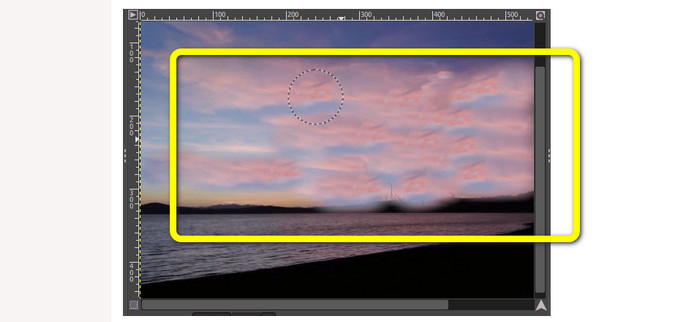
Korak 6: I to je to! Nakon što uklonite vodene žigove sa svoje fotografije pomoću GIMP‑a, možete otići u izbornik File i potražiti gumb Save kako biste spremili svoju fotografiju bez vodenog žiga.
Dio 2: Najbolja alternativa GIMP-u za uklanjanje vodenih žigova s fotografija
Za uklanjanje vodenih žigova s fotografije na jednostavniji način možete koristiti alat FVC Free Watermark Remover. Ovaj alat može ukloniti sve neželjene objekte s vaše fotografije, posebice vodene žigove. Osim toga, alat podržava više formata slikovnih datoteka, poput PNG, JPG, BMP i drugih. Uz pomoć FVC Free Watermark Remover‑a, možete mišem odabrati područje slike bez vodenog žiga iscrtavanjem poligonalnog obrisa ili lasom oko njega. Dodatno, možete pomicati miš kako biste odabrali područje koristeći kist raznih veličina. Kao rezultat toga, ova je funkcija jednostavna za korištenje i omogućuje vam brisanje tekstualnih ili slikovnih vodenih žigova s fotografija prema vašim potrebama. Na taj način vidite da je ovaj alat za uklanjanje vodenih žigova savršen za neprofesionalne korisnike i mnogo jednostavniji za korištenje od GIMP‑a. Nadalje, FVC jamči privatnost svakog korisnika, pa se ne morate brinuti da će vaši podaci biti otkriveni tijekom korištenja usluge. Ima dvije metode za uklanjanje vodenih žigova s vaših fotografija. Iskoristite jednostavne upute u nastavku.
U ovoj prvoj metodi možete upotrijebiti jedan od brojnih alata za uklanjanje vodenih žigova, kao što su Polygonal, Lasso i Brush. U drugoj metodi koristite alat za obrezivanje.
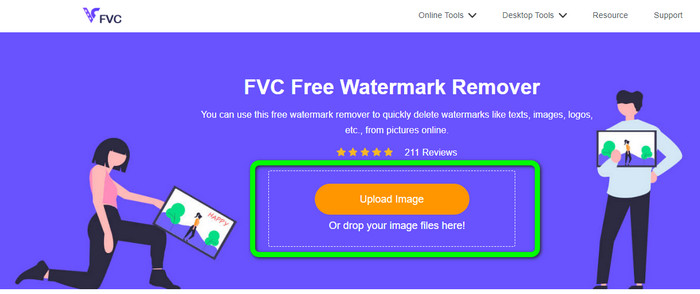
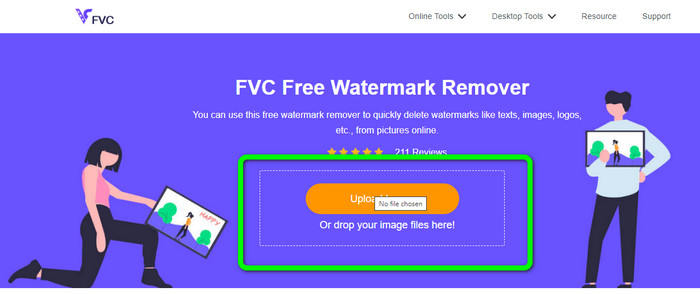
Korak 1: Potražite FVC Free Watermark Remover u svom pregledniku. Zatim pritisnite gumb Upload Image ili ispustite slikovnu datoteku u okvir kako biste dodali svoju fotografiju s vodenim žigom.
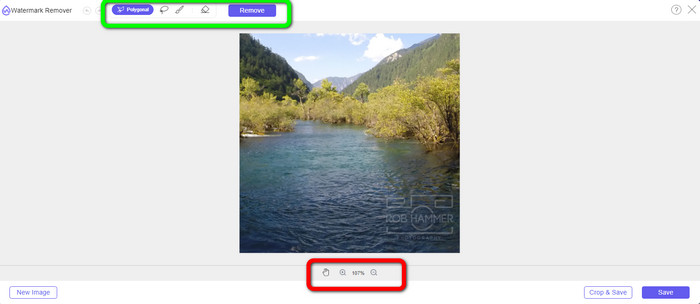
Korak 2: Na gornjem dijelu sučelja vidjet ćete alate koje možete koristiti za označavanje vodenog žiga koji želite ukloniti. Ti alati su Brush, Polygonal i Lasso. U donjem dijelu fotografije možete kliknuti simbol Hand (ruka) kako biste pomicalli fotografiju; možete također kliknuti ikone + i - za zumiranje vodenih žigova.
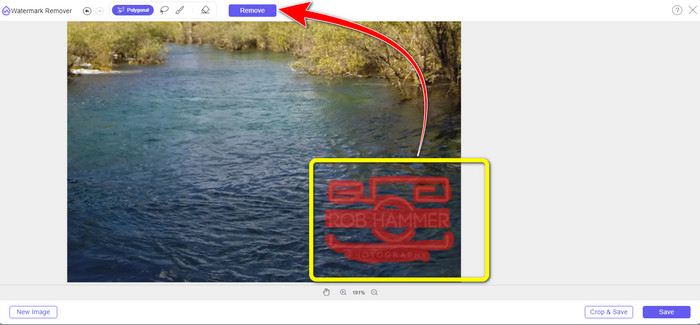
Korak 3: Obojite (označite) vodene žigove koristeći alate za uklanjanje vodenog žiga. Zatim kliknite gumb Remove i pričekajte da se dovrši postupak uklanjanja vodenih žigova.
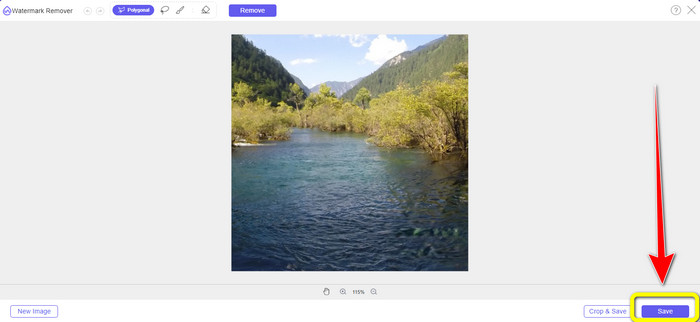
Korak 4: Kliknite gumb Save kako biste preuzeli svoju sliku. Fotografiju tada već možete koristiti jer je dosadni vodeni žig nestao.
Korak 5: Za drugu metodu možete koristiti funkciju obrezivanja (Cropping) kako biste uklonili vodeni žig s fotografije. Kako biste dodali željenu fotografiju, kliknite gumb Upload Image. Možete i jednostavno ispustiti slikovnu datoteku izravno u okvir.
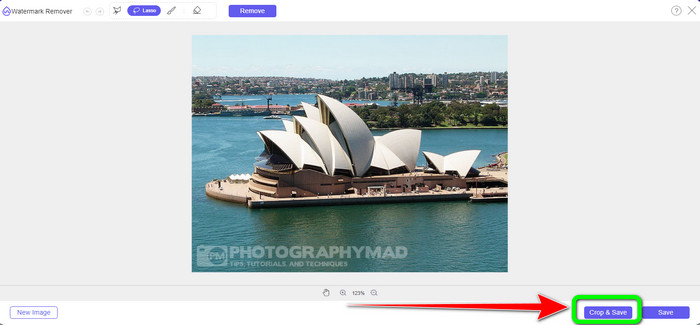
Korak 6: Kada se fotografija pojavi na zaslonu, odaberite gumb Crop&Save. Nakon toga možete prijeći na postupak obrezivanja.
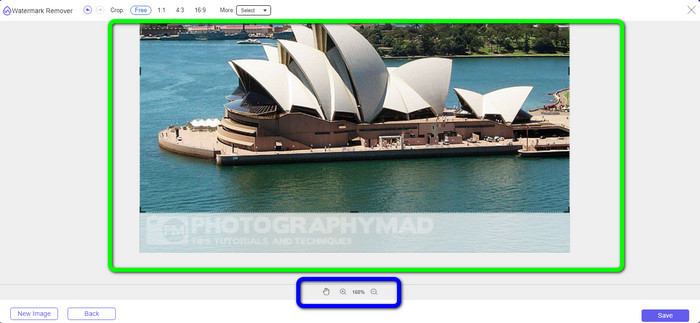
Korak 7: U ovom postupku možete obrezati fotografiju kako biste odrezali vodeni žig. Ako želite zumirati fotografiju radi preciznijeg obrezivanja, otiđite u plavi okvir i kliknite ikonu +.
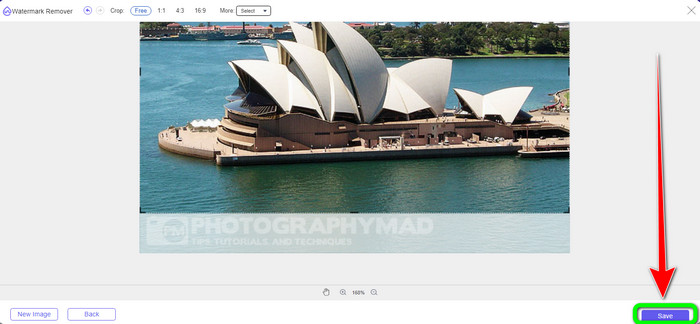
Korak 8: U ovom dijelu već možete spremiti svoju konačnu fotografiju klikom na gumb Save.
Dio 3: Često postavljana pitanja o uklanjanju vodenih žigova pomoću GIMP-a
1. Kako mogu ukloniti oznaku datuma s fotografije koristeći GIMP?
Da biste uklonili oznaku datuma, možete odabrati alat Kloniraj. Pritisnite oznaku datuma dok ne nestane. Ako je oznaka datuma na rubu vaše fotografije, možete koristiti alat za obrezivanje GIMP na lijevoj strani sučelja.
2. Ostavlja li GIMP vodeni žig nakon korištenja?
Srećom, ne. GIMP je aplikacija otvorenog koda u kojoj možete uživati u korištenju ovog alata za uklanjanje vodenog žiga bez brige hoće li ostaviti vodeni žig ili ne.
3. Kako mogu izbrisati prozirni vodeni žig?
Postoji mnogo aplikacija koje možete koristiti za brisanje prozirnih vodenih žigova s vaših fotografija. Možete koristiti FVC Free Watermark Remover. Uz pomoć ovog softvera bilo koji ometajući objekt, poput prozirnih vodenih žigova, može se lako ukloniti.
Zaključak
Korištenje GIMP‑a za uklanjanje vodenih žigova s fotografije je učinkovito. Vodene žigove možete ukloniti odmah uz pomoć alata za uklanjanje. Međutim, nije idealan za početnike. Stoga, ako želite aplikaciju prikladnu za svakog korisnika, možete koristiti FVC Free Watermark Remover.
-
 Kako ukloniti vodeni žig u Lightroom Mobile [Riješeno]
 Želite li naučiti kako ukloniti vodene žigove s fotografija u Lightroomu? Ovo su najlakše metode koje možete isprobati koristeći se svojim mobilnim telefonima i računalima
-
 Iskrena recenzija sredstva za uklanjanje vodenog žiga Inpaint i alternative
 Želite li znati kako koristiti Inpaint za uklanjanje vodenog žiga? Čitanje ovog članka pravi je izbor. Također ćete naučiti koje su najbolje alternative koje možete koristiti
-
 Kako ukloniti vodeni žig u Lunapicu s uključenim koracima [3 načina]
 Saznajte kako ukloniti vodeni žig na Lunapicu pomoću načina koje dodajemo na ovom blogu. Nastavite čitati informacije kako biste ih bolje upoznali
