


 Video Converter Ultimate
 Snimač zaslona
 Video popravak
Konačne upute za uklanjanje Canva vodenog žiga [Riješeno]
Online i profesionalni korisnici koji moraju često izrađivati visokokvalitetne fotografije, prezentacije i videozapise često koriste Canvu. Ovaj program ima mnoge prednosti, uključujući velik izbor alata, predložaka, dizajna, tema i još mnogo toga. Nažalost, profesionalni elementi sada imaju vodene žigove. Za korištenje pro elemenata bez vodenog žiga potrebno je plaćanje. Srećom, ovaj će vam članak pokazati najbolje metode koje možete isprobati kako biste uklonili vodene žigove u Canvi bez kupnje pro elemenata. Stoga pročitajte članak kako biste stekli ideju o uklanjanju vodenih žigova u Canvi.

Dio 1: Najbolji online alat za uklanjanje Canva vodenih žigova
Ako želite naučiti kako besplatno ukloniti vodene žigove u Canvi, možete koristiti FVC Free Watermark Remover. Ovaj mrežni alat može ukloniti bilo koji objekt s vaše fotografije bez ikakvih troškova. Također može lako izbrisati Canvine vodene žigove uz pomoć alata za uklanjanje vodenih žigova, kao što su Brush, Polygonal i Lasso. Štoviše, vodene žigove možete ukloniti i pomoću alata za izrezivanje, osobito kada se područje vodenog žiga nalazi na rubu vaše fotografije. Osim toga, ne morate brinuti o podržanim formatima slika jer podržava gotovo sve formate, kao što su JPG, PNG, BMP i drugi. Svojim intuitivnim sučeljem i osnovnim metodama, možemo reći da je FVC Free Watermark Remover savršen za sve korisnike, uključujući početnike. Ovaj će vam dio pomoći da naučite kako ukloniti vodene žigove u Canvi sa svoje fotografije koristeći sve alate za uklanjanje vodenih žigova, poput alata Brush, Lasso i Polygonal.
Možete koristiti alat Kist ako želite ukloniti vodene žigove kao da ih samo četkate. Možete čak promijeniti veličinu četke prema svojim željama. Možete koristiti alat Lasso za odabir zatvorenih dijelova slika ili oblika. Na kraju, možete koristiti alat Poligonal ako želite istaknuti vodene žigove poput oblika pravokutnika kako biste ih lako uklonili bez praćenja uzorka vodenog žiga.
Korištenje alata Kist
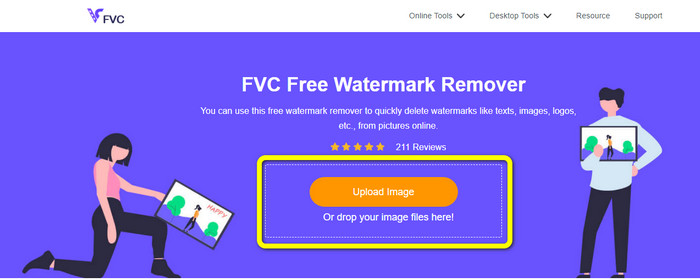
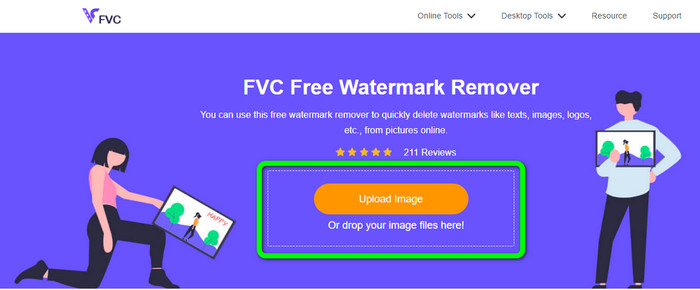
Korak 1: Prvo što morate učiniti jest posjetiti web-stranicu FVC Free Watermark Remover. Zatim kliknite gumb Upload Image kako biste učitali svoju sliku s Canvinim vodenim žigom. Drugi način učitavanja fotografije je povlačenje slikovne datoteke u okvir.
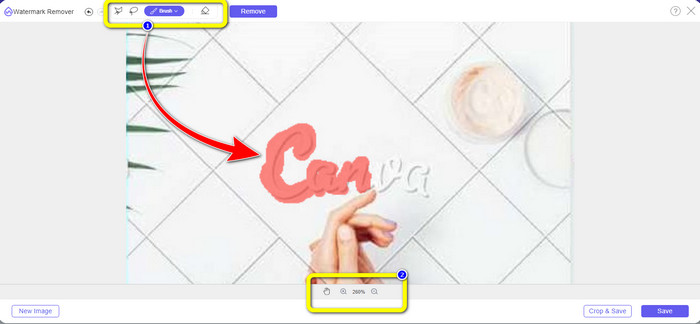
Korak 2: U prvom okviru gore odaberite alat Brush. Zatim upotrijebite ovaj alat da označite Canvine vodene žigove na svojoj fotografiji. Ispod alata Brush možete podešavati veličinu kista. U drugom okviru dolje možete zumirati fotografiju ili je smanjiti kako biste vidjeli i manje vodene žigove.
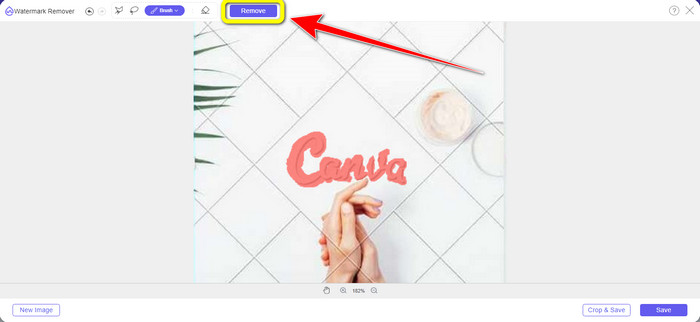
Korak 3: Kada završite s označavanjem Canvinih vodenih žigova na fotografiji, kliknite gumb Remove kako bi započeo proces uklanjanja. Zatim pričekajte nekoliko sekundi.
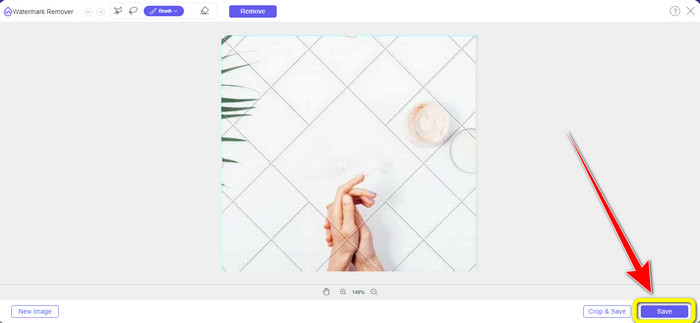
Korak 4: Nakon procesa uklanjanja, vidjet ćete da je Canvin vodeni žig već nestao. Kliknite gumb Save kako biste spremili svoju fotografiju.
Korištenje alata Laso
Korak 1: Nakon što učitate svoju sliku s Canvinim vodenim žigom, odaberite alat Lasso među alatima za uklanjanje vodenih žigova. Zatim mišem označite Canvin vodeni žig.
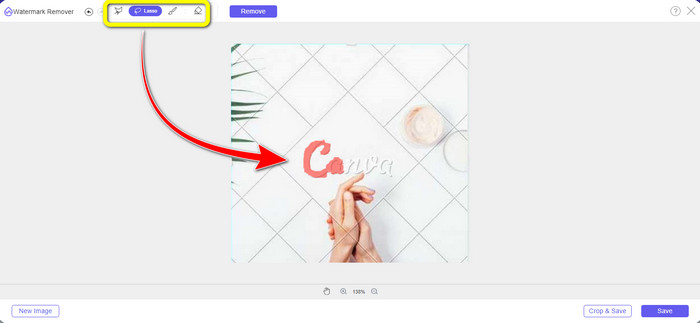
Korak 2: U žutom okviru ispod fotografije možete kliknuti ikonu + ili - kako biste povećali ili smanjili sliku i jasnije je vidjeli. Zatim kliknite gumb Remove kada završite s označavanjem Canvina vodenog žiga pomoću alata Lasso.
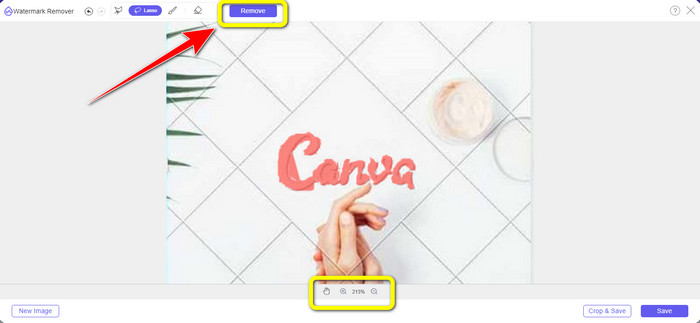
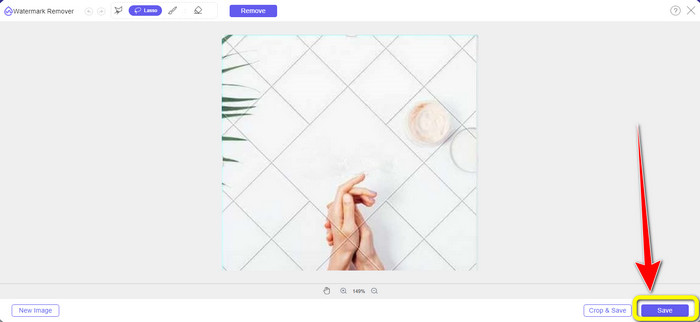
Korak 3: Nakon procesa uklanjanja i kada je Canvin vodeni žig obrisan, kliknite gumb Save kako biste spremili svoju završnu fotografiju.
Korištenje alata Poligonal
Korak 1: Kada završite s dodavanjem svoje fotografije u FVC Free Watermark Remover, odaberite alat Polygonal među alatima za uklanjanje vodenih žigova.
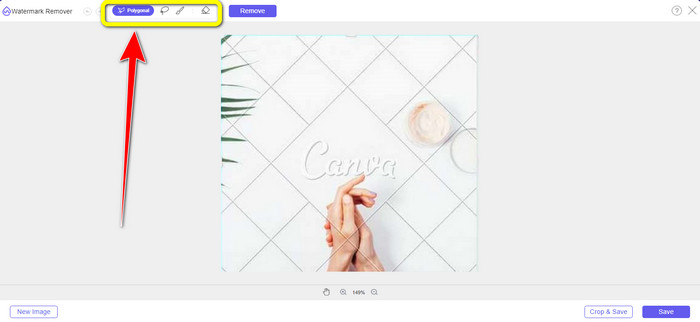
Korak 2: U ovom dijelu, pomoću alata Polygonal označite Canvin vodeni žig na svojoj slici.
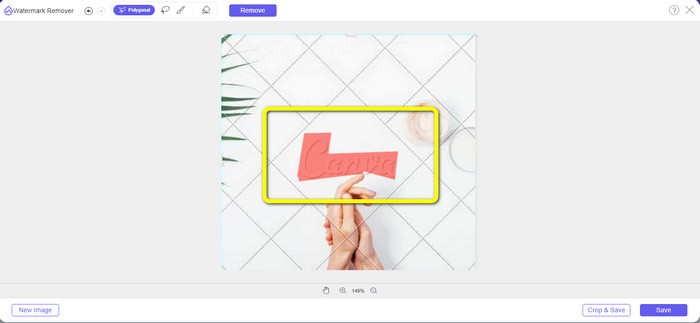
Korak 3: Nakon procesa označavanja, već možete ukloniti Canvin vodeni žig klikom na gumb Remove.
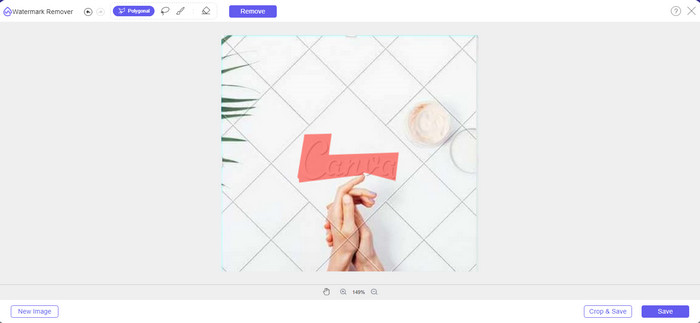
Korak 4: Nakon procesa uklanjanja, možete prijeći na sljedeću i posljednju metodu: spremanje svoje fotografije klikom na gumb Save.
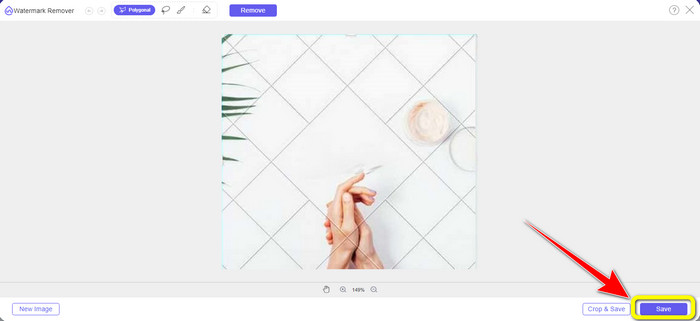
Pomoću ova tri alata za uklanjanje vodenih žigova možete brzo ukloniti Canva vodene žigove sa svoje fotografije. Upotrijebimo ovaj put alat za obrezivanje kako bismo uklonili Canva vodeni žig sa vaše slike.
Korištenje alata za obrezivanje
Alat Cropping najbolji je način za odsijecanje vodenih žigova, osobito ako se područje vodenog žiga nalazi na rubu ili u kutu fotografije. Slijedite donje upute da biste saznali kako ukloniti Canvine vodene žigove pomoću alata Cropping.
Korak 1: Kliknite gumb Upload Image. Zatim će se na zaslonu pojaviti vaša mapa. Odaberite sliku s Canvinim vodenim žigom koju želite izbrisati.
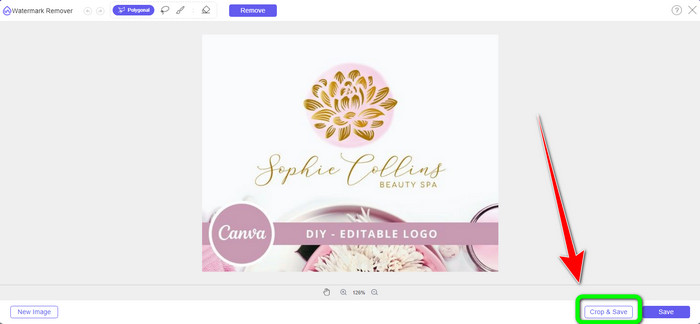
Korak 2: Nakon što odaberete slikovnu datoteku, kliknite gumb Crop&Save. Zatim prijeđite na sljedeći postupak.
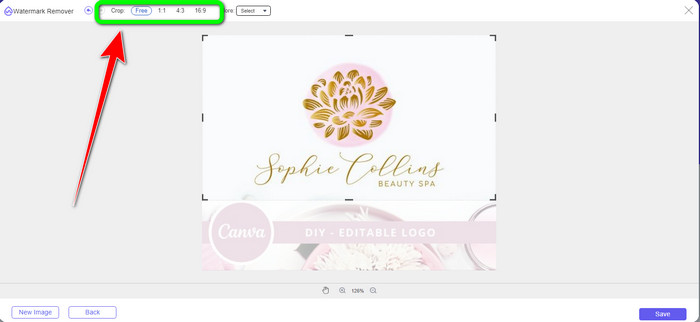
Korak 3: U ovom okviru možete odabrati kako želite izrezati fotografiju. Također, ako odaberete opciju Free, možete ručno izrezati sliku onako kako želite.
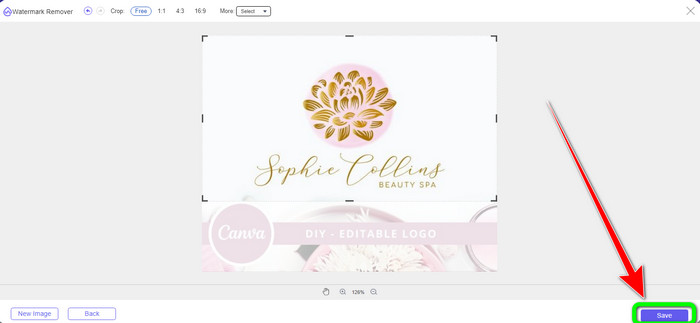
Korak 4: Nakon izrezivanja fotografije kako biste odsjekli Canvin vodeni žig, možete kliknuti gumb Save da biste spremili svoju završnu sliku.
Dio 2: Uklonite Canva vodene žigove pomoću Photoshopa
Drugi način za uklanjanje Canva vodenog žiga sa slika je korištenje programa Adobe Photoshop. Također može izbrisati sve uznemirujuće objekte s vaše fotografije, uključujući vodene žigove, logotipe, tekst, naljepnice i još mnogo toga. Također, ovaj alat ima brzi postupak uklanjanja, tako da ne morate trošiti više vremena na uklanjanje neželjenih objekata sa svoje fotografije. Štoviše, softver poput Adobe Photoshopa naširoko se koristi za grafički dizajn, uređivanje rasterskih slika i digitalnu umjetnost. Slojevitost dodaje dubinu i svestranost procesu razvoja i uređivanja te pruža bitne alate za uređivanje koji, kada se kombiniraju, mogu dati izvanredne rezultate. Međutim, Adobe Photoshop nije jednostavan za korištenje, pogotovo ako ste novi korisnik. Photoshop je napredni softver za uređivanje prikladan za napredne korisnike. To znači da će neprofesionalnim korisnicima biti komplicirano korištenje alata. Također, Adobe Photoshop nije besplatan. Može ponuditi samo sedmodnevno besplatno probno razdoblje. Zatim morate kupiti aplikaciju kako biste je kontinuirano koristili.
Slijedite korake u nastavku za uklanjanje Canva vodenog žiga pomoću programa Adobe Photoshop.
Korak 1: Preuzmite Adobe Photoshop na svoje računalo i instalirajte ga. Zatim pokrenite aplikaciju.
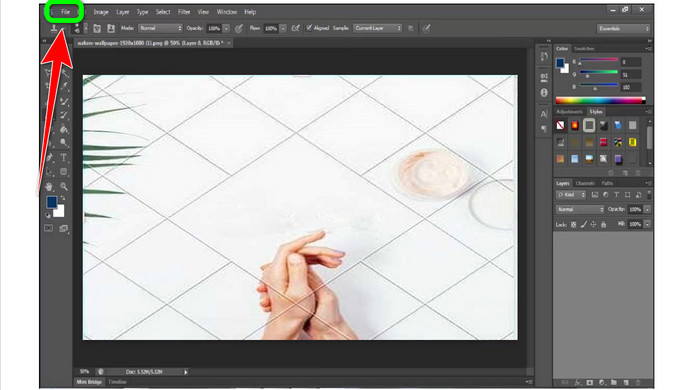
Korak 2: Idite na File > Open kako biste umetnuli fotografiju s Canvinim vodenim žigom.
Korak 3: Na lijevoj strani sučelja odaberite Clone Stamp Tool.
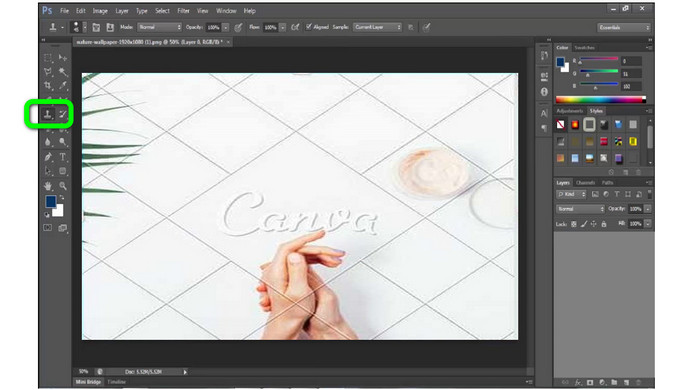
Korak 4: Nakon što odaberete Clone Stamp Tool, upotrijebite miš da klikate po Canvinom vodenom žigu dok ne izbrišete sve vodene žigove.
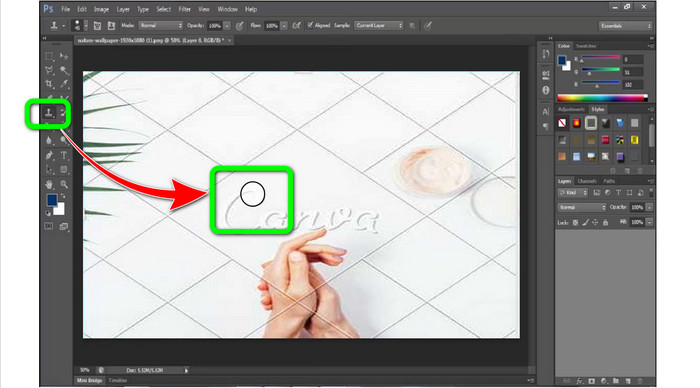
Korak 5: Kada Canvin vodeni žig nestane, idite naFile > Save.
Povezan sa:
Jednostavni koraci kako ukloniti WOW Slider vodeni žig [Riješeno]
Jednostavne metode za uklanjanje Shootproof vodenog žiga
Dio 3: Često postavljana pitanja o uklanjanju Canva vodenih žigova
1. Kako mogu ukloniti besplatni Canva vodeni žig?
Da biste uklonili vodeni žig sa svih svojih dizajna, morate kupiti Canva Pro. Druga je mogućnost korištenje besplatne probne verzije Canva Pro koja će izbrisati vodeni žig. Također, možete ukloniti vodeni žig spremanjem vašeg dizajna kao PDF ili PNG datoteke.
2. Koja je razlika između Canve i Canve Pro?
U Canvi je plan potpuno besplatan. Možete dobiti besplatne predloške, izglede, grafičke elemente, fotografije i još mnogo toga. Ali u besplatnoj verziji postoje ograničenja, poput nedostatka alata za markiranje, bez filtara i ograničenih izlaznih opcija. Canva Pro nudi još sjajnih značajki u kojima možete uživati. Nudi više predložaka, fotografija, grafika i videa. Korištenje Canve Pro bolje je od besplatne verzije.
3. Koji je najbolji način za uklanjanje Canva vodenog žiga?
Koristite FVC Free Watermark Remover. Ovaj vam alat može brzo pomoći ukloniti Canvine vodene žigove s vaše fotografije. Također može izbrisati druge neželjene elemente, poput logotipa, teksta, emotikona itd.
Zaključak
Canva je fantastičan alat za grafički dizajn. Međutim, ostavlja vodene žigove na gotovo svim fotografijama. Ali ako želite ukloniti vodene žigove u Canvi, možete koristiti FVC Free Watermark Remover. Besplatan je i lakši za korištenje od Photoshopa.
-
 Najlakše metode o tome kako ukloniti vodeni žig s fotografija
 Nerviraju li vas vodeni žigovi na vašim fotografijama? ne brini! Ovaj članak će pružiti jednostavne i lake metode za uklanjanje vodenih žigova s vaših fotografija
-
 Načini kako jednostavno ukloniti Reddit vodene žigove sa slika
 Ako ste ovdje, možda tražite odličan Reddit alat za uklanjanje vodenog žiga. U tom slučaju, pokazat ćemo vam najlakši način uklanjanja Reddit vodenih žigova
-
 Kako ukloniti vodeni žig u Lightroom Mobile [Riješeno]
 Želite li naučiti kako ukloniti vodene žigove s fotografija u Lightroomu? Ovo su najlakše metode koje možete isprobati koristeći se svojim mobilnim telefonima i računalima
