


 Video Converter Ultimate
 Snimač zaslona
 Video popravak
Uklonite objekt s fotografija pomoću 6 učinkovitih softvera [besplatno]
Milijuni fotografa, čak i onih koji su tek početnici, snimili su mnoštvo fotografija zalazaka sunca, plaža, turističkih atrakcija, mjeseca i još mnogo toga. Pomoću slika možemo izraziti tko doista jesmo. Jednim jednostavnim okidanjem možete potaknuti nečiju kreativnost i probuditi umjetnika u njima. Ne ispadne baš svaka fotografija savršena; ponekad moramo ukloniti određeni objekt koji ne želite na fotografiji. Trebate li alat za uklanjanje objekata s fotografija? Ovdje ćemo predstaviti različite načine i alate koje možete koristiti da trenutčno uklonite neželjene objekte sa snimljene slike.

Dio 1. Uklonite objekt s fotografije pomoću najboljeg alata za uklanjanje objekata [web-usluga]
FVC Free Watermark Remover naš je prvi izbor za besplatno online uklanjanje objekata s fotografija. S njim možete trenutno izbrisati sve što narušava vašu savršenu fotografiju, bez preuzimanja softvera na stolno računalo, čak i ako nemate nikakvog iskustva s ovakvom vrstom uređivanja. Možete se pouzdati u ovaj alat jer je dovoljno samo označiti objekt, a on će ga ukloniti s fotografije bez vidljivih tragova. Smatramo ovaj alat zabavnim i učinkovitim za uklanjanje nepotrebnih elemenata sa slike; ako ga želite koristiti, pratite korake koje navodimo u nastavku.
Korak 1. Da biste otvorili objekt i uklonili razvoj FVC, kliknite ovu poveznicu na službenu web-stranicu.
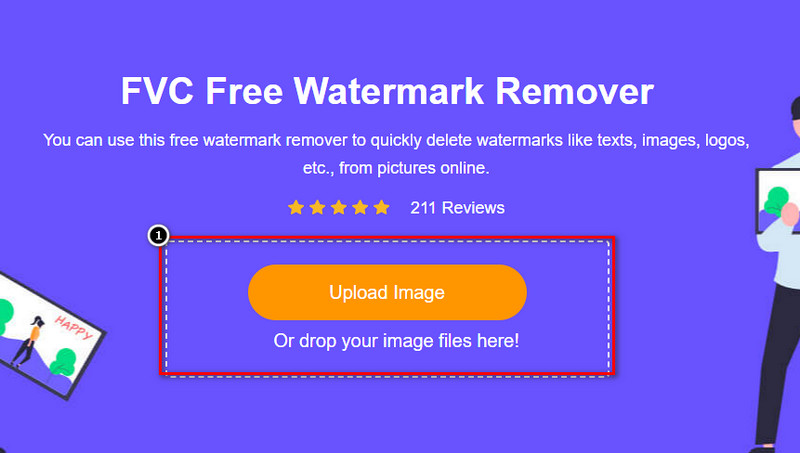
Korak 2. Pritisnite Upload Image kako biste uvezli fotografiju koju ste snimili, a na kojoj se nalazi neželjeni objekt.
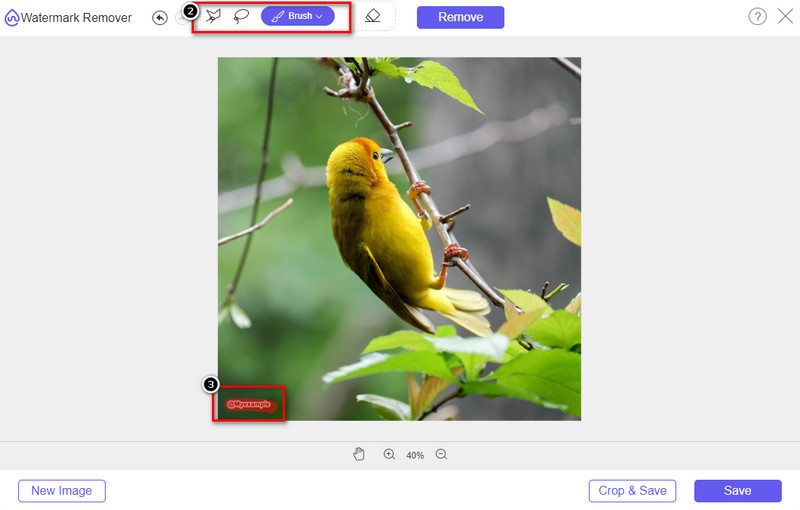
Korak 3. Pomoću alata koji su ovdje dostupni morate označiti objekt.
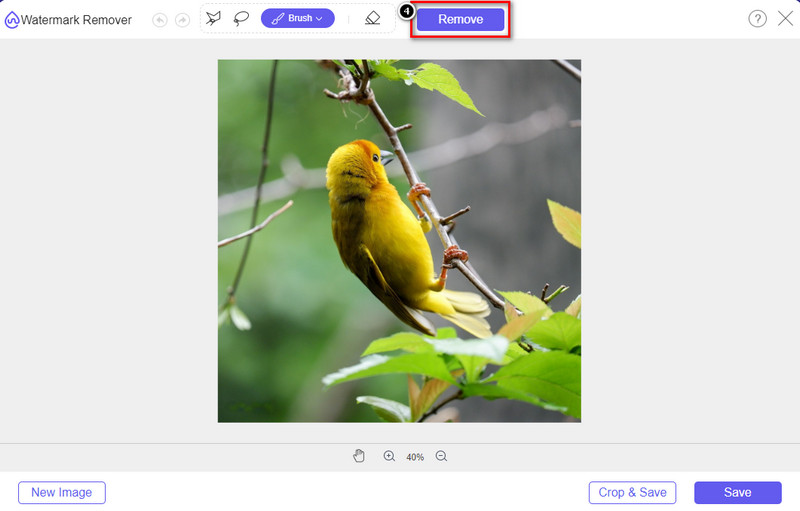
Korak 4. Pritisnite gumb Remove da biste uklonili objekt uz pomoć AI tehnologije koju ovaj alat koristi.
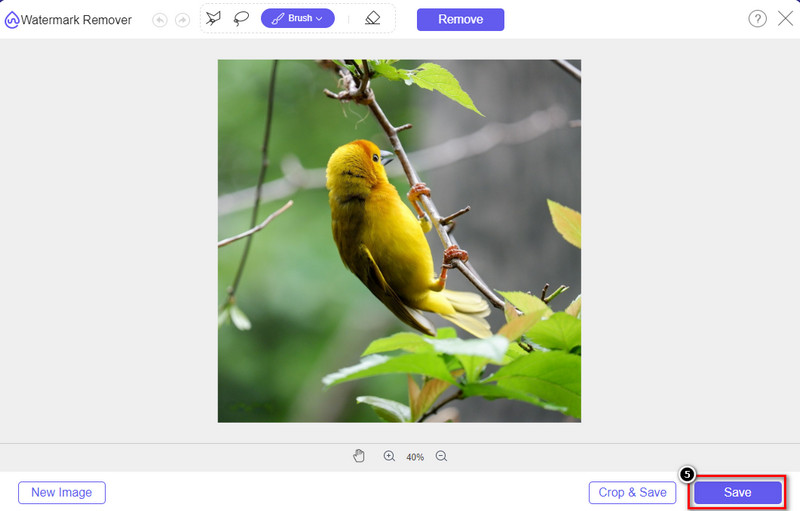
Korak 5. Za preuzimanje savršene fotografije koju ste ovdje uredili kliknite Save.
Dio 2. Uklonite objekt s fotografije profesionalno pomoću programa za stolna računala [Windows & Mac]
Photoshop
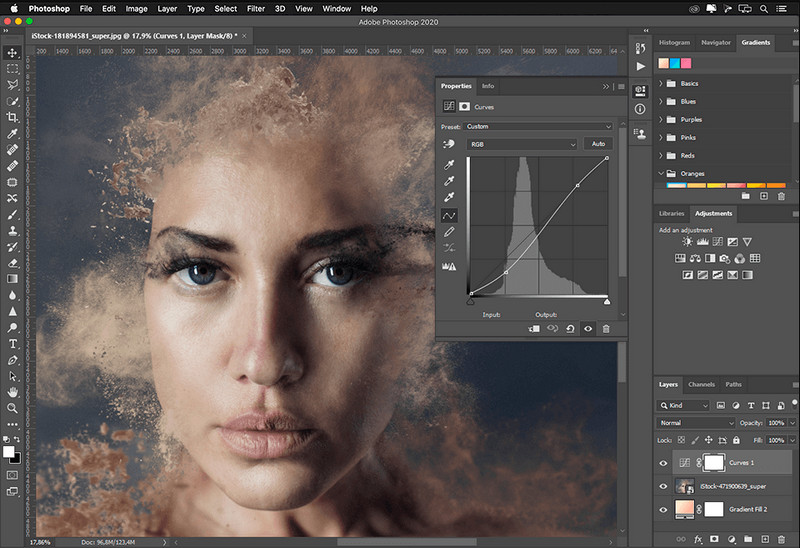
Ako trebate profesionalni alat za uklanjanje objekata s fotografija, onda je Photoshop odgovor! Ovaj alat je kompletan uređivač slika koji nam Adobe ponosno predstavlja. Ništa vas ne sprječava da svojom značajkom i funkcijom učinite da slika izgleda nevjerojatno. Zbog njegove popularnosti među profesionalcima, mnogi početnici pokušavaju koristiti ovaj softver za uređivanje i stvaranje svojih slika. Dakle, ako želite znati kako se koristiti ovim profesionalnim alatom, onda možete pratiti vodič koji dodajemo u nastavku.
Korak 1. Otvorite službenu Adobeovu web-stranicu, a zatim preuzmite Photoshop na svoje računalo.
Korak 2. Kliknite File i pritisnite Open kako biste učitali sliku koju morate urediti.
Korak 3. S lijeve strane odaberite Magic Wand Tool kako bi se objekt na slici automatski označio.
Korak 4. Idite u odjeljak Edit i pod njim odaberite Content-Aware Fill.
Korak 5. Nakon što ga otvorite, vodeni žig će se automatski ukloniti, a zatim kliknite OK.
GIMP
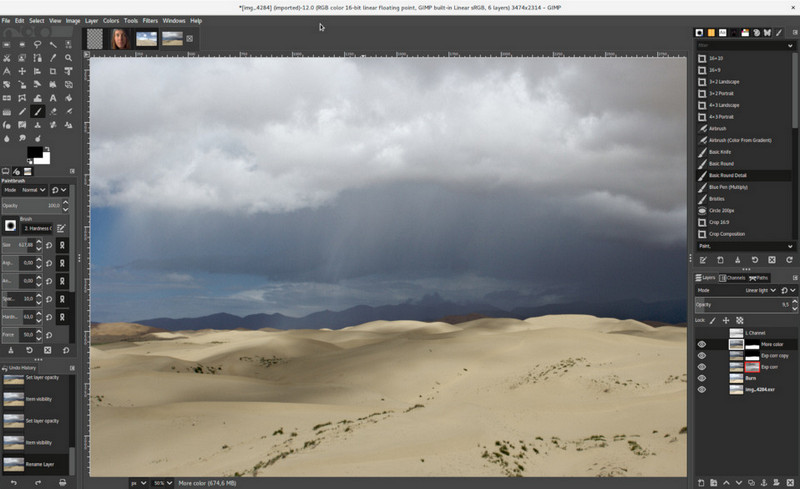
GIMP je cjelovit program za uređivanje slika koji možete koristiti za uklanjanje objekata s fotografija na Macu, Linuxu i Windowsu besplatno. Pouzdan je alat nalik Photoshopu. Iako je ovaj alat pri vrhu popisa kada se govori o alternativama za Adobe Photoshop, i dalje je u aktivnom razvoju. S njim možete detaljno uređivati slike kako bi bile privlačne publici. Također, možete prilagoditi sučelje ako želite olakšati rad. Ako razmišljate o preuzimanju ovog alata za profesionalno uređivanje, možemo vas uvjeriti da ćete to i postići. Iako je riječ o open-source editoru, alat još treba doradu jer je njegovo grafičko sučelje i dalje u razvoju. Dakle, ako ga želite koristiti, koraci u nastavku poslužit će vam kao vodič kako ukloniti objekt s fotografije u GIMP-u. Sljedeći koraci će vas voditi kroz postupak.
Korak 1. Preuzmite i pokrenite softver kako biste mogli učitati sliku koju trebate urediti. Također, preuzmite njegov dodatak Resynthesizer plug-in.
Korak 2. U alatnoj traci s lijeve strane odaberite Free Select i promijenite način rada u Add Current Selection.
Korak 3. Sada iscrtajte objekt koji želite ukloniti; nakon što ga uspješno označite, pritisnite Enter na tipkovnici.
Korak 4. Da biste upotrijebili dodatak koji ste preuzeli, idite na Filter, zatim Enhance i kliknite Heal Selection.
Korak 5. Zatim će se pojaviti dijaloški okvir; po potrebi promijenite širinu uzorkovanja, postavite uzorkovanje na all-around, a Filling the Order na random. Pritisnite OK kako biste započeli sintetiziranje područja u slici.
Aplikacija za fotografije na Macu
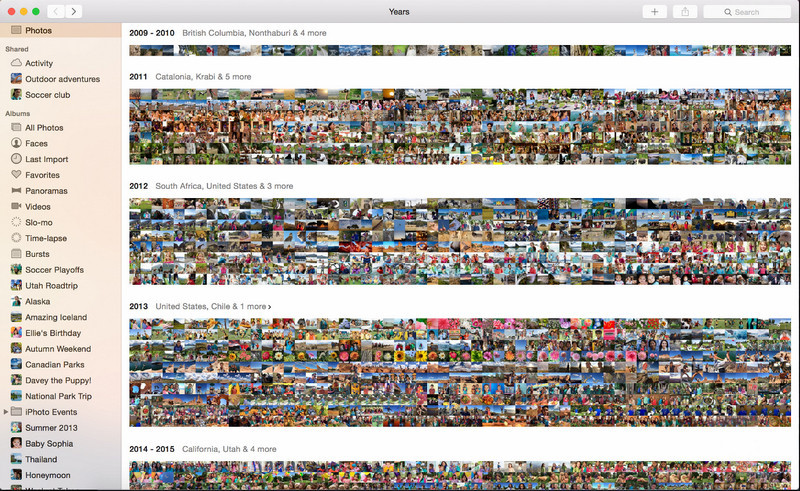
Photo App je ugrađena funkcija na novijim Appleovim uređajima poput Maca. Ova je aplikacija unaprijed instalirana, pa možete preskočiti dio s preuzimanjem i odmah je koristiti. Softver sam po sebi nije profesionalni editor slika jer mu je svrha biti knjižnica i preglednik fotografija na Mac ili iOS uređajima. Čak i ako na Macu nemate profesionalni program za uređivanje fotografija, ove značajke možete iskoristiti kako biste jednim klikom dobili profesionalan rezultat. Dakle, ako želite ukloniti objekt pomoću Photo Appa, slijedite korake koje smo naveli.
Korak 1. Otvorite aplikaciju Photos na svom Macu i odaberite sliku na kojoj se nalazi neželjeni objekt.
Korak 2. U gornjem desnom kutu kliknite gumb Edit kako biste započeli s uređivanjem slike.
Korak 3. S desne strane vidjet ćete opciju Retouch; kliknite je kako biste aktivirali tu funkciju.
Korak 4. Kliknite i povucite mišem preko područja koje želite ukloniti.
Korak 5. Pritisnite gumb Done kako biste spremili promjene koje ste primijenili na sliku.
Dio 3. Ukloni objekt s fotografije pomoću aplikacije na Androidu i iOS-u
Photoshop FIX
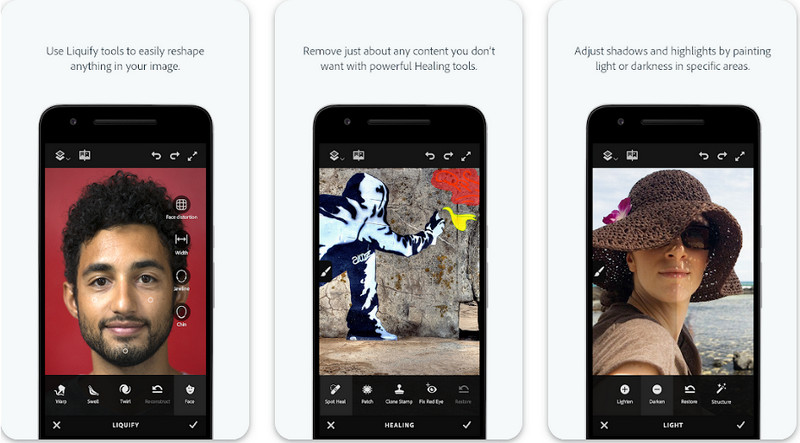
Photoshop FIX je učinkovit Android program za uklanjanje objekata s fotografija, koji radi profesionalno, a jednostavan je za korištenje. To je open-source aplikacija koju možete preuzeti na svoj uređaj putem Play Storea. Iako je alat otvorenog koda, njegova funkcija uklanjanja objekata iznimno je kvalitetna. To je jedna od najčešće preuzimanih aplikacija na Android uređajima za ovaj zadatak. Ako želite naučiti kako koristiti ovu aplikaciju, nastavite čitati u nastavku.
Korak 1. Preuzmite aplikaciju na svoj Android uređaj.
Korak 2. Pritisnite On My Phone kako bi vam se prikazale sve slike u galeriji. Odaberite sliku koju želite urediti.
Korak 3. Za korištenje funkcije uklanjanja objekata u ovoj aplikaciji kliknite Healing.
Korak 4. Ovdje možete koristiti dvije opcije za uklanjanje. Da biste „izbrisali” objekt kistom, odaberite Spot Heal. Ako želite klonirati piksele, morate odabrati Clone Stamp. Označite vodeni žig odabranom opcijom.
Korak 5. Spremite sliku u galeriju (camera roll) i to je to!
Retuširanje fotografija
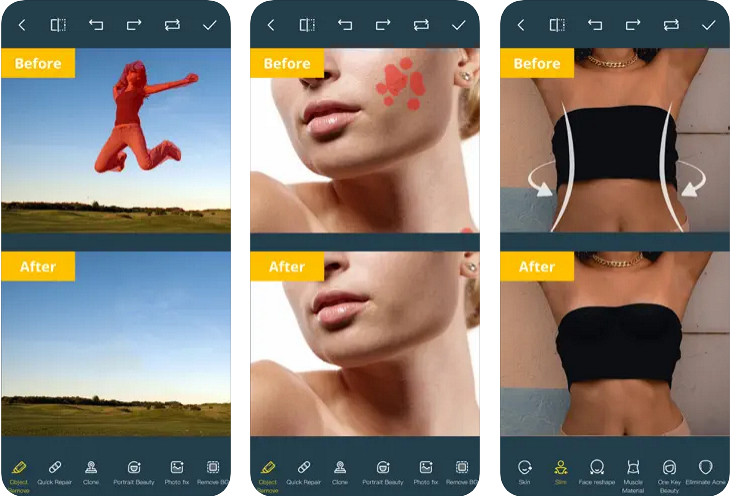
Photo Retouch je pouzdana aplikacija za uklanjanje objekata s fotografija na iPhoneu bez ikakvih poteškoća. Čak i ako niste iskusni u uklanjanju objekata sa svojih slika, možete ih učinkovito ukloniti. Ovu aplikaciju možete besplatno preuzeti iz App Storea ako je želite isprobati. Također, možete ukloniti pozadinu i vodeni žig sa svojih fotografija ako vam je to potrebno. Ako ste spremni koristiti ovu aplikaciju kako biste uklonili objekt sa slike, slijedite korake koje navodimo.
Korak 1. Preuzmite službenu aplikaciju i zatim je pokrenite.
Korak 2. Kliknite Photo Eraser, zatim Photo. Odaberite sliku s neželjenom pozadinom koju želite ukloniti i provjerite nalazi li se ta slika u aplikaciji Photos na vašem iPhoneu.
Korak 3. Na donjem dijelu zaslona odaberite opciju Object Removal.
Korak 4. Koristite kist koji aplikacija nudi kako biste označili objekt koji želite ukloniti i kliknite GO za uklanjanje objekta.
Povezano:
Uklanjanje Dreamstime vodenog žiga
Uklanjanje Picsart Filter vodenog žiga
Dio 4. Često postavljana pitanja o tome kako ukloniti objekte s fotografija
Zašto moram ukloniti objekte s fotografija?
Brojni su slučajevi kada nešto snimimo, a tu su i fotobombarderi. Ovaj objekt je problem za većinu profesionalaca na drugim ljudima jer ne ističe sliku koju snimite. Dakle, umjesto ponovnog snimanja slike, možete pročitati sljedeće idealne načine uklanjanja objekta na fotografiji.
Mogu li izrezati sliku kako bih uklonio objekte?
Da, možete. Ako objekt želite ukloniti sa strane fotografije, možete pokušati izrezati sliku pomoću ugrađenog uređivača. Međutim, ovaj izbor nije opcija, osobito ako je objekt u središnjem dijelu ili blizu slike koju snimite. Obrezivanje slike će izrezati fotografiju, pa je bolje razmisliti dvaput ako želite isprobati ovu opciju.
Zašto ne mogu učitati sliku da uklonim objekt?
Ne možete učitati sliku; ili je slika oštećena ili ekstenzija slike nije podržana. Ako je vaša slika oštećena, postoje načini da to popravite. Možete ih pronaći na webu ako ga pretražite. Obično to može biti ekstenzija datoteke slike; da biste riješili ovaj problem, morat ćete ga pretvoriti.
Zaključak
Uklanjanje objekata s fotografije jednostavno je zahvaljujući alatu i aplikaciji koje navodimo u ovom članku. Dakle, koji alat najviše volite? Nadamo se da će vam ovaj vodič koji smo dodali pomoći da lako riješite problem.
-
 Kako online pretvoriti sliku niske razlučivosti u visoku
 Ako želite naučiti kako pretvoriti slike niske rezolucije u slike visoke rezolucije online, onda je ovaj članak za vas. Pročitajte do kraja da biste saznali kako.
-
 Jednostavne metode kako ukloniti vodeni žig otporan na pucanje
 Uklonite Shootproof vodeni žig slijedeći ove jednostavne metode. Upotrijebite ove nevjerojatne alate za uklanjanje vodenog žiga kako biste jednostavno uklonili Shootproof vodeni žig sa svoje slike.
-
 Kako ukloniti Bandicam vodeni žig bez napora [3 učinkovita načina]
 Kako ukloniti Bandicam vodeni žig? Uz alate, koje ovdje dodajemo, znat ćete kako se s tim učinkovito nositi!
