


 Video Converter Ultimate
 Snimač zaslona
 Video popravak
Kako jednostavno ukloniti vodeni žig sa maturalnih slika
Vodeni žigovi su rana na oku kad god ih vidite na bilo kojoj fotografiji i uništavaju kvalitetu fotografije. Vidjet ćete vodene žigove na fotografijama kad god kreator ne želi da mu se ukrade rad. A ako ste student, vjerojatno ćete na svojoj diplomskoj slici vidjeti vodene žigove koji označavaju naziv studija ili fotografa koji ju je snimio.
Ako želite ukloniti vodeni žig sa svoje fotografije s mature, trebate alate koji će vam pomoći ukloniti vodeni žig s nje. U ovom članku naveli smo tri najčešće korištena alata za uklanjanje vodenih žigova, a naučit ćete i korake kako ukloniti vodene žigove s fotografija s mature.

Dio 1. Kako ukloniti vodeni žig s maturalnih slika online
Postoji mnogo alata za uklanjanje vodenih žigova koje ćete vidjeti na internetu. Međutim, nisu svi besplatni i jednostavni za korištenje. Također, u ovom dijelu ćete znati kako jednostavno i učinkovito ukloniti vodene žigove.
FVC Free Watermark Remover je internetski alat za uklanjanje vodenih žigova koji vam omogućuje lako uklanjanje vodenih žigova s vaših maturalnih fotografija. Ovaj mrežni alat je popularan jer prije korištenja ne morate ništa preuzimati. Osim toga, podržava najčešće formate slika, kao što su PNG, JPG, JPEG, BMP i drugi. Čak i ako uklonite vodeni žig sa svoje slike, pri preuzimanju će zadržati isti format slike kao i prije.
Koristeći ovaj alat za uklanjanje vodenog žiga, možete birati između unaprijed postavljenih postavki za uklanjanje vodenog žiga u odabiru područja vodenog žiga. Možete birati između poligonala, lasoa ili kista. Nadalje, možete koristiti ovaj alat za brisanje drugih nepotrebnih stvari na vašoj slici.
Pros
- Ima brzo operativno softversko sučelje.
- Sigurno je za korištenje.
- 100% je besplatan za korištenje.
- Dostupno na svim web preglednicima, uključujući Google, Firefox i Safari.
Protiv
- Oslonjen je na internet.
Kako se riješiti vodenog žiga na slikama mature koristeći FVC Free Watermark Remover:
Korak 1. U pregledniku koji koristite potražite FVC Free Watermark Remover. Možete kliknuti ovu poveznicu kako biste izravno otišli na njihovu web-stranicu.
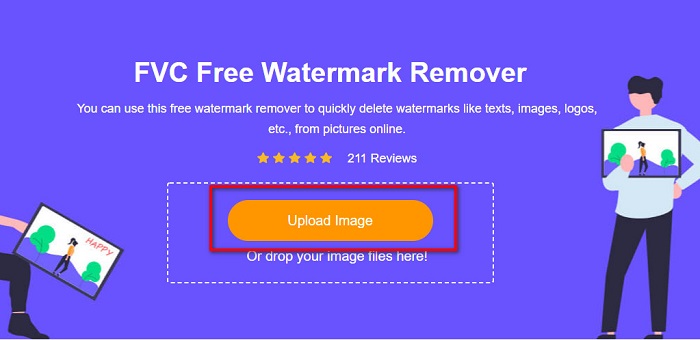
Korak 2. Na glavnom sučelju softvera kliknite gumb Upload Image. Otvorit će se mape na vašem računalu u kojima ćete odabrati maturalnu fotografiju i učitati je.
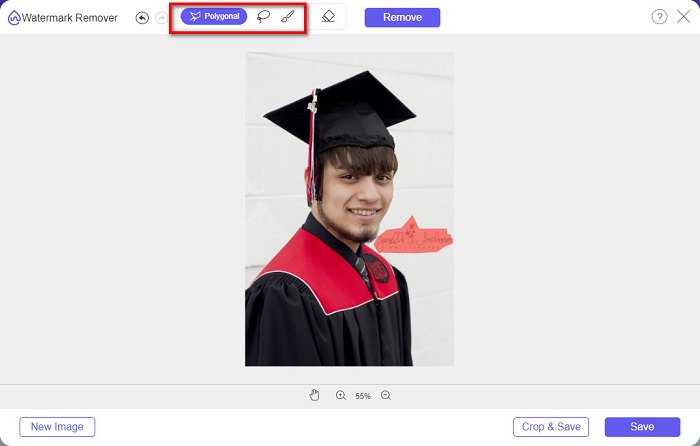
Korak 3. Zatim odaberite alat za uklanjanje koji želite koristiti za uklanjanje vodenog žiga. Birajte između Polygonal, Lasso ili Brush. Potom označite područje vodenog žiga koje želite ukloniti.
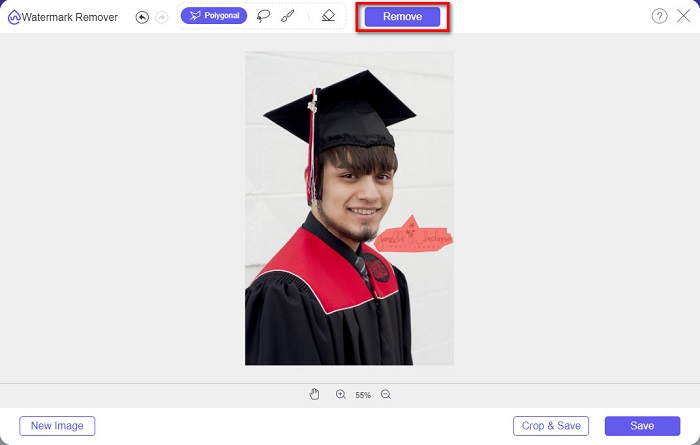
Korak 4. Nakon što označite područje vodenog žiga, kliknite gumb Remove kako biste izbrisali vodeni žig.
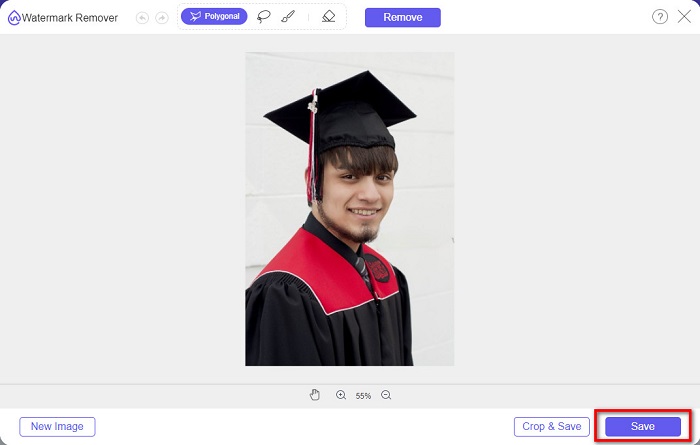
Korak 5. Vidjet ćete da je vodeni žig uklonjen. Kliknite gumb Save kako biste preuzeli sliku na svoj uređaj. Štoviše, ovaj mrežni alat za uklanjanje vodenih žigova ujedno je i alat za uklanjanje vodenog žiga s Photobucketa.
Dio 2. Kako ukloniti vodeni žig sa maturalnih slika pomoću Inpaint-a
Ljudi ponekad retuširaju vodeni žig kako bi fotografija dobila izvorni izgled. Ali kako to rade? Profesionalci koriste uređivač fotografija i slikaju naljepnicu piksel po piksel, što rezultira nekoliko radnih sati. Međutim, postoji još jedan alat koji će vam pomoći da si olakšate život. U ovom ćete dijelu naučiti kako koristiti Inpaint i njegove prednosti.
Inpaint je internetski alat za uklanjanje vodenih žigova koji će vam također pomoći ukloniti vodene žigove s vaše maturalne fotografije. Ovaj mrežni softverski program ima i verziju za preuzimanje dostupnu za Windows i Mac. Štoviše, omogućuje vam uklanjanje neželjenih elemenata na fotografiji, poput logotipa, tekstova, objekata itd. Još je iznenađujuće to što ima funkciju kojom možete popraviti stare fotografije i vratiti ih na izvornu kvalitetu. Također sadrži alate za uklanjanje kojima možete označiti područje vodenog žiga koji želite ukloniti.
Pros
- Ima softversko sučelje jednostavno za korištenje.
- Omogućuje vam digitalno retuširanje lica.
- Omogućuje vam da ispunite crna područja Panorama.
- Dostupan na gotovo svim web preglednicima, kao što su Google i Firefox.
Protiv
- Ovisno je o internetu.
Kako ukloniti vodeni žig sa slike diplome pomoću Inpainta:
Korak 1. U pregledniku potražite Inpaint, a zatim dođite na njihovu web-stranicu. Zatim, na glavnom sučelju softvera, kliknite gumb Upload Image kako biste učitali svoju maturalnu fotografiju.
Korak 2. Zatim odaberite alat za uklanjanje koji želite koristiti za označavanje područja vodenog žiga. Birajte između marker tool, lasso tool i polygonal lasso tool.
Korak 3. Zatim, koristeći željeni alat, odaberite područje vodenog žiga koje želite ukloniti.

Korak 4. Na kraju, kliknite gumb Erase kako biste uklonili vodeni žig s vaše maturalne fotografije. Zatim kliknite gumb Download kako biste preuzeli fotografiju.
Dio 3. Kako ukloniti vodeni žig sa slike mature pomoću Photoshopa
Adobe Photoshop je najpoznatiji softver za uređivanje koji koriste mnogi profesionalci. Ali ono što mnogi korisnici ne znaju je da to nije samo softver za uređivanje; također može ukloniti neželjene vodene žigove na vašoj fotografiji. Da biste naučili kako ukloniti vodeni žig s fotografije, pročitajte ovaj dio opsežno.
Adobe Photoshop najpopularniji je softver za uređivanje fotografija s brojnim mogućnostima uređivanja. Mnogi profesionalci koriste ovu aplikaciju za uređivanje jer možete uređivati svoju sliku na razne profesionalne načine. Sadrži alate koji vam omogućuju detaljno uređivanje fotografije. Nadalje, izrađuje izlazne datoteke visoke kvalitete koje možete podijeliti na bilo kojoj platformi društvenih mreža.
Pros
- Ima mnogo naprednih značajki za uređivanje.
- Sadrži mnogo alata za uređivanje.
- Proizvodi visokokvalitetne rezultate.
- Omogućuje vam uređivanje i izradu slika i za ispis i za web.
Protiv
- Ima softversko sučelje koje je teško koristiti.
- Morate kupiti aplikaciju da biste je preuzeli.
Kako ukloniti sve vodene žigove na fotografiji pomoću Adobe Photoshopa:
Korak 1. Preuzmite Adobe Photoshop na svoj uređaj, a zatim pokrenite aplikaciju. Na glavnom korisničkom sučelju otvorite sliku u Photoshopu.
Korak 2. Označite područje vodenog žiga. Možete koristiti Pen tool, Quick Selection tool ili Magic Wand tool.
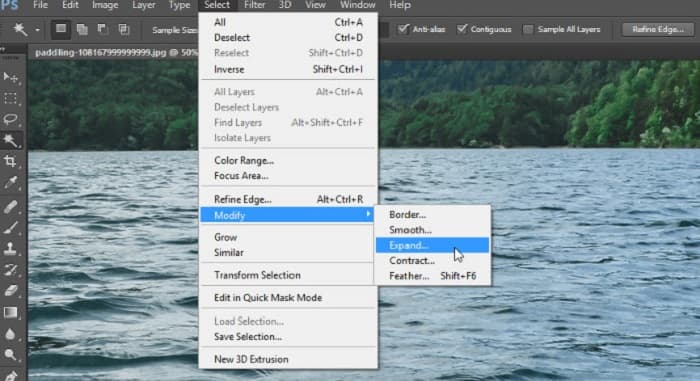
Korak 3. Idite na Select > Modify > Expand kako biste uključili pozadinske piksele.
Korak 4. Idite na Edit > Fill, zatim u odjeljku Contents odaberite Content-Aware.
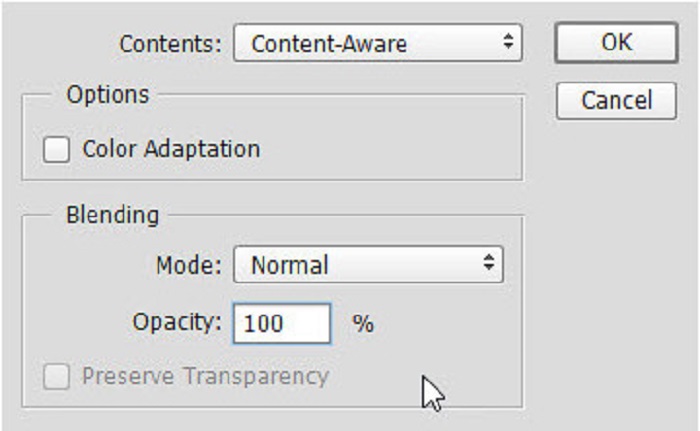
Korak 5. Zatim pritisnite CTRL+D. Vidjet ćete da je vodeni žig popunjen pozadinom. Zatim, kako biste uklonili obris vodenog žiga, upotrijebite Clone Stamp Tool.
Korak 6. Držite pritisnutu tipku Alt i pratite obris vodenog žiga. Kada završite s uklanjanjem tragova, primijetit ćete da je vodeni žig uklonjen.
Dio 4. Često postavljana pitanja o uklanjanju vodenog žiga sa slike mature
Uništava li uklanjanje vodenih žigova s diplomskih slika kvalitetu?
Uklanjanje vodenog žiga s maturalnih slika neće nužno narušiti kvalitetu. Međutim, kada uklonite vodeni žig, neki alati i dalje ostavljaju tragove.
Možete li ukloniti vodene žigove na Canvi?
Da. Canva ima značajku u kojoj možete besplatno ukloniti vodene žigove. Samo kliknite gumb Ukloni vodene žigove da biste to učinili.
Možete li ukloniti vodene žigove na PDF-u?
Koristeći gore navedene alate, možete ukloniti bilo koji vodeni žig iz svoje PDF datoteke.
Zaključak
Sada kada ste naučili kako ukloniti vodene žigove s maturalnih fotografija, možete to učiniti sami i isprobati alate predstavljene iznad. Uklanjanje vodenog žiga postaje jednostavno uz pomoć alata za uklanjanje vodenog žiga. Međutim, mnogi preporučuju korištenje alata FVC Free Watermark Remover jer je praktičan i jednostavan za uporabu.
-
 Kako jednostavno ukloniti vodeni žig Lumion na Windows i Macu
 Trebate ukloniti vodeni žig Lumion da biste ga profesionalno predstavili? Pa, postoje alati koji vam mogu pomoći da se riješite vodenog žiga koji ostavlja.
-
 Kako jednostavno ukloniti Weibo vodeni žig na videozapisima i slikama
 Imate problema s uklanjanjem Weibo vodenog žiga na izvezenom videozapisu i slici? U tom slučaju morate ukloniti vodeni žig koji bi vam mogao pomoći.
-
 Naučite kako besplatno ukloniti vodeni žig Movavi $91; Must Have!$93;
 Izvoz videa ili slike na Movavi ostavit će vodeni žig, ali je li ga moguće ukloniti? Da biste naučili kako besplatno ukloniti vodeni žig, pročitajte ovo.
