


 Video Converter Ultimate
 Snimač zaslona
 Video popravak
Izvanredni načini pretvaranja MOV datoteke u M4V na vašim uređajima
Ako želite naučiti kako pretvoriti MOV u M4V format datoteke, na pravom ste mjestu. U ovom članku upoznat ćemo vas s izvrsnim i korisnim konverterima za pretvaranje raznih datoteka, posebno MOV u M4V. Također ćete saznati razlike između tih datoteka. Ako želite doznati više, iskoristite svoje vrijeme čitajući ovaj članak.

Dio 1: Razlika između MOV i M4V
| MOV | M4V | |
| Naziv datoteke | Apple QuickTime film | iTunes video datoteka |
| Ekstenzija datoteke | .mov | .m4v |
| Opis | MPEG-4 video spremnik poznat kao multimedijski format .mov često je povezan s Appleovim okvirom QuickTime. S prvim izdanjem QuickTimea 1991. godine, formatu filmske datoteke najčešće se pripisuje uvođenje cjelovečernjih filmova u boji na Macintosh. To je bilo prije nego što su osobno računalo i operativni sustav Microsoft Windows imali išta usporedivo. Ovaj filmski format podržava više sekvenci podataka ili zapisa podijeljenih na audio, video, efekte i tekstualne titlove. Datoteka resursa završava s .mov. | Ekstenzija datoteke M4V vrlo je slična ekstenziji datoteke MP4, a kreirao ju je Apple posebno za sadržaj koji se vidi u trgovini iTunes. Apple proizvodi jedini podržavaju M4V. MP4 i MOV video kodeci mogu se pretvoriti u M4V za reprodukciju na Apple uređajima. Primarna razlika između M4V i MP4 je u tome što M4V pruža DRM-zaštitu autorskih prava, koja zabranjuje autorska prava audiovizualnog sadržaja. Računalo treba dopuštenje za reprodukciju M4V datoteke zaštićene DRM-om, a to čini prijavom na iTunes račun koji se koristi za kupnju video datoteke. Kako bi datoteke bile kompatibilne s uređajima koji nisu Appleovi, korisnik samo treba preimenovati datotečni nastavak M4V u MP4 ako datoteke nisu zaštićene DRM-om. |
| Razvijen od | Apple Inc. | Apple Inc. |
| Kategorija datoteke | Video | Video |
| Pridruženi programi | Power DVD Apple QuickTime Player Roxio Creator VLC Media Player | Zoom Player Media Player Classic KMPlayer VLC Media Player |
| Vrsta MIME | video/quicktime | video/x-m4v |
Dio 2: Najbolji način za pretvaranje MOV u M4V koristeći Mac
Kako pretvoriti MOV u M4V na Macu? Najbolji odgovor je Video Converter Ultimate. Ova aplikacija jedan je od najboljih konvertera koje možete koristiti. Ovdje možete dodati gotovo sve video formate jer podržava više od 100 video formata, uključujući MP4, FLV, AVI, M4V, MOV, VOB, MTS, SWF i druge. Također, ima jasan postupak za pretvaranje vaših MOV datoteka, što je pogodno za neprofesionalne korisnike. Osim toga, ovaj je konverter dostupan ne samo na Macu, već i na Windowsu. Na taj način možete zaključiti da je konverter pouzdan. Nadalje, postoje i druge stvari koje možete učiniti sa svojom MOV datotekom osim samog pretvaranja. Ovu aplikaciju možete koristiti ako vaš MOV video ima dosadnu vodeni žig. Pomoću alata za uklanjanje vodenog žiga možete brzo ukloniti vodene žigove s vaših MOV videa. Također, ako planirate dodati neke filtre svojim videima kako bi bili ugodni oku gledatelja, i tada se možete osloniti na ovu aplikaciju. To znači da možete učiniti mnogo toga pomoću FVC Video Converter Ultimate.
Značajke
◆ Pretvorite različite video formate, kao što su MP4, AVI, FLV, WMV, MKV, VOB, M4V, MOV, itd.
◆ Izradite kolaž s dostupnim filtrima i predlošcima.
◆ Napravite glazbeni video.
◆ Nudi alate za uređivanje za poboljšanje videozapisa, kao što su kontroler brzine videozapisa, pojačivač, rezač, trimer, rotator itd.
◆ Pretvorite brojne formate slika poput BMP, JPG, PNG itd.
◆ Nudi skupnu konverziju.
Slijedite osnovne korake u nastavku za besplatnu konverziju MOV u M4V pomoću verzije Video Converter Ultimate za Mac.
Korak 1: Kliknite gumb Download u nastavku kako biste preuzeli Video Converter Ultimate. Zatim pokrenite aplikaciju nakon što se postupak instalacije dovrši.
Besplatno preuzimanjeZa Windows 7 ili novijiSigurno preuzimanje
Besplatno preuzimanjeZa MacOS 10.7 ili novijiSigurno preuzimanje
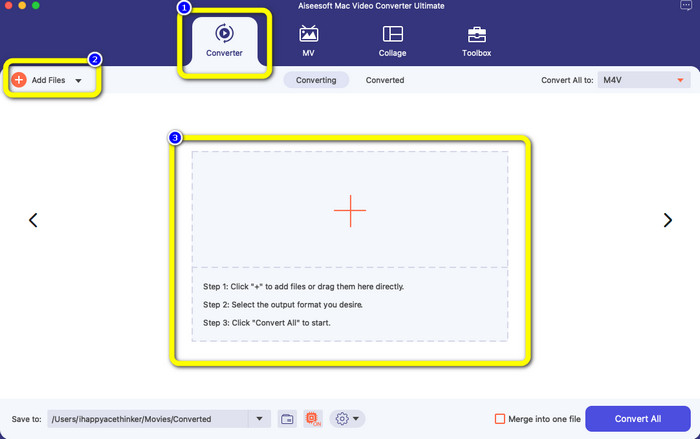
Korak 2: Na gornjem sučelju odaberite opciju Converter. Nakon toga kliknite gumb Add File ili znak + kako biste dodali svoju MOV datoteku. Također možete povući i ispustiti svoj MOV video u okvir.
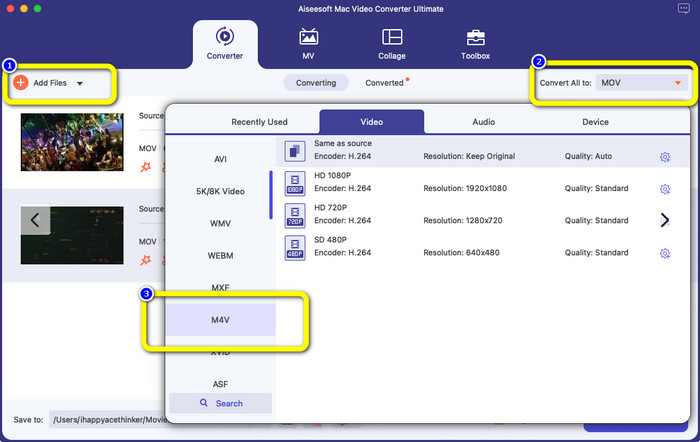
Korak 3: Možete dodati još datoteka, osobito ako želite grupnu (batch) konverziju. Kliknite gumb Add File. Zatim, kako biste ih pretvorili u M4V format, idite na gumb Convert All to i odaberite M4V format datoteke. Možete odabrati i željenu rezoluciju.
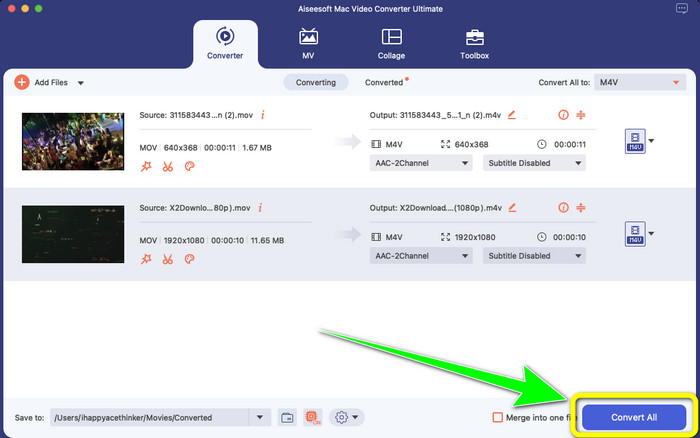
Korak 4: Nakon toga, da biste spremili svoj video, kliknite gumb Convert All. Pričekajte da se postupak pretvaranja dovrši. I to je to! Vaš MOV video je pretvoren u M4V datoteku.
Dio 3: 2 metode za pretvaranje MOV u M4V na Macu
Korištenje QuickTime-a
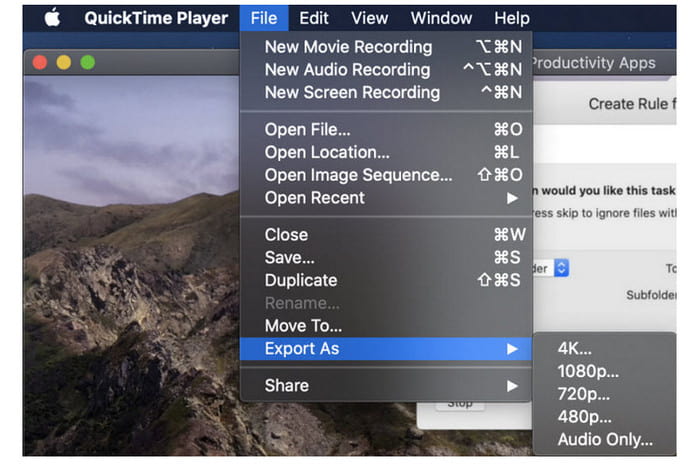
Na ranijim Mac strojevima, ugrađena aplikacija je QuickTime. Opcija izvoza u QuickTimeu dobra je za pretvaranje MOV video datoteka u M4V datoteke na Macu, što je koristan alat kada to trebate učiniti kako biste ih reproducirali na iPhoneu, iPadu ili Apple TV-u. .mov videozapisi mogu se komprimirati i pretvoriti u 480p, 720p ili 1080p pomoću opcije izvoza. Na novijim verzijama macOS-a, QuickTime nije podržan. Za registracijski kod za aktivaciju mogućnosti pretvorbe morate platiti Appleu. Slijedite korake za pretvaranje MOV u M4V koristeći QuickTime.
Korak 1: Otvorite MOV datoteku u QuickTimeu. Zatim na vrhu odaberite izbornik File i izaberite Export.
Korak 2: U izborniku Export dostupno je mnogo opcija, uključujući 480p, 720p, 1080p, iPad, iPhone, iPod touch, Apple TV, iTunes i Audio Only. Odaberite iPad, iPhone, iPod touch & Apple TV kada pretvarate MOV u M4V za iPhone, Apple TV ili druge Apple uređaje; otvorit će se novi prozor koji vam omogućuje odabir veličine ovisno o tome gdje ćete gledati svoj video.
Korak 3: Dajte naziv pretvorenoj video datoteci. Ekstenzija video datoteke treba biti .m4v. Kada je sve spremno, pritisnite gumb Save pri dnu. Postavite mjesto na koje želite spremiti svoju datoteku.
Korak 4: Na kraju još jednom kliknite gumb Save kako biste izvezli .m4v datoteku. Kako biste u bilo kojem trenutku zaustavili postupak pretvaranja, kliknite gumb X na traci napretka. Omogućuje vam i pretvaranje AVI u M4V.
Korištenje iTunes-a
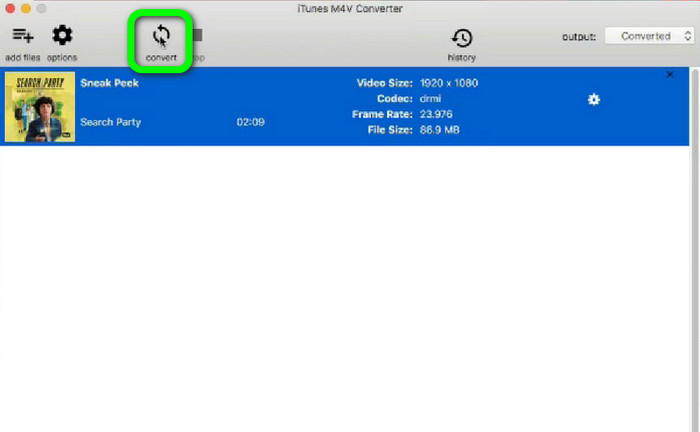
Želite li pretvoriti MOV u M4V koristeći iTunes? Zatim možete slijediti detaljne vodiče u nastavku. iTunes je još jedan pretvarač na koji se možete osloniti. Međutim, ima kompliciran proces, a opcije su previše zbunjujuće.
Korak 1: Otvorite iTunes. U biblioteci odaberite Movies i dodajte MOV datoteku.
Korak 2: Idite u izbornik Advanced i odaberite Convert Selection for Mac.
Korak 3: Zatim promijenite ekstenziju videa u M4V.
Korak 4: Zatim idite na File > Convert. Pričekajte dovršetak konverzije i spremite svoj video u svoju biblioteku.
Dio 4: Izvrstan način za pretvaranje MOV u M4V na mreži
Za pretvaranje MOV u M4V online možete koristiti FVC Free Video Converter Online. Ovaj konverter može odmah pretvoriti datoteke. Također, ovaj softver omogućuje istovremeno pretvaranje više datoteka. Osim toga, podržava razne video i audio formate datoteka, kao što su AVI, VOB, MP4, 3GP, AAC, AC3, MP3, FLAC i druge. Možete koristiti jednostavne korake u nastavku kako biste lako pretvorili MOV u M4V.
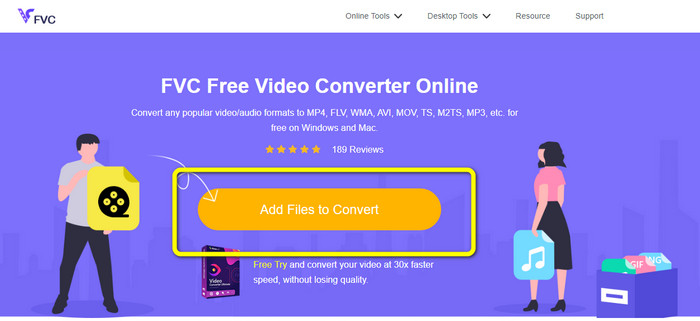
Korak 1: Posjetite web-stranicu FVC Free Video Converter Online. Zatim kliknite Add Files to Convert kako biste dodali svoju MOV datoteku.
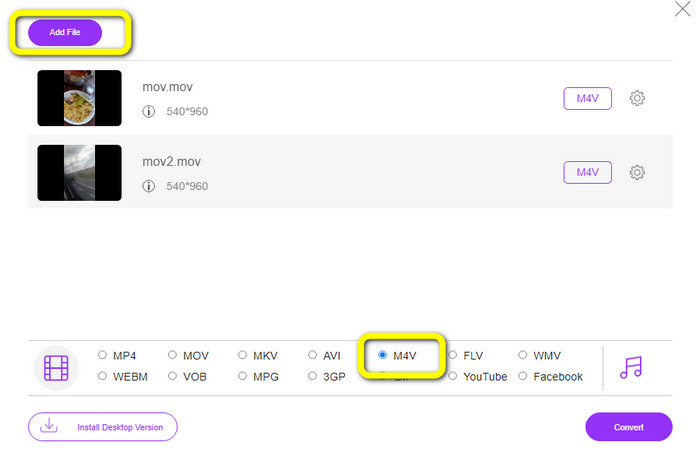
Korak 2: Za dodavanje više datoteka kliknite gumb Add File. Zatim idite na opcije formata i odaberite M4V format datoteke.
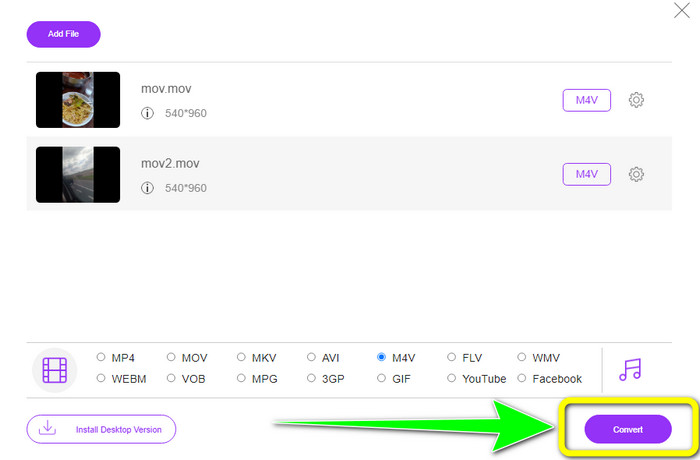
Korak 3: Pritisnite gumb Convert kako biste pretvorili MOV u M4V. Zatim spremite svoju datoteku na željenu lokaciju. Ovaj alat možete koristiti i za pretvaranje MOV u MKV.
Dio 5: Često postavljana pitanja o pretvaranju MOV u M4V
Što je kvalitetnije, MOV ili M4V?
M4V je kvalitetniji. Format M4V poželjan je ako gledate film na mobilnom uređaju kao što je iPhone, iPad ili iPod jer gotovo svi mobilni uređaji mogu reproducirati ovaj format. M4V datoteke ne bi trebale imati problema s kompatibilnošću u usporedbi s MOV datotekama.
Koja je prednost MOV datoteke?
MOV je praktičan format datoteke jer može pohraniti nekoliko medijskih komponenti na jednom malom prostoru, uključujući audio i video. Zadržava informacije, tako da možete brzo izmijeniti datoteku ako je potrebno bez potrebe za prepisivanjem.
Zašto je MOV tako velik?
Videozapisi koje snimite svojim iPhoneom, iPadom ili Macom bit će spremljeni u .mov formatu. MOV datoteke napravljene su da sačuvaju detalje koje kamera bilježi; veće su i prikladnije za uređivanje.
Zaključak
Na temelju gornjih informacija, ovo su najbolji načini za promjenu MOV u M4V format datoteke. Neki od njih su zbunjujući za korištenje i zahtijevaju aktivaciju koda. Ako želite jednostavan način za pretvaranje svojih datoteka, koristite FVC Free Video Converter Online.
-
 Jednostavni načini kako pretvoriti MTS u M4V bez napora
 Jeste li željeli pretvoriti svoju MTS datoteku u M4V bez ikakvih problema? Idi na ovaj članak. Osigurali smo detaljne postupke koje možete slijediti.
-
 Saznajte kako pretvoriti VOB u M4V [izvanmrežno i besplatno]
 Je li moguće pretvoriti VOB u M4V? Saznajte odgovor čitajući ovaj vodič, jer ćete naučiti najbolje metode koje možete pokušati pretvoriti VOB u M4V odmah.
-
 Saznajte kako pretvoriti WMV u M4V na Windows i Macu
 Znamo da želite pretvoriti WMV u M4V jednostavno s najboljim pretvaračem. U tom slučaju, pokazat ćemo vam najbolje metode koje možete pokušati pretvoriti svoje datoteke.
