


 Video Converter Ultimate
 Snimač zaslona
 Video popravak
Proces pretvorbe WebM datoteke u MOV: jednostavne metode koje biste trebali znati
Kad je riječ o produkciji i strujanju, nije svaki videoformat kompatibilan sa svakom digitalnom platformom. Kada pokušavate unijeti, proizvesti, učitati ili preuzeti relevantne datoteke, to može uzrokovati velike probleme. Apple, na primjer, ne koristi tradicionalne preglednike na koje smo narasli davnih dana – ima vlastitu platformu koja se zove Safari. Zbog toga video formati koje podržavaju samo Google Chrome, Mozilla Firefox, Opera i Microsoft Edge nisu uvijek dostupni korisnicima Maca u pregledniku.
Jedan od takvih je WebM video, format koji omogućuje otvorenu video kompresiju za HTML5. Ako ste korisnik Maca, za njegovo gledanje potreban je medijski reproduktor treće strane. Međutim, format datoteke MOV je ono što trebate ako želite reproducirati svoje videozapise bez ikakvih poteškoća, budući da je to Appleov vlastiti format razvijen za Apple QuickTime Player. Dakle, ono što želite jest pretvoriti WebM u MOV na svom Macu, a u ovom članku donosimo vam najbolje načine kako to učiniti.
Dio 1. Pregled: WebM i MOV
Ako ste već duže vrijeme izloženi gledanju videa i strujanju, sigurno ste gledali puno videozapisa različitih formata na različitim platformama. Možda ste se jednom zapitali što ti nastavci datoteka predstavljaju ili po čemu se razlikuju jedni od drugih. Sigurno ste pokušali reproducirati određeni video na svom pregledniku, ali on to ne može učiniti, govoreći da nije podržan. WebM, na primjer, podržava samo nekoliko modernih preglednika poput Chromea, Firefoxa i edge budući da je obično ugrađen u web stranice pomoću HTML5
Dio 2. Najbolji pretvarač koji pomaže pretvoriti WebM u MOV
Pretvaranje video datoteka nije toliko teško kao što možda mislite. Iako postoji mnoštvo softvera i programa koji vam u tome mogu pomoći, ipak postoji jedan koji posao obavlja brzo i jednostavno. FVC Video Converter Ultimate besplatan je softver za preuzimanje koji vam štedi vrijeme traženja po internetu najboljeg online konvertera. Mi vam, naravno, želimo donijeti ono najbolje. Ne morate brinuti o formatu videa koji želite pretvoriti jer ovaj softver podržava razne formate i, da ne zaboravimo, pruža mnogo opcija za uređivanje vašeg videa tijekom same konverzije. Slijede koraci koje trebate pratiti da biste koristili ovaj softver:
Korak 1: Prije procesa konverzije, najprije morate preuzeti softver, a to možete učiniti klikom na gumb Free Download. Možete odabrati verziju za Windows ili Mac. U ovom slučaju, odaberite For Mac OS. Pričekajte da se .exe datoteka u potpunosti preuzme i otvorite je kada završi kako biste započeli instalaciju.
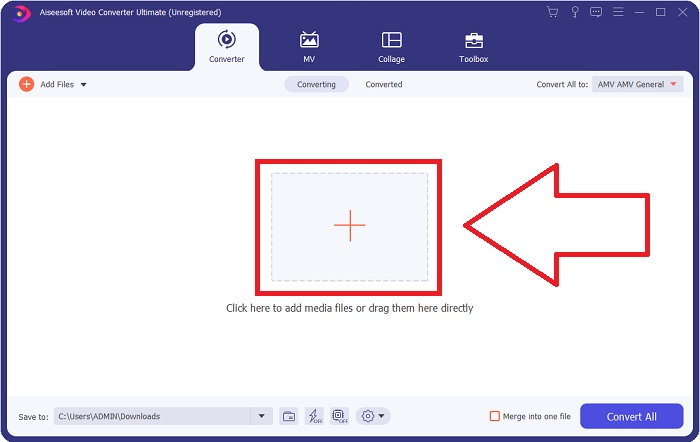
Korak 2: Kada je softver dovršio instalaciju, pokrenite ga i prikazat će vam se sučelje. Nakon pokretanja softvera automatski ćete se naći na kartici Converter. Ako niste, kliknite na nju.
Korak 3: U sredini sučelja nalazit će se gumb + na koji možete kliknuti kako biste uvezli video datoteku koju želite pretvoriti. Također, svoje videozapise možete jednostavno uvući (drag and drop).
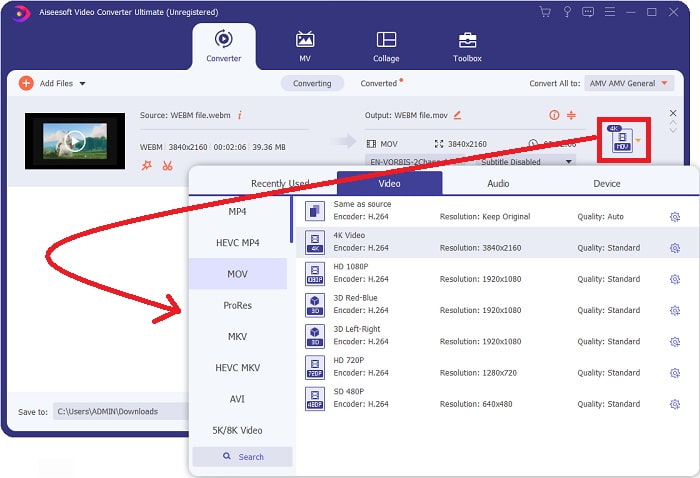
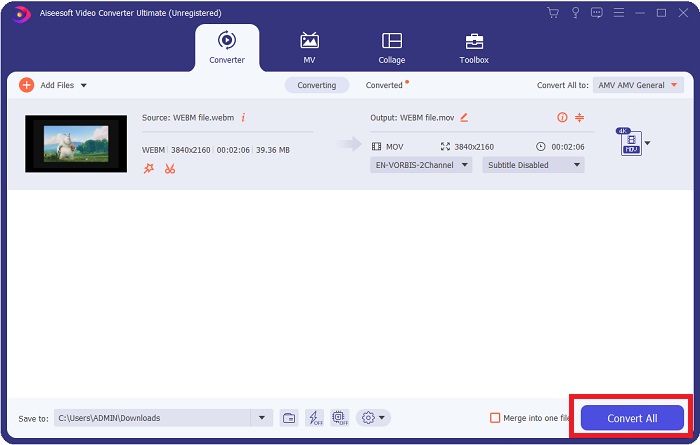
Korak 4: Pojavit će se novo sučelje kada se vaš video uspješno uveze. Ondje možete vidjeti trenutačni format vašeg videa skroz desno. Pokraj njega nalazi se padajuća strelica; kliknite na nju i pojavit će se razne opcije. Možete odabrati bilo koji format u koji želite pretvoriti svoj video, ali u ovom slučaju odaberite MOV. Na raspolaganju su vam opcije poput rezolucije i kvalitete zvuka. Za još više mogućnosti kliknite ikonu zupčanika pokraj kvalitete ili rezolucije koju ste odabrali i dodatno uredite svoj video ovisno o potrebama. Da biste spremili načinjene izmjene, kliknite Create New.
Korak 5: Kada završite i budete zadovoljni promjenama, pronađite gumb Convert All u donjem desnom kutu sučelja i kliknite ga kako biste izvezli svoj pretvoreni video.
Dio 3. Dodatni savjeti: Ostali mrežni pretvarači koji pretvaraju WebM u MOV
Metoda 1: Koristite Free Convert
Ako više ne želite preuzimati softver i već samo nastavite s postupkom konverzije, možemo vam pokazati alternative za ovaj. To se radi isključivo online, a još uvijek vam nudi značajke koje su vam potrebne za vaše potrebe uređivanja. Ako želite metodu bez muke, ovaj je web alat jedan od načina.
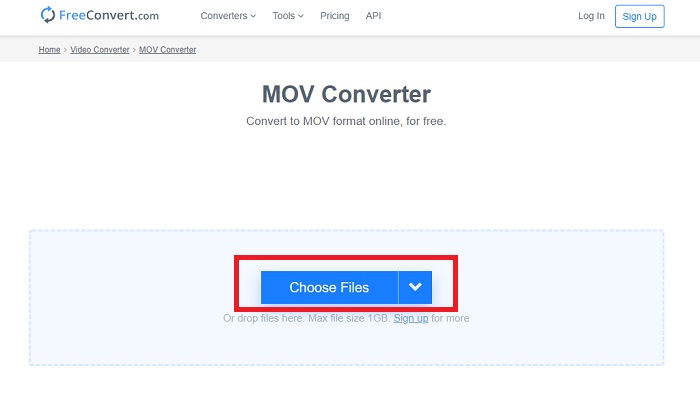
Korak 1: Idite na samu stranicu i naći ćete se u sučelju na kojem se u sredini nalazi gumb Choose Files. Kliknite ga kako biste uvezli video datoteku koju želite pretvoriti.
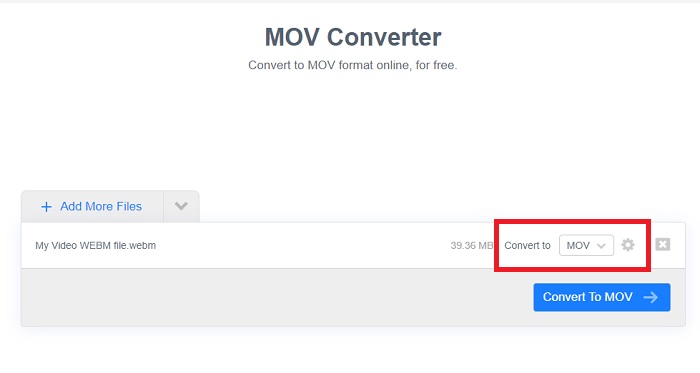
Korak 2: Kao i u samom softveru, možete vidjeti trenutačni format svog videa s desne strane, a pokraj njega nalazi se padajuća strelica. Kliknite na nju i odaberite jedan od formata u koji želite da se vaš video pretvori. Za više opcija kliknite ikonu zupčanika kako biste dodatno uredili svoj video. Kliknite gumb Apply Settings da biste zadržali učinjene izmjene.
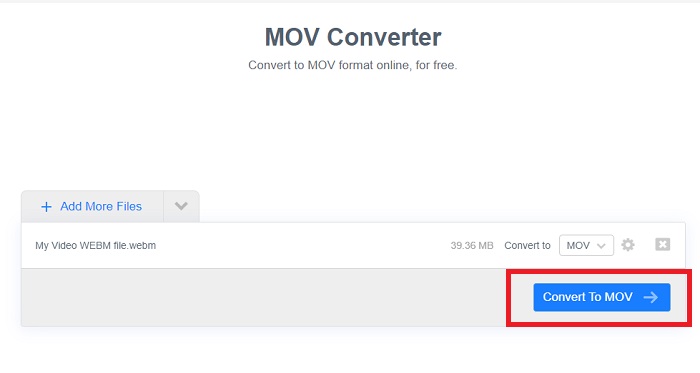
Korak 3: Ako ste završili sa svim promjenama, sada možete započeti konverziju klikom na gumb Convert to MOV odmah ispod i pričekati da se dovrši. Zatim možete izvesti svoj pretvoreni video klikom na Download MOV.
Metoda 2: Koristite Cloud Convert
Ovaj web-alat nudi vam još nekoliko opcija dok svoju WebM datoteku pretvarate u MOV online. Ne samo da možete uređivati razlučivost ili kvalitetu zvuka, već i fps, titlove i još mnogo toga. Slijedite ove jednostavne korake za korištenje ovog mrežnog pretvarača:
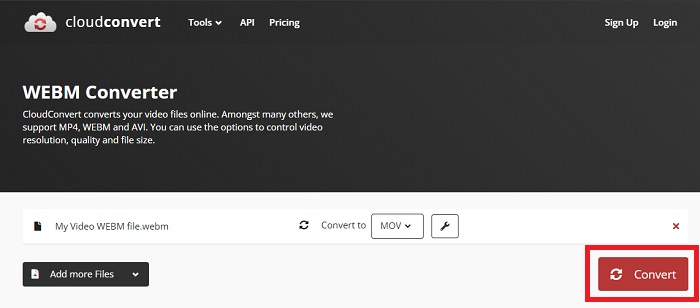
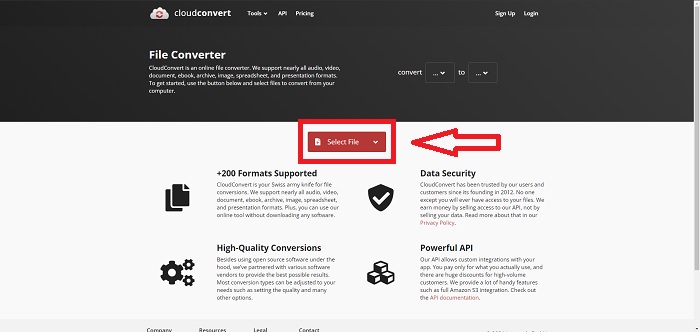
Korak 1: Najprije morate uvesti video datoteku koju želite pretvoriti klikom na gumb Select File u sredini stranice. Ako želite istodobno pretvarati više datoteka, kliknite Add more Files.
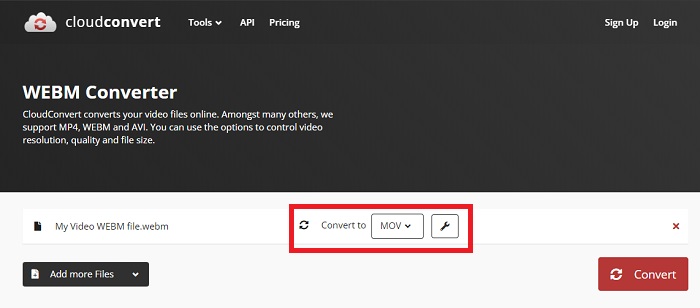
Korak 2: Pokraj datoteke možete odabrati video format klikom na padajuću strelicu. Također kliknite ikonu francuskog ključa (wrench) za više opcija. Ondje možete urediti određene aspekte svog videa i njegova zvuka. Zatim kliknite OK kako biste spremili promjene.
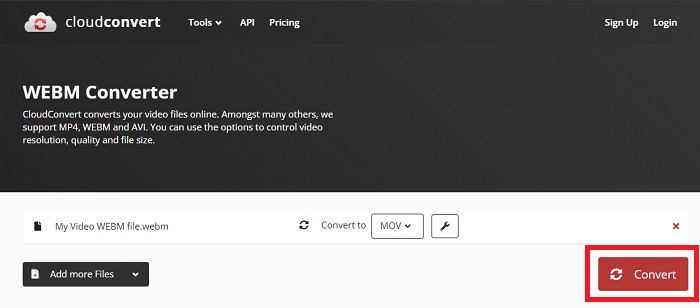
Korak 3: Kada završite sa svim uređivanjima, kliknite gumb Convert istaknut crvenom bojom i pričekajte da se proces dovrši. Na kraju kliknite Download istaknut zelenom bojom kako biste izvezli u potpunosti pretvoreni video.
Metoda 3: Koristite ZamZar Convert
Ovaj web-alat nudi manje opcija za vaš video budući da pretvara samo video i audio format. Međutim, posao obavlja brže od ostalih spomenutih metoda. Za korištenje ovog mrežnog pretvarača slijedite navedene korake:
Korak 1: U sredini stranice nalaze se samo tri gumba koje morate kliknuti da bi se vaš video pretvorio. Najprije kliknite Add files kako biste uvezli svoju video datoteku.
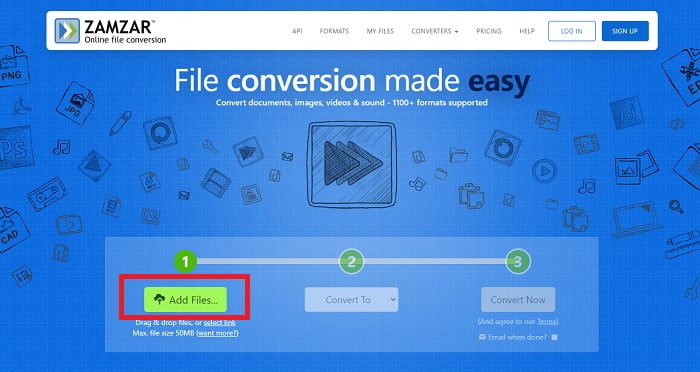
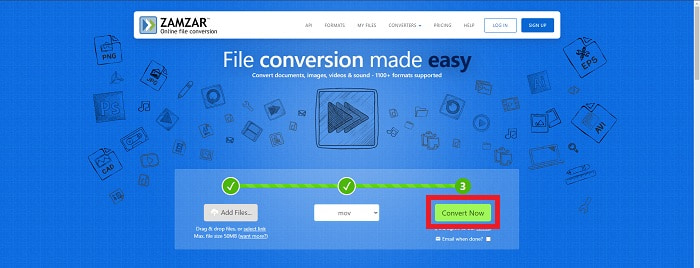
Korak 2: Kod drugog gumba možete odabrati video i audio format koji želite za svoj video. U ovom slučaju odaberite MOV format.
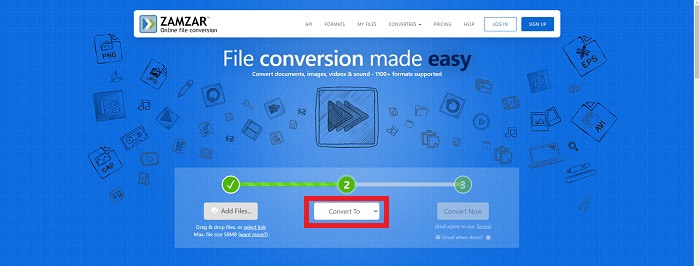
Korak 3: Na kraju kliknite treći i posljednji gumb, Convert Now, kako biste započeli samu konverziju i pričekajte da završi. Kada je gotova, kliknite Download kako biste napokon izvezli svoj video na radnu površinu.
Dio 4. Često postavljana pitanja o pretvaranju WebM-a u MOV
Što je zapravo WebM format?
WebM je format otvorene medijske datoteke specifičan za web koji uključuje video streamove komprimirane s VP8 ili VP9 video kodecima, audio streamove komprimirane s Vorbis ili Opus audio kodecima i WebVTT tekstove. WebM struktura datoteke temelji se na Matroska medijskom spremniku. Većina web-preglednika prihvaća WebM datoteke jer se ponekad koriste na HTML5 web-mjestima za reprodukciju online filmova. Na primjer, YouTube koristi format datoteke WebM Video za sve videozapise na svojoj stranici, u rasponu od 360p do drugih iznimno visokih kvaliteta. Wikimedia i Skype su isti.
Koji media playeri su mi potrebni za reprodukciju WebM videa u slučaju da ih ne želim pretvoriti u MOV?
Postoji i alternativa ako ne želite prolaziti kroz cijeli proces konverzije da biste reproducirali svoj WebM video. Možete koristiti aplikaciju treće strane ili ono što zovemo cross-platforming. Neki od takvih medijskih reproduktora treće strane su VLC, KM Player, Media Player Classic, Winamp, jetAudio Basic, Moovidia, Persian i XBMC, koje možete preuzeti s njihovih odgovarajućih stranica kako biste reproducirali svoje WebM datoteke.
Je li MOV visoke ili niske kvalitete?
Video reprodukcija je prilično visoke kvalitete s MOV datotekama. MOV je posebno koristan jer može sadržavati miješane medije kao što su slike, videozapisi i animacije od 360 stupnjeva. Također sadrži sve video i audio informacije. To čini uređivanje datoteke puno jednostavnijim.
Zaključak
Doista postoji mnogo alata koje možete koristiti za pretvaranje vašeg videozapisa iz jednog formata u drugi, bilo da se radi o softveru ili putem web-alata koji možete pronaći na internetu. Međutim, oni još uvijek idu ruku pod ruku u smislu mogućnosti ili pogodnosti koje nude. Neki samo obave posao, a neki vam nude razne opcije između kojih možete izabrati. Ovaj se članak usredotočuje na to kako bi vam pomogao da znate koji biste trebali koristiti ovisno o svojim potrebama. Zato najviše preporučujemo Video Converter Ultimate jer nudi sve dodatne mogućnosti za koje možda nikad ne znate kada će vam zatrebati. Bolje je imati ovaj softver uz sebe cijelo vrijeme kako biste se uštedjeli muke s pronalaženjem pretvarača na mreži svaki put kada vam zatreba.
-
 Kako promijeniti GIF u format WebM bez gubitka kvalitete datoteka
 Pretvorite svoje Gifove u WebM video format kako biste imali HTML5 video oznaku. Oslonite se na ovaj alat u nastavku da biste znali koji je najbolji za posao.
-
 3 načina za pretvaranje WebM u MP3 bez gubitka kvalitete zvuka
 Imate problem jer se WebM datoteke ne mogu koristiti za reprodukciju zvuka koji ste spremili? Zatim pročitajte ovaj članak jer mi pružamo učinkovitu pomoć pretvaranjem WebM-a u MP3.
-
 3 Zadivljujući softver koji se koristi za pretvaranje WebM datoteke u AVI format
 Nemate pojma kako pretvoriti WebM u AVI? Onda počnimo čitati ovaj članak. Kao što navodimo sve pojedinosti o WebM-u i tri pretvarača koja možete koristiti za pretvaranje.
