


 Video Converter Ultimate
 Snimač zaslona
 Video popravak
Najprikladniji načini kako pretvoriti MP3 u M4R za Apple uređaje
Jeste li ikada razmišljali o tome da svoju omiljenu glazbu pretvorite u melodiju zvona na iPhoneu? Je li to uopće moguće? Naravno da jest. Samo trebate pretvoriti datoteku. Zašto je prvo moramo pretvoriti? Zato da bismo je mogli postaviti kao melodiju zvona. Naime, da biste određenu datoteku postavili kao melodiju zvona, ona mora biti u M4R formatu. Zato trebate pronaći najbolji iTunes pretvarač MP3 u M4R koji vam odgovara. Ovaj članak nudi različite metode kako možete pretvoriti svoju MP3 datoteku, uključujući i skupno pretvaranje MP3 u M4R, ako pročitate sadržaj u nastavku.

Dio 1. Najizvediviji način za pretvaranje MP3 u M4R
Video Converter Ultimate daleko je najuvjerljiviji alat koji možete koristiti za pretvaranje MP3 u M4R. Ne samo jednu datoteku, već također može izvršiti skupnu konverziju iz MP3 u MP4 To je pretvarač koji može proizvoditi HD video i audio bez gubitaka. Zapravo, idealno je i preporučljivo za njega pretvoriti datoteku bez gubitka njezine izvorne kvalitete. Brzina je 30x veća od normalnog pretvarača. Osim toga, ako pretvarate popis za reprodukciju za spremanje na svoj telefon, ovaj alat definitivno može obaviti posao umjesto vas. Bez napora i bez znoja. U međuvremenu, ovdje su neke od drugih značajki u kojima možete uživati osim u pretvaranju zvuka. Također, u nastavku je napisan vodič korak po korak za vašu referencu ako ga odlučite koristiti.
◆ Uredite metapodatke.
◆ GPU ubrzanje velike brzine.
◆ Tehnička podrška u stvarnom vremenu.
◆ Podržano je komprimiranje videa.
Korak 1. Da biste ga koristili, preuzmite aplikaciju klikom na gumb za preuzimanje u nastavku. Kada se aplikacija preuzme na vaš Windows ili Mac, pokrenite je.
Besplatno preuzimanjeZa Windows 7 ili novijiSigurno preuzimanje
Besplatno preuzimanjeZa MacOS 10.7 ili novijiSigurno preuzimanje
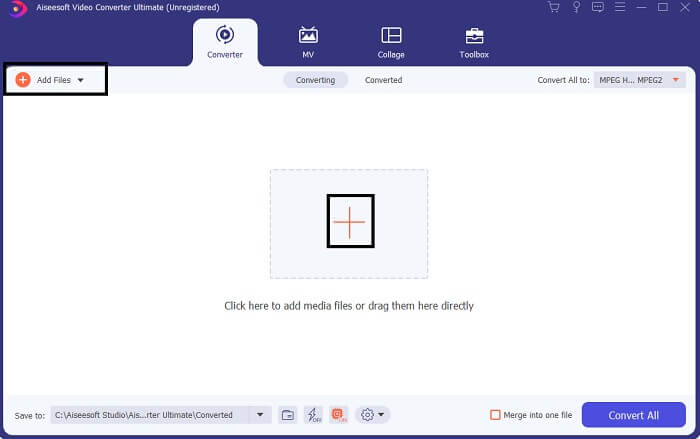
Korak 2. Na glavnom sučelju alata vidjet ćete dvije mogućnosti za učitavanje datoteke. Možete kliknuti ikonu Plus u sredini ili gumb Add Files u gornjem lijevom kutu. Odaberite željenu datoteku i učitajte je.
Korak 3. Kako biste dobili željeni izlaz, promijenite format klikom na padajući izbornik koji se nalazi u gornjem desnom dijelu sučelja.
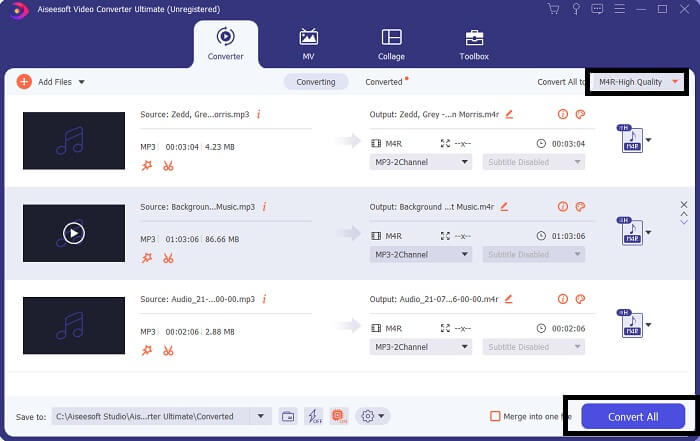
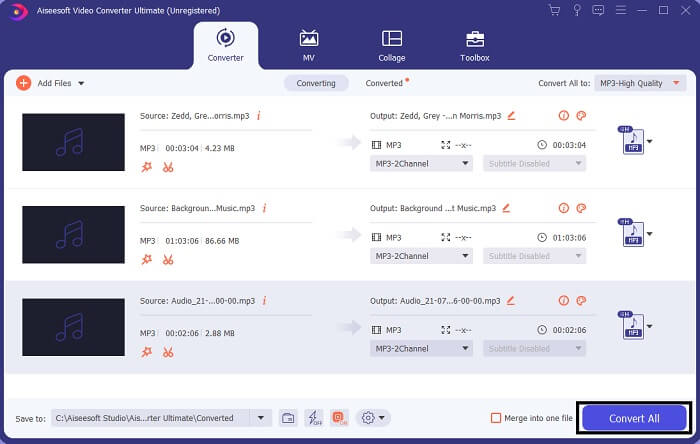
Korak 4. Na kraju kliknite gumb Convert All u donjem desnom kutu glavnog sučelja. Zatim pričekajte dok se datoteka ne pretvori.
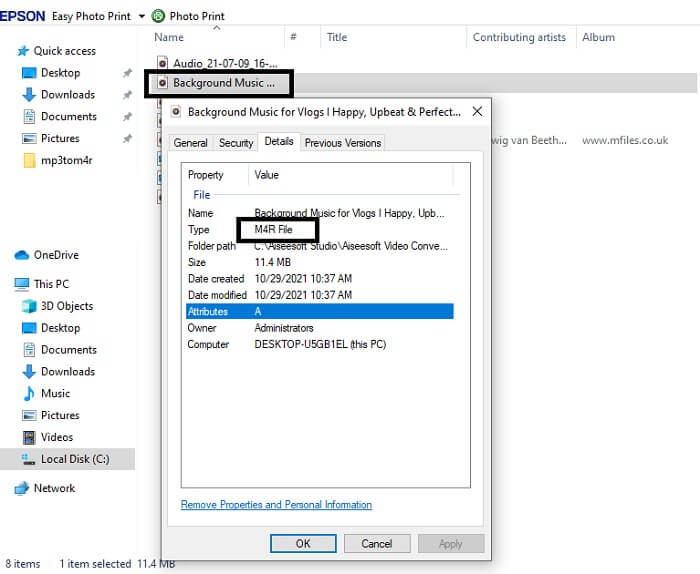
Korak 5. Na kraju otvorite mapu u kojoj je spremljen audio-izlaz i prenesite ga na svoj iPhone. Za to možete koristiti alat ili aplikaciju za prijenos. Preporuke možete pronaći na internetu. Samo trebate pretražiti i dovršiti postupak postavljanja datoteke kao melodije zvona na vašem iPhoneu.
Dio 2. Neki od najboljih alata za pretvaranje MP3 u M4R online
FVC besplatni online audio pretvarač
Premium alat za pretvaranje je dobar, ali ništa ne nadmašuje praktičan alat. Uzimajući u obzir vaše potrebe, FVC je izradio besplatnu verziju alata. FVC Free Audio Converter vaš je besplatni alat kojem možete pristupiti bilo kada i bilo gdje. Sve što vam treba jest ispravna internetska veza i podržani preglednik. Ovaj MP3 u M4R pretvarač za iPhone melodije sposoban je proizvesti visokokvalitetni zvuk bez gubitaka. Rezultat je zadovoljavajući, i to bez ikakvih troškova. I ne samo to – znate li da također može raditi skupnu konverziju? Da, može! U nastavku su još neke značajke koje dobivate ako ga koristite. Osim toga, za vašu praktičnost napisan je i vodič.
◆ Konvertirana datoteka ima sličnu kvalitetu izvornoj.
◆ 100% besplatan i siguran za korištenje.
◆ Nema ograničenja u veličini nakon pretvorbe.
◆ Podržana je skupna pretvorba.
Korak 1. Da biste pristupili alatu, posjetite službenu web-stranicu FVC Free Audio Convertera.
Korak 2. Ondje kliknite na Add Files to Convert. Ako ga koristite prvi put, morate dopustiti pristup klikom na Open FVC Launcher. Zatim će se na vašem zaslonu pojaviti prozor koji vam omogućuje da pronađete datoteku koju želite pretvoriti.
Preuzmite desktop verziju za skupno pretvaranje datoteka.
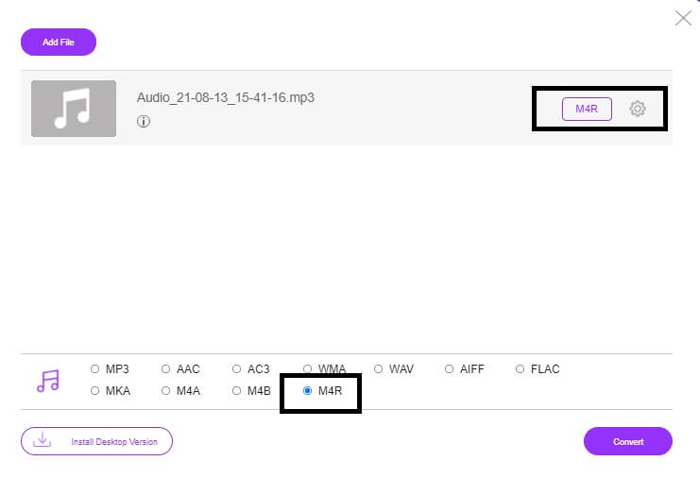
Korak 3. Nakon učitavanja datoteke, pojavit će se novi prozor. U donjem dijelu promijenite format izlazne datoteke označavanjem opcije M4R.
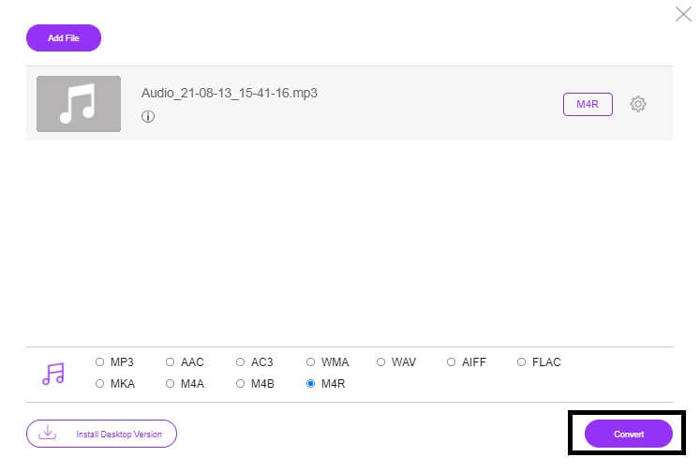
Korak 4. Zatim kliknite gumb Convert kako biste započeli pretvorbu.
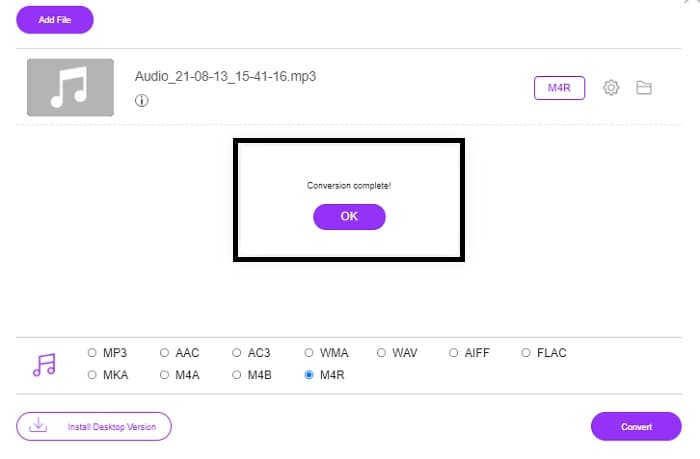
Korak 5. Na kraju odaberite mapu u koju želite spremiti datoteku i ona će se automatski spremiti. Zatim je prenesite na svoj iPhone. Imajte na umu da možete raditi skupnu konverziju, stoga se nemojte ograničavati.
Povezano:
M4ROnline putem pretvarača datoteka
Jednostavan, ali pouzdan – tako korisnici opisuju ovaj online alat. U osnovi je posebno napravljen za pretvaranje Mp3 u M4R. Kao što mu i naziv sugerira, upravo je za to ovaj alat namijenjen. Radi u različitim web-preglednicima pa ga ne morate preuzimati ni kupovati. Ako posjetite web-stranicu, primijetit ćete jednostavnost sučelja. Vrlo je intuitivan – samo trebate kliknuti gumb Browse da biste započeli postupak učitavanja i pretvaranja. Ako ga želite isprobati, preporučuje se posjetiti službenu stranicu i osobno se uvjeriti kako radi. Stoga je ovaj alat dobra alternativa. U nastavku možete provjeriti i detaljne korake kako biste naučili kako koristiti alat.
Korak 1. Prvo što trebate učiniti jest otići na službenu stranicu M4R Online, a zatim kliknuti na Browse.
Korak 2. Odaberite datoteku iz svoje mape i kliknite gumb Upload File.
Korak 3. Kada vidite poruku da je postupak dovršen, kliknite na datoteku kako biste je preuzeli.
Online-convert.com
Ovaj alat pruža uslugu već prilično dugo. Može se reći da su mnogi korisnici ovaj online alat smatrali vrlo korisnim za svoje potrebe pretvaranja datoteka; inače ne bi ni postojao do danas da nije dokazano koristan. Kada posjetite početnu stranicu, vidjet ćete sve dostupne alate. Tu su audio pretvarač, video pretvarač, pretvarač slika, pretvarač dokumenata, pretvarač e-knjiga – sve na jednom mjestu. Takvo grupiranje olakšava korisniku pronalazak potrebnog alata. Stoga s pravom zaslužuje biti uvršten na ovaj popis iTunes pretvarača MP3 u M4R. U nastavku se nalazi i uputa kako koristiti alat, za vašu orijentaciju.
Korak 1. Posjetite službenu stranicu alata i odaberite Audio Converter.
Korak 2. Kliknite Drop down i odaberite izlazni format, zatim kliknite GO.
Korak 3. Zatim će se pojaviti novi prozor. Ondje kliknite gumb Choose Files i učitajte datoteku. Za početak pretvorbe kliknite Start Conversion. Kada je datoteka spremna, automatski će se preuzeti na vaše računalo.
MP3 u odnosu na M4R
Format MP3 objavio je 1993. godine Moving Picture Experts Group (MPEG). Bio je to standard za pohranjivanje glazbe jer je mogao komprimirati audio na mnogo manju veličinu od drugih nekomprimiranih formata. Danas se još uvijek široko koristi, posebno za distribuciju audiozapisa na internetu.
Datoteka M4R koristi se za spremanje prilagođene iPhone melodije zvona stvorene pomoću Apple iTunes. Obično možete vidjeti ovaj format prilikom prijenosa melodije zvona s računala na iOS uređaj. M4R datoteke stvorene s iTunesom obično uključuju zaštitu autorskih prava.
Dio 3. Često postavljana pitanja o pretvaranju MP3 u M4R
Što je M4R?
To je ekstenzija datoteke koju je posebno izradio Apple i koja se strogo koristi kao melodija zvona za iPhone i druge Apple uređaje. Ovo je jednako dobro kao M4A i MP4 kada je u pitanju kvaliteta.
Postoji li MP3 u M4R konverter osim iTunesa?
Definitivno, postoje. Možete birati između gore navedenih alata ili razmisliti o korištenju Windows Media Playera kopiranjem. Ako ne želite proći kroz sve procese, možete jednostavno koristiti besplatne alate dostupne online. Oni izravno pretvaraju zvuk u željeni format umjesto da prolaze kroz dugotrajan proces kopiranja.
Zašto moram pretvoriti svoju datoteku iz MP3 u M4R da bih je koristio kao melodiju zvona?
To je obavezno. Da bi se datoteka smatrala melodijom zvona, datoteka prema zadanim postavkama mora biti u M4R formatu da bi se reproducirala kao melodija zvona.
Zaključak
Uz sve to, sigurno se možete osloniti na gore navedene alate. Morate samo pristupiti alatu koji vam može biti od pomoći ovisno o vašim potrebama. Ako ste student i obični građanin koji želi pretvoriti i želite besplatno pretvoriti MP3 u M4R na Macu ili na bilo kojem uređaju koji koristite, možete se obratiti besplatnim alatima. Za profesionalnu upotrebu, preporuča se korištenje Video Converter Ultimate. Uvijek se možete vratiti na ovu stranicu ako želite saznati više o više alata za pretvaranje.
-
 [Besplatno i na mreži] 3 metode za pretvaranje MP3 u MP4 sa slikom
 Kako pretvoriti MP3 u MP4 u visokoj kvaliteti? Ovaj post prikazuje 3 učinkovite i besplatne metode za promjenu MP3 u MP4 sa slikama na sustavima Windows i Mac.
-
 Saznajte kako pretvoriti MP3 u WAV format
 Želite li znati kako pretvoriti MP3 u WAV? Odredite koji od alata proizvodi najbolju pretvorbu koju možete dobiti.
-
 Smjernice o tome kako pretvoriti M4A u WAV [PC i Mac]
 Saznajte više o tome kako pretvoriti M4A u WAV s detaljnim koracima i različitim alatima koje možete birati.

