


 Video Converter Ultimate
 Snimač zaslona
 Video popravak
WMV u MP3: Najlakši način za izdvajanje audio datoteka iz WMV-a
U WMV-u postoje glazbene numere koje ne možete prestati slušati. WMV datoteke također mogu pružiti dobru kvalitetu zvuka, što je dobro i za reprodukciju audio zapisa. Međutim, slušanje audio zapisa u ovom formatu zahtijeva reprodukciju cijelog videa, što može biti nezgodno. Kako biste olakšali stvari, možete izdvojiti zvuk i pretvoriti ga u MP3 format.
Izdvajanje MP3‑a iz WMV datoteke jednostavan je zadatak, osobito ako za to koristite pravi alat. Ako sada tražite rješenje za ovaj problem, nema razloga za brigu! U ovom članku upoznat ćete četiri načina na koja lako možete pretvoriti WMV u MP3 i bez ikakvih poteškoća uživati u slušanju zvučnog zapisa. Krenimo!

Dio 1. Pretvorite WMV u MP3 bez gubitka kvalitete
Najbolji i najjednostavniji način za pretvaranje WMV u MP3 je putem pažljivo odabranog alata Video Converter Ultimate. Ovaj cjeloviti alat za pretvorbu video i audio datoteka omogućuje korisnicima konverziju bilo kakvog video i audio sadržaja, uključujući pretvaranje WMV datoteka u MP3. Uz ovaj alat za konverziju zajamčeno je da će se zvučni zapis izdvojen iz WMV datoteke zadržati zahvaljujući naprednoj tehnologiji obrade zvuka. Ona osigurava da izdvojena MP3 datoteka zadrži svoju izvornu kvalitetu zvuka bez gubitka kompresijom. Štoviše, FVC Video Converter Ultimate podržava skupnu pretvorbu, a korisnicima također omogućuje prilagodbu različitih audio postavki, uključujući bitrate, sample rate i audio kanale.
Korak 1. Prvo preuzmite i instalirajte preporučeni Video Converter Ultimate na svoje računalo.
Besplatno preuzimanjeZa Windows 7 ili novijiSigurno preuzimanje
Free DownloadZa macOS 10.7 ili novijiSigurno preuzimanje
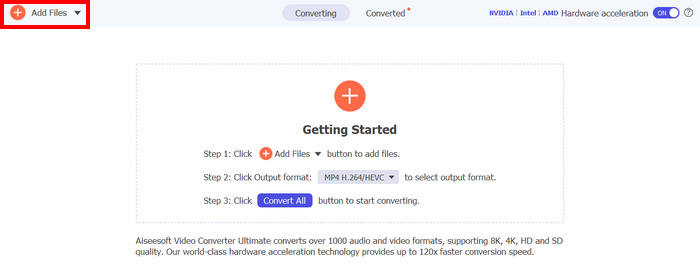
Korak 2. Sada uvezite AVI datoteke koje želite komprimirati u MP4. Nakon toga kliknite gumb Add Files.
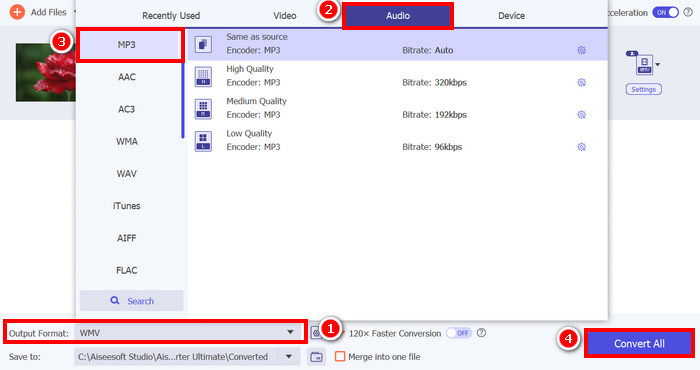
Korak 3. Na kraju, dolje u odjeljku Output Format kliknite na njega i prijeđite na karticu Audio. Ondje s popisa odaberite MP3. Kada odaberete, kliknite gumb Convert All kako biste započeli izdvajanje zvučnog zapisa iz WMV datoteke.
Sposobnost FVC odabranog Video Converter Ultimatea za pretvaranje WMV u MP3 je zaista izvrsna. Samo trebate prenijeti svoje WMV datoteke, a zatim odabirom željenog audio formata možete iz njih izdvojiti audio zapis. Dakle, bez obzira jeste li profesionalac ili početnik, ovaj alat je za sve kojima je potreban brz i jednostavan način pretvaranja video datoteka u audio.
Kliknite ovdje ako želite saznati više o nekim MP3 reproduktorima.
Dio 2. Besplatno pretvorite WMV u MP3 pomoću VLC Media Playera
VLC Media Player je popularan media player koji obično koristimo kao platformu za gledanje i reprodukciju raznih medijskih datoteka. Osim toga, VLC-ova funkcija nije ograničena samo na media player; može se koristiti i kao WMV u MP3 pretvarač. Da, dobro ste pročitali! Unutar alata postoji posebna značajka koja omogućuje izvoz i pretvaranje odabranih video datoteka u audio format. Da biste to učinili, slijedite korake u nastavku:
Korak 1. Prvo preuzmite i instalirajte preporučeni Video Converter Ultimate na svoje računalo.
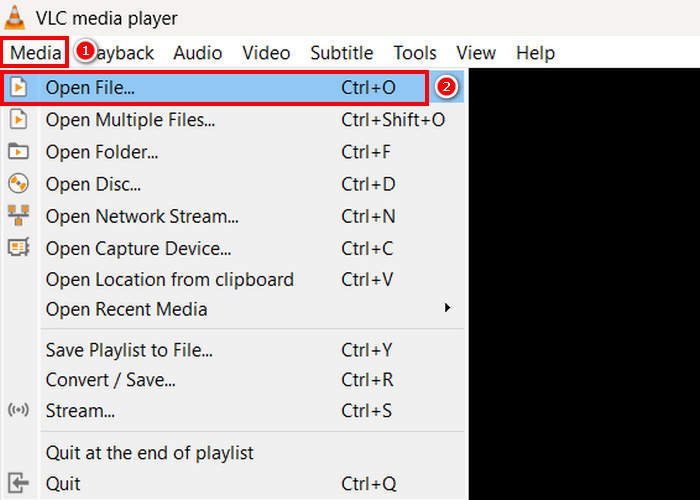
Korak 2. Zatim idite na karticu Media, a ispod nje kliknite Open File. Ondje uvezite WMV datoteku koju želite pretvoriti u MP3.
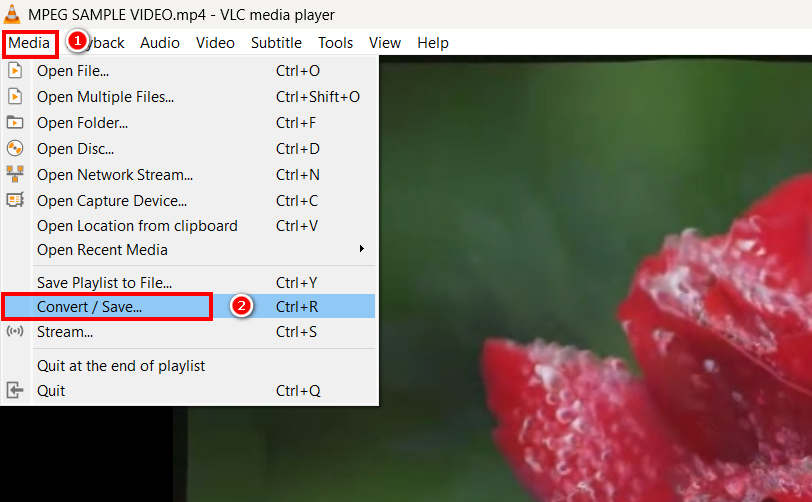
Korak 3. Nakon toga se ponovno vratite na karticu Media i ovaj put odaberite Convert/ Save pri dnu.
Korak 4. Sada kliknite na Profile i odaberite MP3 kao izlazni format. Kada odaberete, kliknite gumb Start button pri dnu kako biste započeli izdvajanje audio sadržaja iz WMV‑a.
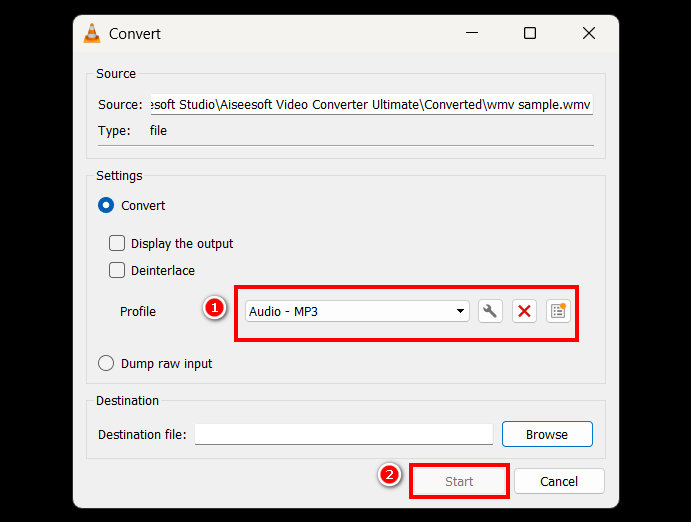
Jedina stvar kod VLC-a u usporedbi s drugim namjenskim alatima za pretvorbu jest nedostatak naprednih opcija za obradu zvuka i značajki prilagodbe. Iako je istina da VLC može izdvojiti MP3 iz WMV datoteka, ne dopušta korisnicima fino podešavanje kvalitete izlaza, poput podešavanja brzine prijenosa, brzine uzorkovanja ili audio kanala.
Dio 3. Pretvorite WMV u MP3 pomoću Windows Media Playera
Windows Media Player ne može izravno pretvoriti WMV u MP3 osim ako WMV datoteka nije snimljena na disk. Dakle, ako imate WMV datoteku na disku, možete je izdvojiti u MP3 format. Da biste to učinili, slijedite korake u nastavku:
Korak 1. Pokrenite Windows Media Player na svom računalu.
Korak 2. Kliknite na karticu Organize i odaberite opciju Option pri dnu.
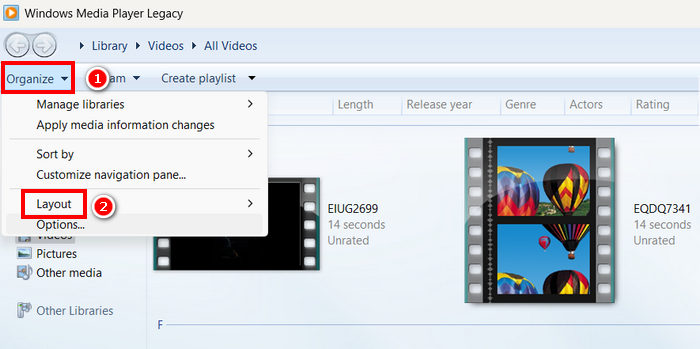
Korak 3. Ondje kliknite na Rip Music. Zatim odaberite MP3 kao izlazni format i označite Rip CD Automatically.
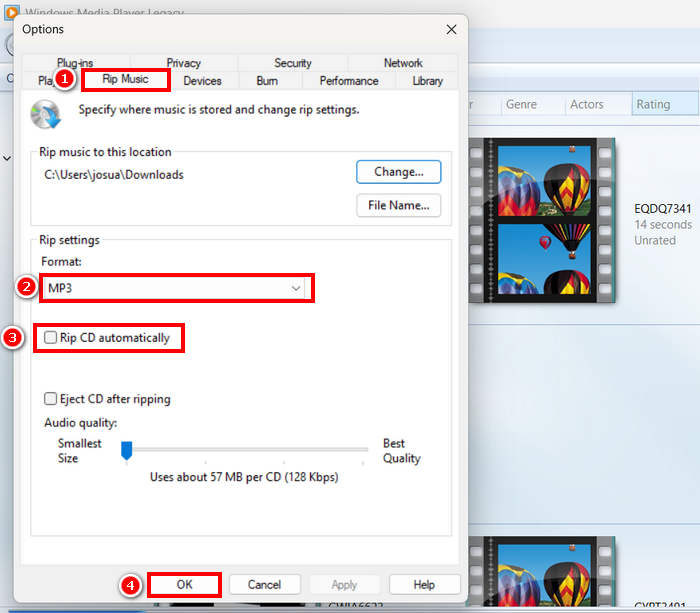
Korak 4. Kada završite, kliknite OK kako biste započeli pretvaranje svojeg WMV‑a u MP3.
Kliknite ovdje kako biste saznali više ako Windows Media Player ne radi.
Dio 4. Pretvorite WMV u MP3 online
Posljednja metoda koju možete koristiti za pretvaranje WMV-a u MP3 je putem interneta, a alat koji za to možete koristiti je FreeConvert. Ovaj online alat za pretvaranje omogućuje vam brzo pretvaranje WMV-a u MP3 bez potrebe za instaliranjem bilo kakvog softvera. FreeConvert je web-alat koji podržava različite video i audio formate, što ga čini praktičnom opcijom za korisnike koji preferiraju online rješenje.
Korak 1. Najprije morate otvoriti njihovu službenu web-stranicu. Jednostavno potražite FreeConvert u svom internetskom pregledniku.
Korak 2. Zatim kliknite gumb Choose Files kako biste uvezli WMV datoteku koju želite pretvoriti u MP3.
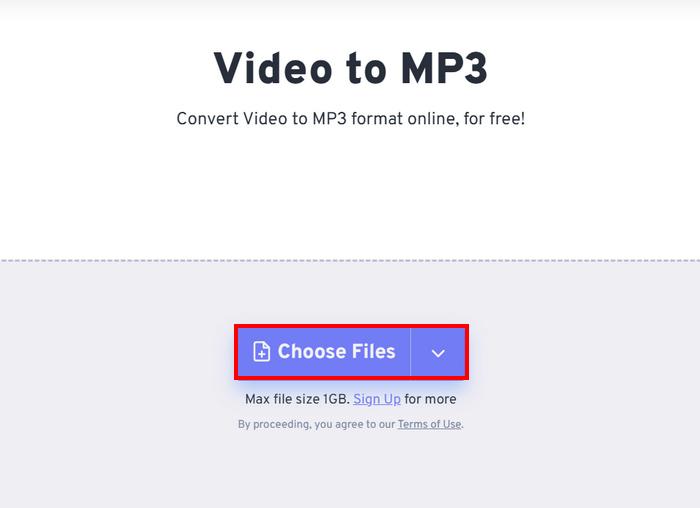
Korak 3. Nakon toga kliknite na Output i kao izlazni format odaberite MP3. Sada, da biste započeli pretvaranje svojeg WMV‑a u MP3, jednostavno kliknite gumb Convert.
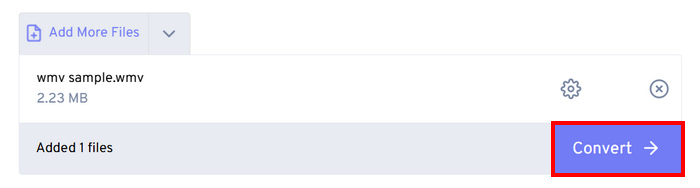
Jedina stvar kod FreeConverta je ograničenje veličine datoteke koju možete pretvoriti. Možete pretvoriti samo datoteke manje od 1 GB; u suprotnom morate iskoristiti njihovu pretplatu.
Dio 5. Često postavljana pitanja o pretvaranju WMV-a u MP3
Utječe li pretvaranje WMV-a u MP3 na kvalitetu zvuka?
Kvaliteta zvuka ovisi o alatu koji koristite. Visokokvalitetni pretvarači poput FVC Video Converter Ultimate osiguravaju pretvorbu WVA u MP3 bez gubitaka. Osim toga, korisnici mogu poboljšati i prilagoditi svoj audio izlaz podešavanjem brzine prijenosa zvuka, brzine uzorkovanja i audio kanala kako bi održali optimalnu kvalitetu zvuka unutar alata.
Smanjuje li pretvaranje WMV-a u MP3 veličinu datoteke?
Da. MP3 datoteke su komprimirani audio formati; stoga su manje veličine u usporedbi s WMV videozapisima.
Mogu li grupno pretvoriti više WMV datoteka u MP3?
Da. Alati poput FVC Video Converter Ultimate podržavaju serijsku konverziju, što vam omogućuje pretvorbu više WMV-a u MP3 odjednom radi učinkovitosti.
Zaključak
MP3 je zaista izvrstan format kada želite neometano slušati svoj omiljeni zvučni zapis. Iako je WMV također dobar format za to, zahtijeva reprodukciju cijelog videa, što može biti nezgodno ako želite samo zvuk. Sada kada imate mnogo mogućnosti za odabir metode kojom ćete pretvoriti WVA u MP3, na vama je da odlučite koji ćete alat koristiti. Samo se pobrinite da odgovara vašim potrebama i željama kako biste izbjegli buduće neugodnosti! Pripremite svoje WMV datoteke i krenimo ih pretvarati u MP3 datoteke već danas!
-
 Kako pretvoriti TS u AVI / MKV / MOV / WMV Online i besplatno na Win / Mac
 Želite brzo pretvoriti TS u AVI/MKV/MOV/WMV? Ovaj članak prikazuje najbolje online i offline video pretvarače. Pročitajte ga i odaberite onu koju želite.
-
 Pregled 10 najboljih WMV video playera u 2025. (računalo i telefon)
 Kako mogu reproducirati WMV? Reproducira li VLC WMV? Koja aplikacija reproducira WMV datoteke? Ovaj post prikazuje 10 najboljih WMV video playera za vas na Mac, Windows PC, Android i iPhone.
-
 3 najbolja načina za besplatno spajanje WMV datoteka na mreži (ažuriranje 2025.)
 Kako besplatno spojiti WMV video isječke na mreži? FVC Free Online Video Merger i Clideo WMV Joiner dva su snažna alata za spajanje WMV datoteka na mreži. Ovaj će vam članak predstaviti kako ih koristiti.
