


 Video Converter Ultimate
 Snimač zaslona
 Video popravak
Pretvorite svoj PPT u MP4 pomoću 3 učinkovite metode
PPT je izvrstan alat kada je u pitanju predstavljanje prezentacija, bilo u školi, na poslu itd. Ponekad, nakon prezentacije, neki mogu zatražiti kopiju PPT materijala za svoju referencu.
Međutim, važno je priznati da neki ljudi ne mogu pristupiti datoteci jer na svojim uređajima nemaju instaliranu aplikaciju ili softverski alat. Uz to, većina izlagača ima konvertiranu MP4 verziju prezentacije za jednostavno dijeljenje materijala za sve.
Dakle, ako tražite način da svoj PPT pretvorite u MP4 radi brzog dijeljenja i lakšeg pristupa sadržaju datoteke, na pravom ste mjestu. Stoga nastavite čitati ovaj članak i uronite u učenje 3 različite metode pomoću kojih možete pretvoriti svoju PPT datoteku u videozapis.

Dio 1: Kako pretvoriti PowerPoint u MP4 unutar PPT-a
Koristeći PowerPoint prezentaciju, korisnici mogu jednostavno pretvoriti svoj PPT u MP4. To je sjajna ugrađena značajka za praktičnost i fleksibilnost.
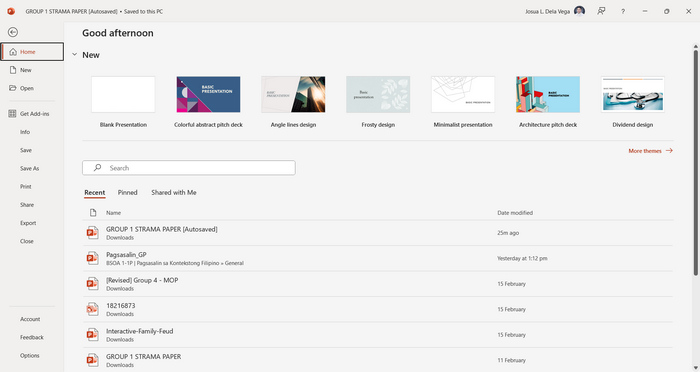
Korak 1. Otvorite svoju prezentaciju pomoću PowerPoint softverskog alata za prezentacije na svojem uređaju.
Korak 2. Idite na karticu File, potražite gumb Export i kliknite na njega.
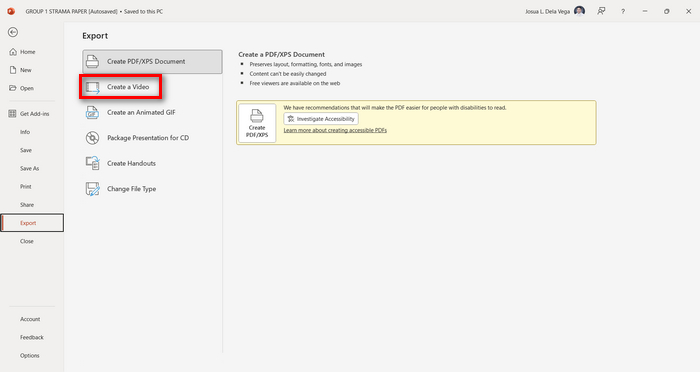
Korak 3. Kada ste na kartici Export, kliknite na opciju Create a Video.
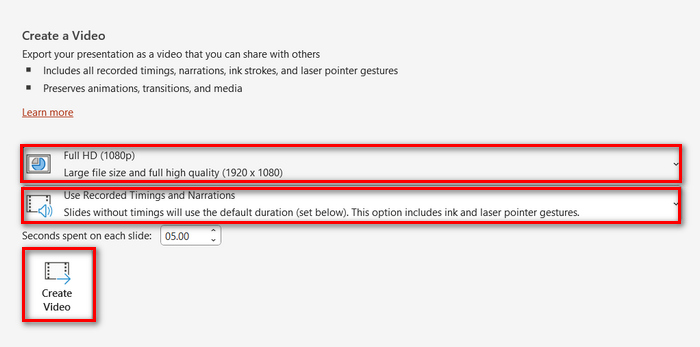
Korak 4. Sada postavite željenu razlučivost videozapisa. Možete birati između 480p i 4K. Također, u opciji Use Recorded Timings and Narrations možete ručno postaviti trajanje svojih slajdova. Nakon toga kliknite na gumb Create Video.
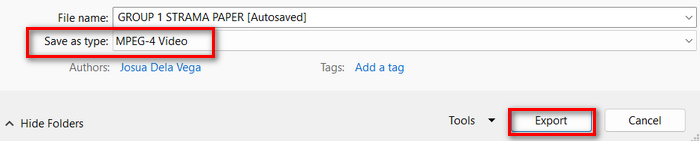
Korak 5. Nakon što kliknete gumb Create a Video, pojavit će se novi prozor u kojem možete provjeriti format izlazne datoteke i mjesto na koje je želite spremiti. Kada sve postavite, samo kliknite gumb Export i pričekajte da se proces dovrši.
Zaista je praktično pretvoriti PowerPoint u MP4 koristeći njegovu ugrađenu funkciju. Međutim, nedostaju mu mogućnosti prilagodbe ako želite dodati pozadinsku glazbu. Ipak, ako vam je cilj samo dijeljenje, onda to za vas neće predstavljati problem.
Dio 2: Pretvorite PPT u MP4 uz besplatni audio sadržaj na mreži
Ako imate PPT datoteku i ako je želite pretvoriti online budući da na svom uređaju nemate softversku aplikaciju ili alat za PowerPoint prezentaciju, možete koristiti MagicSlides. Ovaj mrežni alat za pretvaranje omogućuje vam jednostavno pretvaranje PowerPointa u MP4 jednostavnim uvozom datoteke u njihov sustav.
Korak 1. Učitajte PPT datoteku koju želite pretvoriti u MP4 klikom na gumb Upload your source file.
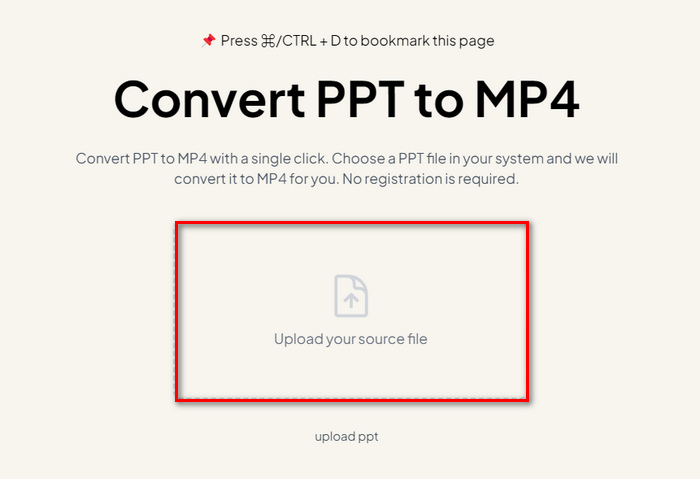
Korak 2. Nakon što se datoteka uveze, kliknite na gumb Create MP4 kako biste započeli proces pretvorbe.
Korak 3. Kada je gotovo, najprije možete pregledati konvertiranu PPT datoteku, a kada ste zadovoljni rezultatom, jednostavno kliknite na gumb Download kako biste je spremili izravno na svoj uređaj.
Iako ovaj alat nudi vrlo jednostavne korake za pretvaranje PPT u MP4, uvoz PPT datoteka oduzima toliko vremena, što može biti uznemirujuće, pogotovo kada ste u žurbi. Također, nema mogućnosti prilagodbe. Upravo je doslovno transformirao PPT datoteke u video.
Dio 3: Kako pretvoriti PPT u MP4 s efektima i zvukom
Ako želite pretvoriti svoj PPT u MP4, ali ovaj put s efektima i zvukom, onda je ovo rješenje baš za vas. Uz FVC Screen Recorder možete svoju PowerPoint prezentaciju pretvoriti u kreativan i interaktivan MP4 zapis koristeći njegove funkcije za uređivanje. Štoviše, ne morate brinuti o kvaliteti izlaza jer podržava videozapis do 4K razlučivosti. Dakle, da biste ga koristili, slijedite vodič u nastavku:
Korak 1. Najprije preuzmite ovaj softver i instalirajte ga na svoje računalo.
Besplatno preuzimanjeZa Windows 7 ili novijiSigurno preuzimanje
Besplatno preuzimanjeZa MacOS 10.7 ili novijiSigurno preuzimanje
Korak 2. Otvorite svoju PowerPoint prezentaciju i pobrinite se da je prikazana preko cijelog zaslona.
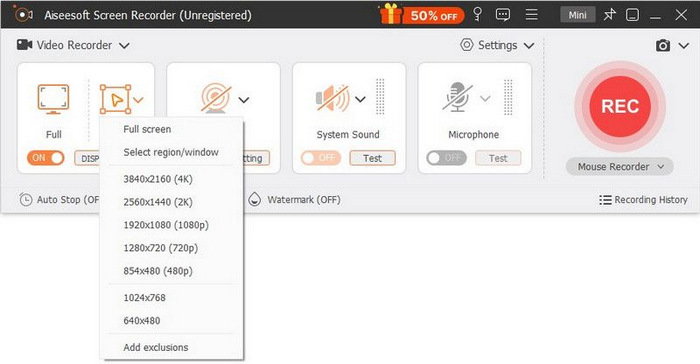
Korak 3. Sada, u alatu za snimanje zaslona, odaberite funkciju Video Recorder i postavite područje snimanja na Full.
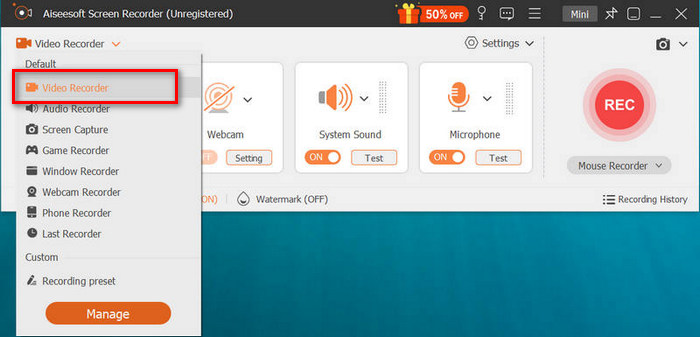
Korak 4. Nakon toga pokrenite prikaz dijaprojekcije u PowerPointu. Zatim kliknite gumb REC da biste započeli snimanje prezentacije.
Korak 5. Kada završite, samo kliknite gumb Stop i bit ćete preusmjereni na sučelje za pregled. Ondje u donjem kutu možete pronaći funkcije za uređivanje koje možete iskoristiti za uređivanje zvuka i efekata prilikom pretvaranja svog PPT-a u MP4.

Korak 6. Na kraju, svojoj datoteci možete pristupiti klikom na gumb Open Folder.
Dobra stvar kod korištenja FVC Screen Recordera za pretvaranje PowerPointa u MP4 je ta što možete preuzeti kontrolu nad vremenom i tempom slajdova. Štoviše, za razliku od drugih alata koji nude samo osnovnu pretvorbu, ovaj alat ima značajke za uređivanje koje se mogu koristiti za daljnje poboljšanje pretvorene MP4 datoteke.
Dio 4: Često postavljana pitanja o pretvaranju PPT u MP4
Koliko vremena je potrebno za pretvaranje PPT u MP4?
Vrijeme procesa pretvorbe ovisi o veličini datoteke koja se pretvara. Ali obično jednostavne prezentacije ne oduzimaju puno vremena tijekom pretvorbe.
Mogu li zadržati animacije i prijelaze prilikom pretvaranja PPT u MP4 u PPT?
Da. Ugrađena značajka omogućuje korisnicima da zadrže animacije i prijelaze tijekom procesa konverzije. Ovo je kako bi se osiguralo da se vizualni elementi u prezentaciji, kao što su prijelazi i animacije, zadrže tijekom pretvaranja u MP4 format. Međutim, važno je napomenuti da kompatibilnost animacija i prijelaza može varirati ovisno o verziji programa PowerPoint koja se koristi i složenosti primijenjenih efekata.
Hoće li kvaliteta moje PowerPoint prezentacije biti sačuvana prilikom pretvaranja u MP4?
Da. PowerPoint prezentacija podržava video rezoluciju do 4K. Stoga će odabir veće rezolucije pomoći u održavanju kvalitete prezentacije. Osim toga, kada odlučite pretvoriti svoj PPT u MP4 pomoću nekog naprednog alata za pretvaranje koji nudi opcije za podešavanje brzine prijenosa i postavki kompresije za daljnju optimizaciju kvalitete videa, možete jamčiti kvalitetan izlaz.
Zaključak
Pretvaranje formata PPT u MP4 doista nudi praktičnost i bolju dostupnost za dijeljenje datoteke preko različitih platformi i uređaja. Sada kada imate ideju kako ih pretvoriti, vrijeme je da ovo znanje primijenite u praksi. Počnite s pretvaranjem već danas i povećajte doseg i utjecaj svojih prezentacija!
-
 Kako promijeniti veličinu slike u PowerPointu [Najbrži način za promjenu veličine]
 Naučiti kako promijeniti veličinu slika u PowerPointu bitno je, posebno ako ga želite koristiti u svojoj prezentaciji. Pročitajte ovaj članak da biste saznali kako to učiniti.
-
 Recenzija programa za uklanjanje vodenog žiga Apowersoft – značajke, prednosti i mane i cijena
 Apowersoft Watermark Remover jedno je od najboljih uklanjanja vodenih žigova koje podržava online i offline, kliknite ovo da biste saznali više!
-
 Kako popraviti video koji se ne reproducira u programu PowerPoint | Brzi vodič
 Ne reproducira li se vaš PowerPoint video? Prevladajte frustraciju ugrađenih videozapisa koji se sada ne reproduciraju uz naših najboljih pet rješenja za njihovo rješavanje bez napora.
