


 Video Converter Ultimate
 Snimač zaslona
 Video popravak
Pretvorite JPG u MP4 na Windows/Mac bez gubitka kvalitete
JPG je najčešći format slike, a koristimo ga u razne svrhe, od dijeljenja fotografija na internetu do pohrane digitalnih snimaka na našim uređajima. Sa svojom široko rasprostranjenom kompatibilnošću i relativno malom veličinom datoteke, JPG je postao glavni izbor za snimanje i čuvanje vizualnih uspomena u svakodnevnom životu.
Ali danas stvaranje videa od slika postaje sve popularnije. To je i još jedan način spremanja uspomena na kreativniji i strastveniji način. Možete dodati zvuk, prijelaze ili jednostavno običan MP4 video u obliku prezentacije sa svojom omiljenom glazbom u pozadini. Dakle, ako vas to zanima i planirate pretvoriti JPG u MP4, nastavite čitati ovaj članak i naučite kako ih pretvoriti na 4 različita načina bez gubitka kvalitete. Oslobodite danas svoju skrivenu kreativnost!

Dio 1: Vrhunski način za pretvaranje JPG-a u MP4 na Windows/Mac [Najbolje za početnike]
Najbolji način da pretvorite JPG u MP4 jest korištenje alata FVC Video Converter Ultimate. Ovaj alat ima posebnu funkciju pod nazivom MV, koja korisnicima omogućuje izradu visokokvalitetnih MP4 videa iz JPG fotografija. Dolazi s unaprijed postavljenim temama koje možete slobodno koristiti te raznim efektima i filtrima. Također, prije izvoza u MP4 lako možete rotirati i izrezati JPG datoteke. Najzabavnije kod ovog alata je to što možete uvesti vlastitu audio-zapis, personalizirati ga vodenim žigom i još mnogo toga. Naposljetku, alat je vrlo jednostavan za korištenje jer ima vrlo intuitivno i korisniku prilagođeno sučelje. Da biste to učinili, slijedite korake u nastavku:
Korak 1. Prvo morate preuzeti softver za Windows ili Mac, a zatim ga preuzeti i instalirati.
Besplatno preuzimanjeZa Windows 7 ili novijiSigurno preuzimanje
Besplatno preuzimanjeZa MacOS 10.7 ili novijiSigurno preuzimanje
Korak 2. Nakon toga otvorite alat i među 4 kartice na vrhu kliknite na MV.

Korak 3. Kada dođete na glavno sučelje MV-a, kliknite gumb Add File kako biste dodali JPG datoteke koje želite pretvoriti u MP4.

Korak 4. Za dodavanje, uređivanje i obrezivanje svog MP4 videa kliknite gumb u gornjem dijelu gumba Add File. Također možete odabrati unaprijed postavljenu temu klikom na karticu Theme iznad.

Korak 5. U međuvremenu, za obrezivanje i rotiranje slika, dodavanje filtara i efekata te dodavanje vodenog žiga kako bi sve bilo osobnije, jednostavno kliknite ikonu Edit ispod i otvorit će vam se novi prozor.

Korak 6. Kada je sve postavljeno, kliknite gumb Export, gdje možete promijeniti format u MP4 te prilagoditi broj sličica u sekundi, razlučivost i kvalitetu. Također možete odrediti u koju ćete mapu spremiti svoje pretvorene JPG u MP4 datoteke. Na kraju, da biste spremili svoju datoteku, kliknite gumb Start Export.

FVC Video Converter Ultimate pojednostavljuje pretvaranje JPG-a u MP4 svojim sučeljem koje je jednostavno za korisnika, prilagodljivim značajkama, unaprijed postavljenim temama, alatima za uređivanje, visokokvalitetnim ispisom i kompatibilnošću s operativnim sustavima Windows i Mac. To je doista najbolji način da dosadne fotografije pretvorite u zabavne i kreativne videozapise.
Dio 2: Pretvorite JPG u MP4 na Windows 11/10 sa zadanim alatom za fotografije
U sustavu Windows 10 i 11, Clipchamp je sada integriran s aplikacijom Fotografije, koja korisnicima omogućuje pretvaranje JPG u MP4 datoteke. Ova integracija olakšava uređivanje koje se zatim može spremiti u MP4. Dakle, kako bismo vas uputili u ovo, slijedite postupak korak po korak u nastavku:
Korak 1. Na računalu otvorite Start Menu i tamo kliknite na Photos.
Korak 2. U aplikaciji Photos idite na Folders u lijevoj kartici. Od vas će se tražiti da dodate mapu ili možete jednostavno odabrati fotografije među slikama koje želite pretvoriti u MP4.
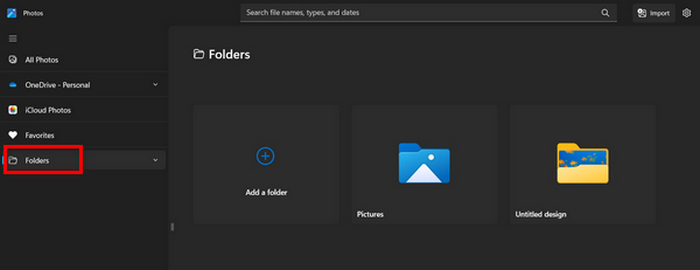
Korak 3. Nakon što odaberete JPG slike koje želite pretvoriti, kliknite ikonu Create a video.
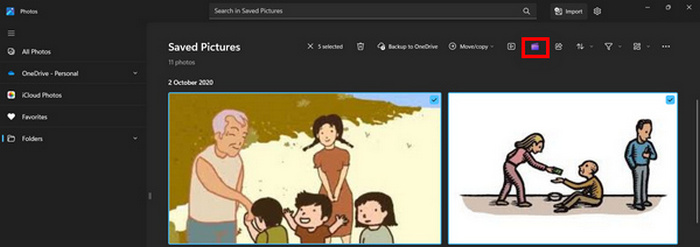
Korak 4. U novom Window prozoru bit ćete upitani želite li dodati medijske datoteke ovom videu. Kliknite Yes to Add Video.

Korak 5. Sada povucite uvezene medije na vremensku crtu. Možete iskoristiti mogućnosti uređivanja na lijevoj kartici, gdje možete dodavati tekst, birati predloške i još mnogo toga. Na Right kartici možete dodati zvuk, efekte, filtre itd. Kada završite, samo kliknite gumb Export i MP4 će se izravno spremiti na vaše računalo.
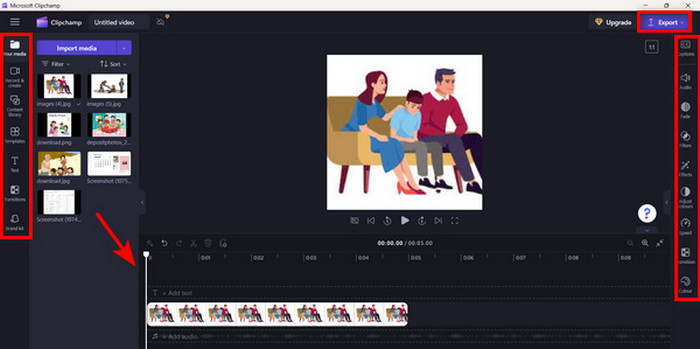
Ako ste korisnik Windowsa, ova metoda pretvara JPG u MP4 vrlo brzo. Međutim, ova je metoda mogla biti lakša u usporedbi s drugim alatima. Također, ne možete izvesti 2K/4K rezoluciju videozapisa pomoću njegove besplatne verzije i nemate pristup drugim dobrim efektima i filtrima u usporedbi s drugim alatima za pretvaranje.
Dio 3: Pretvorite JPG u MP4 na Macu s iMovieom
Ako ste korisnik Maca, za vas postoji zgodno rješenje za pretvaranje JPG u MP4. Mac ima ugrađenu aplikaciju pod nazivom iMovie. Ovo je aplikacija za uređivanje videa koja nudi osnovno uređivanje za svoje korisnike, ali osim toga, može se koristiti i za pretvaranje JPG datoteka u MP4. Oni samo trebaju uvesti svoje slike, dodati neke efekte i filtere i zatim ih spremiti kao MP4.
Korak 1. Na svom Macu pokrenite aplikaciju iMovie i kliknite na Create New.
Korak 2. Nakon toga dodajte svoju JPG datoteku u aplikaciju klikom na gumb Import Media na glavnom sučelju.
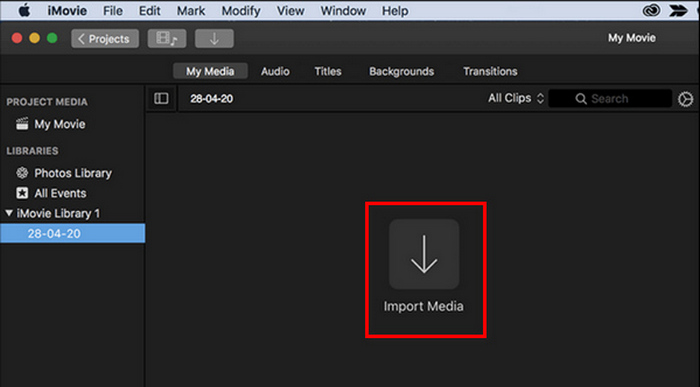
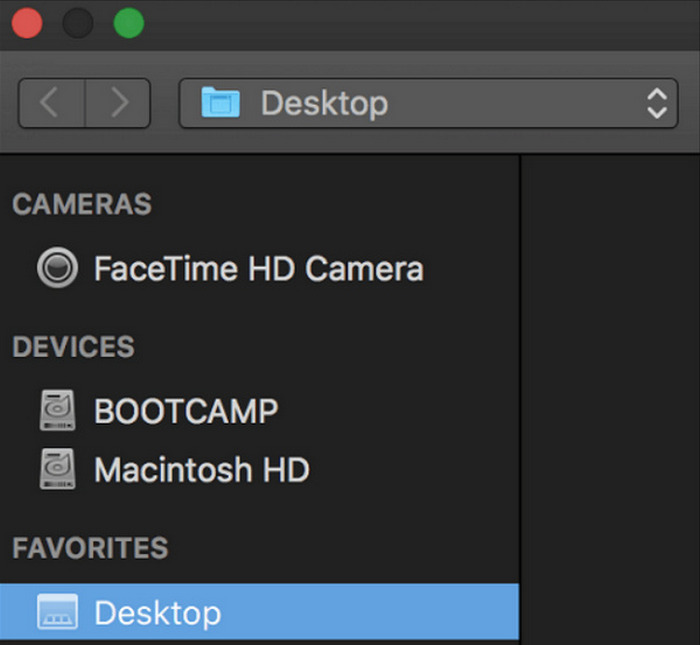
Korak 3. Sada pronađite JPG datoteke koje želite pretvoriti u MP4.
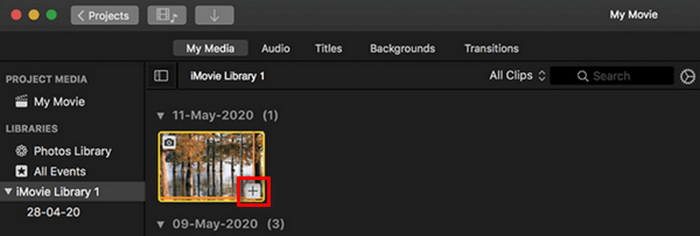
Korak 4. Kada se vaš JPG pojavi na sučelju aplikacije, možete ga odabrati i primijetit ćete znak Plus. Kliknite na njega kako biste mogli dodati fotografiju na vremensku crtu.
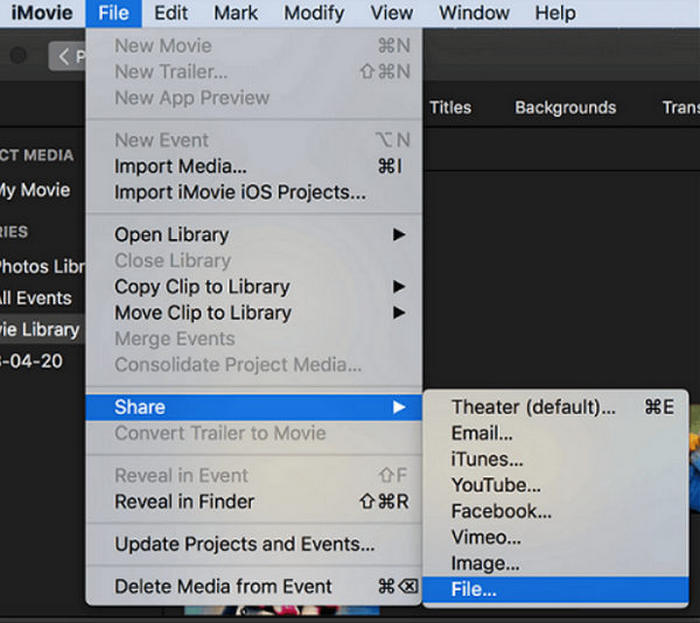
Korak 5. Nakon dodavanja JPG datoteka na vremensku crtu, možete povući rubove kako biste produljili trajanje svoje završne MP4 datoteke. Zatim kliknite na izbornik File na vrhu, odaberite Share i potom File za izvoz datoteke.
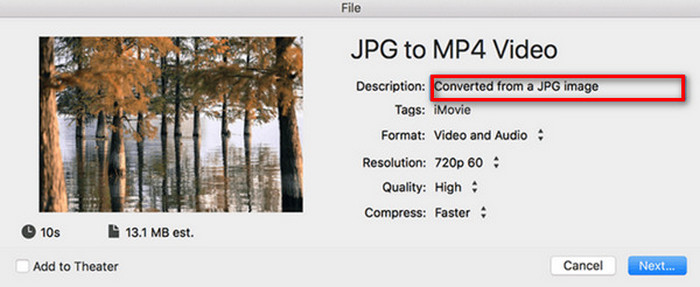
Korak 6. Na kraju nazovite svoju MP4 datoteku na vrhu, ispunite ostala polja s metapodacima za svoju video datoteku i kliknite Next. Odaberite željeno mjesto na koje želite spremiti MP4 datoteku. Nakon što odaberete lokaciju, započet će proces pretvorbe.
iMovie pruža korisnicima Maca praktičan način pretvaranja JPG u MP4 datoteke zahvaljujući svom jednostavnom sučelju i ugrađenim alatima za uređivanje. Ipak, može nedostajati naprednih funkcija u usporedbi s drugim alatima za pretvorbu, što ograničava mogućnosti prilagodbe i efekte. Iako je pogodan za osnovno uređivanje, korisnici postaju sve kompetitivniji i kreativniji te traže alat koji doista može zadovoljiti svačije potrebe i očekivanja. Također, ovaj alat ne radi na Windows sustavu. Ako vam se sviđa iMovie, pronađite alate iMovie za Windows ovdje.
Dio 4: Pretvorite JPG u MP4 na mreži
Sada, ako tražite drugi način pretvaranja JPG u MP4, onda bi njihovo pretvaranje online moglo biti za vas. Jedan od najboljih online pretvarača za to je Online Convert.com. Ovaj alat možete pokrenuti iz različitih preglednika na računalu, a lako se koristi zahvaljujući svom intuitivnom korisničkom sučelju.
Korak 1. U svom pregledniku potražite stranicu Online Convert.com.
Korak 2. Kada dođete na njihovu stranicu, odgovarajuće odaberite formate. Budući da ćete pretvarati JPG u MP4, odaberite JPG s padajućeg gumba Convert i MP4 s padajućeg gumba To.
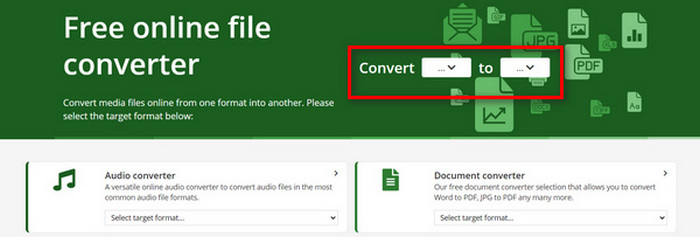
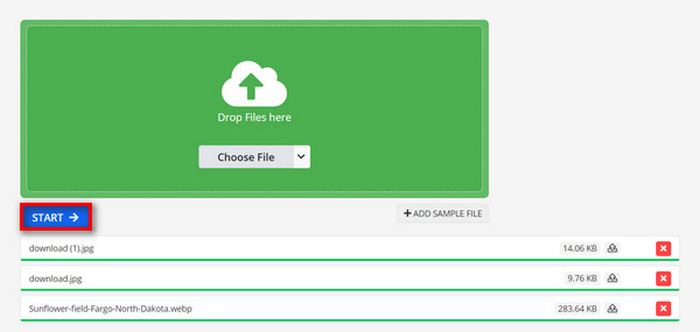
Korak 3. Nakon toga učitajte JPG datoteke koje želite pretvoriti klikom na padajući gumb Choose File, gdje možete uvesti datoteke sa svog uređaja, Dropboxa, Google Drivea pa čak i putem URL-a.

Korak 4. Zatim, nakon učitavanja JPG datoteka koje želite pretvoriti u MP4, kliknite gumb Start.
Korak 5. Na kraju preuzmite svoju MP4 datoteku klikom na gumb Download.
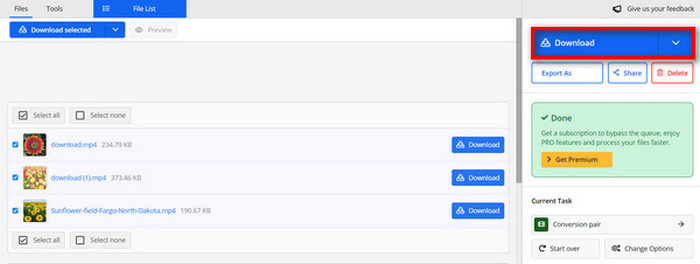
Pretvoreni izlaz iz ovog alata rezultat je unaprijed postavljene video postavke koju su korisnici ručno prilagodili prije pretvaranja datoteka. Iako ovo jednostavno pretvara JPG u MP4, ne možete izravno poboljšati konvertirani video na temelju svog kreativnog stila.
Dio 5: Često postavljana pitanja o pretvaranju JPG u MP4
Je li JPEG isto što i JPG?
JPEG i JPG u suštini su isti format digitalne slike, pri čemu se obje nastavke datoteka odnose na JPEG format koji je izradila grupa Joint Photographic Experts Group, odnosno JPEG. Ovdje saznajte kako pretvoriti JPEG u JPG.
Kada trebam pretvoriti JPG u MP4?
Trebali biste pretvoriti JPG u MP4 kada želite stvoriti vizualnu prezentaciju ili podijeliti niz slika kao video, poput stvaranja dijaprojekcija, digitalnih foto albuma ili video slajdova. Osim ovoga, ako želite biti kreativni s načinom na koji želite da se vaše JPG datoteke vide, tada je njihovo pretvaranje u MP4 najbolji način za dodavanje prijelaza, glazbe, preklapanja teksta i drugih multimedijskih elemenata.
Kako mogu kombinirati JPG i MP4?
Jedini način kombiniranja JPG-a i MP4-a je pomoću alata za uređivanje videa. Ovim pristupom imate potpunu kontrolu nad rasporedom, vremenom i prilagodbom i slika i videa koje želite kombinirati.
Zaključak
Sada ste vi na redu! Pretvaranje JPG u MP4 još je jedan način da kreativno sačuvate uspomene. Dakle, ako imate JPG datoteke i želite ih pretvoriti, slijedite sve metode prikazane u ovom članku i odaberite onu koja vam najviše odgovara. Započnite već danas i gledajte kako se događa čarolija!
-
 Top 5 vodećih vodiča za brzo pretvaranje PNG u JPG
 Ako svoju PNG datoteku trebate pretvoriti u JPG format, ovdje možete saznati najbolje načine. Također ćete naučiti razliku između PNG i JPG formata datoteka.
-
 Jednostavne metode za pretvaranje SVG u JPG format
 Pronalazite najbolji način za pretvaranje SVG u JPG? Ovaj će post dati neke sigurne upute koje možete isprobati. Također ćete otkriti pretvarač SVG u JPG za vas.
-
 Korisne metode za jednostavno pretvaranje TIFF u JPG/PNG
 Ne propustite ove izvrsne načine pretvaranja TIF-a u JPG/PNG formate. Ovaj će post dati potrebne informacije koje trebate znati. Uključuje njihove razlike.
