


 Video Converter Ultimate
 Snimač zaslona
 Video popravak
Iz MP4 u QuickTime (MOV): Kratki vodič za besplatnu pretvorbu
Pretvaranje MP4 datotečnog formata u druge formate, kao što su QuickTime (MOV) datoteke, ponekad je nužno kada se susrećete s problemima pri reprodukciji videa i drugim poteškoćama vezanim uz videozapise. Ovaj je zadatak jednostavan i ne zahtijeva prethodno znanje o pretvaranju medijskih datoteka. Ovaj će članak pomoći korisnicima, od početnika do povremenih korisnika, da pronađu MP4 u QuickTime pretvarač bez skrivenih troškova. Stoga će čitanje ovog vodiča korisnicima omogućiti da dobiju tri pouzdana alata koje je pregledao FVC, a koji olakšavaju proces pretvorbe.

Dio 1. Najbolji način za pretvaranje MP4 u QuickTime (MOV) bez gubitka kvalitete
U procesu pretvaranja MP4 u MOV, jedan od problema koji sprječava korisnike da postignu besprijekoran rezultat ponekad je uzrokovan korištenjem nepouzdanih alata. Srećom, FVC je isprobao jedan specifičan softverski alat koji korisnicima jamči potpuno beskompromisnu (lossless) kvalitetu izvoza kada se koristi kao alat za pretvaranje MP4 datoteka u QuickTime (MOV). FVC-ov odabrani Video Converter Ultimate pouzdan je alat izrađen za pretvaranje vaših MP4 datoteka u QuickTime (MOV) datoteke. Bez poteškoća podržava sve vrste video formata. Pokušajte slijediti korake u nastavku kako biste sami provjerili mogućnosti softvera i iskusili rezultat pretvorbe bez gubitka kvalitete.
Korak 1. Preuzmite i instalirajte FVC-ov odabrani softver putem poveznice u nastavku.
Besplatno preuzimanjeZa Windows 7 ili novijiSigurno preuzimanje
Besplatno preuzimanjeZa MacOS 10.7 ili novijiSigurno preuzimanje
Korak 2. Pokrenite Video Converter Ultimate na svom računalu i kliknite Add Files (Dodaj datoteke) kako biste dodali MP4 videozapise koje želite pretvoriti u QuickTime (MOV) format datoteke.
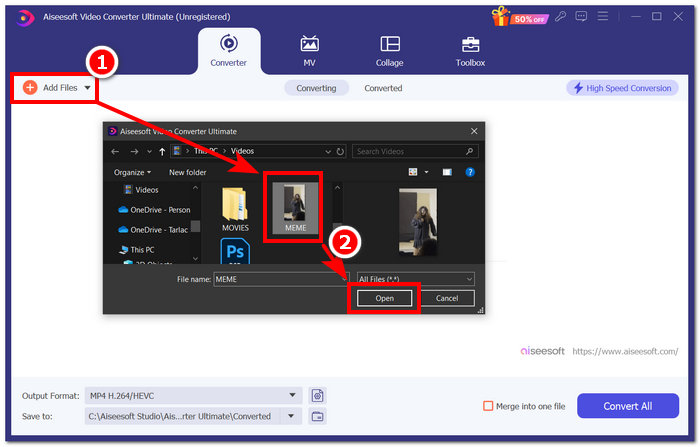
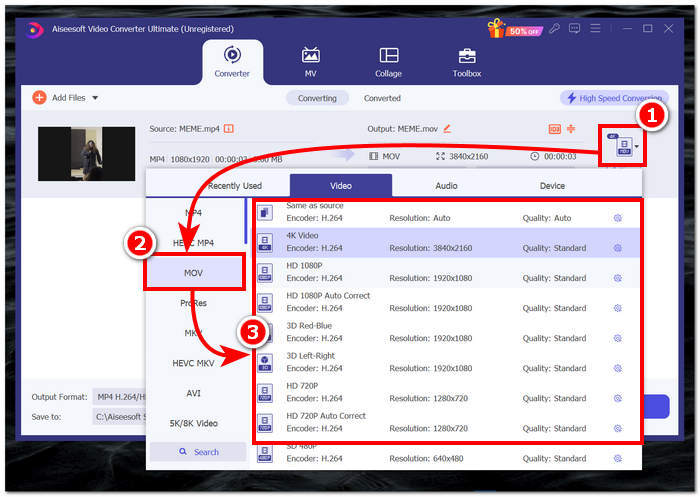
Korak 3. Kada se vaša MP4 datoteka učita u softver, kliknite gumb File Format (Format datoteke) koji se nalazi na desnoj strani sučelja alata. Zatim kliknite na odjeljak MOV i odaberite željenu rezoluciju.
Odabir razlučivosti neophodan je za određivanje kvalitete vaše konvertirane video datoteke. Odabir 4K videa je izvrsna opcija, ali morate uzeti u obzir mogućnost da ima veću veličinu. U suprotnom, odaberite opciju Isto kao izvor kako bi vaša MOV video datoteka bila iste kvalitete kao vaš izvorni video.
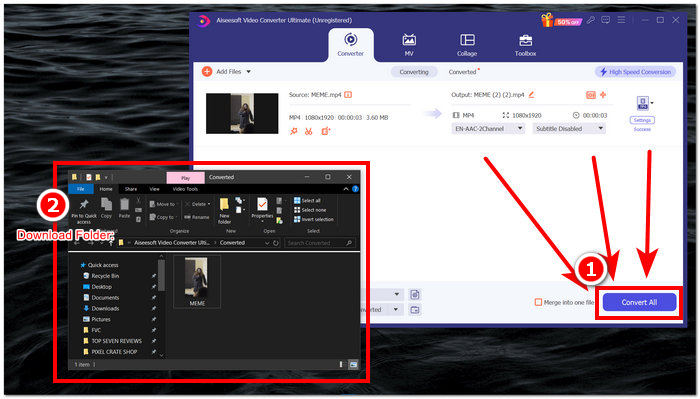
Korak 4. Kako biste konačno pretvorili svoju MP4 datoteku u QuickTime (MOV) format, kliknite gumb Convert All (Pretvori sve). Kako bi se vaš video spremio, čim MOV datoteka započne proces pretvorbe, automatski će se spremiti u svoju određenu mapu.
Nakon korištenja alata, otkrili smo da to nije samo pouzdan softver za pretvaranje MP4 datoteka u QuickTime (MOV), već također radi izuzetno dobro u drugim medijskim zadacima, kao što su poboljšanja videa i konverzije slika. Softverski MP4 alat za pretvorbu iznenađujuće je dostupan besplatno svim korisnicima. Naposljetku, za razliku od drugih softvera koje smo isprobali, Video Converter Ultimate nudi brojne postavke prilagodbe za poboljšanje kvalitete vašeg videa prije nego što ga pretvorite u druge formate datoteka.
Dio 2. Pretvorite MP4 u QuickTime (MOV) besplatno na mreži
Kada stvari ne idu glatko s vaše strane dok pretvarate MP4 u MOV datoteke pomoću desktop softvera, možda ćete poželjeti posegnuti za mrežnim alatima. FVC Free Video Converter Online gotovo trenutačno pretvara formate video/audio datoteka koristeći svoju uslugu na mrežnoj stranici. Ovaj web-alat omogućuje korisnicima pretvaranje video i audio datoteka u njihovoj najvišoj kvaliteti, što ga čini pouzdanim alatom s brzinom obrade 30 puta većom. Štoviše, ovaj svestrani alat omogućuje izvoz u formate MP4 i MOV, kao i M4V, MTS, TS, M2TS i druge, kako bi učinkovito podržao sve vrste medijskih pretvorbi. Kako biste se uvjerili da ovaj mrežni alat zaista ima proces bez komplikacija, samo slijedite korake navedene u nastavku i isprobajte ga sami.
Korak 1. Idite na mrežnu stranicu FVC Free Video Converter Online.
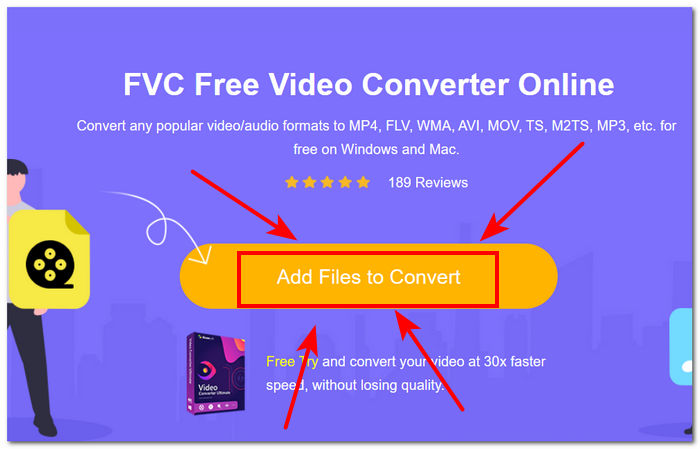
Korak 2. Kako biste učitali MP4 video datoteku koju želite pretvoriti, kliknite gumb Add Files to Convert (Dodaj datoteke za pretvorbu).
Alat zahtijeva da preuzmete njegov pokretač prije dodavanja datoteke. Veza za preuzimanje za pokretač prikazat će se nakon što kliknete gumb Dodaj datoteku za pretvorbu.
Korak 3. Kada se vaša MP4 video datoteka učita u sučelje alata, kliknite na MOV datoteku koja se nalazi u donjem dijelu sučelja alata. To označava da ste odabrali QuickTime (MOV) kao izlazni format za pretvorbu.
Korak 4. Na kraju kliknite gumb Convert (Pretvori) kako biste pokrenuli proces pretvorbe. Time će se vaša MP4 datoteka automatski pretvoriti u QuickTime (MOV) datoteku, koja će se također automatski spremiti na vaš desktop.
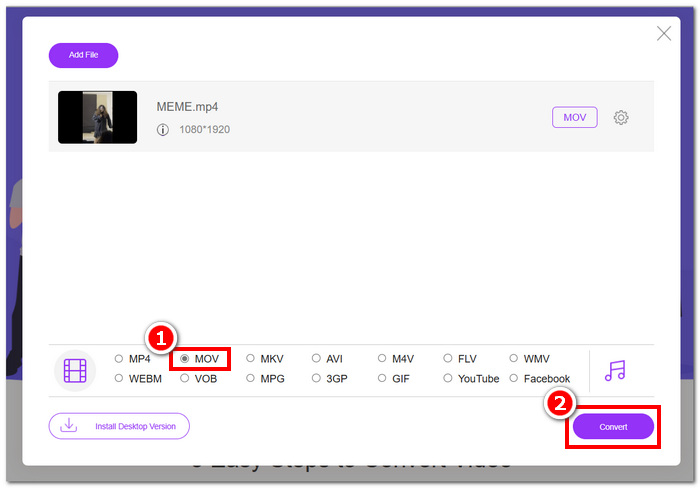
Naše iskustvo s mrežnim alatom za pretvaranje naših MP4 datoteka koji je odabrao FVC omogućuje nam trenutno korištenje njegove usluge zahvaljujući jednostavnom sučelju i besplatnoj upotrebljivosti. Osim toga, njegove mogućnosti uštede vremena i brza obrada prilikom pretvaranja video datoteka nevjerojatno nadmašuju naša očekivanja; stoga je ovaj online alat obećavajući alat koji svi korisnici moraju koristiti.
Dio 3. Pretvorite MP4 u QuickTime (MOV) pomoću HandBrake
Za učinkovito i besplatno pretvaranje MP4 u QuickTime (MOV) također možete koristiti HandBrake, popularni video konverter otvorenog koda. Može se preuzeti na vaš Windows, Mac ili Linux, a može se pretvoriti iz MP4 u QuickTime (MOV) s različitim kodecima na izbor. Za pretvorbu MP4 u QuickTime (MOV) slijedite korake u nastavku kako biste to učinili ispravno.
Korak 1. Posjetite službenu web-stranicu HandBrakea i od tamo preuzmite alat.
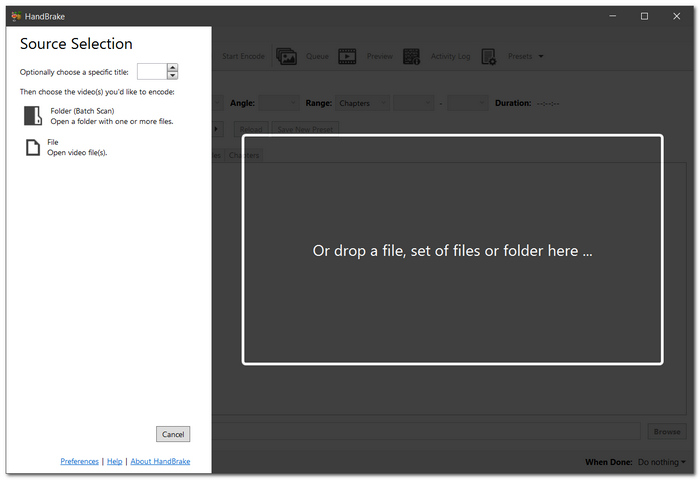
Korak 2. Pokrenite ga i u njegovom sučelju učitajte svoje MP4 datoteke povlačenjem na polje drop-a-file (ispustite datoteku) koje se nalazi u sučelju alata.
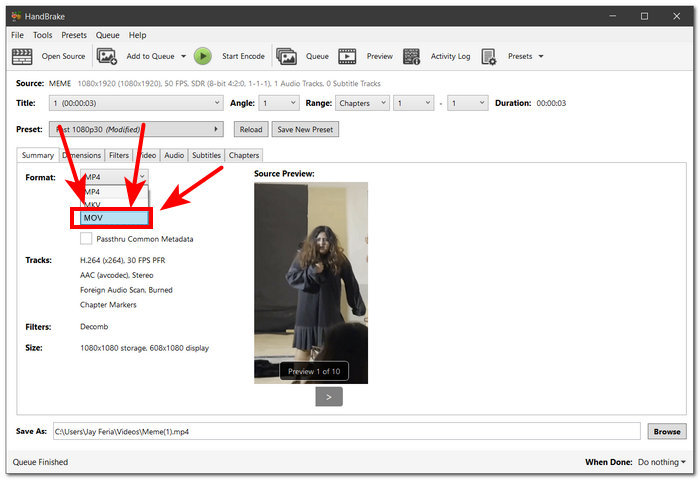
Korak 3. Kada se vaša MP4 video datoteka učita u sučelje softvera, kliknite na padajući popis Format i odaberite željeni format datoteke, MOV.
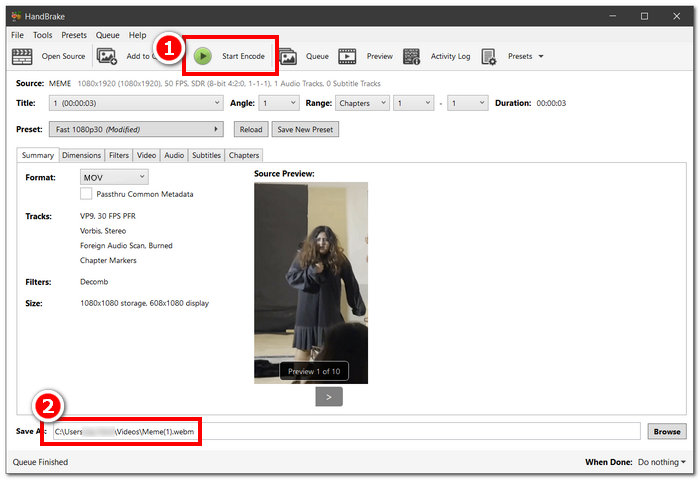
Korak 4. Kliknite gumb Start Encode (Započni kodiranje) koji se nalazi u gornjem dijelu HandBrake sučelja. Time će se automatski pokrenuti pretvorba vašeg MP4 videa u QuickTime (MOV), a datoteka će se spremiti u mapu navedenu u polju Save as (Spremi kao) u donjem dijelu softverskog sučelja.
Kroz naše korištenje alata HandBrake za pretvaranje MP4 datoteka u QuickTime (MOV), FVC je zaključio neke pozitivne i negativne napomene o izvedbi alata. Pozitivno je da je istina da je alat besplatan za preuzimanje i da ne zahtijeva od korisnika plaćanje skrivene naknade. S druge strane, softversko sučelje može zbuniti početnike budući da nudi širok raspon postavki i gumba. Općenito, to je još uvijek izvrstan alat, ali njegovo korištenje može zahtijevati od korisnika da se prvo upozna s njegovim sučeljem.
Dio 4. Često postavljana pitanja o tome kako pretvoriti MP4 u QuickTime
Koja je razlika između MP4 i MOV formata?
MP4 formati često se koriste kao multimedijske datoteke i rade sa širokim rasponom sustava i uređaja. Održava minimalne veličine datoteka dok održava kvalitetu kroz učinkovitu kompresiju. S druge strane, MOV format je za Mac korisnike koji često koriste ono što je Apple napravio za QuickTime player za gledanje visokokvalitetnih videa. Iako može podnijeti veću kvalitetu, može rezultirati većom veličinom datoteke.
Zašto bih trebao pretvoriti MP4 u MOV?
Pretvaranje MP4 videodatoteka u MOV potrebno je kako bi bile kompatibilne s Appleovim softverom i određenim platformama te kako bi se očuvala veća kvaliteta videozapisa za potrebe gledanja i uređivanja.
Koji softver mogu koristiti za pretvaranje MP4 u MOV?
Postoji mnoštvo alata i opcija kada razmišljate o pretvaranju MP4 datoteka u QuickTime (MOV) format datoteke. Za besplatne opcije korisnici se mogu osloniti na Aiseesoft Video Converter Ultimate, FVC Free Video Converter Online i HandBrake, a za opcije koje se plaćaju Adobe Media Encoder, Wondershare UniConverter i druge.
Postoji li gubitak kvalitete prilikom pretvaranja MP4 u MOV?
Kad korisnik koristi nepouzdan alat za pretvaranje, kvaliteta videa može biti izgubljena. Štoviše, kako biste izbjegli gubitak video kvalitete prilikom pretvaranja MP4 videa u QuickTime (MOV), možete vjerovati Aiseesoft Video Converter Ultimate.
Koliko je vremena potrebno za pretvaranje MP4 datoteke u MOV?
Brzina pretvaranja MP4 u MOV može ovisiti o duljini i veličini datoteke, mogućnostima računala i brzini interneta. Općenito, postavke više kvalitete i veće datoteke obično će trajati duže.
Je li sigurno koristiti online alate za pretvorbu MP4 u MOV?
Većina mrežnih MP4-u-MOV pretvarača sigurna je sve dok koristite pouzdane web-stranice, kao što je FVC Free Video Converter Online. Kako biste izbjegli sigurnosne probleme i potencijalnu štetu za svoje uređaje, budite oprezni pri rukovanju velikim ili osjetljivim video datotekama.
Je li sigurno koristiti online alate za pretvorbu MP4 u MOV?
Većina mrežnih MP4-u-MOV pretvarača sigurna je sve dok koristite pouzdane web-stranice, kao što je FVC Free Video Converter Online. Kako biste izbjegli sigurnosne probleme i potencijalnu štetu za svoje uređaje, budite oprezni pri rukovanju velikim ili osjetljivim video datotekama.
Zaključak
Zaključno, pretvaranje MP4 u QuickTime nužno je kako bi se izbjegli problemi s reprodukcijom, postigla bolja kvaliteta videa i više od toga. Ovaj je vodič pažljivo razmotrio i korisnicima pružio detaljne korake, tako da mogu lako proći kroz postupak pretvorbe bez nepotrebnog stresa.
-
 5 najboljih YouTube Video Summarizer AI alata za skraćivanje sadržaja
 Automatski sažimajte dugotrajne YouTube videozapise za generiranje sažetaka sadržaja i odaberite najbolje YouTube Video Summarizer AI alate koji su vam dostupni za korištenje.
-
 6 najboljih AI glazbenih alata za besprijekornu audio produkciju
 Proizvodite glazbu bez napora uz pomoć AI glazbenih alata kako biste skratili vrijeme utrošeno na svoj projekt uz kvalitetu zvuka u industriji.
-
 5 najboljih AI animacijskih video generatora u 2025. (uključeno besplatno)
 Pročitajte i naučite o 5 najboljih AI generatora animacije, koji učinkovito stvaraju trenutnu animaciju dizajniranu za besprijekoran tijek rada videa.
