


 Video Converter Ultimate
 Snimač zaslona
 Video popravak
Kako popraviti zvuk na iPhoneu koji ne radi [3 laka načina]
Jeste li isprobali bezbroj načina da vratite zvuk u svoje iPhone videozapise, a zvuk i dalje ne radi? Nije da se problem sa zvukom u videozapisu na vašem iPhoneu ne može riješiti, nego ga jednostavno pokušavate riješiti na pogrešan način. U ovom ćemo članku zato pogledati 3 najjednostavnija načina kako riješiti problem moj iPhone nema zvuk u videu. Svjesni smo da je ovaj problem doista naporan i frustrirajući. Ako vam se ovo događa i jedva čekate riješiti problem sa zvukom u iPhone videu, pročitajte ovaj članak, shvatite zašto se zvuk ne reproducira u vašim videozapisima i zatim sukladno tome otklonite kvar.

Dio 1. Zašto moj iPhone nema zvuk na video zapisima
Zašto moj iPhone nema zvuk na videozapisima zapravo je pitanje i problem s kojim se mnogi suočavaju. Pa, postoje različiti razlozi zašto se to događa, ali razumijete li stvarno zašto se to obično događa? Sljedeći su razlozi zašto iPhone nema zvuk prilikom reprodukcije videa:
iPhone video nema zvuka na fotografijama
Photos je nadaleko poznata aplikacija za upravljanje i uređivanje fotografija koju je napravio Apple. To je mjesto gdje korisnici mogu pohranjivati svoje fotografije i videozapise, pregledavati ih i uređivati i još mnogo toga! Iako je Photos ugledna platforma za gledanje i reprodukciju videozapisa, u nekim slučajevima reprodukcija videozapisa na ovoj aplikaciji nema zvuk. Sljedeći su neki od razloga zašto iPhone video nema zvuka u Fotografijama:
• Glasnoća možda je utišana ili prenisko podešena. Provjerite je li glasnoća na iPhoneu pojačana i je li prekidač zvona isključen iz tihog načina rada.
• Videodatoteka možda je oštećena, zbog čega audiozapis ne radi ispravno ili se uopće ne reproducira.
• Može postojati softverski problem ili greška u aplikaciji Fotografije koja sprječava reprodukciju zvuka.
• Aplikacija Fotografije možda ima poteškoća s čitanjem audio kodeka u videu, osobito ako format nije u potpunosti podržan.
• iPhone možda je povezan s Bluetooth uređajem, poput slušalica ili zvučnika koji se ne koristi, pa se zvuk preusmjerava na taj uređaj.
iPhone video nema zvuka u snimljenim fotografijama
Kada snimate izravno na svom iPhoneu, možete pregledati svoj video tako da ga reproducirate sa svog fotoaparata. Međutim, neki korisnici iPhonea nemaju zvuka kada reproduciraju svoje videozapise s fotoaparata, zbog čega se osjećaju ljutito i zbunjeno zašto njihovi videozapisi nemaju zvuk. Slijede neki od razloga zašto zvuk na iPhoneu ne radi kada se reproducira u Camera rollu:
• Mikrofon je možda bio blokiran ili neispravan tijekom snimanja, pa zvuk uopće nije zabilježen.
• Ako je vaš iPhone u načinu Ne ometaj, to može spriječiti reprodukciju zvuka prilikom pregleda videozapisa u kolekciji Kamera Roll.
• iPhone možda je u tihom načinu rada, što može dovesti do toga da se videozapis reproducira bez zvuka.
iPhone nema zvuka pri reprodukciji videa u IG
Reprodukcija videa na Instagramu ponekad može predstavljati problem. Neki dožive nemogućnost reprodukcije videa; postoje neki slučajevi u kojima se samo zvuk ne reproducira kada se video zapisi reproduciraju na IG-u. Sada, da bismo bolje razumjeli zašto se to događa, u nastavku su razlozi zašto iPhone nema zvuk pri reprodukciji videa u IG-u:
• Instagram može prema zadanim postavkama utišati video, pa korisnici moraju dodirnuti ikonu zvučnika kako bi uključili zvuk.
• Glasnoća unutar Instagram aplikacije može biti smanjena ili utišana, neovisno o sustavskoj glasnoći iPhonea.
• Može postojati privremeni kvar ili greška u Instagram aplikaciji, pa je potrebno ponovno pokretanje ili ažuriranje.
• Loša ili nestabilna mrežna veza može uzrokovati nepravilno učitavanje videa, što rezultira izostankom zvuka.
• iPhone možda je postavljen na tihi ili vibracijski način rada, što može utjecati na izlaz zvuka unutar Instagram aplikacije.
Dio 2. Rješenja za popravak bez zvuka na iPhoneu koji ne radi
Sada kada razumijete neke od razloga zašto vaš iPhone nema zvuk na videozapisima, vrijeme je da naučite kako riješiti ovaj problem.
Metoda 1: Korištenje FVC Video Repair
Ako vaš iPhone nema zvuk u videima zato što reproducirate oštećeni video, savršeno rješenje je korištenje alata FVC Video Repair. Znamo da kod oštećenog videa nije pogođena samo mogućnost reprodukcije slike, već i zvuk, što dovodi do problema poput potpunog izostanka zvuka. Oštećenje videodatoteke može poremetiti sinkronizaciju između audio i video zapisa ili čak potpuno ukloniti i oštetiti audio zapis, pa reprodukcija ostaje bez zvuka. Alat FVC Video Repair upravo je osmišljen da riješi takve probleme: obnavlja vizualni integritet videa i prateći zvuk, čime osigurava glatku reprodukciju sa zvukom.
Korak 1. Najprije posjetite njihovu službenu web-stranicu. Zatim preuzmite alat i instalirajte ga na svoj uređaj.
Besplatno preuzimanjeZa Windows 7 ili novijiSigurno preuzimanje
Besplatno preuzimanjeZa MacOS 10.7 ili novijiSigurno preuzimanje
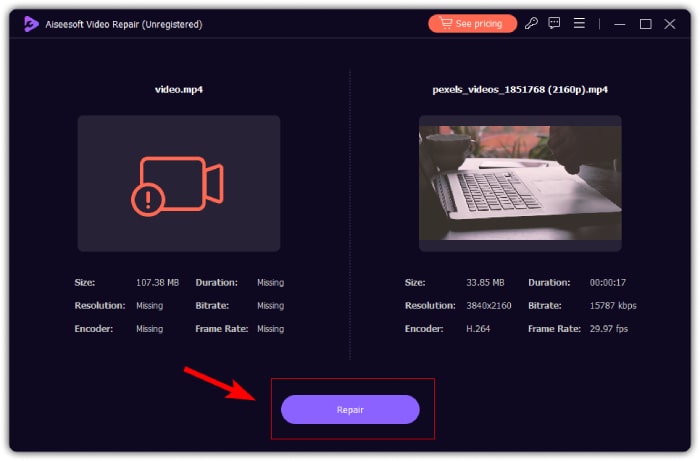
Korak 2. Zatim dodajte oštećeni video klikom na gumb Red Plus, na isti način kao što ste kliknuli gumb Blue Plus da biste dodali ogledni video. Nakon toga kliknite gumb Repair kako biste započeli popravak problema sa zvukom.
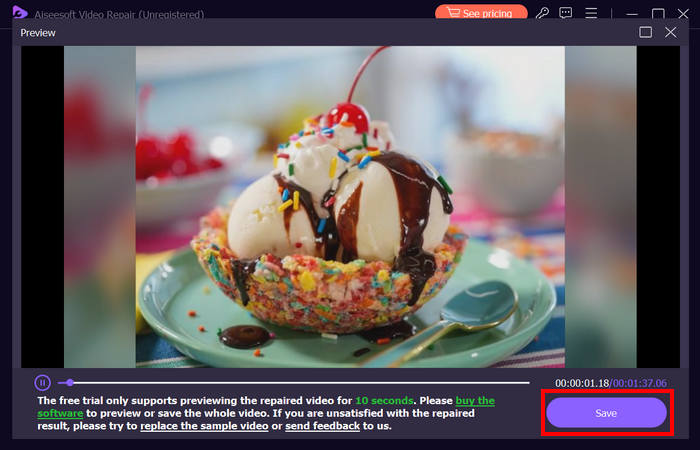
Korak 3. Na kraju kliknite gumb Preview kako biste pregledali popravljeni video i provjerili je li zvuk sada vraćen. Kada je proces popravka uspješno dovršen, možete ga spremiti klikom na gumb Save.
FVC Video Repair može stvarno lako popraviti problem iPhone nema zvuka na video zapisima. Sa svojim najnovijim AI algoritmom i automatskim otkrivanjem vitalnih informacija i njihovim izravnim popravljanjem, može učinkovito vratiti video zvuk na vašem iPhoneu.
Metoda 2: Korištenje FVC odabranog Video Converter Ultimate
Ako je vaš problem uzrokovan nedostajućim audio zapisom, što znači da je zvučna komponenta vašeg videa izgubljena, oštećena ili nije pravilno kodirana, možete koristiti FVC odabrani alat Video Converter Ultimate. Ovaj alat može vam pomoći da popravite nedostajući audio zapis pretvaranjem videa u kompatibilan format. Da biste riješili problem s tim što iPhone ne reproducira zvuk zbog nedostajućeg audio zapisa, slijedite sljedeće korake:
Korak 1. Ako alat još nemate instaliran na računalu, najprije ga preuzmite i instalirajte na svoje računalo.
Besplatno preuzimanjeZa Windows 7 ili novijiSigurno preuzimanje
Free DownloadZa macOS 10.7 ili novijiSigurno preuzimanje
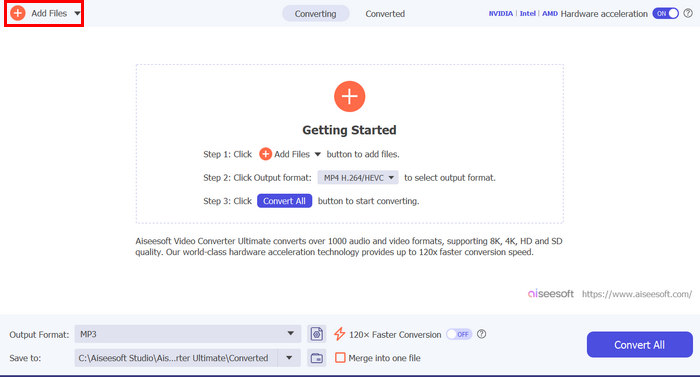
Korak 2. Zatim dodajte video kojem se zvuk ne reproducira na vašem iPhoneu klikom na gumb Add Files.
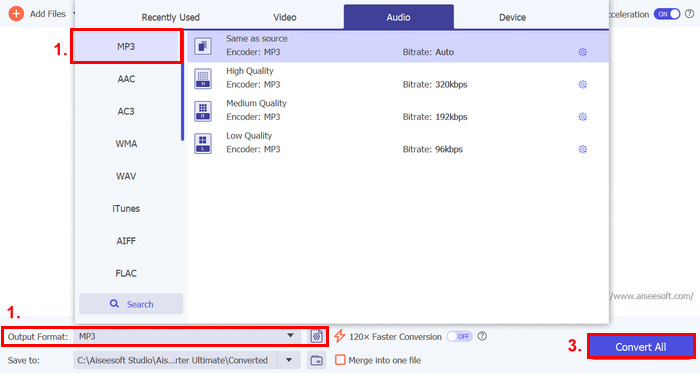
Korak 3. Sada kliknite na Output Format, odaberite MP3 i u izborniku odaberite audio format koji želite za svoj video. Na kraju kliknite gumb Convert All kako biste spremili datoteku.
Ovaj potpuno opremljeni alat Video Converter Ultimate koji je odabrao FVC stvarno je alat za rješavanje svih problema povezanih s videom i zvukom. Bez obzira na problem, radi li se o oštećenoj datoteci, netočnom kodeku ili nepodržanom formatu, ovaj alat zaista može pomoći.
Metoda 3: Ponovno pokretanje iPhonea
Ako vaš iPhone ima problem sa sustavom koji utječe na zvuk prilikom reprodukcije videa, možete jednostavno ponovno pokrenuti svoj iPhone. Na taj način možete osvježiti operativni sustav uređaja, što može ukloniti privremene greške ili greške koje bi mogle uzrokovati problem sa zvukom. Evo kako možete jednostavno ponovno pokrenuti svoj iPhone kako biste riješili problem iPhonea bez zvuka na videu:
Za iPhone X i novije modele
Korak 1. Za ponovno pokretanje iPhonea pritisnite i držite bočnu tipku i jednu od tipki za glasnoću dok se na zaslonu ne pojavi klizač za isključivanje.
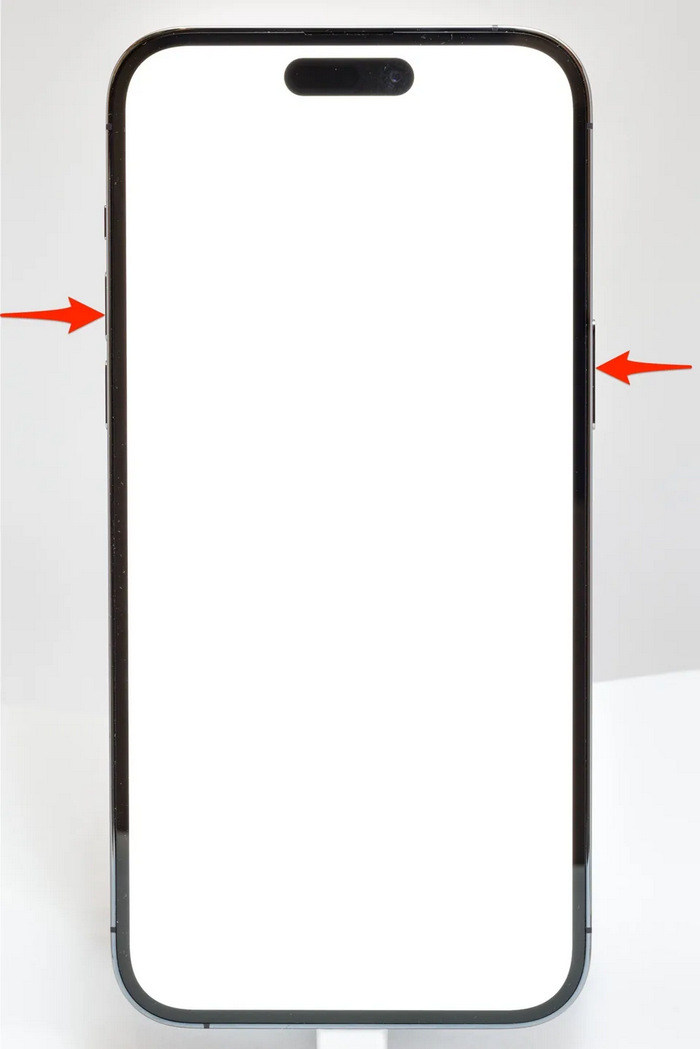
Korak 2. Prijeđite prstom po klizaču kako bi se vaš iPhone isključio.
Korak 3. Sada, za ponovno uključivanje, pritisnite bočnu tipku.
Za iPhone 6, 7, 8 i SE
Korak 1. Najprije morate pritisnuti i držati bočnu tipku.
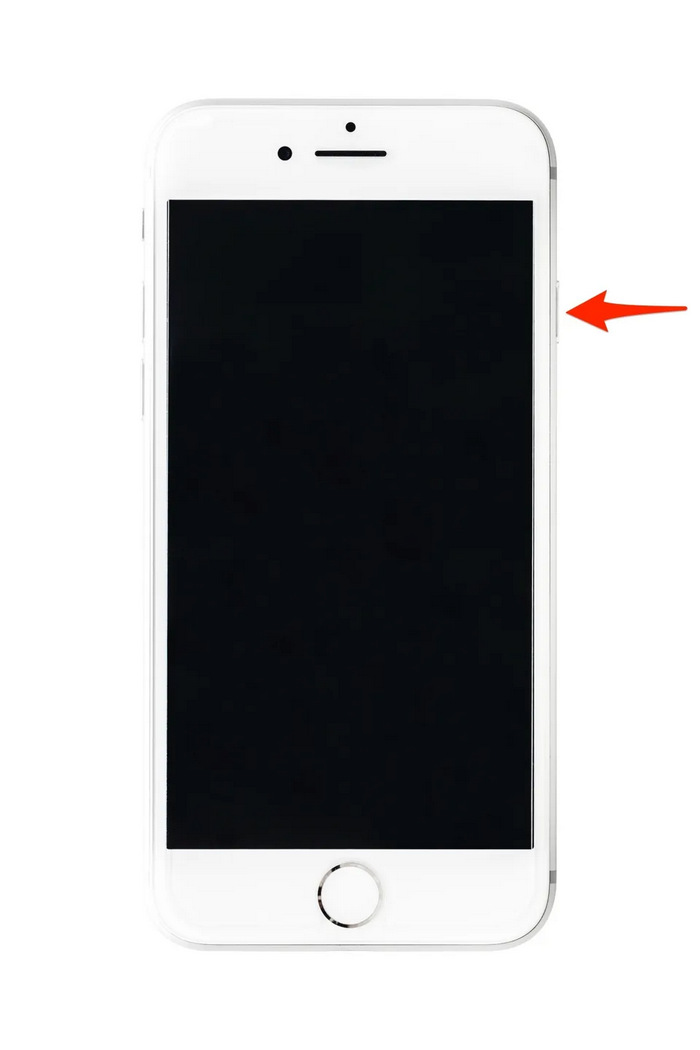
Korak 2. Pričekajte da se pojavi klizač za isključivanje i prijeđite prstom po njemu kako biste isključili uređaj.
Korak 3. Sada, za ponovno uključivanje, pritisnite bočnu tipku.
Ove su metode jednostavne za izvođenje i ne zahtijevaju korištenje alata treće strane. Međutim, ovo je vrlo osnovno i uobičajeno rješenje i ne jamči potpuni popravak za ovaj iphone problem koji nema zvuka na videu.
Dio 3. Često postavljana pitanja o Stellar Repair for Video
Koji iPhone uređaji podržavaju Dolby Vision ili DTS zvuk?
iPhone iz serije iPhone 12 i noviji podržavaju Dolby Vision, koji poboljšava kvalitetu videa boljom bojom i kontrastom. Međutim, iPhone uređaji ne podržavaju izravno DTS zvuk jer koriste druge audio tehnologije poput Dolby Atmosa.
Možete li reproducirati FLAC ili dio na iPhoneu?
Da, možete reproducirati FLAC audio na svom iPhoneu, ali trebat će vam aplikacija treće strane kao što je VLC ili specijalizirani audio player, budući da iPhone ugrađena aplikacija Glazba izvorno ne podržava FLAC.
Hoće li videozapisi reproducirati zvuk u nečujnom načinu rada na iPhoneu?
Ne, videozapisi neće reproducirati zvuk ako je vaš iPhone u nečujnom načinu rada. Da biste čuli zvuk, morat ćete isključiti nečujni način rada okretanjem prekidača na bočnoj strani iPhonea.
Zaključak
Uzroci problema iPhone nema zvuk u videu različiti su, kao i rješenja za njihovo otklanjanje. Sada kada znate kako to popraviti, nemojte se obeshrabriti ako se ponovno susretnete s ovakvom situacijom. No zasad, ako imate isti problem, možete isprobati bilo koju od metoda navedenih u ovom članku.
-
 Top 2 metode za besplatno pretvaranje FLV u iPhone video
 Ovaj konkretni vodič dijeli dva najbolja jednostavna načina koja će vam pomoći da naučite kako pretvoriti FLV datoteke u iPhone video ili mnoge druge formate bez plaćanja centa.
-
 [Riješeno] Kako popraviti videozapise koji se ne reproduciraju na iPhoneu s detaljnim koracima
 Lokalni videozapisi u galeriji ne mogu se reproducirati na vašem iPhoneu putem zadanog video uređaja? Internetski YouTube videozapisi koji se ne reproduciraju na iPhoneu uvijek se događaju? Evo 5 rješenja koja će vam pomoći u ovom članku.
-
 Konkretni vodič za prijenos FLV videozapisa na YouTube
 Prenesite FLV na YouTube, ali niste uspjeli? Možete sami riješiti ovaj problem i pretvoriti FLV u kodeke podržane od YouTubea slijedeći naš korak-po-korak vodič.
