


 Video Converter Ultimate
 Snimač zaslona
 Video popravak
VLC Rip DVD: Kako jednostavno pretvoriti DVD pomoću VLC-a [2024]
Sigurno je gledanje filmova na DVD playeru nekada bilo dio vašeg života? Recite nam gdje ste kao dijete gledali svoj prvi crtić ili film? Nostalgičan osjećaj, zar ne? Danas, s Netflixom koji nadvladava sve platforme za streaming medija, gledanje filmova nikad nije bilo jednostavnije i dostupnije nego ikad. Uz to, mnogi su diskovi sada zanemareni, čekajući da s vremenom pokvare.
Sada, ako tražite način za spremanje svojih kolekcija, jedini način na koji to možete učiniti jest da svaku od njih „rippate“ uz pomoć VLC‑a. VLC je besplatni multimedijski reproduktor koji korisnicima omogućuje reproduciranje, pretvaranje i popravak različitih vrsta videozapisa. Osim toga, ovaj alat može ripati DVD‑ove, odnosno iz njih izdvajati medijski sadržaj. Zato smo u ovom članku pripremili vodič koji vam može pomoći da rippate DVD‑ove pomoću VLC‑a. Osim toga, na kraju članka čeka vas i alternativa VLC‑u koja možda nudi jednostavnije korištenje i naprednije značajke. Što čekate? Pomaknite se niže i uronite u ovaj članak.

Dio 1. Rip DVD na VLC
VLC je softverska aplikacija za reprodukciju medija dostupna za Windows, macOS i Linux korisnike. Ovaj je alat nadaleko poznat po svojim fasetnim značajkama, omogućujući korisnicima ne samo reprodukciju raznih videa putem njega, već i kopiranje DVD-a što ga čini pristupačnijim i puštanijim na različitim uređajima. Ono što ovaj alat čini je da izvlači sadržaj s diska i zatim ga pretvara u digitaliziranu video datoteku koja se lako može pohraniti ili dijeliti.
Cijena: 100% besplatno
Ovdje je vodič korak po korak kako ripati DVD‑ove pomoću VLC‑a:
Korak 1: Prvo morate preuzeti i instalirati VLC na svoj uređaj. Nakon toga umetnite disk.
Korak 2: Zatim idite na karticu Media i s popisa odaberite opciju Convert/ Save.
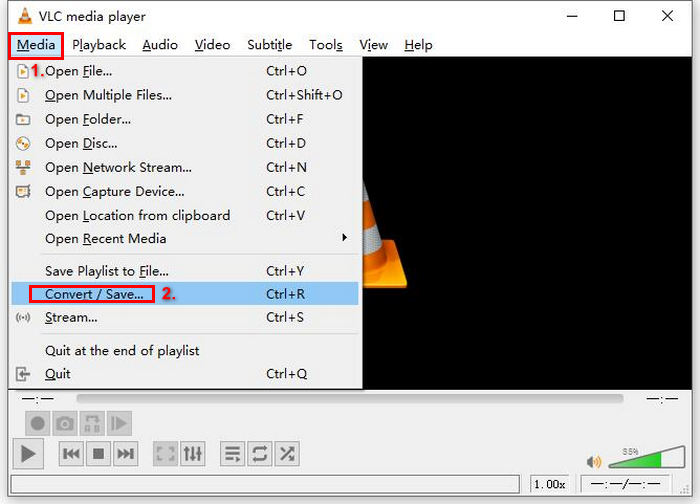
Korak 3: Nakon toga kliknite Disc na gornjoj kartici, uključite opciju DVD i u stavci Disc device odaberite DVD koji želite ripati.
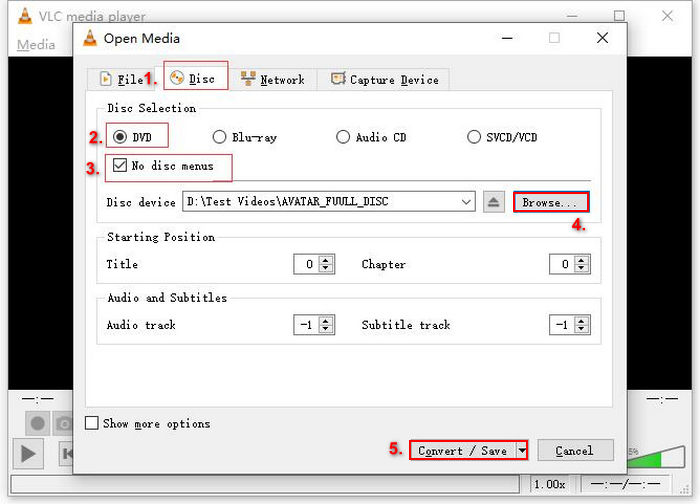
Korak 4: Sada kliknite gumb Convert/ Save i postavite izlazni format na MKV klikom na padajući izbornik profila ispod.
Korak 5: Nakon toga, u odjeljku Destination ispod, kliknite Browse, odaberite mapu i dajte izlaznoj datoteci naziv.
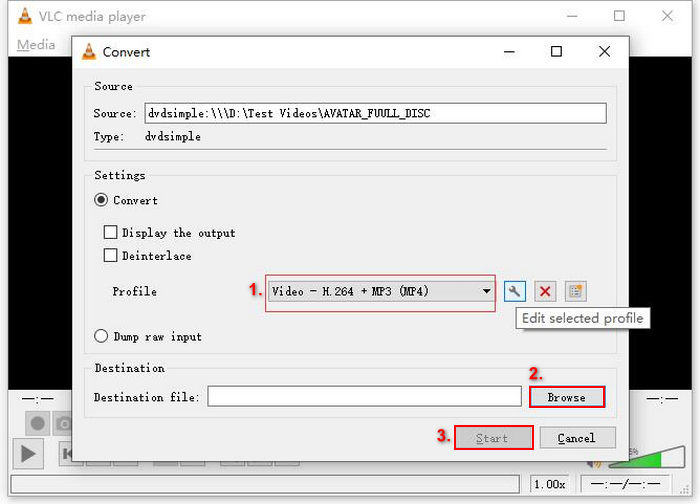
Korak 6: Kada je sve postavljeno, kliknite gumb Start da biste ripali DVD pomoću VLC‑a.
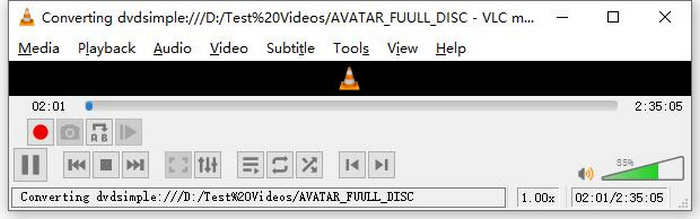
Napomena: Traku napretka Converting možete vidjeti pri dnu. Samo pričekajte da VLC dovrši ripanje.
Komentar:
Ono što volimo kod VLC Media Playera je to što je uistinu pouzdan i svestran, posebno za korisnike koji traže besplatnu opciju za kopiranje DVD-ova. Međutim, unatoč ovoj značajci, njegovo sučelje može biti pomalo tehničko za početnike, a proces se može činiti dugotrajnim u usporedbi sa specijaliziranijim i namjenskim softverom za riper DVD-a. Osim toga, može imati problema s nekim diskovima zaštićenim od kopiranja, ograničavajući njegovu učinkovitost u tim slučajevima. Unatoč tome, i dalje je preporučljivo ripati DVD-ove na VLC-u.
Dio 2. Alternative za VLC DVD Ripper
Ako tražite alternativni alat za ripanje DVD-ova osim VLC-a, AnyMP4 DVD Ripper je pravi izbor za vas. Ova alternativa VLC DVD ripperu je alat s punom značajkom koji podržava niz široko korištenih video izlaznih formata, uključujući MP4, MOV, AVI, MKV i druge. Pomoću njega možete jednostavno pretvoriti DVD-ove u digitalne formate za reprodukciju na raznim uređajima bez gubitka kvalitete. Njegove mogućnosti ripanja DVD-ova su izvanredne, podržavajući pretvaranje bilo kojeg DVD-a, kao što su domaći, komercijalni, workout i DVD-ovi s 99 naslova.
Besplatno preuzimanjeZa Windows 7 ili novijiSigurno preuzimanje
Besplatno preuzimanjeZa MacOS 10.7 ili novijiSigurno preuzimanje
Koraci za ripanje DVD-a pomoću AnyMP4 DVD Rippera:
Korak 1: Najprije morate preuzeti i instalirati alat na svoj uređaj. Ne zaboravite umetnuti DVD u DVD pogon na računalu i pričekati nekoliko minuta dok se ne prepozna.
Besplatno preuzimanjeZa Windows 7 ili novijiSigurno preuzimanje
Besplatno preuzimanjeZa MacOS 10.7 ili novijiSigurno preuzimanje
Korak 2: Sada pokrenite alat i kliknite "Load DVD" da biste učitali disk.
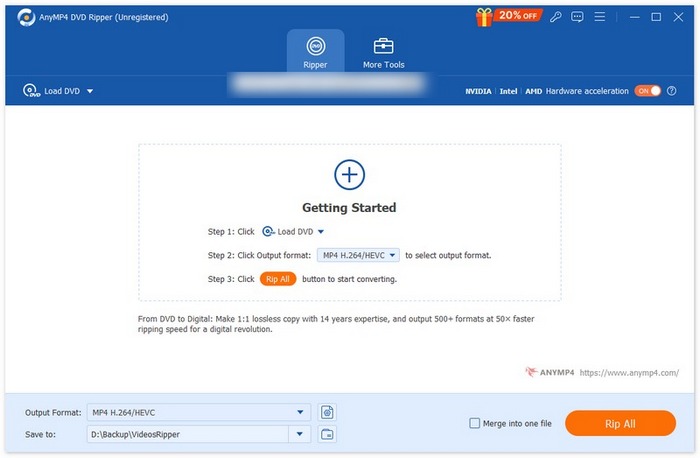
Korak 3: Zatim kliknite na "Output Format" ispod i na kartici "Video" odaberite željeni video format. Ovim postupkom možete svoj DVD pretvoriti u video datoteku koja je pristupačnija i koju podržavaju razni uređaji. Kada završite, jednostavno kliknite gumb "Rip All" kako biste započeli ripanje DVD‑a.

Puno lakše, zar ne? AnyMP4 DVD Ripper je zaista izvrsna alternativa VLC DVD ripperu. Svojim sučeljem, postupkom ripanja i drugim potrebnim značajkama, ovaj alat mijenja pravila igre i puno je bolji od načina na koji VLC ripa DVD-ove.
Dio 3. Često postavljana pitanja o kopiranju DVD-ova na VLC
Koji je najbolji format za kopiranje DVD-a?
Najbolji format za kopiranje DVD-a ovisi o uređaju korisnika. Međutim, MP4 je naširoko i često korišten video format. Dakle, kada kopirate DVD, najsigurniji format koji možete odabrati je MP4.
Mogu li ripati DVD na Windows 7?
Da. Možete ripati DVD u sustavu Windows 7 pomoću VLC Media Playera. VLC podržava razne operativne sustave, uključujući Windows 7. Kada je u pitanju kopiranje DVD-ova na VLC-u, samo slijedite isti postupak kao i na drugim verzijama Windowsa. Ali provjerite je li vaš DVD pogon funkcionalan i je li VLC ažuran kako biste izbjegli probleme s kompatibilnošću.
Koliko dugo traje kopiranje DVD-a?
Vrijeme potrebno za ripanje DVD‑a razlikuje se ovisno o nekoliko čimbenika. Potrebno je uzeti u obzir veličinu DVD‑a, brzinu vašeg DVD pogona i postavke koje odaberete za ripanje, primjerice rezoluciju, format itd. Uobičajeno je da ripanje standardnog DVD‑a traje od 20 minuta do više od jednog sata. Rippovi više kvalitete i veće izlazne datoteke općenito zahtijevaju više vremena za obradu. Ako želite znati brzinu reprodukcije VLC‑a, provjerite ovdje.
Mogu li ripati DVD-ove zaštićene od kopiranja pomoću VLC-a?
Ne. Bilo kojem softveru je teško kopirati DVD-ove zaštićene od kopiranja zbog enkripcije i zaštite upravljanja digitalnim pravima.
Zaključak
Sada kada znate kako ripati DVD‑ove pomoću VLC‑a, nema razloga da zauvijek čuvate sve svoje DVD‑ove. Samo slijedite ovaj vodič i sve svoje diskove možete pretvoriti u digitalne datoteke koje možete reproducirati bilo gdje i na bilo kojem uređaju koji želite. U međuvremenu, ako VLC kod vas ne radi, kao alternativu možete isprobati AnyMP4 DVD Ripper. Jeste li uzbuđeni zbog toga? Zaronimo u to i počnimo s ripanjem.
-
 Kako strujati DVD filmove s računala/Mac računala na TV putem Chromecasta
 Ne znate kako gledati DVD filmove na TV-u putem Chromecasta? Ovaj članak prikazuje najlakši način za emitiranje DVD filmova s računala na TV putem Chromecasta.
-
 Android DVD player - Kako reproducirati DVD videozapise na Android mobitelima
 Kako reproducirati DVD datoteke na Android mobitelima? Postoje li Android DVD playeri? U ovom ćete članku naučiti o 3 načina reprodukcije DVD videozapisa na Android mobitelima sa ili bez vanjskog upravljačkog programa.
-
 Najbolje 3 alternative DVDFab playeru za reprodukciju DVD videa na računalu
 Isplati li se kupiti DVDFab Player? Može li reproducirati 4K videozapise? Što kažete na njegovu plaćenu verziju? Ovaj članak će detaljno predstaviti njegove značajke i postoje 3 najbolje alternative za DVDFab Player koje možete izabrati.
