


 Video Converter Ultimate
 Snimač zaslona
 Video popravak
4 najbolja FLV snimača prikladna za Chrome, Windows i Mac računala
Jeste li se ikada zapitali zbog čega se videozapisi koje gledate vrte po webu? Većina HTML 5 web stranica koristi WebM format za reprodukciju videa. Osim WebM-a koristi se i FLV. Posebno one besplatne stranice za filmove i TV emisije. Kako biste znali je li to FLV datoteka? Obično, ako se video ne može reproducirati, vidjet ćete poruku o pogrešci koja kaže instalirajte Adobe Flash Player. Danas su mnogi videozapisi ugrađeni u FLV datoteke. Ali kada snimate video pomoću svog ugrađenog ili nekog drugog snimača, velika je mogućnost promjene kvalitete videa.
Dakle, bolje će biti koristiti snimač koji može proizvoditi i FLV datoteke ili onaj koji može proizvesti bolju kvalitetu bez obzira na format datoteke. Ako ste zabrinuti da bi kvaliteta videa mogla biti izmijenjena, otkrijte FLV snimače koje možete koristiti bez registracije.

Dio 1. Najbolji izbor korisnika - FVC snimač zaslona
Među FLV snimačima koje možete pronaći na internetu, FVC Screen Recorder je crème de la crème, odnosno jednostavnije rečeno – najbolji. Zahtjevi korisnika ponekad su veći od onoga što proizvod može pružiti i ne mogu svi biti najbolji izbor. Drugi korisnici traže najbolji proizvod koji bi trebali koristiti. FVC Screen Recorder nadmašuje više od tisuću premium snimača, pogotovo u usporedbi s vašim trenutačnim snimačem. Zahvaljujući njegovom besprijekornom radu, možete izvući maksimum iz videa koji želite snimiti. Štoviše, možete promijeniti bitrate i framerate videa, što će rezultirati boljom kvalitetom slike. Stoga je nužno da obratite pozornost na ovu recenziju najboljem FLV snimaču. U međuvremenu, evo jednostavnog vodiča kako koristiti ovaj alat.
Korak 1. Upotrijebite gumbe za preuzimanje u nastavku kako biste preuzeli aplikaciju. Instalirajte je i slijedite upute dok se aplikacija ne pokrene.
Besplatno preuzimanjeZa Windows 7 ili novijiSigurno preuzimanje
Besplatno preuzimanjeZa MacOS 10.7 ili novijiSigurno preuzimanje
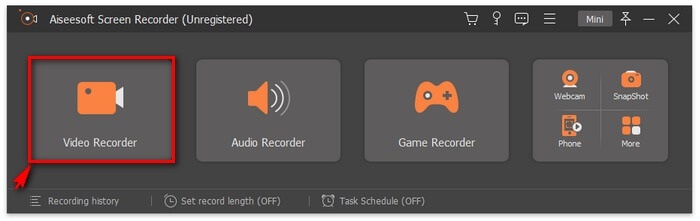
Korak 2. Odaberite između kartica. Budući da pokušavamo snimiti video, kliknite na Video Recorder. Nakon toga pojavit će se isprekvirani okvir zajedno s plutajućom trakom.
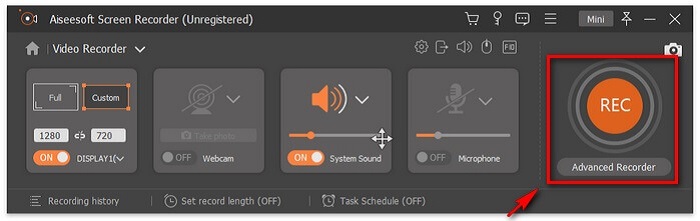
Korak 3. Prilagodite isprekidani okvir kako biste postavili omjer stranica zaslona, zatim kliknite gumb REC za početak snimanja.
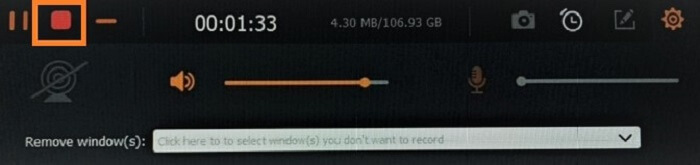
Korak 4. Da biste zaustavili snimanje, kliknite crveni gumb Square na plutajućoj traci. Tada će se pojaviti novi prozor. U njemu možete odabrati hoćete li snimku spremiti ili ponovno snimiti ako niste zadovoljni rezultatom.
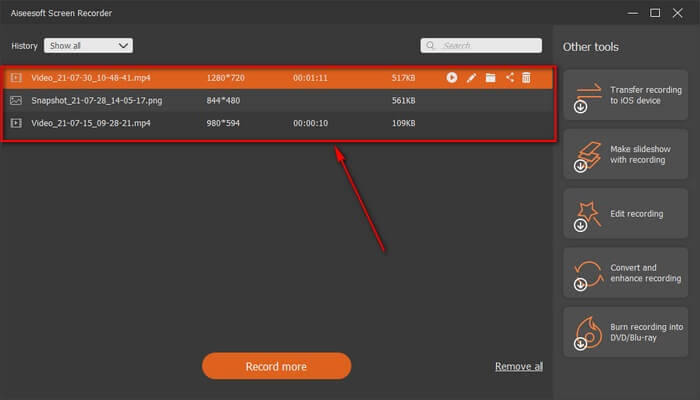
Korak 5. Recimo da ste spremili datoteku; sljedeći prozor omogućit će vam da odaberete mjesto na koje će se datoteka spremiti. Odaberite mapu i kliknite na Next.
Dio 2. Drugi besplatni FLV video snimač
FLV snimač za sve preglednike - FVC besplatni snimač zaslona
Poznato je da je FVC Free Screen Recorder lagan, a istodobno vrlo moćan. Dakle, ako ste početnik koji želi snimati iz zabave, možete ga koristiti, ali i ako ste profesionalac koji želi snimiti poslovni sastanak. U oba slučaja radi odlično. Najbolja značajka ovog snimača je to što možete snimati bilo koji dio zaslona bez ometanja plutajuće trake alata. Automatski snima samo zaslon. Uzmite koliko god snimaka zaslona želite, bez ometanja, uz pomoć značajke zaključavanja zaslona (Lock-in screen). Bez daljnjeg duljenja, prijeđimo na to kako koristiti ovaj FLV snimač. Morate slijediti korake navedene u nastavku.
Korak 1. Posjetite službenu web-stranicu alata FVC Free Screen Recorder i pokrenite aplikaciju.
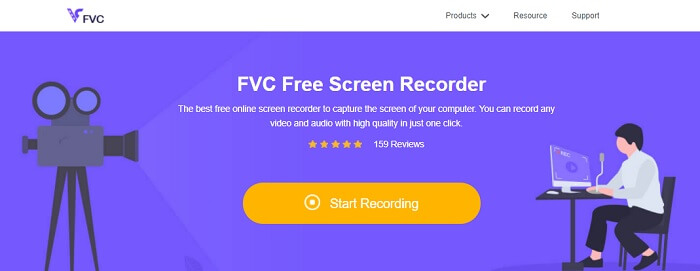
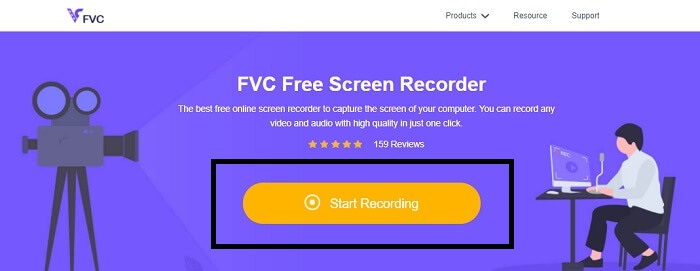
Korak 2. Pokrenite alat klikom na Start Recording i prijeđite na sljedeći korak.
Korak 3. U njegovoj alatnoj traci kliknite gumb gear kako biste promijenili postavke prema svojim potrebama. Kada uđete u izbornik Preferences, pronađite Output i promijenite video format prema svojim željama. Kliknite OK kada je sve podešeno.
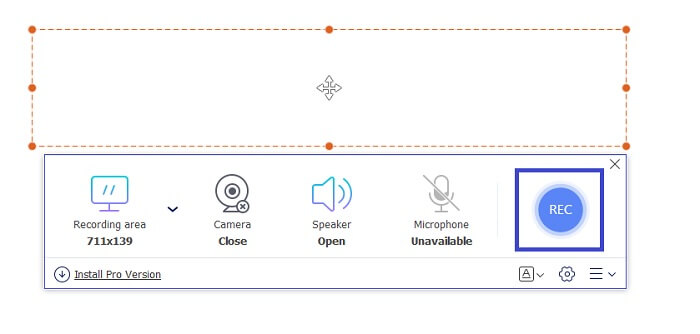
Korak 4. Na plutajućoj alatnoj traci sada možete prilagoditi omjer okvira zaslona. Također, dodajte svoju reakciju uključivanjem Webcama. System Sound se koristi za dodavanje prirodnog zvuka programa. I na kraju, dodajte svoj glas uključivanjem mikrofona. Za početak FLV snimanja kliknite gumb REC.
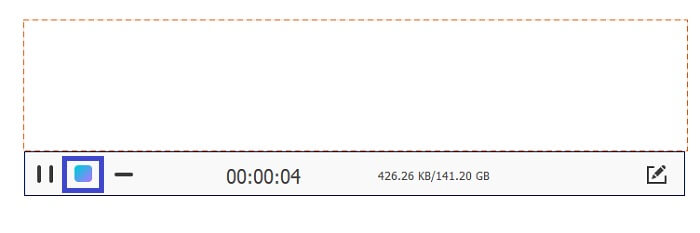
Korak 5. Za završetak FLV snimanja kliknite gumb cube za zaustavljanje. Nakon toga kliknite Save i Next. Sve snimke koje ste napravili nalaze se na History list.
FLV snimač za Chrome - SCREEN.IO
Ako ne želite preuzimati dodatne datoteke na svom disku, možete upotrijebiti ovaj ugrađeni Chrome snimač. Ovaj FLV snimač za Chrome pomaže gomili ljudi na cijelom webu. Dakle, ako ste obožavatelj uštede prostora za pohranu, morate isprobati ovaj SCREEN.IO. Iako alat ne pruža posebne značajke koje su slične drugom snimaču. Ali sposobnost snimanja vrlo je standardna. Ako usporedimo Chrome snimač i desktop snimač, desktop je učinkovit način za snimanje jer vam neće smetati ako je internetska veza prekinuta.
FLV snimač za Windows - VLC Media Player
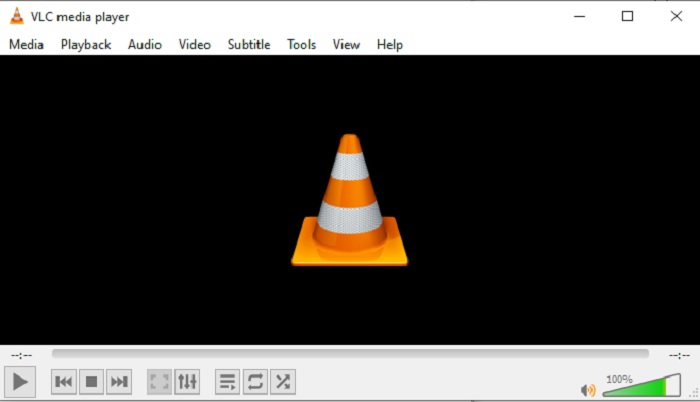
VLC Media Player nije poznat samo kao najbolji medijski reproduktor. Ima i nekoliko dodatnih funkcija poput snimanja, pretvaranja formata i drugih. Iako je izvrstan medijski reproduktor, sve navedene dodatne funkcije nisu nužno najbolje. U nekim slučajevima određeni video ili audio formati se ovdje ne mogu reproducirati jer su njihovi kodeci vlasnički. Umjesto toga možete koristiti VLC Media Player Alternative koji podržava reprodukciju čak i vlasničkih datoteka.
FLV snimač za Mac - OBS Studio
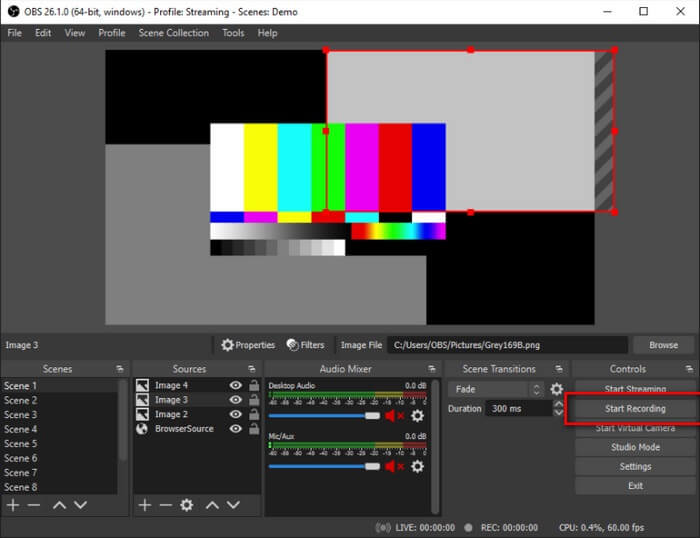
Možda mislite da smo zaboravili na Mac korisnike. Ovaj FLV snimač za Mac jedan je od najmoćnijih snimača na popisu jer preko njega možete i streamati. Unatoč sjajnim mogućnostima, sam je alat pomalo zastrašujući, osobito ako ste novi u snimanju, jer se na sučelju događa mnogo toga čim ga otvorite.
Dio 3. Često postavljana pitanja o FLV video snimaču
FLV datoteka, je li sigurno preuzeti je na moje računalo?
U stvarnosti, to nije datoteka o kojoj govorimo kada je u pitanju sigurnost. FLV datoteke ugrađene su u web-mjesta za dijeljenje videozapisa, pa bi vaše pitanje trebalo biti, kako mogu prepoznati da video koji preuzimam s web-mjesta nema zlonamjerni softver? Koristite Safeguard za svoje računalo. Na internetu možete pronaći mnoštvo branitelja softvera i skenera. Ali sama datoteka je sigurna. Osim ako u njega ne stave zlonamjerni softver, sigurno je.
Koji program može otvoriti FLV datoteke?
Postoji mnogo medijskih reproduktora, ali ono što ja preporučujem je VLC player. Ovaj je reproduktor svestran i može reproducirati gotovo sve formate datoteka, bilo da su nekomprimirani ili komprimirani. Kliknite ovdje kako biste vidjeli još popularnijih FLV reproduktora.
Koje su prednosti FLV datoteka?
Prva glavna prednost FLV-a je njegova sposobnost proizvodnje visokokvalitetnog videa u maloj veličini. Po prirodi je turpija savitljiva. Zašto? Ovu datoteku možete jednostavno pretvoriti u drugi format čak i pomoću mrežnih pretvarača.
Dio 4. Usporedni grafikon
| Značajke | Snimač zaslona FVC | FVC besplatni snimač zaslona | VLC Media Player | OBS studio |
| Snimač zaslona |  | | | |
| Snimač zvuka | | | | |
| Podržava FLV | | | | |
| Multimedijski player |  | | | |
| Podesivi bit rate i broj sličica u sekundi | | | | |
Zaključak
Svi navedeni alati pomažu pri snimanju FLV videozapisa i stvaranju najbolje moguće kvalitete videozapisa. Također, ako niste sigurni koji alat koristiti, možete pogledati napisanu usporednu tablicu. Ali među navedenim FLV snimačima. FVC Screen Recorder ima veću prednost zbog značajke zaključavanja prozora.
-
 Najkorisniji OGG snimač 2021. [besplatno i online]
 Ovaj tekst govori o najboljim alatima za OGG snimanje koji vam pomažu u snimanju OGG zvuka. Da biste dodali detaljnije informacije za korisnika, nastavite je čitati.
-
 Top 5 najboljih softvera za snimanje M4B za PC i Mac [besplatno i plaćeno]
 Snimanje u formatu M4B komprimirano je s gubitkom za datoteku audio knjige MPEG-4. U nekim aspektima M4A i M4B su gotovo uobičajeni, ali imaju razlike. Da biste saznali o čemu se radi, pročitajte članak.
-
 5 najboljih AMR snimača dostupnih za sve operacijske sustave
 Želite znati što je AMR format i koji je najbolji AMR snimač koji biste trebali odabrati koji će pružiti nevjerojatnu snimku.
