


 Video Converter Ultimate
 Snimač zaslona
 Video popravak
Korak po korak postupak za VLC za snimanje DVD-a na svim operativnim sustavima
VLC is a well-known media player used by millions of users in the entire world. It is not simply for playing video or audio. Maybe this is new for you, but did you know that this media player has other uses. For example, it can edit, record DVDs with video and audio, and also read encrypted and rip DVDs. But not all the DVDs can be ripped by the VLC if they have copy-protection. Also, ripping will take your time instead of watching the video you'll probably wait to finish the rip. For some reason, users tend to record DVD movies using VLC while watching or leave it alone rather than rip the video content from the DVD to share with others. In this article, you will understand that you don't need to rip the video audio output from the DVDs. But instead, you can record it while watching while retaining the same quality. Continue reading and understand the value of each tool.

Dio 1. Kako snimati DVD filmove s VLC Media Playerom
VLC Media Player
Ovaj media player je višeplatforma otvorenog koda koja podržava gotovo sve medijske formate kojih se možete sjetiti. Također može kopirati videozapise s DVD-a, ali VLC-u će trebati vremena da kopira datoteku. Proces kopiranja će trajati više od 15 do 45 minuta, ovisno o tome koliko dugo, koliko i veličinu medijskog formata. Umjesto da ripate disk, zašto ga ne snimite uz pomoć VLC-a.
Kako nastavljamo, evo nekoliko koraka kako snimiti video-audio na VLC.
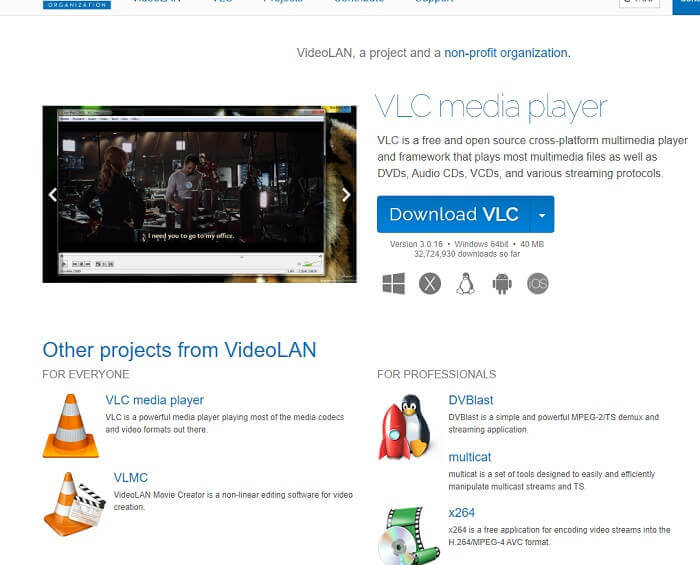
Step 1. Download the VLC Media player over the browser then install it. Set your preferences then click Finish to proceed. If you don't have an idea what it looks like then this is it.
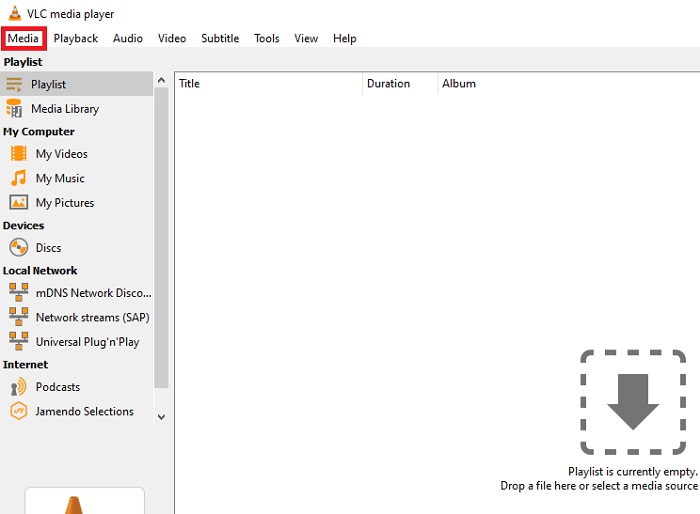
Step 2. Click the Media in the upper left end of the interface. Click Open File and choose the file. Or you can as well drag and drop the media file.
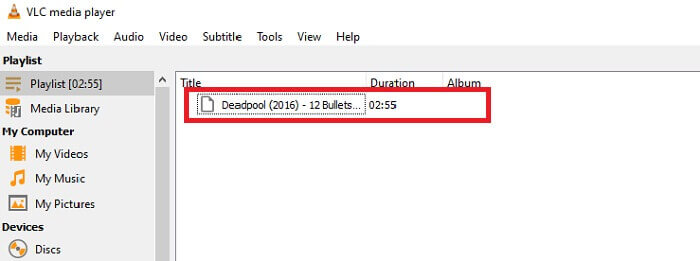
Step 3. Click the video file you insert in the interface to play.
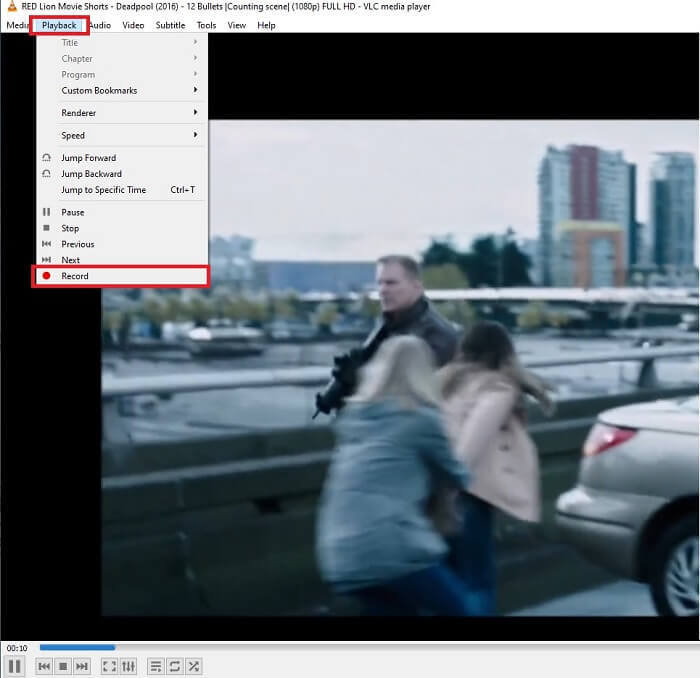
Step 4. Hit the Playback button at the top of the interface next to the media. Click the Record below the drop-down to start recording. Note that if you click to record the record will start already. Wait until the video is finished before stopping it.
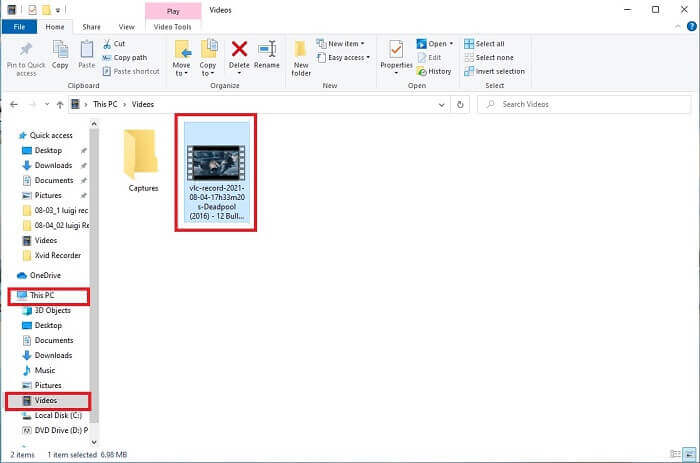
Step 5. When the video is finished, You can check it in your file explorer or manager then click it. Find This PC hit it, next trace the videos, lastly in the video you will see the VLC recorded file is in.
Pros
- Podržava sve vrste audio-video formata, kodeka i drugih šifriranih datoteka.
- To je besplatni alat otvorenog koda na svojoj službenoj stranici.
- Gledajte bilo gdje i bilo kada. Nije potreban internet za reprodukciju videa.
Protiv
- Nema vlastiti popis povijesti nakon završetka snimanja.
- Korisnicima je teško znati je li snimanje već počelo. Nije korišten fps, duljina videozapisa, pohrana i nekoliko drugih značajki koje bi trebao imati snimak zaslona.
Dio 2. Online način za snimanje DVD-a s FVC besplatnim snimačem zaslona
VLC može snimiti što u svom sučelju. Što ako ne želite preuzeti VLC, ali želite snimati bez preuzimanja alata. Samo želim snimiti DVD filmove na internetskoj platformi. Besplatan online alat kojem može pristupiti bilo tko i bilo gdje s internetskom vezom.
Then this online tool - FVC Screen Recorder is for you, no download just launch the tool. Instead of recording DVDs with VLC, this internet-dependent tool makes your life easier for recording with a quality video audio output. No hidden charges included. It is available to all platforms. With the help of the floating toolbar, it became user-friendly and easy to manage.
A sada prijeđimo na korake kako koristiti ovaj alat.
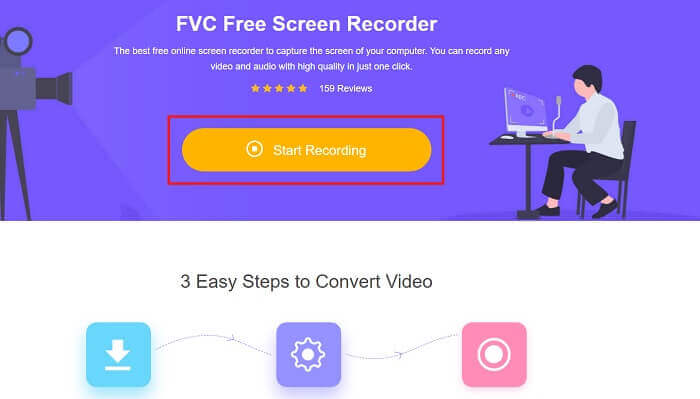
Step 1. Click the link to proceed to the tool. Click the Start Recording to launch the software.
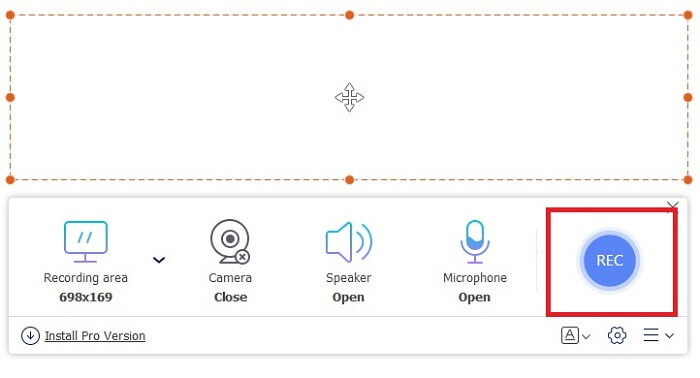
Step 2. A floating toolbar will show up on your screen. Select a region you want to record. Turn on the Speaker for the system sound and click the round button to start recording. Leave the screen recorder for a while to record the video or you may as well watch it.
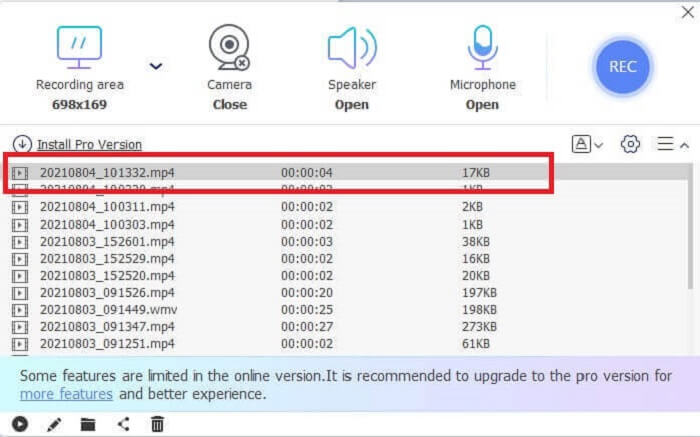
Step 3. Click the square button to stop the recording. History list will show up and click the first file to watch the recorded version with the same video audio quality.
Pros
- Besplatan online alat. Neće se aktivirati nikakvi skriveni troškovi, kao ni prijava.
- Nema dosadnih reklama u programu prije korištenja.
- Snimanje bez ograničenja.
Protiv
- Ovisna o internetu.
- Nema značajki zaključanog zaslona.
Dio 3. Kako snimiti DVD s najboljom VLC alternativom
VLC može snimati, ali što ako trebate snimiti video zapis visoke kvalitete s kristalno čistim zvukom. Također, možete odabrati koji format, kvalitetu i kodek želite da VLC DVD za snimanje ne može pružiti.
Snimač zaslona FVC
Predstavljamo ovaj fenomenalan alat koji pomaže korisniku da proizvede bilo koju vrstu video-audio formata koji drugi alati ne mogu pružiti. Ovaj FVC Screen Recorder obavlja težak posao za snimač zaslona; značajke zaslona za zaključavanje čine razliku s ostalim alatima. Uz pomoć ovog alata možete snimiti svoj DVD sadržaj bilo kada bilo gdje u svijetu bilo da se radi o online ili offline platformi. Također, možete komentirati na zaslonu tijekom snimanja, a ima i poništavanje šuma za jasniji audio izlaz. Da biste istražili više o ovom alatu, ovdje su navedeni koraci za korištenje alata.
Step 1. Click the download button that suits your program. Set it up and launch.
Besplatno preuzimanjeZa Windows 7 ili novijiSigurno preuzimanje
Besplatno preuzimanjeZa MacOS 10.7 ili novijiSigurno preuzimanje
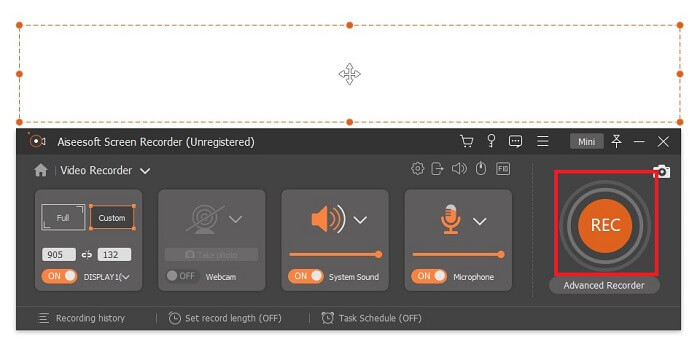
Step 2. In the floating toolbar click the Video Recorder. It transfers you to another floating toolbar. Adjust the frame ratio, activate the System Sound to record the audio in the system. Then, click the round REC button to start the recording.
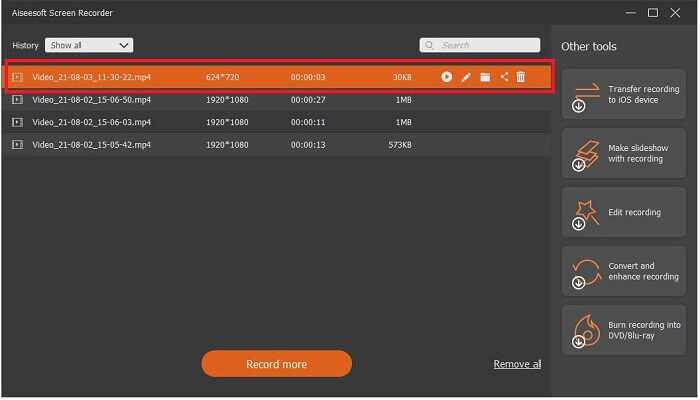
Step 3. After recording, click the square button to stop. The first video in the history list is the latest, click the Play button to watch the recorded version and enjoy.
Pros
- Značajka zaključanog zaslona kako biste izbjegli smetnje prilikom snimanja videa.
- Jednostavan za pristup, jer se može koristiti za online i offline snimanje.
- Podržava sve vrste formata s hardverskim ubrzanjem za brzu obradu medijskog izlaza.
Protiv
- Plaćanje prije korištenja alata.
- Za pristup je potrebno preuzeti.
Dio 4. Često postavljana pitanja o snimanju DVD-a s VLC-om i Zaključak
Koji su podržani formati u VLC Media Playeru?
These are some of the supported formats in VLC Media for video: MPEG (ES,PS,TS,PVA,MP3), AVI, ASF / WMV / WMA, MP4 / MOV / 3GP, OGG / OGM / Annodex, Matroska (MKV), Real, WAV (including DTS), Raw Audio: DTS, AAC, AC3/A52, Raw DV, FLAC, FLV (Flash), MXF, Nut, Standard MIDI / SMF, Creative™ Voice.
For audio: MPEG Layer 1/2, MP3 - MPEG Layer 3, AAC - MPEG-4 part3, Vorbis, AC3 - A/52, E-AC-3, MLP / TrueHD>3, DTS, WMA 1/2, WMA 3, FLAC, ALAC, Speex, Musepack / MPC, ATRAC 3, Wavpack, Mod, TrueAudio, APE, Real Audio, Alaw/µlaw, AMR (3GPP), MIDI, LPCM, ADPCM, QCELP, DV Audio, QDM2/QDMC, MACE. As well as this, it supports different formats such as the listed and many more.
Je li VLC još uvijek besplatni media player?
Da, još uvijek je besplatan jer je zaštićen posuđenom GNU GPL licencom, ali također možete donirati putem PayPal-a bez minimalne donacije.
Je li VLC siguran za preuzimanje?
If you download it to the official site then there is no problem. Also, it is free from malware, viruses, worms, spyware and many more. It is also protected from intended damages to the file. If you are still worried about that, you can try the alternatives to VLC Media Player.
Zaključak
Da sumiramo sve detalje odozgo. Bolje je snimiti video umjesto da ga ripate. Jer ne mogu se svi DVD-ovi kopirati jer su neki zaštićeni autorskim pravima. VLC može napraviti ripiranje, ali će vam trebati puno vremena u procesu. Dakle, da biste umanjili nevolje, morate snimiti video kako biste uživali u gledanju, a kasnije ga možete podijeliti s drugima.
Ali na kraju dana, sigurno još uvijek razmišljate koji je najbolji izbor snimanja zaslona za snimanje DVD izlaza bez oštećenja kvalitete sadržaja medija. Tada je pravi izbor još uvijek u vašim rukama, detalji koji su vam dati daju vam ideju da je FVC Screen Record alat koji morate imati. Ne samo da ovo možete koristiti ne samo za snimanje filmova s DVD-a, već ima i mnoge druge svrhe. To je sve-u-jednom snimač screencasta. Dakle, što čekate umjesto da čekate da se dogodi magija? Zašto ne bacite svoju čaroliju i napravite svoj prvi trik s FVC Screen Recorderom.
-
 Snagit 2021 pregled - prednosti, nedostaci i najbolja alternativa
 Koja je najbolja alternativa Snagitu? Postoji li alat za hvatanje zaslona poput Snagita? Ovaj će post pregledati Snagit i podijeliti najbolju alternativu Snagitu za snimanje zaslona.
-
 Snimanje zaslona QuickTime - snimite videozapis sa zvukom na Macu i računalu
 Zaslon za snimanje sa zvukom na Macu dobro dođe. Ugrađeni uređaj QuickTime Player to može učiniti. Pročitajte njegov post i znajte kako snimiti zaslon sa zvukom na Macu i PC-u.
-
 Snimka zaslona u VLC - Kako napraviti snimku u VLC Media Playeru
 Kako napraviti snimak u VLC Media Playeru? Gdje je spremljena VLC snimka? Samo saznajte više o značajci VLC snimke i najboljoj alternativi iz članka.
