


 Video Converter Ultimate
 Snimač zaslona
 Video popravak
Naučite kako snimati na Minecraftu uz najbolje alate za snimanje zaslona
Svatko tko voli igrati igre na računalu zna za Minecraft. Zbog njegove velike popularnosti već je potaknuo mnoge streamere da streamaju upravo ovu igru. Većina njih ima neki epski trenutak koji ih je proslavio. Poput Dreamovog „boat clutch“ trika – mnogi od nas su ga pokušali bezbroj puta, ali nismo uspjeli. Nakon tolikih pokušaja sada ti je uspio, ali nitko nije bio tu da vidi tvoj clutch. Zato je najbolji način da podijeliš vlastiti Dreamov boat clutch taj da ga snimiš. Ovdje ti predstavljamo različite alate koje možeš koristiti kako bi naučio/la kako snimati u Minecraftu. Nastavi čitati ovaj članak i otkrit ćeš najbolji softver za snimanje koji možeš pronaći na internetu.

Dio 1. Kako snimiti Minecraft pomoću online alata
FVC besplatni snimač zaslona
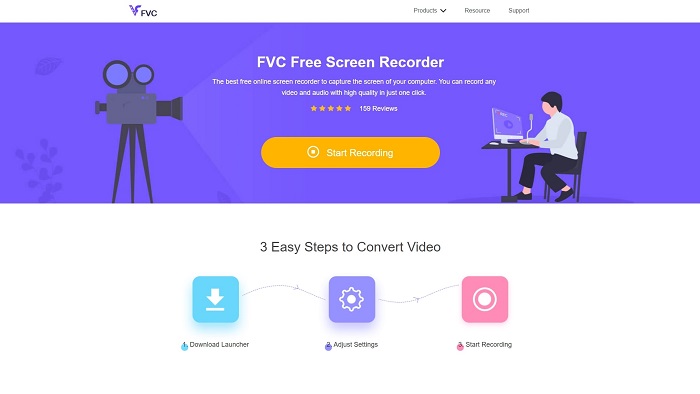
Želiš naučiti kako online snimiti Minecraft video? Onda svakako isprobaj ovaj alat. FVC Screen Recorder nema nikakvih skrivenih troškova. Osim toga, sučelje web alata je bez napornih ili napornih oglasa. Također, ovdje možeš snimati bez vremenskog ograničenja. Iako alat izgleda potpuno spreman za snimanje ekrana, internetska verzija nema poseban način rada za igre. Ipak ga možeš koristiti sve dok imaš internetsku vezu. Da bi naučio/la kako koristiti ovaj alat, obavezno slijedi korake navedene u nastavku.
Korak 1. Za pristup alatu prvo klikni ovu poveznicu.
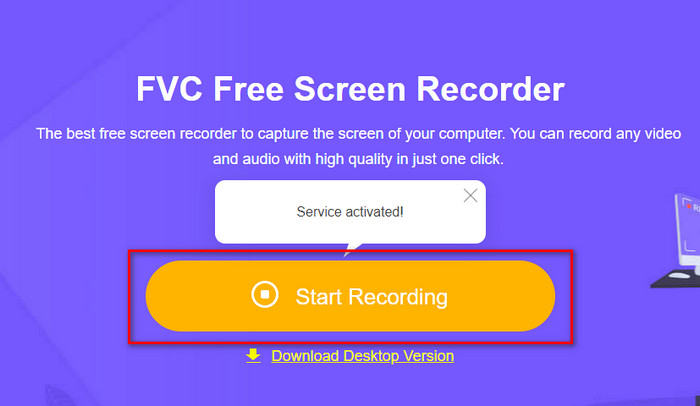
Korak 2. Pritisni Start Recording, zatim preuzmi pokretač ako ga koristiš prvi put i instaliraj ga. Ponovno klikni Start Recording kako bi ovaj put pokrenuo/la alat.
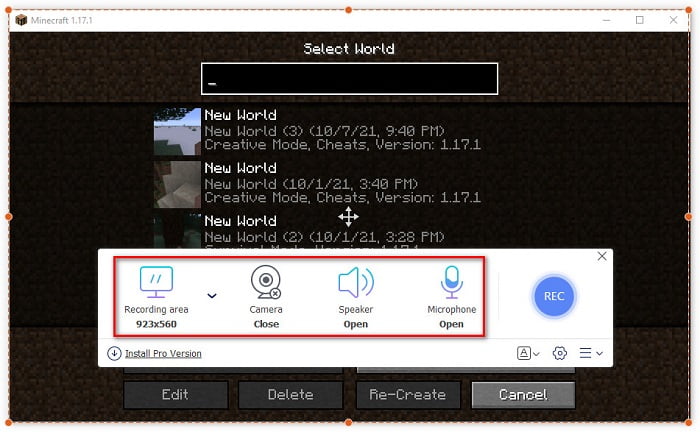
Korak 3. Podesi omjer okvira (frame ratio) svog zaslona, zatim uključi Camera kako bi dodao/la svoju reakciju, Speaker kako bi snimio/la zvuk iz igre i Microphone kako bi dodao/la svoj glas.
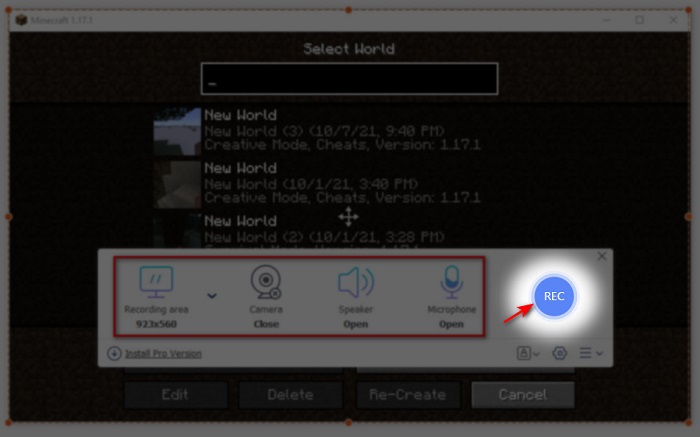
Korak 4. Zatim kliknite gumb REC da biste pokrenuli snimanje.
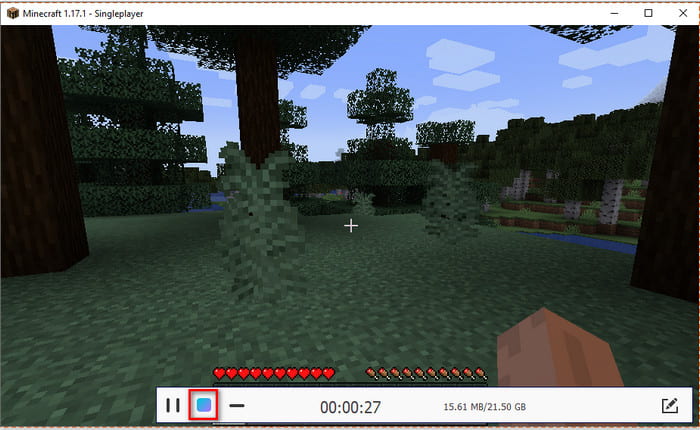
Korak 5. Za završetak snimanja klikni gumb u obliku kvadrata i zatim klikni prvu datoteku na Recording List da bi ponovno pogledao/la clutch prije nego što ga pošalješ ili uploadaš.
Dio 2. Kako snimati Minecraft s 2 najbolja izvanmrežna alata za snimanje
1. FVC Screen Recorder
Želiš uhvatiti svaki trenutak svojih vratolomija u Minecraftu? Onda je FVC Screen Recorder savršen alat za tebe. Ovaj alat je mnogo bolji od svoje online verzije i od OBS‑a kad govorimo o ukupnim performansama i jednostavnosti korištenja. Podržava način rada Game Recorder, kojim možeš snimati igru što brže i glađe. Također možeš koristiti i uređivati tipkovne prečace (hotkeys) kako bi alatom lakše upravljao/la. Možeš snimati bez prestanka, čak i ako traje 24/7. Ako želiš naučiti kako snimati Minecraft na Windows 10 ili Macu, pažljivo slijedi navedene korake.
Korak 1. Preuzmi i instaliraj softver na svoj disk. Zatim brzo odradi početno podešavanje i klikni Finish kako bi spremio/la postavke.
Besplatno preuzimanjeZa Windows 7 ili novijiSigurno preuzimanje
Besplatno preuzimanjeZa MacOS 10.7 ili novijiSigurno preuzimanje
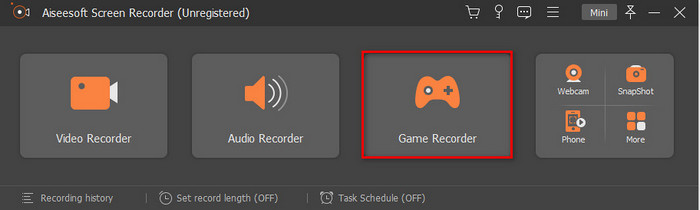
Korak 2. Klikni Game Recorder i dopusti alatu da se pokrene kao administrator, zatim pritisni OK. Ponovno klikni Game Recorder za nastavak.
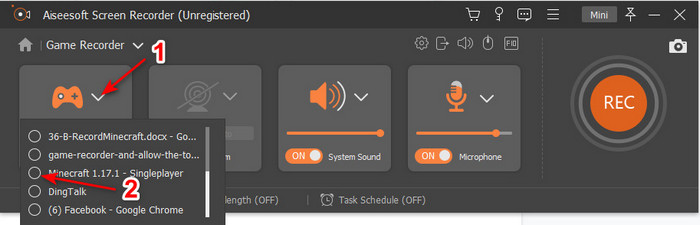
Korak 3. Najprije pokreni Minecraft i pričekaj da se potpuno učita. Pritisni Select Game i odaberi Minecraft.
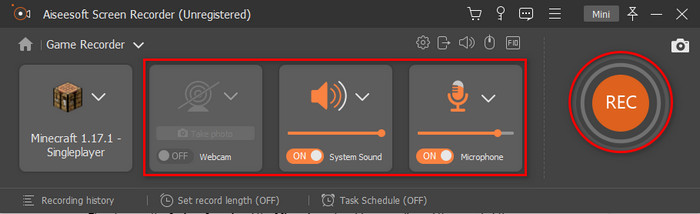
Korak 4. Prije nego što počneš sa snimanjem, uključi Webcam kako bi zabilježio/la svoju reakciju tijekom snimanja. Zatim uključi System Sound i Microphone kako bi dodao/la svoj glas i zvuk igre. Klikni gumb REC da bi pokrenuo/la snimanje i igra će se automatski prikazati na ekranu. Sada možeš odraditi sve epske poteze koje želiš zabilježiti.
Korak 5. Ako želiš završiti snimanje, klikni gumb u obliku kocke za zaustavljanje. Klikni Save i Next kako bi nastavio/la sa spremanjem videa. Na zaslonu će se prikazati History; klikni prvu datoteku kako bi ponovno pogledao/la epske poteze koje si izveo/la i kasnije ih podijelio/la.
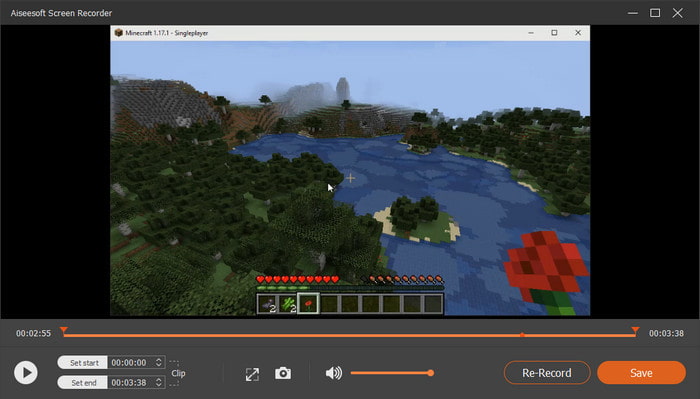
2. OBS
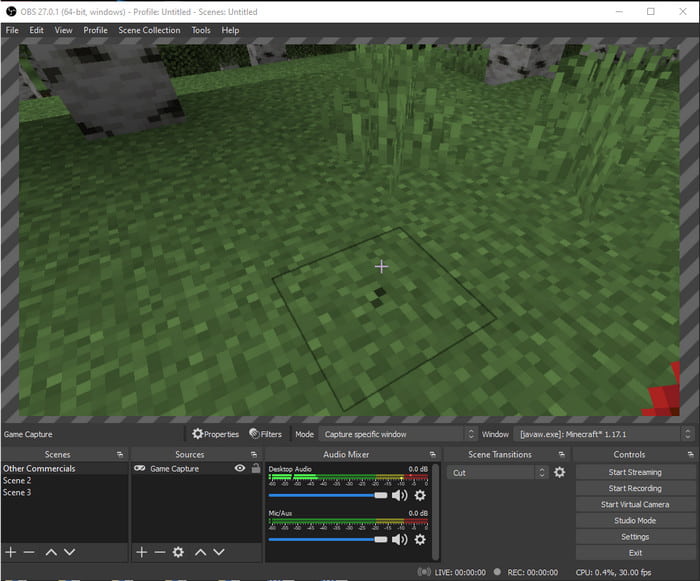
OBS je poznat po tome što je jedan od složenijih alata koje korisnici upotrebljavaju. Ipak, uvijek pruža odličnu kvalitetu, iako ga je teže koristiti. Ako želiš naučiti kako snimati Minecraft pomoću OBS‑a, pobrini se da imaš dovoljno slobodnog vremena. Ovaj alat je mnogo kompliciraniji nego što izgleda, pa ako nemaš pojma odakle početi, slijedi korake u nastavku.
Korak 1. Najprije preuzmi OBS na svoj disk.
Korak 2. Zatim najprije otvori Minecraft, pa uđi u panel Source i klikni Game Capture. Promijeni način rada na Capture Specific Window, zatim klikni drop‑down izbornik prozora i odaberi naziv prozora Minecrafta. Potom klikni OK za nastavak.
Korak 3. Klikni Start Recording kako bi započeo/započela snimanje. Za završetak klikni Stop Recording i snimka zaslona će se automatski spremiti na tvoj disk.
Dio 3. Često postavljana pitanja o snimanju Minecrafta
Koje su trenutno popularne igre na PC-u?
Postoji mnogo popularnih igara na PC-u, ali ovo su prvih 5 igara koje su uvijek na vrhu svake recenzije. Prvi je Minecraft koji je Mojang objavio 2011., sljedeći na popisu je League of Legend ili poznat kao LOL kreiran od strane Riot Games 2009., Counter Strike Global koji je razvio Valve Corporation 2012., Grand Theft Auto Five izdao Rockstar Games i razvio ga je Rockstar North 2013., i na kraju je Valorant koji je stvorio Riot Games 2020. godine.
Je li Bandicam najbolji alat za snimanje?
Mnogi ljudi imaju različito mišljenje o Bandicamu, ali pogledajmo zajedno je li ovaj alat vrijedan prilike. Ako želiš saznati više o Bandicamu klikni ovu poveznicu kako bi otvorio/la novi tekst posvećen Bandicamu.
Kako prenijeti veliku datoteku video na YouTube?
Kako je YouTube poznat kao vodeća platforma za dijeljenje videa, mnogi korisnici pokušavaju učitavati svoje snimke. No kad uploadamo video velike veličine, to može potrajati jako dugo. Najbolji način da video jednostavno objaviš jest da ga komprimiraš bez gubitka kvalitete. Saznaj kako komprimirati video datoteku i lako je objaviti na YouTubeu.
Zaključak
Za kraj ove rasprave, sada ti je puno jednostavnije razumjeti kako snimati Minecraft na računalu. Možda si već odabrao/la svoj snimač ekrana, ali dodat ćemo još ovo: FVC Screen Recorder je pravi izbor. Ovaj alat možeš vrlo lako koristiti čak i ako si početnik. Učenje rada s ovim nenadmašnim snimačem ekrana nije nimalo teško. Zato, prije nego što kreneš snimati svoj Dreamov boat clutch, pobrini se da si već preuzeo/la i instalirao/la ovaj softver.
Besplatno preuzimanjeZa Windows 7 ili novijiSigurno preuzimanje
Besplatno preuzimanjeZa MacOS 10.7 ili novijiSigurno preuzimanje
-
 Najbolji XviD snimač zaslona za početnike u 2021. [online i offline]
 XviD je poznat po kompresiji video datoteka. To je softver otvorenog koda koji izvodi ISO MPEG-4 format. Nastavite čitati i uđite u detalje.
-
 [Go-To-Guide] Snimite Blu-ray na OBS Studio i alternativnim alatima
 Saznajte kako snimiti Blu-ray na OBS studiju i druge zamjene uz ove korisne jednostavne korake i savjete. Nastavite čitati i uronimo u detalje.
-
 Proces kopiranja i snimanja DVD -a s VLC -om za digitalizaciju formata za reprodukciju
 VLC podržava brojne formate datoteka komprimiranih audio-video zapisima, uključujući snimanje na DVD-ima. Samo držite loptu za više rasprava i detalja do kraja.
