


 Video Converter Ultimate
 Snimač zaslona
 Video popravak
Snimač web pokretanja - 4 besplatna načina za bilježenje aktivnosti na ekranu bez preuzimanja
Postoji li jednostavan način za snimanje videozapisa, kao što su popularni videozapisi igara, zapisnici videopoziva, konferencijski videozapisi, i spremanje ih kao svoju kolekciju? Besplatni snimači pokretanja weba uvijek su početni izbor za snimanje videozapisa na zaslonu, koji su usluge temeljene na webu za snimanje aktivnosti na zaslonu. Samo saznajte više o izvrsnim snimačima pokretanja weba za pokretanje značajke snimanja zaslona na mreži.

1. dio: Top 4 besplatna internetska snimača za pokretanje weba
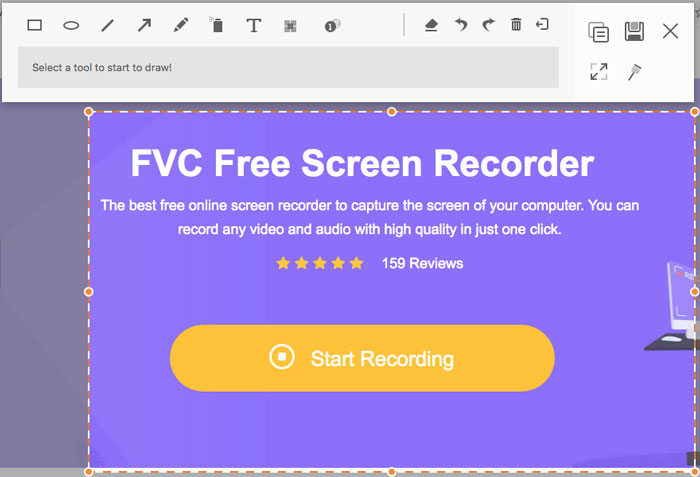
Vrh 1: FVC besplatni snimač zaslona
FVC Free Screen Recorder je besplatan web snimač dostupan u bilo kojem internetskom pregledniku. Omogućuje vam snimanje bilo kojeg videozapisa i zvuka bez dodavanja vodenih žigova. Možete prilagoditi područje snimanja, primjerice cijeli zaslon ili samo dio zaslona za snimanje videa. Osim toga, izvozi snimke u različite formate datoteka, kao što su MP4 i WMV.
1. Besplatni internetski snimač zaslona bez registracije ili drugih ograničenja.
2. Dodajte linije i tekst u stvarnom vremenu da biste označili snimku zaslona.
3. Stavite zvuk web kamere i mikrofona u svoj screencast.
4. Pregledajte sve prethodne datoteke snimanja sa popisa povijesti snimanja.
Vrh 2: Screencast-O-Matic
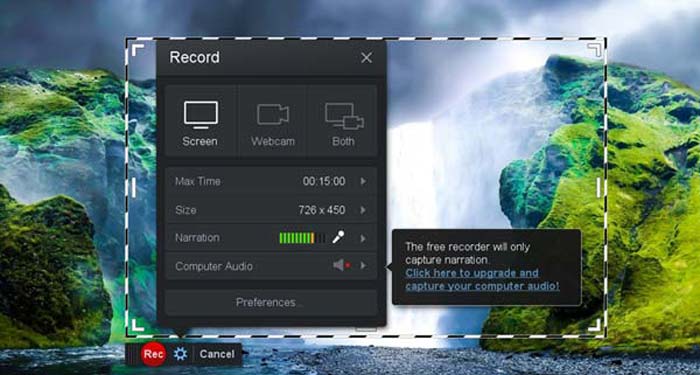
Screencast-O-Matic je web‑bazirani snimač zaslona koji jednostavno snima bilo koje područje vašeg zaslona. Omogućuje vam izravno učitavanje videozapisa na platformu za video‑hosting. Štoviše, možete koristiti alate za skripte, automatsko titlovanje i mnoge druge funkcije.
Pros
- 1. Prilagodite područje snimanja, kao što je cijeli zaslon ili njegov dio.
- 2. Snimke prenesite na Screencast-O-Matic, Google Drive itd.
- 3. Jednostavnije dodajte audio pripovijedanje, zalihu glazbe i natpisa.
Protiv
- 1. Kvaliteta snimke nije dovoljno dobra.
- 2. Ovaj mrežni snimač zaslona ima vremensko ograničenje.
Vrh 3: Clipchamp
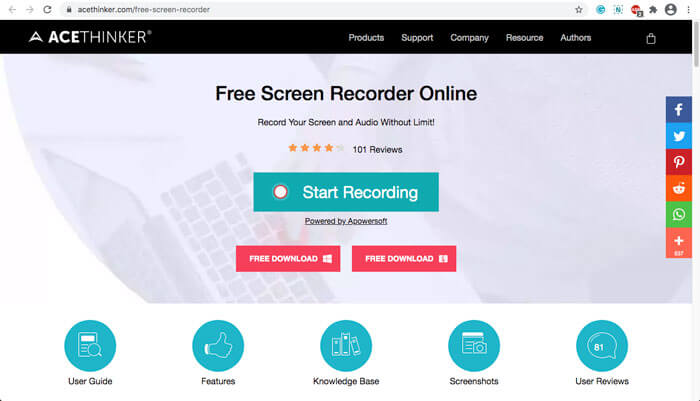
Clipchamp je vrlo praktičan besplatni internetski web snimač. Možete ga koristiti za snimanje i prijenos videozapisa te možete komprimirati video bez gubitka izvorne kvalitete. Također je opremljen brojnim funkcijama, poput vanjskog mikrofona, različitih razlučivosti itd.
Pros
- 1. Snimite cijeli zaslon, unaprijed postavljeno područje za snimanje ili prilagođeno.
- 2. Omogućuju vam pretvaranje snimljenih videozapisa u druge popularne video formate.
- 3. Može snimati video zapis s naracijom i glasom iz mikrofona.
Protiv
- 1. Morate nadograditi na verziju Pro kako biste imali pune funkcije.
- 2. Ne možete izravno uređivati snimku u internetskoj biblioteci medija.
Dio 2: Kako snimiti zaslon pomoću Web Launch Recorder-a
Kada je riječ o tome kako snimati videozapise zaslona pomoću web snimača, uzmimo kao primjer FVC Free Screen Recorder. U nastavku saznajte više o detaljnom postupku.
Korak 1: Kada trebate besplatno snimiti zaslon, otvorite web snimač i kliknite gumb Start Recording na početnoj stranici. Time ćete preuzeti pokretač za web snimač. Instalirajte program i pokrenite ga na svom računalu.
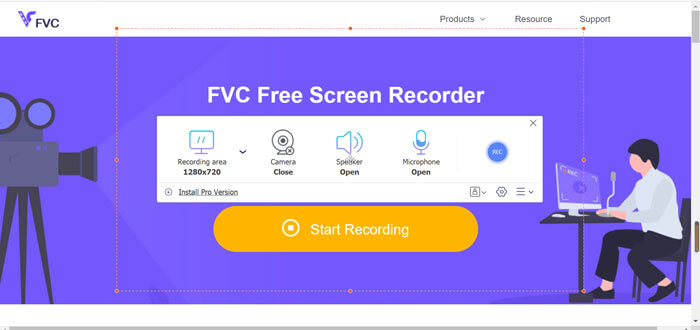
Korak 2: Nakon pokretanja aplikacije vidjet ćete postavke snimanja. Ovdje možete kliknuti opciju Recording area kako biste odabrali snimanje cijelog zaslona ili dijela zaslona, ili uključiti izbornik Speaker za snimanje audio datoteka. Za snimanje videa s naracijom samo uključite opciju Webcam.
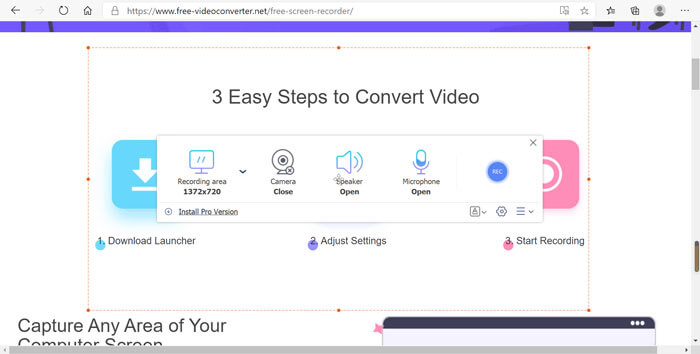
Korak 3: Ako trebate promijeniti dodatne postavke datoteke, pronađite ikonu Gear u donjem desnom kutu web snimača kako biste prilagodili opcije. U skočnom prozoru s postavkama možete promijeniti mjesto pohrane snimljene datoteke i format izlazne datoteke.
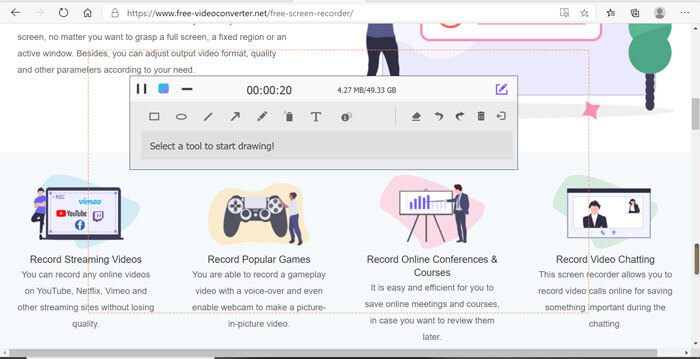
Korak 4: Zatim kliknite gumb REC da biste započeli snimanje. Kada završite sa snimanjem, kliknite gumb Stop kako biste završili cijeli postupak. Kliknite ikonu s tri crte na dnu web snimača da biste otvorili i upravljali popisom snimljenih videozapisa.
Dio 3: Česta pitanja o Snimaču za pokretanje weba
1. Kako mogu snimiti zaslon s web kamerom?
Kada je web snimač aktiviran, na sučelju možete pronaći i uključiti funkciju web‑kamere, zatim prilagoditi veličinu prozora web‑kamere, vratiti se na glavno sučelje i kliknuti ikonu REC, kako biste mogli početi snimati snimku putem ugrađene web‑kamere.
2. Zašto moje snimanje zaslona nema zvuka?
Na glavnom sučelju programa nalaze se mogućnosti za zvuk sustava i mikrofon. Možda ćete ih zaboraviti uključiti prije snimanja. Prije snimanja provjerite je li ova opcija omogućena kako biste mogli snimati video sa zvukom.
3. Kako prenijeti moje videozapise na YouTube?
Pokrenite besplatni snimač pokretanja weba, pronađite i kliknite ikonu s tri retka u donjem desnom kutu sučelja. Zatim na skočnom popisu snimanja pronađite video koji želite prenijeti i kliknite ikonu za dijeljenje u nastavku. Konačno, odaberite video s medijske platforme, a snimljeni video možete jednostavno podijeliti na bilo koju platformu.
Zaključak
Sažeto, ovaj članak predstavlja 4 najpopularnija besplatna mrežna snimača za pokretanje weba na tržištu i detaljno predstavlja metodu video snimanja FVC Free Screen Recorder, jedne od najboljih mrežnih aplikacija. Može vam pomoći da besplatno snimate video i audio bez oštećenja kvalitete.
-
 6 najboljih WAV snimača koje ne biste trebali propustiti na radnoj površini i na mreži
 Najbolji softver za snimanje WAV-a koji dijelimo u ovom članku ima niz korisnih značajki koje vam pomažu u hvatanju zvuka i glasa poput profesionalaca.
-
 Snimanje zaslona QuickTime - snimite videozapis sa zvukom na Macu i računalu
 Zaslon za snimanje sa zvukom na Macu dobro dođe. Ugrađeni uređaj QuickTime Player to može učiniti. Pročitajte njegov post i znajte kako snimiti zaslon sa zvukom na Macu i PC-u.
-
 DU Recorder Review 2021: Sigurnost i cijene i funkcije i upotreba i ocjene
 DU Recorder je snimač zaslona i zvuka za iPhone i Android. Je li vrijedno preuzimanja? Da li je sigurno? Pročitajte cjeloviti pregled da biste vidjeli je li aplikacija prikladna za vas.
