


 Video Converter Ultimate
 Snimač zaslona
 Video popravak
5 najboljih WebM snimača za snimanje WebM videa u visokoj kvaliteti
Datotečni nastavak WEBM obično koriste web-preglednici. Većinom su to moderni preglednici poput Google Chromea, Opere, Firefoxa, Safarija i Edgea. Uobičajeno je da su to HTML5 web-stranice koje podržavaju video prijenos uživo. Dobar primjer su YouTube, Twitch i druge medijske platforme. Ovaj format podržava video rezolucije od 360p do najviše dostupne. Ako ga usporedimo s drugim formatima, riječ je o komprimiranom formatu sličnom MKV, MOV i MP4. Razlika je u sadržaju datoteke unutar formata. I Windows i Mac mogu reproducirati ovu vrstu datoteke, pod uvjetom da player ima odgovarajuće kodeke i dodatke. U međuvremenu, ako tražite bolji način snimanja ili dobivanja WebM datoteka, pogledajte popis najboljih WebM snimača u nastavku.

Dio 1. Najbolji WebM snimač: FVC Screen Recorder
Nabavite najlakši način za snimanje snimaka, snimanje zaslona i snimanje WebM video datoteka u tri jednostavna koraka uz FVC Screen Recorder. Ovaj .webm snimač zaslona za Windows i Mac može snimati WebM web-mjesta kao što su YouTube, Skype pozivi i live streaming, a druga web-mjesta podržavaju WebM format. Snimite svoj prijenos igre uživo bez ugrožavanja kvalitete videa. Plus mogućnost snimanja videa, zvuka i mikrofona. Zajamčeno nema pozadinske buke jer snima zvukove sustava. Dakle, doživite besprijekorno snimanje i izvrsne značajke uređivanja za svoj video vodič uz FVC Screen Recording. S druge strane, evo kako koristite alat.
Korak 1. Preuzmite FVC Screen Recorder pomoću gumba za preuzimanje u nastavku.
Besplatno preuzimanjeZa Windows 7 ili novijiSigurno preuzimanje
Besplatno preuzimanjeZa MacOS 10.7 ili novijiSigurno preuzimanje
Korak 2. Instalirajte i pokrenite aplikaciju nakon što slijedite čarobnjaka za postavljanje.
Korak 3. Kada se pojavi plutajuća traka, kliknite Video Recorder.
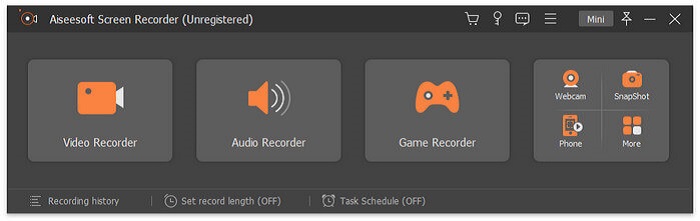
Tada će se pojaviti novi prozor. Ovaj put kliknite Custom ili Full Screen. Ako odaberete Custom, prilagodite veličinu okvira na željenu veličinu.
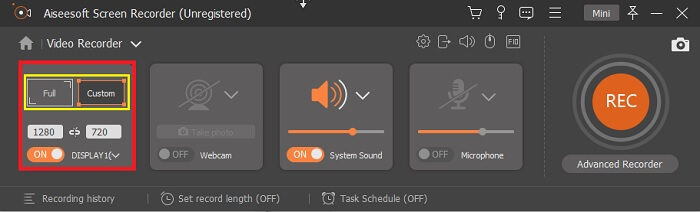
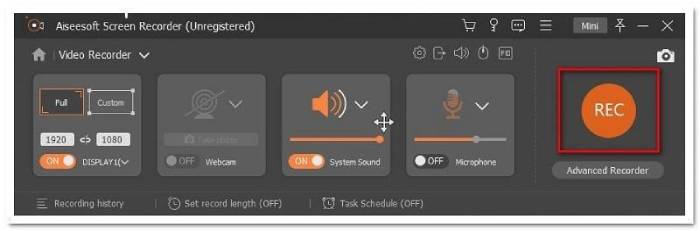
Korak 4. Za početak snimanja kliknite gumb REC i jednostavno radite uobičajene stvari koje inače radite.
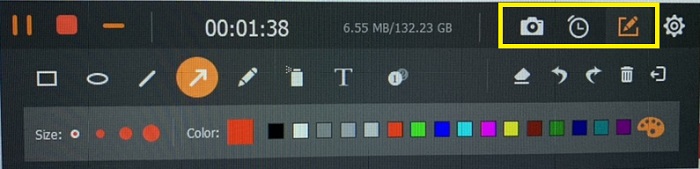
Zatim snimku možete komentirati, dodati strelice i tekst.
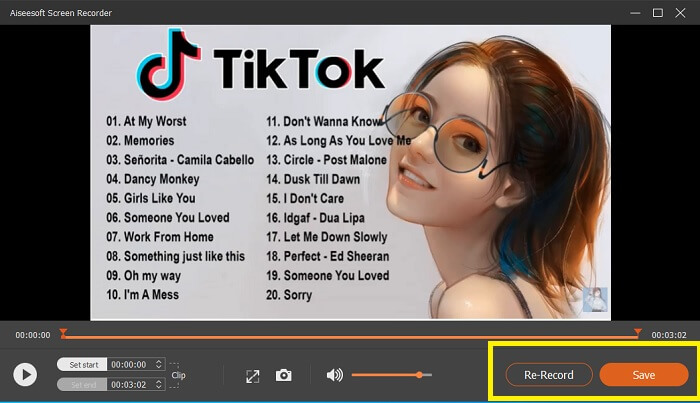
Korak 5. Zatim kliknite crveni kvadratni gumb da biste zaustavili snimanje. Novi prozor će se tada prikazati i omogućiti vam da odaberete između spremanja i ponovnog snimanja. Da biste provjerili snimku, pogledajte popis u donjem dijelu plutajuće trake.
Dio 2. Ostali popularni WEBM snimači za vaše računalo
1. FVC besplatni snimač zaslona
Posebna značajka: Bez zlonamjernog softvera. 100% siguran
Ako vas prvi alat nije zadovoljio, možda tražite praktičnije rješenje. FVC Free Screen Recorder je alat na koji se možete osloniti ako želite maksimalno iskoristiti odlične značajke bez trošenja novca. Iako je poznato da besplatni alati proizvode nižu kvalitetu u usporedbi s premium alatima, ovaj je postavio ljestvicu nešto više. Može proizvesti videozapise visoke kvalitete i pružiti kristalno čist zvuk unatoč tome što je besplatan. Osim toga, jednostavan je za korištenje. Slijedite korake u nastavku da biste saznali više.
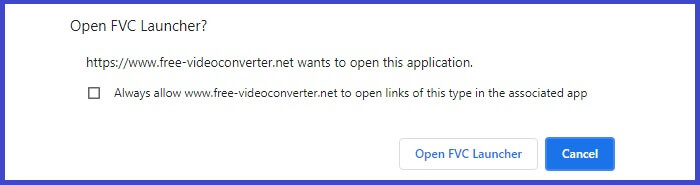
Korak 1. Pokrenite aplikaciju na svom računalu putem web-preglednika. Nije važno koji preglednik koristite, ovaj je alat dovoljno fleksibilan da mu možete pristupiti s bilo kojeg mjesta. Kliknite poveznicu kako biste odmah došli na službenu web-stranicu.
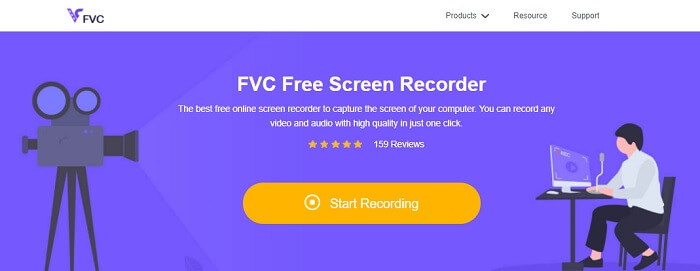
Korak 2. Pokrenite alat klikom na gumb Start Recording.
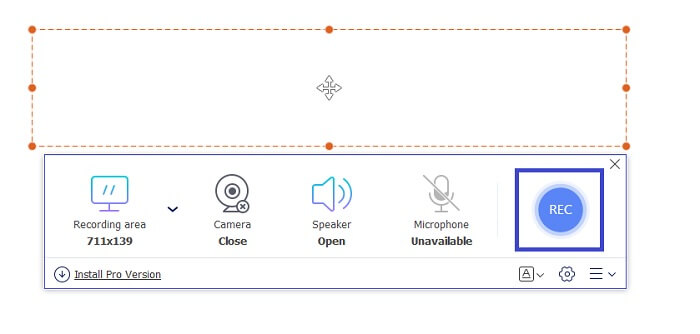
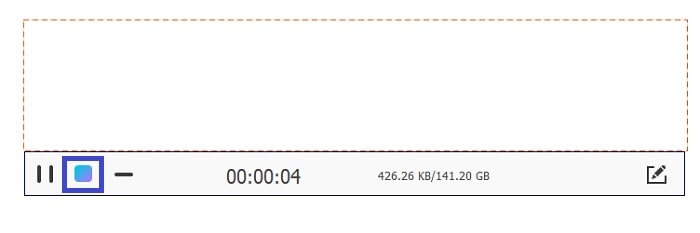
Korak 3. Nakon pokretanja alata, vidjet ćete plutajuću traku. Prilagodite okvir kako biste promijenili omjer stranica, a zatim započnite snimanje klikom na gumb REC.
Korak 4. U međuvremenu, za zaustavljanje snimanja kliknite kvadratni gumb prikazan na slici ispod.
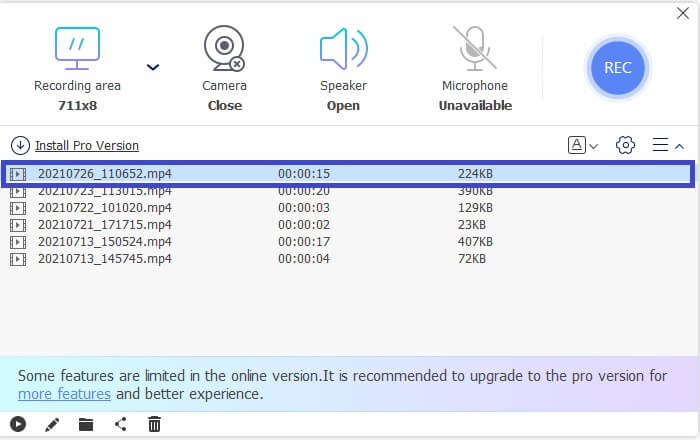
Korak 5. Da biste vidjeli datoteku koju ste snimili, pogledajte popis ispod plutajuće alatne trake.
Pros
- 100% siguran od zlonamjernog softvera.
- Fleksibilan je u podešavanju omjera slike, brzine prijenosa i brzine kadrova.
- Podržana slika u slici.
Protiv
- Ne podržava hardversko ubrzanje.
2. Tiny Take
Posebna značajka: Podržana je suradnja ili udaljeni rad.
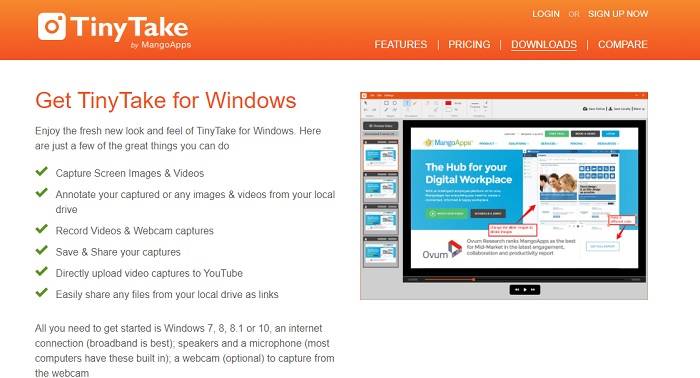
TinyTake je besplatni alat za snimanje videa i zaslona koji je razvio Mango Apps. Tiny Take nudi izvrsna rješenja za jednostavno snimanje zaslona ili snimanje profesionalnih ili osobnih sastanaka. Ono što je ovaj alat učinilo popularnim je značajka suradnje u kojoj možete raditi na daljinu, masovno dijeliti datoteke, koristiti značajke bilješki i dugotrajnu pohranu te galeriju (online).
Pros
- Može snimati slike i videozapise s vašeg lokalnog pogona.
- Podijelite ga izravno na YouTubeu.
- Zabilježite tijekom snimanja.
Protiv
- Nema značajku zaključavanja prozora.
3. Screencast-O-Matic
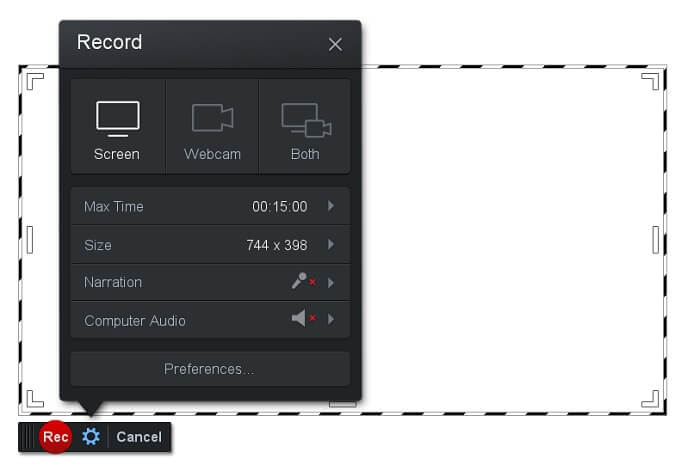
Posebna značajka: Alat ima sučelje koje je jednostavno za korištenje i navigaciju. Vrlo jednostavno.
Screencast-O-Matic jedan je od najčešće korištenih softvera. Omogućuje besplatno snimanje zaslona računala nakon registracije. Preporučuje se izraditi račun kako biste koristili besplatni alat. Osim toga, razvijatelj je uključio značajku kojom možete urediti svoj video izravno prije izvoza. Možete se osloniti na ugrađenu biblioteku stock materijala u alatu kako biste dobili inspiraciju i nastavili poboljšavati svoje videozapise. Također možete izrađivati snimke zaslona i dijeliti sav sadržaj na svojim računima društvenih mreža.
Pros
- Ima značajku Cloud Hosting.
- Prenesite video za uređivanje.
- Sadržaj domaćina.
Protiv
- Potrebna registracija.
4. Screencastify
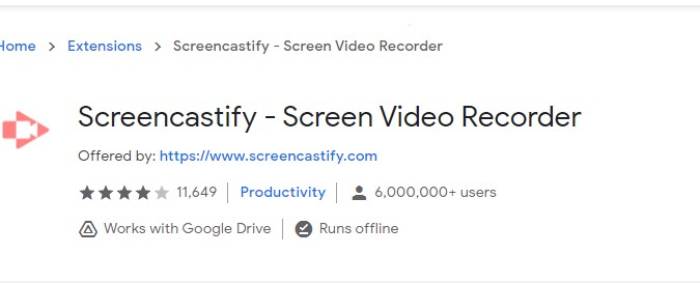
Posebna značajka: Proširenje za web-preglednik
Dajte malo raznolikosti popisu. Screencastify je alat ovisan o webu, posebno proširenje preglednika Chrome. To uglavnom koriste nastavnici i studenti. Uglavnom zbog jednostavnosti alata i mogućnosti bilješke koja drži nastavnika i učenika usredotočenu na satu. Većina ljudi koji studiraju putem Udemyja i takvih stranica za učenje koristi ovaj snimač zaslona. Ako radite isto, možete razmisliti o korištenju. U međuvremenu, ovdje su detaljnije informacije o alatu.
Pros
- Kompatibilan sa svim medijskim platformama.
- Sadržaj domaćina.
- Prenesite video za uređivanje.
Protiv
- Iako je to jednostavan pristup jer ovisi o pregledniku, može biti i štetno.
- Za korištenje je potrebno puno dozvola.
Dio 3. Često postavljana pitanja o WebM Recorderu
Zašto se moja WebM datoteka ne otvara?
Razumijem zabunu, možda mislite da koristite moderan preglednik, a ipak ne reproducira datoteku. Jeste li provjerili koristite li najnoviju verziju preglednika? Ako ne, ažurirajte ga. To je jedan od najčešćih razloga zašto se video ne može reproducirati. No imajte na umu da su ovo neke od verzija koje podržavaju WebM datoteke: Chrome 6, Firefox 4 i Internet Explorer 9 i noviji. Ili možete pokušati koristiti WebM playere kako biste ih otvorili.
Zašto ne mogu reproducirati WebM video na svom Macu?
Toplo bih preporučio preuzimanje VLC playera ili dodatka VLC za Mac OS X. Mora imati 64-bitni Intelov procesor.
Dio 4. Usporedni grafikon
| Značajka | FVC snimač zaslona (premium) | Besplatno FVC Screen Recorder | TinyTake | ScreenCast-O-matic | ScreenCastify |
| Audio i video snimanje |  | | | | |
| Značajka uređivanja videa | | |  | | |
| Značajka zaključavanja prozora | | | | | |
| Značajka za označavanje | | | | | |
| WebM podržan | | | | | |
| Sigurno od zlonamjernog softvera | | | | | |
| Podesiva brzina prijenosa i omjer slike | | | | | |
Zaključak
Svi WebM alati za snimanje pregledani u ovom članku pouzdani su i učinkoviti. Morate samo vidjeti koji će alat odgovarati zahtjevima vašeg računala i vašeg operativnog sustava. Većina ljudi će ići na sigurno tlo koristeći web-aplikaciju. Ali još uvijek je vaš poziv da odlučite.
-
 Nepristrani Cinch Review Audio Recorder i najbolja alternativa
 Cinch Audio Recorder najbolji je način za preuzimanje glazbe s web lokacija za streaming. Samo saznajte više o nepristranom pregledu i najboljoj alternativi iz članka.
-
 Top 5 najboljih snimača miša i tipkovnice za Windows i Mac
 Evo pet najboljih programa za snimanje miša i tipkovnice koji mogu spremiti pokrete miša i klikove na tipkovnici i ponoviti događaje.
-
 4 najbolja besplatna AVI snimača zaslona za snimanje zaslona kao AVI datoteka
 Za snimanje zaslona u visokokvalitetne AVI datoteke, članak identificira i dijeli 4 najbolja besplatna AVI snimača zaslona u ovom postu. Saznajte više pojedinosti kako biste u skladu s tim pronašli željenu.
