


 Video Converter Ultimate
 Snimač zaslona
 Video popravak
Kako napraviti snimku zaslona na Facebooku: 6 praktičnih načina da to učinite
As an avid user of social media platforms like Facebook, I know that sharing information has become an integral part of the overall social media experience. As always, when looking for something interesting, you need to be able to share news from your mutual friends, and the best way to do it is by taking a Facebook screenshot. Regardless of the context of the screenshot, doing it is very easy. Through this guide, we will delve into different ways to take a screenshot on Facebook using different devices, varying from mobile to desktop devices. In the process of knowing how to do it, we also included the use of a reliable third-party software tool that can do all screenshot-type regardless of the device you are using. To find more information on the software tool, read this article until the end and take Facebook screenshots like a pro.

Dio 1. Metode snimanja zaslona Facebooka na različitim uređajima
Prije nego što se upustite u metode snimanja zaslona Facebook postova, morate prvo odlučiti ili znati koji ćete uređaj koristiti. Za ovaj smo odlučili odvojiti svaki uređaj i imati njihov vodič korak po korak počevši od Windowsa, Maca, iPada/iPhonea, Samsung Galaxyja i Androida. Različiti uređaji mogu imati male razlike u pogledu snimanja zaslona, što više za korištenje na platformi društvenih medija kao što je Facebook.
Windows
Za Windows postoji više načina za snimanje zaslona na Facebooku, bez obzira na to koristi li korisnik Windows 7 ili noviji. Prateći korake u nastavku osigurat ćete učinkovito snimanje zaslona na najjednostavniji način. Štoviše, koraci u nastavku koriste značajku alata za izrezivanje sustava Windows za snimanje Facebook zaslona.
Step 1. From your Windows Start Menu, search and open the Snipping Tool software.
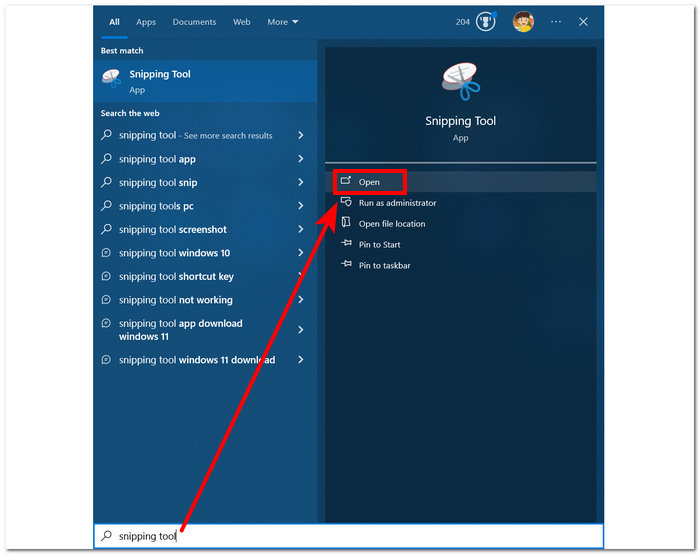
Softver alata za rezanje već je unaprijed instaliran u vašem sustavu Windows.
Step 2. Once the Snipping Tool software is open, proceed to click on the Mode drop-down button to access the snipping features. For this case, you can select the Rectangular Snip.
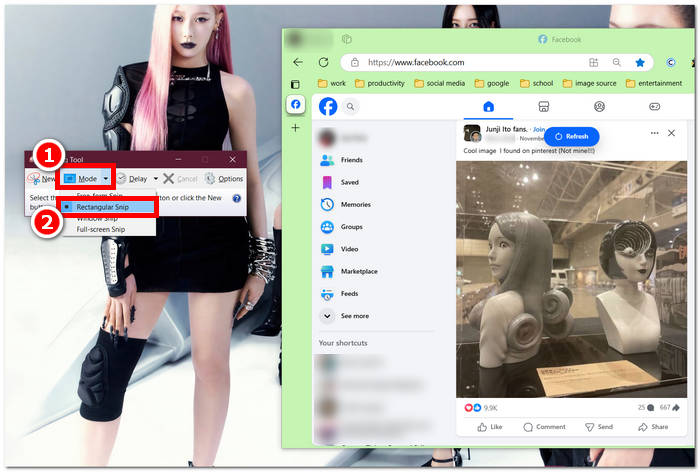
Ako na svojoj snimci želite područje prilagođenog oblika, odaberite Free-form Snip. Ako želite pravokutno područje snimke zaslona, odaberite Rectangular Snip. Ako želite snimiti snimku zaslona određenog prozora ili kartice, odaberite Isječak prozora. Da biste snimili snimku cijelog zaslona sustava Windows, odaberite Isječak cijelog zaslona.
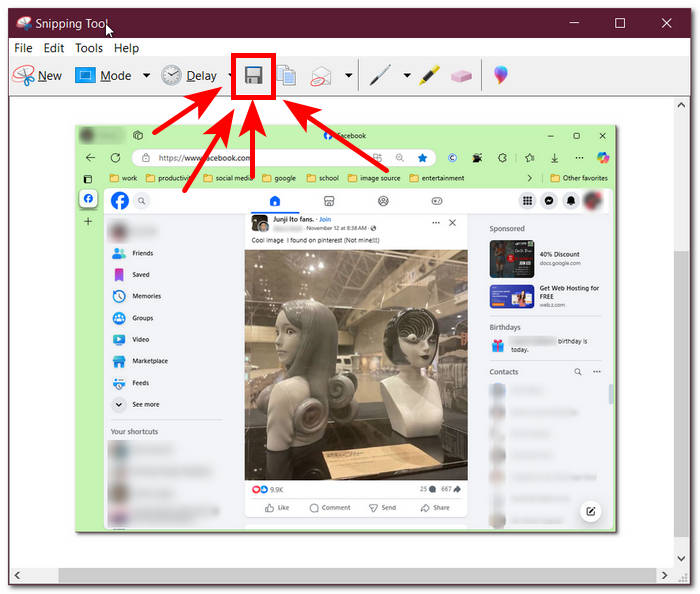
Step 3. Once you click on the Rectangular Snip, you can select the area on your Facebook web that you want to include in your screenshot. Once you've done this, a Snipping Tool window will appear containing your selected screenshot. Within that, you can customize your screenshot by adding text, highlights, annotating words, and more.
Step 4. To finish the process, click the Save button in the upper part of the Snipping Tool window.
Mac
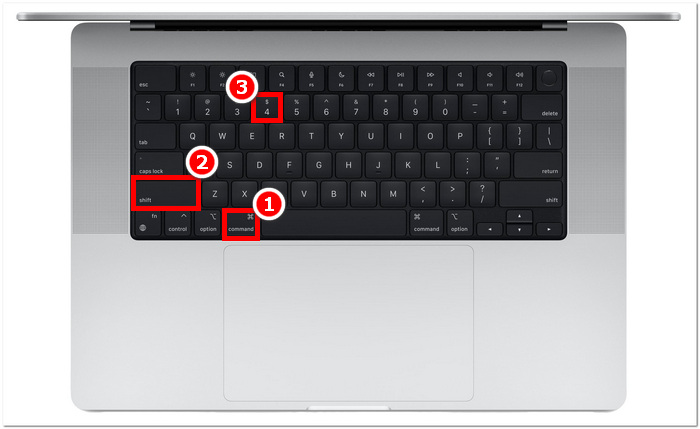
Snimanje zaslona Facebook sadržaja može se razlikovati za Mac uređaje od načina na koji to rade korisnici sa sustavom Windows. Međutim, za ovaj ćemo samo reći korisnicima da slijede osnovne tipkovne naredbe prečaca na Mac tipkovnici.
Step 1. Using your Mac devices, open your Safari web browser and proceed to the Facebook website.
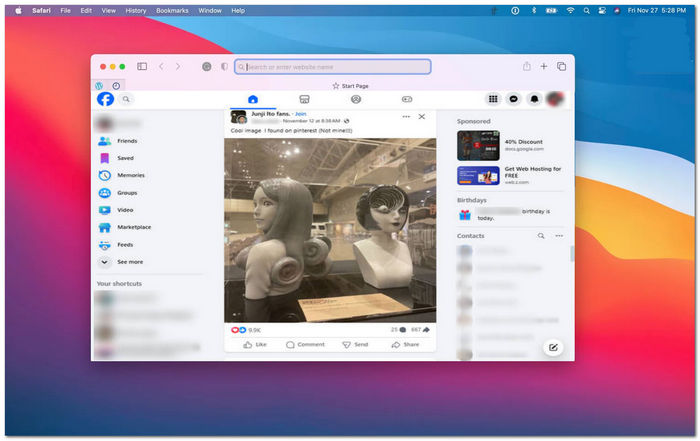
Step 2. On your Mac keyboard, to screenshot your Facebook webpage, hold down the following command + shift + 4.
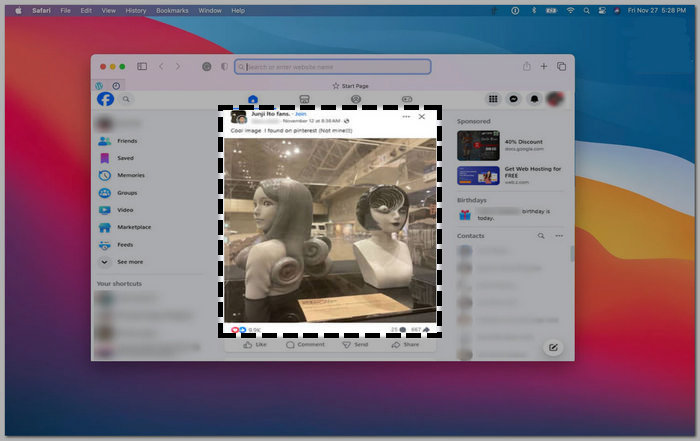
Step 3. Using your cursor, click, hold, and drag onto the area you want to capture.
Step 4. Release the cursor to instantly screenshot the Facebook consent using your Mac’s Safari web browser.
iPad/iPhone
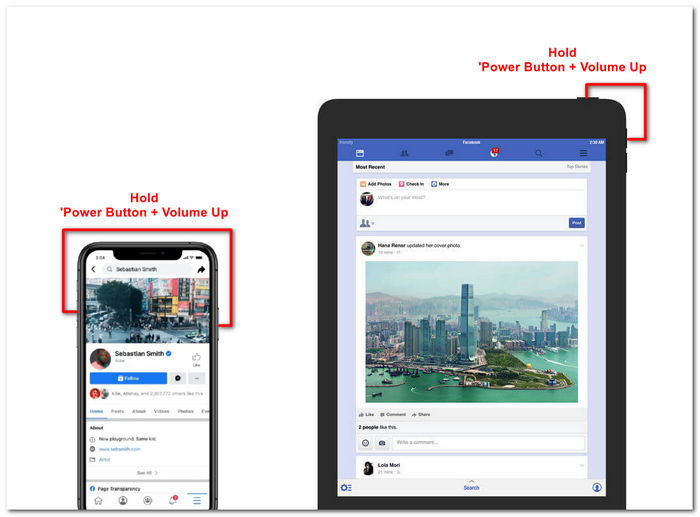
Snimanje zaslona jednostavno je na ručnom uređaju kao što je iPad ili iPhone jer oba uređaja koriste samo kombiniranu tipku za uključivanje i pojačavanje zvuka. Bez obzira koristite li iPad ili iPhone, možete slijediti korake u nastavku.
Step 1. Open your iPhone or iPad’s Facebook App and browse through your feed to find a post or perhaps a screenshot of Facebook story content.
Step 2. Once you are all set, take a screenshot of Facebook content; hold your device's Power Button + Volume Up button to capture it and have it saved in your Photos App.
Samsung Galaxy
Ako koristite Samsung Galaxy uređaj i ne znate kako napraviti snimku zaslona unutar svoje Facebook aplikacije. Tada će vam pomoći dolje navedeni koraci.
Step 1. Through your Samsung Galaxy device, open your Facebook App and look for content within the platform you want to save as a screenshot to your device.
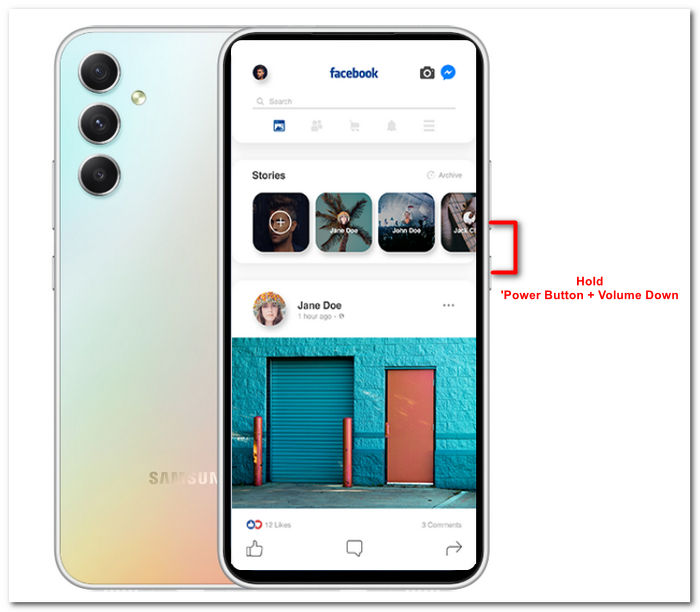
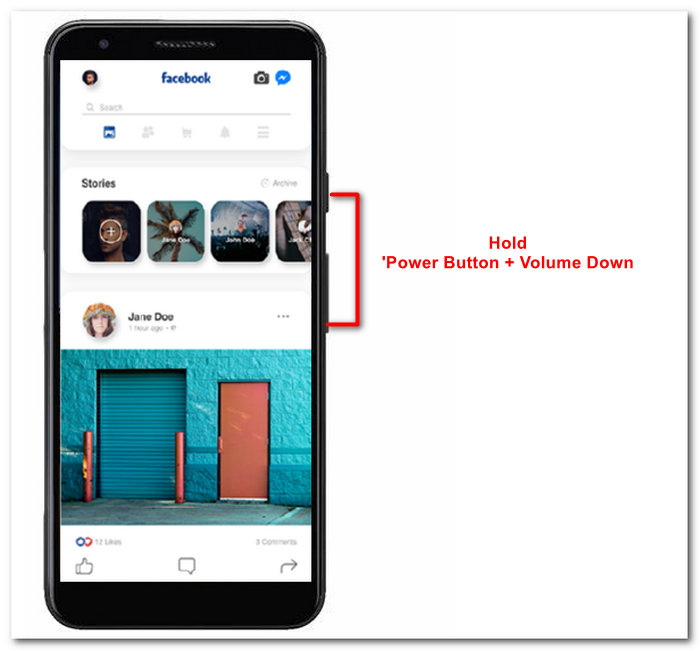
Step 2. Once you find the Facebook content you want to capture, hold your Power Button + Volume Down to screenshot it effectively.
It can also help you how to screenshot Samsung-specific models, like S23. You can use it to solve all your screenshot problems.
Android
Proces snimanja zaslona razlikuje se između Android i iOS uređaja jer Android koristi tipku za smanjenje glasnoće umjesto tipke za povećanje glasnoće. Za jednostavno snimanje Facebook zaslona, slijedite postupak u nastavku.
Step 1. Open the Facebook mobile app on your Android device and browse your timeline for content you want to save as a screenshot in your Gallery.
Step 2. Once you find one, hold your mobile’s Power Button and Volume Down to screenshot it and save it directly in your Gallery App.
Dio 2. Izvrstan snimač zaslona za snimanje svega na stolnom računalu
If you are looking for a more convenient way to take screenshots on your Facebook with a feature that allows you to instantly make edits, annotate, highlight, crop, and more in the screenshot, then you might like using the FVC-picked screen recorder. This free-to-use screen record tool can double function as a tool to record your screen in real time and take a snapshot for easy and quick sharing of content. Moreover, this comprises four screenshot settings to cater to all types of screen capture needs, no matter whether you want to screenshot on Mac or Dell. and using it in the likes of Facebook is beneficial. To learn more about these screenshot features offered by FVC-picked screen record, it is best to show you how to do it.
Step 1. On your desktop, download and install the FVC-picked screen recorder software, then start the application.
Besplatno preuzimanjeZa Windows 7 ili novijiSigurno preuzimanje
Besplatno preuzimanjeZa MacOS 10.7 ili novijiSigurno preuzimanje
Step 2. Access your Facebook web using any of your preferred web browsers. In the screen recording tool, click on the Snapshot drop-down menu, then select a screenshot type to capture your Facebook screen.
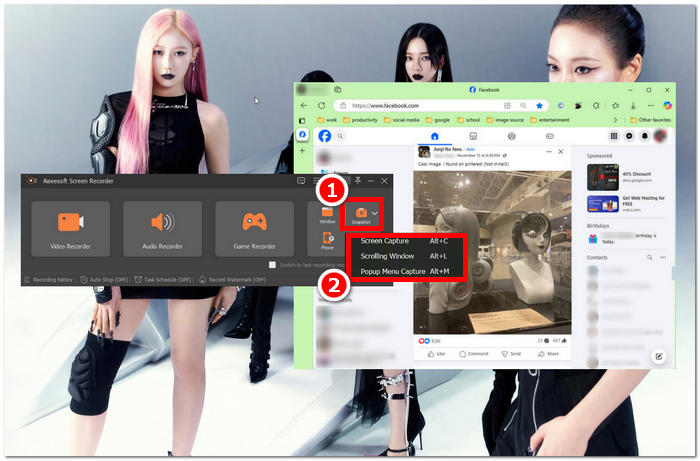
Možete spremiti snimku zaslona cijele početne stranice koristeći Screen Capture. Funkcija Scroll Window snima cijelu početnu stranicu, od vrha do dna. Korisnici mogu odabrati dio web-stranice dok snimaju prilagođenu snimku zaslona pomoću Popup Menu Capture.
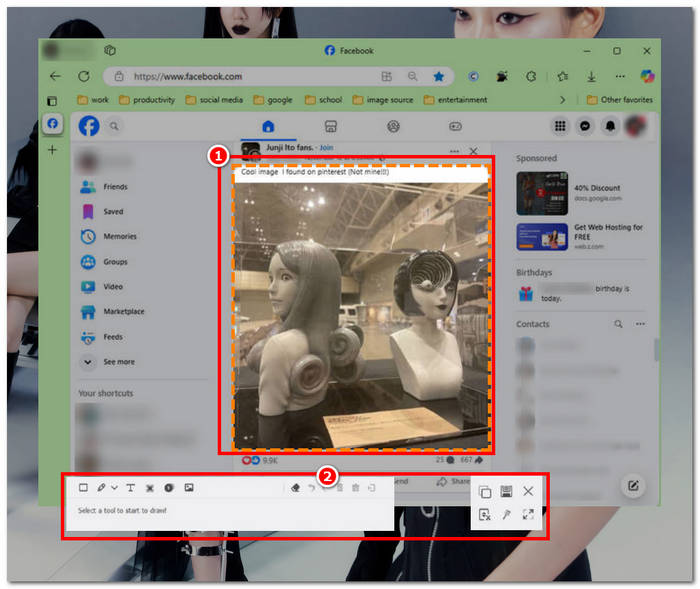
Step 3. In your Facebook timeline, click, hold, and drag your cursor on the area of the Facebook content you wish to capture as a screenshot.
Step 4. Once done, you can utilize the tools below to edit your screenshots before you can download them to your desktop download folder.
Dio 3. Često postavljana pitanja o Screenshotu na Facebooku
Mogu li ljudi vidjeti jesam li napravio snimku zaslona njihovog profila, objave ili fotografije?
Ne, drugi korisnici neće biti obaviješteni ako slučajno napravite snimku zaslona njihovog Facebook profila. Samo ga vi možete vidjeti osim ako ne podijelite snimku zaslona s njima.
Mogu li se otkriti snimke zaslona programa Messenger?
Ne, budući da predstavlja zabrinutost za sigurnost i povredu podataka, Facebook ne obavještava drugog korisnika da ste upravo napravili snimku zaslona svog razgovora.
Je li legalno snimati Facebook sadržaj?
Snimke zaslona Facebook sadržaja nisu nezakonite jer su javne objave javne i mogu ih vidjeti svi. Međutim, protuzakonito je koristiti nečiji sadržaj ili objavu za svoju dobit bez njihove dozvole.
Zaključak
Taking screenshots of Facebook content is a great way to store and quickly share it with another user. While it is greatly helpful, learning how to do it, especially using other devices, from desktop to mobile, is also helpful. Through this guide, you learn different approaches to taking a Facebook screenshot using any available device you may have. While it is very convenient, the ability to edit and highlight instantly the screenshot using the FVC-picked screen recorder is the best way to take when you want to crop or highlight a certain part of the screenshot so that you won’t have to edit them later.
-
 Kako snimiti zaslon na Alcatelu da iskoristite trenutak
 Imate problema sa snimanjem zaslona na svom Alcatel uređaju? Isprobajte ovo softversko rješenje za mobilni telefon i stolno računalo i spremite svoj zaslon za izvanmrežno gledanje.
-
 Kako napraviti snimke zaslona u Minecraftu: Najlakše snimanje zaslona igre
 Naučite najlakši način snimanja zaslona u Minecraftu. Isprobajte ugrađene alate i softver za snimanje zaslona kako biste spremili svoju Minecraft kreaciju.
-
 Kako napraviti snimke zaslona na Chromebooku [Vodič korak po korak]
 Otkrijte kako jednostavno snimiti snimke zaslona na svom Chromebooku pomoću ovog sveobuhvatnog vodiča korak po korak. Budite vođeni i napravite savršenu snimku zaslona sada!
