


 Video Converter Ultimate
 Snimač zaslona
 Video popravak
Kako brzo dodati slike video zapisu u manje od minute
Mnogo je razloga zašto trebate dodati slike u videozapis. Na primjer, neki su urednici otkrili da dodavanje slika njihovim videozapisima stvara novu interakciju za druge korisnike. Na taj način to možete upotrijebiti za predstavljanje svoje marke ili napraviti izvrsnu vizualnu prezentaciju i pomoći svom videu da prenese pravu poruku korisnicima. Ali jeste li znali da mnogi alati obavljaju isti posao? Znamo da je teško odabrati alat koji će vam najbolje odgovarati. Dakle, danas smo već izdvojili tri alata za koja smo pronašli da imaju dobre rezultate. Nakon što pročitate ovaj članak, naučit ćete dodavati slike svojim videozapisima.

Dio 1. Vodič korak po korak o dodavanju slike video zapisu s Video Converter Ultimate
Want to add a picture to the video with the ultimate tool? In that case, use the Video Converter Ultimate. With the help of this ultimate tool, you can easily overlay the image to the video even though you aren't a pro in this area of editing. Besides its overlaying on video ability, you can easily use this tool to add music as a background, add subtitles, and do more. It is known for being the one-stop solution for most of the problems in regards to the video. Want to know what are the advantages of using this? If so, you can read the provided details below.

FVC Video Converter Ultimate
5.689.200+ preuzimanja- Pruža izvanredne performanse pri pretvorbi i uređivanju.
- Uredite i napravite fantastičan video u nekoliko klikova.
- Podržava više od 200 formata, kao što su MP4, MOV, FLV, WMV, AVI, MTV itd.
- Dostupno na svim platformama za preuzimanje, kao što su Windows i Mac.
Besplatno preuzimanjeZa Windows 7 ili novijiSigurno preuzimanje
Besplatno preuzimanjeZa MacOS 10.7 ili novijiSigurno preuzimanje
Nije li nevjerojatno što sve možete učiniti s alatom? Da, znamo da je alat impresivan na mnogo načina. Ako je ovaj alat privukao vašu pozornost i želite naučiti kako dodati sliku video zapisu pomoću ovog alata, možete pročitati vodič u nastavku.
Step 1. Click the download button below to directly download it on your drive, follow the installation promptly, and launch it. Before anything else, we would appreciate it if you got familiarized with the tool's interface to distinguish the proceeding steps easily.
Besplatno preuzimanjeZa Windows 7 ili novijiSigurno preuzimanje
Besplatno preuzimanjeZa MacOS 10.7 ili novijiSigurno preuzimanje
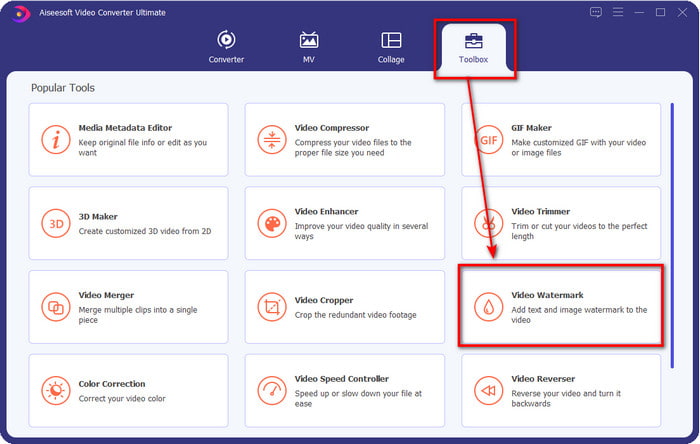
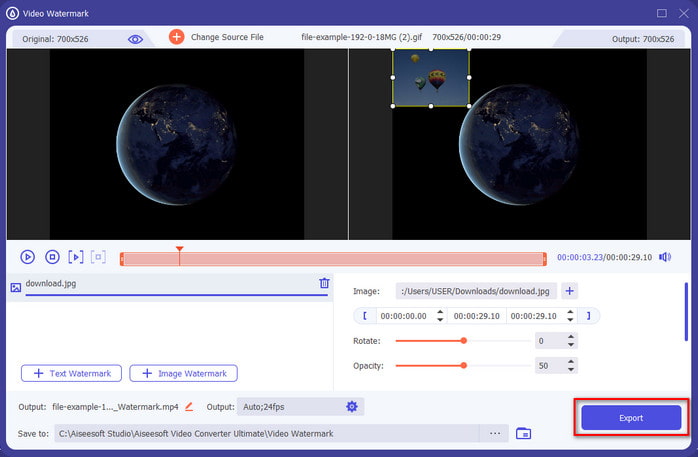
Step 2. Once the tool is running on the system, click Toolbox; under it, locate the Video Watermark and open it.
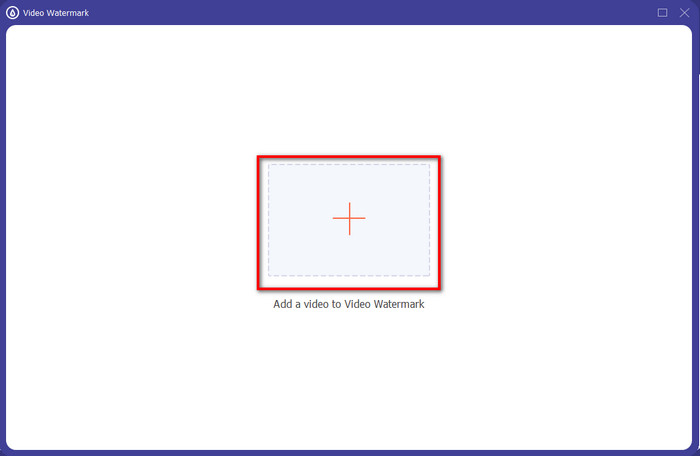
Step 3. Once you've ticked the + button, a file folder will show on your display; locate the file and hit Open if that is the video file.
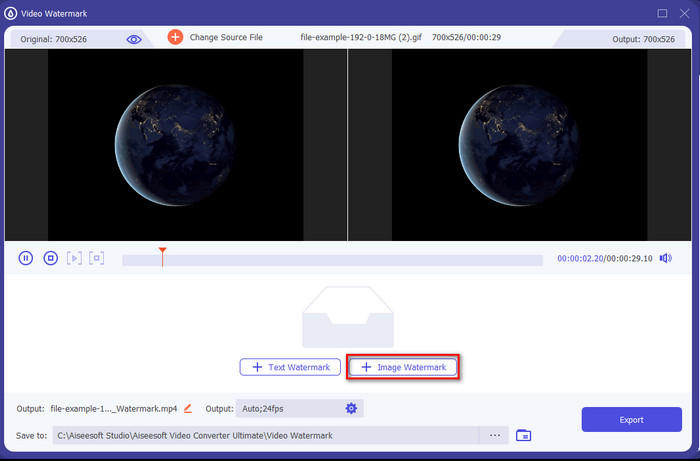
Step 4. A new window will show, click Image Watermark, then a folder will show again, but this time you'll insert the image you want to add to your video and press Open.
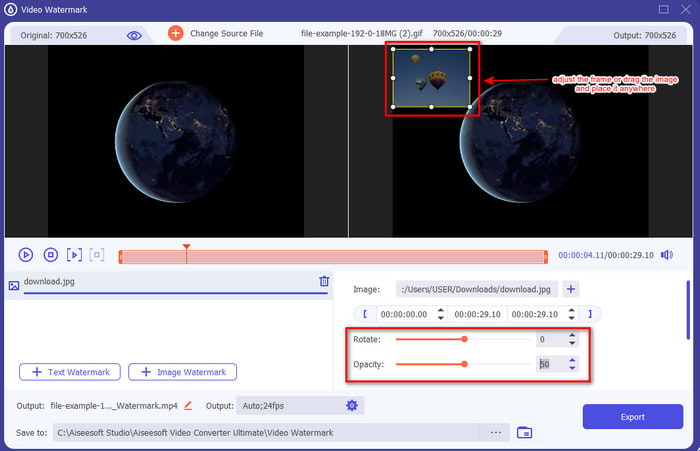
Step 5. Adjust the image size you've inserted on the video and its position by dragging the frame of the photo. You can place it anywhere you want by holding and dragging the image. What's more, you can also adjust the picture's visibility by adjusting the Opacity. Also, you can rotate the image by dragging the slider of Rotate.
Step 6. If you've edited the photo, it is now the time to click Export.
Povezano:
Dio 2. Kako besplatno prekriti slike video zapisima na internetu
Mrežni rezač videozapisa – dodajte sliku videozapisu
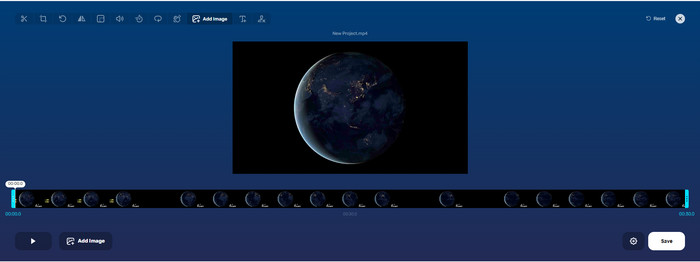
If you want to overlay images online, you can use the Online Video Cutter – Add Image to a Video. This web tool provides a simple yet effective way of adding photos to any video. Although the tool is excellent to use, it is still a bit hassle to upload the video because it depends on your internet connection. Also, you can't add two images here because it is unsupported. But if you want to use the tool, you can follow the steps below.
Step 1. Open your browser and search the web tool on the search tab, then open it.
Step 2. Click Open File to upload the video, then click Add Image to upload the image you've inserted.
Step 3. Drag the image to change its position, click Save to encode, and save it on your computer.
Pros
- Besplatan za korištenje i nećete ga morati preuzimati.
- Podržava osnovne značajke uređivanja za korisnike.
- Nema vodeni žig na konačnom rezultatu.
Protiv
- Ne može dodati do 2 ili više slika na video.
- Za učitavanje slike i videa treba vremena.
Fliksijer
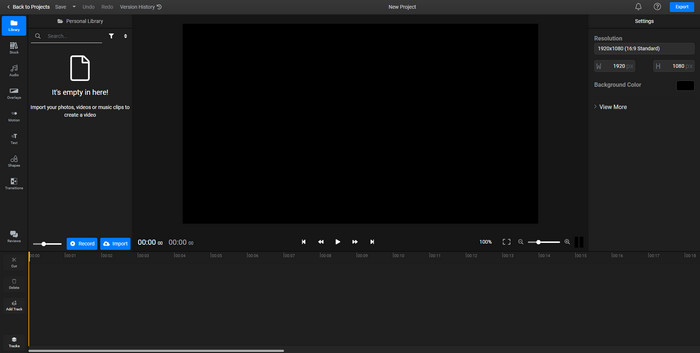
You can use Flixier to add an image to a video online for free. Also, you can edit your video template with this online tool, including adding pictures. This tool provides exceptional built-in editing features you can use to make your video look better. Although the web tool offers you this unique feature, when the time you export it, there will be a watermark on the final output because it is free. But you can purchase the premium tool to remove this watermark.
Step 1. Open your search engine, search the tool's name, and click Choose File.
Step 2. Click Import to upload the video and images, drag the video and the image to the Timeline, make sure that the image is at the top of the video. Change the position of the picture by dragging it inside the video.
Step 3. Click Export, then Export and Download to save it on your desktop drive.
Pros
- Besplatno i dostupno na webu.
- Pruža više značajki za uređivanje od prvog mrežnog alata.
- Podržava dodavanje više slika u vaš video.
Protiv
- Konačni izlaz ima vodeni žig na kraju jer je besplatan.
- Morate kupiti VIP verziju kako biste uklonili vodeni žig na video izlazu.
Dio 3. Često postavljana pitanja o dodavanju slika u video
Utječe li dodavanje slika u videozapis na kvalitetu?
Kvaliteta videozapisa neće utjecati na sliku koju dodate. Da pojednostavimo, dodavanje slika nema značajnu kvalitetu videozapisa, čak i ako dodate mnogo fotografija. Međutim, ako izvezete video u uređivaču koji ste koristili i postavite ga na nisku kvalitetu, očekujte video izlaz ispod.
Zašto slike koje dodam videozapisu postaju mutne?
Glavni razlog je to što je slika već od početka mutna. Da biste izbjegli ovaj problem, prvo morate provjeriti sliku i uvjeriti se da nije mutna prije nego što je upotrijebite na svom videozapisu.
Mogu li dodati prijelaz na sliku na videu?
Uz neke uređivače, dodavanje prijelaza vašoj slici je moguće. Iako postoji mnogo različitih animiranih prijelaza, najčešće su dostupni cut, fade, wipe i dissolve. Iako su oni najčešći, ipak je idealan za dodavanje prijelaza na sliku kako bi video bio profesionalniji i uzbudljiviji.
Zaključak
After you’ve read this blog, learning how to add photos in a video became easier to understand if you read this article's full scope with the different tools online and offline. Even though we present different sets of tools, we still recommend that any users use the ultimate tool to take up this task. Video Converter Ultimate provides an easy-to-understand interface to help the users do the job efficiently. Still not sure if it fits you? Well, downloading the tool is the only way to prove that it suits you.
-
 5 korisnih pretvarača OGV u WMV za pretvaranje vaših OGV datoteka
 Postoji 5 različitih pretvarača OGV u WMV koje možete koristiti za pretvaranje OGV datoteka. Ovaj članak pruža snažnu činjenicu o dostupnim 5 ogv pretvarača.
-
 Upute za 2 najbolja softvera za pretvaranje AMV u WMV [2022.]
 Želite li pretvoriti AMV u WMV? Ako je tako, morate pročitati ovaj članak da biste imali ideju o tome što je AMV i kako pretvoriti datoteku u WMV format.
-
 Najkorisniji alati za pretvaranje SWF-a u WMV (online i offline)
 Mučite li se pronaći player za svoje SWF datoteke? Ne morate se brinuti jer ga možete jednostavno pretvoriti u WMV format za bolje iskustvo snimanja videozapisa. Pročitajte ovaj članak da biste saznali više o ovom procesu pretvorbe.
