


 Video Converter Ultimate
 Snimač zaslona
 Video popravak
Otkrijte kako promijeniti veličinu videozapisa na Androidu s učinkovitim metodama
Bilo da ste influencer na društvenim mrežama ili samo želite podijeliti svoje najnovije putno iskustvo s prijateljima i obitelji, mijenjanje veličine videa može napraviti veliku razliku. Ne samo da može pomoći u optimizaciji veličine datoteke radi lakšeg dijeljenja, nego može i poboljšati doživljaj gledanja za vašu publiku. U ovom ćemo vam članku pokazati kako promijeniti veličinu videa na Androidu, od prilagodbe omjera stranica do promjene rezolucije videa. Uz naš jednostavan i lako razumljiv vodič, možete mijenjati veličinu svojih videa kao profesionalac i podići svoj sadržaj na višu razinu.

Dio 1. Vodič Kako izrezati video na Androidu pomoću Samsung Gallery
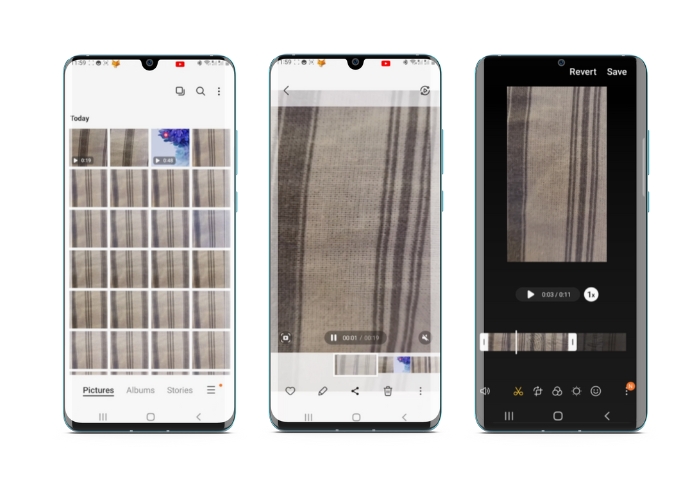
Aplikacija Samsung Gallery neophodna je za upravljanje i uređivanje vašeg vizualnog sadržaja ako posjedujete Samsung uređaj. Jedna od korisnih značajki aplikacije je mogućnost obrezivanja videozapisa u pokretu. Korisnicima omogućuje uklanjanje neželjenih dijelova videozapisa ili podešavanje omjera slike. Značajka obrezivanja čini ga lakim i intuitivnim. Uz Samsung Gallery možete jednostavno stvarati i dijeliti visokokvalitetne videozapise koji su prilagođeni vašim potrebama. Pogledajte korake u nastavku koji će vam pomoći u korištenju ovog Android alata za izrezivanje video uređivača.
Korak 1. Pokrenite aplikaciju Samsung Gallery na svom uređaju i pronađite video koji želite izrezati.
Korak 2. Dodirnite video da ga otvorite, zatim dodirnite gumb Edit (ikona olovke) na dnu zaslona. Na zaslonu Edit odaberite opciju Crop.
Korak 3. Sada ćete vidjeti pravokutnik preko videa, s ručkama u svakom kutu. Povucite ručke kako biste promijenili veličinu pravokutnika prema potrebi za izrezivanje videa. Dodirnite gumb Play kako biste pregledali izrezani video.
Korak 4. Ako ste zadovoljni rezultatom, dodirnite gumb Save da biste spremili izrezani video u svoju Galeriju.
Dio 2. Upute o tome kako izrezati video na Androidu pomoću Google fotografija
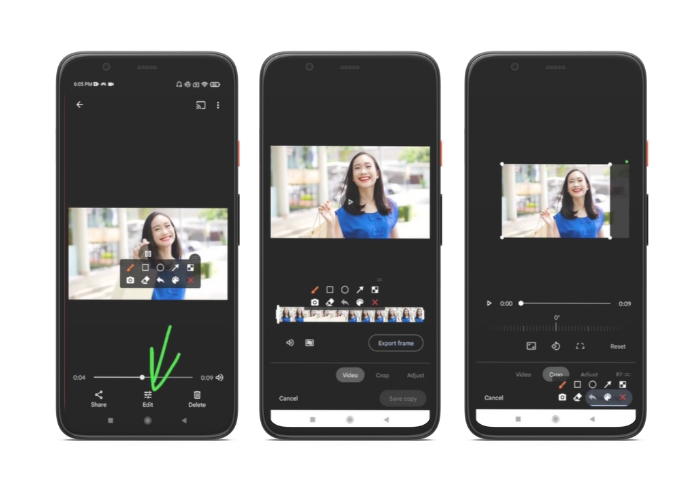
Google Photos popularna je aplikacija za upravljanje fotografijama i videozapisima za korisnike Androida, a dolazi sa širokim rasponom značajki koje vam pomažu u uređivanju i poboljšanju vizualnog sadržaja. Jedna sjajna značajka ovog alata je mogućnost izrezivanja videozapisa, što vam omogućuje uklanjanje neželjenih dijelova i fokusiranje na najvažnije trenutke. Možete izrezati videozapise sa samo nekoliko dodira, što olakšava i intuitivno stvaranje dotjeranog videosadržaja profesionalnog izgleda na vašem Android uređaju. Ovdje ćemo vam pokazati kako izrezati videozapise s Google fotografijama korak po korak.
Korak 1. Pokrenite aplikaciju Google Pictures na svom Android uređaju i pronađite video koji želite izrezati. Zatim dodirnite gumb Edit koji se nalazi na dnu zaslona.
Korak 2. Na zaslonu za uređivanje odaberite opciju Crop & rotate.
Korak 3. Sada ćete vidjeti pravokutnik preko videa, s ručkama u svakom kutu. Upotrijebite ručke kako biste promijenili veličinu pravokutnika prema potrebi i izrezali video.
Korak 4. Na kraju dodirnite Save kako biste spremili promjene koje ste napravili na videu.
Dio 3. Vodič za izrezivanje videozapisa na Androidu pomoću aplikacije treće strane
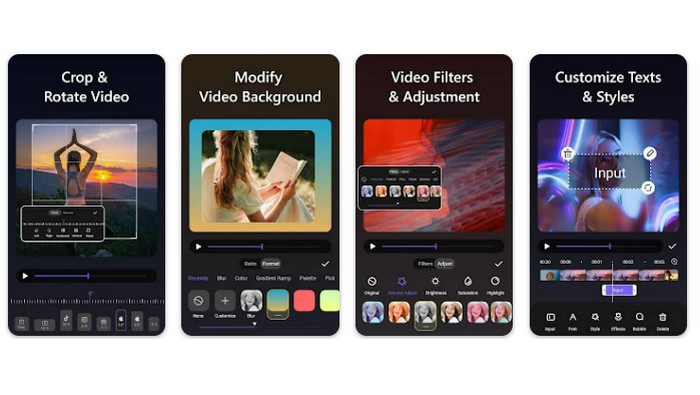
Jednostavno kreiranje i uređivanje videa sada je dostupno svima s Android uređajem zahvaljujući aplikaciji Vid.fun. Ovaj program omogućuje korisnicima da uređuju svoje snimke na brojne načine, uključujući dodavanje glazbe, teksta i efekata, skraćivanje i spajanje segmenata i još mnogo toga. Kako biste naučili kako promijeniti veličinu videa na Androidu, slijedite korake za ovaj program u nastavku.
Korak 1. Preuzmite aplikaciju Vid.fun iz trgovine Google Play, zatim započnite novi projekt.
Korak 2. Iz galerije ili spremišta kamere na svom uređaju odaberite isječak koji želite izrezati i povucite ga na vremensku traku.
Korak 3. Odaberite željeni segment videa na vremenskoj traci tako da ga dodirnete, a zatim upotrijebite gumb Crop na dnu zaslona kako biste ga prilagodili.
Korak 4. Na video je postavljen pravokutnik, a njegove kutove možete povlačiti kako biste izvršili prilagodbe. Za izrezivanje videa jednostavno uhvatite kutne ručke i povucite ih na željenu poziciju. Kada završite, video možete poslati svojim najbližima ili ga objaviti na internetu.
Dio 4. Preporuka aplikacije
Naravno, uz mobilne aplikacije tu je i preporuka za program za računala. Video Converter Ultimate tvrtke FVC sveobuhvatan je softver za promjenu video formata koji uključuje i brojne alate za uređivanje. Mogućnost prilagodbe omjera stranica videa jedna je od njegovih istaknutih funkcija.
Pomoću ovog programa možete jednostavno modificirati oblik i veličinu videozapisa promjenom omjera slike. Ako želite podijeliti videozapis na društvenim mrežama s određenim omjerom širine i visine slike ili ako samo trebate prilagoditi videozapis određenoj veličini zaslona, FVC Video Converter Ultimate vam pomaže. Saznajte kako obrezati videozapise na Androidu uz pomoć ovog programa.
Korak 1. Preuzmite i instalirajte FVC Video Converter Ultimate
Aplikaciju možete preuzeti klikom na jedan od gumba Free Download u nastavku. Kada se program preuzme, instalirajte ga i pokrenite na svom računalu.
Besplatno preuzimanjeZa Windows 7 ili novijiSigurno preuzimanje
Free DownloadZa macOS 10.7 ili novijiSigurno preuzimanje
Korak 2. Uvezite video za izrezivanje
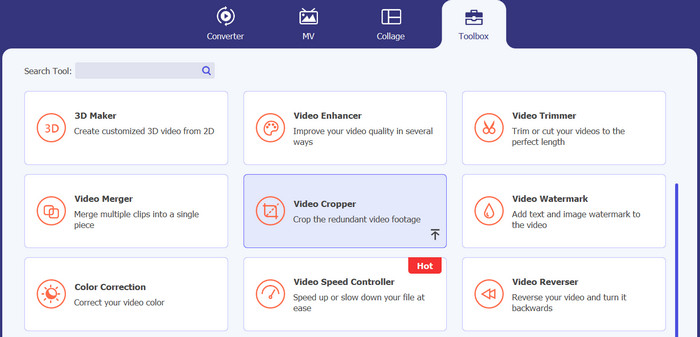
Zatim idite na karticu Toolbox koja se nalazi na gornjem dijelu sučelja programa. Zatim odaberite opciju Video Cropper i dodajte datoteku klikom na gumb sa znakom plus.
Korak 3. Izrežite video datoteku
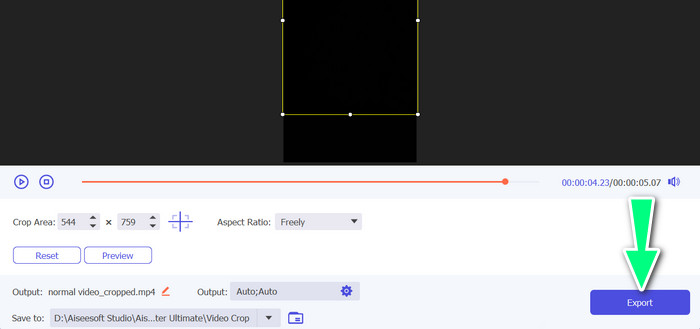
Sada možete izrezati uvezeni videozapis. Pomoću klizača područja izrezivanja prilagodite područje koje želite izrezati iz videozapisa. Također možete odabrati određeni omjer slike iz padajućeg izbornika. Pregledajte izrezani videozapis kako biste bili sigurni da je željeni dio videozapisa izrezan.

Korak 4. Izvezite izrezani video
Na kraju kliknite gumb Export u donjem desnom kutu kako biste završili proces izrezivanja i spremili izrezani video.
Dio 5. Često postavljana pitanja o izrezivanju videozapisa na Androidu
Kako mogu izrezati videozapise bez gubitka kvalitete?
Jedan od načina za obrezivanje videozapisa bez gubitka kvalitete je korištenje alata za uređivanje videozapisa koji podržava nerazorno obrezivanje. To znači da se izvorna video datoteka ne mijenja i da se samo izrezani dio sprema kao nova datoteka.
Hoće li obrezivanje videozapisa na Androidu utjecati na njegovu kvalitetu ili rezoluciju?
Da, obrezivanje videozapisa na Androidu može utjecati na njegovu kvalitetu ili razlučivost jer postupak uključuje uklanjanje dijela izvornog videozapisa. Međutim, stupanj u kojem to utječe na kvalitetu ili razlučivost ovisi o različitim čimbenicima, kao što su veličina izrezivanja, kvaliteta izvornog videozapisa i metoda korištena za izrezivanje videozapisa.
Je li moguće izrezati video i dodati efekte ili filtre u isto vrijeme na Androidu?
Da, moguće je istovremeno izrezati video i dodati efekte ili filtere na Androidu. U trgovini Google Play postoji niz aplikacija za uređivanje videa koje nude i izrezivanje i opcije video efekata i video filtera. Neki popularni primjeri su FVC Video Converter Ultimate, Filmora itd.
Zaključak
Učenje kako izrezati video na Androidu jednostavan je postupak koji se može obaviti različitim aplikacijama i softverom. Samsung Gallery, Google Photos i FVC Video Converter Ultimate samo su neki od alata koji vam mogu pomoći da izrežete svoje videozapise na Android uređajima.
-
 Vodič za popravak videozapisa koji se ne reproduciraju na Android telefonima
 Želite znati koji su razlozi zašto se videozapisi na vašem Android uređaju ne mogu reproducirati? I ako je tako, postoje li načini da sami riješite problem? Nastavite čitati kako biste saznali više.
-
 Najlakši načini kako ubrzati video na svojim Android uređajima [2023]
 Jeste li znali da možete ubrzati video na svom Androidu? Dakle, ako želite znati kako ubrzati video na svom Android telefonu, pročitajte ovaj tekst.
-
 3 izvrsne metode kako skraćivati video na Androidu
 Želite li koristiti svoj Android uređaj za rezanje videozapisa? Onda je ovaj post za vas. Razgovarat ćemo o vrijednim načinima kako skratiti video na Androidu.
