


 Video Converter Ultimate
 Snimač zaslona
 Video popravak
Rješenja za rezanje videozapisa na mreži [vodiči korak po korak]
Kako skratiti svoj dugi videozapis? Ako ne znate koje su najbolje metode koje možete primijeniti, imate razloga pročitati ovaj vodič. Dok budete čitali ovaj članak, dat ćemo vam sve ključne informacije o smanjivanju duljine vašeg videozapisa. Također ćemo vam predstaviti mrežne i izvanmrežne programe za uređivanje videa koje možete koristiti. Na taj način imat ćete više prilika da postignete svoj cilj. Dakle, bez daljnjeg, pročitajte ovaj post i naučite kako rezati videozapis online.

Dio 1. Izvrsne metode za rezanje videa na mreži
1. InVideo
Jedan od korisnih alata za uređivanje videozapisa koje možete pronaći na internetu je InVideo video trimer. Ovaj web-bazirani softver nudi izgled jednostavan za korištenje. Nakon posjete web stranici, ne morate instalirati alat. Sve što trebate učiniti je dodati video i već možete nastaviti s obrezivanjem. Osim toga, budući da ima jednostavan izgled, bit će i razumljiva metoda. Na ovaj način, bez obzira jeste li profesionalni ili neprofesionalni korisnik, možete koristiti InVideo. Štoviše, InVideo je dostupan na gotovo svim web platformama. Alat možete koristiti na preglednicima Google Chrome, Mozilla Firefox, Internet Explorer itd. Međutim, InVideo ima neke nedostatke. Kada koristite besplatnu verziju, InVideo ne može ponuditi visoku kvalitetu videozapisa. Također, može ponuditi samo nisku kvalitetu videa, što nije zadovoljavajuće. Ako želite izvrsnu kvalitetu videa, morate kupiti plan pretplate. Slijedite korake u nastavku za rezanje/obrezivanje vašeg videozapisa pomoću InVideo video trimera.
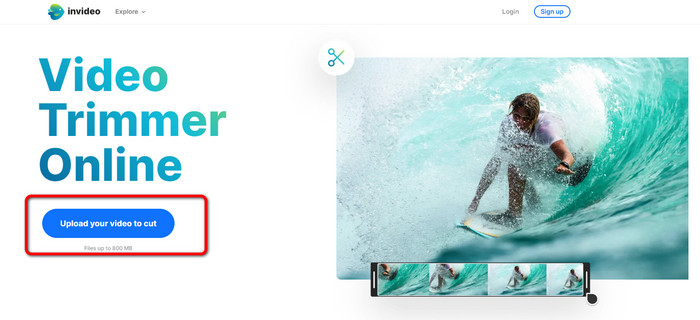
Korak 1. Otvorite preglednik i otiđite na službenu web-stranicu InVideo. Zatim, ako ste već na stranici, kliknite gumb Upload your video to cut. Kada se na zaslonu pojavi prozor s datotekama, odaberite videozapis koji želite skratiti/izrezati i otvorite ga.
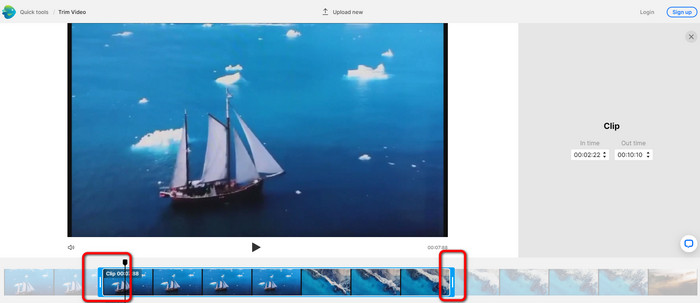
Korak 2. Nakon što odaberete videozapis, bit ćete preusmjereni na odjeljak u kojem ga možete skratiti. Da biste skratili svoj video, pomaknite klizače na oba kraja trake videa do željenog vremena.
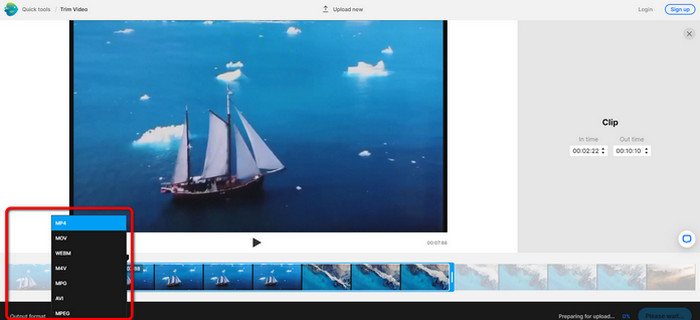
Korak 3. Kada skratite videozapis, možete ga spremiti u raznim formatima. Idite na opciju Output Format u donjem lijevom dijelu sučelja. Zatim, kad se pojave opcije formata, odaberite željeni izlazni format. Potom kliknite Done.
Korak 4. Prije nego što možete spremiti svoj video, morate se registrirati za InVideo račun ili se prijaviti na već postojeći račun. Vaš će videozapis biti spreman za spremanje za nekoliko sekundi nakon što unesete svoje podatke za prijavu.
2. Ezgif
Još jedan besplatni mrežni alat za skraćivanje videa je Ezgif. Ima jednostan postupak za skraćivanje videozapisa. Ezgif je besplatan mrežni alat, tako da ne morate brinuti o troškovima. Osim toga, alatu možete pristupiti u svim preglednicima, uključujući Google, Edge, Firefox, Explorer i druge. Međutim, mrežna verzija podržava samo GIF. Dakle, ako planirate rezati video u nekom drugom formatu, Ezgif nije pravi alat. Također, pri korištenju alata na zaslonu se pojavljuje mnogo ometajućih oglasa, što može smetati tijekom uređivanja videa.
Korak 1. Posjetite web-stranicu Ezgif i odaberite opciju Cut.
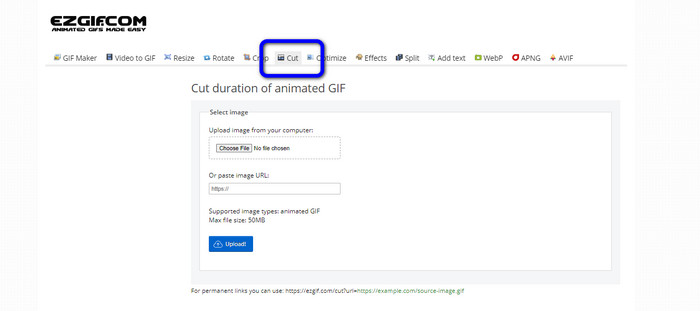
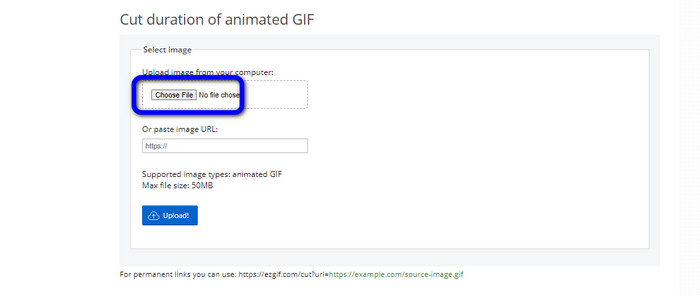
Korak 2. Zatim kliknite gumb Choose File. Potom iz mape na računalu dodajte GIF datoteku koju želite prenijeti.
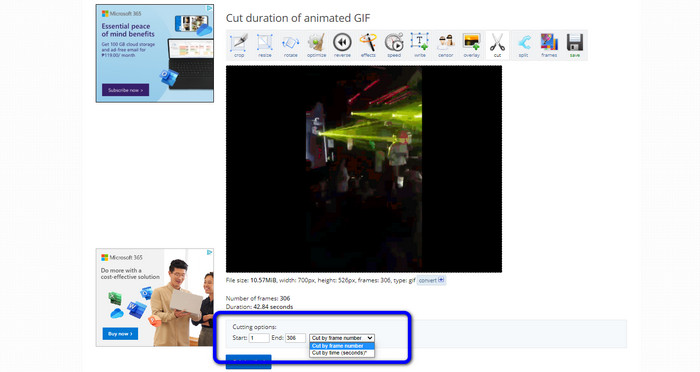
Korak 3. Nakon što prenesete GIF datoteku, već je možete rezati. Postoje dva načina za rezanje GIF datoteke: možete rezati prema broju sličica (frame) ili prema vremenu. Izrežite je na način koji vam više odgovara.
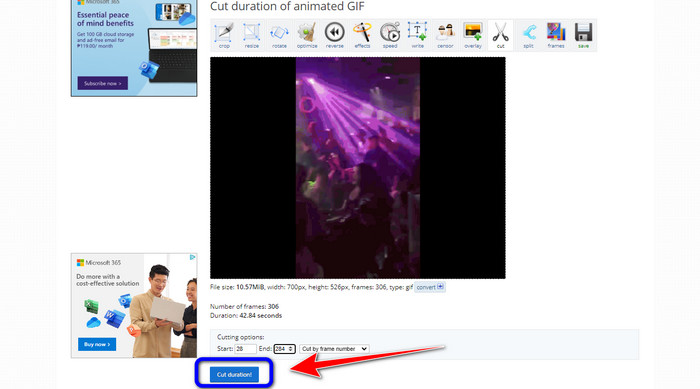
Korak 4. Kliknite gumb Cut Duration da biste pokrenuli postupak rezanja.
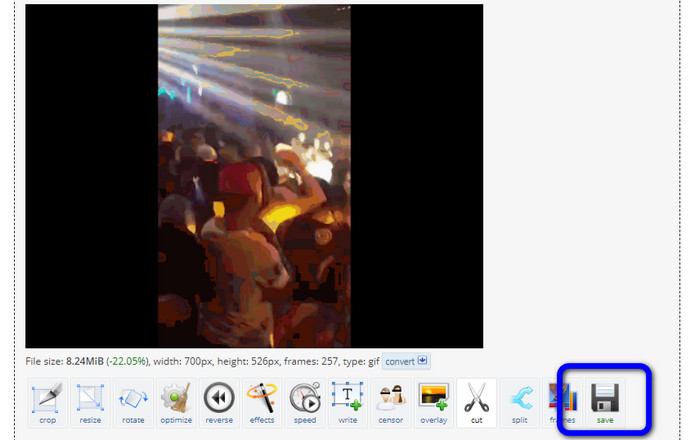
Korak 5. Nakon toga će se pojaviti uređena verzija. Kliknite opciju Save da biste preuzeli konačni rezultat na svoje računalo.
3. Kapwing
Za rezanje videa možete koristiti i mrežni alat Kapwing. Ovaj alat zasnovan na webu može jednostavno rezati videozapis, bez kompliciranih postupaka. Osim toga, alatu možete pristupiti na raznim platformama preglednika, uključujući Chrome, Mozillu, Edge i druge. Štoviše, Kapwing podržava različite video formate, kao što su MP4, MOV, AVI, FLV, WEBM i drugi, što ga čini praktičnim za sve korisnike. Ipak, Kapwing ima i neke nedostatke. Na zaslonu se stalno pojavljuju ometajući oglasi. Osim toga, u besplatnoj verziji dopušta prijenos videozapisa samo do 720p kvalitete. Također dodaje neugodne vodene žigove nakon uređivanja videa. Ako želite video bez vodenih žigova i pristup više naprednim značajkama, morate kupiti pretplatnički paket.
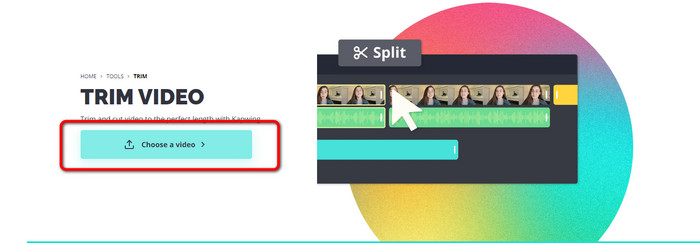
Korak 1. Idite na web-stranicu Kapwing. Zatim kliknite opciju Choose a video da biste prešli na glavno sučelje alata.
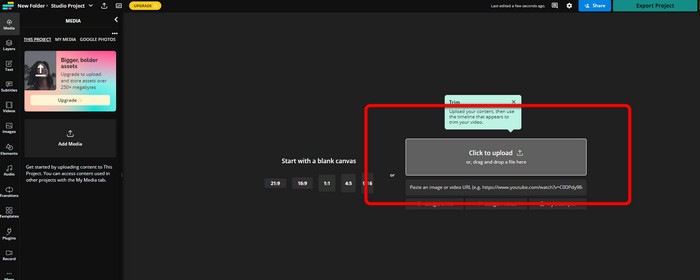
Korak 2. Kliknite gumb Click to upload kako biste umetnuli videozapis iz mape s datotekama.
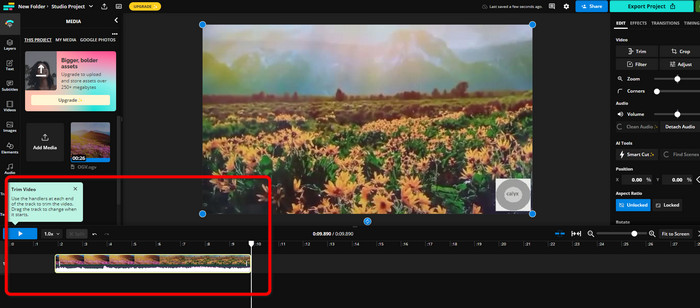
Korak 3. Kada se videozapis već nalazi na vremenskoj liniji, možete kliknuti na ručke s obje strane kako biste započeli skraćivanje videa.
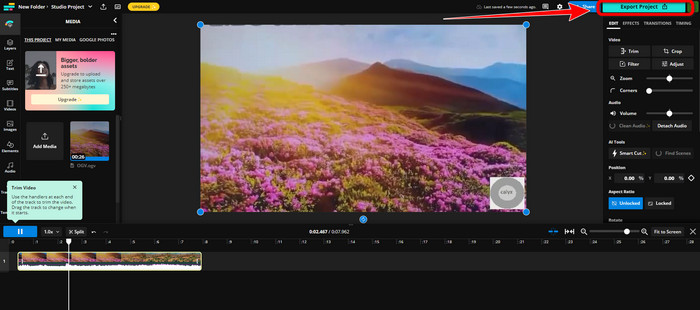
Korak 4. Kada završite, idite u gornji desni kut sučelja i kliknite gumb Export Project. Na taj način možete spremiti uređeni videozapis na svoje računalo.
Dio 2. Alternativni način skraćivanja videozapisa izvan mreže
Koristite Video Converter Ultimate kako biste offline uređivali videozapise na najbolji mogući način. Ovaj alat olakšava izrezivanje i/ili skraćivanje videa. Također ima jednostavno sučelje s preglednom navigacijom, što ga čini idealnim za sve korisnike. Svoj gotov video možete spremiti u raznim formatima, među kojima su MOV, AVI, MP4, MKV i drugi. Postoje i dodatne mogućnosti pri rezanju videa. Možete napraviti razne prilagodbe u izborniku Output (izlazne postavke). Možete mijenjati broj sličica u sekundi (frame rate), razlučivost, kôdek (encoder), kvalitetu itd. Osim toga, Video Converter Ultimate ne dodaje vodene žigove na uređeni video. Na taj način možete gledati uređeni film bez ikakvih ometajućih elemenata. Također, Video Converter Ultimate mogu koristiti i Windows i Mac korisnici, što znači da je program praktičan za obje platforme. Slijedite detaljne upute u nastavku kako biste započeli rezanje videa.
Korak 1. Kliknite gumb Download u nastavku kako biste preuzeli Video Converter Ultimate na svoje računalo. Nakon instalacije otvorite program.
Besplatno preuzimanjeZa Windows 7 ili novijiSigurno preuzimanje
Besplatno preuzimanjeZa MacOS 10.7 ili novijiSigurno preuzimanje
Korak 2. U sučelju kliknite izbornik Toolbox i odaberite alat Video Trimmer.
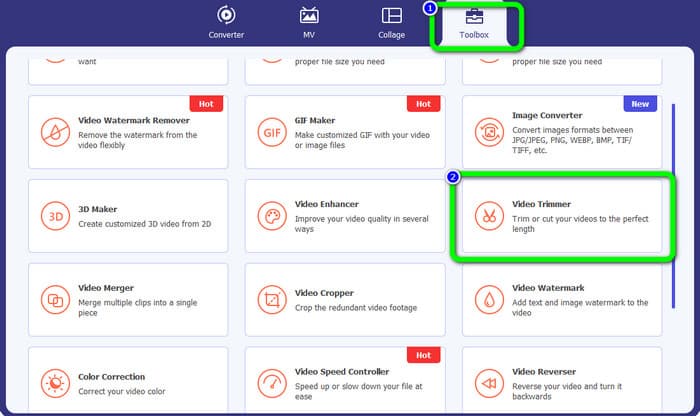
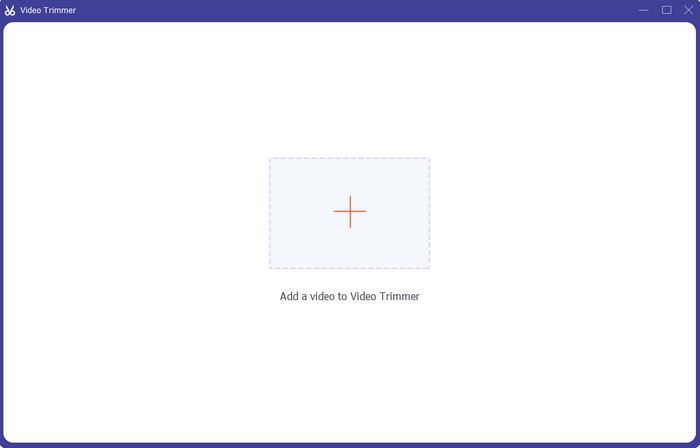
Korak 3. Kada se na zaslonu pojavi novo sučelje, kliknite znak Plus kako biste umetnuli video koji želite urediti.
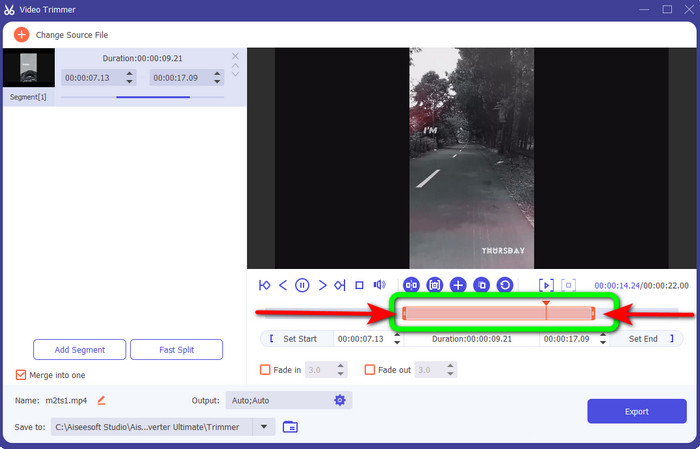
Korak 4. Zatim u ovom dijelu već možete početi uređivati svoj video. Možete pomicati rubne dijelove trake videa kako biste kontrolirali na koji način želite rezati/skraćivati video. Pomaknite desni i lijevi rub prema svojim potrebama.
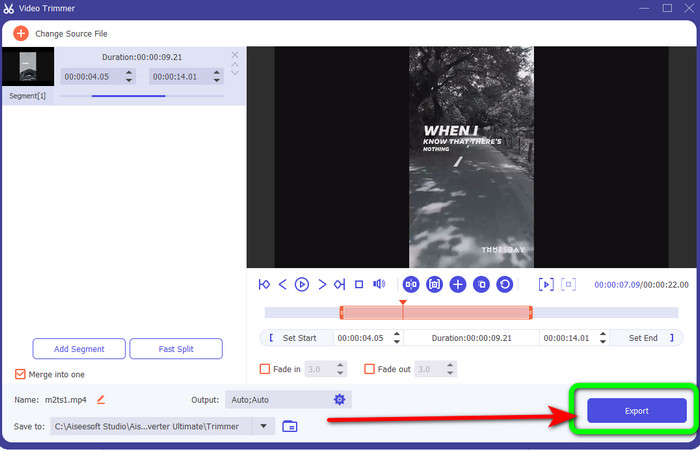
Korak 5. Kada ste zadovoljni videom, kliknite gumb Export da biste nastavili s izvozom. Zatim spremite svoj konačni, uređeni videozapis.
Dio 3. Često postavljana pitanja o tome kako izrezati video na mreži
Kako obrezati video na iPhoneu?
Nakon pokretanja dodirnite video koji želite urediti u aplikaciji Slike. Pritisnite Uredi. Promijenite vrijeme početka i završetka povlačenjem klizača sa svake strane vremenske trake videozapisa. Upotrijebite gumb za reprodukciju da biste vidjeli pregled svog uređenog videozapisa. Odaberite Spremi video ili Spremi video kao novi isječak nakon odabira Gotovo.
Kako izrezati videozapise u Shotcutu?
Povucite video datoteku na vremensku traku nakon što je uvezete u Shotcut. Postavite glavu reprodukcije na početak segmenta koji želite obrezati. Zatim pritisnite tipku prečaca I. Pritisnite tipku O nakon pomicanja glave reprodukcije do kraja odjeljka. Segment bi sada bio odvojen od ostatka videozapisa.
Koji je najbolji softver za izvanmrežno rezanje MP4 datoteka?
Ako želite offline rezati MP4 datoteke, koristite Video Converter Ultimate. Ovaj program, koji se može besplatno preuzeti, omogućuje vam bezbrižno rezanje MP4 datoteka.
Zaključak
Ovo su najbolje metode za rezanje videozapisa online. Sve gore navedene alate za uređivanje videa možete koristiti za skraćivanje videozapisa. Međutim, pri korištenju mrežnog alata ponekad može doći do slabih performansi zbog loše internetske veze. U tom slučaju koristite Video Converter Ultimate. To je program koji se preuzima i omogućuje vam uređivanje videa bez internetske veze.
-
 [4 načina] Kako jednostavno ubrzati svoje videozapise na mreži
 Želite li ubrzati video online? Pročitajte ovaj članak kako biste saznali više o ubrzavanju videozapisa na različite načine.
-
 Kako izrezati i spojiti pjesme na mreži - 4 najbolja načina koja biste trebali znati
 Kada želite izrezati i spojiti pjesme na mreži kako biste stvorili glazbeno djelo, iz članka možete saznati više o 4 najbolja mrežna alata za isjecanje pjesama i kombiniranje datoteka.
-
 Otkrijte najbolji MP4 trimer s postupcima i informacijama
 Želite li naučiti rezati videozapise poput vlogera koje gledate? Zatim nastavite čitati ovaj post da biste saznali koje MP4 trimere možete koristiti.
