


 Video Converter Ultimate
 Snimač zaslona
 Video popravak
Korisni savjeti za izradu usporenih videozapisa u iMovieu
iMovie je izvrstan video editor dostupan u svakom iOS i Mac operativnom sustavu. Aplikacija je besplatna za preuzimanje i ima različite alate koji su vrlo korisni za značajne izmjene na videu, posebno kada je riječ o brzini reprodukcije ili izradi usporenog (slow-motion) videa. Iako je ova aplikacija jednostavna za korištenje, može biti zahtjevno shvatiti i koristiti je tako da dobijete točno onakav usporeni prikaz koji želite primijeniti na svoj video. Kako biste u potpunosti razumjeli sve detalje kako napraviti usporene videozapise u iMovieju, pročitajte ovaj članak i pažljivo slijedite korake.

Dio 1. Kako napraviti usporene videozapise u iMovieu koristeći iPhone
Kao što je gore navedena izjava, iMovie radi samo u iOS sustavima kao što je iPhone. Kako biste pomoću ove aplikacije napravili najbolje usporene videozapise, ovdje su navedeni postupci koji će vas također voditi kako koristiti ovu aplikaciju.
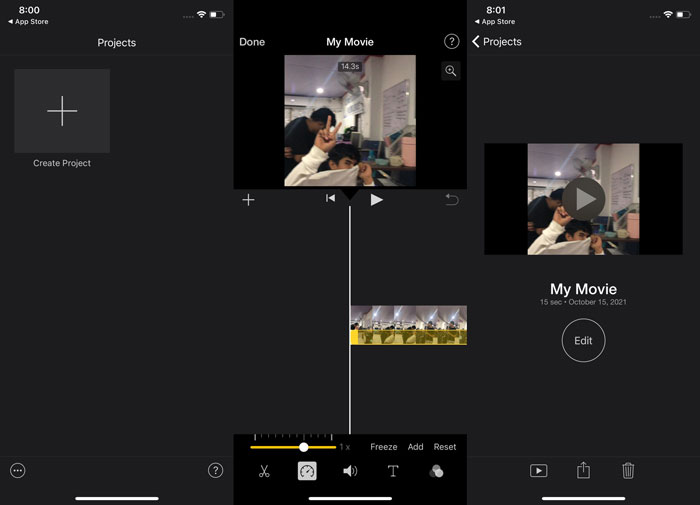
Korak 1. Na svom iPhoneu ili iPadu pokrenite aplikaciju iMovie. Gumb Continue (Nastavi) pojavit će se ako je prikazan pregled korisničkog sučelja. Odaberite ikonu znaka + na kartici Projects (Projekti) kako biste uredili novi videoisječak. Za nastavak idite u prozor New Projects (Novi projekti) i odaberite Movie (Film).
Korak 2. Nakon što odaberete videozapis iz svoje galerije i dodirnete gumb Create Movie (Stvori film) na dnu zaslona. Alat za brzinu, koji izgleda kao brzinomjer, možete pronaći tako da dodirnete videoisječak na vremenskoj traci i pričekate da se pojave alati za uređivanje pa zatim odaberete jednu od opcija. Kako biste ubrzali ili usporili svoj videoisječak, jednostavno pomaknite žuti donji Slider (klizač) udesno ili ulijevo. Možete ubrzati sadržaj do dvostruke izvorne brzine ili ga usporiti na jednu osminu izvorne brzine.
Korak 3. U gornjem lijevom kutu zaslona svojeg telefona dodirnite Done (Gotovo) kada je sve završeno. Da biste spremili dovršeni film, kliknite ikonu Share (Dijeli) na dnu stranice i odaberite mjesto za pohranu.
Dio 2. Kako napraviti usporene videozapise u iMovieu koristeći Mac
iMovie je također dostupan na Macu, stvarajući najizvrsnije usporene videozapise na najlakši mogući način. Da biste znali kako postići željenu vrstu videozapisa, evo koraka koje trebate slijediti:
Korak 1. Promijenite brzinu isječka u programu iMovie na svom Macu tako da ga odaberete na vremenskoj traci i prilagodite brzinu isječka.
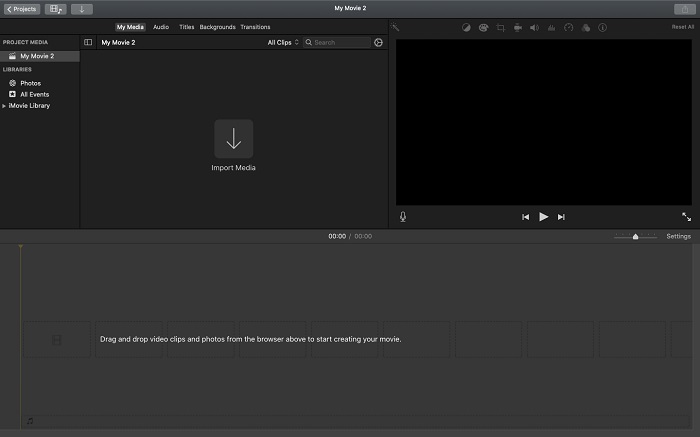
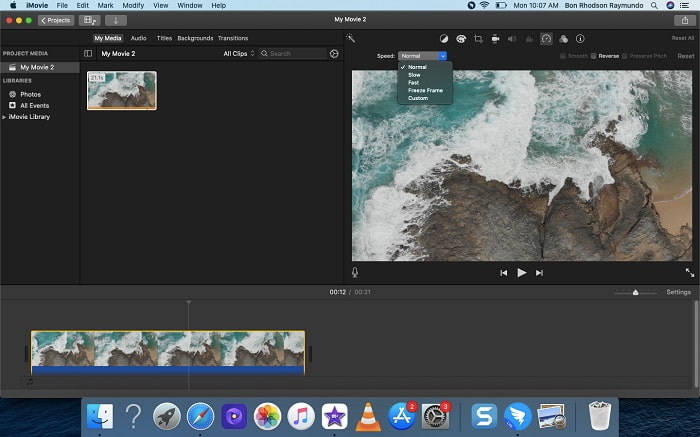
Korak 2. Postavkama brzine pristupa se klikom na gumb Speed (Brzina) koji se nalazi u gornjem desnom kutu zaslona. Kako biste precizno podesili brzinu, jednostavno odaberite između sporijih (Slow) i bržih (Fast) vrijednosti pomoću gumba za brzinu na radnoj površini svog računala.
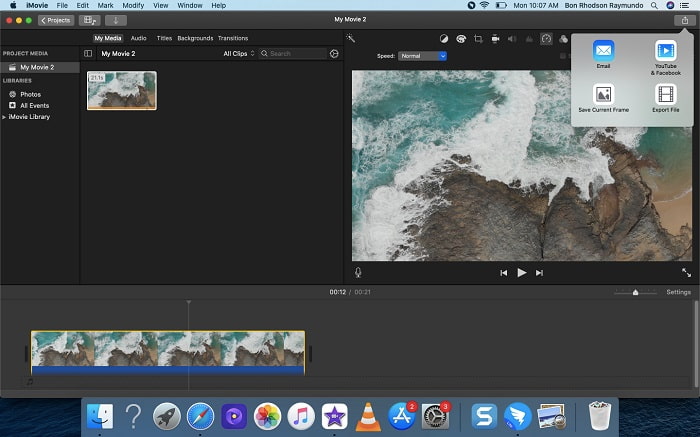
Korak 3. Da biste spremili datoteku na tvrdi disk računala, kliknite ikonu Upload (Učitaj) u gornjem desnom kutu zaslona.
Dio 3. Najbolja alternativa u stvaranju usporenih videozapisa
Osim korištenja iMovieja za izradu usporenih videa, ova najbolja alternativa korisna je za sve korisnike stolnih i prijenosnih računala. Video Converter Ultimate je softver koji je besplatan za preuzimanje i dostupan je za Windows i Mac operativne sustave. Jednostavan je za korištenje i ima intuitivno sučelje, pa nećete imati poteškoća s razumijevanjem alata potrebnih za izradu usporenih videa. Sadrži jedan od najboljih alata, Video Speed Controller (upravljač brzinom videa), koji možete koristiti za prilagodbu brzine reprodukcije videa, pa tako od običnog videa normalne brzine možete napraviti usporeni video. Da biste saznali više detalja o tome kako koristiti ovaj softver kako biste postigli željeni efekt usporenja, slijede koraci koje trebate poznavati:
Korak 1. Prije nego što počnete koristiti softver, najprije ga morate preuzeti klikom na downlink u nastavku, ovisno o svom operativnom sustavu. Instalacija je jednako jednostavna: preuzmite ga na svoje računalo i kliknite Start Now (Započni sada) za početak.
Besplatno preuzimanjeZa Windows 7 ili novijiSigurno preuzimanje
Besplatno preuzimanjeZa MacOS 10.7 ili novijiSigurno preuzimanje
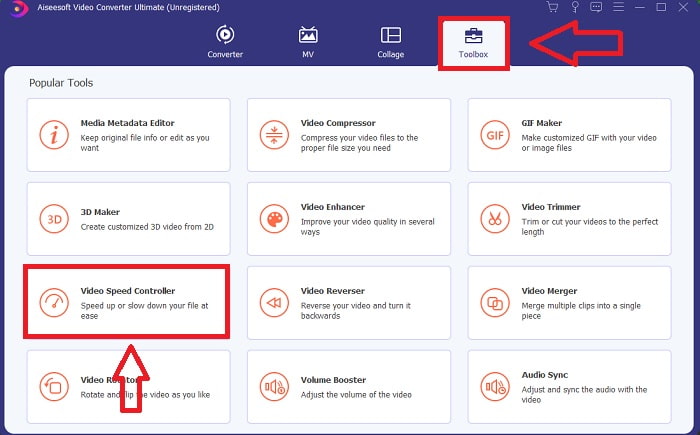
Korak 2. Kada pokrenete program, na glavnom sučelju softvera vidjet ćete značajku Converter (Pretvarač). Zatim upotrijebite značajku Toolbox (Alatni okvir) kako biste pronašli ono što vam treba za izradu usporenih videa. Ako želite promijeniti brzinu svog videa ili jednostavno napraviti usporeni video, s popisa dostupnih alata odaberite Video Speed Controller.
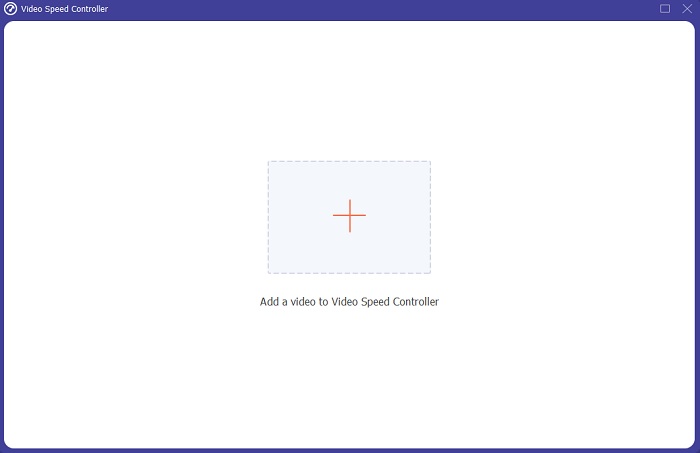
Korak 3. Nakon što nastavite, na zaslonu računala otvorit će se novi prozor. Za početak uređivanja kliknite znak plus +.
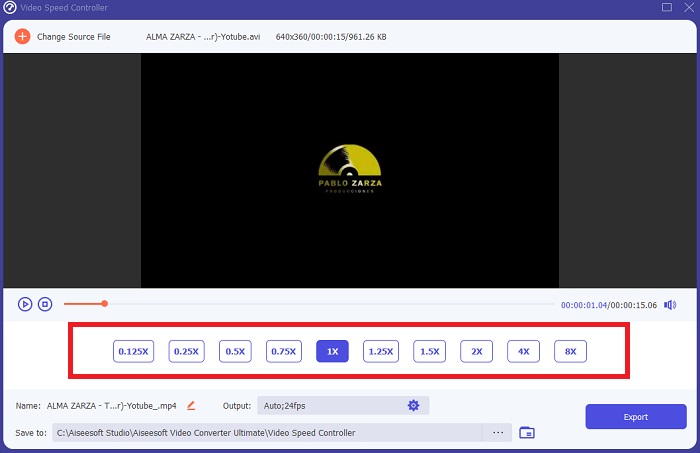
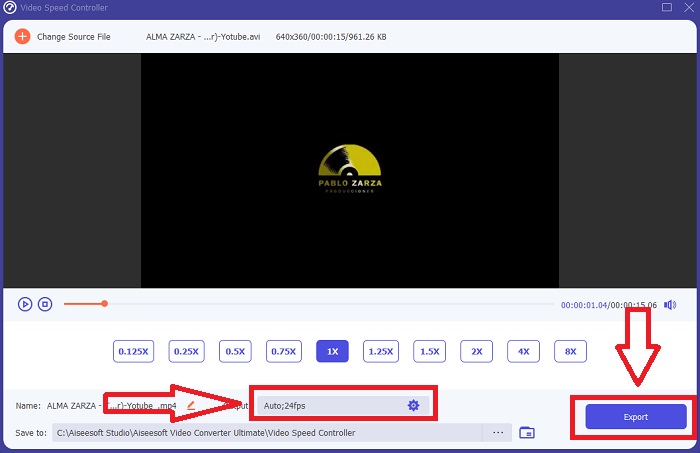
Korak 4. Za početak uređivanja odaberite koliko će se puta brzina kadrova videa povećati ili smanjiti tijekom reprodukcije kako biste vidjeli koliko će biti brz ili spor; to će odrediti efekt usporenja koji ćete primijeniti na svoj video. Budući da izrađujete usporeni video, smanjit ćete brzinu odabirom brzine videa ispod prosječne brzine. Ako ste zadovoljni brzinom svog videa, sada možete dodatno podesiti kvalitetu mijenjanjem formata, rezolucije, broja sličica u sekundi i slično. Također ćete imati mogućnost preimenovati svoj izlazni video.
Korak 5. Kliknite Export (Izvezi) i odaberite mjesto u datotečnom sustavu računala na koje želite spremiti svoj rad.
Povezano:
Dio 4. Često postavljana pitanja o izradi usporenih videozapisa u iMovieu
Što ako iMovie ne radi?
Osim ako opcija nije dostupna, videoisječak nije dovoljno dugačak da podrži ubrzanu reprodukciju. Također je moguće da ćete morati pretvoriti svoj video. Određene vrste videozapisa, poput onih snimljenih na iPhoneu ili u H.264 na Flip kamkorderu, moraju se pretvoriti prije promjene brzine. U pregledniku projekta kliknite i dvokliknite video datoteku da biste je otvorili. Ako vidite gumb Pretvori cijeli isječak u inspektoru koji se otvori, odaberite ga. Ponovite isječak, a zatim nastavite s postupkom usporenog/premotavanja unaprijed.
Možete li usporiti ubrzani video na iMovie?
Vaš ubrzani video počet će se reproducirati čim otpustite okidač da biste završili snimanje. Klizač brzine ubrzanog snimanja nalazi se na samom dnu zaslona. Kada zaustavite snimanje s pritisnutom tipkom okidača, vaš će se ubrzani video početi automatski reproducirati. Klizač brzine ubrzanog snimanja nalazi se na samom dnu zaslona.
Kako usporiti Youtube videe?
Reproducirajte videozapis u aplikaciji Youtube, locirajte ikonu zupčanika ili naziva se ikona postavki. Pritisnite Brzina reprodukcije i odaberite opcije iznad normalne brzine kako biste počeli usporavati videozapis koji reproducirate.
Zaključak
Za kraj, iMovie je izvrstan video editor koji je dostupan samo na iOS i Mac operativnim sustavima. Ali što ako koristite Windows za izradu usporenog videa? Preporučujemo korištenje programa Video Converter Ultimate kako biste postigli usporeni video koji želite. Ovaj je softver dostupan i za Windows i za Mac. Osim toga, besplatan je i ima razne alate za uređivanje videa. Također sadrži poseban alat namijenjen upravo prilagodbi brzine reprodukcije, čime se postižu usporeni videozapisi. Uz svoje ugrađene alate, podržava i različite video formate, tako da nećete imati problema s pretvaranjem svog videa.
-
 [Besplatno i plaćeno] GIF Speed Changer: Hot Picks of 2021
 Jeste li nezadovoljni GIF-om koji ste napravili na mreži jer je zamoran i spor? Ovo će biti vaš sretan dan jer vam predstavljamo članak o mijenjanju brzine GIF-a i detaljima koji vam pomažu da ga koristite i savladate.
-
 4 najbolja video playera s regulatorom brzine u 2021
 Zar niste primijetili brzinu reprodukcije svakog media playera kad god reproducirate video? Ovaj je članak prikladan za vas da naučite sve o video playerima s kontrolom brzine.
-
 3 načina za ubrzavanje videa na iPhoneu [Dokazano&93;
 Imate problema s podešavanjem brzine reprodukcije videozapisa jer koristite iPhone? Ovo je izvrstan članak koji će vam pomoći u rješavanju vašeg problema.
