


 Video Converter Ultimate
 Snimač zaslona
 Video popravak
Savjeti i trikovi za povećanje glasnoće na vašem Windows/Mac/iPhoneu/Androidu
Većina računala, Macova, Androida ili iPhonea može postići samo pristojnu glasnoću zvuka. Iako to nije dovoljno dobro da bismo osjetili trnce po koži ili uistinu uživali u zvuku. Štoviše, možemo to donekle popraviti tako da pojačamo glasnoću do maksimuma. Iako tako pojačate zvuk, neki videozapisi koje gledamo i dalje su tihi. Zato vam sada predstavljamo različite tehnike među kojima možete birati kako biste uz pomoć vlastitih uređaja mogli slušati videozapis dobre glasnoće. Ako ste spremni započeti, prijeđimo na to i istražimo kako jednostavno povećati glasnoću na različitim platformama.

Dio 1. Kako povećati glasnoću na Windows/Mac/iPhone/Android
1. Windows
Povećanje glasnoće MP3 na Windows PC-u puno je lakše čak i ako ne morate koristiti treću stranu. Međutim, ako ovdje želite pojačati zvuk, nemojte očekivati nešto posebno. Budući da ovaj operativni sustav ne nudi nikakav ekvilajzer koji bi vam pomogao da njime manipulirate. Ali možete podesiti glasnoću drugih aplikacija za koje želite da zvuči više ili niže. Dakle, idemo na korake u nastavku kako bismo utvrdili kako učiniti zvuk vašeg videa jasnijim na računalu sa sustavom Windows.
Kako povećati glasnoću videozapisa u sustavu Windows:
Korak 1. Na sučelju vašeg računala sa sustavom Windows, u donjem desnom kutu pronađite ikonu zvučnika.
Korak 2. Kliknite desnom tipkom miša i odaberite Open Volume Mixer (otvori mikser glasnoće).
Korak 3. Podesite Device kako biste povećali ili smanjili ukupnu glasnoću. Međutim, ako želite podesiti glasnoću samo jednog zvuka, možete to učiniti povlačenjem njegove klizne trake gore ili dolje.
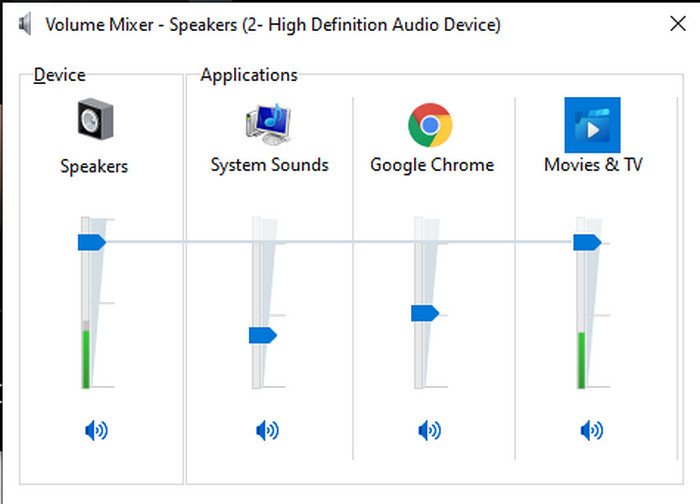
2. Mac
Baš kao i Windows, možete jednostavno manipulirati i povećati glasnoću videozapisa na Macu. Štoviše, ako želite povećati audio izlaz na svom Macu onda ovo mora biti vaš izbor za jednostavno izvođenje. Međutim, baš kao što je ranije rečeno, ovo je kao Windows, ali u drugom programu, ovaj OS nema ugrađeni ekvilajzer koji bi drastično promijenio glasnoću. A sada, ako želite naučiti kako povećati glasnoću, slijedite ovaj korak naveden u nastavku.
Kako povećati glasnoću videozapisa na Macu:
Korak 1. Uključite svoj Mac i kliknite gumb u obliku jabuke na vrhu zaslona.
Korak 2. Zatim kliknite System Preference (Postavke sustava). Pritisnite Sound (Zvuk) kako biste nastavili na zadnji korak.
Korak 3. Podesite izlaznu glasnoću (Output Volume) povlačenjem klizača kako biste pojačali ili smanjili zvuk.
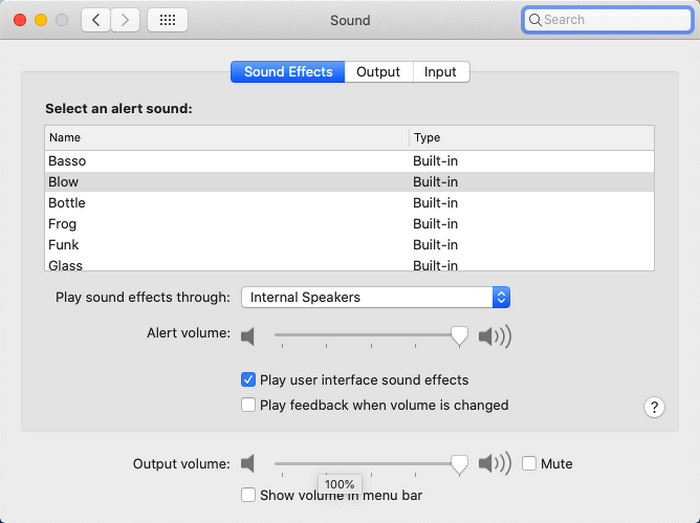
3. iPhone
Ako imate iPhone onda možete lako naučiti kako svoju glasnoću učiniti glasnijom i boljom. Jer ovaj uređaj ima ugrađen ekvilajzer koji će vam sigurno pomoći. Štoviše, mogućnost povećanja zvuka u ovom telefonu i dalje nas zadivljuje. Jer nismo znali da postoji prijenosni ekvilajzer koji korisnici iOS-a mogu koristiti. Dakle, sada, ako nemate ideju kako ga koristiti, sljedeći koraci će vam pomoći da to učinite.
Kako povećati glasnoću videozapisa na iPhoneu:
Korak 1. Idite u Settings (Postavke) i pronađite Music (Glazba), zatim je dodirnite.
Korak 2. Pritisnite EQ i odaberite jednu od opcija na popisu, a zatim se vratite na Home (Početni zaslon).
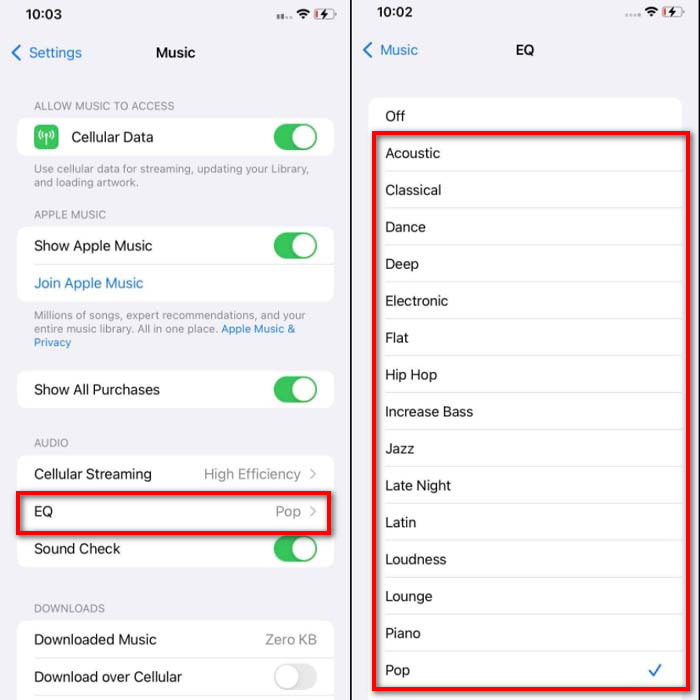
Korak 3. Sada otvorite Music (Glazba) i pustite glazbu. Zatim povećajte glasnoću pritiskom na tipku volume up ili je smanjite s down na bočnoj strani vašeg iPhonea.
4. Android
Android nikada neće iznevjeriti svog korisnika jer ovaj mobilni uređaj ima i ugrađen ekvilajzer. Iako ako povećate kvalitetu i samu glasnoću pomoću ekvilajzera koji je ovdje dostupan, to ipak nije tako učinkovito kao na iPhoneu. Međutim, ako ga koristite i prilagodite glasnoću dok imate slušalice ili zvučnike, osjetit ćete drastičnu promjenu glasnoće. No, imajte na umu da se koraci mogu razlikovati ovisno o marki i modelu vašeg uređaja. Također, ovi koraci su omogućili rad na Realme 7 pro, Android verziji 11 i novijim. Dakle, ako se pitate, kako mogu povećati glasnoću na svom Android telefonu, slijedite dolje navedene korake.
Kako povećati glasnoću videozapisa na Androidu:
Korak 1. Idite u Settings (Postavke) i pronađite Sound & Vibration (Zvuk i vibracija).
Korak 2. Pomaknite se prema dolje dok ne pronađete Dolby Atmos i dodirnite ga da biste nastavili.
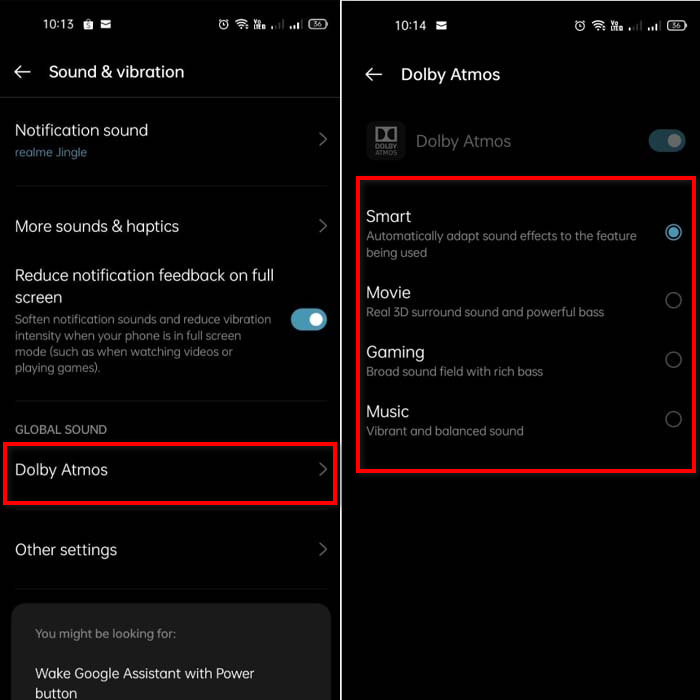
Korak 3. Promijenite ekvilajzer odabirom jedne od opcija s popisa. Ako želite da vaš zvuk bude još bolji, priključite slušalice kako biste dobili još glasniji i kvalitetniji zvuk. Zatim podesite volume up i down na bočnoj strani vašeg Android telefona kako biste povisili ili snizili glasnoću.
Dio 2. Još uvijek ne možete čuti glasnoću videozapisa? Pokušajte ga poboljšati s Video Converter Ultimate
Iako su navedeni koraci odlični za pomoć, i dalje im nedostaje nešto kada je riječ o većem pojačavanju zvuka. Zato vam sada predstavljamo izniman pojačivač glasnoće koji možete koristiti kako biste tihi zvuk pretvorili u glasniji – Video Converter Ultimate. Ovaj je softver već koristilo više od 10 milijuna korisnika diljem svijeta. Ne možete mu pristupiti na mobilnim uređajima jer nije podržan. Međutim, možete ga koristiti na PC-ju ili Macu, zatim datoteku najprije spremiti na disk pa je kasnije prenijeti na telefon. Bez daljnjeg odugovlačenja, pogledajmo kako koristiti pojačivač glasnoće u ovom alatu i naučimo kako svoj zvuk učiniti glasnijim nego ikad.
Kako pojačati glasnoću videozapisa uz pomoć programa Video Converter Ultimate:
Korak 1. Prije nego što počnete koristiti Video Converter Ultimate, morate ga najprije preuzeti na tvrdi disk. Zatim instalirajte alat, obavite početno podešavanje i kliknite Start Now (Započni sada) da biste ga pokrenuli.
Besplatno preuzimanjeZa Windows 7 ili novijiSigurno preuzimanje
Besplatno preuzimanjeZa MacOS 10.7 ili novijiSigurno preuzimanje
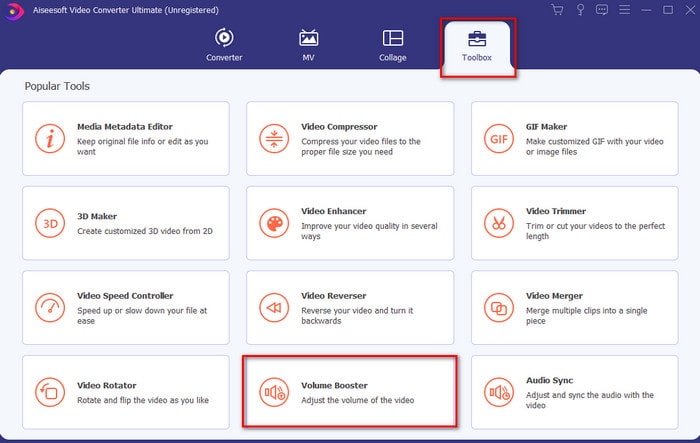
Korak 2. Nakon pokretanja alata prijeđite na sljedeći korak, idite u Toolbox (Alatni okvir) i pronađite Volume Booster (Pojačivač glasnoće).
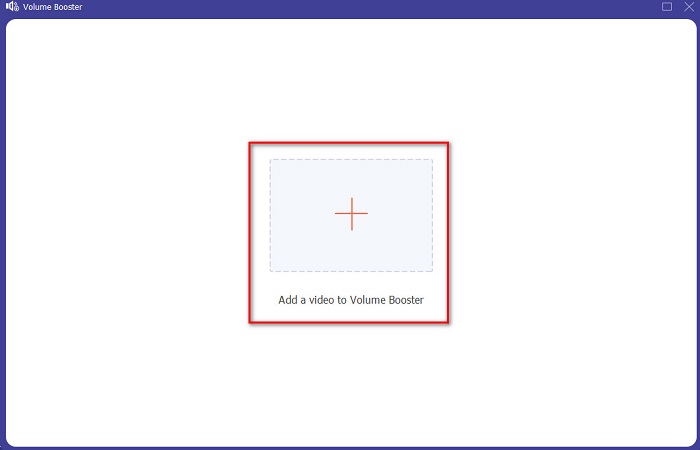
Korak 3. Kliknite znak + kako biste dodali video koji želite pojačati. Pronađite datoteku u mapi koja će se prikazati na zaslonu, zatim kliknite open (otvori) da biste nastavili.
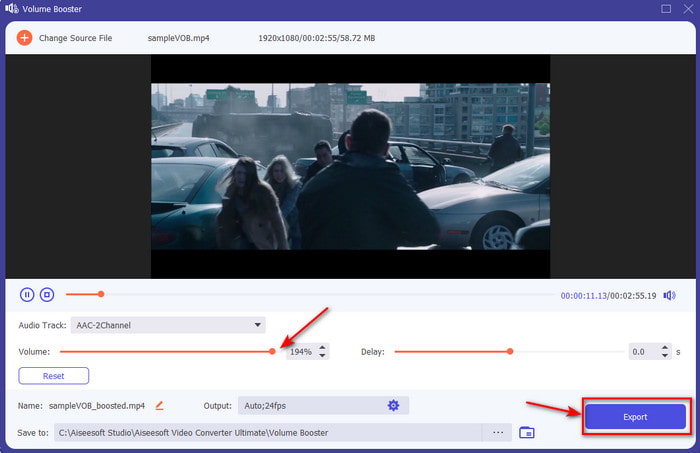
Korak 4. Na sučelju alata podesite klizač glasnoće na maksimum ili na razinu koja vam odgovara. Ako ste zadovoljni postavljenom glasnoćom, kliknite Export (Izvezi) da biste preuzeli datoteku.
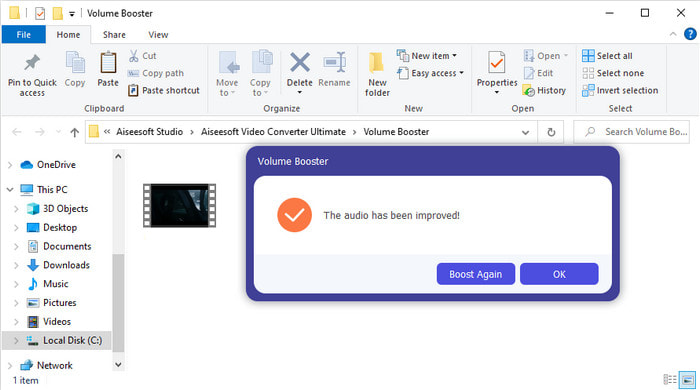
Korak 5. Pričekajte nekoliko sekundi da se obrada završi. Kada je datoteka gotova, mapa će se automatski prikazati na vašem zaslonu; zatim kliknite datoteku kako biste poslušali glasnoću videozapisa koji ste prilagodili.
Dio 3. Često postavljana pitanja o povećanju volumena
Mogu li povećati glasnoću na VLC-u?
Zapravo da, umjesto korištenja pojačivača glasnoće možete koristiti VLC Player za povećanje audio izlaza vašeg videa. Također, umjesto ograničavanja zvuka na 100%, možete ga proširiti na 125% ako želite.
Smanjuje li pretvaranje videozapisa kvalitetu videa i zvuka?
To zapravo ovisi o formatu u koji želite pretvoriti. Na primjer, ako pretvarate AVI u MP4, očekujte određene promjene u kvaliteti jer je AVI format nekomprimiran. Međutim, to možemo izbjeći ako pročitate ovaj članak – za nastavak samo kliknite ovu poveznicu. Dakle, ako ćete pretvarati komprimiranu datoteku u nekomprimiranu ili u drugi komprimirani format, također očekujte određene promjene, osobito ako to činite redovito; ali ako datoteku pretvorite samo jednom, kvaliteta se ne bi trebala bitno promijeniti.
Kako popraviti kašnjenje videa i zvuka?
Zapravo postoje dva načina kako to popraviti. Prvi je da datoteku izbrišete i ponovno preuzmete video ako je dostupan na internetu. Pazite da se proces ne prekida i da imate stabilnu internetsku vezu kako biste izbjegli nedostajuće dijelove datoteke. Međutim, ako je ta datoteka samo za vašu osobnu uporabu, tada je nužno odabrati softver koji će vam pomoći uskladiti zvuk i sliku. Kako biste dobili ideju o dostupnim programima i kako jednostavno uskladiti zvuk i video, kliknite poveznicu i pročitajte članak. Prikupili smo različite programe među kojima možete izabrati jedan.
Zaključak
Sada kada znamo kako popraviti tihi zvuk na našem videozapisu, pravo je vrijeme da to i učinimo. Samo slijedite jednostavne korake navedene iznad kako biste svoju glasnoću učinili boljom nego prije. Iako se koraci ne svode samo na to da pritisnete tipku za pojačavanje zvuka, uz pomoć drugih tehnika to možete lako postići. Međutim, ako smatrate da je zvuk na vašem PC-ju, Macu, Androidu ili iPhoneu i dalje tih, pojačajte ga uz Video Converter Ultimate. Podignite glasnoću na višu razinu i iskusite mnogo glasniji i bolji zvuk.
-
 7 jednostavnih koraka kako riješiti probleme s kašnjenjem zvuka OBS-a [riješeno]
 Mučite li se s gledanjem videoisječka nakon snimanja zbog kašnjenja zvuka kada koristite OBS Studio? Pročitajte članak u nastavku da biste saznali kako učinkovito popraviti nesinkronizirani zvuk.
-
 Mogući izvrsni načini | Kako popraviti kašnjenje zvuka VLC-a [2021]
 Je li vam teško gledati svoj omiljeni film na VLC media playeru zbog audio nesigurnosti? Nastavite čitati ovaj članak da biste saznali sve moguće načine popravljanja kašnjenja zvuka VLC-a.
-
 Najbolji načini za povećanje glasnoće MP4 na mreži i izvan mreže
 Mučite li se čuti zvukove svog videoisječka? Pročitajte članak u nastavku da biste saznali kako povećati glasnoću mp4 na različite načine.
