


 Video Converter Ultimate
 Snimač zaslona
 Video popravak
Kako se besplatno pridružiti MOV (QuickTime) datotekama
Nakon prikupljanja mnogih MOV video materijala, možda ćete htjeti rasporediti materijale i spojiti ih u jednu cjelovitu datoteku. Međutim, za početnike ili amaterske proizvođače video zapisa korištenje tehničkog alata poput Adobe Premiere Pro moglo bi biti prekomplicirano. Možda ćete potrošiti dane ili čak mjesece da biste proučavali kako upravljati programom.
In fact, if you only want to merge video clips, you can use a simple and effective video joiner to solve your problem, which only takes a few minutes to merge two or more MOV files together.
With the following steps, you can easily combine MOV files on both Mac and Windows. So, please read on and try the methods yourself.

Dio 1. Kako spojiti MOV videozapise u QuickTimeu
MOV, also known as QuickTime File Format (QTFF), is a digital video container with MPEG-4 codec. It was introduced by Apple in 1998 to support QuickTime Player. Therefore, if you have a Mac, you can actually use QuickTime Player to join mov files with ease.
Iznenađujuće, QuickTime nije samo medijski uređaj za reprodukciju, već i uređivač video zapisa koji vam omogućuje spajanje zasebnih videozapisa, uređivanje videoisječaka, pa čak i snimanje zvuka ili videa na vašem Macu. Osim toga, jednostavan je za upotrebu i zadržava izvornu kvalitetu videozapisa.
Evo koraka za pridruživanje videoisječaka u QuickTimeu.
Step 1. Find the videos you want to merge and open one of them with QuickTime Player. (You can move them to one folder or to desktop first to save trouble.)
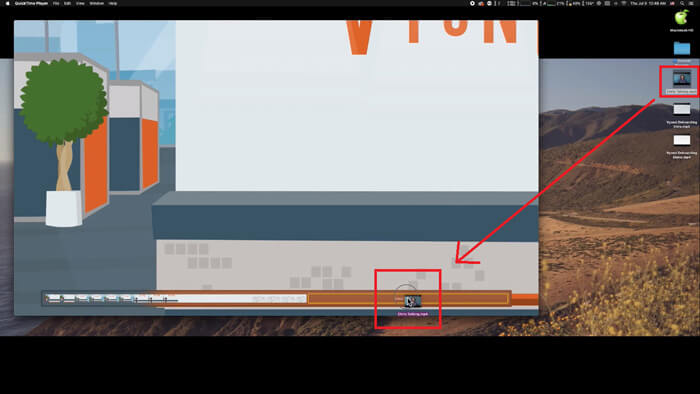
Step 2. After opening the file, there will be player window showing up on the screen. Now drag the other video clip into the QuickTime Player. You can hold and drag the video clip to the right order. When you release the mouse, there will be a Done button next to your video clips. Click it.
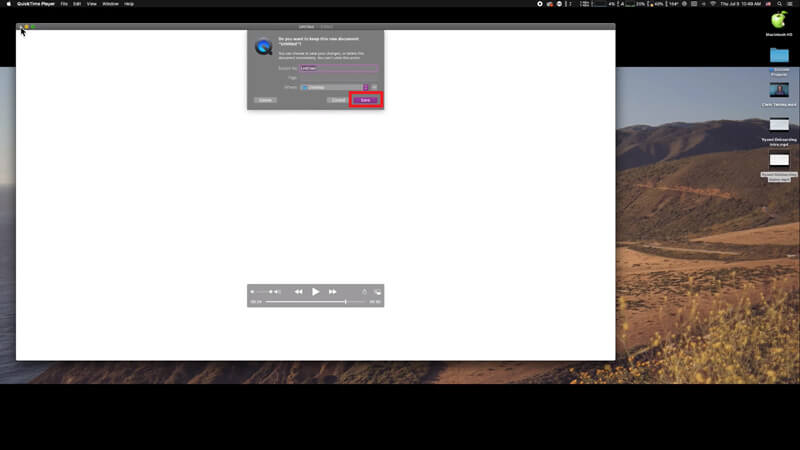
Step 3. Exit QuickTime and you will get a prompt immediately to remind you save the merged video. Just input a new name and select a destination before clicking the Save button.
Dio 2. Kako spojiti MOV datoteke na mreži i besplatno
However, QuickTime cannot help you merge various video files in different formats, such as MP4, MOV, AVI, WMV, FLV, etc. into one MOV file. In this case, you need to use a more professional video merger that supports multiple video formats.
So, meet FVC Free Online Video Merger, the best video joiner to merge videos for free. Using this tool, you can upload as many videos as you like with no limit. Besides MOV, you can export other popular video formats, which is very convenient for you to share the video to streaming sites like YouTube.
Umjesto instaliranja ozbiljnog i skupog programa na računalo, možete se pridružiti bilo kojem videozapisu kako biste stvorili jedan nevjerojatan videozapis na mreži pomoću ovog video kombinatora koji je jednostavan za upotrebu i koji vam omogućuje stvaranje video zapisa bez vodenog žiga. Bez obzira koji sustav koristite, Windows, Mac ili Linux, može dobro funkcionirati. Sve što trebate je preglednik i stabilna mreža.
Sljedeći koraci vodit će vas o upravljanju ovim alatom za spajanje video zapisa.
Step 1. Click the link above to open the website of FVC Free Online Video Merger on your browser.
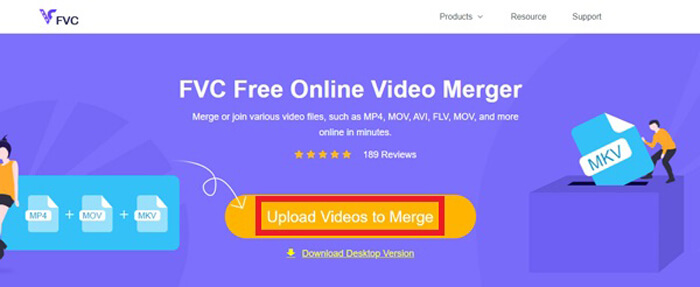
Step 2. Click the Upload Videos to Merge button in the banner first. Then you need to follow the on-screen instructions to download and install a launcher to your computer.
Step 3. Once the installation is over, a window will pop up immediately. Now, you can select and add all the MOV files you want to join to the video merger.
Step 4. After uploading, please check if the order of video clips is right. Then change the Resolution as you need and the Format to MOV or any other format you want.
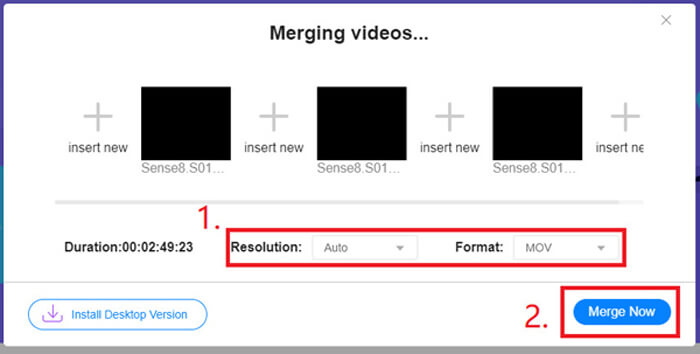
Step 5. Click Merge Now to start the combination.
Dio 3. Kako spojiti MOV datoteke u sustavu Windows 10
Ako nemate Mac, ali imate računalo sa sustavom Windows 10, možete pokušati sljedeće korake za pridruživanje MOV datotekama.
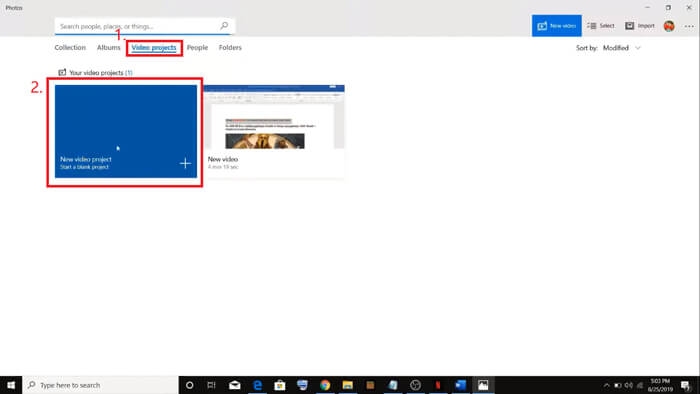
Step 1. Open the Photos app on your PC. You can find it by searching it in the Search bar. Then select the Video projects tab above and click on New video project. Name the video project.
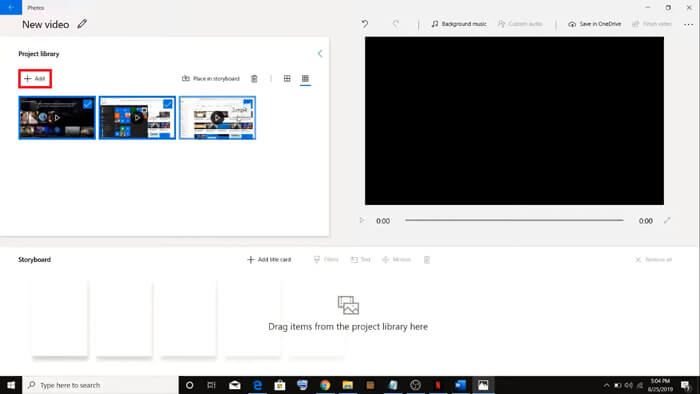
Step 2. Click the Add button in the top left corner and select all the videos you want to convert from your PC.
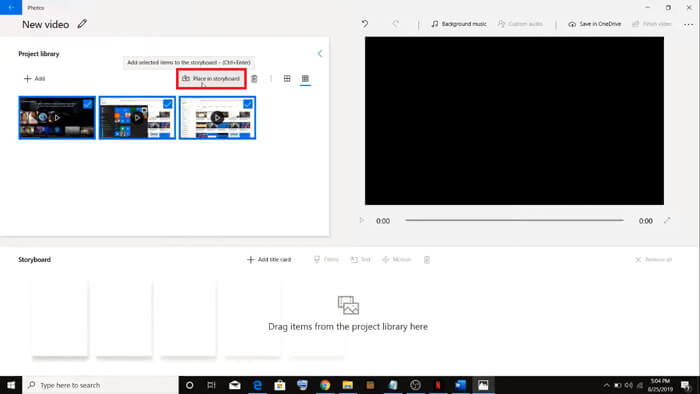
Step 3. Then click the Place in storyboard button to combine all your MOV files.
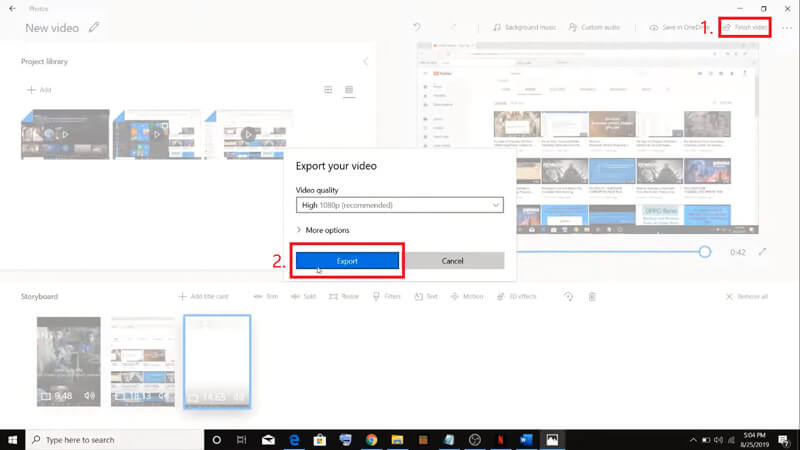
Step 4. After adjusting the video order, click Finish video in the top right corner. Then Export the merged video to your PC.
Dio 4. Česta pitanja o spajanju MOV-a
1. Mogu li koristiti QuickTime Player na sustavu Windows?
Even though Apple doesn’t support QuickTime for Windows any more, you can still find the installation package of QuickTime on the Internet. However, you should notice that you can only use it to play videos. So, it’s basically a normal player that helps you little.
If you are a Windows user who wants to merge MOV files, you can just use the powerful FVC Free Online Video Merger.
2. Što je bolje za YouTube, MOV ili MP4?
After producing a wonderful video by merging all your video materials, you may want to upload it to YouTube, Facebook, Instagram, or other platforms. If so, MP4 will be a better choice. Because it is smaller in size and easier to share over the Internet.
Maybe you want to know more differences between MOV and MP4.
3. Može li QuickTime Player izvesti MP4 video?
No and yes. Because QuickTime itself does not support users in exporting MP4 files. But if you have paid and upgraded your QuickTime to QuickTime Pro, then you can enjoy merging MOV files and get the converted MP4 file automatically. If you don’t want to pay a penny but still want to convert MOV to MP4 on Mac, you can try a free online converter called FVC Free Online Video Converter which is compatible with both Mac and Windows.
Zaključak
So, these are the methods you can adopt when you need to merge MOV files into one. If you are using Mac, you can use the built-in software, QuickTime Player, directly to obtain the merged MOV file. Windows 10 users can give Photos a try. As for other Windows computers, users can choose FVC Free Online Video Merger and experience a fantastic video merging journey with no restriction, no ad and no virus.
Ako vam se ovaj post sviđa i smatrate ga praktičnim, možete ga podijeliti sa svojim prijateljima. I ne ustručavajte se ostaviti nam svoj komentar. Sada je na vama red da isprobate metode i spojite datoteke.
-
 Kako pretvoriti QuickTime u MP4 na Windows / Mac / Online / iOS / Android
 Pročitajte i nabavite 4 načina za besplatno pretvaranje QuickTime u MP4 videozapise na telefonu ili računalu. Možete s lakoćom promijeniti format datoteke iz MOV u MP4 na sustavu Windows / Mac / iPhone / Android / online.
-
 4 najbolja načina za besplatno pretvaranje MP4 u MOV
 Kako pretvoriti MP4 u MOV na Macu? Postoji li besplatan način pretvorbe MP4 u MOV bez gubitka kvalitete? Ovaj post dijeli 4 jednostavna načina koja će vam pomoći da napravite video pretvorbu iz MP4 u MOV na Macu, Windows PC-u i na mreži.
-
 Kako pretvoriti M2TS u MOV na sustavu Windows / Mac (online / offline)
 Trebate pretvoriti M2TS u MOV za reprodukciju video datoteka na velikom broju playera i platformi? Ovaj će vam članak pomoći pronaći najbolju mrežnu / izvanmrežnu metodu za pretvaranje M2TS u MOV na Windowsima / Macima.
