


 Video Converter Ultimate
 Snimač zaslona
 Video popravak
[Riješeno] Kako postaviti filtar na video na najjednostavniji mogući način
Umjesto kompliciranog uređivanja, možete koristiti filtre kako biste uredili fotografiju s manje truda. Stavljanje filtara na videozapis izvrstan je način da dodate ton svom projektu, da ga učinite tamnijim ili svjetlijim, da izgleda grublje ili glađe ili nešto posve drugo. Ipak, nisu sve aplikacije za filtriranje najbolje za korištenje, pa ćemo vam danas predstaviti alate koje već poznajete i koje možete koristiti za dodavanje filtra na bilo koji videozapis koji imate. Sada, imamo mnogo toga za obraditi o tome kako staviti filtar na video; prijeći ćemo odmah na stvar i uživajte u čitanju članka.

Dio 1. 1. način. Kako postaviti filtere na videozapise pomoću Video Converter Ultimate
Video Converter Ultimate ima najnapredniji, a ipak jednostavan za razumijevanje skup funkcija za uređivanje koje možete koristiti. To je višenamjenski alat s mnogo namjena za gotovo sve video probleme. Ovaj ultimativni alat predstavlja jednostavan način za dodavanje filtra na video kad god vam zatreba, a alat možete koristiti prateći vodič u nastavku.
Korak 1. Preuzimanjem softvera na svoj stolni računalo možete imati ultimativni višenamjenski alat na svom Windowsu ili Macu. Nakon preuzimanja softvera, slijedite postupak instalacije kako biste postavili alat i zatim ga pokrenuli.
Besplatno preuzimanjeZa Windows 7 ili novijiSigurno preuzimanje
Besplatno preuzimanjeZa MacOS 10.7 ili novijiSigurno preuzimanje
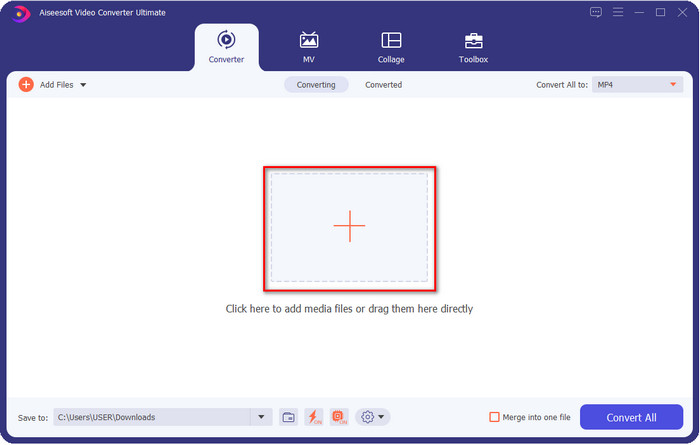
Korak 2. Na sučelju alata kliknite tipku + kako biste učitali videozapis kojem želite dodati vodeni žig. Potražite datoteku u mapi na računalu koja će se pojaviti na zaslonu, kliknite datoteku i pritisnite Open kako biste je uspješno učitali u upit.
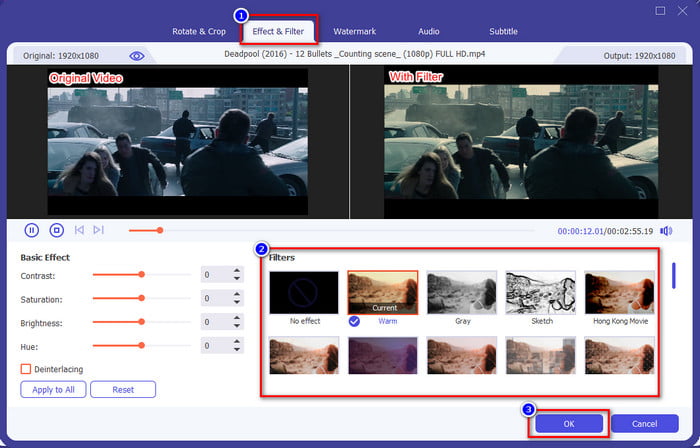
Korak 3. Nakon učitavanja videozapisa kliknite gumb wand kako biste dodali malo sjaja svom videu. Idite na odjeljak Effects & Filters kako biste vidjeli dostupne filtre i efekte; možete ih slobodno koristiti. Dodatno, predlažemo da isprobate sve kako biste vidjeli odgovara li filtar vašem videu, a kada odaberete filtar koji želite, kliknite OK kako biste primijenili promjene.
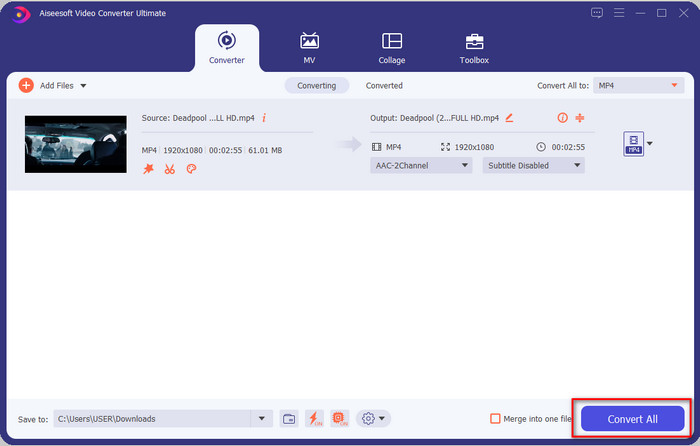
Korak 4. Nakon što ste dodali beauty filtar na video ili bilo koji filtar koji želite, kliknite Convert All i video s filtrom počet će se renderirati. Time ste sada dodali filtar na svoj video pomoću najboljeg video urednika koji možete koristiti na Windowsu i Macu.
Povezano:
Dio 2. 2. način. Kako dodati filtar u video koristeći iMovie na iPhoneu i Macu
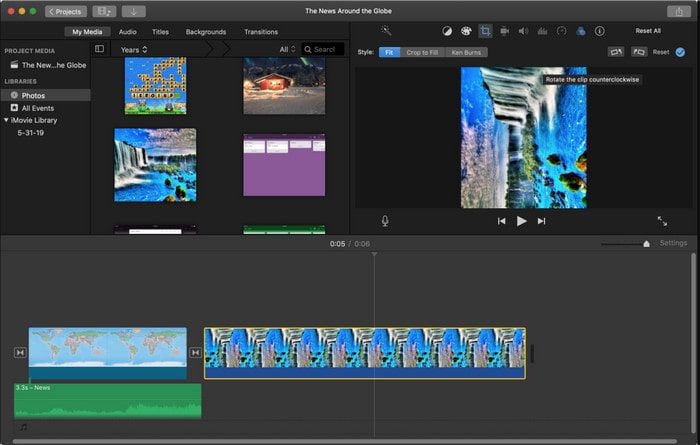
iMovie je vrhunski video urednik koji možete besplatno koristiti na svom Macu. Također, podržava srednji raspon video filtara na popisu kako bi vaš video izgledao sjajno. Štoviše, ovaj je alat dostupan i na Macu i na iPhoneu, pa ćemo vam danas predstaviti dva načina i naučiti vas kako dodati filtar na video na iPhoneu i Macu.
1. opcija. Dodajte filtre videozapisima pomoću Maca
Korak 1. Otvorite iMovie, umetnite videozapis klikom na gumb import, zatim povucite datoteku na Timeline.
Korak 2. Kliknite videozapis na Timelineu, a u prozoru pregleda kliknite tri kruga, zatim kliknite Clip Filter i odaberite željeni filtar s popisa.
Korak 3. Kako biste spremili video s filtrom, kliknite gumb za izvoz, a zatim pronađite Export File.
2. opcija. Dodajte filtre videozapisima pomoću iPhonea
Korak 1. Pokrenite aplikaciju iMovie na telefonu, kliknite znak plus i kliknite Movie. Dodajte datoteku koja je u vašim Photos, zatim nastavite.
Korak 2. Kliknite videozapis na Timelineu i kliknite gumb filter. Isprobajte filtre dostupne u ovoj aplikaciji i odaberite jedan.
Korak 3. Nakon toga kliknite Done, kliknite gumb za izvoz i Save Video kako biste ga izvezli u svoje Photos.
Dio 3. 3. način. Kako postaviti filtar na video pomoću Adobe Premiere Pro
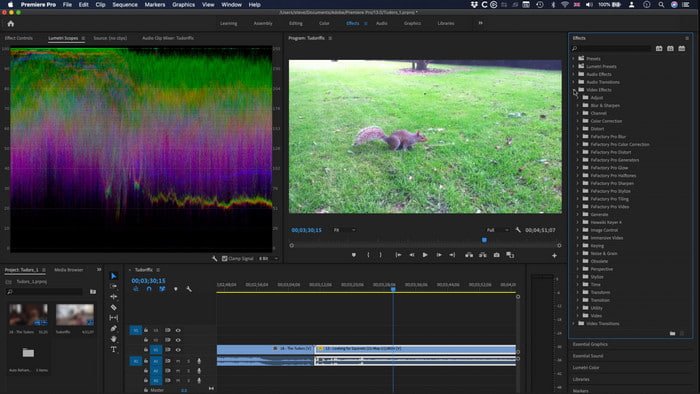
Uz profesionalni alat na ovom popisu, možete učiniti gotovo sve kako biste svoj video podigli na višu razinu. Adobe Premiere Pro svojim korisnicima nudi učinkovito uređivanje videa i najnaprednije filtre koje možete koristiti kako biste vaš video izgledao posve drugačije od ostalih. Sada naučite kako staviti filtar na video u Premiereu prateći vodič u nastavku.
Korak 1. Preuzmite video urednik na svoj disk, kliknite File kako biste dodali video u alat.
Korak 2. Dodajte video datoteku na Timeline, idite na panel Effects, otvorite Lumetric Presets i tamo se nalazi pet različitih skupova filtara. Kliknite i povucite filtar na video timeline kako biste vidjeli izgleda li dobro, a ako ne, pritisnite Ctrl + Z kako biste poništili i učinite isto s drugim filtrima kako biste ih sve isprobali.
Korak 3. Da biste spremili video, morate kliknuti File, zatim Save.
Dio 4. Često postavljana pitanja o dodavanju filtera na videozapise
Zašto trebam koristiti filtar na videu?
Da vidite koji su drugi potencijali u koje vaš rad može ići. Filtri se ne izrađuju i koriste samo za uljepšavanje, već i za fotografske detalje na mjestu. Također, ako ste početnik ili nemate iskustva s montažom videa, tada vam filter može pomoći da poboljšate ton fotografije prema vašim potrebama.
Povećavaju li filtri moj videozapis u veličini datoteke?
Da, video bi mogao dodati veličinu datoteke jer dodajete video element. Međutim, veličina datoteke neće previše utjecati jer dodajete samo filtar. Ipak, ako izvršite dodatno uređivanje, kao što je spajanje jednog s drugim videozapisom, veličina datoteke će se povećati jer kombinirate drugi videozapis.
Podržava li Instagram video filtere?
Instagram ima popis ugrađenih filtara koje možete koristiti prije nego što bilo što objavite na Instagramu. Ako ne znate gdje ih možete pronaći ili kako ih koristiti, možete pročitati ovaj članak koji će odgovoriti na sva takva pitanja o najboljim Instagram filtrima.
Zaključak
Napokon, naučili smo tri različita načina kako dodati filtar na video; uz pomoć ovih alata možete ih preuzeti ili odmah koristiti na računalu. Alati predstavljeni u ovom članku mogu vam pomoći u različitim zadacima, osobito u uređivanju, jer su oni najbolji među svim video urednicima. Međutim, ako želite najjednostavniji alat koji vam nudi najbolji rezultat, morate odabrati Video Converter Ultimate. Zašto? Zato što je taj alat jedini koji nudi manje komplicirane korake koje možete pratiti kako biste dodali filtre na svoj video. Da biste u potpunosti uživali u alatu, morate ga kupiti i preuzeti s službene web stranice FVC.
-
 Kako besplatno dodati audio i glazbu u videozapise na računalu / telefonu
 Ovaj članak prikazuje 4 jednostavna načina za besplatno dodavanje zvuka u videozapis. Bez obzira koji audio zapis želite dodati u svoj videozapis, ovdje možete dobiti zadovoljavajuće rezultate.
-
 Pretvorite GIF u video format: Pretvorite GIF meme u video [2021.]
 Odredite kako pretvoriti GIF u video format uz pomoć dolje navedenih alata. Odaberite koju i naučite kako to učiniti, jer prikupljamo dovoljno dokaza o njima.
-
 Čudesne GIF za video aplikacije za Android i iOS uređaje
 Jeste li znali da pomoću telefona možete pretvoriti GIF-ove u bilo koji video format koji vam se sviđa? Odaberite najbolje aplikacije na svom Androidu ili iOS-u.
