


 Video Converter Ultimate
 Snimač zaslona
 Video popravak
Kako ukloniti grickajući vodeni žig s vaših videozapisa bez napora
Ako tražite najbolje i najjednostavnije načine za uklanjanje Biteable vodenih žigova s vaših videozapisa, više se ne morate mučiti. Iskreno govoreći, gledanje videa s vodenim žigovima je iritantno i frustrirajuće. Ne možete u potpunosti uživati u videu koji gledate. Osim toga, ti vodeni žigovi ometaju gledatelje. Razumljivo je da vodeni žigovi služe sigurnosti vlasnika videa. No, postavljanje velikog vodenog žiga nije dobro. To samo ostavlja negativan dojam na ljude koji vole gledati svoje omiljene videozapise. Jedan primjer su Biteable vodeni žigovi. Ti Biteable vodeni žigovi dolaze iz Biteable aplikacije, pri čemu se vodeni žigovi automatski dodaju nakon izrade ili spremanja videa. Srećom, možete koristiti aplikacije kako biste uklonili te vodene žigove sa svojih videozapisa. Moći ćete gledati svoje omiljene videe bez osjećaja iritacije i frustracije. Ako želite saznati koje su najbolje i najpouzdanije aplikacije koje trebate koristiti za uklanjanje tih vodenih žigova, nastavite čitati ovaj članak.

1. dio: Najbolji način za uklanjanje grickajućeg vodenog žiga s videozapisa
Video Converter Ultimate je najsjajnija aplikacija koju možete koristiti za uklanjanje Biteable vodenih žigova s vaših videa. Osim toga, ovaj izvrstan softver sposoban je ukloniti i druge nebitne i ometajuće objekte, poput logotipa, tekstova, potpisa itd. Također, postupak uklanjanja i spremanja je vrlo brz, pa ne morate trošiti puno vremena. Štoviše, Video Converter Ultimate nudi dva jednostavna načina za uklanjanje vodenih žigova s vaših videa: obrezivanje videa i poseban alat za uklanjanje vodenog žiga. Ima i više alata za uređivanje u kojima možete uživati, kao što su kontroler brzine videa, video konverter, video kompresor, korekcija boja, izrada kolaža, izrada GIF-ova, obrezivanje videa, pretvarač slika i još mnogo toga. Najbolji dio ovog alata je to što ga možete vrlo lako koristiti jer ima jednostavno sučelje, savršeno za početnike. Također podržava razne formate datoteka, poput MP4, MOV, FLV, MKV, OGV, DIVX i drugih. Konačno, Video Converter Ultimate je dostupan i na Windows i na Mac sustavima, što je vrlo praktično za korisnike. Ako želite ukloniti vodeni žig iz videa, slijedite jednostavne i lagane korake u nastavku.
Korištenje alata Video Watermark Remover
Korak 1: Posjetite web-stranicu Video Converter Ultimate i preuzmite aplikaciju. Zatim prijeđite na postupak instalacije. Nakon instalacije pokrenite aplikaciju.
Besplatno preuzimanjeZa Windows 7 ili novijiSigurno preuzimanje
Besplatno preuzimanjeZa MacOS 10.7 ili novijiSigurno preuzimanje
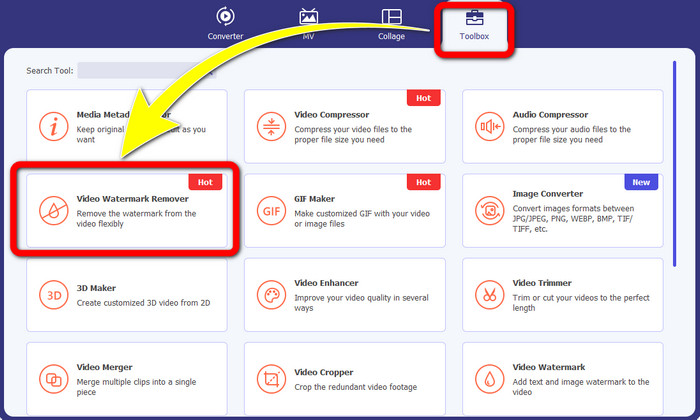
Korak 2: Nakon otvaranja programa Video Converter Ultimate kliknite gumb Toolbox > Video Watermark Remover. Zatim će se na ekranu pojaviti novo sučelje.
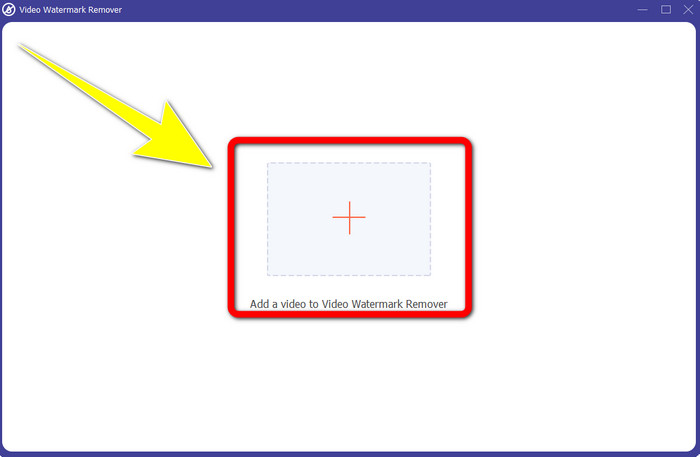
Korak 3: Kada se novo sučelje pojavi na vašem ekranu, kliknite gumb sa znakom Plus kako biste dodali svoj video s Biteable vodenim žigom.
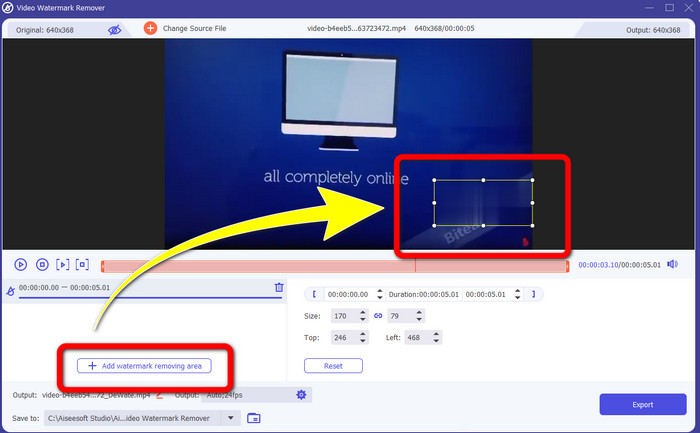
Korak 4: Nakon što dodate svoj video, kliknite Add Watermark Removing Area. Zatim će se na vašem videu pojaviti mali okvir. Povucite okvir kako biste prekrili vodene žigove.
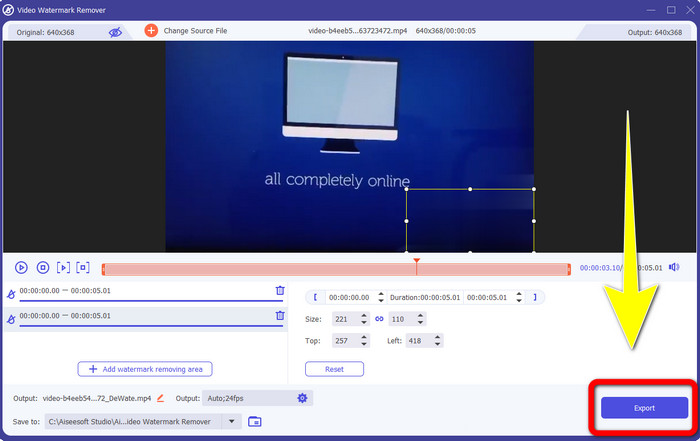
Korak 5: Kada uklonite Biteable vodeni žig sa svog videa, kliknite gumb Export kako biste spremili konačni rezultat.
Korištenje alata Video Cropper
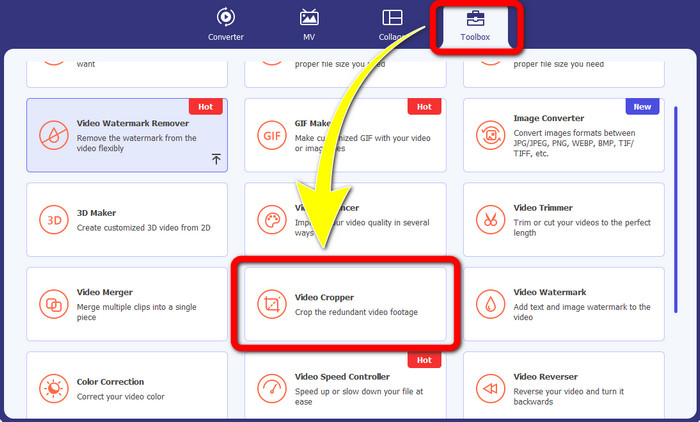
Korak 1: Pokrenite Video Converter Ultimate. Kliknite gumb Toolbox > Video Cropper.
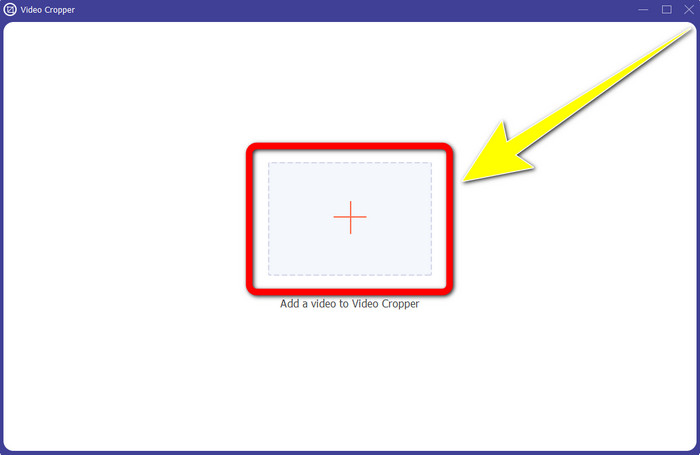
Korak 2: Nakon klika na Video Cropper, na vašem će se ekranu pojaviti novo sučelje. Kliknite ikonu Plus i dodajte svoj video s Biteable vodenim žigom.
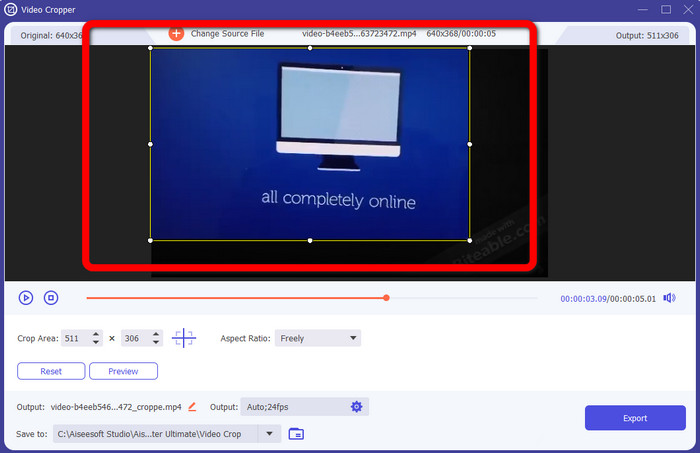
Korak 3: Kada ste dodali svoj video, sada ga možete Crop (obrezati) kako biste uklonili vodene žigove.
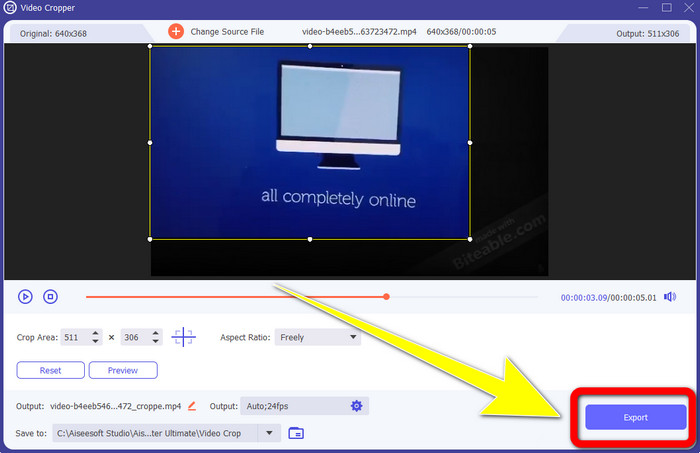
Korak 4: Kada završite s obrezivanjem videa, kliknite gumb Export i spremite svoj video bez Biteable vodenog žiga.
Dio 2: Kako ukloniti grickajući vodeni žig s videozapisa na mreži
1. Korištenje BeeCuta
Ako želite ukloniti grickajući vodeni žig besplatno na mreži, BeeCut je najbolja internetska aplikacija koju možete koristiti. Sposoban je ukloniti vodene žigove s vaših videozapisa. To je jednostavan online alat koji možete koristiti, a koji je savršen za početnike. Možete ukloniti grizljive vodene žigove s četiri videozapisa u samo nekoliko koraka.
Štoviše, BeeCut ima mnogo alata za uređivanje, poput skraćivanja, rezanja, dijeljenja i kombiniranja videozapisa. Osim toga, ako želite napraviti video, možete dodati titlove svom videu ispod, što je zgodno za gledatelje. Međutim, spor je u učitavanju datoteka i spremanju procesa pomoću ovog alata. Također, ne možete koristiti ovaj alat ako nemate internetsku vezu. Ako želite ukloniti grizljive vodene žigove sa svog videozapisa pomoću ovog mrežnog alata, slijedite nekoliko koraka u nastavku.
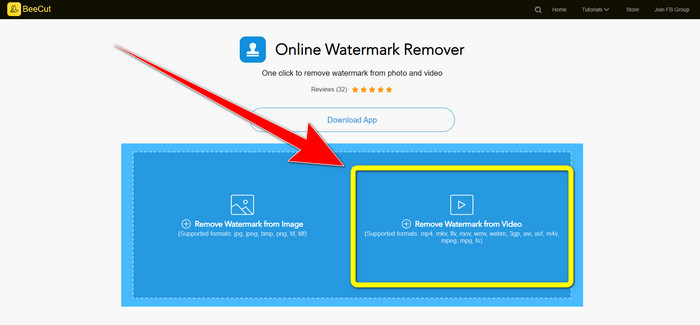
Korak 1: Posjetite web-stranicu BeeCut. Zatim kliknite gumb Remove Watermark from Video i dodajte svoj video s Biteable vodenim žigom.
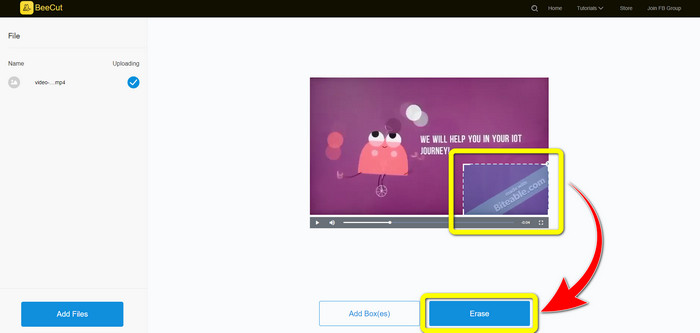
Korak 2: Nakon dodavanja datoteke, na vašem videu će se pojaviti mali okvir. Povucite ga i prekrijte Biteable vodeni žig. Zatim, kada završite s prekrivanjem vodenog žiga, kliknite gumb Erase.
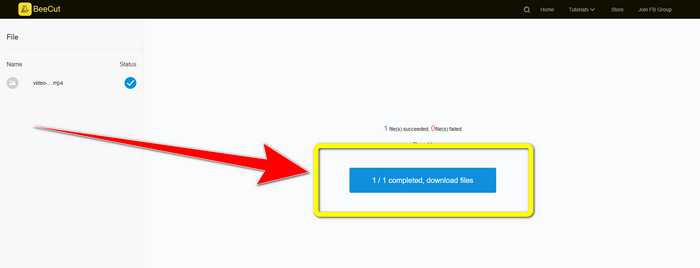
Korak 3: Kada kliknete gumb Erase, pričekajte da se proces uklanjanja dovrši. Nakon toga možete preuzeti datoteku i uživati u gledanju videa bez Biteable vodenog žiga.
2. Korištenje Blur Video Online
Ako još uvijek tražite drugu aplikaciju koju možete upotrijebiti za uklanjanje grickajućeg vodenog žiga s vašeg videozapisa na mreži, Blur Video Online izvrstan je alat za vas. A Blur Video Online dostupan je za gotovo sve uređaje i preglednike, kao što su Google Chrome, Opera, IE, Mozilla Firefox i drugi. Međutim, ova aplikacija ovisna o webu prespora je u uvozu video datoteka, a postupak uklanjanja vodenih žigova oduzima puno vremena. Također je alat ovisan o internetu, što znači da radi samo ako imate internetsku vezu. Slijedite jednostavne korake u nastavku kako biste uklonili/zamutili Biteable vodeni žig sa svog videozapisa.
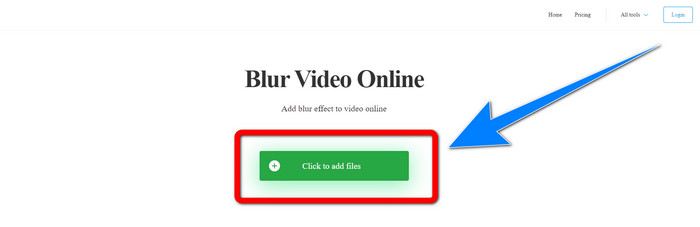
Korak 1: Posjetite web-stranicu Blur Video Online. Zatim kliknite gumb Click to Add File i dodajte svoj video s vodenim žigom.
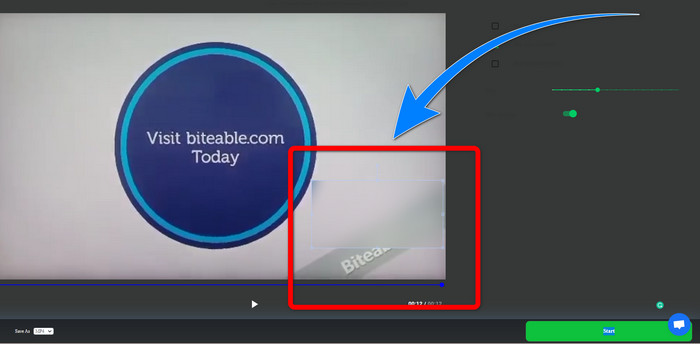
Korak 2: Nakon što umetnete svoj video, na njemu će se pojaviti okvir. Povucite ga kako biste prekrili vodene žigove i spremite svoj konačni rezultat.
Povezano s:
Najbolji način za uklanjanje vodenog žiga iz Camtasia 9 na vašem Windowsu
Kako brzo ukloniti banner s vodenim žigom iz AVS Video Editora
Dio 3: Često postavljana pitanja o uklanjanju grizljivih vodenih žigova s videozapisa
Mogu li ukloniti oznaku datuma pomoću programa Video Converter Ultimate?
Da, možete! Video Converter Ultimate može vam pomoći u uklanjanju uznemirujućih objekata iz vaših videozapisa, poput datumskih oznaka, vodenih žigova, teksta itd.
Oduzima li puno vremena za uklanjanje vodenih žigova s mojih videozapisa?
Ovisi o aplikacijama koje koristite. Neke aplikacije mogu trenutno ukloniti vodene žigove s vaših videozapisa, a nekim aplikacijama treba vremena da uklone vodene žigove.
Postoji li sredstvo za uklanjanje vodenog žiga koje mogu koristiti bez gubitka kvalitete svojih videozapisa?
Da, postoji! Možete koristiti Video Converter Ultimate. On nije dobar samo u uklanjanju vodenih žigova i uređivanju videa. Ova aplikacija omogućuje vam uklanjanje vodenih žigova iz vaših videa bez gubitka kvalitete.
Zaključak
Uklanjanje vodenog žiga s vaših videa je odlično, osobito ako želite gledati svoje omiljene videe bez nepotrebnih objekata. Ovaj članak vam je predstavio praktične aplikacije koje možete koristiti za uklanjanje Biteable vodenih žigova s vaših videozapisa. Na kraju, korištenje programa Video Converter Ultimate najbolja je opcija ako tražite najizvrsniju i najupečatljiviju aplikaciju za uklanjanje vodenih žigova s vaših videa.
-
 Kako ukloniti vodeni žig Powtoon pomoću 4 učinkovite metode
 Pročitajte ovaj članak da biste saznali kako ukloniti vodeni žig Powtoon pomoću najboljih alata koje smo ovdje uključili i vodiča.
-
 Recenzija programa za uklanjanje vodenog žiga Apowersoft – značajke, prednosti i mane te cijene
 Apowersoft Watermark Remover jedno je od najboljih uklanjanja vodenih žigova koje podržava online i offline, kliknite ovo da biste saznali više!
-
 3 najnovija Shutterstock sredstva za uklanjanje vodenog žiga koja će vam ikada trebati
 Ne sviđa vam se Shutterstock vodeni žig priložen uz izvezeni video? Možete upotrijebiti sredstvo za uklanjanje vodenog žiga Shutterstock da biste ga učinkovito izbrisali.
