


 Video Converter Ultimate
 Snimač zaslona
 Video popravak
2 jednostavne metode kako ukloniti Dxtory vodeni žig
Kad je riječ o snimanju igranja igara i drugih aplikacija, Dxtory je jedan od najpopularnijih programa za snimanje ekrana. Mnogi koriste ovaj snimač jer je jedna od rijetkih aplikacija za snimanje ekrana koja može snimati do 120 fps. Osim toga, brzo snima DirectX i OpenGL video informacije na vašem sustavu. Međutim, kada snimate pomoću Dxtory Screen Recorder‑a, on ostavlja vodeni žig na vašem videu. Zbog toga mnogi traže način da uklone taj dosadni vodeni žig. Ovaj će vam članak pokazati kako ukloniti Dxtory vodeni žig s vašeg snimljenog videa ekrana.

Dio 1. Kako snimiti zaslon koristeći Dxtory
Ako tražite softversku aplikaciju koja može bilježiti vrhunce vašeg igranja, Dxtory je prikladna aplikacija. Dxtory je aplikacija koja vam može pomoći da snimite svoj ekran dok igrate igricu, raspravljate o lekciji online ili gledate videozapise na računalu. To je poznata softverska aplikacija za snimanje zaslona. Dxtory snimač zaslona ima potrebne alate za pristup Globalnim, Naprednim, Hotkey, Screenshot, Video i Audio postavkama itd.
Štoviše, ovaj snimač zaslona omogućuje vam snimanje zaslona tijekom snimanja. Također možete izmijeniti te snimke zaslona s opcijama rubova, skaliranja i rezanja. Također ima više audio izvora snimanja, što znači da Dxtory može istovremeno snimati igru i zvuk mikrofona. Također je najbrže snimanje filmova za DirectX i OpenGL aplikacije. Dakle, ako želite koristiti Dxtory za snimanje zaslona, nastavite čitati ovaj dio.
Kako snimiti igru koristeći Dxtory snimač zaslona:
Korak 1. Najprije morate preuzeti Dxtory na svoj uređaj. Slijedite postupak instalacije. Možete kupiti licencu kako ne biste imali ograničenja pri snimanju i kako na izlaznom videu ne bi bilo vodenog žiga.
Korak 2. Pokrenite aplikaciju koju želite snimati i pokrenite Dxtory.
Korak 3. Idite na karticu Target i kliknite igru koju igrate. Popis procesa odmah će se pojaviti na popisu ciljeva.
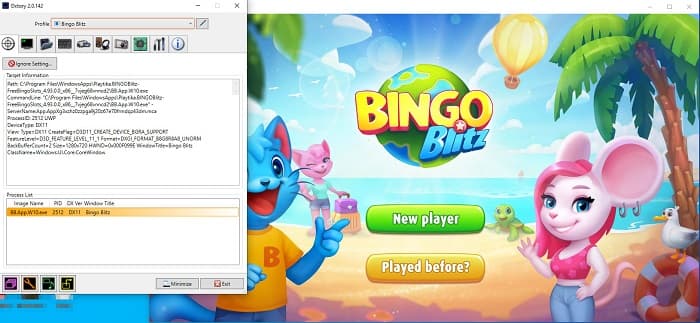
Korak 4. Zatim idite na karticu Folder i odaberite odredište za svoju datoteku. Potom otvorite Hotkeys kako biste odabrali tipke za postupak snimanja ekrana. Također možete prilagoditi zvuk.
Korak 5. Smanjite Dxtory i pokrenite svoju igru. Vidjet ćete brojčanu ikonu u gornjem lijevom kutu sučelja igre koja označava vaš FPS. Pritisnite tipku za snimanje videa koju ste postavili na ploči Hotkeys da biste započeli snimanje.
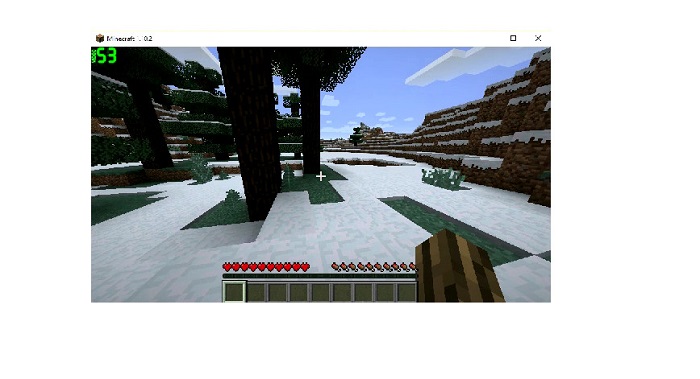
Korak 6. Ako želite zaustaviti snimanje, pritisnite istu tipku koju ste pritisnuli za početak snimanja. Video će se spremiti u odabrano odredište kada zaustavite snimanje.
Sada možete uživati gledajući svoj snimljeni video ekrana. Ako niste kupili licencu, na videu ćete vidjeti vodeni žig. Dakle, ako želite ukloniti vodeni žig s videa, pročitajte sljedeći dio.
Dio 2. Kako ukloniti Dxtory vodeni žig pomoću Ultimate Tool-a
Ako želite ukloniti vodeni žig Dxtory sa svog videa snimača zaslona, vjerojatno želite koristiti ovu nevjerojatnu softversku aplikaciju. Pročitajte ovaj dio kako biste saznali potpune opise ovog alata i kako ga koristiti za postupak uklanjanja vodenog žiga Dxtory.
FVC Video Converter Ultimate jedan je od najpoznatijih programa koji vam omogućuje uklanjanje vodenih žigova s bilo kojeg videa. Ima jednostavno korisničko sučelje, zbog čega je vrlo praktičan za korištenje. Osim toga, FVC Video Converter Ultimate podržava brojne formate datoteka, uključujući MP4, MKV, MOV, M4V, AVI, FLV i više od 1000 drugih. A ako želite aplikaciju s mnogo mogućnosti uređivanja, ovaj je alat najbolji za vas. Sadrži brojne napredne mogućnosti za uređivanje, kao što su izrezivanje videa (video cropper), uklanjanje vodenog žiga s videa, spajanje videa, obrezivanje videa i još mnogo toga u odjeljku Toolbox.
Uz njegovo brzo sučelje za obradu, možete jednostavno ukloniti svaki vodeni žig ugrađen u vaš video. Stoga slijedite korake u nastavku kako biste imali Dxtory video bez vodenog žiga.
Postoje dva načina za uklanjanje Dxtory vodenog žiga sa vašeg videa.
Metoda 1: Kako ukloniti Dxtory vodeni žig pomoću značajke izrezivanja videozapisa:
Korak 1. Najprije instalirajte FVC Video Converter Ultimate na svoj uređaj klikom na gumb Download u nastavku za Windows ili Mac. Slijedite postupak instalacije i otvorite aplikaciju.
Besplatno preuzimanjeZa Windows 7 ili novijiSigurno preuzimanje
Besplatno preuzimanjeZa MacOS 10.7 ili novijiSigurno preuzimanje
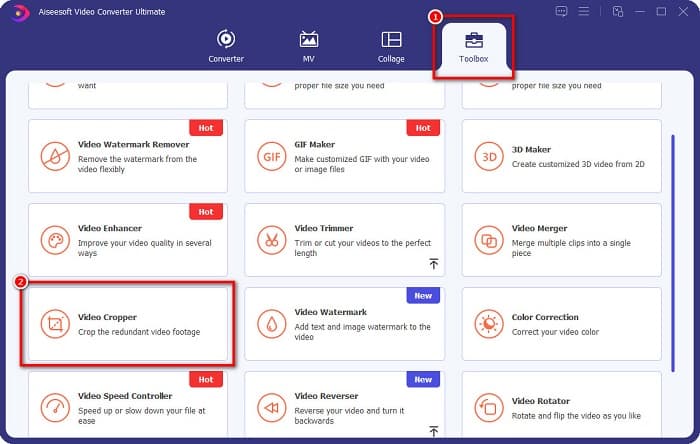
Korak 2. Na glavnom sučelju kliknite karticu Toolbox i odaberite funkciju Video Cropper.
Korak 3. Zatim kliknite gumb sa znakom plus (+) da biste učitali video s kojeg želite ukloniti vodeni žig. Svoj video možete i povući‑i‑ispustiti iz datoteka na računalu.
Korak 4. Zatim možete pregledati svoj izlazni video. Vidjet ćete okvir za izrezivanje; podesite strane okvira za izrezivanje dok vodeni žig više ne bude unutar videa.
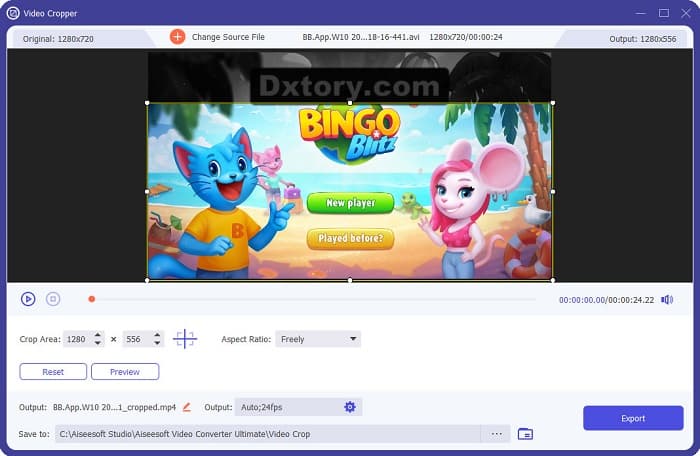
Možete prilagoditi veličinu područja izrezivanja klikom na gumb gore-dolje ispod pregleda vašeg videozapisa.
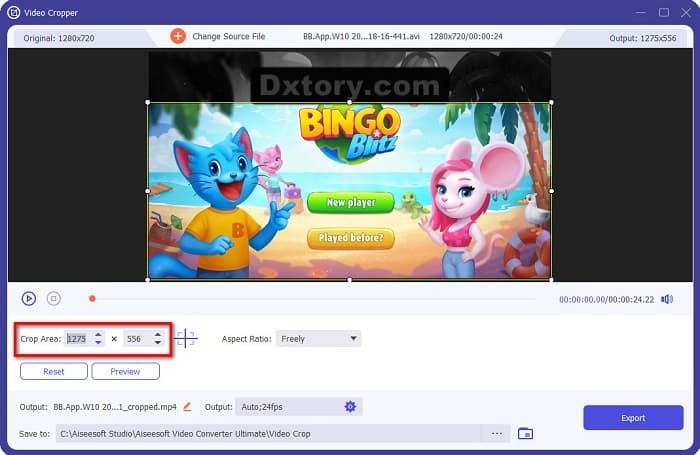
Korak 5. Na kraju kliknite gumb Preview da biste vidjeli kako izgleda vaš video, a zatim kliknite Export ako ste zadovoljni rezultatom.
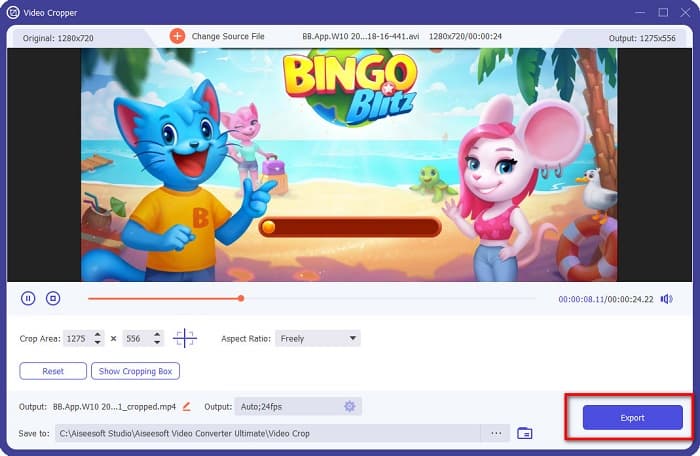
Ovim jednostavnim koracima možete ukloniti vodeni žig Dxtory na svom videozapisu pomoću značajke Video Cropper programa FVC Video Converter UItimate.
Metoda 2: Kako ukloniti Dxtory vodeni žig pomoću programa Video Watermark Remover programa FVC Video Converter Ultimate:
Korak 1. Ako je program već preuzet na vaš uređaj, otvorite aplikaciju. Zatim idite na Toolbox i odaberite Video Watermark Remover.
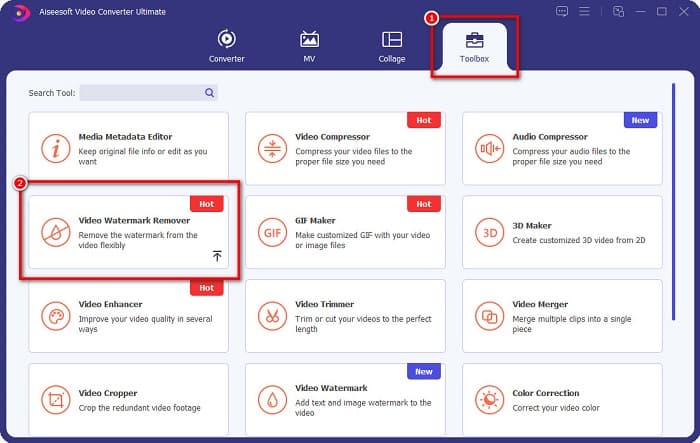
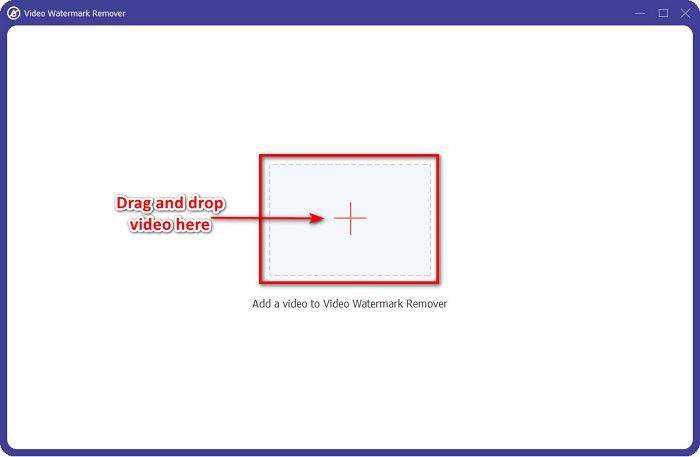
Korak 2. Zatim kliknite gumb + ili povucite‑i‑ispustite svoj Dxtory video u okvir sa znakom +.
Korak 3. Nakon učitavanja videa vidjet ćete njegov pregled. Kliknite područje Add watermark removing.
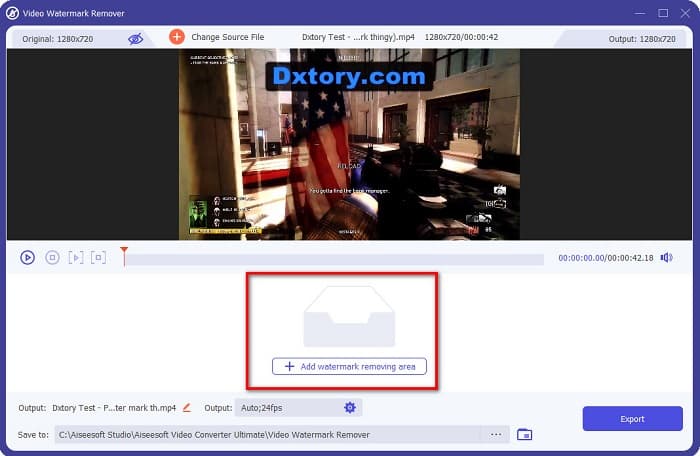
Korak 4. Zatim će se na vašem videu pojaviti područje za uklanjanje vodenog žiga. Postavite ga na Dxtory vodeni žig.
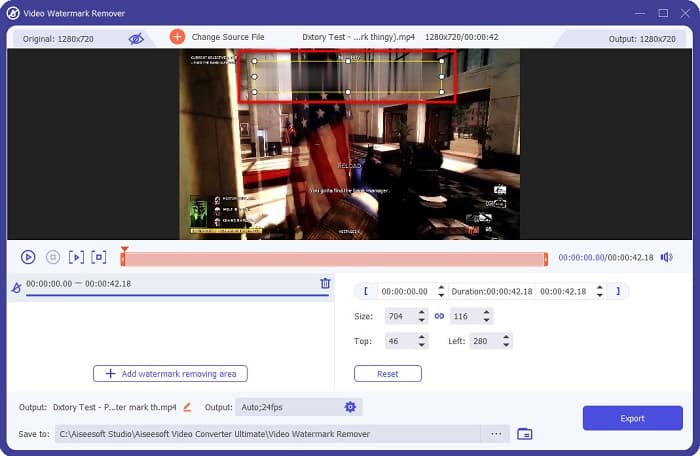
Neobvezno. Ako na videu imate dva ili više vodenih žigova, kliknite add watermark removing area kako biste dodali još jedan okvir za uklanjanje.
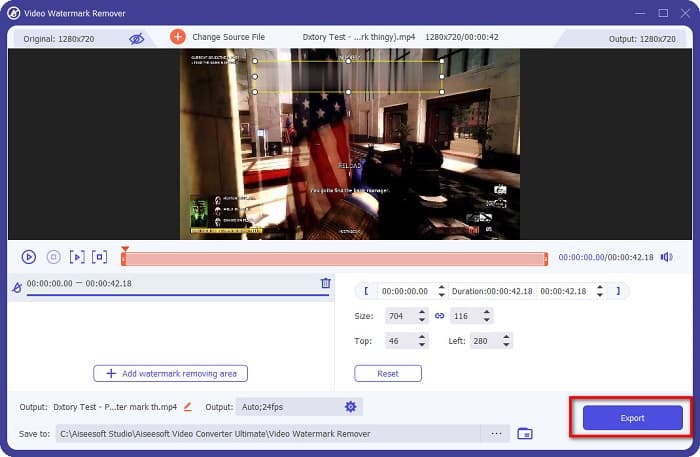
Korak 5. Na kraju kliknite gumb Export da biste spremili izlazni video na svoj uređaj. I to je to!
Jednostavno, zar ne? Tako lako možete ukloniti Dxtory vodeni žig sa svog videa. Također možete ukloniti TikTok vodene žigove na sličan način kao gore opisanim metodama.
Dio 3. Često postavljana pitanja o uklanjanju Dxtory vodenog žiga
Može li Adobe After Effects ukloniti Dxtory vodeni žig?
Da. Adobe After Effects je najpopularniji alat za uklanjanje vodenih žigova s videa koji može ukloniti bilo kakve vodene žigove na vašem videu (logotip, tekst, slike). Može ukloniti i Dxtory vodeni žig s vašeg videa. Međutim, mnogim je korisnicima teško koristiti ga. Pronađite vodeni žig na svojoj slici. Postavite okvir za uklanjanje vodenog žiga na vodeni žig. Idite na panel Layer. Napravite Null Objects. Kliknite Save Frame as. Uvezite svoje uređene videozapise. Smanjite Opacity svoje slike. Upotrijebite opciju Pick‑up whip.
Možete li ukloniti vodeni žig sa svojih slika?
Možete ukloniti vodene žigove, kao što su logotipi, tekst ili bilo koji elementi na svojim slikama. Možete koristiti FVC besplatni alat za uklanjanje vodenog žiga kako biste uklonili bilo kakve vodene žigove sa svoje slike.
Zašto Dxtory stavlja vodene žigove na videozapise?
Dxtory stavlja vodeni žig na svoje videe tako da ćete kupiti njegovu plaćenu verziju. Također, ugrađuju vodene žigove na svoje videozapise kako bi bili spriječeni od autorskih prava.
Zaključak
Kao što je gore objašnjeno, postoje provjereni načini kako ukloniti Dxtory vodene žigove sa svojih videa. A pomoću programa FVC Video Converter Ultimate možete jednostavno ukloniti bilo koje dosadne vodene žigove sa svoje slike. Preuzmite ga sada i iskusite njegove najbolje funkcije.
-
 Kako jednostavno ukloniti vodeni žig s Wondershare DVD Creatora
 Ovaj članak pokriva informacije o tome kako ukloniti vodeni žig s Wondershare DVD Creator. Da biste dobili sve potrebne informacije, ovo morate pročitati.
-
 Kako jednostavnim koracima ukloniti Coub vodeni žig
 Saznajte kako ukloniti coub vodeni žig na svojim videozapisima pomoću ovih popularnih alata za uklanjanje vodenih žiga. Pročitajte ovaj članak da biste saznali ove nevjerojatne alate i kako ih koristiti.
-
 Kako jednostavno ukloniti vodeni žig Lumion na Windows i Macu
 Trebate ukloniti vodeni žig Lumion da biste ga profesionalno predstavili? Pa, postoje alati koji vam mogu pomoći da se riješite vodenog žiga koji ostavlja.
