


 Video Converter Ultimate
 Snimač zaslona
 Video popravak
Potpuni načini za učinkovito uklanjanje vodenog žiga Picsart filtra na vašim videozapisima
Danas je nužno imati pouzdan softver za uređivanje vizualnih medija na računalu, poput Picsarta. Uz njega možete prilagoditi nekoliko opcija i pretvoriti svoju uobičajenu sliku u fotografiju kakvu nitko još nije vidio! S privlačnom, upečatljivom slikom koju napravite možete privući više kupaca ili publike. No postoji problem pri korištenju Picsarta, a to je vodeni žig koji se dodaje nakon izvoza. Vodeni žig je poprilično iritantan i može vizualno ometati ako se ne ukloni. Ako dakle želite softver i vodič za uklanjanje vodenog žiga Picsart filtera, nastavite čitati ovaj članak i saznajte više!

Dio 1. Kako ukloniti vodeni žig Picsart filtra pomoću besplatnog softvera na stolnom računalu
FVC Video Converter Ultimate - broj jedan alat za uklanjanje vodenih žigova na Windowsima i Macu
Započnimo predstavljanje softvera našim prvim izborom koji vam može pomoći i pokazati kako ukloniti vodeni žig iz Picsarta. FVC Video Converter Ultimate je neizostavno oružje u arsenalu koje će vam trebati da lako uklonite vodeni žig s videa, uz profesionalan izlaz. Zbog njegove izvedbe i neusporedivih značajki, mnogi su ga korisnici već isprobali i alat ih nije razočarao. Ako trebate pomoć pri uklanjanju vodenog žiga s videa, možete pokušati kopirati korake koje smo naveli u nastavku i pratiti ih.
Korak 1. Softver Ultimate možete imati na svom uređaju klikom na odgovarajuću tipku za preuzimanje u nastavku. Nakon toga morate instalirati softver na računalo i kliknuti Start Now da biste ga otvorili.
Besplatno preuzimanjeZa Windows 7 ili novijiSigurno preuzimanje
Besplatno preuzimanjeZa MacOS 10.7 ili novijiSigurno preuzimanje
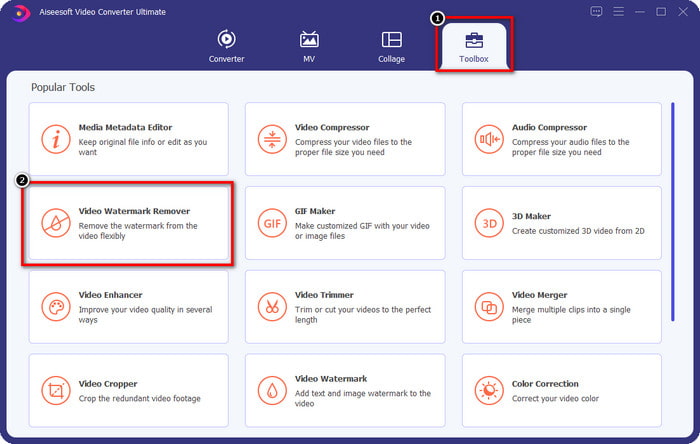
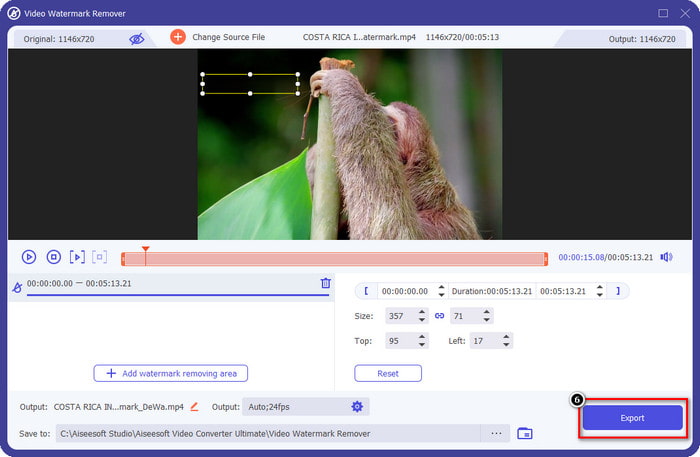
Korak 2. U odjeljku Toolbox vidjet ćete druge značajke koje možete koristiti i koje vam mogu pomoći dati završni, uspješan dodir vašem videu. No danas kliknite Video Watermark Remover.
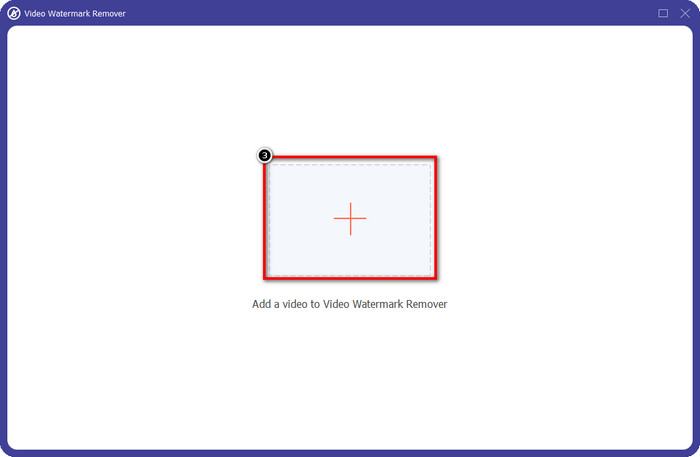
Korak 3. Učitajte video koji ste uredili u Picsartu klikom na ikonu +. Potražite datoteku u mapi koja će se prikazati na zaslonu, a zatim kliknite Open.
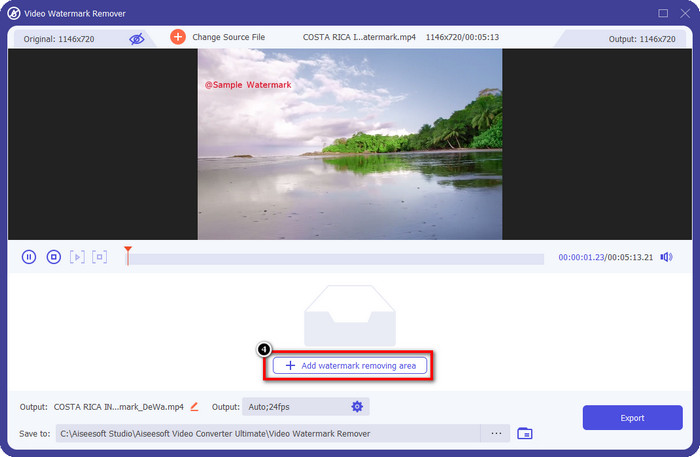
Korak 4. Pritisnite Add Watermark Removing Area kako biste uklonili vodeni žig ugrađen u video koji ste učitali.
Korak 5. Držite i postavite okvir za odabir na vodeni žig i prekrijte ga. Možete proširiti ili smanjiti okvir prema vlastitim željama.
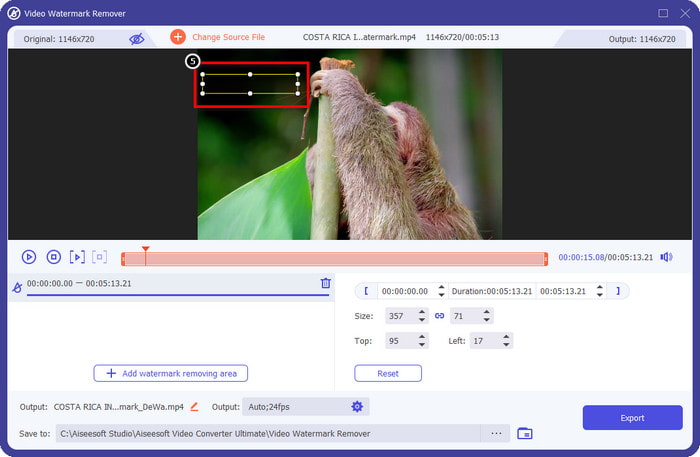
Korak 6. Kada ste završili s prekrivanjem vodenog žiga okvirom za odabir, kliknite Export da biste spremili konačni rezultat na lokalni disk.
Fotografije u sustavu Windows - vodeni žig naslovnice s 3D dizajnom
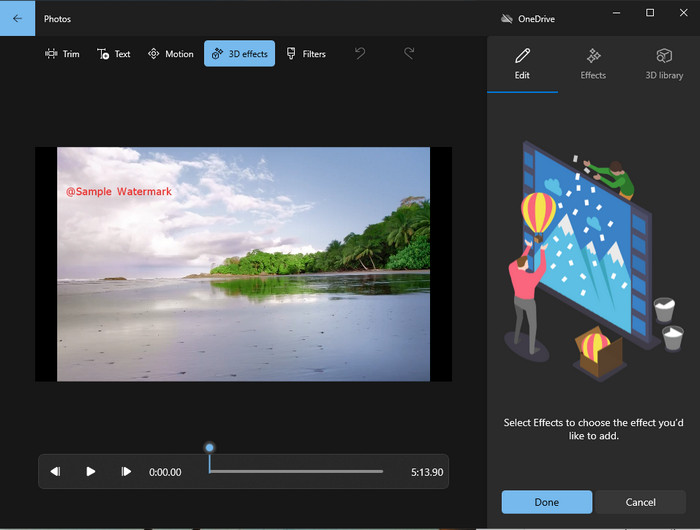
Ako preuzimanje softvera nije vaš stil, a koristite Windows, trebali biste pokušati koristiti Photos za uređivanje vodenog žiga na videu. Učenje kako ukloniti Picsart vodeni žig ovim alatom bit će još brže jer ne morate prolaziti fazu preuzimanja aplikacije. Alat ne uklanja vodeni žig s videa, ali ga možete prekriti 3D dizajnom. Unatoč tome, izvedba ovog zadanog preglednika i uređivača vizualnih medija je dobra. Niste sigurni u to? Onda možete pročitati korake u nastavku i slijediti ih ako želite.
Korak 1. Kliknite gumb Windows na programskoj traci i potražite aplikaciju Photos da biste je otvorili.
Korak 2. Nakon otvaranja ugrađenog uređivača morate kliknuti znak + kako biste ovdje učitali video koji želite urediti.
Korak 3. Idite na 3D Effects, kliknite 3D Library i potražite dizajn koji želite koristiti za prekrivanje vodenog žiga. Postavite odabrani dizajn na dio gdje se nalazi vodeni žig.
Korak 4. Pritisnite Finish Video da biste spremili konačni rezultat na lokalni disk u sustavu Windows.
Odaberite iz Blur videa na mreži
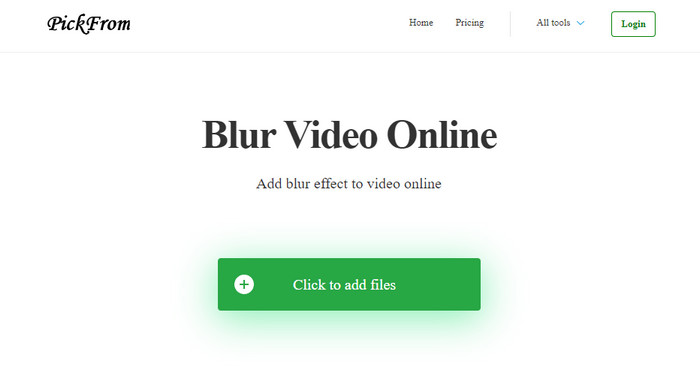
PickFrom Blur Video Online može vam pomoći ukloniti PicsArt vodeni žig s videa koje imate na webu. Alat je mnogima nepoznat, ali mi ćemo ga danas predstaviti. Uvrstili smo ovaj softver zbog njegove učinkovitosti pri uklanjanju vodenog žiga s videa koje učitate. Njegovo sučelje je jednostavno i pregledno; nećete se izgubiti kada ga budete koristili. Ako dakle želite ukloniti vodeni žig, prijeđimo na postupak u nastavku.
Korak 1. Otvorite web-preglednik, potražite naziv alata i kliknite prvi rezultat da biste otvorili mrežni alat za uklanjanje vodenog žiga.
Korak 2. Kliknite Click to Add File kako biste ovdje učitali video.
Korak 3. Označite Blur Part of the Video, zatim postavite okvir za odabir na vodeni žig.
Korak 4. Pritisnite Start da biste preuzeli video bez vodenog žiga.
Dio 2. Kako ukloniti Picsart vodeni žig kupnjom Premium verzije
Morate kupiti softver ako ne želite imati problema s uklanjanjem Picsart zlatnog vodenog žiga. To će vas koštati određeni iznos jer ćete ga morati platiti prije nego što ga budete mogli koristiti, a zatim izvesti video bez ugrađenog vodenog žiga. Dakle, ako želite detaljan vodič o kupnji Picsarta, morate slijediti sljedeći vodič koji dodajemo.
Korak 1. Otvorite službenu web-stranicu Picsarta i ovdje otvorite svoj račun. Ako ga nemate, morate ga izraditi tako da se ovdje registrirate (Sign up).
Korak 2. Na glavnoj stranici kliknite Pricing i pogledajte cijene za svaki dostupni proizvod.
Korak 3. Odaberite paket koji želite, mjesečni ili godišnji, zatim kliknite Go to Payment.
Korak 4. Dodajte podatke za naplatu ispunjavanjem traženih podataka, a zatim kliknite Purchase Now.
Povezano:
Uklanjanje Lumion vodenog žiga
Uklanjanje vodenog žiga sa maturalnih fotografija
Dio 3. Često postavljana pitanja o tome kako ukloniti Picsart vodeni žig
Mogu li trajno kupiti Picsart Gold?
Ne podržava jednokratno plaćanje ili plan, pa ako želite koristiti Picsart Gold, morat ćete iskoristiti mjesečni ili godišnji plan. Provjerite cijenu za svaki plan na službenoj web stranici.
Mogu li kreirati prilagođenu pretplatu na Picsartu?
Da, možete kreirati pretplatu za tim na Picsartu. Možete postaviti broj ljudi koji će koristiti aplikaciju.
Gdje mogu pristupiti Picsartu?
Picsart možete preuzeti na Windows, Android i iOS. Nažalost, aplikacija trenutačno nema verziju za Mac, ali nemojte biti tužni jer možete koristiti drugi softver za uređivanje medija koji je dostupan na vašem sustavu.
Zaključak
Vodič koji smo ranije govorili daje vam ideju o uklanjanju vodenih žigova pomoću PicsArt-a i najboljih alata za uklanjanje vodenih žigova koje možete koristiti. Sada možete uživati u videu koji uredite na Picsartu bez zamaranja s vodenim žigom proizvoda koji dodaje konačnom rezultatu. Dakle, ako još uvijek niste uvjereni u alate koje predstavljamo, morate ih prvo isprobati, posebno FVC Video Converter Ultimate. Kliknite gumb za preuzimanje i imajte ga besplatno na svojim Windows i Mac računalima, a zatim uživajte u značajkama i funkcijama koje nudi i koje možete iskoristiti.
-
 Kako ukloniti vodeni žig Pond5 pomoću vrhunskih alata
 Naučite kako ukloniti vodeni žig Pond5 slijedeći jednostavne korake u nastavku. Pomoću ovih impresivnih alata možete jednostavno ukloniti vodeni žig Pond5 na svojoj slici.
-
 2 moćna načina kako ukloniti Dxtory vodeni žig
 Naučite kako ukloniti Dxtory vodeni žig slijedeći dvije najbolje metode. Ako tražite najprikladniji alat za uklanjanje Dxtory vodenog žiga, pročitajte ovdje.
-
 Izvanredna sredstva za uklanjanje vodenih žigova Arnold Maya koja ne smijete propustiti
 Mnogi alati za uklanjanje vodenog žiga mogu ukloniti vodeni žig Arnolda Maye. Ali ako želite znati koji su najbolji sredstva za uklanjanje vodenih žigova Arnold Maya, pročitajte ovu stranicu.
