


 Video Converter Ultimate
 Snimač zaslona
 Video popravak
Kako rotirati videozapise na Androidu u nekoliko minuta s najboljim metodama
Volite li bilježiti dragocjene životne trenutke svojim Android uređajem, ali mrzite kada se videozapisi snime ukošeno ili naopako? To je čest problem, ali ga je, srećom, lako riješiti. Ne trebaju vam napredne vještine uređivanja videa. Sve što trebate je vaš Android uređaj ili učinkovita Android aplikacija za rotiranje videa i nekoliko minuta vašeg vremena.
Do kraja posta moći ćete rotirati svoje videozapise kao profesionalac i više nikada nećete morati gledati postrance. Ipak, počnimo i naučimo kako rotirati videozapise na Androidu!

Dio 1. Kako rotirati videozapise u galeriji Android
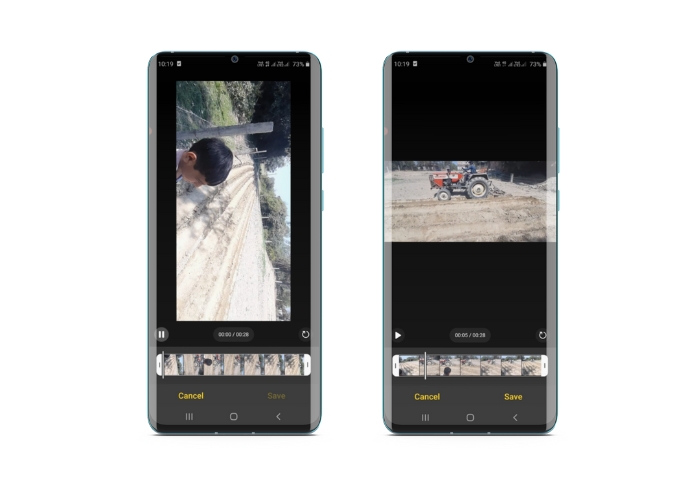
Aplikacija Android Gallery ima niz alata za uređivanje videozapisa koji vam mogu pomoći da poboljšate svoje videozapise. Pomoću aplikacije Galerija možete obrezati, obrezati, rotirati, pa čak i dodati filtre i efekte svojim videozapisima. Bez obzira želite li ukloniti neželjene dijelove, prilagoditi omjer slike ili dodati nešto kreativnog štiha, aplikacija Gallery će vas pokriti. A najbolji dio? Za korištenje ovih značajki nije vam potrebno prethodno iskustvo u uređivanju videozapisa. Sučelje je intuitivno, što svakome olakšava stvaranje zapanjujućih videozapisa izravno sa svog Android uređaja. Pogledajte navedene korake da biste saznali kako rotirati videozapise u galeriji na Androidu.
Korak 1. Pokrenite aplikaciju Galerija na svom Android uređaju. Pronađite video koji želite rotirati i dodirnite ga da biste ga otvorili.
Korak 2. Dodirnite ikonu za uređivanje (izgleda kao olovka) pri dnu zaslona. Sada ćete vidjeti niz alata za uređivanje pri dnu zaslona, uključujući Obreži, Izreži, Filteri i Podešavanje.
Korak 3. Za rotiranje videa odaberite alat Podešavanje. Sada ćete vidjeti niz opcija za podešavanje, uključujući Svjetlinu, Kontrast, Zasićenost i još mnogo toga. Potražite opciju Rotiraj i dodirnite je.
Korak 4. Svakim dodirom gumba Rotiraj video će se zarotirati za 90 stupnjeva udesno. Dakle, pomoću Androida možete rotirati videozapise za 90 stupnjeva. Nastavite dodirivati dok se video ne zarotira u željenu orijentaciju. Kada ste zadovoljni rotacijom, dodirnite ikonu za spremanje kako biste primijenili promjene.
Dio 2. Kako rotirati videozapise u aplikaciji PowerDirector za Android
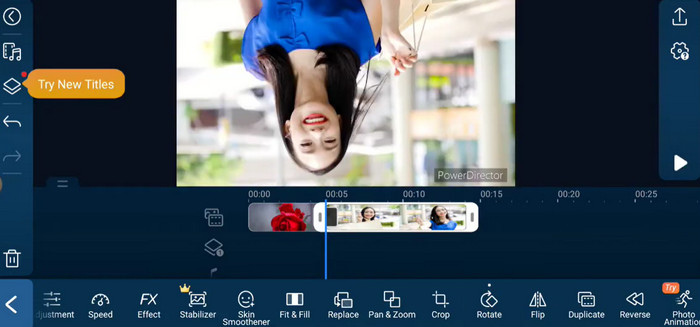
PowerDirector je aplikacija za uređivanje videa koja je dostupna na platformi Android. To je aplikacija prepuna značajki koja korisnicima omogućuje uređivanje videozapisa na svojim pametnim telefonima i tabletima. Ova aplikacija omogućuje korisnicima rotiranje svojih videozapisa u bilo kojem smjeru, bilo u smjeru kazaljke na satu ili suprotno od njega. Ovo je posebno korisno za videozapise koji su snimljeni u krivom smjeru, poput okomitih videozapisa koje je potrebno rotirati u pejzažni način. Slijedite jednostavan vodič u nastavku da biste svladali kako rotirati videozapise u programu PowerDirector na Android uređaju.
Korak 1. Pokrenite aplikaciju PowerDirector na svom Android uređaju. Zatim dodirnite gumb Create a video project da biste započeli novi projekt.
Korak 2. Odaberite video koji želite rotirati tako da dodirnete gumb Add media i potražite video u pohrani svog uređaja. Zatim povucite i ispustite videoisječak na vremensku crtu.
Korak 3. Nakon toga dodirnite videoisječak na vremenskoj crti da biste ga odabrali. Sada dodirnite gumb Edit koji se pojavljuje iznad vremenske crte.
Korak 4. Dodirnite gumb Rotate u prikazanom izborniku za uređivanje. Upotrijebite gumbe Rotate left i Rotate right da biste rotirali video u željenom smjeru. Na kraju dodirnite gumb Done da biste spremili promjene koje ste napravili na videu.
Dio 3. Kako rotirati videozapise u VLC Android aplikaciji
VLC je poznati multimedijski reproduktor koji se može koristiti na mnogim platformama, uključujući Android. Moćna je i fleksibilna aplikacija koja podržava puno različitih formata medija i ima mnoge značajke, među kojima je i mogućnost rotiranja videa. Ne samo to, dolazi i s drugim korisnim funkcijama, poput mogućnosti podešavanja brzine reprodukcije, dodavanja titlova te primjene audio i video filtara. U međuvremenu, evo koraka kako rotirati videozapise u VLC-u na Android uređaju.
Korak 1. Otvorite VLC aplikaciju na svom Android uređaju. Zatim dodirnite gumb Video u donjoj traci izbornika.
Korak 2. Odaberite video koji želite rotirati iz pohrane svog uređaja. Nakon toga dodirnite gumb More options u gornjem desnom kutu zaslona.
Korak 3. Na kraju dodirnite Rotate kako biste pristupili opcijama za rotaciju videa. Odaberite smjer u kojem želite rotirati video (u smjeru ili suprotno od kazaljke na satu).
Dio 4. Kako rotirati Android videozapise na računalu
Tražite li snažan video konverter koji može sve? Ne tražite dalje od programa FVC Video Converter Ultimate. Ovaj vrhunski softver osmišljen je da vam pruži potpunu kontrolu nad vašim videozapisima. Zahvaljujući mogućnosti rotiranja videa, možete prilagoditi orijentaciju svog videa za 90 stupnjeva, 180 stupnjeva ili čak 270 stupnjeva, odnosno oponašati Androidovu značajku rotacije videa preko cijelog zaslona. Ali to nije sve što ova aplikacija može. Postupak obavlja bez ikakvog gubitka kvalitete. U nastavku slijedi uputstvo kako koristiti ovaj program za rotiranje videa na računalu.
Korak 1. Preuzmite kopiju programa i instalirajte ga
Najprije trebate nabaviti kopiju programa za instalaciju programa i postaviti ga na svoje računalo. Nakon toga odmah pokrenite.
Besplatno preuzimanjeZa Windows 7 ili novijiSigurno preuzimanje
Free DownloadZa macOS 10.7 ili novijiSigurno preuzimanje
Korak 2. Umetnite video za rotiranje
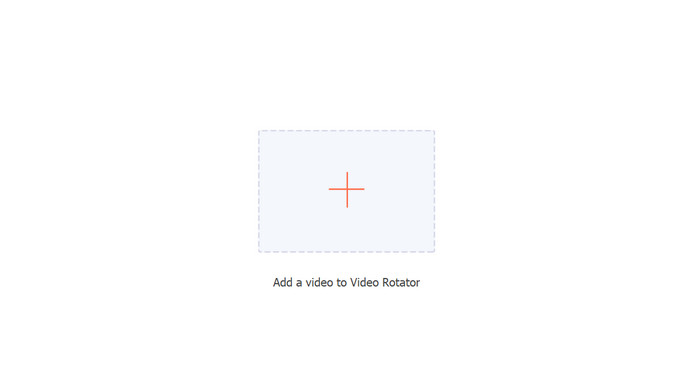
Programov Video Rotator može se zatim otvoriti s kartice Toolbox. Ako odaberete ovu opciju, od vas će se zatražiti da dodate video na svoj račun. Za učitavanje videa samo sada pritisnite gumb +.
Korak 3. Odaberite način rotiranja
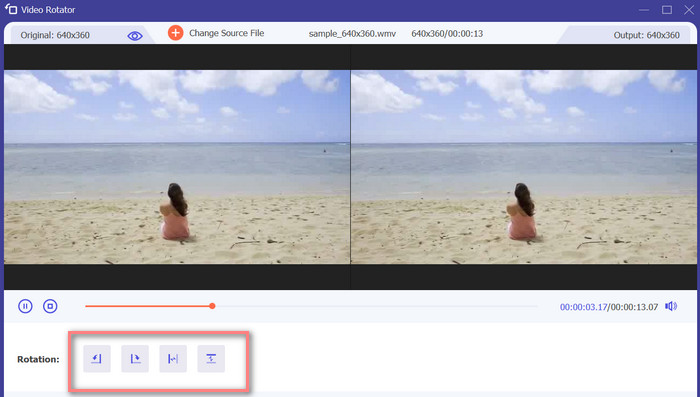
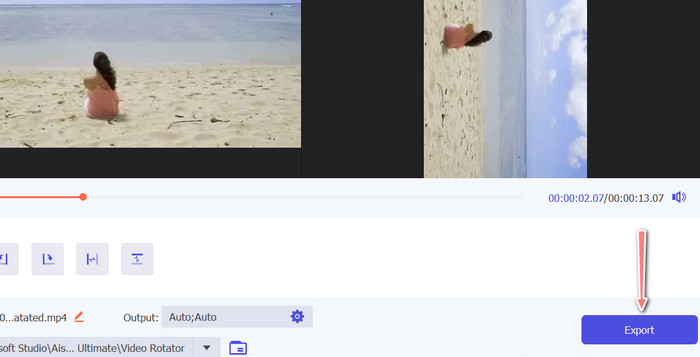
Za početak odlučite kako želite da se videozapis rotira. Okreni vodoravno, okreni okomito, zakreni za 90 stupnjeva i okreni za 90 stupnjeva četiri su opcije. Jednostavno odaberite željeni način rotacije.
Korak 4. Izvezite video datoteku
Kada završite sa svim promjenama, možete izmijeniti audio i video postavke u izborniku izlaza. Zatim označite gumb Export kako biste dovršili postupak.
Dio 5. Često postavljana pitanja o rotirajućim videozapisima na Androidu
Mogu li rotirati videozapis pomoću zadanog video playera na svom Androidu?
Ne, zadani video reproduktor na većini Android uređaja nema mogućnost rotiranja videa. U tom slučaju može vam pomoći aplikacija Galerija.
Hoće li rotiranje videozapisa na mom Android uređaju utjecati na njegovu kvalitetu?
Ako na svom Android uređaju koristite aplikaciju za uređivanje videozapisa visoke kvalitete, rotiranje filma neće umanjiti kvalitetu.
Hoće li rotiranje videozapisa na mom Android uređaju promijeniti omjer slike?
Rotiranje videozapisa na vašem Android uređaju može promijeniti omjer slike ovisno o orijentaciji izvornog videozapisa i stupnju primijenjene rotacije.
Zaključak
Rotiranje videa na vašem Android uređaju može biti koristan alat kada je riječ o uređivanju i dijeljenju videa. Ipak, važno je napomenuti da rotiranje videa može utjecati na omjer stranica i kvalitetu izvornog videa, ovisno o tome koja se Android aplikacija za rotiranje videa koristi i stupnju primijenjene rotacije. Stoga je ključno koristiti uglednu aplikaciju za uređivanje videa, poput FVC Video Converter Ultimate, koja ne komprimira niti smanjuje rezoluciju vašeg videa tijekom procesa rotacije.
-
 Vodič za popravak videozapisa koji se ne reproduciraju na Android telefonima
 Želite znati koji su razlozi zašto se videozapisi na vašem Android uređaju ne mogu reproducirati? I ako je tako, postoje li načini da sami riješite problem? Nastavite čitati kako biste saznali više.
-
 Najlakši načini kako ubrzati video na svojim Android uređajima [2023]
 Jeste li znali da možete ubrzati video na svom Androidu? Dakle, ako želite znati kako ubrzati video na svom Android telefonu, pročitajte ovaj tekst.
-
 3 izvrsne metode kako skraćivati video na Androidu
 Želite li koristiti svoj Android uređaj za rezanje videozapisa? Onda je ovaj post za vas. Razgovarat ćemo o vrijednim načinima kako skratiti video na Androidu.
