


 Video Converter Ultimate
 Snimač zaslona
 Video popravak
Sastavite svoje misli i uhvatite se za to kako ubrzati video na iMovieu
Volite gledati dokumentarne filmove na svom novom iPhoneu; uvijek ih gledate zbog priče koju prikazuju. Bez nekog posebnog razloga, želite ih sve skupiti i brzo montirati. Tražite najbolju aplikaciju koja može uređivati i istovremeno ubrzati vaš video, pa otkrijete iMovie. No kako ste novi i na iPhoneu i u samoj aplikaciji, ne znate kako je koristiti niti kako ubrzati video pomoću iMoviea. Nastavite čitati jer vam ovaj članak pruža mnogo pojedinosti kako biste naučili više o ovoj aplikaciji.

Dio 1. Kako ubrzati video u iMovieu
Na pitanje kako ubrzati video može se odgovoriti pomoću značajki iMovie. Njegov video izlaz visoke kvalitete, razni predlošci i alati za završnu obradu mogu po prvi put donijeti kontrolu brzine reprodukcije na iPhone. iMovie također ima moć ubrzati video kao i druge aplikacije. Jedan od njegovih alata može prilagoditi vaš videozapis zajedno s ostalim dostupnim alatima. Sada je jednostavno pristupiti videozapisima koje želite ubrzati pomoću ove aplikacije koja je dostupna samo na operativnim sustavima iOS i Mac. Sada znate za alat, idemo i razgovarajmo o postupcima koje trebate slijediti.
Za korisnike iPhonea
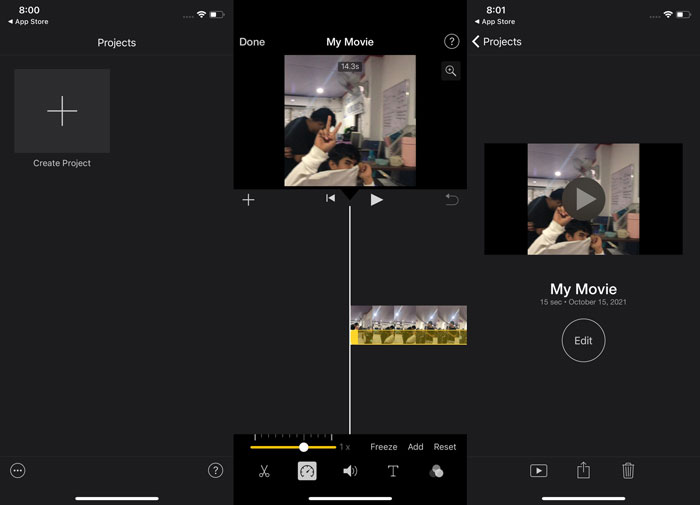
Korak 1: Idite u App Store na svom iPhoneu ili iPadu i preuzmite aplikaciju iMovie. Kad se pojavi pregled sučelja, odaberite Continue (Nastavi). Kad dođete na stranicu Projects (Projekti), dodirnite ikonu znaka + kako biste započeli potpuno novi videozapis. Zatim u prozoru New Projects (Novi projekti) odaberite Movie (Film).
Korak 2: Nakon što odaberete videozapis iz svog Camera Rolla, dodirnite gumb Create Movie (Stvori film) na dnu zaslona. Dodirnite vremensku traku i pričekajte da se pojave alati za uređivanje, zatim upotrijebite alat za brzinu koji izgleda kao brzinomjer. Da biste premotali video unaprijed ili unatrag, jednostavno pomaknite donji žuti klizač. Možete ubrzati reprodukciju do dva puta ili usporiti na osminu izvorne brzine.
Korak 3: Kada završite, u gornjem lijevom kutu zaslona telefona kliknite Done (Gotovo). Kako biste spremili gotov videozapis, otvorite izbornik Share (Dijeli) i među ponuđenim opcijama odaberite gdje ga želite pohraniti.
Za korisnike Maca
Korak 1: Odaberite isječak na vremenskoj traci u aplikaciji iMovie na svom Macu, a zatim promijenite brzinu isječka.
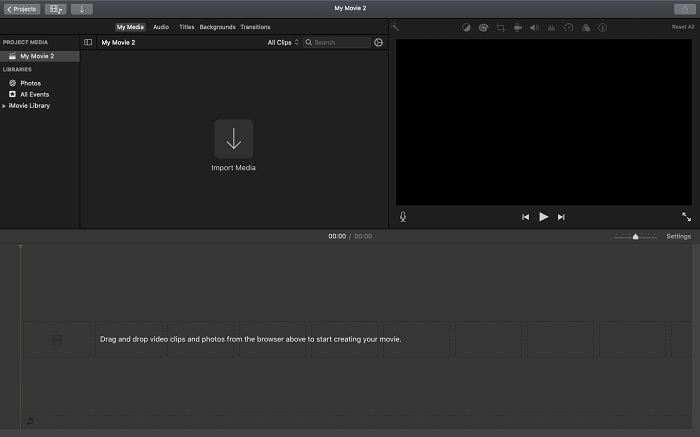
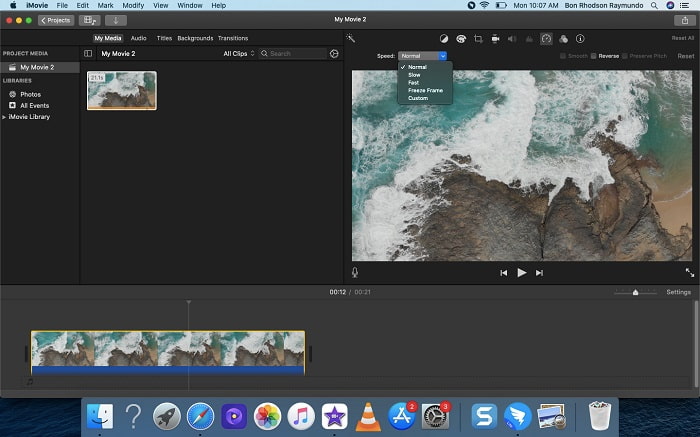
Korak 2: Klikom na gumb Speed (Brzina) na gornjoj strani sučelja možete prikazati postavke brzine. Jednostavno odaberite između brzina Slow (Sporo) i Fast (Brzo) na gumbu za brzinu kako biste precizno podesili brzinu reprodukcije.
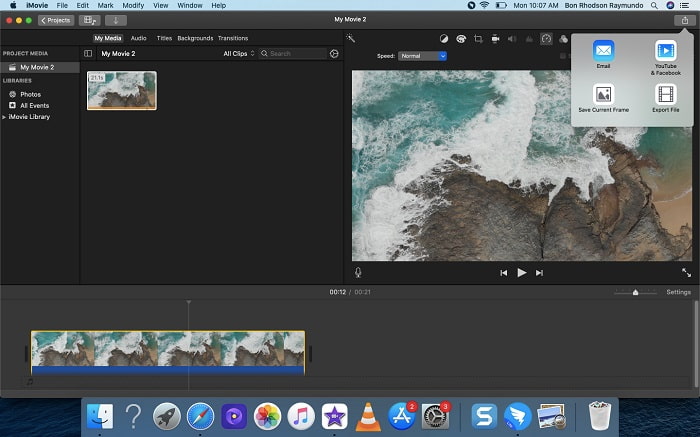
Korak 3: Kliknite ikonu Upload (Učitaj) u gornjem kutu sučelja kako biste izvezli datoteku na radnu površinu.
Dio 2. Još jedan lakši način za ubrzavanje videa
Korištenje iPhonea ili drugih mrežnih aplikacija koje su dostupne samo na iPhoneu kao uređivača videa može biti teško ako želite ubrzati brzinu reprodukcije svog videa. Video Converter Ultimate bit će najbolja opcija koju biste trebali razmotriti jer vam omogućuje trajno ubrzavanje videa. Ovim alatom, koji možete preuzeti besplatno, možete prilagoditi brzinu reprodukcije svojeg videa. Ima različite ugrađene alate, uključujući Video Speed Controller, koji može ubrzati reprodukciju vašeg videa uz visoku izlaznu kvalitetu i vrlo brzu konverziju. Kako biste saznali više pojedinosti, slijedite ove korake:
Korak 1: Da biste spremili softver na svoje računalo, kliknite Free Download (Besplatno preuzimanje). Nakon toga prilagodite softver njegovom instalacijom.
Besplatno preuzimanjeZa Windows 7 ili novijiSigurno preuzimanje
Besplatno preuzimanjeZa MacOS 10.7 ili novijiSigurno preuzimanje
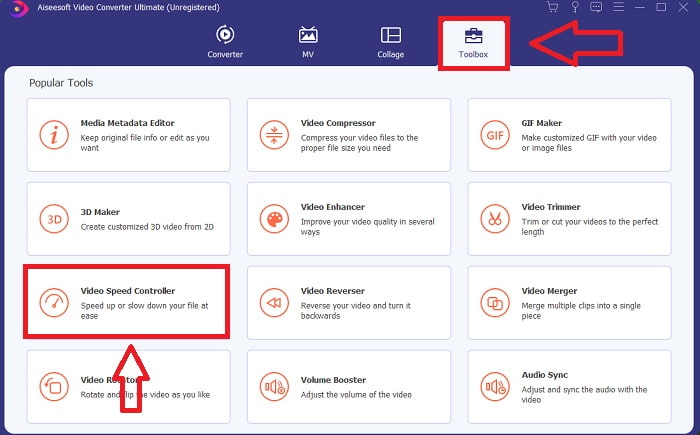
Korak 2: Nakon što prvi put pokrenete softver nakon instalacije, odaberite funkciju Toolbox (Kutija s alatima), a zatim značajku Video Speed Controller (Kontroler brzine videa).
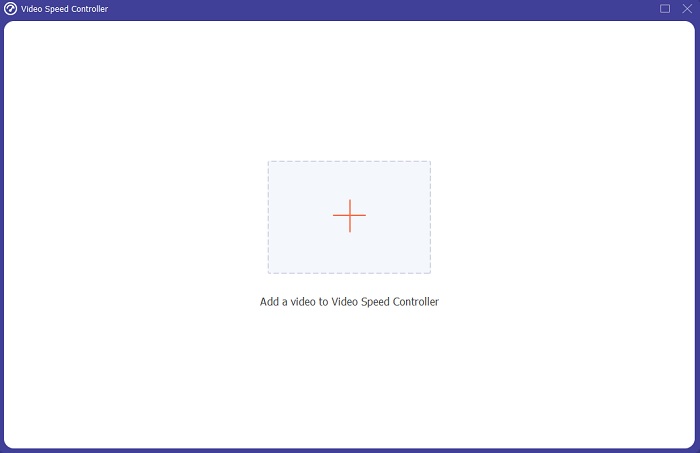
Korak 3: Kako biste započeli fazu uređivanja, sada možete učitati videosadržaj sa svog računala klikom na znak + koji će se pojaviti nakon što nastavite klikom na alat Video Speed Controller.
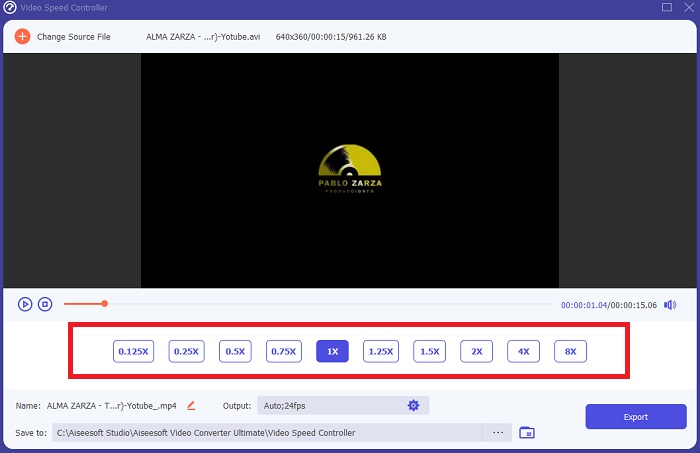
Korak 4: Sada možete ubrzati video brže nego u iMovieu, jer vam ovaj alat ostavlja mogućnost odabira koliko brzo ćete primijeniti množitelj brzine na svoj video. Također možete reproducirati pregled videa nakon što odaberete željenu prilagodbu brzine kako biste provjerili zadovoljava li vas rezultat.
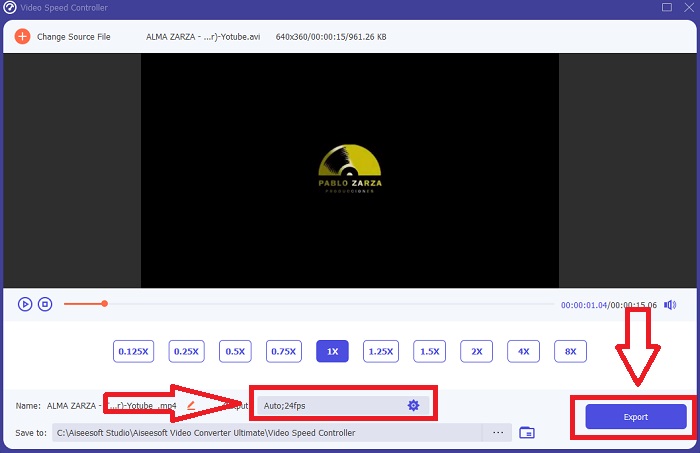
Korak 5: Možete odabrati željeni izlaz promjenom formata, rezolucije i kvalitete svog videozapisa nakon što završite s podešavanjem brzine reprodukcije i ostalih postavki. Kada budete spremni spremiti svoj rad, odaberite Export (Izvezi) i odredite lokaciju.
Povezano:
Najbolji video reproduktor za iPhone
Kako spojiti videozapise na iPhoneu
Dio 3. Često postavljana pitanja o tome kako ubrzati videozapise
Što ako pošaljem brzi video, a primim spori video kako bih smanjio veličinu videa?
Ne, to utječe samo na prikaz podataka, a ne na samu količinu podataka. Međutim, moguće je smanjiti veličinu videozapisa tako da se prikazuje s nižom brzinom sličica u sekundi. S manje sličica u sekundi, održava istu brzinu kao i original. 60 naspram 30 sličica u sekundi ima značajan utjecaj na veličinu video datoteke. Zbog varijacija od okvira do okvira koje se uzimaju u obzir tijekom video kodiranja. Smanjite razlučivost videozapisa, na primjer, s 1080p na 720p kako biste dodatno smanjili njegovu veličinu. Zbog toga će se veličina datoteke značajno smanjiti.
Koje su vaše mogućnosti za ubrzavanje reprodukcije videa na Macu?
Za povećanje brzine reprodukcije za dva ili više puta (5 ili više), kliknite gumb za premotavanje unaprijed ili unatrag dok se video ne počne reproducirati željenom brzinom, primjerice 30 ili 60 puta. Dok se video reproducira, možete promijeniti brzinu reprodukcije u koracima od 1,1x tako da pritisnete Option i pritisnete gumb za premotavanje naprijed ili natrag.
Kako mogu trajno promijeniti brzinu reprodukcije videozapisa?
Razmislite koliko je koraka potrebno da promijenite brzinu reprodukcije svojih videa. Iako su video alati i video uređivači lako dostupni na internetu, još uvijek tražite najbolji alat za rješavanje problema s brzinom reprodukcije svog videozapisa. Na internetu postoji mnogo web-alata; neki su besplatni za korištenje, ali zahtijevaju plaćanje za otključavanje svih funkcija. Video Converter Ultimate, besplatan program za ubrzavanje videa, vaš je najbolji izbor ako želite trajno promijeniti brzinu reprodukcije.
Zaključak
Zaključno, iMovie je izvrsna aplikacija dostupna na uređajima s iOS sustavom kao što su Mac i iPhone za rješavanje problema s brzinom reprodukcije videa. Dostupan je velikom broju korisnika, praktičan je i besplatan. Da, sjajan je za uređivanje brzine reprodukcije, ali što je s ostalim ključnim video-faktorima? Zato preporučujemo Video Converter Ultimate kao najbolji softver za popravljanje brzine reprodukcije videa; ne samo to, on ima i brojne druge funkcije koje vam mogu pomoći da napravite izvanredan video kakav niste ni zamišljali.
-
 Android DVD player - Kako reproducirati DVD videozapise na Android mobitelima
 Kako reproducirati DVD datoteke na Android mobitelima? Postoje li Android DVD playeri? U ovom ćete članku naučiti o 3 načina reprodukcije DVD videozapisa na Android mobitelima sa ili bez vanjskog upravljačkog programa.
-
 10 najboljih besplatnih Android MP4 playera za reprodukciju HD/4K videa
 Iako Android mobilni uređaji imaju zadane playere za reprodukciju MP4 videozapisa, oni ne podržavaju podešavanje postavki reprodukcije i druge funkcije. Stoga iz ovog članka možete saznati više o 10 najboljih Android MP4 playera.
-
 Samsung video player zaglavio: 5 najboljih video playera za Samsung
 Kad reproducirate videozapise putem zadanog Samsungovog video playera, možda ćete otkriti da uvijek zapinje. Da biste imali glatko i bolje iskustvo gledanja, iz ovog članka možete saznati o 5 najboljih video playera za Samsung.
