


 Video Converter Ultimate
 Perekam Layar
 Perbaikan Video
3 Cara Efektif untuk Mengubah M4V ke MKV di Mac/Windows/Linux Tanpa Kehilangan Kualitas
Saya perlu memutar video M4V yang saya unduh di iTunes. Punya ide bagaimana mengonversi M4V ke MKV di Mac dan kemudian menggunakannya di TV saya?
This problem is widespread, especially on M4V videos downloaded on iTunes because this format is under Apple's Fair Play Policy, and it is protected. Therefore, you can't play the .m4v videos instantly on other devices without converting them. This article will provide facts about the converters you can use and succeed in converting the M4V format. Without any more delays, let's start to learn the efficient method of changing M4V to MKV on Mac or Windows.

Bagian 1. Konversi iTunes M4V ke MKV di Mac dan Windows [Paling Banyak Dipilih]
There are many free M4V to MKV converters on the market that you can download, and one of them is the FVC Video Converter Ultimate. But this ultimate tool provides a more effective conversion than the other converters due to its lightning speed conversion, unlimited upload to convert, and intuitive interface. Are you amazed at the ultimate converters? Or do you want to know more about the converter? In that case, here below are the key features you will see if you attain this converter.

FVC Video Converter Ultimate
2.999.368+ Unduhan- Itu dapat mengkonversi beberapa iTunes M4V ke MKV atau ke dalam 200+ format media seperti MOV, AVI, MP4, dll.
- Dengan konversi ultra-cepat, proses konversi M4V Anda secara instan
- Fitur pengeditan lanjutan tersedia untuk membuat video Anda lebih baik.
- Atur fitur luar biasa untuk mengompres, mengubah ukuran, pembuat GIF, dll., di bawah Toolbox.
Unduh GratisUntuk Windows 7 atau yang lebih baruUnduhan Aman
Unduh GratisUntuk MacOS 10.7 atau yang lebih baruUnduhan Aman
Bukankah menakjubkan bagaimana semua fitur ini bisa ada di satu alat? Jangan buang waktu lagi dan tentukan bagaimana alat ini secara efektif mengubah iTunes M4V Anda ke MKV dengan mengikuti langkah-langkah di bawah ini.
Step 1. First, download the ultimate converter on your drive by clicking the download button below. Choose the platform you are currently using, follow the installation process, press Start Now to proceed. Remember, you will need to be more familiarized with the tool's interface to avoid difficulties.
Unduh GratisUntuk Windows 7 atau yang lebih baruUnduhan Aman
Unduh GratisUntuk MacOS 10.7 atau yang lebih baruUnduhan Aman
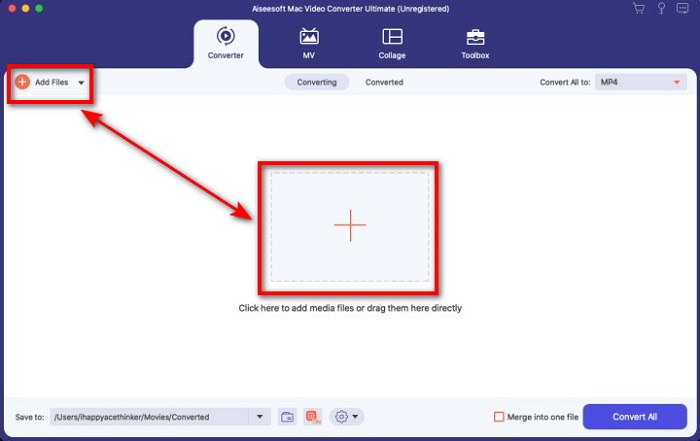
Step 2. Upload the M4V File on the interface by clicking the Add Files or the + button. After that, a computer folder will open on your screen, browse the .m4v File, and press Open.
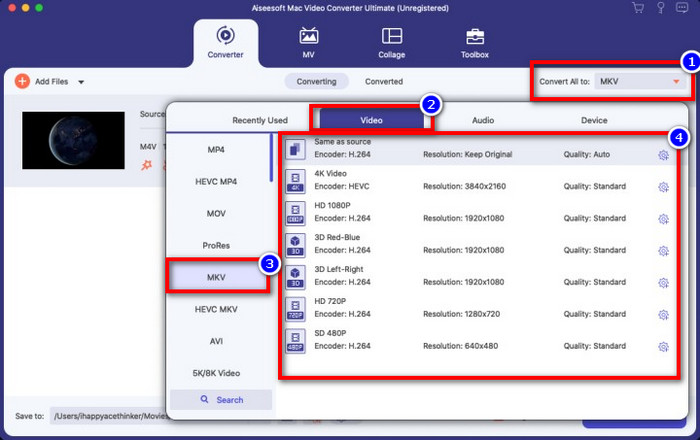
Step 3. Pick out the MKV format under the Convert All to and click it.
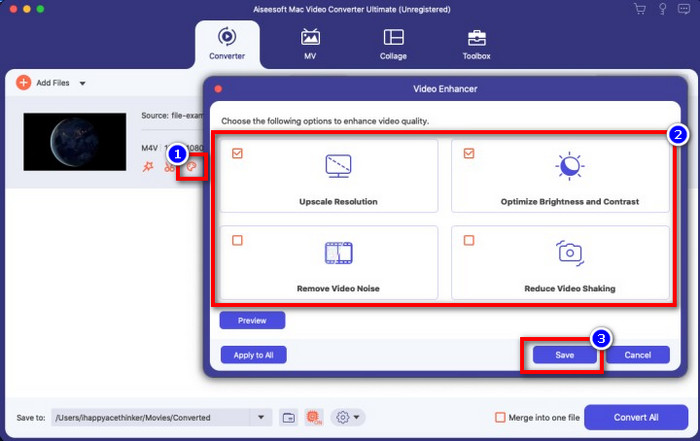
Optional. The effectiveness of this is, without a doubt doing great so far. But did you know that this tool also offers video enhancers? If you click the enhance video option, a dialog box will display; tick the box you want to improve on your video, and to apply it click Save.
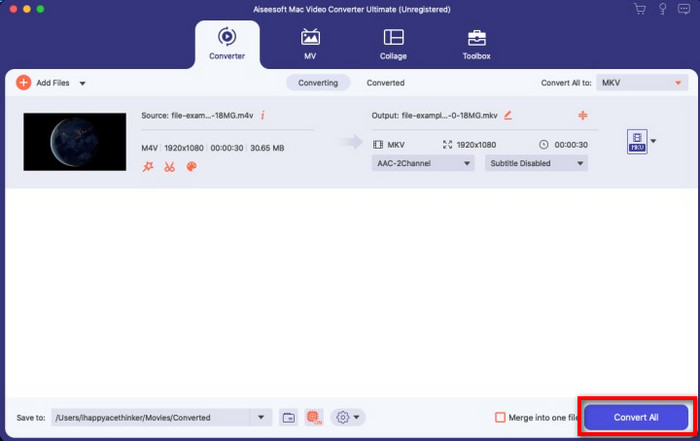
Step 4. By clicking the Convert All button, converting will begin within a short period. Here it is; with that, the file extension of your video is now .mkv.
Bagian 2. Mengkonversi M4V ke MKV Online
Doesn't want to pay to convert M4V files; instead, want to convert M4V to MKV online? If that is the case, FVC Free Video Converter Online is an online converter that guarantees your converting process efficiency even on the web. A converter can finish the job without purchasing the converter itself or even downloading it. Also, there are no ads or even registration needed to use this. Even though the converter is free, the features presented here only focus on converting. Unlike the ultimate tool, it provides wide-scale and amazing features. Furthermore, if you need to convert your M4V files online, use this converter and copy the steps below.
Step 1. Kindly click this link to open the FVC Free Video Converter Online.
Step 2. Press Add Files to Convert option to launch and upload the M4V File you need to convert.
Download the Desktop Version to convert files in batch.
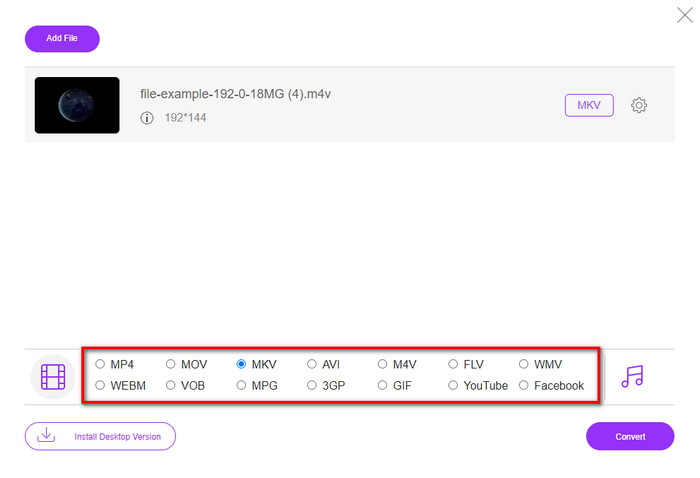
Step 3. Select the MKV format below or the other format you want to have.
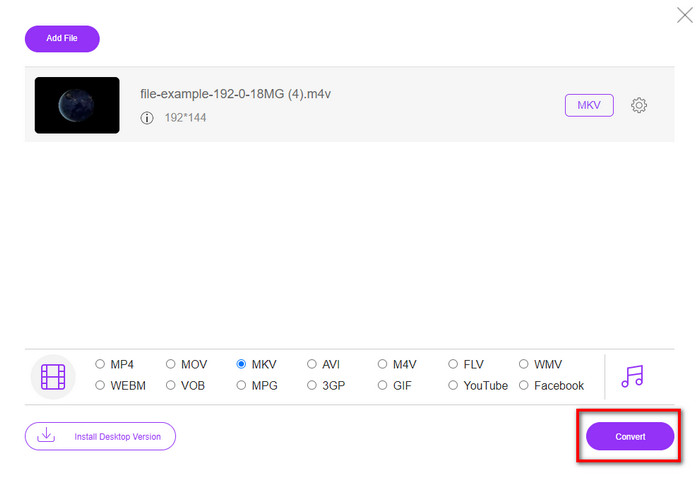
Step 4. Hit Convert for the process to begin.
Bagian 3. Mengkonversi M4V ke MKV Gratis
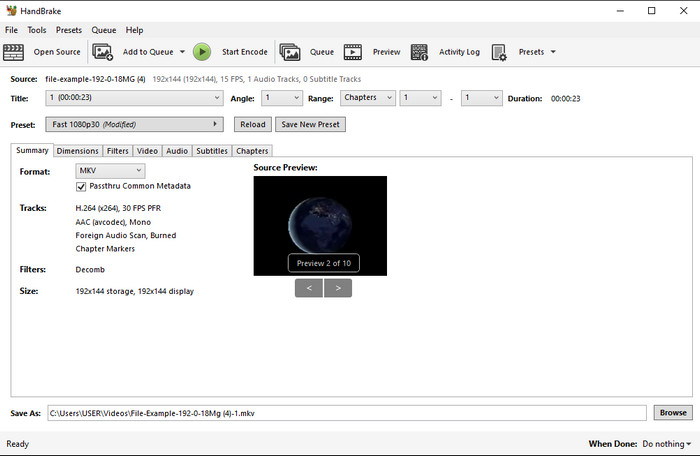
Handbrake provides a swift and efficient converting process like the other converter presented here. However, the format this tool supports is limited, which means you have no less choice option of choosing which format you want it to be. But if you want to use and convert M4V to MKV in Handbrake, apply the steps below.
Step 1. Download the Handbrake on your desktop. Upload the .m4v file by dragging and dropping it on the interface. You can also click File, locate the file on the computer folder, and press Open.
Step 2. Click Format and choose MKV.
Step 3. Click Start Encode for converting the process to begin.
Bagian 4. Apa Persamaan dan Perbedaan antara M4V dan MKV
Sebelum kita membandingkan M4V dan MKV, mari kita cari tahu persamaan antara kedua format ini. M4V dan MKV keduanya wadah untuk konten dan elemen media. Selain itu, kedua format ini diketahui menyimpan salah satu kualitas video terbaik, seperti video HD atau 4k. Dan mereka juga besar untuk memuat elemen seperti metadata. Selain itu, detail berikutnya di bawah ini adalah perbedaan antara kedua format.
M4V sangat mirip dengan format MP4; namun, format ini berada di bawah perlindungan salinan DRM yang berarti Anda tidak dapat menggunakannya secara bebas. Tetapi tidak semua file M4V memiliki perlindungan Apple karena beberapa M4V yang dapat diunduh memiliki lisensi yang tidak sah, jadi pastikan Anda mengunduh file .m4v di iTunes untuk menghindari virus jahat yang akan menginfeksi sistem Anda. Meskipun formatnya memiliki batasan, Anda tetap dapat menggunakan format ini di beberapa pemutar media untuk menonton video yang Anda unduh di iTunes. Apalagi jika Anda membutuhkan desain yang dilindungi di Mac, format ini adalah pilihan terbaik.
Sebaliknya, MKV khusus untuk memuat beberapa konten dan elemen media dalam satu file. Kemampuan ini hanya tersedia di MKV, karena format ini gratis untuk digunakan, dan lebih fleksibel daripada M4V. Selain itu, ada banyak alasan untuk mengubah M4V ke MKV di Mac atau Windows, dan salah satunya adalah untuk membuat file video tidak dibatasi.
M4V vs. MKV
M4V dikembangkan oleh Apple, yang juga menggunakan MPEG 4. File M4V sering digunakan untuk menyimpan video yang diunduh dari Apple iTunes store, seperti video musik, episode TV, dll. Anda mungkin menemukan beberapa file M4V dilindungi dari salinan karena menggunakan Perlindungan hak cipta DRM FairPlay Apple.
Format wadah multimedia Matroska, dirilis pada tahun 2002, adalah format sumber terbuka yang dapat mencakup sejumlah trek video, audio, gambar, dan subjudul. Jadi, Anda dapat menggunakannya untuk menyimpan klip video pendek, acara TV, dan film dengan mudah. Ini cukup populer untuk anime fan-subbbing.
Bagian 5. FAQ tentang Konversi M4V ke MKV
Mana yang lebih baik untuk mengedit, M4V atau MOV?
The two said format is one of the Apple formats, so you will notice that there is no significant gap between M4V and MOV. However, MOV is much better at editing because this format often contains a series of video playback that is the best choice for professional editing. Maybe you think you should make your M4V into a MOV for editing purposes. If so, click this link to know more about converting M4V to MOV with a comprehensive understanding of it.
Apakah M4V dan MP4 sama?
M4V dan MP4 sangat identik dalam hal struktur dan kualitas video. Tetapi karena perlindungan Apple Plays, M4V memiliki cakupan dukungan yang kecil, dan Anda tidak dapat hanya memutar video atau mengedit dalam ekstensi .m4v.
Apa saja pemutar media yang mendukung M4V?
Not many media players support this type of format because of the DRM protection. So if you are looking for an MKV player, you will spend a lot of time and test it out, which consumes a lot of time. But if you read this article, you can download or use the top 5 MKV media players available on all platforms.
Kesimpulan
The three tools presented in this article will surely give you the effective conversion you want to have by following the steps. Although the converters have a lot in common, they still have a lot of differences as well. If you read the details we presented above, you will know many about the three tools. Suppose you want to have an excellent conversion in a one-go and still achieve the efficiency of the conversion, we would recommend the FVC Video Converter Ultimate. Sounds unbelievable? Indeed it is, so download it on your desktop to try it yourself.
-
 M4V ke MP3 Converter - 4 Metode Terbaik untuk Mengekstrak MP3 dari File M4V
 Saat Anda ingin mengekstrak audio MP3 dari video M4V dengan mudah, Anda dapat mempelajari lebih lanjut tentang 4 konverter M4V ke MP3 terbaik untuk mendapatkan file audio yang diinginkan dari artikel.
-
 [Panduan] Cara Mengonversi Video M4V ke GIF Animasi di Windows/Mac
 Jika Anda ingin membuat file GIF animasi dari video M4V favorit Anda, Anda dapat mempelajari tentang 2 cara mudah dan efisien untuk mengonversi video M4V ke GIF dengan pengaturan yang disesuaikan.
-
 3 Program Konverter Video yang Digunakan untuk Mengonversi iTunes M4V ke AVI di Mac
 Tidak tahu cara mengonversi MKV ke format AVI? Saat kami melanjutkan membaca artikel ini, kami akan mengetahui 3 alat yang dapat membantu Anda mengonversi format file ini.

