


 Video Converter Ultimate
 Perekam Layar
 Perbaikan Video
Cara Cepat Menambahkan Gambar ke Video dalam Waktu Kurang dari Satu Menit
Ada banyak alasan mengapa Anda perlu menambahkan gambar ke video. Misalnya, beberapa editor menemukan bahwa menambahkan gambar ke video mereka menciptakan interaksi baru bagi pengguna lain. Dengan cara ini, Anda dapat menggunakan ini untuk mewakili merek Anda atau membuat presentasi visual yang sangat baik dan membantu video Anda menyampaikan pesan yang tepat kepada pengguna. Tapi tahukah Anda bahwa banyak alat melakukan pekerjaan yang sama? Kami tahu sulit untuk memilih alat mana yang paling cocok untuk Anda. Jadi hari ini, kami telah menyaring tiga alat yang kami temukan berkinerja baik. Setelah Anda membaca artikel ini, Anda akan belajar menambahkan gambar ke video Anda.

Bagian 1. Panduan Langkah demi Langkah Menambahkan Gambar ke Video dengan Video Converter Ultimate
Ingin menambahkan gambar ke dalam video dengan alat yang paling lengkap? Kalau begitu, gunakan Video Converter Ultimate. Dengan bantuan alat yang hebat ini, Anda bisa dengan mudah menimpa (overlay) gambar ke video meskipun Anda bukan ahli dalam bidang pengeditan ini. Selain kemampuannya menambahkan overlay pada video, Anda juga dapat dengan mudah menggunakan alat ini untuk menambahkan musik sebagai latar belakang, menambahkan subtitle, dan banyak lagi. Alat ini dikenal sebagai solusi serba ada untuk sebagian besar masalah yang berkaitan dengan video. Ingin tahu apa saja keunggulan menggunakannya? Jika ya, Anda bisa membaca penjelasan yang disediakan di bawah ini.

FVC Video Converter Ultimate
5.689.200+ Unduhan- Memberikan kinerja luar biasa dalam mengonversi dan mengedit.
- Edit dan buat video fantastis dalam beberapa klik.
- Mendukung 200+ format, seperti MP4, MOV, FLV, WMV, AVI, MTV, dll.
- Tersedia di semua lintas platform untuk diunduh, seperti Windows dan Mac.
Unduh GratisUntuk Windows 7 atau yang lebih baruUnduhan Aman
Unduh GratisUntuk MacOS 10.7 atau yang lebih baruUnduhan Aman
Bukankah menakjubkan hal-hal apa yang dapat Anda lakukan dengan alat ini? Ya, kami tahu alat ini mengesankan dalam banyak hal. Jika alat ini menarik perhatian Anda dan ingin mempelajari cara menambahkan gambar ke video dengan alat ini, Anda dapat membaca tutorial di bawah ini.
Langkah 1. Klik tombol unduh di bawah ini untuk langsung mengunduhnya ke penyimpanan Anda, ikuti proses instalasi hingga selesai, lalu jalankan. Sebelum melanjutkan, sebaiknya Anda membiasakan diri dulu dengan antarmuka alat ini agar lebih mudah memahami langkah-langkah berikutnya.
Unduh GratisUntuk Windows 7 atau yang lebih baruUnduhan Aman
Unduh GratisUntuk MacOS 10.7 atau yang lebih baruUnduhan Aman
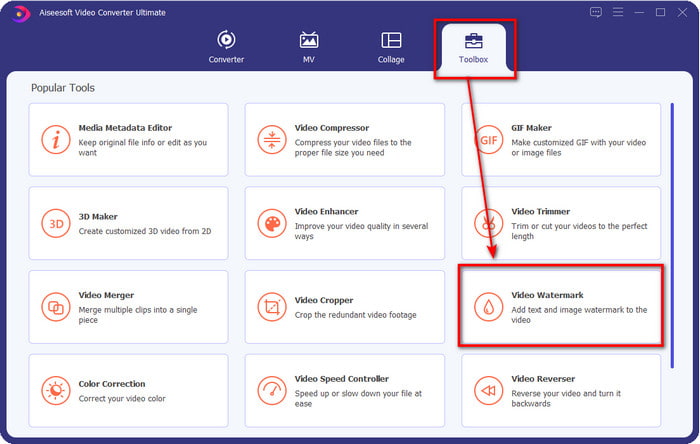
Langkah 2. Setelah alat berjalan di sistem, klik Toolbox, lalu di bawahnya cari Video Watermark dan buka.
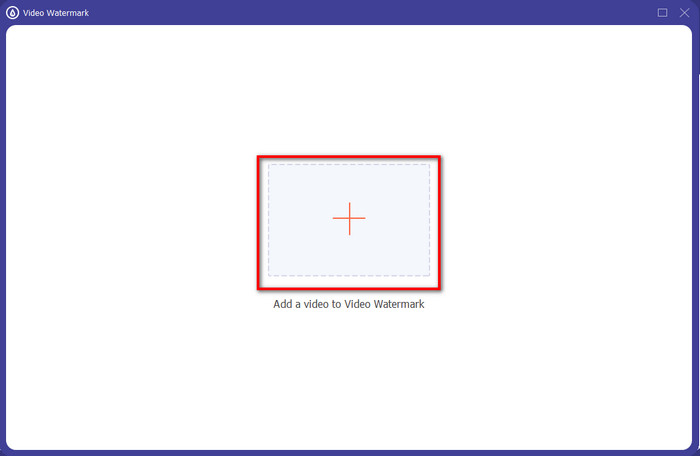
Langkah 3. Setelah Anda menekan tombol +, sebuah folder file akan muncul di layar; cari file videonya dan klik Open jika itu adalah file video yang dimaksud.
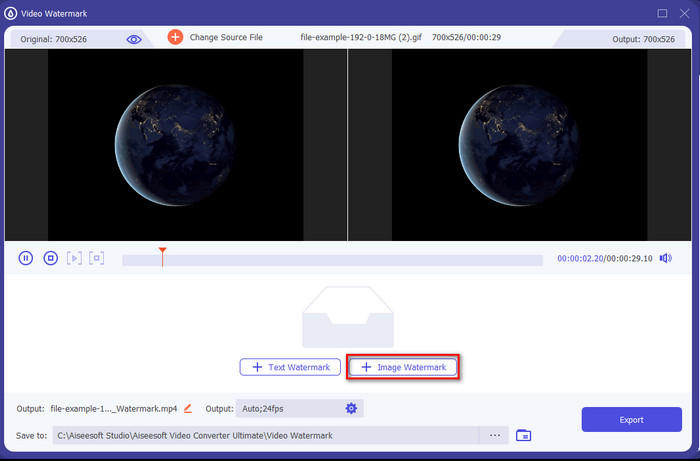
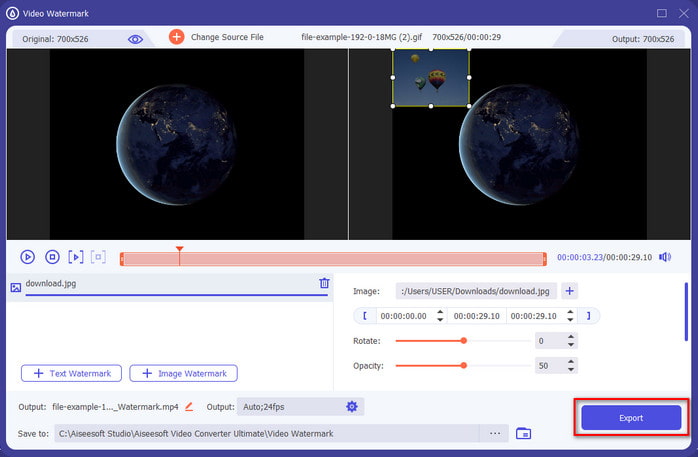
Langkah 4. Jendela baru akan muncul, klik Image Watermark, lalu sebuah folder akan muncul lagi, namun kali ini Anda memasukkan gambar yang ingin Anda tambahkan ke video dan tekan Open.
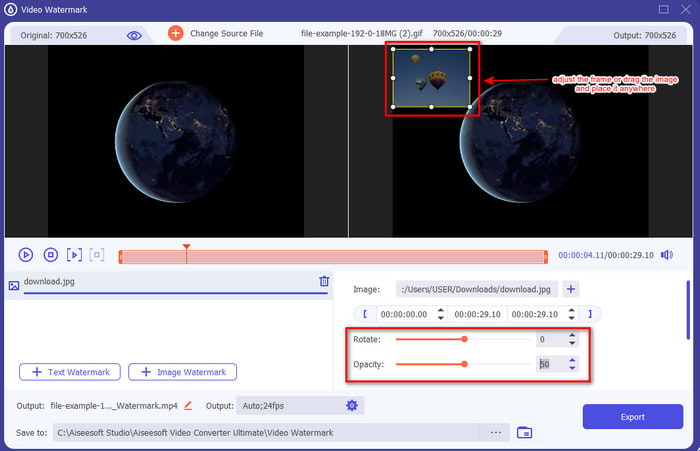
Langkah 5. Sesuaikan ukuran gambar yang sudah Anda masukkan ke dalam video dan posisinya dengan menyeret frame foto. Anda dapat meletakkannya di mana saja yang Anda inginkan dengan menahan dan menyeret gambar tersebut. Selain itu, Anda juga dapat mengatur tingkat kejernihan/visibilitas gambar dengan menyesuaikan Opacity. Anda juga bisa memutar gambar dengan menyeret slider Rotate.
Langkah 6. Jika Anda sudah selesai mengedit gambar, sekarang saatnya mengklik Export.
Terkait:
Cara Menambahkan Audio ke Video
Cara Menambahkan Subtitel ke Video
Bagian 2. Cara Melapisi Gambar ke Video di Internet Gratis
Pemotong Video Online – Tambahkan Gambar ke Video
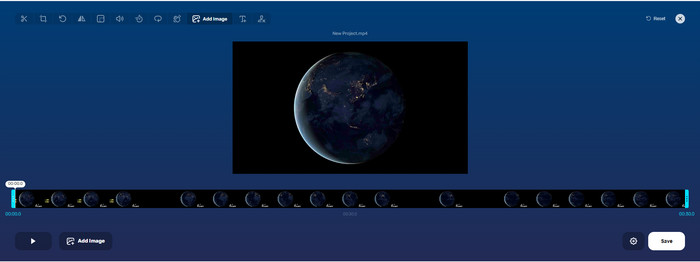
Jika Anda ingin melakukan overlay gambar secara online, Anda bisa menggunakan Online Video Cutter – Add Image to a Video. Alat web ini menyediakan cara yang sederhana namun efektif untuk menambahkan foto ke video apa pun. Meskipun alat ini nyaman digunakan, mengunggah video bisa sedikit merepotkan karena bergantung pada koneksi internet Anda. Selain itu, Anda tidak bisa menambahkan dua gambar sekaligus karena fitur tersebut belum didukung. Namun bila Anda ingin menggunakan alat ini, ikuti langkah-langkah di bawah ini.
Langkah 1. Buka peramban Anda dan cari alat web tersebut di kolom pencarian, lalu buka.
Langkah 2. Klik Open File untuk mengunggah video, lalu klik Add Image untuk mengunggah gambar yang ingin Anda tambahkan.
Langkah 3. Seret gambar untuk mengubah posisinya, klik Save untuk melakukan encoding, lalu simpan ke komputer Anda.
Pro
- Gratis untuk digunakan, dan Anda tidak perlu mengunduhnya.
- Ini mendukung fitur pengeditan dasar untuk pengguna.
- Itu tidak memiliki tanda air pada hasil akhir.
Kontra
- Itu tidak dapat menambahkan hingga 2 atau lebih gambar pada video.
- Mengunggah gambar dan video membutuhkan waktu untuk dimuat.
Flixier
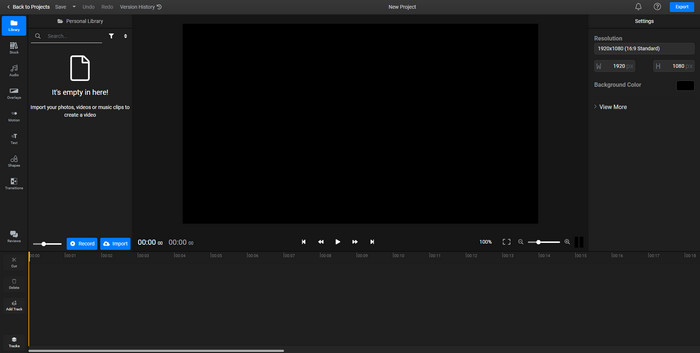
Anda dapat menggunakan Flixier untuk menambahkan gambar ke video secara online dan gratis. Anda juga bisa mengedit template video Anda dengan alat online ini, termasuk menambahkan gambar. Alat ini menyediakan fitur pengeditan bawaan yang luar biasa yang dapat Anda gunakan untuk membuat video Anda tampak lebih baik. Walaupun alat web ini menawarkan fitur menarik tersebut, saat Anda mengekspor hasilnya, akan ada watermark pada output akhir karena versi ini gratis. Namun Anda bisa membeli versi premium untuk menghapus watermark tersebut.
Langkah 1. Buka mesin pencari Anda, cari nama alat tersebut, lalu klik Choose File.
Langkah 2. Klik Import untuk mengunggah video dan gambar, seret video dan gambar ke Timeline, pastikan gambar berada di atas video. Ubah posisi gambar dengan menyeretnya di dalam tampilan video.
Langkah 3. Klik Export, lalu Export and Download untuk menyimpannya ke penyimpanan desktop Anda.
Pro
- Bebas biaya dan dapat diakses di web.
- Ini menyediakan lebih banyak fitur pengeditan daripada alat online pertama.
- Ini mendukung menambahkan banyak gambar ke video Anda.
Kontra
- Output Final memang memiliki watermark di bagian akhir karena gratis.
- Perlu membeli versi VIP untuk menghapus tanda air pada output video.
Bagian 3. FAQ tentang Menambahkan Gambar ke Video
Apakah menambahkan gambar ke video memengaruhi kualitas?
Kualitas video tidak akan memengaruhi gambar yang Anda tambahkan. Untuk menyederhanakan, menambahkan gambar tidak memiliki kualitas video yang signifikan, meskipun Anda menambahkan banyak foto. Namun, jika Anda mengekspor video pada editor yang Anda gunakan dan menyetelnya ke kualitas rendah, harapkan output video di bawah ini.
Mengapa gambar yang saya tambahkan ke video menjadi buram?
Alasan utamanya adalah karena gambarnya sudah buram sejak awal. Untuk menghindari masalah ini, Anda harus memeriksa gambar terlebih dahulu dan memastikan tidak buram sebelum menggunakannya di video Anda.
Bisakah saya menambahkan transisi ke gambar di video?
Dengan beberapa editor, Anda dapat menambahkan transisi ke gambar Anda. Meskipun ada banyak transisi animasi yang berbeda, cut, fade, wipe, dansolve adalah yang paling umum tersedia. Meskipun ini adalah yang paling umum, masih ideal untuk menambahkan transisi ke gambar untuk membuat video lebih profesional dan menarik.
Kesimpulan
Setelah Anda membaca blog ini, mempelajari cara menambahkan foto ke dalam video menjadi lebih mudah dipahami jika Anda menyimak seluruh isi artikel dengan berbagai alat online dan offline. Meskipun kami menyajikan beberapa set alat yang berbeda, kami tetap merekomendasikan semua pengguna untuk memakai alat ultimate ini untuk menyelesaikan tugas tersebut. Video Converter Ultimate menyediakan antarmuka yang mudah dipahami guna membantu pengguna menyelesaikan pekerjaan secara efisien. Masih ragu apakah alat ini cocok untuk Anda? Satu-satunya cara membuktikannya adalah dengan mengunduh dan mencobanya sendiri.
-
 5 Pengonversi OGV ke WMV yang Bermanfaat untuk Mengonversi File OGV Anda
 Ada 5 konverter OGV ke WMV berbeda yang dapat Anda gunakan untuk mengonversi file OGV. Artikel ini memberikan fakta kuat tentang 5 konverter ogv yang tersedia.
-
 Panduan untuk 2 Perangkat Lunak Konverter AMV ke WMV Terbaik [2022]
 Apakah Anda ingin mengonversi AMV ke WMV? Jika demikian, Anda harus membaca artikel ini untuk mengetahui apa itu AMV dan bagaimana mengkonversi file ke dalam format WMV.
-
 Alat Paling Berguna untuk Mengonversi SWF ke WMV (Online dan Offline)
 Apakah Anda kesulitan menemukan pemutar untuk file SWF Anda? Anda tidak perlu khawatir karena Anda hanya dapat mengonversinya ke format WMV untuk pengalaman menonton video yang lebih baik. Baca artikel ini untuk mengetahui lebih lanjut tentang proses konversi ini.
