


 Video Converter Ultimate
 Perekam Layar
 Perbaikan Video
 Unduhan Aman
Pengontrol Kecepatan Video yang Kuat - Editor Kecepatan Resolusi DaVinci
If you want to use a powerful video speed editor, you probably want to use this tool. DaVinci Resolve Speed Editor is a video speed changer tool that uses a USB keyboard. This speed editor provides custom hardware control that allows you to edit your video speed easily. So, if you are wondering what this tool can do more, read this article to know more about the DaVinci Resolve Speed Editor.

Bagian 1. Info Dasar, Fitur, Fungsi, dan Harga DaVinci Resolve Speed Editor
Many professional editors use DaVinci Resolve Speed Editor to change the speed of their video. And if you are new to using DaVinci Resolve Speed Editor, you probably want to know the information, functions, and price of this tool. In this part, you will know the basic information, functions, and the price of this speed editor.
Informasi dasar
DaVinci Resolve adalah keyboard tipe USB yang memungkinkan Anda mengedit file. Jika Anda menginginkan alat yang dapat mengubah kecepatan video Anda, maka alat ini adalah yang terbaik untuk Anda. DaVinci Resolve menyediakan cara yang lebih cepat dan mudah untuk mengedit video. Ini lebih dari sekadar keyboard karena memiliki banyak fitur pengeditan yang dapat Anda gunakan, termasuk editor kecepatan video, kontrol panggilan pencarian, tambah/hapus efek, sinkronisasi bin pilihan multi-kamera, dan banyak lagi. Selain itu, alat editor kecepatan ini juga memiliki versi nirkabel.
Saat Anda membeli keyboard DaVinci Resolve, Anda akan melihat kabel USB dan indikator daya baterai. Setelah Anda melepaskan kabel USB dari bagian belakang perangkat, Bluetooth akan secara otomatis mencoba memasangkan pada perangkat Anda.
Selanjutnya, jika Anda meminta editor kecepatan alat ini, Anda dapat menggunakan kontrol roda jog, kontrol pemutaran, dan kontrol edit dan trim pada keyboard Anda.
Fitur dan Fungsi
Jika Anda bertanya-tanya apa saja fitur dan fungsi DaVinci Resolve, di bawah ini kami sajikan fitur dan fungsi paling umum dari alat ini.
Speed Editor
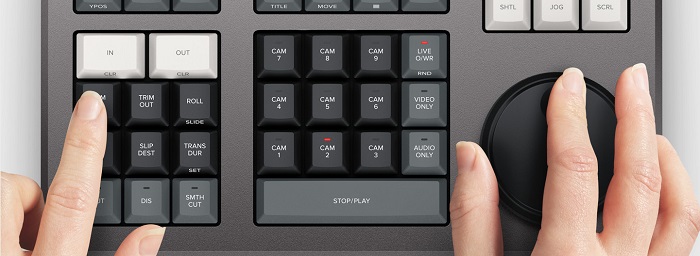
DaVinci Resolve Speed Editor is made for professional editors who want to better transition effects on their video. By using this video speed controller, you can slow down or speed up the fps of your video, highlighting the best scene of your video. There are many ways to use DaVinci Resolve to speed up a clip.
◆ Use the In and Out points by just scrolling on the search dial and placing the in and out points on your video timeline, then going to edit functions to edit your video.
◆ Use the Trim in and Trim out buttons by simply holding the trim buttons and rotating the search dial. The smart indicator on the timeline allows you to see which part you are trimming.
Add and Remove Effects
Using the DaVinci Resolve speed editor, you can also add and remove effects on your video. The smart indicator on the timeline is the determinator of which editing point you are working on. Press the CUT key to remove an effect on the edit point. And if you want to dissolve the edit point on your timeline, press the DIS (dissolve) key. In addition, if you want a smooth cut transition on the edit point, press the SMTH CUT (smooth cut).



Color
Fungsi ini memungkinkan Anda untuk mengubah kontras, suhu, nada tengah, saturasi, dan lainnya. Halaman berwarna adalah salah satu fungsi DaVinci Resolve yang paling disukai dan dapat dengan mudah digunakan oleh pemula.
Sync Bin
The sync bin is a function where you can find videos or shots synced in on the editing timeline. And then, you can use the camera keys to select an alternative shot and edit it on your timeline.
Audio Level and Mark
DaVinci Resolve can also adjust the audio of your video. To set the audio levels on your clip, hold the key and adjust the audio level using the search dial. If you double press the audio level key, it will add a marker. And if you double press the key and hold it, it allows you to set the color of the markers.
Full-Screen Viewer and Review
Tombol ini memungkinkan Anda mengubah penampil menjadi layar penuh. Ini memiliki warna merah sehingga Anda dapat dengan mudah menemukannya. Jika Anda menekan dua kali tombol ini, itu akan berdoa dari hasil edit terbaru Anda.
Add Transitions
Using the Transition key will add a custom transition to your video. It is almost similar to the cut and smooth cut buttons.
Snapper and Viewer
Pressing the Snap key enables snapping on your timeline. And if you press and hold the Snap key, it will adjust the viewer size.
Ripple Delete
Hapus riak memungkinkan Anda menghapus klip di titik pemutaran; itu riak garis waktu untuk menghilangkan celah antara dua klip. Penghapusan riak adalah cara yang baik untuk mengurangi durasi timeline video Anda.
Harga
Anda dapat membeli DaVinci Resolve Speed Editor seharga $395. Dan jika Anda mencari versi perangkat lunak dari alat ini, Anda dapat mengunduhnya secara gratis di Windows, Mac, dan Linux. Namun, versi perangkat lunak alat ini rumit untuk digunakan.
Alternatif untuk DaVinci Resolve Video Speed Editor
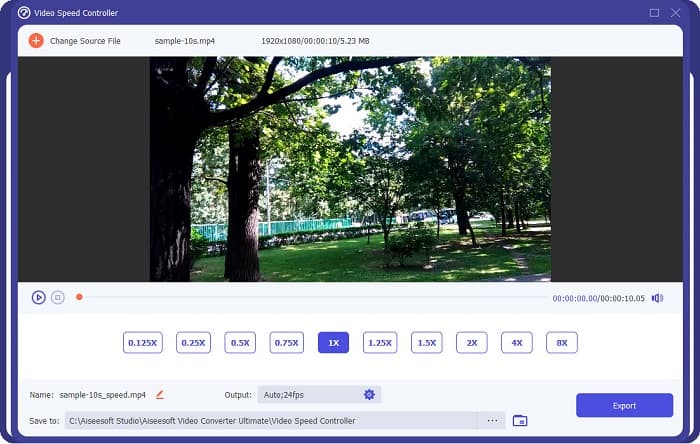
If you want an easier way to edit your video’s speed, use FVC Video Converter Ultimate. This software application allows you to speed up or slow down your video easily. With its fast operating process, you will not consume much time editing the speed of your video. In addition to that, there are many speed presets you can choose from for your video. And if you are wondering what else it can do, this tool has many editing features, including an audio compressor, video compressor, video metadata editor, and more. It also supports numerous file formats, like MP4, MKV, MOV, AVI, FLV, WMV, and 1000+ formats. To know more about this software application, read the descriptions below.
Advantages of using FVC Video Converter Ultimate:
1. Memiliki antarmuka pengguna yang intuitif.
2. Memungkinkan Anda untuk mengubah kecepatan video Anda dari preset kecepatan 0,125x, 0,50x, 0,75x, 1,25x, 1,5x, 2x, 4x, dan 8x.
3. Ini memiliki banyak fitur pengeditan lanjutan untuk digunakan, seperti pemangkas video, penggabungan video, pembuat 3D, dan banyak lagi.
4. Tersedia di semua platform media, termasuk Windows, Mac, dan Linux.
Bagian 2. FAQ tentang DaVinci Resolve Video Speed Editor
Apakah DaVinci Resolve Video Speed Editor sepadan?
Dengan harganya yang murah, alat editor kecepatan video ini layak untuk digunakan karena dapat menghasilkan output berkualitas tinggi dan memiliki banyak fitur pengeditan untuk digunakan.
Apakah DaVinci Video Speed Editor kompatibel dengan format apa pun?
Itu tidak mendukung semua format file. Namun, ini dapat mendukung berbagai format file, termasuk MOV, MXF, DNG, DCP, ARI, MTS, dll.
Apakah DaVinci Resolve Video Speed Editor memiliki versi gratis?
DaVinci Resolve Video Speed Editor memiliki versi uji coba gratis untuk waktu terbatas saja. Untuk menggunakannya seumur hidup, beli alat ini seharga $395.
Kesimpulan
All your queries about DaVinci Resolve Video Speed Editor are now answered. With the tool meant for video speed editor, you can easily slow down or speed up your video and create beautiful transitions with this tool. But, if you are searching for a more convenient tool and easier to use, try FVC Video Converter Ultimate for free!
-
 Cara Mempercepat Video di iPhone – Sesuaikan Kecepatan Video
 Bagaimana cara mempercepat video di iPhone saya? Bagaimana cara mempercepat video di iPhone menggunakan iMovie? Pelajari 3 cara untuk mempercepat video di perangkat iPhone dan iPad.
-
 Cara Mempercepat Video di Premiere Pro dan Alternatifnya
 Ingin tahu cara menggunakan premiere pro untuk mempercepat video? Maka Anda berada di artikel yang tepat karena kami memberikan langkah-langkah dan alternatif terjangkau lainnya.
-
 2 Cara Mudah Cara Mempercepat Video di TikTok
 Mau tahu rahasia cara mempercepat video di TikTok? Kemudian baca artikel ini untuk mendapatkan ide tentang cara melakukannya dan mengetahui 2 alat lain apa yang akan membantu Anda.
