


 Video Converter Ultimate
 Perekam Layar
 Perbaikan Video
Panduan Singkat Cara Pixlr Menghapus Tanda Air pada Foto
Ada beberapa kasus di mana menghapus tanda air memang diperlukan dan tepat. Misalnya, Anda mungkin perlu menghapus tanda air jika penempatannya salah, tampak terlalu besar atau mengganggu, atau memengaruhi kualitas akhir proyek Anda. Penting untuk menghormati undang-undang hak cipta dan hanya menghapus tanda air dari konten yang Anda miliki atau yang berwenang untuk mengeditnya.
Jika Anda memperhatikan bahwa tanda air yang Anda buat muncul tidak semestinya atau mengganggu gambar yang diekspor, artikel ini akan memandu Anda tentang cara menghapus watermark di Pixlr dengan mudah. Selain itu, jangan lewatkan kesempatan untuk mempelajari alternatif terbaiknya saat ingin menghapus watermark dari foto. Tidak perlu berlama-lama, mari kita mulai!

Bagian 1. Apa itu Pixlr?
Pixlr adalah alat penyunting gambar daring canggih yang diluncurkan pada tahun 2008. Awalnya, alat ini dirancang sebagai platform berbasis web untuk penyuntingan foto dasar, tetapi dengan cepat menjadi populer karena antarmukanya yang mudah digunakan dan fitur-fiturnya yang mudah diakses, yang memungkinkan pengguna untuk mengedit foto.
Fitur utama:
• Hapus tanda air dengan Clone Stamp dan Healing Brush di Pixlr Editor.
• Edit secara massal dan hapus tanda air dari beberapa gambar.
• Pengeditan halus setelah penghapusan tanda air dengan alat Retouch.
• Mendukung format keluaran JPG, PNG, WEBP, dan PDF.
• Bekerja lancar di Windows dan macOS.
Bisakah Anda Menggunakan Pixlr untuk Menghapus Tanda Air?
Ya, Anda dapat menggunakan Pixlr untuk menghapus watermark. Platform ini menawarkan berbagai alat, seperti Clone Stamp, Healing Brush, dan lain-lain, untuk menghapus atau menghilangkan watermark dari gambar secara efektif. Selain itu, fitur-fitur ini mudah digunakan, sehingga Pixlr benar-benar menjadi alat yang tepat untuk menghapus watermark dari foto.
Bagian 2. Bagaimana Cara Menghapus Tanda Air di Pixlr?
Setelah Anda mengetahui apa itu Pixlr dan fitur-fiturnya, saatnya mempelajari cara menggunakannya untuk menghapus tanda air dari foto. Alat ini sangat mudah digunakan dan, bahkan, dapat digunakan oleh pemula. Berikut panduan langkah demi langkah tentang cara menghapus tanda air di Pixlr:
Langkah 1. Pertama, pada mesin pencari Anda, cari Pixlr.
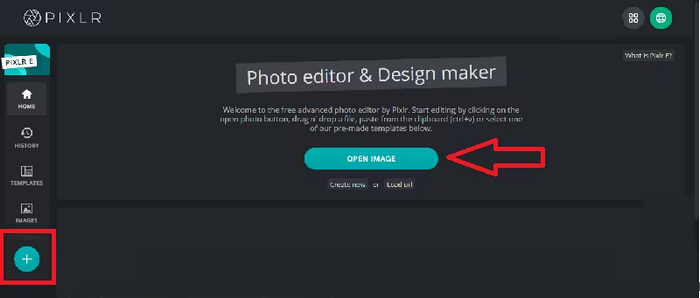
Langkah 2. Setelah Anda menemukan alatnya, klik untuk membukanya. Setelah itu, klik tombol Open Image untuk mengunggah foto yang memiliki watermark yang perlu Anda hapus. Atau, Anda juga dapat langsung mengklik tombol + pada panel sisi kiri layar untuk mengunggah foto Anda.
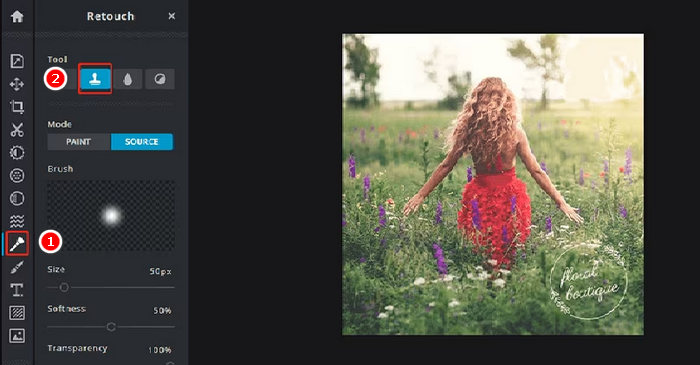
Langkah 3. Setelah foto Anda dimuat, di sisi kiri layar Anda, klik tombol Retouch, dan sebuah panel akan muncul. Setelah itu, pada menu alat, pilih Clone Stamp.
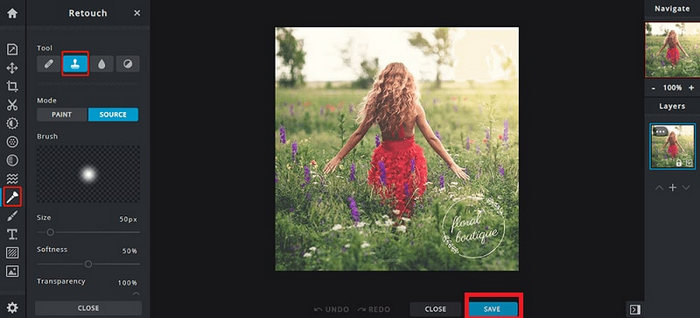
Langkah 4. Sekarang, tahan mouse Anda dan gerakkan kursor langsung ke watermark yang ingin Anda hapus. Setelah selesai menghapus watermark dengan Pixlr, klik tombol Save.
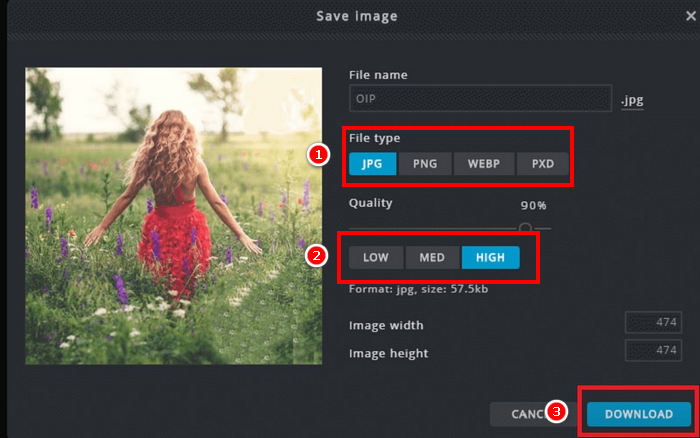
Langkah 5. Sebelum Anda mengunduh file gambar, pilih resolusi dan jenis gambar. Jika sudah, klik tombol Download.
Selalu perbesar gambar saat menghapus tanda air di Pixlr. Mengerjakan detail kecil dengan cermat akan membantu Anda membaurkan area yang diedit secara lebih alami dan menghindari bagian yang kasar atau tidak rata pada gambar akhir.
Bagian 3. Alternatif Gratis untuk Menghapus Tanda Air dari Foto
Sementara itu, jika Anda mencari alternatif gratis selain menghapus watermark dengan Pixlr dari foto, Anda sebaiknya mencoba FVC Free Watermark Remover. Ini adalah alat berbasis web yang pada dasarnya memungkinkan pengguna untuk menghapus watermark dari foto mereka. FVC mendukung format gambar yang umum digunakan seperti JPG/JPEG, PNG, BMP, dan lainnya, sehingga memberikan keleluasaan bagi pengguna untuk menangani berbagai jenis gambar yang ingin mereka hilangkan watermark-nya. Selain itu, alat ini menyediakan cara yang fleksibel untuk memilih dan menghapus watermark. Anda dapat menggambar garis luar poligonal, menggunakan alat lasso, atau menggosok area watermark dengan kuas. Hal ini memudahkan penyesuaian seleksi sesuai bentuk dan ukuran watermark.
Fitur utama:
• Hapus tanda air teks, gambar, dan logo dari foto.
• Mendukung format JPG, JPEG, PNG, dan BMP.
• Mempertahankan kualitas gambar asli setelah menghapus tanda air.
• Gunakan kuas, laso, atau garis poligonal untuk memilih area tanda air.
• Pangkas gambar sebelum atau sesudah menghapus tanda air.
• Hapus dan pilih kembali area dengan alat Penghapus.
• Kompatibel dengan Windows dan macOS.
Berikut panduan langkah demi langkah tentang cara menghapus watermark pada foto menggunakan FVC:
Langkah 1. Pertama, kamu perlu mengakses situs resmi alat ini. Jadi, di mesin pencari, cari FVC Free Watermark Remover.
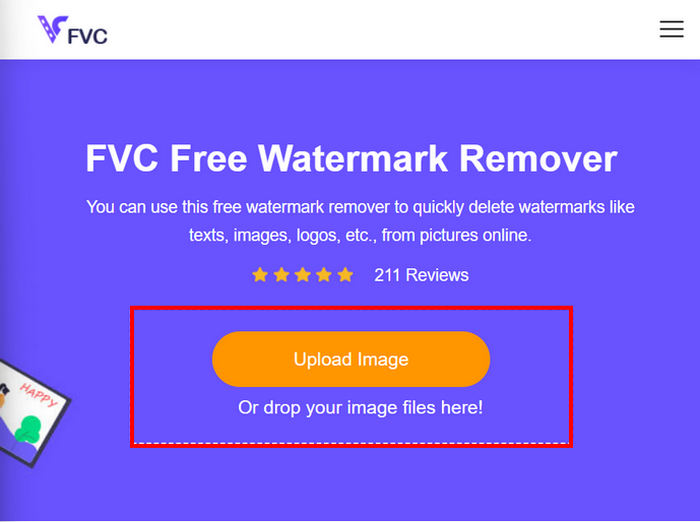
Langkah 2. Setelah ditemukan, klik tombol Upload Image untuk mengimpor foto yang memiliki watermark yang perlu Anda hapus.
Langkah 3. Sekarang, dari menu di bagian atas, pilih apa pun yang Anda inginkan untuk menghapus watermark pada foto Anda. Dalam contoh ini, kami menggunakan alat Brush dan menggosok watermark dengan menggerakkan kursor ke arahnya. Setelah tertutup, klik tombol Remove di atas dan klik Save untuk mengunduh foto tersebut.
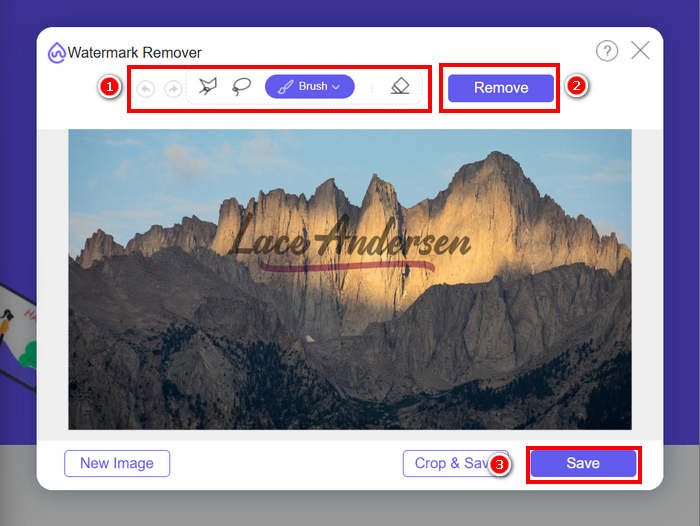
Saat menghapus tanda air, pilih alat yang paling sesuai dengan bentuknya. Gunakan Kuas untuk tanda air kecil atau tidak beraturan, Laso untuk bentuk lengkung atau bebas, dan Garis Poligonal untuk tanda air bertepi lurus atau bersudut. Memilih alat yang tepat akan membantu Anda mendapatkan hasil yang lebih bersih dan presisi.
Bagian 4. FAQ tentang Pixlr Hapus Tanda Air
Apakah penghapus tanda air Pixlr aman?
Ya. Pixlr aman digunakan untuk menghapus tanda air dari foto. Ini adalah editor gambar online tepercaya yang menggunakan server aman untuk melindungi data pengguna. Pastikan Anda mengakses situs web resmi Pixlr untuk menghindari potensi risiko.
Bagaimana cara membuat latar belakang transparan di Pixlr?
Untuk membuat latar belakang transparan di Pixlr, di editor Pixlr Anda, pilih Buat Gambar Baru, ketik nama untuk berkas Anda, centang kotak Transparan, lalu klik OK. Selanjutnya, klik Lapisan di menu atas dan pilih Buka Gambar sebagai Lapisan untuk mengunggah gambar yang ingin Anda edit. Gunakan alat Wand dari bilah alat, lalu klik area latar belakang yang ingin Anda hapus. Sesuaikan pengaturan Toleransi jika perlu untuk menyempurnakan pilihan. Tekan Hapus untuk menghapus latar belakang. Jika masih ada latar belakang yang tersisa, gunakan alat Penghapus untuk menghapusnya secara manual. Setelah selesai, klik File, lalu Simpan. Masukkan nama berkas, pilih PNG sebagai format berkas untuk mempertahankan transparansi, lalu klik OK. Pilih lokasi untuk menyimpan gambar Anda dan klik Simpan.
Apakah penghapus tanda air Pixlr tidak lagi gratis?
Pixlr menawarkan versi gratis dan premium. Alat penghapus watermark dasar seperti Clone Stamp dan Healing Brush tersedia untuk pengguna gratis. Namun, beberapa fitur lanjutan dan opsi ekspor berkualitas tinggi mungkin memerlukan langganan Pixlr Premium.
Kesimpulan
Menghapus watermark dari foto bisa menjadi proses yang sederhana dan efektif dengan alat yang tepat. Kini setelah Anda mengetahui cara menghapus watermark dengan Pixlr, Anda dapat benar-benar memanfaatkan platformnya yang ramah pengguna untuk menghapus watermark dengan mudah. Memang, Pixlr menyediakan opsi yang mudah diakses baik bagi pemula maupun pengguna berpengalaman. Selain itu, jika Anda mencari alternatif gratis, FVC Free Watermark Remover menawarkan alat yang fleksibel dan mendukung berbagai format gambar untuk pengeditan yang lancar. Selalu ingat untuk menghormati hak kepemilikan saat mengedit foto, dan pilih alat yang paling sesuai dengan kebutuhan Anda demi hasil yang bersih dan profesional.
-
 Cara Menghapus Watermark DeviantArt Online [5 Solusi]
 Ingin mempelajari cara menghapus tanda air DeviantArt pada gambar Anda? Dengan menggunakan penghapus tanda air DeviantArt yang paling luar biasa, Anda dapat dengan mudah menghapus tanda air yang mengganggu itu.
-
 Metode Mudah tentang Cara Menghapus Tanda Air Tahan Tembak
 Hapus tanda air Shootproof dengan mengikuti metode mudah ini. Gunakan penghilang tanda air yang menakjubkan ini untuk menghapus tanda air Shootproof dari gambar Anda dengan mudah.
-
 5 Cara Menghilangkan Watermark B612 Menggunakan Alat Terbaik
 Ingin tahu cara menghapus tanda air B612 dari foto Anda? Anda dapat dengan mudah menghapus tanda air B612 dari gambar Anda menggunakan alat yang luar biasa ini.
