


 Video Converter Ultimate
 Perekam Layar
 Perbaikan Video
 Unduhan Aman
Hapus Objek dari Foto dengan 6 Software Efektif [Gratis]
Jutaan fotografer, bahkan yang masih pemula, mengambil banyak bidikan pemandangan matahari terbenam, pantai, tempat wisata, bulan, dan masih banyak lagi. Dengan gambar, kita dapat mengekspresikan siapa diri kita sebenarnya. Hanya dengan satu jepretan sederhana, Anda bisa memicu kreativitas semua orang dan sisi artistik di dalam diri mereka. Tidak setiap kali kita memotret, kita akan mendapatkan gambar yang benar-benar sempurna; terkadang kita perlu menghilangkan objek tertentu yang tidak ingin Anda sertakan dalam foto yang diambil. Apakah Anda membutuhkan alat untuk menghapus objek dari foto? Di sini, kami akan memperkenalkan berbagai cara dan alat yang dapat Anda gunakan untuk menghapus objek yang tidak diperlukan pada gambar yang Anda jepret secara instan.

Bagian 1. Menghapus Objek dari Foto Menggunakan Penghilang Objek Terbaik [Web Service]
FVC Free Watermark Remover adalah pilihan pertama kami untuk menghapus objek dari foto secara online dan gratis. Dengannya, Anda dapat menghapus apa pun yang mengganggu kesempurnaan gambar Anda secara instan tanpa mengunduh perangkat lunak ke desktop Anda, bahkan jika Anda tidak memiliki pengalaman melakukan jenis pengeditan ini. Anda bisa mengandalkan alat ini karena Anda hanya perlu menyorot objeknya, dan alat ini akan menghapus objek pada gambar tanpa meninggalkan sisa-sisa. Kami menemukan alat ini menyenangkan dan efektif untuk menghapus hal-hal yang tidak diperlukan pada gambar; jika Anda ingin menggunakan alat ini, salin langkah-langkah yang kami tambahkan di bawah ini.
Langkah 1. Untuk membuka objek dan menghapus pengembangan FVC, Anda dapat mengklik tautan ini ke situs resminya.
Langkah 2. Tekan Upload Image untuk mengimpor foto yang Anda ambil yang memiliki objek tidak diperlukan di dalamnya.
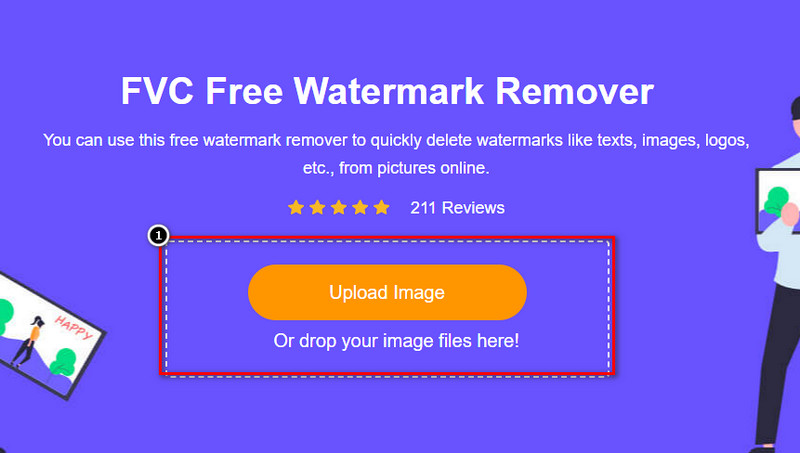
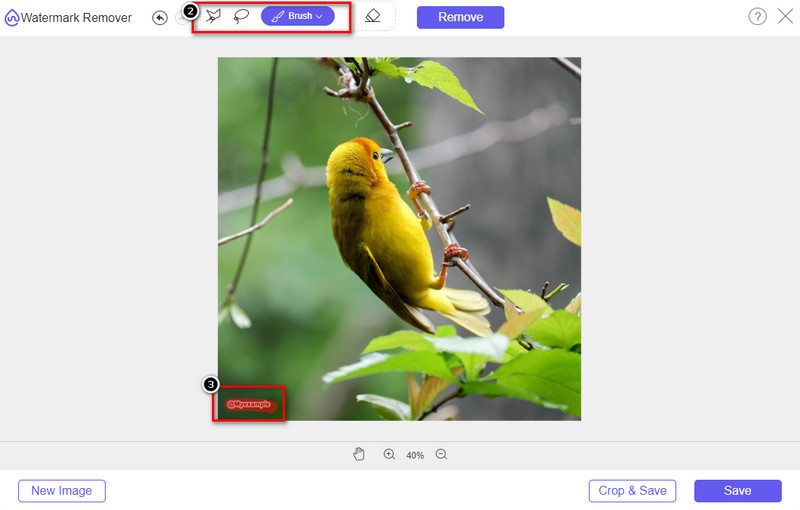
Langkah 3. Dengan alat yang tersedia di sini, Anda perlu menyorot objeknya.
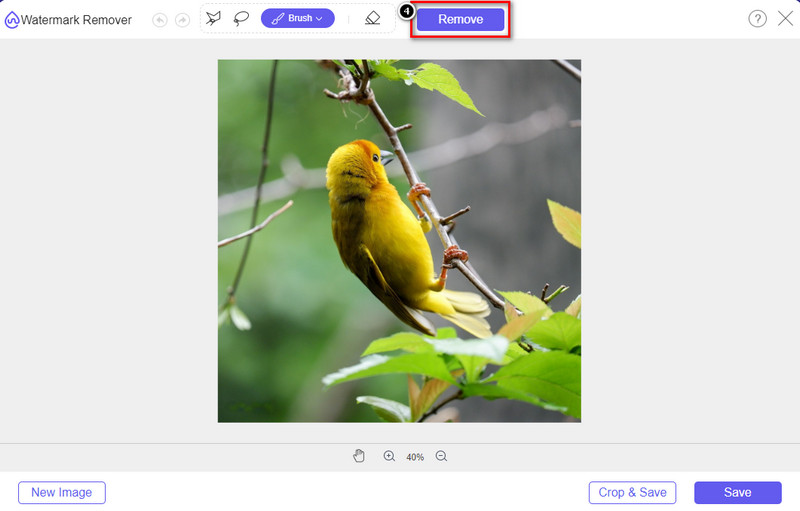
Langkah 4. Tekan tombol Remove untuk menghilangkan objek dengan bantuan teknologi AI yang didukung alat ini.
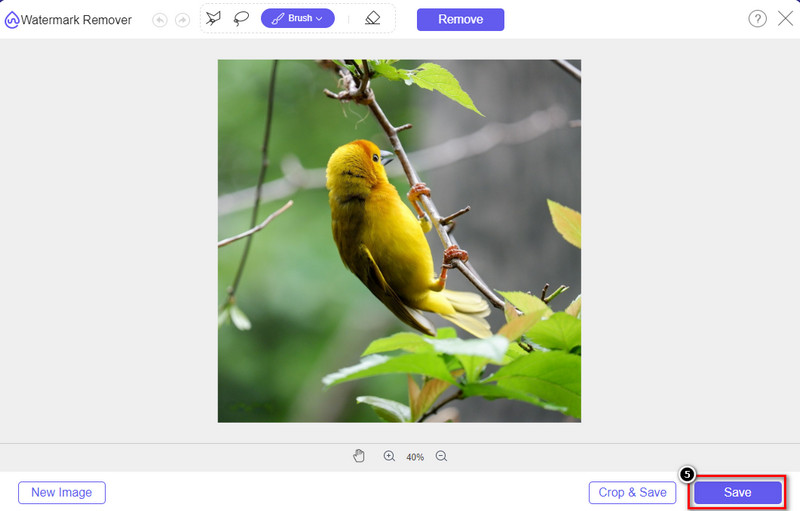
Langkah 5. Untuk mengunduh gambar sempurna yang sudah Anda edit di sini, klik Save.
Bagian 2. Hapus Objek dari Foto Profesional Menggunakan Program Desktop [Windows & Mac]
Photoshop
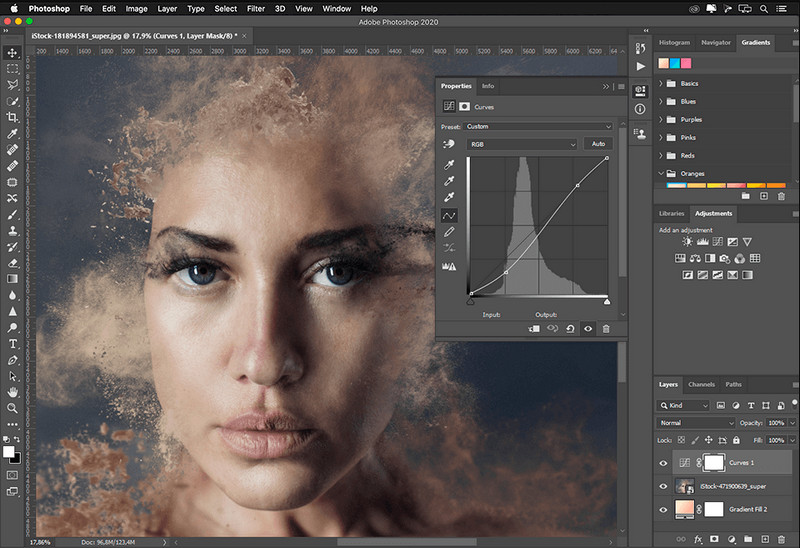
Jika Anda membutuhkan alat profesional untuk menghapus objek dari foto, maka Photoshop adalah jawabannya! Alat ini adalah editor gambar lengkap yang dengan bangga dipersembahkan oleh Adobe kepada kami. Tidak ada yang menghentikan Anda untuk membuat gambar terlihat luar biasa dengan fitur dan fungsinya. Karena popularitasnya di kalangan profesional, banyak pemula mencoba menggunakan perangkat lunak ini untuk mengedit dan membuat gambar mereka. Jadi, jika Anda ingin tahu cara menggunakan alat profesional ini, Anda dapat mengikuti tutorial yang kami tambahkan di bawah ini.
Langkah 1. Buka situs resmi Adobe, lalu unduh Photoshop ke desktop Anda.
Langkah 2. Klik File dan tekan Open untuk mengunggah gambar yang perlu Anda edit di sini.
Langkah 3. Di bagian kiri, pilih Magic Wand Tool untuk menelusuri objek pada gambar secara otomatis.
Langkah 4. Buka bagian Edit dan pilih Content-Aware Fill.
Langkah 5. Setelah Anda membukanya, watermark akan otomatis dihapus, lalu klik OK.
GIMP
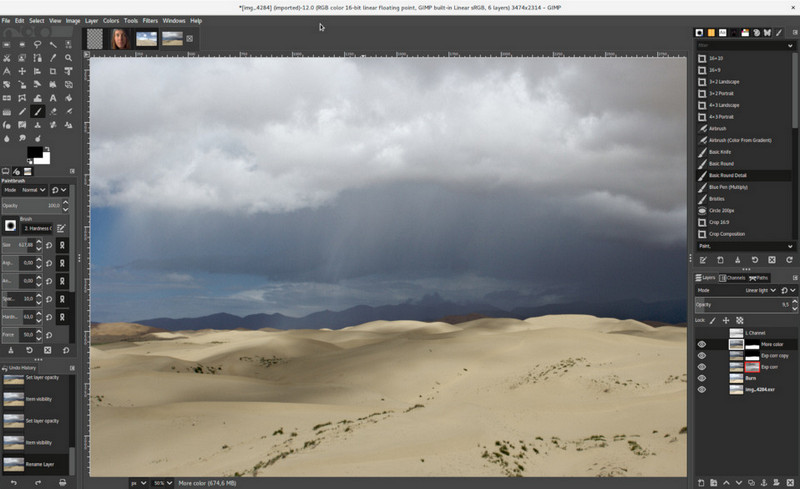
GIMP adalah editor gambar lengkap yang dapat Anda gunakan untuk menghapus objek dari foto di Mac, Linux, dan Windows secara gratis. Ini adalah alat andal seperti Photoshop. Meskipun alat ini menjadi yang teratas saat membahas alternatif Adobe Photoshop, alat ini masih dalam pengembangan aktif. Dengan alat ini, Anda dapat mengedit gambar secara mendalam agar tampak menarik di mata audiens. Selain itu, Anda dapat menyesuaikan antarmukanya jika ingin memudahkan pekerjaan. Jika Anda berpikir untuk mengunduh alat ini untuk pengeditan profesional, kami dapat memastikan Anda akan mencapainya. Walaupun merupakan editor open-source, alat ini masih perlu disempurnakan karena GUI-nya masih dalam pengembangan. Jadi jika Anda ingin menggunakannya, langkah-langkah di bawah ini akan memandu Anda untuk mengajarkan cara menghapus objek dari foto di GIMP. Langkah-langkah yang disediakan di bawah ini akan memandu Anda.
Langkah 1. Unduh lalu jalankan perangkat lunak sehingga Anda dapat mengunggah gambar yang perlu Anda edit. Selain itu, unduh plug-in-nya, yaitu Resynthesizer plug-in.
Langkah 2. Pada alat di bagian kiri, pilih Free Select dan ubah mode menjadi Add Current Selection.
Langkah 3. Sekarang gambar (garisi) objek yang ingin Anda hapus; setelah berhasil menelusuri objek, tekan Enter pada keyboard Anda.
Langkah 4. Untuk menggunakan plug-in yang telah Anda unduh, buka Filter, lalu Enhance, dan klik Heal Selection.
Langkah 5. Kemudian kotak dialog akan muncul, ubah sampling width jika perlu, atur sample ke all-around, dan Filling the Order ke random. Tekan OK untuk mulai mensintesis area objek di dalam gambar.
Aplikasi Foto di Mac
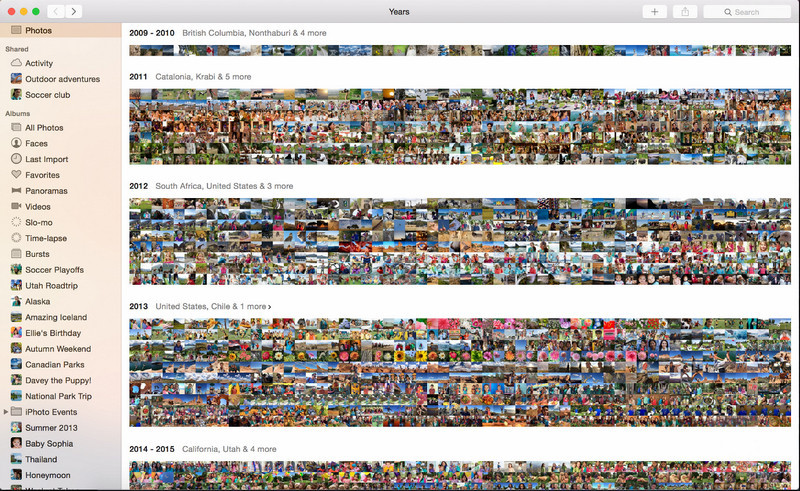
Photo App adalah fitur bawaan pada produk Apple terbaru seperti Mac. Aplikasi ini sudah terpasang, jadi Anda bisa melewati bagian pengunduhan dan langsung menggunakannya. Perangkat lunak ini bukan editor gambar karena tujuannya adalah menjadi perpustakaan dan penampil foto di perangkat Mac atau iOS. Meskipun Anda tidak memiliki editor gambar profesional di Mac, Anda bisa memanfaatkan fitur ini untuk mendapatkan hasil yang tampak profesional hanya dengan satu klik. Jadi, jika Anda ingin menghapus objek menggunakan Photo App, Anda dapat mengikuti langkah-langkah yang kami tambahkan dan ikuti dengan saksama.
Langkah 1. Buka Photos App di Mac Anda dan pilih gambar yang memiliki objek tidak diperlukan.
Langkah 2. Di bagian kanan atas, klik tombol Edit untuk mulai mengedit gambar.
Langkah 3. Di bagian kanan, Anda akan melihat opsi Retouch; klik untuk menggunakan fungsinya.
Langkah 4. Klik dan seret mouse ke area yang ingin Anda hilangkan.
Langkah 5. Tekan tombol Done untuk menyimpan perubahan yang Anda terapkan pada gambar.
Bagian 3. Hapus Objek dari Foto Menggunakan Aplikasi di Android & iOS
PERBAIKAN Photoshop
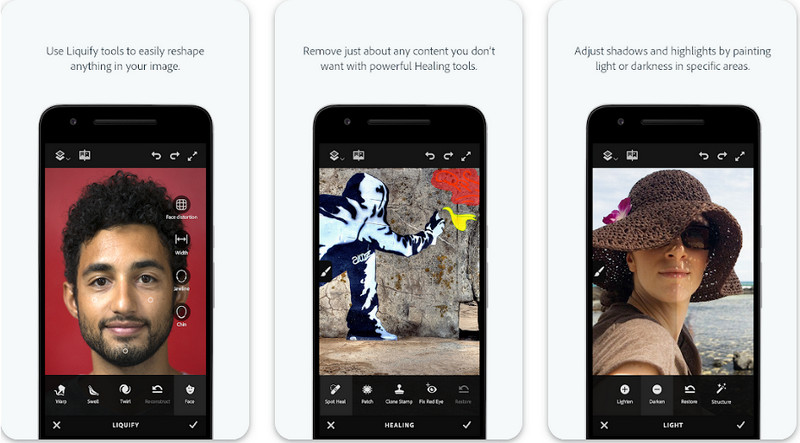
Photoshop FIX adalah aplikasi Android yang efektif untuk menghapus objek dari foto, bekerja secara profesional namun tetap mudah digunakan. Ini adalah aplikasi sumber terbuka yang dapat Anda unduh ke perangkat Anda begitu Anda membuka PlayStore. Walaupun alat ini open-source, fitur penghapusan objeknya sangat baik tanpa diragukan. Ini adalah salah satu aplikasi yang paling sering diunduh di perangkat Android untuk melakukan tugas ini. Jadi, jika Anda ingin tahu cara menggunakannya, lanjutkan membaca penjelasan di bawah.
Langkah 1. Unduh aplikasinya di perangkat Android Anda.
Langkah 2. Tekan On My Phone untuk menampilkan semua gambar di pustaka Anda. Pilih gambar yang ingin Anda edit.
Langkah 3. Untuk menggunakan fitur penghapusan objek pada aplikasi ini, klik Healing.
Langkah 4. Di sini, Anda dapat menggunakan dua opsi untuk menghapusnya. Untuk menghapus objek dengan kuas, pilih Spot Heal. Namun jika Anda ingin mengkloning piksel, Anda harus memilih Clone Stamp. Sorot watermark dengan pilihan Anda.
Langkah 5. Simpan gambar ke Camera Roll Anda, dan selesai!
Perbaikan Foto
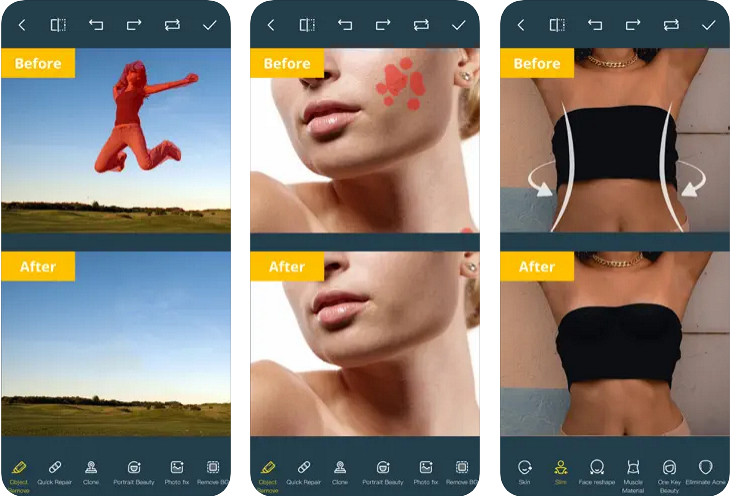
Photo Retouch adalah aplikasi andal untuk menghapus objek dari foto di iPhone tanpa kesulitan. Meskipun Anda bukan ahli dalam menghapus objek pada gambar, Anda tetap dapat menghilangkannya dengan efektif. Anda bisa mengunduh aplikasi ini di AppStore secara gratis jika ingin mencobanya. Selain itu, Anda juga dapat menghapus latar belakang dan watermark pada foto jika diperlukan. Jika Anda siap menggunakan aplikasi ini untuk menghilangkan objek di gambar Anda, Anda bisa mengikuti langkah-langkah yang kami tambahkan.
Langkah 1. Unduh aplikasi resminya, lalu jalankan.
Langkah 2. Klik Photo Eraser, lalu Photo. Pilih gambar dengan latar belakang yang tidak diperlukan yang ingin Anda hapus, dan pastikan gambar tersebut ada di Photos pada iPhone Anda.
Langkah 3. Di bagian bawah, pilih opsi Object Removal.
Langkah 4. Gunakan kuas yang didukung aplikasi ini untuk menelusuri objek yang ingin Anda hapus dan klik GO untuk menghapus objek.
Terkait:
Hapus Watermark Filter Picsart
Bagian 4. FAQ tentang Cara Menghapus Objek dari Foto
Mengapa saya perlu menghapus objek dari foto?
Ada banyak waktu kita mengabadikan sesuatu, dan ada Photobombers. Objek ini menjadi masalah bagi sebagian besar profesional pada orang lain karena tidak menyoroti gambar yang Anda ambil. Jadi, alih-alih mengambil kembali gambar, Anda dapat membaca cara ideal berikut untuk menghapus objek pada foto Anda.
Bisakah saya memotong gambar untuk menghapus objek?
Ya kamu bisa. Jika objek yang ingin Anda hapus berada di samping foto, maka Anda dapat mencoba memotong gambar dengan editor bawaan Anda. Namun, pilihan ini bukanlah pilihan, terutama jika objek berada di bagian tengah atau dekat gambar yang Anda ambil. Memotong gambar akan memotong foto, jadi lebih baik berpikir dua kali jika ingin mencoba opsi ini.
Mengapa saya tidak dapat mengunggah gambar untuk menghapus objek?
Anda tidak dapat mengunggah gambar; baik gambar rusak, atau ekstensi gambar tidak didukung. Jika gambar Anda rusak, ada cara untuk memperbaikinya. Anda dapat menemukannya di web jika Anda mencarinya. Biasanya, itu bisa berupa ekstensi file gambar; untuk mengatasi masalah ini, Anda harus mengonversinya.
Kesimpulan
Menghapus objek dari foto itu mudah karena alat dan aplikasi yang kami daftarkan di artikel ini. Jadi, alat mana yang paling Anda sukai? Kami berharap panduan yang kami tambahkan ini membantu Anda menyelesaikan masalah dengan mudah.
-
 Cara Mengonversi Gambar Resolusi Rendah ke Resolusi Tinggi Online
 Jika Anda ingin mempelajari cara mengonversi gambar beresolusi rendah menjadi gambar beresolusi tinggi secara online, maka artikel ini cocok untuk Anda. Baca selengkapnya untuk mempelajari caranya.
-
 Metode Mudah tentang Cara Menghapus Tanda Air Tahan Tembak
 Hapus tanda air Shootproof dengan mengikuti metode mudah ini. Gunakan penghilang tanda air yang menakjubkan ini untuk menghapus tanda air Shootproof dari gambar Anda dengan mudah.
-
 Cara Menghilangkan Watermark Bandicam Dengan Mudah [3 Cara Efektif]
 Bagaimana cara menghilangkan tanda air Bandicam? Dengan alat, kami menambahkan di sini Anda akan tahu bagaimana menghadapinya secara efektif!
