


 Video Converter Ultimate
 Perekam Layar
 Perbaikan Video
 Unduhan Aman
3 Penghilang Tanda Air Shutterstock untuk Menggunakan & Menghapus Tanda Air pada Video
Apakah Anda membutuhkan video Shutterstock berlisensi dan berkualitas tinggi untuk proyek Anda, tetapi masih ada watermark Shutterstock pada video tersebut? Dengan bantuan penghapus watermark Shutterstock, Anda dapat dengan mudah menghapus watermark pada video yang sudah diunduh. Secara profesional maupun pribadi, kita tidak menyukai video yang ada watermark-nya karena hal itu merusak keseluruhan konsep video. Jadi, jika Anda ingin menghilangkan watermark Shutterstock, lanjutkan membaca informasi dan tutorial singkat yang kami jelaskan dalam artikel ini.

Bagian 1. Cara Menghapus Tanda Air Shutterstock dengan Penghilang Tanda Air Terbaik di Pasar [Pilihan Editor]
FVC Video Converter Ultimate dapat secara akurat membantu dan memandu Anda tentang cara menghapus watermark Shutterstock pada video yang telah Anda simpan. Ini adalah solusi lengkap yang bisa Anda unduh di Windows dan Mac untuk menyesuaikan video Anda, termasuk menghapus watermark. Meskipun merupakan perangkat lunak serba bisa, pengembang program ini tetap menjaganya agar tetap mudah digunakan sehingga siapa pun yang ingin memakainya dapat melakukannya tanpa harus memiliki pengetahuan yang luas.
Bahkan dengan keterampilan tingkat rendah, Anda dapat memiliki output terbaik di akhir setelah Anda menggunakan editor ini. Masih belum yakin dengan informasi yang kami tambahkan? Untuk membuktikannya, kami akan mengajari Anda cara menghapus tanda air Shutterstock secara gratis dengan editor video ini.
Langkah 1. Untuk menghapus watermark pada video yang Anda unduh, pertama-tama Anda perlu mengunduh editor ini dengan mengklik tombol unduh yang sesuai dengan sistem operasi Anda. Akan ada proses instalasi singkat yang perlu Anda lewati; setelah itu, Anda dapat mulai menggunakan perangkat lunak ini.
Unduh GratisUntuk Windows 7 atau yang lebih baruUnduhan Aman
Unduh GratisUntuk MacOS 10.7 atau yang lebih baruUnduhan Aman
Langkah 2. Selanjutnya, gunakan Video Watermark Remover yang bisa Anda temukan di bawah menu Toolbox. Seperti yang Anda lihat, Anda dapat menggunakan berbagai fitur dan fungsi pengeditan untuk menyesuaikan video sesuai tampilan yang Anda inginkan.
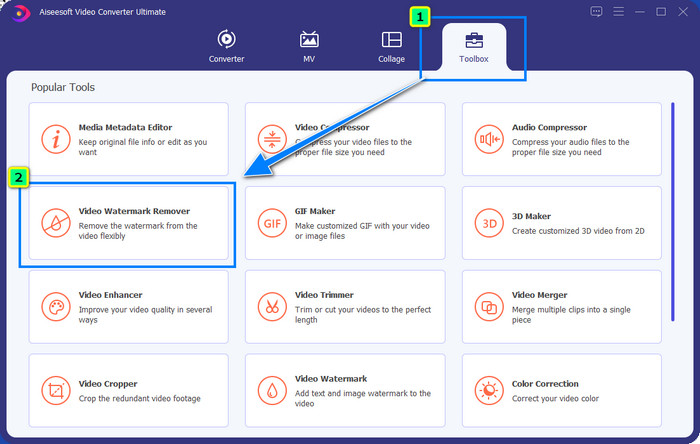
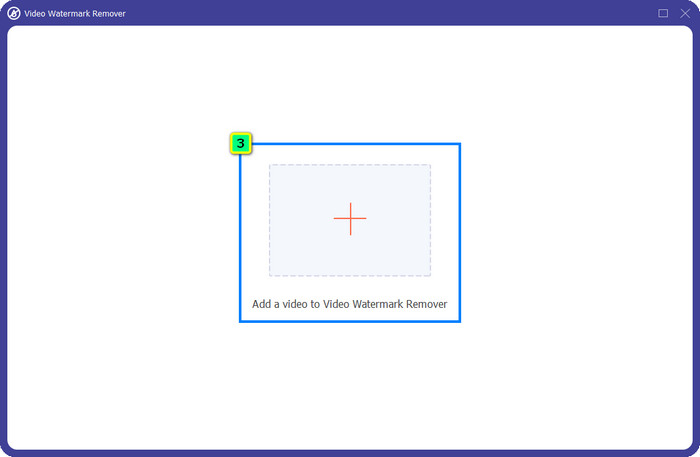
Langkah 3. Klik ikon plus, dan pengelola berkas akan muncul di layar Anda. Pilih berkas video yang memiliki watermark, lalu klik Open untuk mengunggahnya.
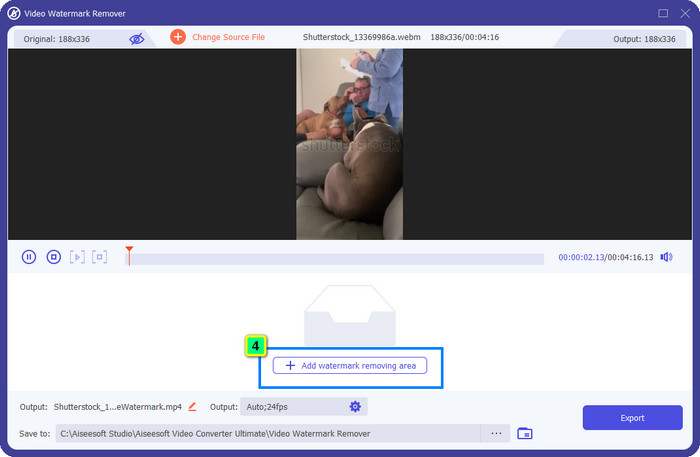
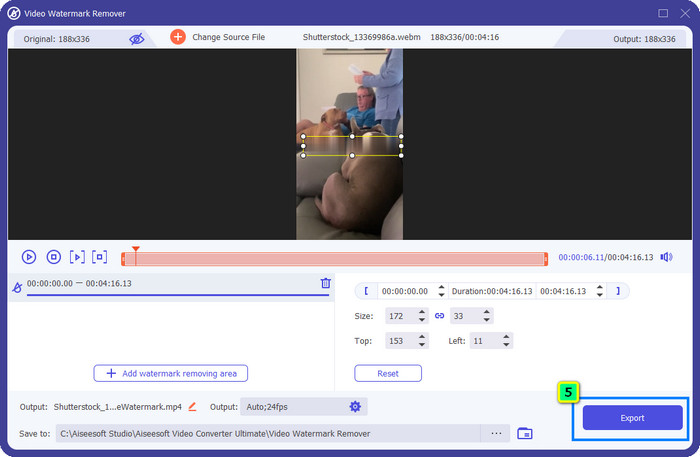
Langkah 4. Untuk menghapus watermark pada video yang telah Anda unggah, tekan Add Watermark Removing Area, dan jendela baru akan muncul.
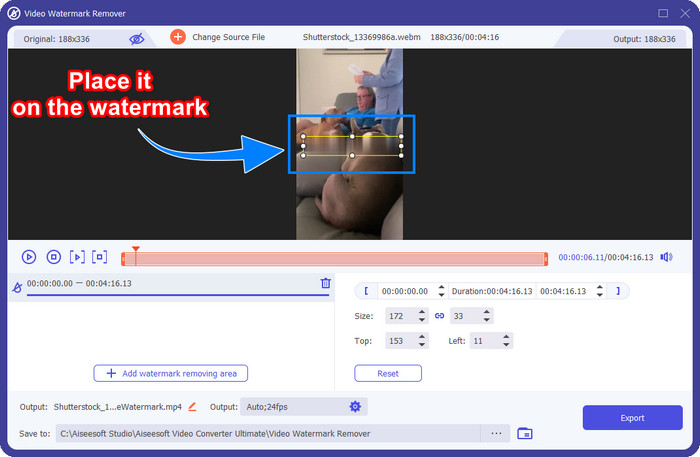
Langkah 5. Pada bagian ini akan muncul sebuah kotak persegi pada video Anda; letakkan kotak tersebut di area watermark. Anda dapat mengubah ukurannya, menyeret, mengecilkan, atau memperbesarnya agar benar-benar pas menutupi watermark yang ingin Anda hilangkan.
Langkah 6. Terakhir, klik tombol Export untuk mengunduh output akhir video Shutterstock yang Anda unduh ke perangkat Anda. Sekarang Anda dapat menikmatinya tanpa khawatir dengan watermark karena watermark tersebut sudah dihapus.
Bagian 2. Cara Menghapus Tanda Air Shutterstock Online Gratis
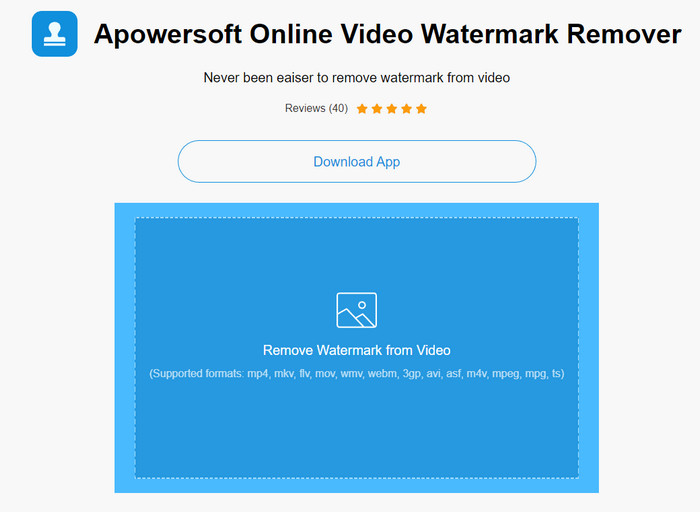
Tidak menyukai ide mengunduh penghapus watermark di desktop? Jika demikian, Anda bisa menggunakan Apowersoft Online Watermark Remover, dan kami akan mengajarkan Anda cara menghapus watermark Shutterstock secara online. Ini adalah pilihan yang sangat baik bagi siapa saja yang perlu menghapus watermark pada video ataupun gambar yang mereka miliki. Alasan kami menambahkannya adalah karena perangkat lunak ini mudah diakses dan kompatibel dengan berbagai sistem operasi yang Anda gunakan.
Tidak seperti alat offline, Anda memerlukan koneksi internet yang stabil dan kuat untuk menggunakannya. Seperti yang kami janjikan, di bawah ini adalah tutorial menggunakan penghapus tanda air ini untuk menghilangkan tanda air yang ditinggalkan Shutterstock di atasnya.
Langkah 1. Buka situs resmi Apowersoft Online Watermark Remover menggunakan mesin pencari favorit Anda, lalu klik tombol + di sisi kanan untuk mengunggah berkas video.
Langkah 2. Letakkan selection box pada watermark Shutterstock di video.
Langkah 3. Setelah itu, klik Erase untuk menghapus watermark dan melihat hasilnya.
Langkah 4. Tekan Download File untuk mendapatkan video Shutterstock tanpa watermark.
Bagian 3. Cara Menghapus Tanda Air Shutterstock Menggunakan Photoshop [Berbayar]
Banyak pengguna menanyakan cara menghapus watermark Shutterstock menggunakan Photoshop, dan kami akan membantu Anda! Adobe Photoshop mendukung fitur profesional untuk menghapus watermark yang pasti akan Anda sukai. Sama seperti perangkat lunak yang diperkenalkan dalam artikel ini, alat ini juga mampu mengerjakan tugas tersebut; namun pendekatannya dalam menghapus watermark adalah frame per frame. Artinya, Anda harus meluangkan waktu untuk menghilangkan watermark pada setiap frame video; semakin panjang videonya, semakin banyak pula frame yang harus diproses. Jika Anda ingin tahu cara kerjanya, baca langkah-langkah informatif di bawah ini.
Langkah 1. Unduh aplikasinya di desktop Anda, lalu klik File. Di bawah menu tersebut, tekan Open untuk mengunggah video yang tersimpan di komputer Anda.
Langkah 2. Di sisi kiri, pilih Magic Wand Tool, lalu klik watermark yang ingin Anda hapus. Fitur ini akan secara otomatis melacak area watermark pada frame.
Langkah 3. Buka menu Edit dan tekan Content-Aware Fill setelah Anda menandai watermark.
Langkah 4. Setelah Anda membuka Content-Aware Fill, watermark yang Anda pilih sebelumnya akan otomatis dihapus, lalu tekan OK.
Bacaan Lanjutan:
Metode Mudah Cara Menghapus Watermark Shootproof
Cara Menghapus Watermark Bandicam dengan Mudah [3 Cara Efektif]
Bagian 4. FAQ tentang Cara Menghapus Tanda Air Shutterstock
Bagaimana cara menghapus tanda air Shutterstock tanpa Photoshop?
Anda dapat menggunakan FVC Video Converter Ultimate untuk menghapus Shutterphoto yang terikat pada video Anda. Ini memiliki penghapus tanda air yang kuat yang ingin Anda coba. Ikuti langkah-langkah yang kami tambahkan di artikel ini untuk melakukannya seefektif Photoshop.
Apakah memotong tanda air Shutterstock akan berfungsi di video?
Jika Anda ingin mengubah ukuran video dengan mengubah dimensi, Anda dapat memotong video dengan bantuan beberapa editor video online dan offline. Karena watermark Shutterstock berada di tengah, lebih baik tidak menggunakan fitur cropping. Banyak penghilang tanda air di sini untuk membantu; Anda dapat membaca dan menyalin tutorial yang kami tambahkan sehingga Anda dapat menghapusnya secara efektif tanpa meninggalkan noda.
Apakah legal untuk menghapus tanda air Shutterstock?
Menghapus tanda air Shutterstock tidak sah, tetapi jika Anda ingin menggunakannya untuk non-komersial, Anda dapat melakukannya dengan bantuan penghapus tanda air. Lebih baik membeli foto yang Anda inginkan di Shutterstock jika Anda akan menggunakannya untuk tujuan komersial; meskipun akan dikenakan biaya, setidaknya Anda memiliki hak hukum untuk menggunakannya.
Kesimpulan
Sekarang, Anda sudah tahu cara menghapus watermark Shutterstock dengan perangkat lunak yang disertakan dalam artikel ini. Jadi, mana yang Anda pilih: yang berbayar, yang gratis dan online, atau perangkat lunak ultimate? Apa pun pilihan Anda, Anda dapat memperoleh foto Shutterstock tanpa logo produk. Namun jika Anda bertanya kepada kami mana yang sebaiknya digunakan, tanpa ragu kami akan memilih FVC Video Converter Ultimate, karena perangkat lunak ini memberikan hasil paling memuaskan dalam menyelesaikan tugas. Walaupun merupakan penghapus watermark yang lengkap, alat ini tetap mudah digunakan. Jadi, jika Anda ingin mencoba perangkat lunak ini, Anda dapat mengeklik tombol unduh untuk memasangnya di desktop Anda.
-
 Alat Utama untuk Menghapus Tanda Air dari Video Ekspor Renderforest
 Untuk menghapus tanda air dari Renderforest Anda memerlukan penghapus tanda air di perangkat Anda, semua alat yang dapat Anda gunakan ada di sini.
-
 Langkah Mudah Cara Menghilangkan Watermark Slider WOW [Soal]
 WOW Slider adalah aplikasi untuk membuat tayangan slide yang fantastis. Namun, ia menyematkan tanda air pada outputnya. Baca di bawah untuk mempelajari cara menghapus tanda air WOW Slider.
-
 Cara Menghilangkan Watermark Power Director Secara Gratis [Lengkap]
 Bagaimana cara menghilangkan tanda air Power Director secara gratis? Alat terbaik untuk menghilangkan tanda air ada di sini, jadi pelajari dengan membaca ini.
